How to Export Highcharts to PDF With html2canvas in IE and Firefox
Use Highcharts’ exporting module for chart PDFs, then choose client-side, hosted, or self-hosted conversion. Learn what html2canvas can and can’t do in IE and Firefox.
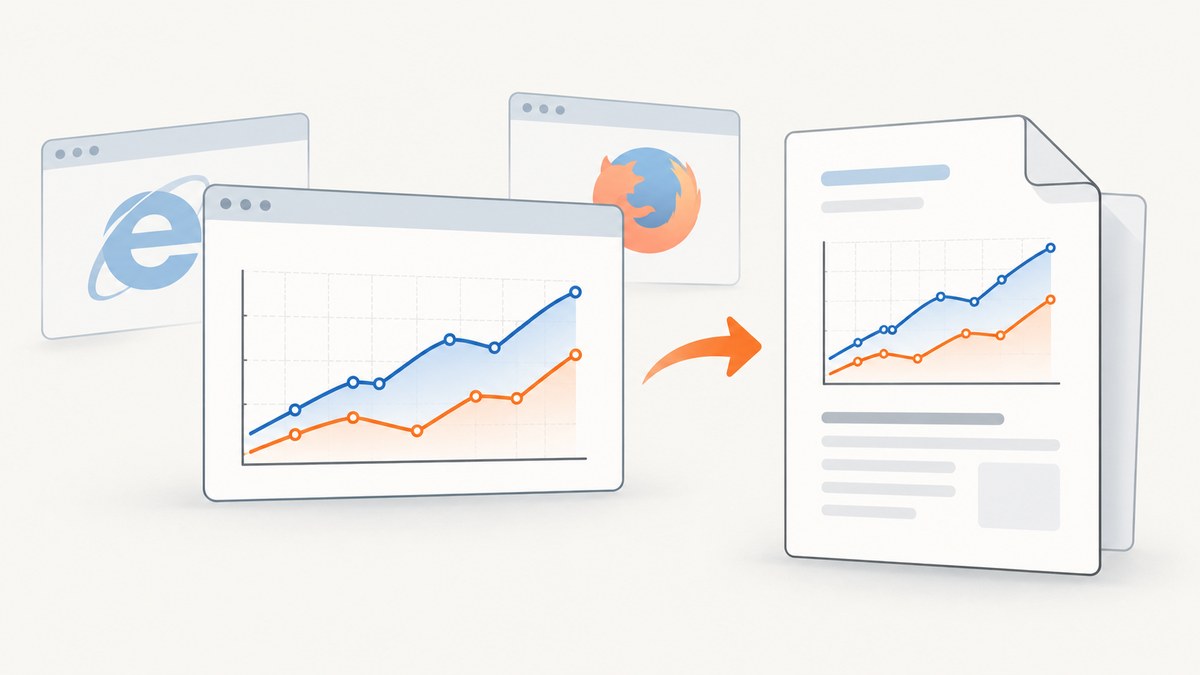
Short answer: For a PDF of a Highcharts chart, start with Highcharts’ exporting module and its PDF export path. html2canvas is a separate library for reconstructing page content from the DOM; it is not the documented Highcharts PDF engine, and its browser guide does not list Internet Explorer. Firefox is listed among modern evergreen browsers. The exact route depends on your Highcharts version, browser version, and whether conversion can happen in the browser or must happen on a server.
There is no single version-agnostic recipe that guarantees a chart PDF in every Internet Explorer and Firefox release. Identify the versions you support, choose an export route, and test the actual chart and browser combinations. Highcharts’ general compatibility table is not a matrix for every export feature.
1. Choose the right export path
Highcharts supports chart exports such as PDF, PNG, JPG, and SVG, plus printing. For PDF, the documented choices are client-side conversion, Highcharts’ export service, or a self-hosted export server. Client-side export became the default in Highcharts v12.3, so older integrations may have different defaults.
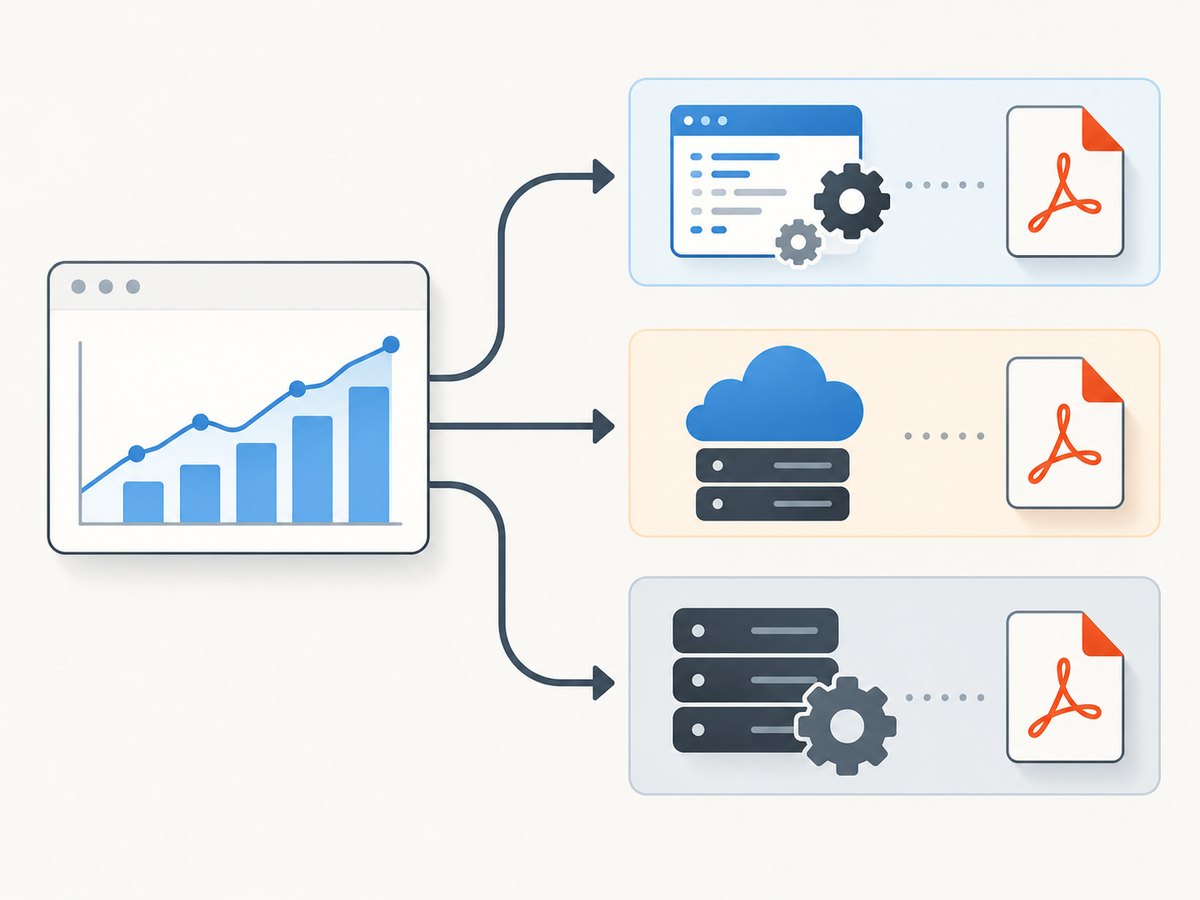
| Path | Where conversion runs | Use it when | Things to check |
|---|---|---|---|
| Client-side PDF | In the visitor’s browser | The target browser and chart features work with local export, and you want to avoid sending chart SVG to a public service. | Required PDF dependencies, legacy browser support, fonts, and fallback behavior. |
| Highcharts export service | Highcharts’ hosted service | You want a hosted conversion path and your data handling policy permits sending generated SVG to that service. | Network availability, privacy requirements, service fallback, and supported features. |
| Self-hosted export server | Your Node.js service | You need server-side rendering, want control over where conversion runs, or client-side export lacks a required feature. | Deployment, updates, capacity, security, and operational ownership. |
Highcharts’ client-side PDF path uses offline-exporting.js and third-party PDF libraries. The optional dependencies documentation identifies svg2pdf.js and jspdf.js for PDF generation. For certain image exports in Internet Explorer and pre-Chromium Edge, it identifies canvg.js; that is not the stated PDF dependency. Dependency URLs can be configured. Highcharts notes that these third-party libraries have their own security, licensing, and warranty considerations. Consult the official export module overview and optional dependencies page for the version you deploy.
2. Check browser and version support
Highcharts’ system requirements list Firefox 2.0+ and Internet Explorer 9.0+ for the library generally. Beginning with Highcharts v11, legacy browser users should load scripts from the es5 directory. These statements do not promise every export function works in all those browsers. In particular, do not infer that a current client-side PDF dependency, its syntax, or a feature in your chart is compatible with an old IE release just because Highcharts itself lists that browser.
- Record the exact Highcharts version and the exact IE and Firefox versions your application must support.
- Check whether your Highcharts build is from the ES5 distribution when supporting legacy browsers with v11 or later.
- Choose client-side, hosted, or self-hosted conversion based on browser support, data sensitivity, and operational constraints.
- Test the real chart, fonts, images, labels, and export error path in each supported browser.
See Highcharts system requirements for the current browser guidance. Treat it as library-level guidance, not a substitute for an export feature test.
3. Configure Highcharts client-side PDF export
For a modern setup, load Highcharts, the exporting modules, and the PDF dependencies required by the deployed Highcharts version. If you self-host dependencies, configure their location with exporting.libURL where applicable. The example below shows the intended module setup and an export button; dependency filenames and loading conventions must match your installed version and package.
<script src="https://code.highcharts.com/highcharts.js"></script>
<script src="https://code.highcharts.com/modules/exporting.js"></script>
<script src="https://code.highcharts.com/modules/offline-exporting.js"></script>
<!-- Load compatible svg2pdf.js and jsPDF dependencies as required
     by the Highcharts version you deploy. -->
<div id="chart"></div>
<script>
Highcharts.chart('chart', {
  title: { text: 'Monthly revenue' },
  xAxis: { categories: ['Jan', 'Feb', 'Mar', 'Apr'] },
  series: [{ name: 'Revenue', data: [12, 18, 15, 24] }],
  exporting: {
    // Configure libURL when required by your Highcharts version and
    // dependency hosting setup. Verify the exact option in that version.
    fallbackToExportServer: true,
    buttons: {
      contextButton: {
        menuItems: ['downloadPDF', 'downloadPNG', 'downloadSVG']
      }
    }
  }
});
</script>
This example intentionally leaves third-party dependency URLs out: use trusted, pinned files compatible with your Highcharts version and your application’s license and security requirements. Do not assume the current CDN’s scripts will run in legacy IE. Highcharts’ API documents fallbackToExportServer for controlling whether export falls back when local export fails due to a browser or feature. The current API entry says that since v13, PDF dependencies are not auto-loaded unless exporting.libURL is configured or the scripts are already present. Verify this behavior against your deployed version and handle failures deliberately. See the Highcharts exporting API.
You can invoke an export programmatically after the chart exists:
const chart = Highcharts.chart('chart', options);

function downloadPdf() {
  try {
    chart.exportChart({ type: 'application/pdf' });
  } catch (error) {
    // Surface a useful message in your application and log details.
    console.error('PDF export could not be started:', error);
  }
}

document.getElementById('pdf-button').addEventListener('click', downloadPdf);
In legacy environments, confirm the exact API and syntax against the Highcharts release you use. A synchronous try/catch cannot necessarily catch every asynchronous resource-loading or export failure. Provide a visible failure path and test fallback behavior rather than assuming an exception will always reach this handler.
4. Understand where html2canvas fits
html2canvas traverses the DOM and reconstructs a representation of page content. It does not take a literal browser screenshot, and it renders only properties it understands. Its documented support covers modern evergreen browsers, including Firefox; the guide does not list Internet Explorer. Therefore, it is not a dependable answer to “make Highcharts PDF export work in IE.” It may be useful when the requirement is to capture broader DOM content around a chart, but validate the result in the actual target browsers.
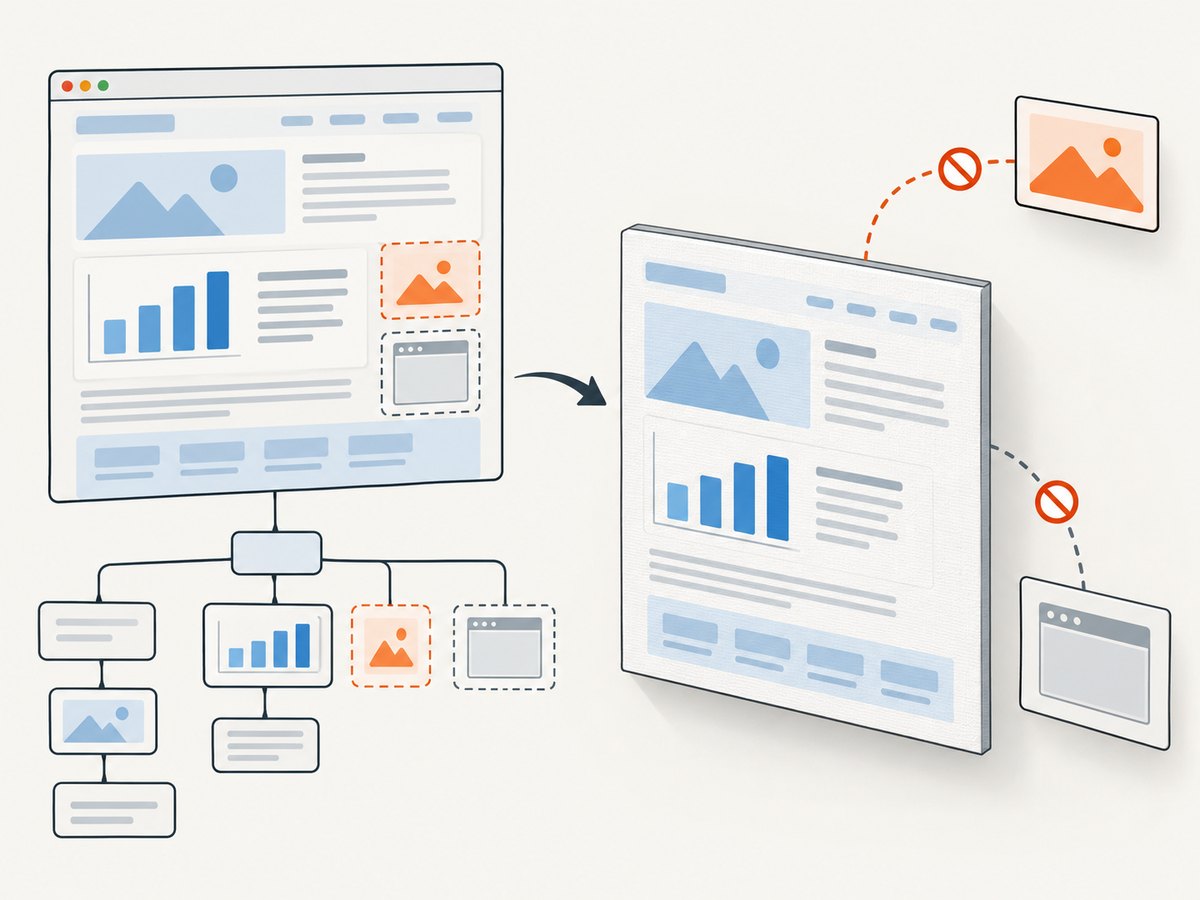
Even where it runs, it produces a canvas rather than a PDF by itself. You would need a separate PDF-generation step, with its own compatibility and layout limitations. A canvas can also lose access to cross-origin image data, and cross-origin iframes cannot be rendered because of browser security restrictions. See the html2canvas getting started guide and its limitations documentation.
For a chart-only PDF, use Highcharts’ export route. Consider html2canvas only when the deliverable includes surrounding page DOM and your browser, CSS, asset origins, and PDF conversion step have all been verified. It is especially important to separate a chart’s SVG export support from the ability of a DOM renderer to reproduce the entire page.
5. Decide whether data may leave the browser
With Highcharts’ public export service, the generated SVG is sent from the browser to that service for conversion. If chart data is sensitive or policy prohibits that transfer, choose a supported client-side path or operate a private export server. A self-hosted server gives you control over the rendering environment, but your team assumes responsibility for deployment and maintenance.
Highcharts describes its self-hosted exporter as a Node.js service using Puppeteer to render charts to formats including PDF. Review the server setup guide before adopting it. The right choice depends on supported features, the data boundary, and who can operate the service reliably. The Highcharts FAQ also discusses the public export service and privacy alternatives.
6. Troubleshoot common failures
| Symptom | Likely cause | What to do |
|---|---|---|
| PDF option is missing or does nothing | The exporting or offline-exporting module is absent, or the PDF libraries were not loaded. | Check the browser console and network panel. Load the modules and version-compatible svg2pdf.js/jsPDF dependencies as documented for your release. |
| Local export fails, but another route works | A browser or chart feature is unsupported by local conversion, or dependency loading failed. | Choose an explicit fallback policy with fallbackToExportServer, or use a server route that supports the needed chart. Test the failure path. |
| IE shows syntax errors before export runs | The browser may be too old for the JavaScript build or dependency syntax. Highcharts v11+ directs legacy browsers to its ES5 directory. | Use the appropriate ES5 distribution and dependencies compatible with that browser; verify the exact IE version. If local export remains unsuitable, evaluate server conversion. |
| Chart is cut off or labels are missing | The exported chart dimensions, fonts, or rendering environment differ from the interactive page. | Set and test chart dimensions deliberately, ensure fonts are available to the conversion environment, and compare output in each target browser. |
| Images disappear or export reports a security error | Cross-origin image content can taint a canvas; cross-origin iframes are restricted. | Serve assets with appropriate cross-origin access where possible, or avoid the canvas-based route for those assets. Test with the real origins and authentication setup. |
| Export works in Firefox but not Internet Explorer | html2canvas documents modern evergreen browser support and does not list IE; Highcharts library compatibility alone does not prove export compatibility. | Use Highcharts’ export module and test its specific PDF route, or run conversion through a suitable server. Do not treat html2canvas as an IE compatibility layer. |
| Works locally but not in production | Dependency URLs, CSP, network access, or deployment paths differ. | Pin and serve approved dependency files, verify requests under production CSP, and configure the library location supported by your Highcharts version. |
7. Improve performance and reliability
- Keep the export payload focused. Export only the chart or content required. Large page captures and oversized charts take more browser memory and can make legacy browsers less reliable.
- Control dependencies. Pin versions, avoid relying on accidental CDN availability, and monitor failed dependency requests. Third-party libraries need their own security and licensing review.
- Make failure visible. Tell users when export could not complete and offer a retry or server-side path appropriate to your application. Do not silently download a blank or incomplete file.
- Test representative data. Long labels, dense series, custom fonts, images, and unusual chart features can behave differently from a small demo chart.
- Measure the full path. Separate chart rendering, dependency loading, conversion, and download time so you know where the delay occurs.
- Test a browser matrix. Record browser version, Highcharts version, export route, and result. Repeat after upgrading any of those components.
There is no universal performance figure in the cited documentation for this combination. Rendering cost depends on chart complexity, the browser or server performing conversion, and resource loading. For reliability, a server route can make the rendering environment more consistent, while introducing service operations and network dependencies.
8. Or skip the browser setup
For a screenshot of the page or chart, ScreenshotNeo is a website screenshot API and MCP server. It returns PNG, JPEG, WebP, or PDF from one GET request. It does not replace Highcharts’ chart-aware export when you need a data-native chart PDF; it is an option when a rendered page capture is the desired output.
One-call PDF example using a page that contains your chart:
curl -G "https://api.screenshotneo.com/v1/shot" \
  -d access_key=YOUR_API_KEY \
  --data-urlencode url=https://example.com/chart-page \
  -d format=pdf -o chart-page.pdf
See the ScreenshotNeo API documentation for authentication and request options. Cookie banners are accepted and removed before the shot, along with known newsletter popups and chat widgets; each cleanup step can be turned off. Bot checks, blank pages, timeouts, failed loads, and cache hits are not billed, and the response identifies the page verdict and billing status. An MCP server provides take_screenshot, get_page_info, and capture_pdf for AI agents. The free plan includes 1,000 shots per month with no card; paid plans start at $5 for 3,000 shots. All features are on every plan.
Sign up free for 1,000 screenshots a month, no card required.
9. Frequently asked questions
Does Highcharts require html2canvas to export a chart as PDF?
No. Highcharts documents its own PDF export paths: local conversion with the offline-exporting module and dependencies, its export service, or a self-hosted export server.
Can html2canvas capture a Highcharts SVG?
It reconstructs DOM content into a canvas and only supports properties it understands. Whether a particular chart and its assets render correctly must be verified in the target browser; this is distinct from Highcharts’ own SVG-based export.
Which route keeps chart data off a public export service?
Use a compatible client-side PDF export or operate a private export server. The public service receives the generated SVG, so evaluate the data boundary before choosing it.
Does Highcharts’ IE compatibility guarantee that PDF export works in IE?
No. The general browser table describes Highcharts library compatibility. Export modules, dependencies, and specific chart features require separate testing.


