How to Load Background Images in HiQPdf HTML-to-PDF Conversion
Fix missing HiQPdf background images: resolve relative URLs, select the right media, print CSS backgrounds, handle lazy loading, and use page layers.

Direct answer: HiQPdf can render a CSS background-image in an HTML-to-PDF conversion when the image URL resolves from the document’s base URL, the selected media rules include that background, and the PDF setup prints background graphics. For an HTML string, pass a baseUrl (or use an absolute URL); then check screen versus print CSS and the background-printing option for your HiQPdf generation. Lazy-loaded images need their lazy-image setting enabled. If you need a background behind every PDF page, use HiQPdf’s page-layouting event instead of CSS.
This guide covers HiQPdf Classic/Chromium and Next terminology separately. Property names differ by generation, so identify the package and version before copying code. HiQPdf’s FAQ documents the base-URL rule, while the Chromium troubleshooting guide covers missing resources and lazy images.
1. Start with a resolving HTML document
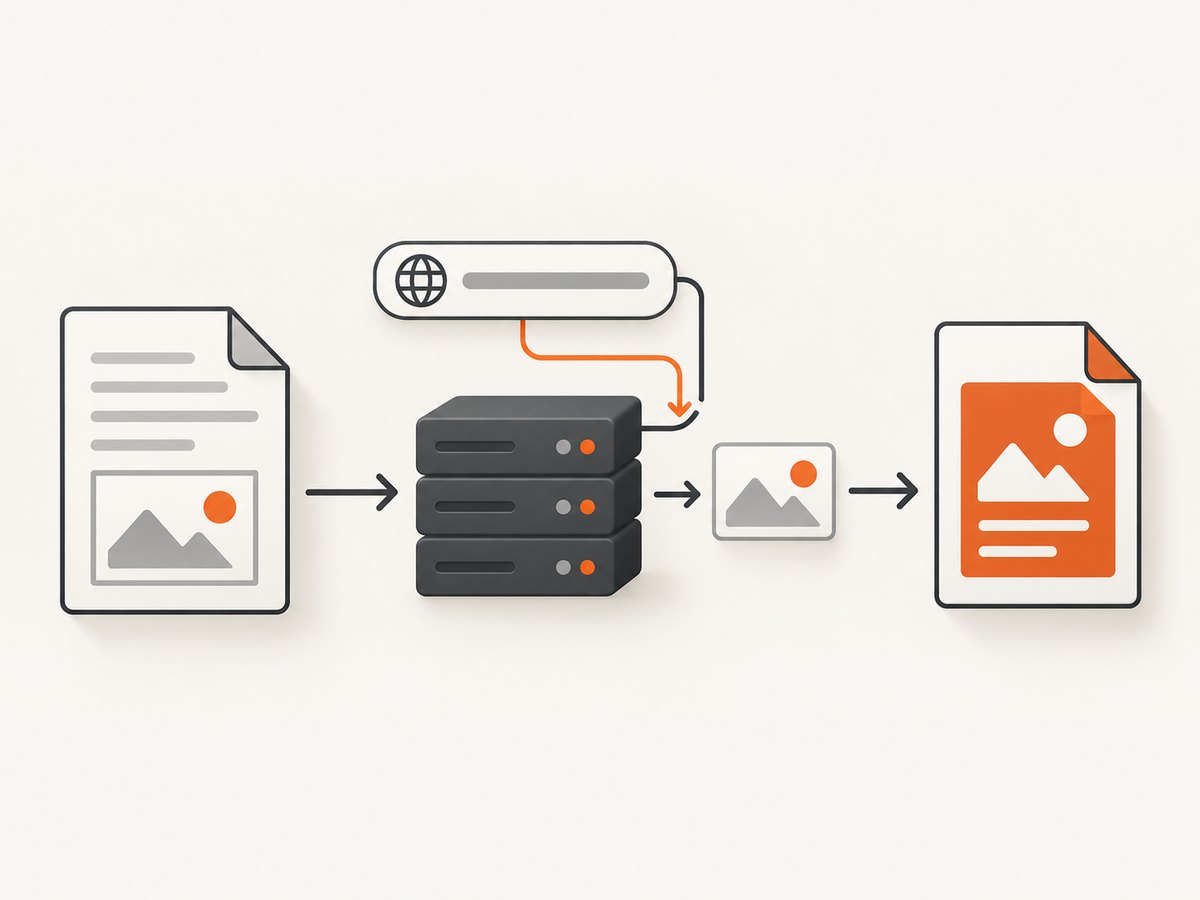
A relative URL is resolved against a resource root. In this example, Images/paper.png becomes https://example.com/assets/Images/paper.png because the base URL ends in /assets/.
<!doctype html>
<html>
<head>
  <base href="https://example.com/assets/">
  <style>
    @page { size: A4; margin: 18mm; }
    body {
      margin: 0;
      min-height: 250mm;
      background-image: url("Images/paper.png");
      background-repeat: repeat;
      background-position: top left;
      background-size: 100% auto;
    }
  </style>
</head>
<body>
  <h1>Invoice</h1>
  <p>Content is laid over the CSS background.</p>
</body>
</html>
The <base> element can establish context inside the HTML, but passing the converter’s baseUrl is the safer choice when your input is an HTML string. A fully qualified image URL is also a useful diagnostic.
C# with an HTML string (HiQPdf API generations)
using HiQPdf;

var html = File.ReadAllText("invoice.html");
var baseUrl = "https://example.com/assets/";

// Use the HtmlToPdf overload for your installed HiQPdf generation.
// The documented overload accepts HTML, an output path, and baseUrl.
var converter = new HtmlToPdf();
converter.ConvertHtmlToFile(html, baseUrl, "invoice.pdf");
HiQPdf editions expose different overload names and document objects. If your build uses ConvertHtmlToPdfDocument or an async method, keep the same inputs: HTML, output destination, and base URL. Verify the exact signature in the reference shipped with your package. The Next overview explains that an HTML string is converted with a base URL for images, stylesheets and scripts: HTML to PDF Converter overview.
C# with a URL
using HiQPdf;

var converter = new HtmlToPdf();
converter.ConvertUrlToFile(
    "https://example.com/invoice.html",
    "invoice.pdf");
A URL conversion already has a document URL context. Relative CSS and image references resolve from that URL, subject to redirects, authentication and network access from the conversion machine.
2. Check CSS media and background printing
Two independent switches often explain a missing background:
- Media type:
@media screenand@media printcan define different backgrounds. HiQPdf Next uses screen media by default; selecting print applies print rules. See Next conversion options and media type selection. - Background graphics: Next page setup exposes
PrintBackgrounds. A print layout that suppresses backgrounds can omit CSS colors and images even when the URL works. See page setup and the document-control property reference.
@media screen {
  .cover { background-image: url("Images/cover-screen.jpg"); }
}
@media print {
  .cover { background-image: url("Images/cover-print.jpg"); }
}
In Next, choose the print media type only when your print stylesheet is intended, and set the page setup’s PrintBackgrounds to true when your installed version provides that property. In Classic or Chromium builds, use the corresponding document/page option; do not paste Next property names blindly.
3. Lazy-loaded backgrounds and images
A CSS background usually loads when its rule is evaluated, but a page can create the rule or URL only after JavaScript runs. An <img loading="lazy"> is a separate case. The Chromium documentation says HtmlToPdfLoadLazyImages is true by default and offers a loading mode; confirm the value in your version and set it explicitly when diagnosing.
var converter = new HtmlToPdf();
// Chromium for .NET terminology; check your package's exact property names.
converter.HtmlToPdfLoadLazyImages = true;
// If available, choose the documented browser or custom loading mode.
converter.HtmlToPdfLazyImagesLoadMode = HtmlToPdfLazyImagesLoadMode.Browser;
converter.ConvertUrlToFile("https://example.com/gallery", "gallery.pdf");
If JavaScript inserts the background after load, add a documented wait-before-convert delay or trigger conversion from the page after the asset has loaded. A delay cannot fix a URL that is inaccessible or incorrectly resolved.
4. CSS background versus a PDF page background layer
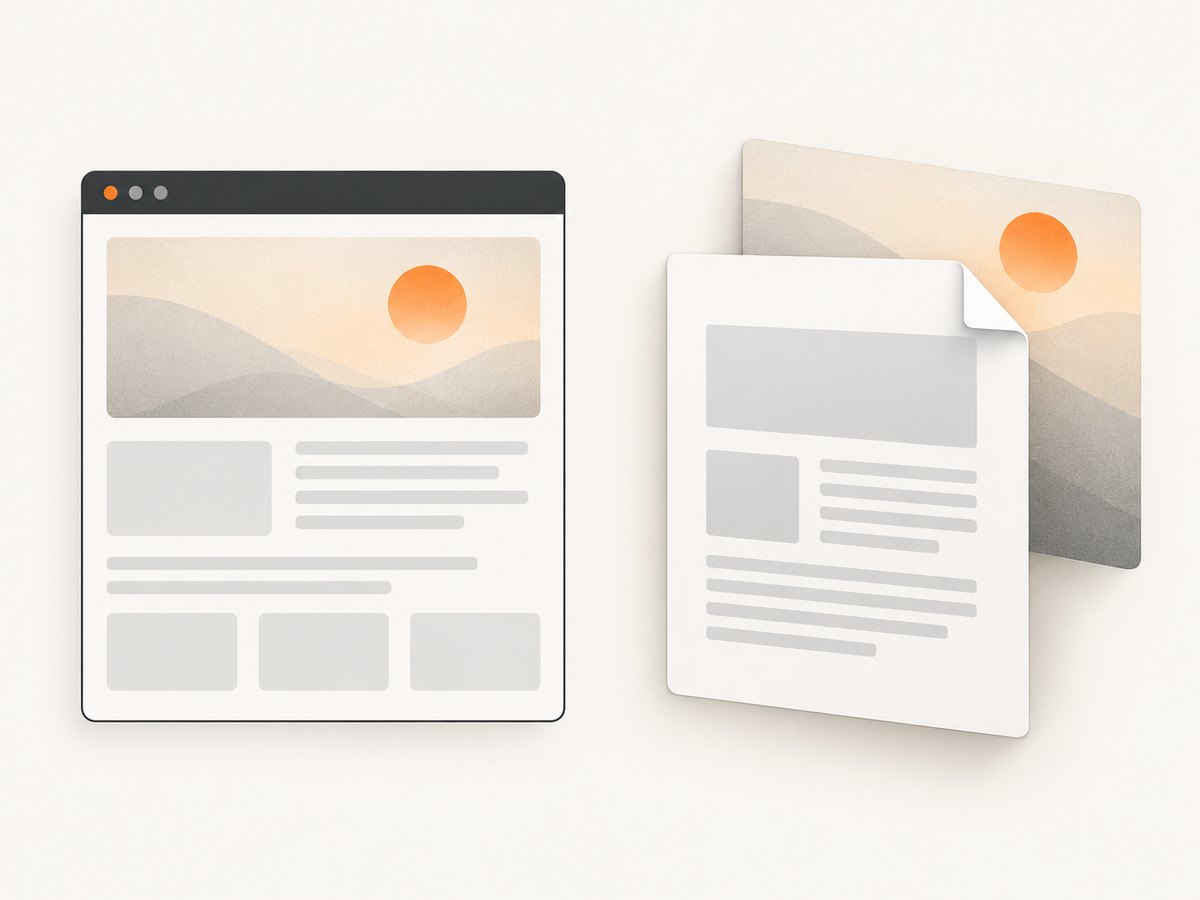
Use a CSS background when the image belongs to an element and should follow HTML layout. Use a page layer when the same image must sit behind every PDF page, independent of DOM flow, margins or page breaks. HiQPdf documents the PageLayoutingEvent for placing PDF images, graphics or HTML before the main content: Set PDF Pages Background Layer.
using HiQPdf;
using System.Drawing;

var converter = new HtmlToPdf();
converter.PageLayoutingEvent += (PdfPageLayoutingParams e) =>
{
    var page = e.PdfPage;
    var background = new PdfRectangle(
        0, 0, page.DrawableRectangle.Width, page.DrawableRectangle.Height);
    background.BackColor = Color.WhiteSmoke;
    page.Layout(background);

    // Load and layout a PDF image here using the image APIs in your edition.
    // Keep it behind HTML by adding it during PageLayoutingEvent.
};
converter.ConvertUrlToFile("https://example.com/report", "report.pdf");
The event runs as each page is laid out, so page dimensions and scaling must be handled in that event. A page-layer image is not a CSS resource; it will not inherit CSS background-size, media queries or element clipping.
5. A repeatable diagnostic checklist
- Identify the product generation. Record whether the project uses Classic, Chromium for .NET or Next .NET, plus the package version.
- Classify the input. For an HTML string, pass a base URL. For a URL, test the final redirected URL and its relative paths.
- Make one URL absolute. Replace
url("Images/paper.png")with an HTTPS URL temporarily. If it appears, fix the base path. - Inspect the resolved path. Check case, URL encoding, redirects, TLS certificates, authentication and whether the converter host can reach it.
- Check media rules. Search for
@media print, print-specific overrides, and a later rule that setsbackground-image: none. - Enable background printing. In Next, verify
PrintBackgrounds; in other editions, use that edition’s page setup. - Wait for dynamic content. Set a documented wait or use a page-triggered conversion after JavaScript finishes.
- Check lazy loading. Explicitly enable the lazy-image option and select a documented loading mode.
- Separate HTML from page-layer needs. If the requirement is a full-page PDF backdrop, move the image to the page-layouting event.
- Log the converter process. Native Chromium failures can indicate missing shared libraries; the troubleshooting guide recommends running the bundled loader executable directly to expose the underlying error.
6. Common errors and fixes
| Symptom | Likely cause | Fix |
|---|---|---|
| Background and external CSS both missing | Relative URLs in an HTML string have no base URL | Pass baseUrl or use fully qualified URLs. |
| Absolute URL also fails | Converter host cannot fetch the resource, or TLS/auth blocks it | Fetch the URL from the conversion host; allow the asset, credentials and certificate chain. |
| Only print output loses the image | Print CSS overrides the rule or backgrounds are disabled | Inspect @media print; enable background printing for the installed edition. |
| Image appears in a browser but not PDF | JavaScript or lazy loading has not completed | Enable lazy-image loading and add a wait or conversion trigger. |
| Wrong image variant | Relative URL resolved from an unexpected directory or a redirect | Use a trailing-slash base URL and log the final resource URL. |
| Background is behind the wrong region | CSS element background used where a page layer was required | Use PageLayoutingEvent for a PDF page background. |
| “Could not read the print status” | Chromium process ended early, often because native libraries are unavailable | Run the bundled loadhtml executable from the runtime folder and install the reported dependency. |
7. Practical CSS patterns
Cover one element
.cover {
  background: #f4f1ea url("Images/cover.jpg") center / cover no-repeat;
  min-height: 260mm;
}
Repeat a small texture
body {
  background-image: url("Images/noise.png");
  background-repeat: repeat;
}
Prevent a decorative layer from changing layout
.watermark {
  position: fixed;
  inset: 0;
  z-index: -1;
  background: url("Images/watermark.svg") center / contain no-repeat;
}
Fixed positioning and negative stacking contexts vary with the renderer and page breaks. For a guaranteed every-page result, use the PDF page layer.
8. Performance, reliability and cost
- Prefer local, cacheable assets or a reachable CDN. Large backgrounds increase download and PDF embedding time.
- Use the smallest image that meets print resolution; a huge raster repeated on every page can inflate output.
- A base URL removes path ambiguity but does not bypass authentication, network policy or certificate validation.
- Keep wait delays bounded. Waiting longer improves reliability for slow JavaScript but increases conversion latency.
- Pin the HiQPdf generation and verify option names after upgrades; Classic/Chromium and Next are different API surfaces.
- For repeatable builds, record the HTML, base URL, media type, background-print setting and asset response status alongside the PDF.
9. Or skip the browser setup
If your goal is a clean capture rather than controlling a local HiQPdf renderer, ScreenshotNeo returns a screenshot or PDF from one GET request. Cookie banners, newsletter popups and chat widgets are removed before the shot; bot checks, blank pages and failed loads are never billed. Its MCP server lets Claude, Cursor and other MCP clients call take_screenshot, get_page_info and capture_pdf. The Free plan includes 1,000 screenshots a month with no card; paid plans start at $5 for 3,000.
See the ScreenshotNeo API docs for all options.
curl -G "https://api.screenshotneo.com/v1/shot" -d access_key=YOUR_API_KEY --data-urlencode url=https://stripe.com -o shot.webpimport requests
r = requests.get("https://api.screenshotneo.com/v1/shot", params={"access_key": "YOUR_API_KEY", "url": "https://stripe.com"}, timeout=90)
open("shot.webp", "wb").write(r.content)const q = new URLSearchParams({ access_key: 'YOUR_API_KEY', url: 'https://stripe.com' });
const res = await fetch(`https://api.screenshotneo.com/v1/shot?${q}`);Create a free ScreenshotNeo account with 1,000 screenshots per month and no card.
10. FAQ
Does background-image work in HiQPdf?
Yes, when the resource resolves and the selected PDF setup prints CSS backgrounds. Missing output is usually a URL, media, timing or edition-setting issue.
Should I use a base URL or an absolute URL?
Use a base URL for maintainable HTML with relative assets. Use an absolute URL as a quick diagnostic or when the document has no stable resource root.
Why does an <img> work while a CSS background does not?
They can be affected by different CSS rules, lazy-loading behavior and background-print settings. Test the resolved URL, media type and background option independently.
Can a CSS background span every PDF page?
It can when attached to a suitable element, but page breaks and renderer behavior make a PDF page layer more predictable for stationery or watermarks.
Which HiQPdf property name should I copy?
Copy names only from the documentation for your installed generation. The research covers Classic/Chromium and Next, whose settings are not interchangeable.


