How to Export Two DOM Elements to Separate PDF Pages with jsPDF
Render each DOM element with html2canvas, place each canvas on its own jsPDF page, and save one PDF with predictable sizing and troubleshooting.

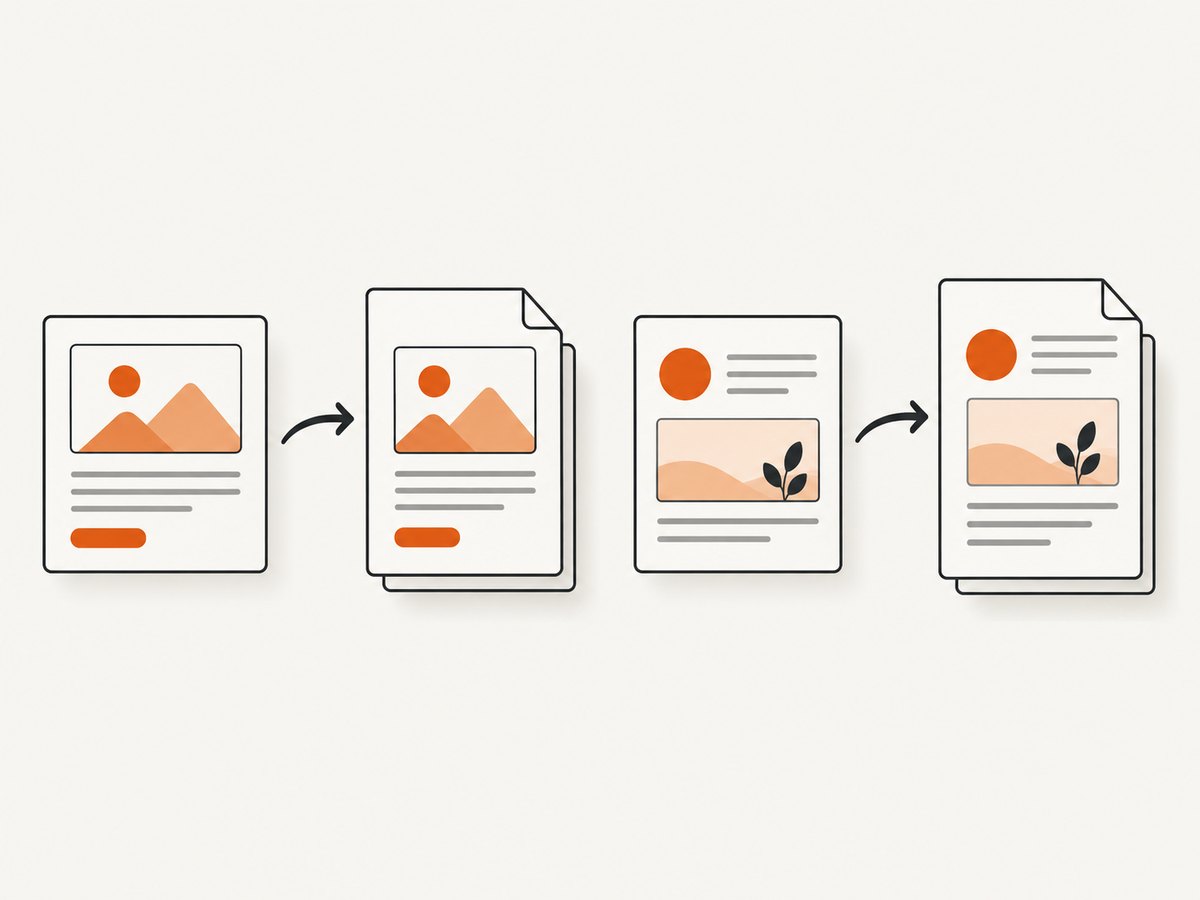
Use html2canvas once for each element, add the first image to the initial jsPDF page, call addPage(), add the second image, then save once. This makes the page boundary explicit and works for any number of DOM elements.
Complete working example
Install the libraries:
npm install jspdf html2canvasThen pass the two elements you want to export to this function:
import { jsPDF } from "jspdf";
import html2canvas from "html2canvas";

export async function exportTwoElements(firstElement, secondElement) {
  const pdf = new jsPDF({
    orientation: "portrait",
    unit: "pt",
    format: "a4"
  });

  const targets = [firstElement, secondElement];

  for (let index = 0; index < targets.length; index += 1) {
    const element = targets[index];

    if (!(element instanceof HTMLElement)) {
      throw new TypeError(`Target ${index + 1} is not an HTMLElement`);
    }

    const canvas = await html2canvas(element, {
      scale: 2,
      backgroundColor: "#ffffff"
    });

    const image = canvas.toDataURL("image/png");
    const pageWidth = pdf.internal.pageSize.getWidth();
    const pageHeight = pdf.internal.pageSize.getHeight();
    const margin = 24;
    const availableWidth = pageWidth - margin * 2;
    const availableHeight = pageHeight - margin * 2;
    const ratio = Math.min(
      availableWidth / canvas.width,
      availableHeight / canvas.height
    );
    const width = canvas.width * ratio;
    const height = canvas.height * ratio;
    const x = (pageWidth - width) / 2;
    const y = (pageHeight - height) / 2;

    if (index > 0) {
      pdf.addPage();
    }

    pdf.addImage(image, "PNG", x, y, width, height);
  }

  pdf.save("export.pdf");
}

const first = document.querySelector("#invoice-summary");
const second = document.querySelector("#invoice-details");

if (!first || !second) {
  throw new Error("Both export targets must exist");
}

await exportTwoElements(first, second);
The example uses A4 portrait pages, points as the unit, a two-times raster scale, and a 24-point margin. It preserves the canvas aspect ratio and centers each capture. The first element uses jsPDF’s initial page; every later element gets a new page before its image is placed.
How the page break works
- Create one
jsPDFinstance. - Render the first element with
html2canvas. - Convert its canvas to an image data URL.
- Fit and place that image on the current PDF page with
addImage. - Call
addPage()before placing the next element. - Save after all elements have been added.
Calling addPage() inside the loop is what guarantees one element per page. Do not create a new jsPDF instance for every element unless you intentionally want separate PDF files.
Choosing page size, orientation, and margins
jsPDF accepts a page orientation, a unit, and a format. Common formats include "a4", "letter", and custom dimensions. The page dimensions returned by pdf.internal.pageSize.getWidth() and getHeight() are already expressed in the unit you selected.
const pdf = new jsPDF({
  orientation: "landscape",
  unit: "mm",
  format: "a4"
});
Use portrait when the target is taller than it is wide; use landscape for dashboards, tables, or wide cards. Subtract margins before calculating the fit ratio. Uniform scaling prevents stretching.
Exporting more than two elements
The same pattern handles any list of nodes. The first node occupies the initial page, and each subsequent node starts a new page.
async function exportElements(elements) {
  if (!elements.length) throw new Error("At least one element is required");

  const pdf = new jsPDF({ orientation: "portrait", unit: "pt", format: "a4" });

  for (let index = 0; index < elements.length; index += 1) {
    const canvas = await html2canvas(elements[index], { scale: 2 });
    const pageWidth = pdf.internal.pageSize.getWidth();
    const pageHeight = pdf.internal.pageSize.getHeight();
    const margin = 24;
    const ratio = Math.min(
      (pageWidth - margin * 2) / canvas.width,
      (pageHeight - margin * 2) / canvas.height
    );

    if (index > 0) pdf.addPage();
    pdf.addImage(
      canvas.toDataURL("image/png"),
      "PNG",
      (pageWidth - canvas.width * ratio) / 2,
      (pageHeight - canvas.height * ratio) / 2,
      canvas.width * ratio,
      canvas.height * ratio
    );
  }

  pdf.save("elements.pdf");
}
Handling elements taller than a page
The basic recipe scales an entire element until it fits inside one page. A very tall element can therefore become difficult to read. Choose one policy deliberately:
- Fit to one page: keep the proportional scaling code when a complete overview matters more than text size.
- Split the element: divide the content into page-sized sections before calling
html2canvas, then capture each section as its own page. - Redesign the export view: render a print-specific version with shorter sections, fewer columns, and controlled widths.
Do not stretch a tall canvas independently in the horizontal and vertical directions. That distorts text and graphics.
html2canvas options that affect the result
| Option | Use | Practical note |
|---|---|---|
scale |
Controls raster resolution. | Higher values can improve sharpness while increasing memory use and PDF size. |
backgroundColor |
Sets the canvas background. | Use a solid color when transparent or missing backgrounds would be undesirable. |
useCORS |
Attempts to load cross-origin images that provide suitable CORS headers. | It cannot bypass browser content policy. |
windowWidth, windowHeight |
Controls the virtual viewport used during rendering. | Useful when responsive CSS changes the layout at different widths. |
onclone |
Changes the cloned document before rendering. | Use it for export-only styles without mutating the live page. |
ignoreElements |
Skips selected nodes. | Useful for buttons, menus, or controls that should not appear in the PDF. |
const canvas = await html2canvas(element, {
  scale: 2,
  useCORS: true,
  backgroundColor: "#fff",
  onclone: (clonedDocument) => {
    clonedDocument.querySelectorAll(".export-only-hidden").forEach((node) => {
      node.remove();
    });
  }
});
Browser restrictions and cross-origin content
html2canvas reconstructs the visible result from DOM and styles; it does not take a privileged browser screenshot. Browser security policies still apply. Cross-origin iframes cannot be rendered when their contentDocument is inaccessible. External images, fonts, canvases, and embedded documents can also be omitted or taint the canvas unless the resource and server configuration permit access.
For an exportable layout, keep important content in the same origin where possible, configure image responses with appropriate CORS headers, and provide a fallback for third-party embeds. A canvas image inserted with addImage is visual output, so the resulting PDF is image-based rather than normal selectable PDF text.
Improving output quality
- Wait until fonts, images, and application data have loaded before capturing.
- Make the target visible and give it a stable width and height.
- Use a dedicated export stylesheet to remove animations, sticky controls, hover states, and overflow clipping.
- Choose
scale: 2as a starting point, then adjust for device memory and document size. - Use PNG for sharp interfaces and text-like graphics; test JPEG when photographic content makes PNG files too large.
await document.fonts?.ready;
await new Promise((resolve) => requestAnimationFrame(() => resolve()));
const canvas = await html2canvas(element, { scale: 2 });
Common errors and fixes
| Symptom | Likely cause | Fix |
|---|---|---|
| Only one page appears | The second element was drawn on the first page or addPage() was omitted. |
Call pdf.addPage() before every element after index zero. |
| The second page is blank | The target was empty, hidden, detached, or captured before its content rendered. | Validate the node, wait for data and fonts, and ensure it has layout dimensions. |
| Images are missing | Cross-origin restrictions or missing CORS response headers. | Serve assets with compatible CORS settings or use same-origin copies. |
| An iframe is empty | The iframe is cross-origin and its document is inaccessible. | Render the content in the parent origin or provide a server-side capture path. |
| Text is blurry | The canvas was rendered at too small a scale and then enlarged. | Increase scale, reduce the output dimensions, or use a text-aware PDF workflow. |
| PDF output is huge | Large canvases and high raster scales create large embedded images. | Lower scale, reduce target dimensions, or use JPEG where suitable. |
| Content is clipped | Overflow, fixed heights, or a viewport narrower than the layout. | Use export CSS, remove clipping, and set an appropriate windowWidth. |
| Non-ASCII text is wrong in direct jsPDF text | jsPDF’s standard fonts are limited to the ASCII code page. | Embed a suitable font for text added directly with jsPDF. This limitation is separate from canvas-image content. |
Performance, reliability, and cost considerations
Each html2canvas call walks and paints a DOM subtree. Capturing two large elements sequentially uses less peak memory than rendering both canvases at once, but it still takes time proportional to layout complexity and pixel dimensions. High scale, large screenshots, filters, shadows, and many images increase work and output size.
- Capture sequentially and release references when processing many pages.
- Keep export-only DOM as small as practical.
- Set an application timeout and show progress for long documents.
- Test on the browsers and devices that will perform the export; the research sources provide no universal memory or file-size threshold.
- Because the output is rasterized, searchable text, selectable links, and accessibility metadata require a separate text-aware PDF approach.
Alternative: a multi-node wrapper
The jspdf-html2canvas npm package documents passing a collection of nodes and adjusting each node onto a new page. This can shorten application code, but it adds a dependency and gives you less direct control over page geometry. Check the package version, maintenance status, and browser compatibility before adopting it.
Or skip the browser setup
ScreenshotNeo provides a website screenshot API and MCP server. It can capture a URL as PNG, JPEG, WebP, or PDF without wiring html2canvas and jsPDF into your page. See the ScreenshotNeo documentation for the request options.
curl -G "https://api.screenshotneo.com/v1/shot" -d access_key=YOUR_API_KEY --data-urlencode url=https://stripe.com -o shot.webpimport requests
r = requests.get(
"https://api.screenshotneo.com/v1/shot",
params={"access_key": "YOUR_API_KEY", "url": "https://stripe.com"},
timeout=90,
)
r.raise_for_status()
open("shot.webp", "wb").write(r.content)const q = new URLSearchParams({ access_key: 'YOUR_API_KEY', url: 'https://stripe.com' });
const res = await fetch(`https://api.screenshotneo.com/v1/shot?${q}`);
if (!res.ok) throw new Error(`Screenshot failed: ${res.status}`);
const buffer = Buffer.from(await res.arrayBuffer());
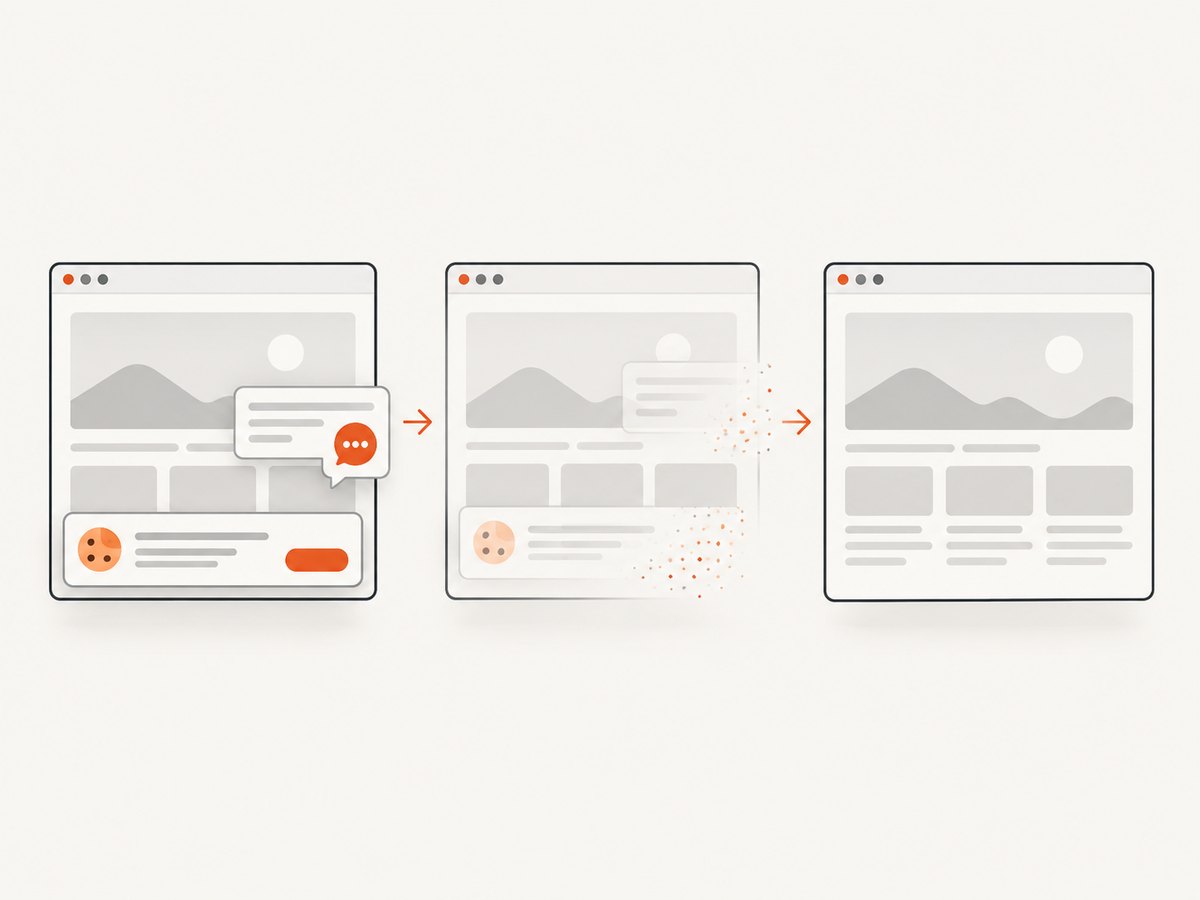
await import('node:fs/promises').then((fs) => fs.writeFile('shot.webp', buffer));Before capture, ScreenshotNeo accepts cookie and consent banners and removes more than 60 known consent platforms, newsletter popups, and chat widgets; each cleanup step can be turned off. Bot checks, blank pages, timeouts, failed loads, and cache hits are not billed, and the response identifies the result with X-Page-Verdict and X-Billed headers. Its MCP server includes take_screenshot, get_page_info, and capture_pdf for Claude, Cursor, and other MCP clients. The free plan includes 1,000 screenshots per month with no card; paid plans start at $5 for 3,000.
Create a free ScreenshotNeo account and start with 1,000 screenshots per month at no charge.
FAQ
Can I put each div on a separate PDF page?
Yes. Capture each div separately, place the first image on the initial page, call addPage(), and place the next image.
Does this produce selectable text?
No. The html2canvas route inserts a raster image into the PDF. Use a text-aware generator if selectable or searchable text is required.
Can one element span multiple pages?
Yes, but you must split it into page-sized sections or implement a slicing algorithm. The simple proportional-fit example intentionally keeps each target on one page.
Why are external iframes missing?
Cross-origin iframe documents are protected by browser security and are not readable by html2canvas.


