How LLMs Read and Interpret Images
Image-capable LLMs combine visual representations with text prompts. Learn how image processing works, why resolution matters, and how to improve results.
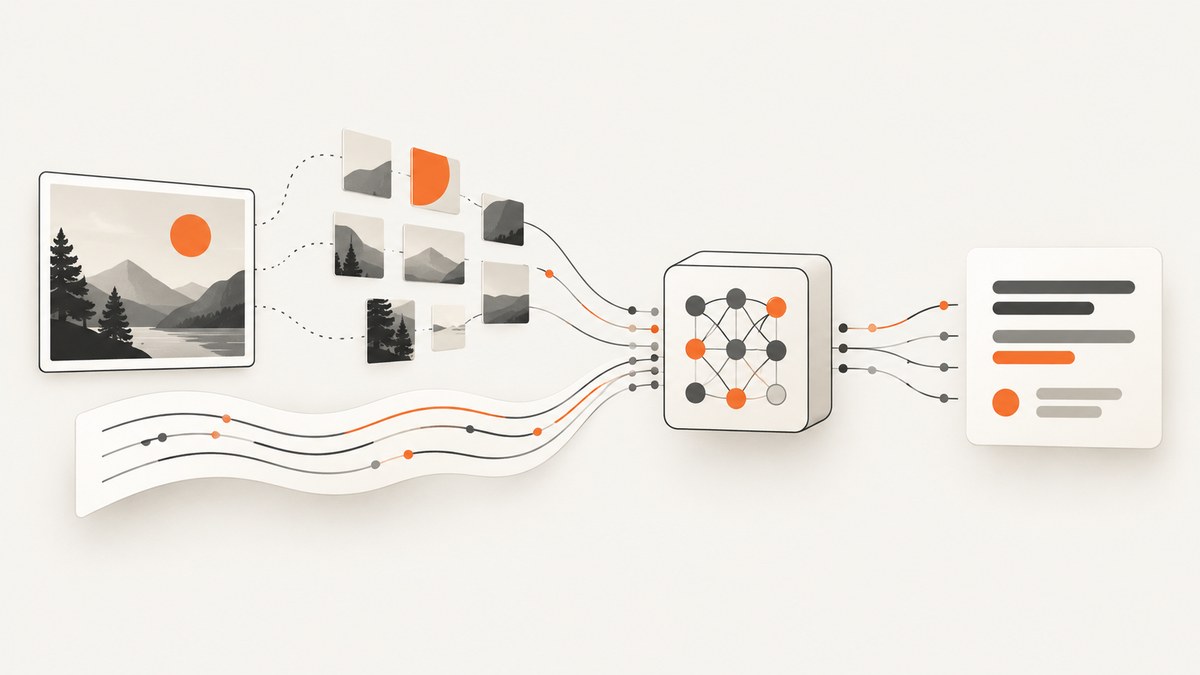
Image-capable large language models (LLMs) interpret images by processing them into a visual representation and combining that representation with your text prompt. They do not necessarily turn the whole image into a sentence first. The exact processing varies by model: common approaches include visual encoders, image patches, tiles, and visual tokens. Resolution affects how much detail may be available, and a model can still misread text, count objects incorrectly, or miss spatial details.
A useful mental model is image → preprocessing → visual representation → multimodal processing with your prompt → generated answer. That describes the broad path, not a universal architecture. OpenAI, Anthropic, and Google document different image handling and resolution controls in their APIs. OpenAI’s GPT-4V system card and a CVPR 2025 analysis of vision-language models discuss how visual information can be represented and processed with language.
1. What happens between an image and an answer
The image is an input to a vision-capable model. Before the model can use it, the service may resize, crop, tile, or otherwise preprocess it. A visual encoder or another representation method converts image content into information the multimodal model can process. The model considers that information alongside the text prompt, then generates a text response.
For example, when asked “What does the sign say?”, a model must receive enough visual detail to identify the sign and its characters, associate them with the question, and produce a transcription. That does not mean every system first makes a complete textual description of the image. The representation and processing path depend on the provider and model.
One CVPR 2025 analysis describes image encoders and adapters that produce image tokens. For the models examined in that paper, query-token representations carry global image information while details are extracted in a spatially localized way. Treat those as findings about the models studied—not as a description of every current commercial model.
Visual tokens, patches, and tiles
Some documented systems divide or represent an image using smaller visual units. Anthropic describes 28-by-28-pixel patches called visual tokens. OpenAI documents model-dependent image resizing, patch budgets, and image-token accounting. Gemini documents tiling and a media-resolution control. These are different implementation details, not interchangeable standards. A patch size, token limit, or cost rule for one provider does not tell you how another provider works.
The practical consequence is that an image’s pixel dimensions do not translate to one universal number of LLM tokens. The provider, model, image dimensions, selected detail setting, and preprocessing rules can all matter. Consult the current documentation for the model you are calling before estimating limits or cost.
2. Why resolution and image detail matter
Higher resolution can preserve small writing, fine chart labels, or small objects that could become indistinguishable after downsampling. It can also increase token usage and latency. Google summarizes this tradeoff in its Gemini image-understanding guide: “Higher resolutions improve the model’s ability to read fine text or identify small details, but increase token usage and latency.” The precise costs and controls depend on the provider and model.
The other side of the tradeoff is that more pixels are not always useful. For a broad question such as “Is this a landscape or a portrait?”, a small image may contain enough information. A document with tiny print or a chart with dense labels is more demanding. The 2026 ICLR AdaPatch paper frames it this way: “In principle, for general and straightforward multimodal understanding, low-resolution images are sufficient.” The paper also discusses the risk that naive resizing loses information and the greater computation associated with high-resolution processing. This is a research finding, not a guarantee that low resolution will work for every model or task.
Choose image detail for the task
- Broad scene description: Start with a readable, reasonably sized image. Extra detail may not help if the question only concerns the overall scene.
- Text, receipts, or document fields: Keep the relevant text large and legible. Crop to the section you need when that retains enough context.
- Charts and diagrams: Preserve labels, legends, axes, and nearby relationships. Ask about a specific feature rather than requesting an unsupported exact reading of everything.
- Small objects or fine visual differences: Supply a clear image with sufficient detail and tell the model exactly which region or property to inspect.
Downsampling can erase the information needed for the answer. Compression artifacts can make characters harder to distinguish. Cropping can help the model focus, but an overly tight crop may remove a legend, reference point, or surrounding object that changes the interpretation.
3. What image-capable models can do—and where they fail
Depending on the model, image input can support captioning, visual question answering, classification, object detection, segmentation, and OCR-like tasks. Google lists common image-understanding tasks in its Gemini guide. These labels describe possible uses, not a promise that a particular model exposes a dedicated operation or will perform it reliably.
Image interpretation is not the same as guaranteed measurement or transcription. OpenAI’s image guide says: “Vision models can make mistakes.” Its documented limitations include difficulty with small or non-Latin text, rotated images, charts whose distinctions depend on color or line patterns, precise spatial localization, panoramic or fisheye images, and exact counting. A model may also describe an image incorrectly.
Anthropic advises providing clear, legible images and considering resizing or cropping where useful; it also cautions against compression artifacts that make text hard to read. Google advises checking image rotation and clarity. These are input-quality suggestions, not assurances of a correct answer. If a result affects a consequential decision, check the relevant image detail yourself or use a suitable verification process.
How to ask for image text
- Send the original or a clear crop with enough resolution to read the characters.
- Ask for a specific output, such as “Transcribe the heading and the total exactly; mark anything uncertain.”
- Keep related context in the image if it could change the reading, such as a table header or chart legend.
- Verify ambiguous characters, especially where a mistaken digit or symbol matters.
For a dense document, consider splitting it into meaningful sections instead of sending one tiny, full-page image. For a chart, request the trend or a specific labeled value and provide a sufficiently clear view of its axes and legend. These steps improve the input and focus the question; they cannot guarantee correctness.
4. A practical workflow for developers
When building an image-question-answering feature, work through the following steps:
- Define the task. Decide whether you need a caption, a classification, a transcription, or an answer about a specific visual detail. Narrow questions make it easier to assess whether a response is useful.
- Check the image. Confirm the file is supported by your provider, is oriented correctly, and has enough clarity for the task. Avoid unnecessary compression.
- Pick detail settings deliberately. Use the provider’s current controls for resolution or detail. Higher detail may preserve small features, but can increase token usage and latency.
- Preserve context. Crop to make relevant details legible while keeping labels, relationships, and surroundings that the answer depends on.
- Ask for a bounded answer. State which region or information you want. Ask the model to identify uncertainty rather than silently guessing where exactness matters.
- Validate against examples. Test representative image types from your actual use case, including low-quality, rotated, dense, or ambiguous inputs. The cited provider guides do not establish a controlled cross-provider accuracy ranking.
- Handle failure explicitly. Treat empty, unclear, or uncertain responses as cases your application must account for. Do not assume that a plausible description proves the model saw every detail.
Which provider controls should you compare?
| Question | Why it matters |
|---|---|
| Which image formats and input methods are supported? | Your upload or storage pipeline must produce an acceptable input. |
| Can you control detail, resizing, or resolution? | These settings affect what small text and visual features remain available. |
| What happens when an image is too large or unsupported? | Documented limits and rejection behavior shape error handling. |
| How is image use accounted for? | Token rules and detail settings affect usage and request cost. |
| What limitations does the provider document? | Known weak cases can guide validation and user-facing expectations. |
OpenAI, Anthropic, and Google document different approaches and controls in their respective guides: OpenAI image input, Anthropic vision, and Gemini image understanding. The research reviewed for this article did not include a controlled cross-provider accuracy benchmark, so those sources do not support a claim that one provider is more accurate overall.
5. Capture a web page for image analysis
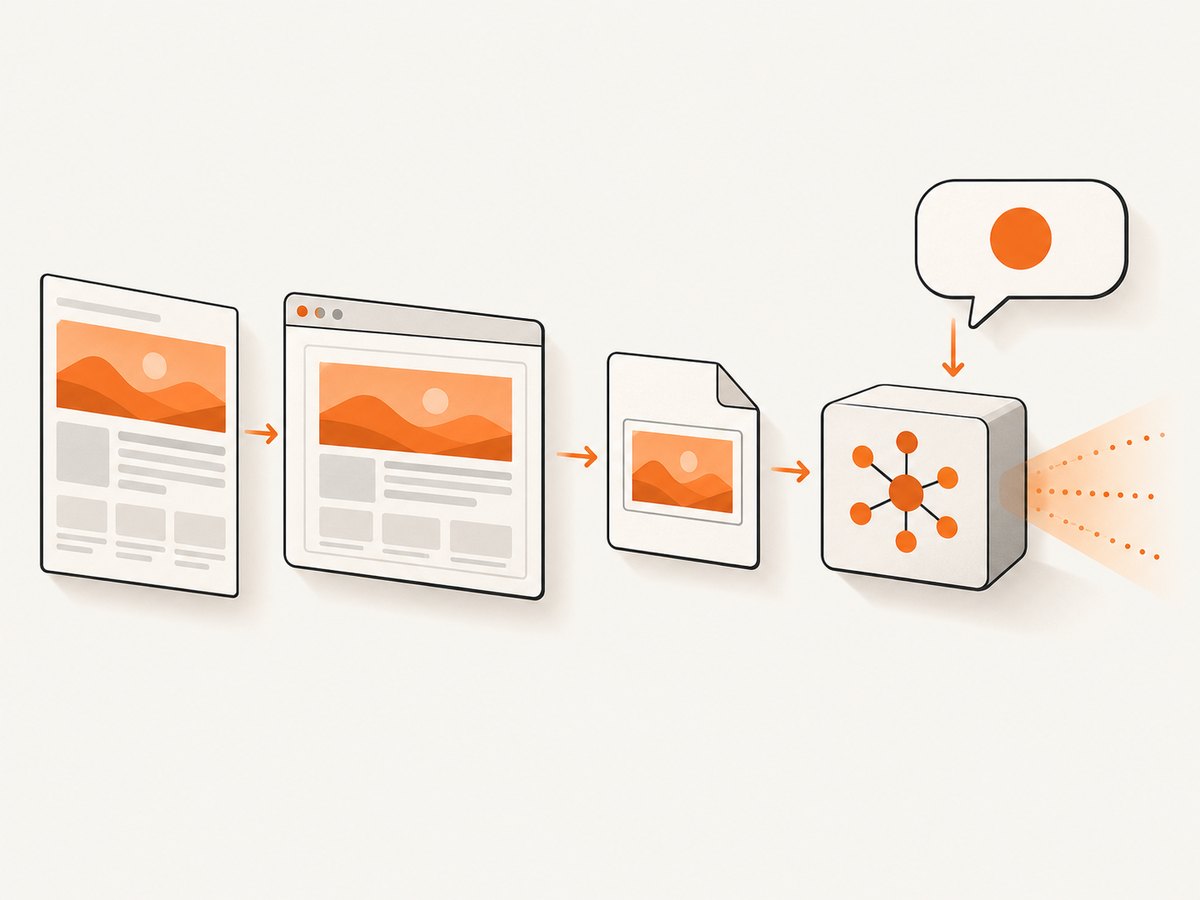
If the image you want to analyze is a webpage, capture it first, then submit the resulting image through the vision input method documented by your chosen model. With Playwright, the browser does the rendering and screenshot capture; it does not interpret the image for you. Install Playwright and its Chromium browser in your project environment according to the Playwright Python documentation.
from pathlib import Path
from playwright.sync_api import sync_playwright

url = "https://example.com"
output = Path("page.png")

with sync_playwright() as p:
    browser = p.chromium.launch(headless=True)
    page = browser.new_page(viewport={"width": 1440, "height": 1000}, device_scale_factor=1)
    page.goto(url, wait_until="networkidle", timeout=60_000)
    page.screenshot(path=str(output), full_page=True)
    browser.close()

print(f"Saved screenshot to {output}")
This script saves a full-page screenshot. To capture only the visible viewport, remove full_page=True. To capture a particular element, locate it and use Playwright’s element screenshot method. A page that never reaches network idle, requires authentication, or loads content only after interaction may need a different wait condition or a deliberate click before capture. Do not treat the saved screenshot as proof that the page loaded completely.
Inspect a screenshot or other image
Pass the image to your selected model using its current documented image-input format, alongside a focused text question. The implementation varies by API, so there is no provider-neutral request body or universal Python, Node.js, or cURL image-upload command that is guaranteed to work across OpenAI, Anthropic, and Gemini. Use the image format, authentication, SDK, and endpoint documented for the model you selected. Keep any API key in server-side configuration rather than embedding it in a browser application.
For a reproducible application, record the model and image-detail setting used, the image dimensions, and the prompt. This makes it easier to investigate differences when you change models or preprocessing. Check the provider’s current documentation for accepted image formats, size limits, and usage accounting before deploying.
6. Or skip the browser setup
ScreenshotNeo is a website screenshot API and MCP server from Yorker Media. A single GET request can return a PNG, JPEG, WebP, or PDF. Use it to get the screenshot; send the returned image to your chosen vision model using that model’s documented image-input method. See the ScreenshotNeo API documentation.
curl -G "https://api.screenshotneo.com/v1/shot" -d access_key=YOUR_API_KEY --data-urlencode url=https://stripe.com -o shot.webpimport requests
r = requests.get(
"https://api.screenshotneo.com/v1/shot",
params={"access_key": "YOUR_API_KEY", "url": "https://stripe.com"},
timeout=90,
)
open("shot.webp", "wb").write(r.content)const q = new URLSearchParams({ access_key: 'YOUR_API_KEY', url: 'https://stripe.com' });
const res = await fetch(`https://api.screenshotneo.com/v1/shot?${q}`);
if (!res.ok) throw new Error(`Screenshot request failed: ${res.status}`);
await Bun.write('shot.webp', res);In the Node.js example, the request follows the supplied ScreenshotNeo call pattern; Bun.write is a Bun file-writing helper. In a Node.js application, use your chosen file-writing method to save the response body. Check the API documentation for response handling and available parameters.
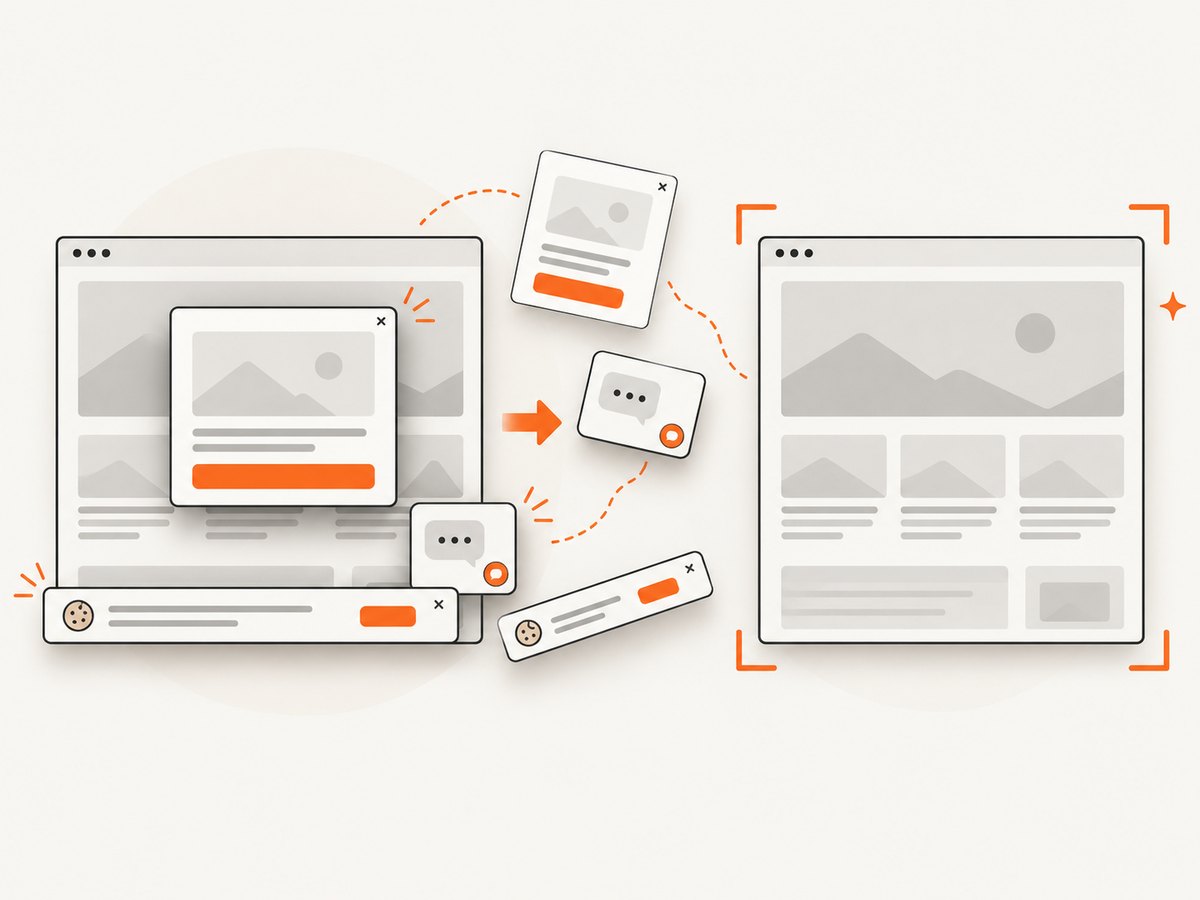
ScreenshotNeo accepts cookie and consent banners like a visitor and removes more than 60 known consent platforms, newsletter popups, and chat widgets before capture; each step can be turned off. Bot checks and CAPTCHAs, blank pages, timeouts, failed loads, and cache hits cost nothing, and response headers report the page verdict and billing status. Its MCP server provides take_screenshot, get_page_info, and capture_pdf tools for Claude, Cursor, and other MCP clients. The free plan includes 1,000 shots per month with no card; paid plans start at $5 for 3,000 shots.
Sign up for 1,000 free screenshots a month, with no card required.
7. Troubleshooting image interpretation
| Symptom | Likely cause | What to try |
|---|---|---|
| The model misses small text | Text is too small, the image was downsampled, or the crop is unclear. | Supply a clearer image or focused crop, preserve the text at readable size, and use the provider’s documented detail controls. |
| Text is wrong or inconsistent | Compression, rotation, ambiguous characters, or insufficient context. | Check orientation and clarity; include nearby headings or labels; verify uncertain characters yourself. |
| A chart answer is incorrect | Labels are illegible or distinctions rely on colors or line patterns the model misses. | Keep axes and legend visible, ask about a specific feature, and verify exact values against the source. |
| The count is off | Exact counting can be difficult, especially with dense or overlapping objects. | Make the relevant region clear, narrow the question, and verify the count when precision matters. |
| Parts of the image are ignored | The model’s image processing may reduce or tile detail; framing may also bury the relevant region. | Try a focused crop that retains context and review the provider’s resolution and image-limit guidance. |
| The answer sounds certain but is wrong | A fluent response can still be a mistaken interpretation. | Ask for evidence tied to visible details, request uncertainty to be stated, and independently check consequential claims. |
8. Performance, reliability, and cost
Image resolution, image count, preprocessing, and provider-specific token rules can affect request cost and latency. Higher detail can preserve small features but may consume more tokens and take longer. Cropping or resizing may reduce unnecessary input, but resizing can remove information. Compare the cost and delay for your actual images and questions; this research provides no general cross-model performance statistic.
For reliability, validate the image before submission, keep a clear record of model and detail settings, and test the difficult cases your application actually receives. Allow for documented limitations such as small text, rotation, exact counting, and spatial localization. A sensible application should give users a way to inspect or correct outputs that matter, rather than treating a generated answer as ground truth.
Provider settings and limits can change. Before shipping, check the current official documentation for supported formats, image limits, detail controls, token accounting, and errors. Anthropic’s 28-by-28 patch description and provider-specific limits are implementation details, not stable rules for all LLMs.
9. Frequently asked questions
Does an LLM convert every image into a caption first?
No general rule says it must. Image-capable systems can process visual representations together with text; the architecture and preprocessing depend on the model.
Will a higher-resolution image always produce a better answer?
No. More detail can help with fine text and small features, but it may increase usage and latency. It can also be unnecessary for a broad question, and the model can still make mistakes.
Can an image model read text in a screenshot?
It can handle OCR-like questions, but reliability depends on legibility, resolution, orientation, and the model. Check important transcriptions against the image.
Can I compare providers by their image-token counts?
Only with care. Providers document different image representations and accounting rules, so token counts are not a direct accuracy comparison.
Why did the model miss something obvious to me?
The visual input may have been resized, cropped, compressed, or difficult for that model to interpret. Small details and precise spatial relationships are known weak cases in provider guidance.
Do current sources establish which vision API is most accurate?
No controlled cross-provider accuracy benchmark was established in the research used here. Compare documented controls and limitations, then evaluate representative examples for your own task.


