How to Compress Images Without Losing Visible Quality
Learn how to resize and compress photos, screenshots, and graphics with the right format, quality settings, responsive HTML, and practical code.
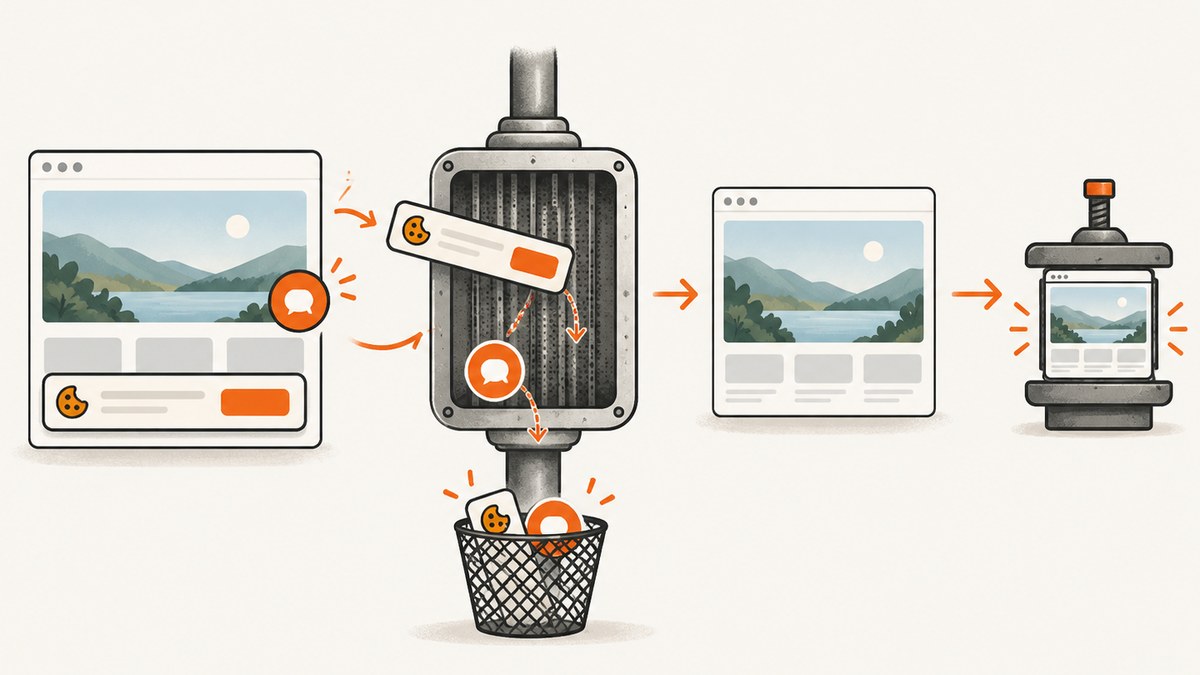
Short answer: keep an original master, resize the image to the largest dimensions you actually need, choose a format that matches the content, set a quality level, and inspect the result at its real display size. Use lossy compression for most photographs. Use lossless PNG, lossless WebP or AVIF, or SVG for screenshots, diagrams, logos, charts, and other images with text or sharp edges.
Image compression removes redundant data so a file needs fewer bytes. Lossless compression reconstructs the original exactly. Lossy compression changes some data to make the file smaller. Photographs usually tolerate those changes; text, geometric edges, and flat colors make blur, ringing, and halos easy to see. [MDN image formats]
1. A reliable image-compression workflow
- Keep the original. Store a camera original, design export, or lossless master separately. Never make a compressed JPEG your only source.
- Measure the display size. If a slot is 800 CSS pixels wide, a 4,000-pixel image wastes bandwidth unless you need high-density output. Create a version at the largest required pixel dimensions, often 1x and 2x.
- Classify the content. Photos, screenshots, illustrations, logos, transparent assets, and animation have different failure modes.
- Choose an encoder and format. Export a delivery copy rather than repeatedly recompressing an already lossy file.
- Set quality deliberately. Start with a reasonable value, then compare bytes and visible artifacts on representative images.
- Inspect at the intended display size. Check small text, diagonals, faces, skies, gradients, foliage, and transparent edges.
- Remove unnecessary metadata. EXIF can reveal location and adds bytes. Preserve color information and profiles when correct color reproduction matters.
- Publish responsive variants. Use
srcset,sizes, explicit dimensions, and an appropriate loading strategy.
2. JPEG, PNG, WebP, AVIF, SVG, and GIF: which should you use?
| Content | Starting format | Compression approach | Watch for |
|---|---|---|---|
| Photographs | JPEG, WebP, or AVIF | Lossy | Block artifacts, halos, banding, skin and foliage detail |
| Screenshots, diagrams, charts, logos, line art | PNG, lossless WebP/AVIF, or SVG when the source is vector | Lossless first | Blurred text, ringing around edges, color shifts |
| Images with transparency | PNG, WebP, or AVIF | Lossless or lossy as appropriate | JPEG cannot store an alpha channel |
| Animation | Animated WebP or AVIF; APNG where lossless animation is required | Test the animation encoder | Browser support, file size, and playback behavior |
MDN recommends selecting a raster format according to compression, quality, browser support, transparency, and animation requirements. It generally favors WebP or AVIF for efficient delivery, PNG for precise reproduction or transparency, and JPEG for common photographic compression. [MDN]
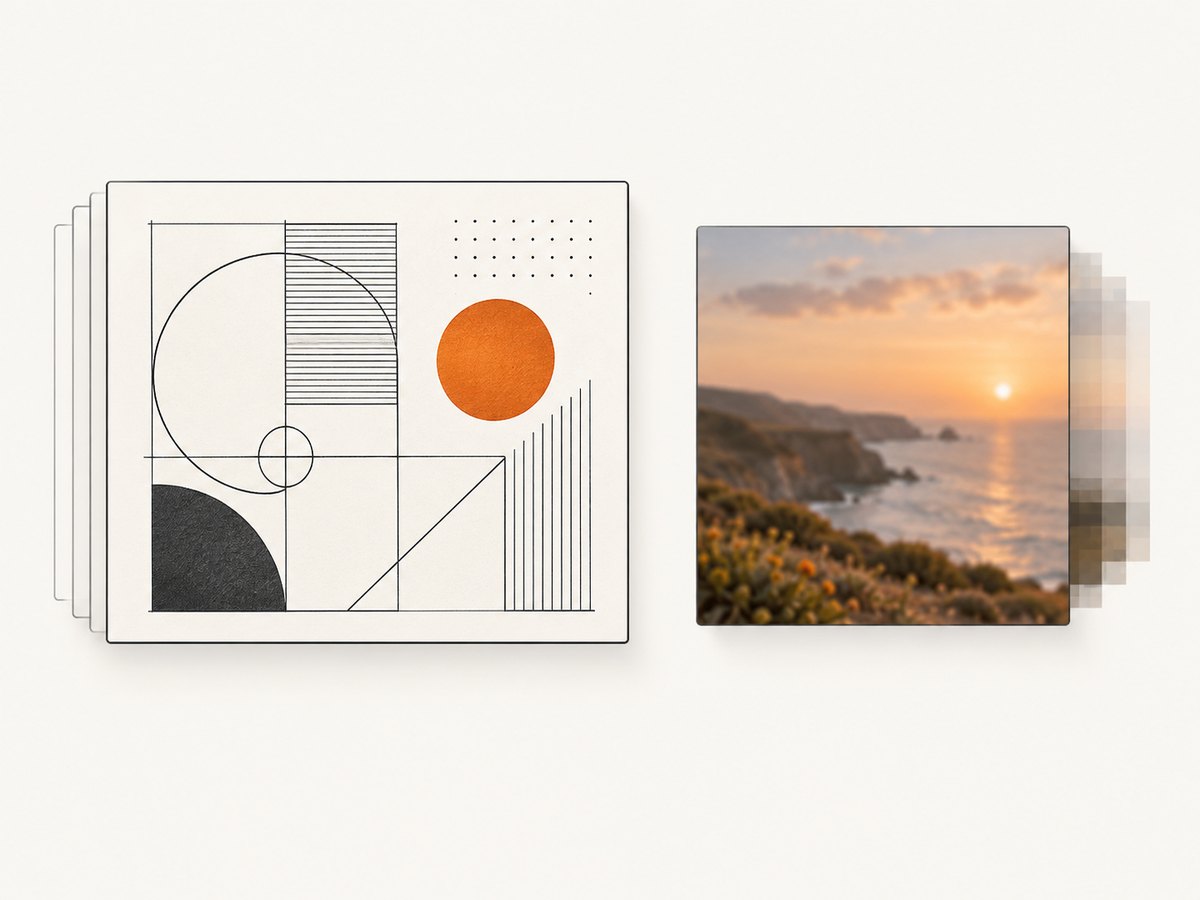
WebP supports lossy and lossless compression, transparency, animation, and metadata. [Google WebP documentation] AVIF is a modern, royalty-free format with strong compression and broad support in current browsers, but fallbacks remain useful for older clients and workflows that need predictable progressive rendering. [MDN]
3. Compress images from the command line
ImageMagick is useful for repeatable local processing. The following commands create delivery copies and leave the source untouched.
JPEG for photographs
magick photo-original.jpg -strip -resize "2000x2000>" -quality 82 photo.jpg-resize "2000x2000>" limits the longest dimensions without enlarging a smaller image. -strip removes profiles and metadata, so use it only when that is acceptable for your color-management and privacy requirements. Quality is encoder-specific; 82 is a starting point, not a promise of a particular file size.
PNG for screenshots and transparent graphics
magick screenshot-original.png -strip -define png:compression-level=9 screenshot.pngPNG compression is lossless: increasing compression usually costs encoding time rather than visible quality. If a screenshot is very large, resize it first, but do not reduce dimensions below the text size your readers need.
WebP and AVIF delivery copies
magick photo-original.jpg -resize "2000x2000>" -quality 80 photo.webp
magick photo-original.jpg -resize "2000x2000>" -quality 55 photo.avif
WebP and AVIF both support lossy and lossless modes. Confirm that your installed ImageMagick build includes the codecs you intend to use, and compare output visually. Quality numbers are not interchangeable between formats.
Inspect dimensions and file size
identify photo-original.jpg photo.jpg photo.webp photo.avif
ls -lh photo-original.jpg photo.jpg photo.webp photo.avif
4. Compress images with Python
Pillow provides a straightforward batch workflow. Install it with python -m pip install Pillow.
from pathlib import Path
from PIL import Image

source = Path("photo-original.jpg")
out = Path("photo.webp")
max_width = 2000

with Image.open(source) as image:
    image = image.convert("RGB")
    if image.width > max_width:
        height = round(image.height * max_width / image.width)
        image = image.resize((max_width, height), Image.Resampling.LANCZOS)
    image.save(out, "WEBP", quality=80, method=6, exif=b"")

print(f"wrote {out} ({out.stat().st_size} bytes)")
For a lossless screenshot, preserve the color mode and use a lossless encoder:
from PIL import Image

with Image.open("screenshot-original.png") as image:
    image.save("screenshot.webp", "WEBP", lossless=True, method=6)
Do not convert a transparent RGBA asset to RGB unless you intentionally want to discard transparency. For production pipelines, add checks for maximum dimensions, expected color mode, and output byte size.
5. Compress images with Node.js
The sharp package is designed for fast server-side image processing. Install it with npm install sharp.
import sharp from "sharp";

await sharp("photo-original.jpg")
  .resize({ width: 2000, withoutEnlargement: true })
  .webp({ quality: 80 })
  .toFile("photo.webp");

console.log("wrote photo.webp");
For AVIF:
await sharp("photo-original.jpg")
  .resize({ width: 2000, withoutEnlargement: true })
  .avif({ quality: 55 })
  .toFile("photo.avif");
For a lossless PNG or WebP screenshot, use:
await sharp("screenshot-original.png")
  .webp({ lossless: true, effort: 6 })
  .toFile("screenshot.webp");
6. Deliver compressed images correctly on the web
Compression cannot compensate for sending a desktop-sized image to a phone. Generate several widths and let the browser choose:
<picture>
  <source
    type="image/avif"
    srcset="hero-480.avif 480w, hero-960.avif 960w, hero-1600.avif 1600w"
    sizes="(max-width: 700px) 100vw, 960px">
  <source
    type="image/webp"
    srcset="hero-480.webp 480w, hero-960.webp 960w, hero-1600.webp 1600w"
    sizes="(max-width: 700px) 100vw, 960px">
  <img
    src="hero-960.jpg"
    srcset="hero-480.jpg 480w, hero-960.jpg 960w, hero-1600.jpg 1600w"
    sizes="(max-width: 700px) 100vw, 960px"
    width="1600"
    height="900"
    alt="Description of the image"
    decoding="async">
</picture>
srcset and sizes prevent oversized downloads. Explicit width and height reserve layout space and reduce layout shifts. Lazy-load images below the fold with loading="lazy"; Google advises against lazy-loading the above-the-fold image because it can delay Largest Contentful Paint. [Google lazy-loading guidance]
Use a CDN or image optimization service when many pages need automatic resizing, format negotiation, caching, and responsive variants. Keep originals in durable storage and make generated derivatives reproducible from a versioned pipeline.
7. How to judge quality and file size
There is no universal quality number. MDN says that a JPEG quality setting of 75% “should yield decent results,” but that is a starting point rather than a target for every encoder or image. [MDN multimedia guidance]
- Compare the original and compressed image at the actual CSS display size.
- Zoom in briefly on text, diagonal lines, faces, skies, and gradients to find ringing and banding.
- Record dimensions, format, encoder settings, byte size, and whether metadata was removed.
- Test a representative set: a portrait, a busy outdoor photograph, a dark image, a screenshot, and a transparent logo.
- Stop when further byte savings create artifacts users can see.
Do not repeatedly recompress a lossy JPEG. Each lossy generation can compound artifacts. Return to the high-quality or lossless master and create a fresh derivative.
8. Screenshot-specific advice
Browser screenshots contain text, straight edges, gradients, and sometimes transparency. Start with PNG or lossless WebP/AVIF. If a photographic screenshot or large page capture must be smaller, test lossy WebP or AVIF at the intended display size and inspect small type carefully.
Before compressing, reduce capture dimensions to what the page needs. A 3x retina screenshot displayed at 400 pixels can often be exported at 800 pixels for a 2x asset. Avoid resizing text-heavy images with a poor resampling filter, because it softens glyphs before encoding has a chance to preserve them.
9. Or skip the browser setup
If the image you need is a live webpage screenshot, ScreenshotNeo returns a PNG, JPEG, WebP, or PDF from one GET request. It can capture full pages, one CSS-selected element, custom viewports, dark mode, retina scale, and HTML/CSS to image. You can also choose image resizing and a cache TTL, then run your normal compression pipeline on the returned file.
Use the API examples in the ScreenshotNeo documentation:
cURL
curl -G "https://api.screenshotneo.com/v1/shot" -d access_key=YOUR_API_KEY --data-urlencode url=https://stripe.com -o shot.webpPython
import requests
r = requests.get("https://api.screenshotneo.com/v1/shot", params={"access_key": "YOUR_API_KEY", "url": "https://stripe.com"}, timeout=90)
open("shot.webp", "wb").write(r.content)
Node.js
const q = new URLSearchParams({ access_key: 'YOUR_API_KEY', url: 'https://stripe.com' });
const res = await fetch(`https://api.screenshotneo.com/v1/shot?${q}`);
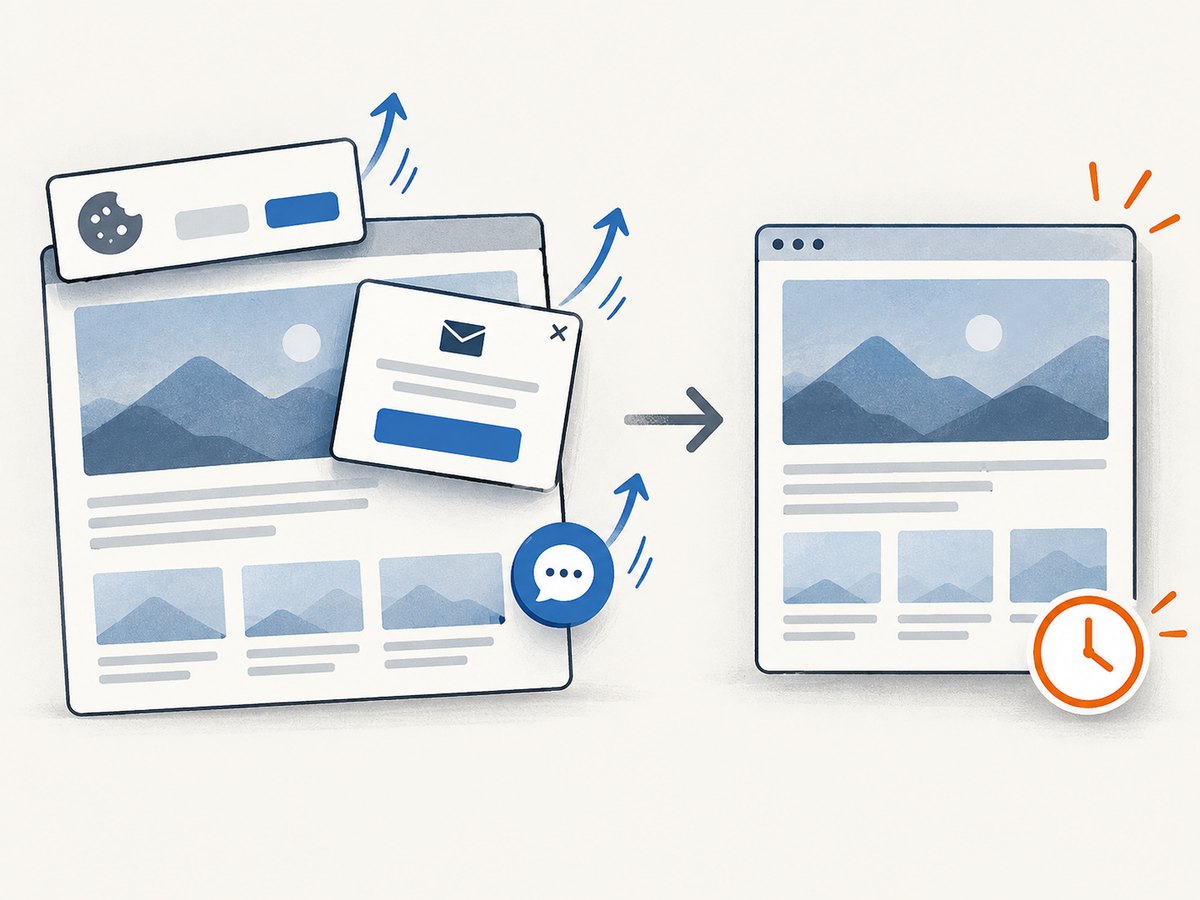
Cookie banners, newsletter popups, and chat widgets are removed before the shot. Bot checks, blank pages, timeouts, failed loads, and cache hits are never billed; response headers identify the page verdict and whether it was billed. An MCP server lets Claude, Cursor, and other MCP clients call take_screenshot, get_page_info, and capture_pdf. The Free plan includes 1,000 screenshots a month with no card; paid plans start at $5 for 3,000.
Create a free ScreenshotNeo account and use the returned image in the same format-selection and quality workflow described above.
10. Troubleshooting common compression problems
| Symptom | Likely cause | Fix |
|---|---|---|
| Text looks smeared | Lossy compression or excessive downscaling | Use PNG or lossless WebP/AVIF; export at a larger display size. |
| Halos around objects | JPEG ringing at too-low quality | Raise quality, use WebP/AVIF, or switch to lossless for line art. |
| Colors changed | Profile removed or color space converted incorrectly | Preserve the needed profile and test in target browsers. |
| Transparent background became black or white | RGBA converted to RGB | Keep alpha-capable PNG, WebP, or AVIF and preserve the alpha channel. |
| File is still huge | Dimensions exceed display needs or metadata remains | Resize first, remove unnecessary metadata, and create responsive variants. |
| AVIF/WebP does not display | Missing fallback or unsupported client | Use <picture> with JPEG or PNG fallback. |
| Repeated exports degrade quality | Lossy-to-lossy recompression | Regenerate from the original or lossless master. |
| Page feels slower after optimization | Hero image is lazy-loaded or the browser downloads the wrong variant | Do not lazy-load the LCP image; verify sizes, dimensions, and preload strategy. |
11. Performance, reliability, and cost considerations
Resizing before encoding usually saves more bytes than changing a quality number on an oversized image. Generate derivatives once, cache them with immutable names, and serve them from a CDN. Batch processing reduces repeated work, while parallel processing should be bounded so it does not exhaust memory on large inputs.
Measure both transfer size and encoding time. AVIF can produce small files but may take longer to encode; WebP can be a practical middle ground. For high-volume systems, queue image work, retry only transient failures, and keep the source so a changed encoder or quality policy can rebuild every derivative.
Compression is also a privacy decision. Remove GPS and camera metadata when it is not required, but document which metadata your workflow retains. Preserve accessibility with accurate alt text; compression does not replace semantic markup.
12. Practical checklist
- Original or lossless master retained.
- Maximum display dimensions measured.
- Format selected for the actual content.
- Lossless encoding used for text-heavy graphics unless testing proves lossy output acceptable.
- Representative images inspected at display size.
- Byte size, dimensions, and encoder settings recorded.
- Metadata and color-profile policy decided.
- Responsive widths generated.
srcset,sizes, width, and height set in HTML.- Above-the-fold images not lazy-loaded.
- Fallback formats supplied where compatibility requires them.
FAQ
Does compressing an image always reduce quality?
No. Lossless compression preserves every pixel. Lossy compression changes some data, and the visible impact depends on the content, encoder, dimensions, and quality setting.
Is WebP better than JPEG?
Neither is universally better. WebP supports lossy, lossless, transparency, and animation; JPEG remains widely compatible for photographic fallbacks. Compare the files on your images.
Should screenshots be JPEG?
Usually start with PNG or lossless WebP/AVIF because text and sharp edges reveal JPEG artifacts. Test a lossy modern format only when its smaller size still meets your visual requirement.
What quality setting should I use?
Start with the encoder’s moderate setting, then inspect representative images and retain the smallest acceptable output. A number from one encoder cannot be copied directly to another.
Can I compress an image in the browser?
Yes, but server-side or build-time processing is easier to make consistent. Browser compression can be useful for user uploads when bandwidth and privacy requirements favor local processing.


