How to Download an Image from a Website
Save images from websites on desktop or mobile, troubleshoot missing download options, and check image-use rights before publishing.
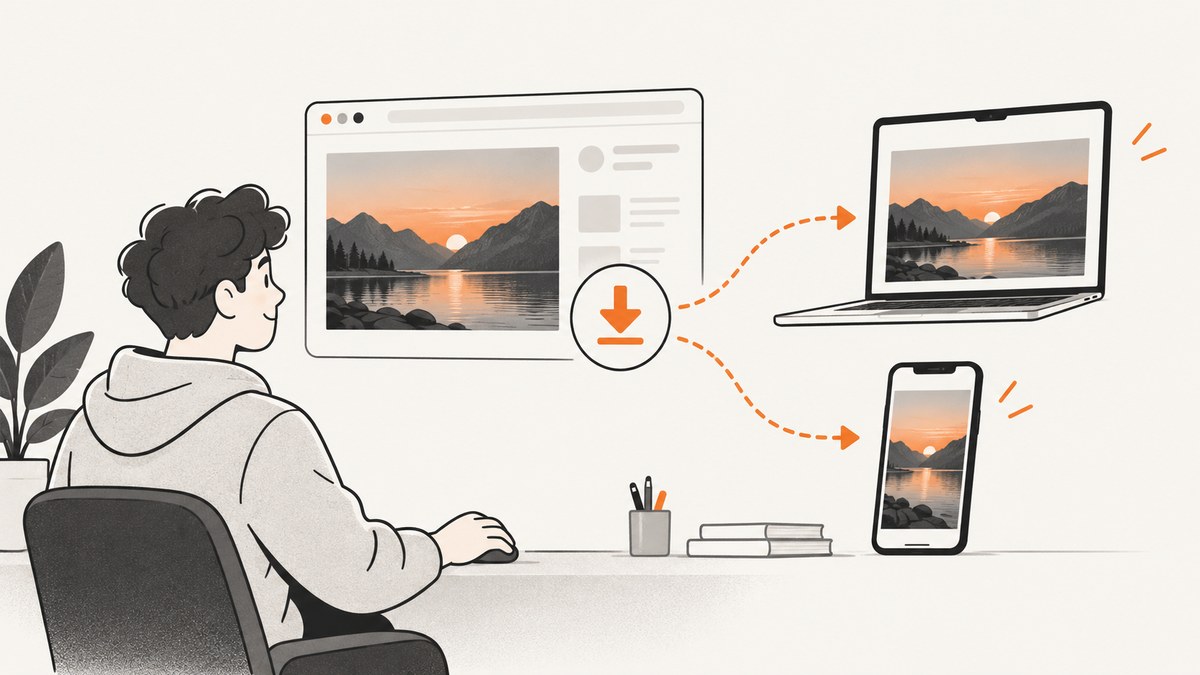
To download an image, open the page, use the browser’s image menu, and save the file to your device. On desktop Chrome, right-click the image and choose Save Image As. On a phone, touch and hold the image and choose Save Image or Download image. Then check your Downloads folder or files app.
The exact menu depends on the browser and on what the website exposes. Saving a local copy also does not give you permission to republish or alter the image; check its license and the site’s terms first.
Download an image on a computer
Chrome on Windows, Linux, or macOS
- Open the webpage containing the image.
- Right-click directly on the image.
- Select Save Image As.
- Choose a folder and filename if Chrome opens a save dialog.
- Click Save.
If you did not choose a location, Chrome uses its default download folder. Open Chrome’s More menu and choose Downloads to find the file or open it from the download tray. See Google’s Chrome computer instructions.
Safari on Mac
- Open the page in Safari.
- Control-click the image or linked object.
- Choose Download Linked File when that option is available.
- Open Safari’s Downloads list or the folder configured in Safari settings.
Safari’s menu can differ because Download Linked File applies to a linked item exposed by the page. Apple documents this workflow in Download items from the web using Safari.
Save an image on a phone or tablet
Chrome on iPhone or iPad
- Open the page in Chrome.
- Touch and hold the image.
- Tap Save Image.
- Open the Photos app to view the saved image.
These are the steps in Chrome’s iPhone and iPad help.
Chrome on Android
- Open the page in Chrome.
- Touch and hold the image.
- Tap Download image.
- Open Chrome’s Downloads list or your device’s Files app.
Chrome’s Android instructions describe this gesture and where to find completed downloads.
Firefox on Android
- Open the page in Firefox.
- Touch and hold the image.
- Select Save image.
- Open Firefox’s menu and Downloads list to locate it.
Mozilla documents this process in Downloads in Firefox for Android.
What file did you actually save?
A browser can save the image file that the page makes available through its image element or link. The filename and extension may be different from what you expect, such as JPEG, PNG, GIF, or WebP. If the page displays a scaled version, the saved file may still be the source exposed by the page, but a download is not a guarantee of a particular resolution.
Some visuals are not ordinary image files. A page may draw them in a canvas, use a CSS background, embed them in a viewer, or show a protected document. In those cases the normal image menu may be absent. Use the site’s own download or export control, check the image host’s instructions, or contact the site owner. Do not assume that developer tools or an extension will recover an original file or grant reuse rights.
Troubleshooting: when saving does not work
| Symptom | Likely cause | What to do |
|---|---|---|
| No “Save Image As” or “Download image” option | The page did not expose the visual as a directly downloadable image. | Look for the site’s download, export, or share control. If none exists, ask the site owner for the file or permission. |
| The menu appears, but it saves a tiny image | You selected a thumbnail or preview. | Open the image or gallery item first, then repeat the save action. The site may only provide that resolution. |
| A different file type downloads | The host serves an optimized format such as WebP. | Keep the original format when possible. Convert it only when you have a legitimate need and the license allows modification. |
| The download seems stuck | The connection failed or the browser blocked the download. | Check the Downloads list, retry on a stable connection, and review browser download permissions. |
| The saved file will not open | The download is incomplete or the response was not an image. | Delete the partial file, retry, and use the site’s own download control. Do not rename an arbitrary file and expect that to repair it. |
| A viewer shows an image but offers no image menu | The visual is inside a document or custom viewer. | Use the viewer’s export/download command or contact the publisher. A screenshot creates a visual copy, not necessarily the original asset. |
Check permission before you reuse the image
Downloading answers where a copy is stored; it does not answer whether you may publish, edit, sell, or use that copy commercially. Google recommends checking the license details with both the license provider and the image host. Conditions can require creator credit or restrict modification and commercial use. Read the image’s actual license and the website’s terms before using it in a blog post, product, advertisement, or client work. See Google’s guidance on finding images you can use and share.
Or skip the browser setup
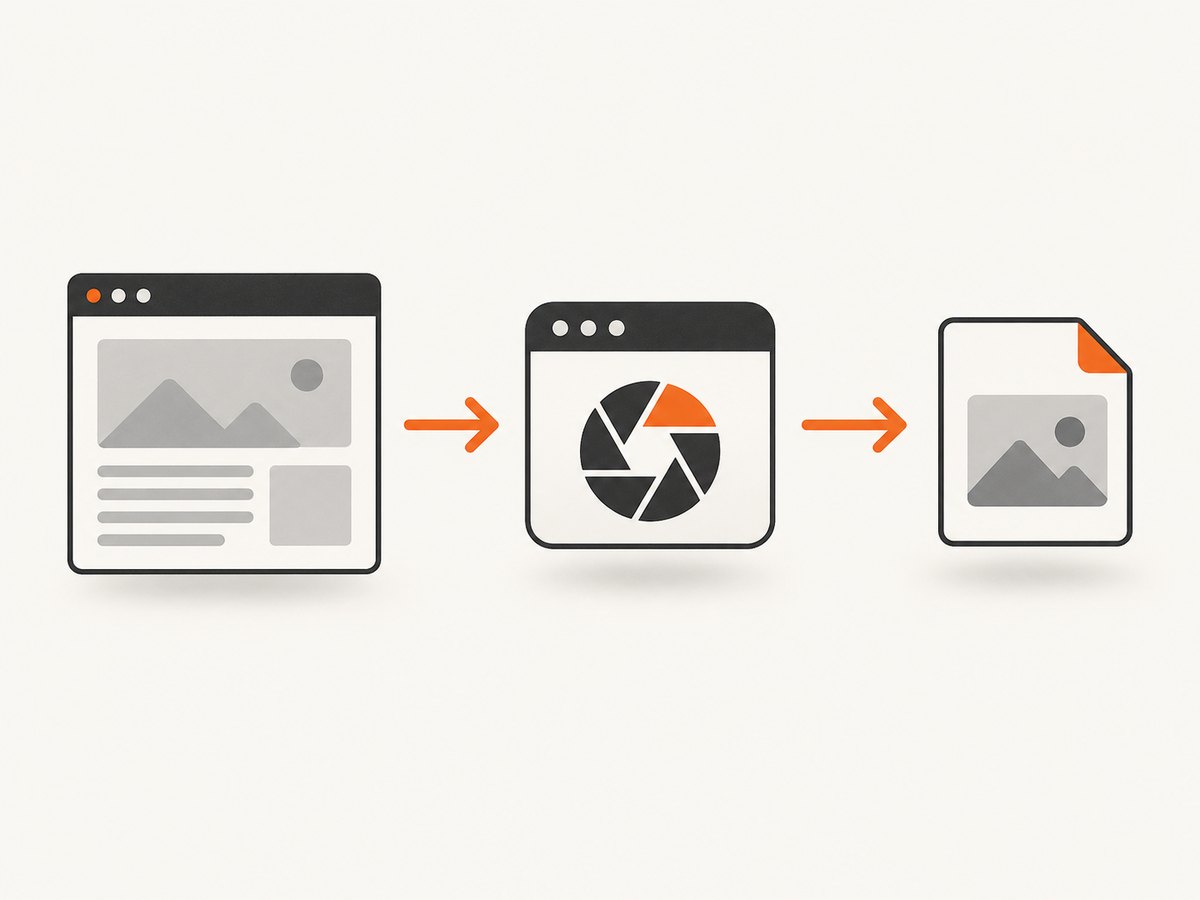
If you need a repeatable visual copy of a webpage rather than the original image asset, ScreenshotNeo captures the page through one API request. It can return PNG, JPEG, WebP, or PDF, and supports full-page captures, element selection, custom waits, device settings, and other capture options.
See the ScreenshotNeo API documentation for the complete option list. Replace the URL with the page you need to capture.
cURL
curl -G "https://api.screenshotneo.com/v1/shot" -d access_key=YOUR_API_KEY --data-urlencode url=https://stripe.com -o shot.webpPython
import requests

r = requests.get("https://api.screenshotneo.com/v1/shot", params={"access_key": "YOUR_API_KEY", "url": "https://stripe.com"}, timeout=90)
open("shot.webp", "wb").write(r.content)
Node.js
const q = new URLSearchParams({ access_key: 'YOUR_API_KEY', url: 'https://stripe.com' });
const res = await fetch(`https://api.screenshotneo.com/v1/shot?${q}`);
ScreenshotNeo accepts cookie and consent banners before capture and removes more than 60 known consent platforms, newsletter popups, and chat widgets; each step can be turned off. Bot checks, blank pages, timeouts, failed loads, and cache hits are not billed, and the response identifies the page verdict and billing status with X-Page-Verdict and X-Billed headers. Its MCP server provides take_screenshot, get_page_info, and capture_pdf tools for Claude, Cursor, and other MCP clients.
For occasional use, the Free plan includes 1,000 shots per month with no card. Paid plans start at $5 for 3,000 shots; yearly billing gives two months free. Use the free ScreenshotNeo sign-up to begin.
Performance, reliability, and cost notes
- One-off downloads: The browser method is simplest and has no API cost.
- Repeated captures: An API avoids manual steps and can use caching with a TTL you choose.
- Dynamic pages: Configure a selector wait, delay, or network-idle wait so content has time to render.
- Authenticated pages: ScreenshotNeo supports custom headers, cookies, user agents, and Authorization values. Keep credentials private and avoid placing them in public links.
- Large jobs: Bulk capture supports up to 100 URLs per call, and asynchronous jobs can notify your service through signed webhooks.
- Billing: Only clean shots are billed. Check
X-BilledandX-Page-Verdictwhen reconciling usage.

FAQ
Where did my downloaded image go?
Check the browser’s Downloads list first, then the default Downloads folder, Photos app, or Files app for your device.
Can I download an image that has no right-click menu?
Try the site’s own download or export control. If the page does not expose a direct file, contact its owner rather than assuming a workaround provides the original.
Does downloading mean I can use the image in my project?
No. Confirm the image license and any attribution, modification, or commercial-use conditions before reuse.
Is a ScreenshotNeo capture the same as downloading the original image?
No. ScreenshotNeo produces a rendered screenshot or PDF of the webpage. Use the website’s download control when you need the original asset.


