How to Grab Video From a Website
Learn the authorized ways to download website videos, understand app-only offline copies and DRM limits, and avoid copyright mistakes.
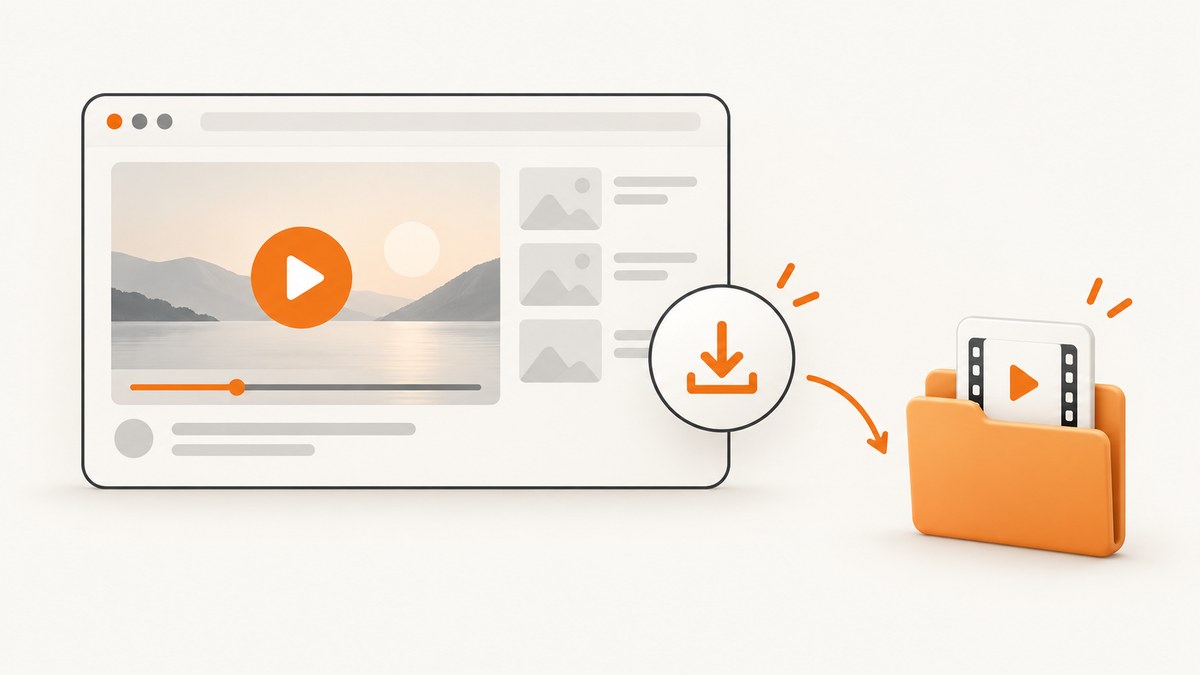
Start with the video’s own Download button or the hosting service’s official offline feature. If neither exists, verify that you own the video or have permission before saving it. A video that plays in a browser is not automatically available as a normal file: DRM, account rules, location limits, and owner settings can restrict downloads.
1. Check for an official download
Look below or beside the player for a Download control. Use that control and select the file version offered by the site. Vimeo documents this flow for videos whose owners have enabled downloads; the browser may open the file in a new tab, in which case use the browser’s save command. Vimeo’s download instructions explain the available steps.
- Open the video page in the official website or app.
- Check the player menu, page controls, and the host’s help page for a download option.
- Choose the offered resolution or file version.
- Save the file through the browser or app prompt.
- Keep the file for the purpose allowed by the owner or service terms.
2. Know what kind of copy you are getting
There are two different outcomes that are often called a download:
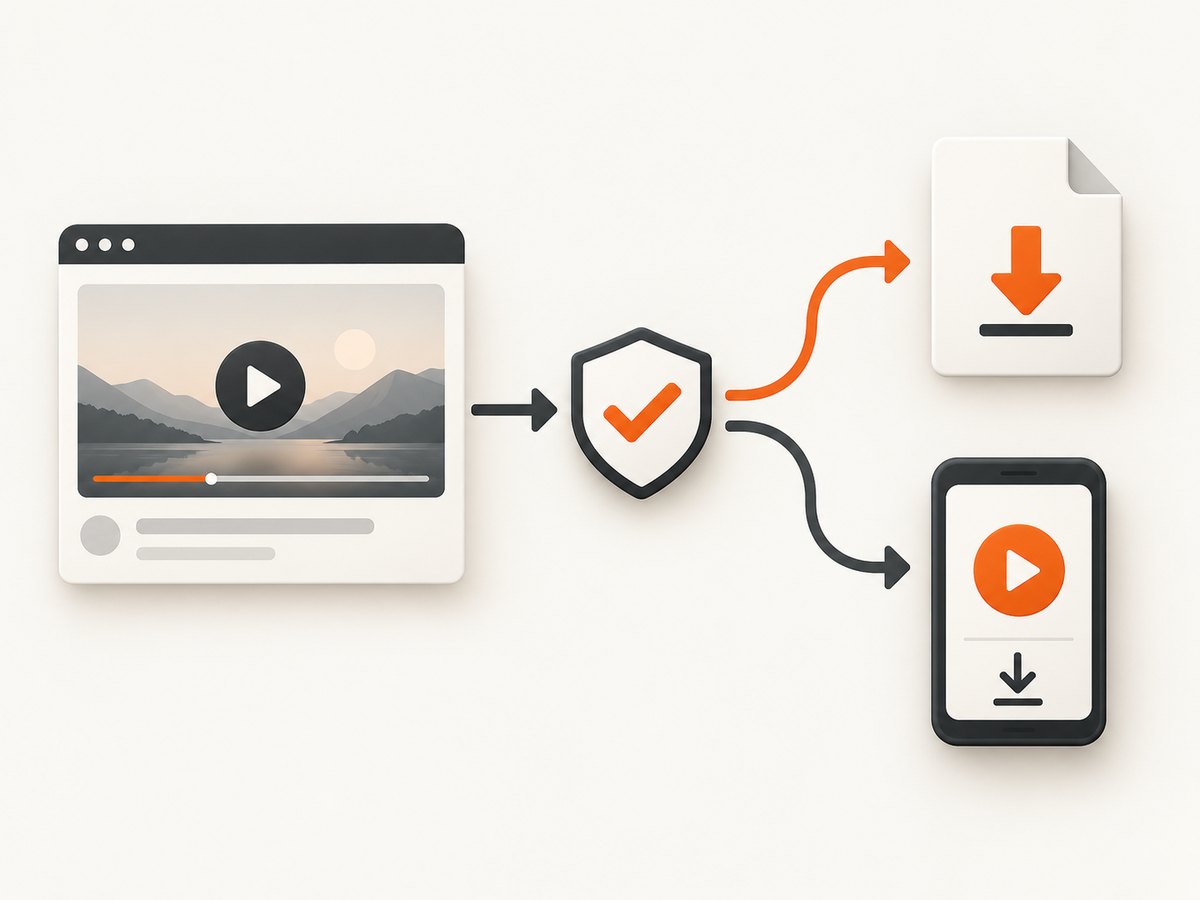
| Method | What you receive | Where it works |
|---|---|---|
| Owner-enabled download | A normal video file or a browser-save file | In a media player that supports the format |
| Creator export | A file of a video you uploaded | Downloaded through the platform’s creator tools |
| App offline viewing | An encrypted, app-managed copy | Only inside the supported app, subject to account and location rules |
YouTube uploads
YouTube’s creator download instructions apply to videos you uploaded through YouTube Studio. They do not grant a general method for downloading someone else’s video.
YouTube offline viewing
YouTube separately offers offline viewing to eligible users in supported locations. According to its offline viewing FAQ, these copies are encrypted and playable only in the YouTube app. Treat this as temporary app access, not as an unrestricted MP4 you can move to another player.
3. If there is no Download button
Do not treat a missing button as an invitation to extract a hidden stream URL. First check the platform’s help pages and terms, then ask the owner or provider for a permitted copy. If the site provides an official export, request that instead.
For a video you own, practical authorized paths include:
- Download the original file from your video management system.
- Use the platform’s creator export or studio download feature.
- Ask a collaborator or hosting provider to send the source file.
- Use an approved API or archival workflow documented by the service.
4. DRM and protected playback
Digital rights management (DRM) can limit saving, copying, or playback outside an authorized app or browser. Chrome documents protected-content settings, and Mozilla explains DRM playback in Firefox. These settings help you watch content that the service permits; they do not create permission to make a separate file.
If a player requires protected content, use the service’s supported viewing or download feature. Do not disable protections or follow instructions intended to bypass DRM. If you need a copy for work, education, accessibility, or archival purposes, obtain it from the rights holder or service.
5. Copyright and permission checklist
In the United States, the Copyright Office says that downloading a copyrighted work without the owner’s authority may infringe reproduction or distribution rights. Whether authorization exists is a factual question. Its digital-files FAQ and Fair Use FAQ explain the limits.
- Ownership: Did you create the video or receive permission from the copyright owner?
- Service permission: Does the host provide a download or export control?
- Purpose: Are you using the copy for a permitted purpose?
- Amount and market effect: If you rely on fair use, consider the purpose, nature, amount, and effect on the market. Fair use is case-specific; personal viewing alone is not an automatic exemption.
- Location: Laws differ outside the United States. Check local rules or obtain legal advice for a high-stakes use.
6. What to do when a download fails
| Symptom | Likely cause | Safe fix |
|---|---|---|
| No Download control | The owner disabled downloads or the service does not offer them | Check the host’s help page and request an authorized copy |
| Download opens in a new tab | The browser is displaying the media instead of saving it | Use the browser’s Save or Save video as command |
| Offline copy will not play elsewhere | It is encrypted and app-managed | Play it in the supported app; request a normal file from the owner |
| Playback says protected content is unavailable | DRM support is disabled, blocked, or unavailable | Use a supported browser or app and follow the service’s official settings guidance |
| Login or subscription prompt | The service requires an eligible account | Sign in only through the official service; do not use credential-sharing tools |
| A third-party downloader asks for your password | Untrusted software or a phishing risk | Stop and use the host’s official download or export flow |
7. Performance, reliability, and file handling
Official downloads normally provide the most reliable quality and metadata because the host controls the export. App-only offline copies can expire when an account, subscription, or periodic check changes. For an authorized normal file, verify the extension, duration, resolution, audio track, and file size after saving. Keep the original filename and source URL so you can identify the permission context later.
For your own library, store a checksum and a second backup after download. Avoid repeatedly downloading large files when the service offers a stable export or an API. If a platform offers several resolutions, choose the smallest one that meets your delivery requirement to reduce transfer time and storage cost.
8. Capture a still image from a video page
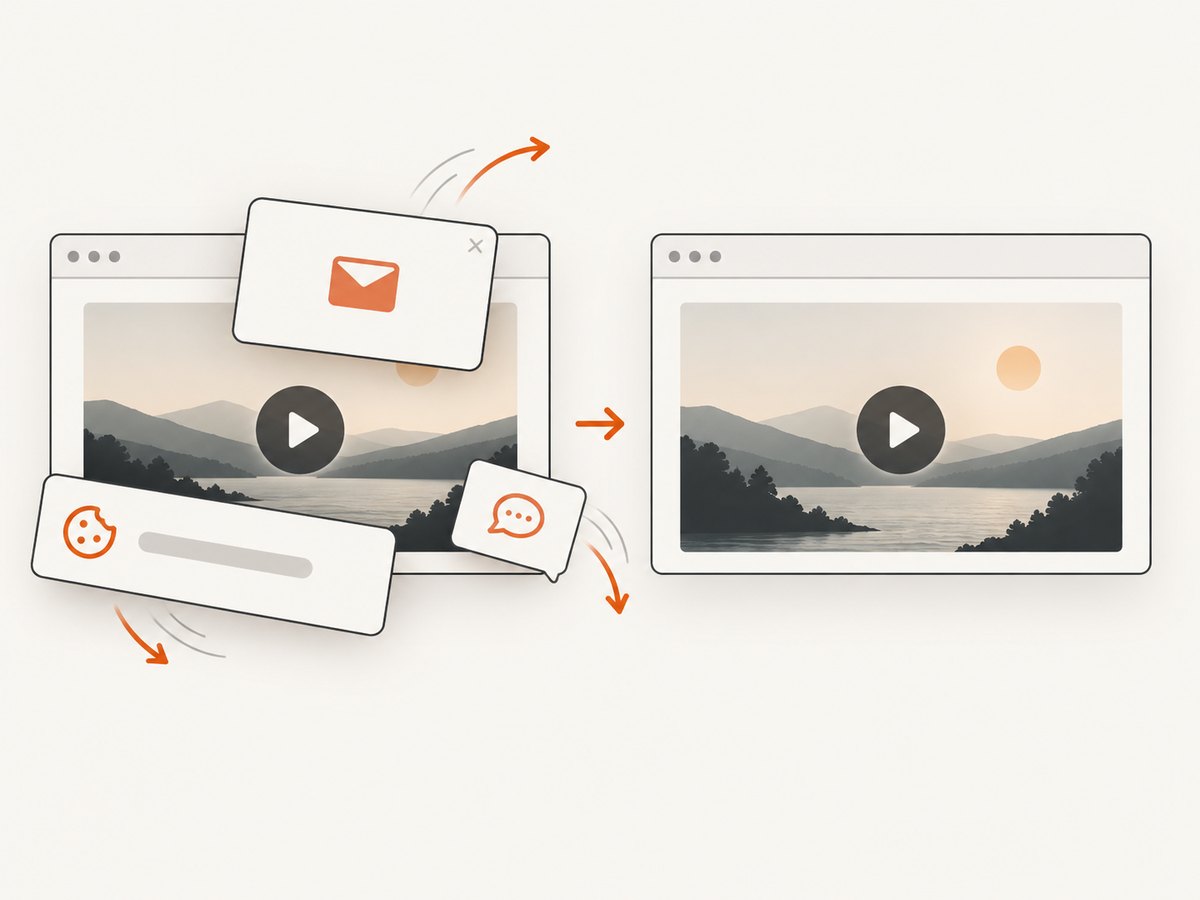
If your goal is a thumbnail, poster frame, or documentation image rather than a video file, capture the page or a video element with a screenshot tool. This produces an image, not a downloadable video.
Or skip the browser setup
ScreenshotNeo is a website screenshot API and MCP server. It can capture the video page or a selected element for a poster image, but it does not download the video stream itself. One GET request returns a PNG, JPEG, WebP, or PDF. The API can remove cookie banners, newsletter popups, and chat widgets before capture; bot checks, blank pages, failed loads, timeouts, and cache hits are not billed. Responses identify the result with X-Page-Verdict and X-Billed headers. An MCP server lets Claude, Cursor, and other MCP clients call take_screenshot, get_page_info, and capture_pdf.
cURL
curl -G "https://api.screenshotneo.com/v1/shot" -d access_key=YOUR_API_KEY --data-urlencode url=https://stripe.com -o shot.webpPython
import requests
r = requests.get("https://api.screenshotneo.com/v1/shot", params={"access_key": "YOUR_API_KEY", "url": "https://stripe.com"}, timeout=90)
open("shot.webp", "wb").write(r.content)
Node.js
const q = new URLSearchParams({ access_key: 'YOUR_API_KEY', url: 'https://stripe.com' });
const res = await fetch(`https://api.screenshotneo.com/v1/shot?${q}`);
Replace the example URL with the page you are authorized to capture. See the ScreenshotNeo documentation for request options. Relevant controls include full-page capture, CSS-element capture, device presets, dark mode, retina scale, custom CSS and JavaScript, click and wait actions, hidden selectors, blocked resource types, headers, cookies, user agents, timezone, geolocation, transparent backgrounds, resizing, caching, signed links, asynchronous jobs, bulk capture, usage reporting, and PDF output.
Plans include 1,000 screenshots per month free with no card. Paid plans start at $5 for 3,000 shots; every feature is available on every plan, and yearly billing provides two months free. Create a free ScreenshotNeo account.
9. Short FAQ
Can I download any video that plays in my browser?
No. Playback, download permission, and DRM are separate. Use an official download or obtain permission.
Is YouTube Premium offline viewing an MP4 file?
No. The offline copy is encrypted and intended for playback in the YouTube app.
Can I download another creator’s YouTube video with YouTube Studio?
No. Studio downloads apply to videos you uploaded.
Does ScreenshotNeo download videos?
No. It captures authorized web pages or elements as images or PDFs. Use it for a poster frame or page record, not for extracting a video stream.
Does personal use automatically make downloading legal?
No. Permission, platform rules, copyright exceptions, and local law all matter. Fair use is decided from the circumstances.


