How to Screenshot Facebook
Capture a Facebook post, photo, profile, or screen on any device. Learn the shortcuts, where screenshots are saved, and when Messenger may send an alert.
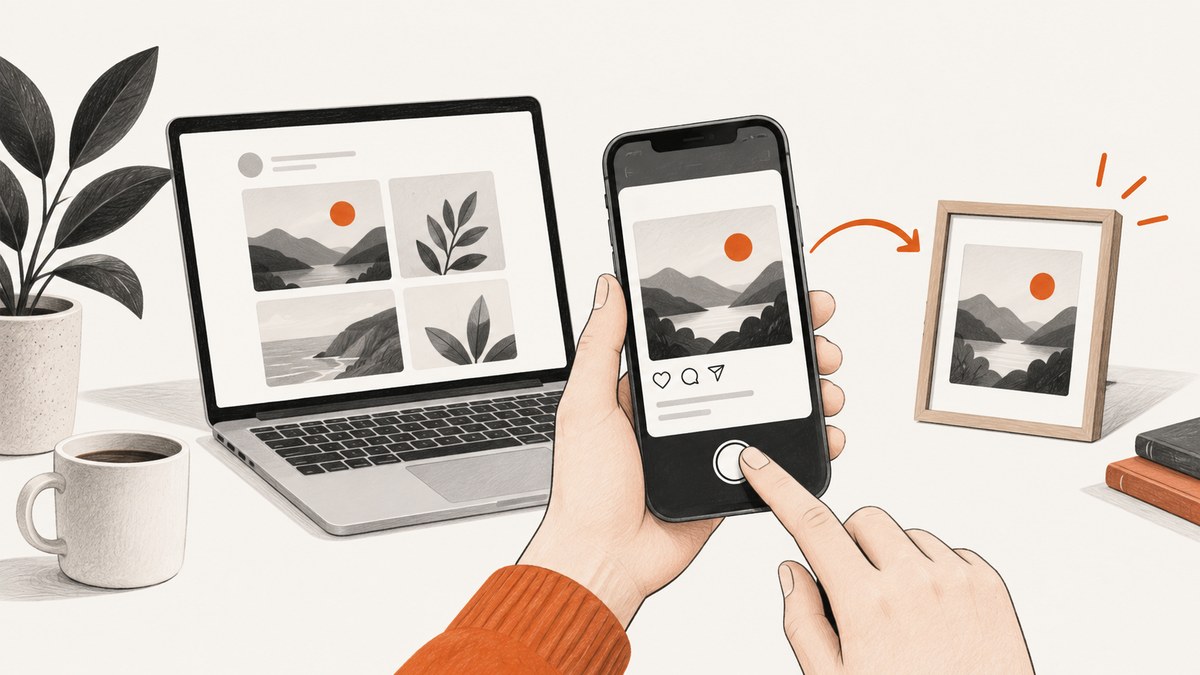
To screenshot Facebook, use your device’s built-in screenshot shortcut while the post, photo, profile, or other content is on screen. On Windows, press PrtSc or use Snipping Tool; on Mac, press Command-Shift-4; on iPhone or iPad, press the side button and volume up; on most Android phones, press power and volume down. The screenshot is saved or copied according to your device’s settings.
Meta documents a screenshot alert for disappearing messages in end-to-end encrypted Messenger chats and Messenger vanish mode. For ordinary Facebook posts, profiles, and photos, current independent reporting says Facebook does not notify the owner, but app behavior can change. If you are capturing a disappearing message, assume the other participant may be notified.
1. Choose the right capture method
The quickest option is your computer or phone’s built-in screenshot function. Use a selected-region capture when you only need one post or part of the screen; use a full-screen capture when you need surrounding context. The exact key or button combination depends on your device.
| Device | Shortcut or tool | Where to find it |
|---|---|---|
| Windows PC | PrtSc, or Snipping Tool > New | Clipboard for PrtSc; save from Snipping Tool |
| Mac | Command-Shift-4; alternatively Shift-Command-5 | Desktop by default for Command-Shift-4 |
| iPhone or iPad | Side/power button + volume up; older Home-button models: power + Home | Photos |
| Samsung Galaxy | Power + volume down; some older models: volume down + Home | Gallery |
| Other Android | Usually power + volume down; some models: volume down + Home | Gallery |
2. Screenshot Facebook on Windows
Windows offers two built-in routes. PrtSc copies the screen to the clipboard so you can paste it into an app. Snipping Tool lets you select a region and save the result directly.
Option A: Print Screen and paste
- Open Facebook and bring the content you want to capture into view.
- Press PrtSc on your keyboard. Depending on your keyboard, you may need to hold Fn as well.
- Open Paint, PowerPoint, an email draft, or another app that accepts images.
- Press Ctrl-V to paste the screenshot.
- Save or send it from that app. If you only wanted to copy the image, you can paste it wherever you need it.
This route may capture the entire screen, including unrelated windows or notifications. Check the pasted image and crop it before sharing.
Option B: Snipping Tool for a selected area
- Open Snipping Tool from the Windows Start menu.
- Select New.
- Drag across the Facebook post, photo, or region you want.
- Review the capture, then choose File > Save As.
- Choose a location and an image format such as PNG, then save.
A selected-area capture is usually more useful when documenting a single post because it excludes browser tabs and other screen contents. Include enough context to show what the image refers to, but remove anything unrelated or private.
3. Screenshot Facebook on Mac
For a selected region, press Command-Shift-4, drag over the Facebook area, and release. Under Facebook’s documented instructions, this capture is saved to the desktop with a date-based “Screen Shot” filename.
- Open the Facebook content you want to capture.
- Press Command-Shift-4. The pointer changes to a crosshair.
- Drag to select the area, then release the mouse or trackpad.
- Look on the desktop for the saved screenshot.
- Open it to crop, annotate, or rename it if needed.
For more capture choices, press Shift-Command-5 to open the Screenshot app. It provides controls to capture the full screen, a selected portion, or a recording, along with destination options. Choose the scope that preserves the context you need while leaving out unrelated private information.
4. Screenshot Facebook on iPhone or iPad
On an iPhone or iPad with Face ID, press and hold the side button and volume-up button together, then release. On older devices with a Home button, press power and Home together. A flash or shutter sound indicates the capture. Find the image in Photos (also called Camera Roll in Facebook’s instructions).
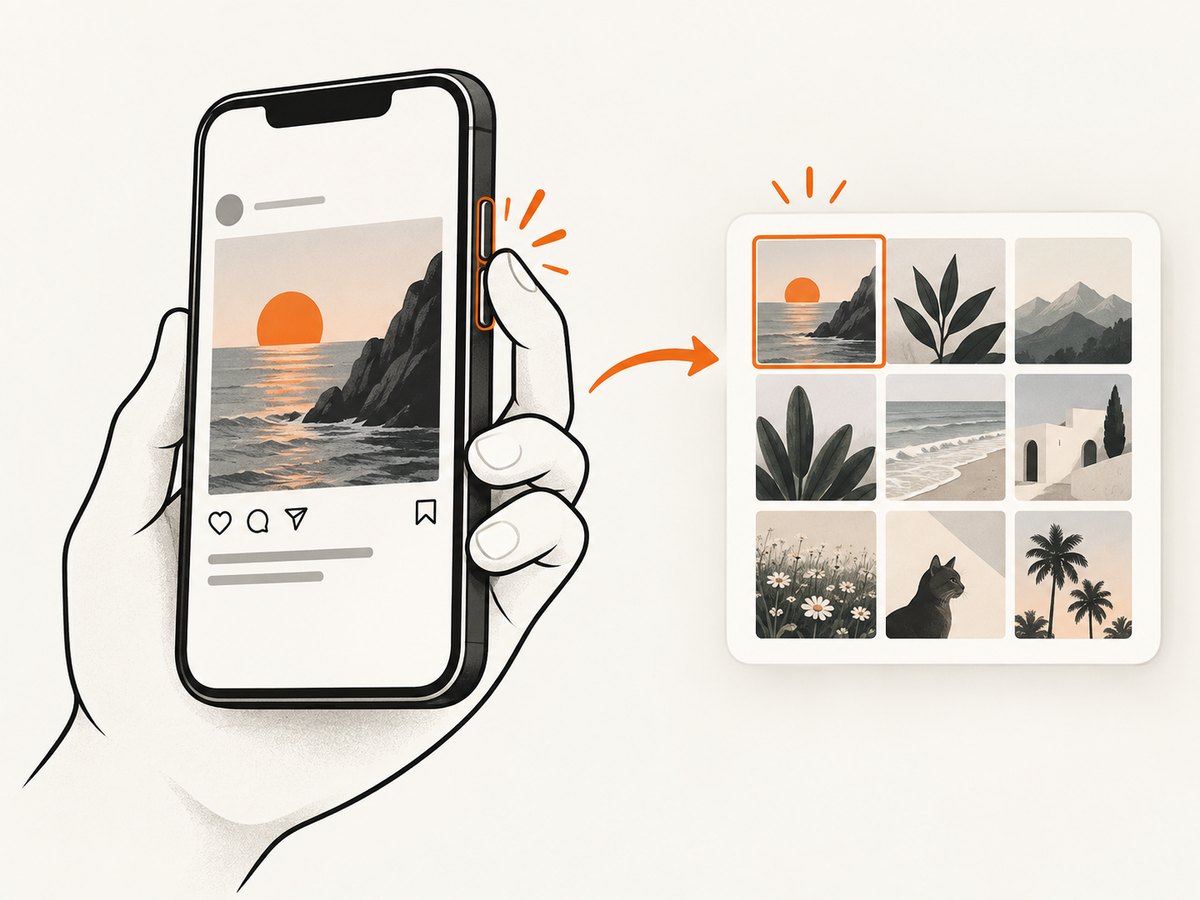
- Navigate to the Facebook post, photo, or profile.
- Press the correct two buttons at the same time and release promptly.
- Open Photos and check the most recent image.
- Crop or edit the screenshot before sharing if the screen contains unrelated details.
If you see Siri, the lock screen, or another action instead of a capture, adjust the timing: press both buttons together and release rather than holding them for an extended time. Button layout varies by model, so check Apple’s current instructions if the shortcut differs on your device.
5. Screenshot Facebook on Android
Most Android phones use power plus volume down. Press both briefly while the Facebook content is visible. Some older models use volume down plus Home. The screenshot generally appears in Gallery; on some phones, the gallery app may have a different name or screenshots album.
- Open the content and position it as you want it captured.
- Press power and volume down together, then release.
- Open Gallery and check the Screenshots album or most recent images.
- Crop, annotate, or share the saved image as needed.
Samsung Galaxy devices commonly use the same power-plus-volume-down shortcut; some older models use volume down plus Home. Gesture shortcuts and button behavior differ among manufacturers and versions of Android. If the combination does not work, look up the current screenshot instructions for your phone’s make and model rather than repeatedly pressing buttons that could change the screen state.
6. Capture a Facebook post, photo, profile, or full screen
The operating system captures what is visibly on screen. It does not automatically turn a long feed or profile into one continuous image. Scroll to the content you need, capture the visible portion, and repeat if several separate sections matter. Keep the captures in order if you will use them as a record.
- One post: Center the post and capture a region if available. Include its visible author and date only when needed for context.
- A photo: Open the photo first, then capture it. Check whether the surrounding interface contains names or comments you do not want to disclose.
- A profile: Capture the particular visible section. A screenshot does not prove that the whole profile was captured.
- A longer feed: Take multiple captures as you scroll. Do not crop away dates or context needed to understand their order.
- Full screen: Use the full-screen option on your computer when the surrounding application state matters. Inspect for notifications and other open windows before sharing.
Facebook’s regular screen view is not the same as an original media download or a complete archive. A screenshot records visible pixels, so small text may be hard to read and content below the fold is absent. If accuracy matters, preserve the relevant URL and capture date alongside the image.
7. Where Facebook screenshots go
The destination depends on how you captured the screen. A screenshot shortcut may save a file, copy it to the clipboard, or show a preview; the table below covers the documented defaults in this guide.
| Device/method | Default or next step |
|---|---|
| Windows PrtSc | Clipboard: paste into an app, then save there. |
| Windows Snipping Tool | Use Save As to choose a folder and file format. |
| Mac Command-Shift-4 | Desktop, with a date-based Screen Shot filename. |
| Mac Shift-Command-5 | Use the Screenshot app’s destination controls. |
| iPhone/iPad | Photos (Camera Roll). |
| Android/Samsung | Gallery, often in a Screenshots album. |
If a capture seems missing, first check the clipboard by pasting into an image-capable app, then check the device’s Photos, Gallery, desktop, or chosen screenshot destination. On Windows, pressing PrtSc alone may not create a file you can browse to: it may only copy the image.
8. Does Facebook notify someone if you screenshot?
For ordinary feed posts, profiles, photos, and public content, current independent reporting says Facebook does not notify the content owner when someone takes a screenshot. Treat that as a description of reported current behavior, not a permanent promise: Facebook and Messenger features can change.
There is a documented exception for disappearing messages. In a January 27, 2022 announcement, Meta said it was introducing a notification when it detects that someone screenshots a disappearing message, and noted the same feature in Messenger vanish mode. The announcement concerns disappearing messages in end-to-end encrypted Messenger chats. If you capture one, assume the other participant may receive an alert.
Do not rely on a screenshot being invisible, and do not assume an alert will appear in every app version or on every device. If privacy matters, ask before capturing or sharing someone else’s content. A notification policy is not permission to redistribute a post or message.
9. Crop and share a screenshot responsibly
Before sending a screenshot, review every visible edge. A capture can include more than the post you intended to preserve, such as account names, profile photos, phone numbers, private chat context, browser tabs, and notification banners.
- Crop unrelated names, profile pictures, notifications, and personal details.
- Keep the date or surrounding context when it is needed to interpret the capture.
- Do not present a cropped excerpt as if it showed the whole conversation or page.
- Use a format your recipient can open; PNG is a common choice for screenshots with text.
- Store sensitive captures somewhere access-controlled and delete extra copies when they are no longer needed.
A screenshot is easy to edit and can omit context. For records or reports, retain the original capture and make a separate cropped copy for sharing.
10. Troubleshooting common screenshot problems
| Problem | Likely cause | Fix |
|---|---|---|
| PrtSc appears to do nothing | The image may be on the clipboard rather than saved as a file, or the keyboard uses an Fn layer. | Paste with Ctrl-V into Paint or another app; try Fn + PrtSc if needed, or use Snipping Tool. |
| Mac capture is missing | You are looking in the wrong folder or using a different destination setting. | Check the desktop for Command-Shift-4 captures; open Shift-Command-5 to review destination controls. |
| Phone buttons open another screen | The buttons were pressed in the wrong combination or held too long. | Press the model’s screenshot buttons together briefly and release. Confirm the shortcut with the phone maker. |
| Screenshot is blurry or text is tiny | The content was zoomed out or the screenshot was resized after capture. | Increase the page zoom or open the photo/post before capture; avoid enlarging a small screenshot as a substitute for a clearer capture. |
| Part of the post is missing | Only visible pixels were captured; content below the fold was not included. | Scroll and capture additional sections, preserving their order and relevant context. |
| Screenshot contains private details | The selected area included adjacent content or notification overlays. | Retake with a tighter selection or crop a copy before sharing. Inspect the whole image first. |
| No screenshot notification appeared | Alerts are limited to particular disappearing-message experiences and can vary. | Do not infer that every capture is undetectable. For disappearing Messenger content, assume an alert may occur. |
11. Or skip the browser setup
If you are a developer who needs a repeatable screenshot of a Facebook page from code, ScreenshotNeo is a website screenshot API: send one GET request with a URL and receive an image or PDF. It is useful for automating public pages; it does not bypass Facebook sign-in, access controls, or disappearing-message privacy protections. Use it only for content you are allowed to capture.
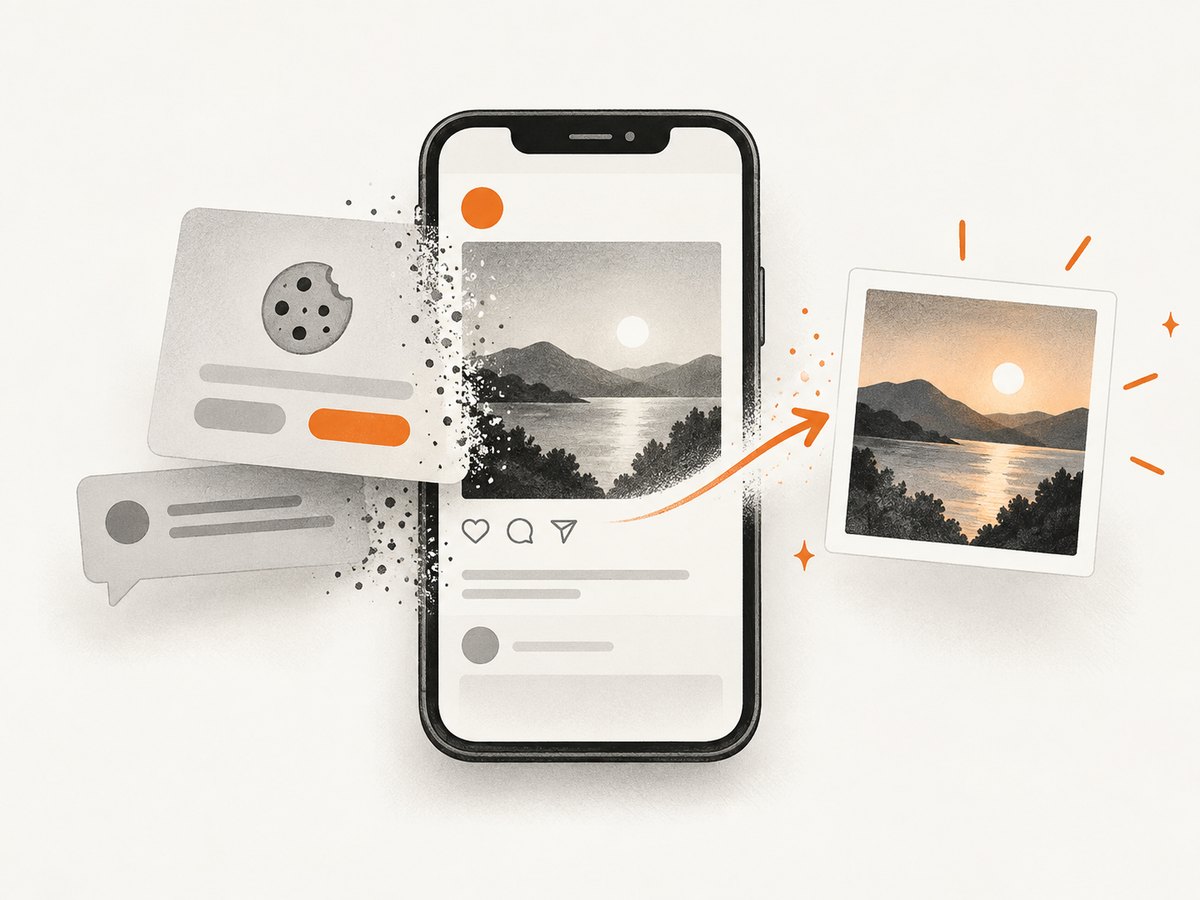
For account setup, parameters, and response details, see the ScreenshotNeo documentation. Replace the target URL with the page you are authorized to access. The following Python example writes the returned bytes to a file:
import requests

r = requests.get(
    "https://api.screenshotneo.com/v1/shot",
    params={"access_key": "YOUR_API_KEY", "url": "https://www.facebook.com/"},
    timeout=90,
)
open("facebook-shot.webp", "wb").write(r.content)
The equivalent cURL request is:
curl -G "https://api.screenshotneo.com/v1/shot" \
  -d access_key=YOUR_API_KEY \
  --data-urlencode url=https://www.facebook.com/ \
  -o facebook-shot.webp
And in Node.js with built-in fetch:
const q = new URLSearchParams({
  access_key: 'YOUR_API_KEY',
  url: 'https://www.facebook.com/'
});
const res = await fetch(`https://api.screenshotneo.com/v1/shot?${q}`);
if (!res.ok) throw new Error(`Screenshot request failed: ${res.status}`);
await Bun.write('facebook-shot.webp', res);
With Node.js versions that do not provide Bun.write, read the response as an ArrayBuffer and write it using Node’s fs/promises writeFile.
ScreenshotNeo removes cookie banners, newsletter popups, and chat widgets before capture; bot checks, blank pages, and failed loads are never billed. Its MCP server lets AI agents take screenshots, and the free plan includes 1,000 screenshots a month with no card; paid plans start at $5 for 3,000. Sign up for 1,000 free screenshots a month, with no card required.
12. FAQ
Can I screenshot a Facebook post without opening it?
Yes. Capture the post while it is visible in the feed. Open it first if you need a larger photo or a more focused view.
Can I take a screenshot of an entire Facebook page?
Built-in shortcuts capture the visible screen or a selected region. For a long feed or profile, scroll and take multiple captures; a standard device screenshot does not automatically include content below the fold.
Can I screenshot a Facebook story?
The device shortcuts above capture visible content. Notification behavior can change, and the documented Meta alert described here is for disappearing Messenger messages and vanish mode. Do not treat that as a guarantee about every story or future app version.
Will the person know if I save the screenshot?
Saving the image locally does not change the notification behavior described above. The special caution is disappearing Messenger messages, where Meta documents screenshot alerts.
What is the best format for sharing a screenshot with text?
PNG generally preserves sharp edges and readable text well. If the file is too large, crop unnecessary areas or use a suitable image format while checking that the text remains legible.


