How to Take a Screenshot on an HP Laptop
Learn every reliable way to screenshot an HP laptop in Windows 10 or 11, save the image, capture one window, fix shortcuts, and use Snipping Tool.
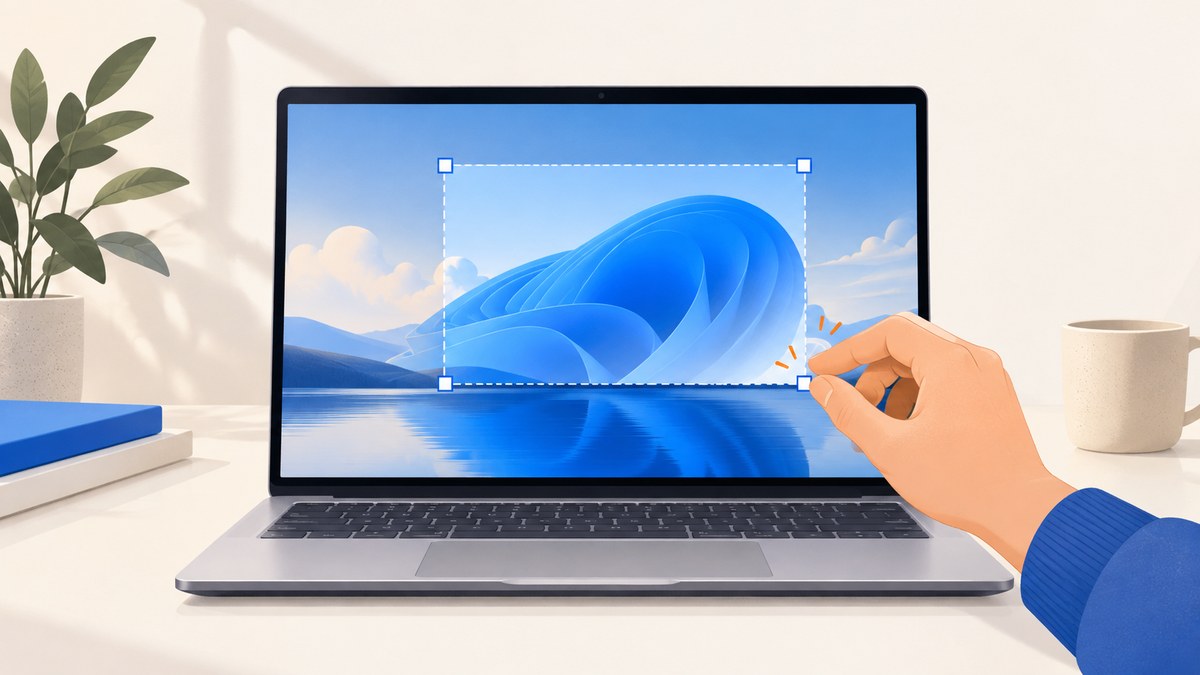
Quick answer: On most HP laptops running Windows 10 or Windows 11, press Windows + Shift + S to select part of the screen. For a full-screen image saved automatically, press Windows + PrtSc. If your HP keyboard does not respond, hold Fn while pressing the shortcut. The exact key layout varies by model.
This guide explains every built-in method, where files are saved, how to capture a window or game, what to do when a shortcut fails, and how HP Chromebook instructions differ.
Choose the right screenshot method
| What you need | Shortcut or path | Result | Saved automatically? |
|---|---|---|---|
| A selected region | Windows + Shift + S | Snipping Tool overlay; choose rectangle, freeform, window, or full screen | No; save from the notification or paste and save |
| The entire display | Windows + PrtSc | PNG file | Yes, normally Pictures > Screenshots |
| The entire display for pasting | PrtSc (sometimes Fn + PrtSc) | Image copied to clipboard | No |
| Only the active window | Alt + PrtSc | Active window copied to clipboard | No |
| A game or supported app | Windows + Alt + PrtSc | PNG through Xbox Game Bar | Yes, normally Videos > Captures |
| No keyboard shortcut | Start > Snipping Tool | Capture, edit, save, share, or delay a snip | After you choose Save |
HP may label the key PrtSc, PrtScn, PrntScrn, or Print Screen. It is often near the upper-right of the keyboard, but placement and whether it needs Fn depend on the model. Microsoft’s general shortcut guidance covers Windows 10 and Windows 11; HP’s documentation explains the model-specific Fn behavior.
Take a selected-area screenshot with Windows + Shift + S
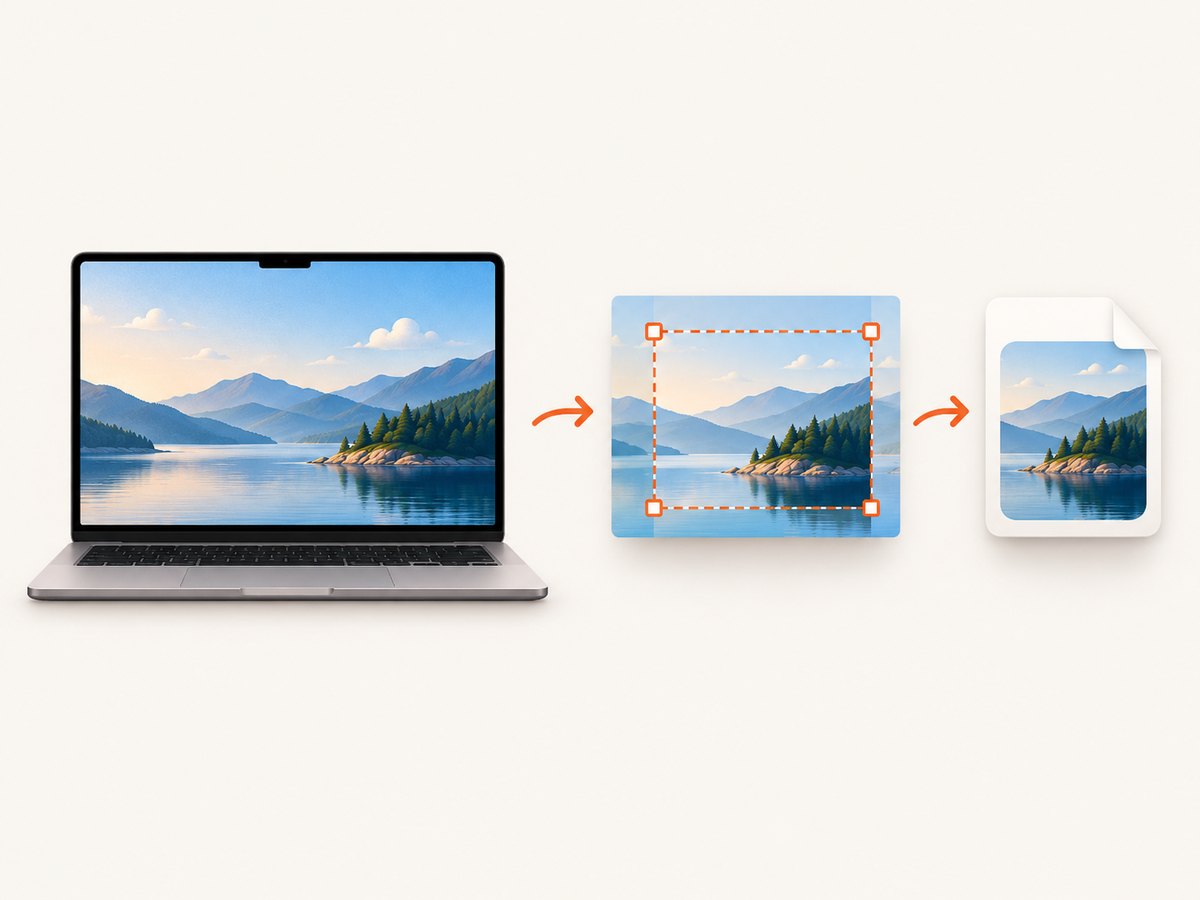
This is the most flexible choice when you need a paragraph, dialog, browser region, or one application without the rest of the desktop.
- Display the content you want to capture.
- Press Windows + Shift + S. The screen dims and the Snipping Tool toolbar appears.
- Choose a mode: Rectangular, Freeform, Window, or Full screen.
- Drag around the region, click the window, or select the full display.
- Windows copies the result to the clipboard and shows a notification. Select the notification to open it in Snipping Tool.
- Annotate, crop, copy, share, or select Save (or press Ctrl + S) and choose a folder.
If you only need to paste the capture into another application, press Ctrl + V immediately after the snip. Clipboard captures are temporary: copying something else can replace them, so save an important image as a file.
Save the entire screen automatically
- Arrange the desktop exactly as it should appear.
- Press Windows + PrtSc. On some HP keyboards use Fn + Windows + PrtSc.
- Watch for a brief dimming or flash, which indicates that Windows captured the display.
- Open File Explorer and go to Pictures > Screenshots.
The standard output is a PNG. The Screenshots folder can be redirected by Windows library settings or cloud-storage configuration, so search for “Screenshots” if the standard path is empty. This shortcut captures every visible monitor area that Windows includes in the desktop view, including taskbars and notifications.
Copy the entire screen with Print Screen
Press PrtSc (or Fn + PrtSc when Print Screen is a secondary key function). Windows copies the entire screen to the clipboard; it does not normally create a file.
- Open Paint, Word, an email composer, or another image-compatible application.
- Press Ctrl + V.
- In Paint, choose File > Save as, select PNG or another format, and pick a known folder.
Use this method when you want to place the image directly into a document or message. If you need a permanent file with no paste step, use Windows + PrtSc instead.
Capture only the active window
- Click the application window so it is active.
- Press Alt + PrtSc (on some HP layouts, hold Fn as well).
- Open Paint or another compatible app and press Ctrl + V.
- Save the image.
Microsoft’s general instructions use Alt + Print Screen. HP documentation also lists Shift + Print Screen for some keyboard configurations, but it is not a universal shortcut. If Alt + PrtSc does not work on your model, use Windows + Shift + S and choose the Window mode.
Use Snipping Tool from the Start menu
Keyboard shortcuts are optional. Select Start, type Snipping Tool, and open the app. Select New, choose a capture mode, and select the screen area. You can edit, copy, save, or share the result.
Snipping Tool also has a delay control, useful for menus and tooltips that disappear when you press a key:
- Open Snipping Tool and select a delay from one to five seconds.
- Choose the capture mode and select New.
- During the countdown, open the menu or tooltip.
- When the screen dims, select the target and save the capture.
The interface can look slightly different between Windows 10 and Windows 11, but the core modes and workflow are the same. Current versions may also show video-snipping or Copilot+ features; those are optional and are not required for still screenshots.
Screenshot a game or supported app
For a game or an app supported by Xbox Game Bar, press Windows + Alt + PrtSc. Windows saves a PNG through Game Bar, normally under Videos > Captures. Game Bar may need to be enabled in Windows settings, and the shortcut does not guarantee support for every application.
Use Windows + Shift + S for ordinary desktop software. Use Game Bar when you specifically need a game or app capture and want it filed automatically.
Why the Print Screen key is different on HP laptops
HP sells laptops with different keyboard layouts. The Print Screen marking may share a key with another symbol, making it a secondary function. Try the relevant shortcut with Fn held down. Some models use an Fn-lock state, which changes whether the secondary function is active by default.
Do not assume that every HP laptop uses the same combination. The operating system matters too: the procedures above are for Windows 10 and Windows 11, not ChromeOS.
Troubleshooting checklist
The shortcut does nothing
- Try the same shortcut while holding Fn.
- Confirm that the key is labeled PrtSc, PrtScn, PrntScrn, or Print Screen.
- Try Windows + Shift + S, which does not depend on the Print Screen key.
- Open Snipping Tool from Start and select New.
- If you used PrtSc or Alt + PrtSc, open Paint and press Ctrl + V; the image may be in the clipboard even though no file appeared.
The screenshot was copied but cannot be found
Plain PrtSc, Alt + PrtSc, and most Windows + Shift + S captures begin in the clipboard. They are not automatically stored in Pictures. Paste into Paint, then use File > Save as. Save to a known folder and choose PNG when you want lossless text and interface detail.
The saved file is missing
For Windows + PrtSc, check Pictures > Screenshots. For Xbox Game Bar, check Videos > Captures. If those libraries were redirected, search File Explorer for recent PNG files or “Screenshots.”
The capture includes too much
Use Windows + Shift + S and select Rectangular, Freeform, or Window mode. This is faster and cleaner than capturing the full desktop and cropping afterward.
A menu closes before capture
Use Snipping Tool’s one-to-five-second delay. Start the countdown, open the menu, and capture it when the display dims.
The screen is black or protected
Some applications intentionally block screenshots or render protected video as a blank area. Try the application’s own export or sharing function. Do not treat a blank result as proof that the keyboard shortcut is broken.
HP Chromebook note
An HP laptop may run ChromeOS instead of Windows. If you see the ChromeOS shelf and ChromeOS settings, the Windows shortcuts in this guide may not work. Use a Chromebook-specific method for that operating system. Identify the operating system before troubleshooting the keyboard.
Protect private information before sharing
Inspect the image for passwords, email addresses, payment details, personal messages, and private documents. Crop or redact sensitive information before uploading or sending a screenshot. If you share the original file as well as a cropped preview, information outside the visible crop may still be present.
Or skip the browser setup
If your goal is to capture a web page rather than your laptop’s physical display, ScreenshotNeo returns a screenshot or PDF from one GET request. Its cleanup steps accept cookie and consent banners and remove more than 60 known consent platforms, newsletter popups, and chat widgets before capture; each step can be disabled. Bot checks, blank pages, timeouts, failed loads, and cache hits are not billed, and response headers report the page verdict and billing status.
See the ScreenshotNeo API documentation for all options, including full-page captures with lazy images, CSS-selector element shots, device presets, custom viewports, retina scale, dark mode, custom CSS and JavaScript, clicks, waits, blocked resources, headers, cookies, user agents, authorization, timezone, geolocation, transparent backgrounds, resizing, caching, signed links, asynchronous jobs, webhooks, bulk capture, and usage data.
cURL
curl -G "https://api.screenshotneo.com/v1/shot" -d access_key=YOUR_API_KEY --data-urlencode url=https://stripe.com -o shot.webpPython
import requests
r = requests.get("https://api.screenshotneo.com/v1/shot", params={"access_key": "YOUR_API_KEY", "url": "https://stripe.com"}, timeout=90)
open("shot.webp", "wb").write(r.content)
Node.js
const q = new URLSearchParams({ access_key: 'YOUR_API_KEY', url: 'https://stripe.com' });
const res = await fetch(`https://api.screenshotneo.com/v1/shot?${q}`);
ScreenshotNeo also provides an MCP server with take_screenshot, get_page_info, and capture_pdf tools for Claude, Cursor, and other MCP clients. The Free plan includes 1,000 shots per month with no card; paid plans start at $5 for 3,000 shots. Create a free ScreenshotNeo account.
Performance, reliability, and cost considerations
- Local capture: Windows shortcuts are immediate and free, but require the laptop to be awake and the content visible.
- Clipboard reliability: Clipboard methods are convenient but temporary. Save important captures promptly.
- File formats: PNG preserves small text and interface edges; use another format only when a destination requires it.
- Web capture: An API is repeatable for URLs, supports waits and full-page rendering, and avoids manual scrolling. ScreenshotNeo bills only clean shots and exposes billing headers, which helps reconcile usage.
- Automation: Use caching with a chosen TTL for repeated URLs, asynchronous jobs for slow pages, and bulk capture for up to 100 URLs per call.

FAQ
Where are screenshots saved on an HP laptop?
Windows + PrtSc normally saves PNG files in Pictures > Screenshots. Xbox Game Bar normally uses Videos > Captures. Clipboard captures must be pasted and saved.
Why does my HP Print Screen key not work?
Your model may require Fn, or Print Screen may be a secondary key function. Try Fn and use Windows + Shift + S or Snipping Tool if needed.
How do I screenshot one window?
Click the window and press Alt + PrtSc, then paste and save, or press Windows + Shift + S and choose Window mode.
Does this work on Windows 10?
Yes. The core shortcuts work on Windows 10 and Windows 11, although Snipping Tool labels can differ slightly.
Can I screenshot an HP Chromebook this way?
No assumption is safe. ChromeOS uses different shortcuts and tools; first confirm which operating system the HP laptop runs.