How to Take a Screenshot of a Web Page in Chrome
Learn how to capture a visible viewport, full page, mobile layout, or automated Chrome screenshot on desktop and Android.
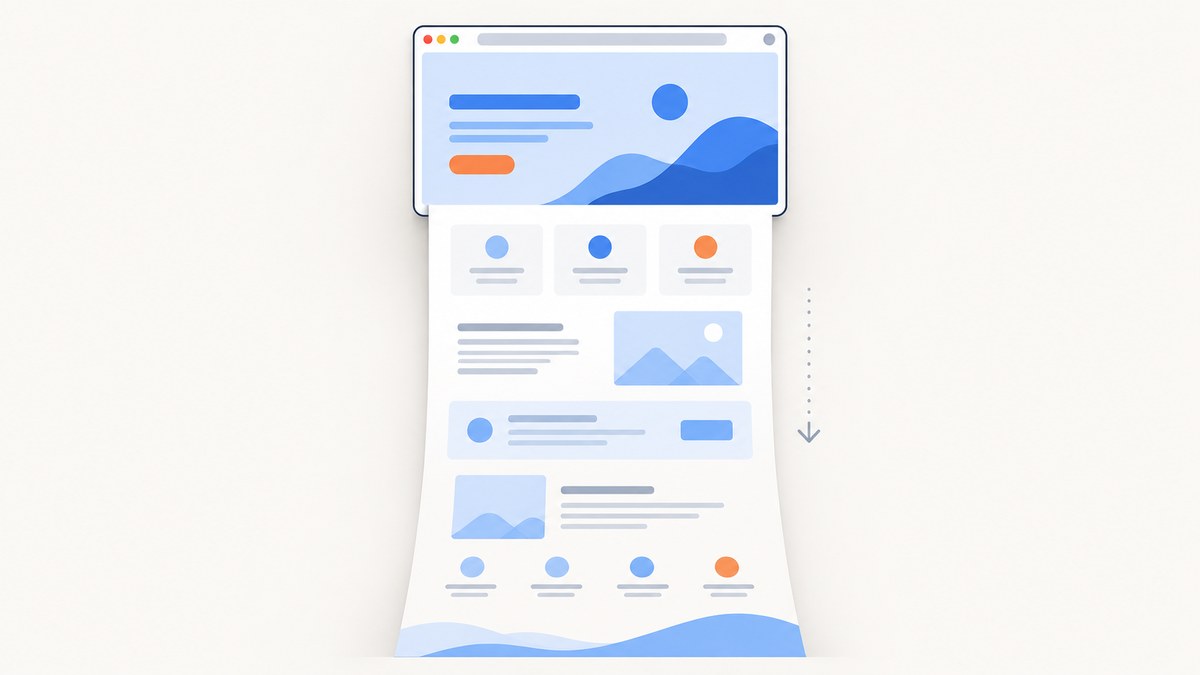
Quick answer: On desktop Chrome, open DevTools, open the Command Menu, search for screenshot, then choose Capture screenshot for the visible viewport or Capture a full size screenshot for the entire page. For repeatable automation, run Headless Chrome with --screenshot. On Android, use the phone’s native screenshot controls and the scrolling screenshot option when available.
1. Take a screenshot of the visible page in desktop Chrome
- Open the web page you want to capture in Chrome.
- Open DevTools from More tools > Developer Tools, or use your platform’s DevTools shortcut.
- Open the DevTools Command Menu.
- Search for
screenshot. - Choose Capture screenshot.
- Save the generated PNG when Chrome asks where to save it.
This captures the current viewport: the part of the page visible inside the browser window. Content below the fold is not included.
Use Device Mode before capturing
To capture a mobile-sized layout on a desktop, enable Device Mode in DevTools, select a device preset or enter a custom viewport, and then open the Command Menu again. In device-specific mode, Chrome can also show a device frame when Show device frame is enabled before capture.
2. Take a full-page screenshot in Chrome
Chrome’s built-in full-page command is Capture a full size screenshot. It captures the complete document, including content that is currently below the fold.
- Open the target page.
- Open DevTools.
- Open the DevTools Command Menu and search for
screenshot. - Choose Capture a full size screenshot.
- Save the PNG.
If the result is unexpectedly short, check that you selected Capture a full size screenshot rather than Capture screenshot. Also check whether the page has loaded its content yet; pages that fetch content after load can require a short wait before capture.
Full-page capture checklist
- Scroll through the page once if you suspect images or other content load lazily.
- Wait for the main content and fonts to appear before opening the Command Menu.
- Use Device Mode when the target is a mobile layout.
- Expect a PNG from Chrome’s built-in screenshot command.
- Review pages with sticky headers or fixed overlays; their appearance can affect how the final long image reads.
3. Automate screenshots with Headless Chrome
For a repeatable command-line workflow, use Headless Chrome’s documented --screenshot flag. The output is written as screenshot.png in the current working directory.
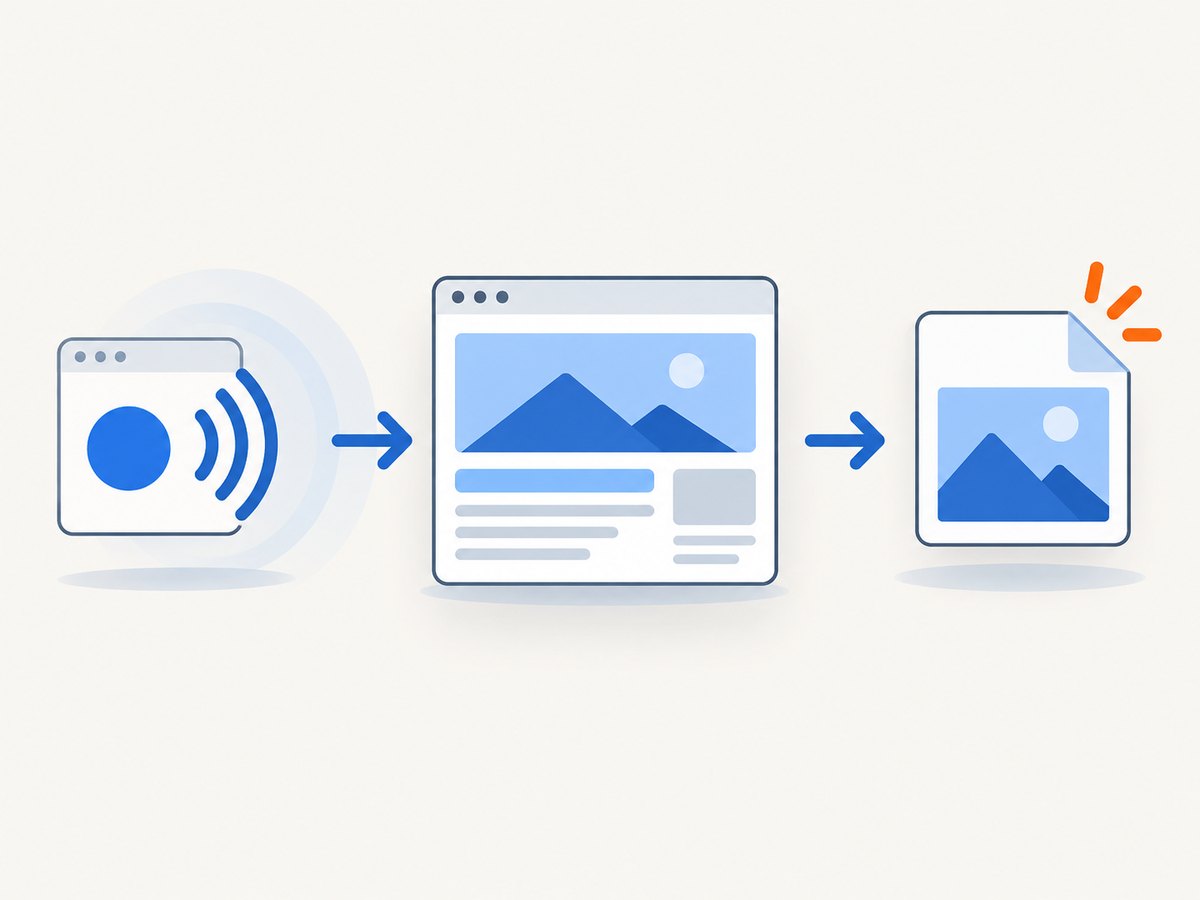
chrome --headless --disable-gpu --screenshot https://example.com/Set an explicit viewport when dimensions matter:
chrome --headless --disable-gpu --window-size=1280,1696 --screenshot https://example.com/The --window-size=WIDTH,HEIGHT value controls the viewport used for the capture. Use a consistent value in scripts and CI jobs so that screenshots are comparable over time.
Headless Chrome workflow
- Install or locate the Chrome executable on the machine that will run the job.
- Run the command from the directory where you want
screenshot.pngsaved. - Provide the full URL, including the scheme such as
https://. - Set
--window-sizewhen the screenshot must match a known desktop or mobile viewport. - Open the generated PNG and check that content loaded before the capture completed.
4. Capture a page on Android
Chrome on Android uses the phone’s native screenshot controls rather than the desktop DevTools screenshot workflow.
- Open the page in Chrome and position it at the content you want to capture.
- Press Power and Volume Down together.
- If that shortcut is unavailable, hold the Power button and tap Screenshot.
- For a long page, choose Take a scrolling screenshot when the option appears.
Google documents scrolling screenshots for Android 12 and later on most screens that support scrolling. Availability can vary by Android version, device manufacturer, and whether the current screen supports scrolling. If the option is missing, follow the phone maker’s screenshot instructions.
5. Choose the right Chrome screenshot method
| Method | Coverage | Device | Repeatability | Output |
|---|---|---|---|---|
| Capture screenshot | Visible viewport | Desktop Chrome and emulated devices | Manual | PNG |
| Capture a full size screenshot | Entire page | Desktop Chrome and emulated devices | Manual | PNG |
| Headless Chrome | Viewport controlled by command flags | Desktop or server environment | Command-line automation | PNG |
| Android native controls | Viewport or scrolling page when supported | Android phone | Manual | Phone screenshot format |
| Chrome extension | Often full page and annotation workflows | Desktop Chrome | One-click after installation | Depends on extension |
If you want one-click full-page capture, a Chrome Web Store extension such as GoFullPage is an optional path. Check its current listing and capabilities before installing it.
6. Common problems and fixes
The screenshot only shows the visible area
Cause: You selected Capture screenshot.
Fix: Open the Command Menu again and choose Capture a full size screenshot.
The page is cut off or missing lower content
Cause: Content may load lazily or after the initial page render.
Fix: Wait for the page to finish loading, scroll through it once, and repeat the full-size capture. For automated jobs, make sure the page is ready before invoking Headless Chrome.
The mobile screenshot has desktop styling
Cause: The page was captured at the desktop viewport.
Fix: Enable Device Mode, choose a mobile preset or enter the required width and height, then capture again.
The screenshot looks different between runs
Cause: Viewport dimensions, page state, loading timing, or responsive breakpoints changed.
Fix: Set an explicit --window-size, use the same URL and page state, and wait for the page’s content to settle before capture.
The Android scrolling option is missing
Cause: The device, Android version, or current screen may not support scrolling screenshots.
Fix: Capture several regular screenshots, check for a system update, or consult the phone manufacturer’s support documentation.
Headless Chrome does not create the file
Cause: The executable name or path may differ, the URL may be invalid, or the command may be running in a directory you are not checking.
Fix: Confirm the Chrome executable path, include https:// in the URL, and inspect the command’s working directory for screenshot.png.
7. Performance, reliability, and cost considerations
Performance
- Viewport screenshots are usually simpler than full-page captures because they contain less content.
- Full-page captures can take longer on pages with many images, long documents, or lazy-loaded sections.
- Headless jobs become more predictable when viewport dimensions are fixed and the page is captured only after required content appears.
- For repeated captures, save files with a URL, viewport, and timestamp in the filename so you can compare runs.
Reliability
- Manual DevTools capture is useful for one-off work but depends on the current browser state.
- Headless Chrome is better for scheduled or CI workflows because the command and viewport can be kept consistent.
- Pages that require interaction, authentication, consent handling, or special network conditions may need browser automation beyond the basic command.
Cost
Chrome’s built-in DevTools, Headless Chrome, and Android screenshot controls do not add a screenshot-service charge. Your practical costs are the machine, storage, and maintenance required to run an automated browser workflow.
8. Or skip the browser setup
ScreenshotNeo provides a website screenshot API and MCP server for developers. One GET request returns a PNG, JPEG, WebP, or PDF. It can capture a full page, load lazy images, use device presets or custom viewports, select one element by CSS selector, apply dark mode, set retina scale, wait for a selector or network idle, run custom CSS or JavaScript, click an element, hide selectors, set headers and cookies, block selected requests or resource types, and more.
See the ScreenshotNeo API documentation for the request options.
cURL
curl -G "https://api.screenshotneo.com/v1/shot" -d access_key=YOUR_API_KEY --data-urlencode url=https://stripe.com -o shot.webpPython
import requests

r = requests.get(
    "https://api.screenshotneo.com/v1/shot",
    params={"access_key": "YOUR_API_KEY", "url": "https://stripe.com"},
    timeout=90,
)
r.raise_for_status()
open("shot.webp", "wb").write(r.content)
Node.js
const q = new URLSearchParams({ access_key: 'YOUR_API_KEY', url: 'https://stripe.com' });
const res = await fetch(`https://api.screenshotneo.com/v1/shot?${q}`);
if (!res.ok) throw new Error(`Screenshot failed: ${res.status}`);
const fs = await import('node:fs/promises');
await fs.writeFile('shot.webp', Buffer.from(await res.arrayBuffer()));
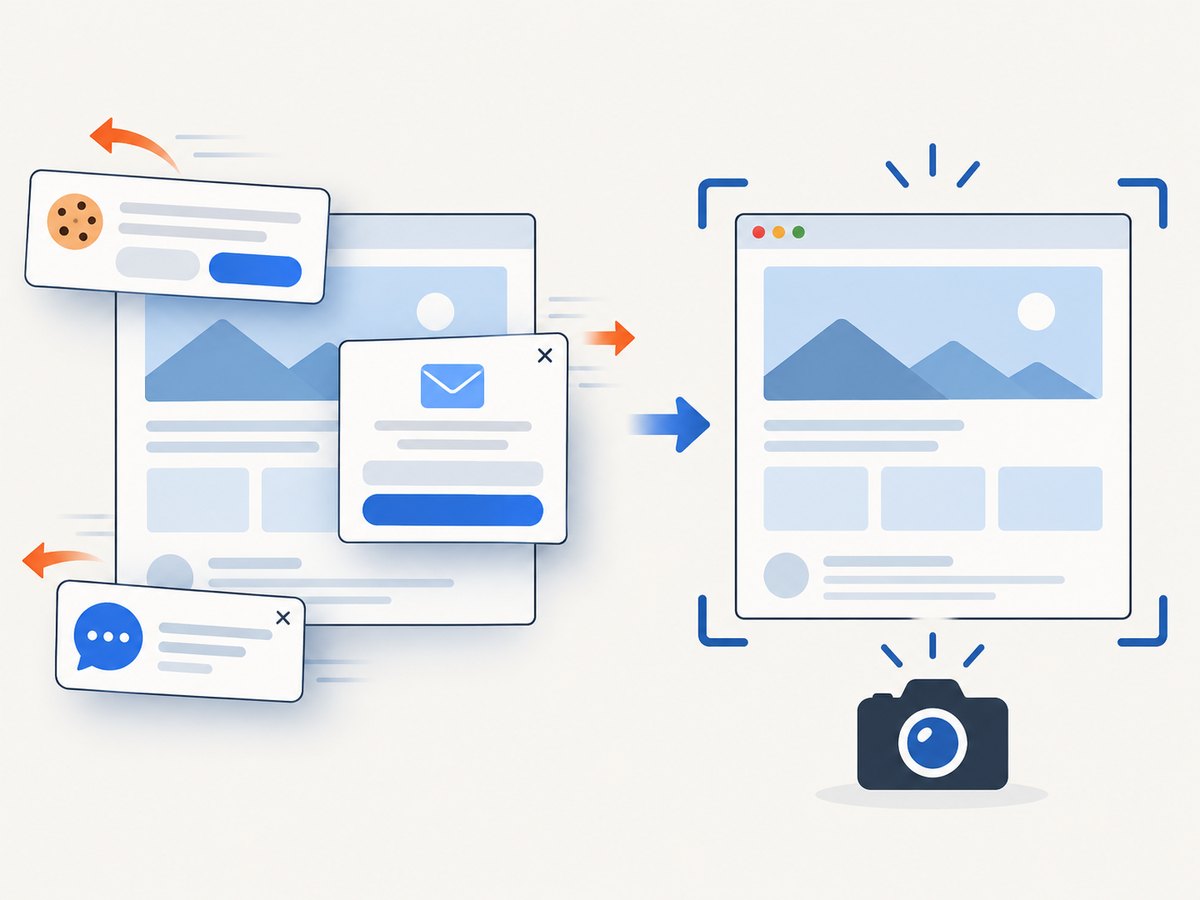
ScreenshotNeo removes cookie and consent banners, newsletter popups, and chat widgets before capture. Bot checks or CAPTCHAs, blank pages, timeouts, failed loads, and cache hits are not billed, and the response reports the result through X-Page-Verdict and X-Billed headers. Its MCP server includes take_screenshot, get_page_info, and capture_pdf tools for Claude, Cursor, and other MCP clients.
The Free plan includes 1,000 screenshots per month with no card. Paid plans start at $5 for 3,000 screenshots, and every feature is available on every plan. Create a free ScreenshotNeo account.
9. FAQ
What is the Chrome command for an entire page?
In DevTools, open the Command Menu and choose Capture a full size screenshot.
Can Chrome save a screenshot as a PDF?
The DevTools screenshot commands produce PNG images. Use Chrome’s print dialog when you need a PDF document, or use a screenshot API that supports PDF output.
Does Chrome’s full-page screenshot include content below the fold?
Yes. Capture a full size screenshot is designed to include the complete page, including content below the visible viewport.
Can I automate Chrome screenshots without opening a browser window?
Yes. Headless Chrome supports --screenshot and can run with an explicit --window-size=WIDTH,HEIGHT.
Why does a page look different in a screenshot than on my screen?
Responsive breakpoints, viewport size, loading timing, fonts, cookies, and page state can all change the rendered result. Keep those inputs consistent when comparing screenshots.


