How to Take a Screenshot of Your Screen
Capture your screen on Windows, Mac, iPhone, or Android, then find, edit, save, and share the screenshot.
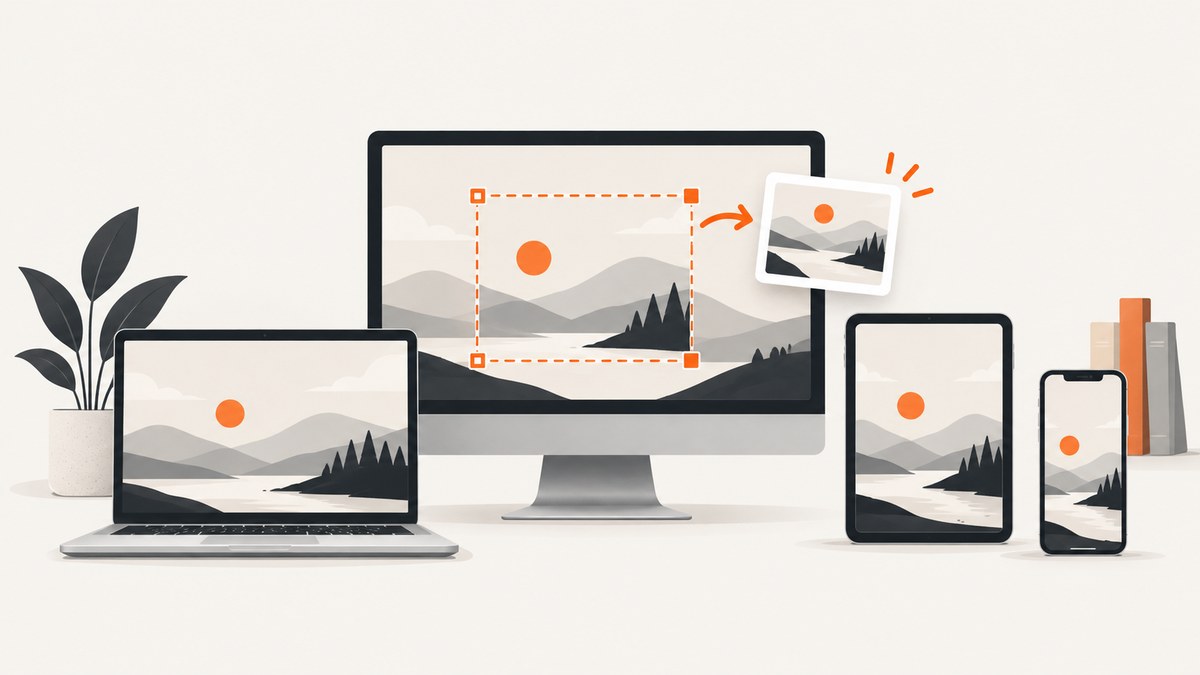
Quick answer: On Windows, press Windows+Shift+S and select an area. On Mac, press Shift+Command+3 for the whole screen or Shift+Command+4 for a selection. On iPhone, quickly press Side+Volume Up, or Side+Home on models with a Home button. On most Android phones, press Power+Volume Down. Your device shows a preview or saves the image; the exact next step depends on the platform.
A screenshot is a still image of what a device displays at the moment of capture. Use a screen recording if you need to show motion, taps, or a sequence of events. The steps below cover Windows 10 and 11, Mac, iPhone, and Android, including how to capture a region or a longer page, and where to find the result.
1. Choose what you want to capture
Before pressing a shortcut, decide whether you need the whole screen, one window, a small region, or content that continues below the visible area. Also consider where the image should go: the clipboard is convenient for pasting into a message, while a saved file is easier to attach or keep.
| Capture | Useful when | What to check |
|---|---|---|
| Whole screen | You need to show the complete desktop or current phone display. | Close private windows and notifications first. |
| Window or region | You want to focus attention on one app, dialog, or detail. | Leave enough surrounding context to make the image understandable. |
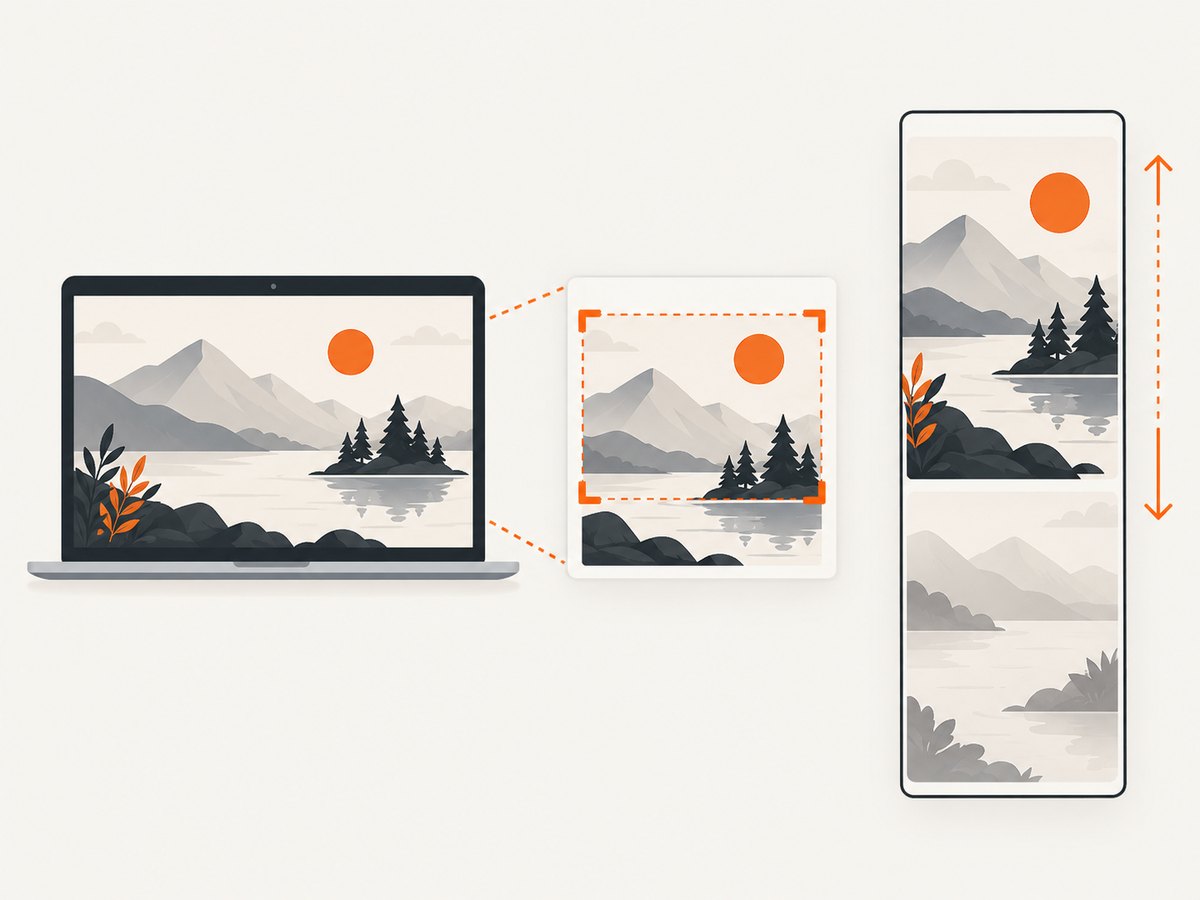
| Scrolling or full page | You need content that extends beyond the visible display. | This depends on the operating system, app, and screen; it is not available everywhere. |
| Clipboard capture | You plan to paste immediately into another app. | A clipboard image is not necessarily saved as a file. |
2. Take a screenshot on Windows 10 or Windows 11
Capture a selected area, window, or full screen
- Press Windows+Shift+S.
- When the Snipping Tool overlay appears, choose a capture mode: rectangular, freeform, window, or full screen.
- Select the area or window if the mode requires it. The capture is copied and opens in Snipping Tool for editing and saving.
- Use the editor to crop or annotate if needed, then save the image or share it from the app.
Microsoft documents these modes and shortcuts for Windows 10 and 11 in its Snipping Tool instructions. To capture the entire screen directly to the clipboard, press Print Screen (sometimes labeled PrtSc). If your keyboard lacks that key, Microsoft lists Fn+Windows+Space as an alternative for some devices. On some systems, Alt+Print Screen copies the active window; keyboard behavior can depend on settings and hardware.
Save, locate, or paste the image
After a Snipping Tool capture, use its save control to choose a filename and location. Newer Snipping Tool versions can automatically save captures to the Screenshots folder; settings control that behavior. To paste a clipboard capture, open the destination app and press Ctrl+V. If you used Windows+Print Screen, look in File Explorer under Pictures > Screenshots. If nothing appears there, check the clipboard by pasting into an image editor.
For a menu that closes as soon as you click away, open Snipping Tool and use its delay option, then open the menu during the countdown. Availability and interface labels may vary with the installed app version. Snipping Tool also offers video snips; those record a clip and are different from the still-image steps here.
3. Take a screenshot on Mac
- Whole screen: Press and release Shift+Command+3.
- Selected area: Press and release Shift+Command+4, drag to select, then release.
- Window or menu: Press Shift+Command+4, then press Space to switch to window capture and click the target.
- Capture controls: On macOS Mojave 10.14 or later, press Shift+Command+5 to open the Screenshot app.
By default, screenshots are saved to the desktop. A thumbnail appears briefly; click it to mark up or crop, or wait for the file to save. With the Screenshot app, open Options to set a timer or change the save location. To copy rather than save directly, hold Control while using a capture shortcut, then paste into another app. Apple’s Mac screenshot guide describes these shortcuts and notes that some apps may prevent screenshots of their windows.
If the shortcut seems to do nothing, check whether the screenshot is being saved to a different location, whether the app restricts capture, and whether the keyboard shortcut has been changed. For a timed capture of a menu, use the Screenshot app timer, start it, and open the menu before the countdown ends.
4. Take a screenshot on iPhone
- iPhone without a Home button: Quickly press and release the Side button and Volume Up together.
- iPhone with a Home button and Side button: Quickly press and release the Side button and Home button together.
- Older iPhone with a top button: Quickly press and release the Top button and Home button together.
- Open the preview if you want to edit, crop, mark up, or share. Otherwise, find the saved image in Photos.
For a supported webpage or document that extends beyond the display, take the screenshot and tap its preview. Choose Full Page when that option is offered, then review the longer capture and save it. This option is context-dependent; it does not turn every app or screen into a scrolling screenshot. Apple’s iPhone guide also describes using Siri, AssistiveTouch, or Back Tap as alternatives to hardware buttons. To find the image later, open Photos and look under Collections > Media Types > Screenshots. Instructions and preview behavior can vary by iOS version.
5. Take a screenshot on Android
- Open the screen you want to capture.
- Press Power and Volume Down at the same time, then release.
- If that combination does not work, hold Power for a few seconds and tap Screenshot if the option appears.
- Tap the preview to edit or share, or locate the saved image afterward.
On Android 12 and later, many screens that allow scrolling show Capture more after a screenshot. Tap it and extend the selected area to capture content below the screen. Some apps or screens do not support this. Button combinations and menus vary by manufacturer; if neither method works, consult that phone maker’s support instructions. Google’s Android screenshot guide covers the standard button method, scrolling screenshots, and the version caveat.
Google’s documented route for finding images is Photos > Collections > On this device > Screenshots. On older devices without Photos, check the Gallery app and its Screenshots album. Use the preview controls to crop, annotate, or share; exact tools depend on your phone’s apps and software version.
6. Edit, save, and share the screenshot
Check the image before sending it. Crop unrelated areas, add a visible mark or annotation when it helps explain the issue, and ensure account details, private messages, or other sensitive information are not exposed. A screenshot shows pixels, so recipients generally cannot interact with the original controls or copy text as if it were a webpage.
- To paste: Use the platform’s copy-to-clipboard capture, then paste into a compatible app.
- To attach: Save the image to a known folder or photo library, then attach it from the destination app.
- To share from the preview: Use the operating system’s share control when available.
- To capture a full web page: Use a supported Full Page or Capture more option where available. For a repeatable website capture from code, use a browser automation tool or screenshot API; this captures a webpage, not arbitrary pixels currently displayed on your physical screen.
7. Or skip the browser setup
If your goal is a screenshot of a website for documentation, QA, or an automated workflow, ScreenshotNeo can return an image or PDF with one GET request. It is a website screenshot API and MCP server; it does not capture your computer’s desktop or phone screen. See the ScreenshotNeo API documentation for the available parameters.
curl -G "https://api.screenshotneo.com/v1/shot" -d access_key=YOUR_API_KEY --data-urlencode url=https://stripe.com -o shot.webpimport requests
r = requests.get(
"https://api.screenshotneo.com/v1/shot",
params={"access_key": "YOUR_API_KEY", "url": "https://stripe.com"},
timeout=90,
)
open("shot.webp", "wb").write(r.content)const q = new URLSearchParams({ access_key: 'YOUR_API_KEY', url: 'https://stripe.com' });
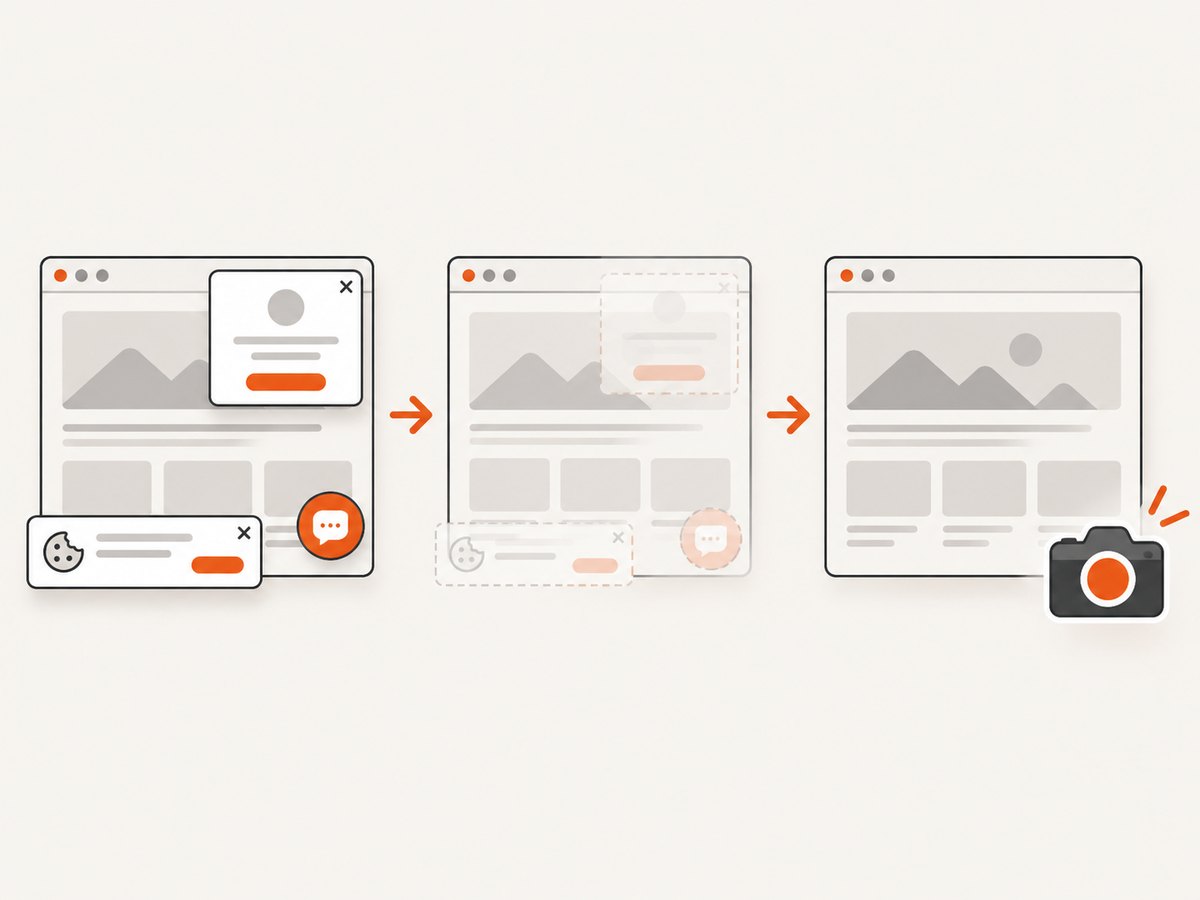
const res = await fetch(`https://api.screenshotneo.com/v1/shot?${q}`);Cookie banners, popups, and chat widgets are removed before the shot. Bot checks, blank pages, and failed loads are never billed; response headers identify the page verdict and billing status. An MCP server lets AI agents use screenshot tools, and 1,000 screenshots a month are free with no card; paid plans start at $5 for 3,000. Sign up for the free plan and start with 1,000 screenshots a month at no charge.
8. Troubleshooting
| Problem | Likely cause | What to try |
|---|---|---|
| Windows shortcut opens nothing | Keyboard layout, key labels, or Snipping Tool availability differs. | Search Start for Snipping Tool and launch it directly; try the Print Screen key or check keyboard settings. |
| Screenshot copied but no file exists | The capture went to the clipboard. | Paste into an image editor or message, then save from that app. |
| Mac screenshot is not on the desktop | The save location was changed, or the capture was copied to the clipboard. | Open Shift-Command-5 > Options to check the destination; paste into an app if you held Control. |
| Phone buttons change volume or lock the screen | The buttons were pressed in sequence, held too long, or differ on that model. | Press the required buttons together and release quickly. Try the Android power menu or device accessibility controls. |
| Scrolling capture option is missing | The OS version, app, or current screen does not support full-page capture. | Try a supported browser or scrollable screen, update the OS if appropriate, or capture several sections separately. |
| Video or protected content appears black | Some apps restrict capture of their windows or protected media. | Use the app’s sharing/export option where available. Do not assume a screenshot can bypass content restrictions. |
| Capture contains a notification or private detail | The screen changed before capture or the area was too broad. | Dismiss notifications, close private windows, and retake a smaller region. |
9. Reliability, image quality, and cost
For an important capture, verify the result before closing the preview: confirm that the right window or page is present, text is legible, and the image was saved where expected. A clipboard capture can be overwritten by later copying, so save a file if you need a durable record. A still screenshot cannot preserve animation or explain what happened before and after; use a screen recording for those cases.
Large or full-screen images contain more pixels and may create larger files. Cropping to the relevant region usually makes a screenshot easier to share and review. The built-in capture methods described here are part of the operating systems; no separate screenshot purchase is needed for ordinary manual captures. If you automate website screenshots, account for page load time, capture dimensions, and the number of pages in your workflow. An API may charge per successful capture, so check how failures and cache hits are handled before estimating costs. ScreenshotNeo states that only clean shots are billed, with free and paid plans described on its site.
FAQ
What is the fastest way to take a screenshot?
Use the platform shortcut: Windows+Shift+S, Shift-Command-3 on Mac, Side+Volume Up on many iPhones, or Power+Volume Down on most Android phones.
How do I take a screenshot without buttons on a phone?
On iPhone, Apple’s guide lists Siri, AssistiveTouch, and Back Tap alternatives. Android offers a power-menu screenshot on some devices; accessibility and manufacturer options vary.
Can a screenshot capture an entire webpage?
Sometimes. iPhone Full Page and Android Capture more work only in supported content. For other cases, use a browser or website capture tool; a website API captures rendered pages rather than your device’s entire display.
Is a screenshot the same as screen recording?
No. A screenshot is one still image. A screen recording is a video of activity over time.


