How to Take Full-Page Screenshots: Tools and Use Cases
Learn how to capture an entire webpage in Firefox, Edge, Chrome, Safari, extensions, or an API—and fix lazy loading, sticky headers, and overlays.
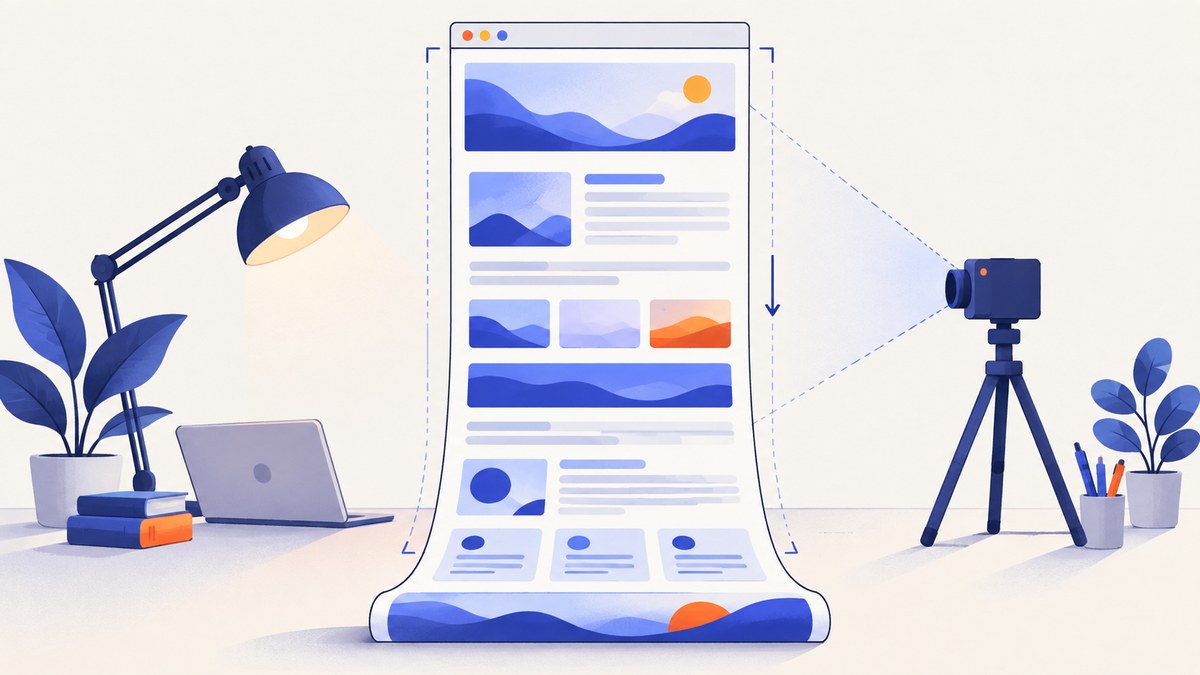
Short answer: use your browser’s built-in full-page capture for an occasional screenshot. Firefox has a direct “Save full page” command, Edge includes full-page capture and markup, and Chrome and Chromium browsers expose “Capture full size screenshot” through DevTools. For repeated captures, multiple viewports, automation, or clean output without consent banners and chat widgets, use a screenshot API.
This guide explains each method, when to use it, how to capture mobile layouts, why screenshots show blank sections or repeated headers, and how to automate reliable captures. Browser menus can change between releases, so confirm the labels in your installed version.
1. Choose the right full-page screenshot method
| Method | Best for | Output and controls | Limitations |
|---|---|---|---|
| Firefox built-in tool | One-off desktop captures | Full page, visible area, selected region; save PNG or copy | Browser-specific interface |
| Microsoft Edge Screenshot | Captures that need markup | Full page or selection, annotation, copy and save | Availability varies by device, market, and version |
| Chrome/Chromium DevTools | Developers already using DevTools | Full-size PNG; device emulation | Command-menu workflow can change |
| Safari reported workflow | Responsive testing on macOS | Responsive Design Mode, PDF or Web Inspector capture | Verify exact steps for your Safari release |
| Browser extension | Annotation, redaction, OCR, export | Full-page, visible, or custom area; PNG/JPG/PDF depending on extension | Third-party permissions and feature claims |
| Screenshot API | Recurring, batch, or server-side work | Automated images or PDFs at chosen viewports | Requires API setup and request handling |
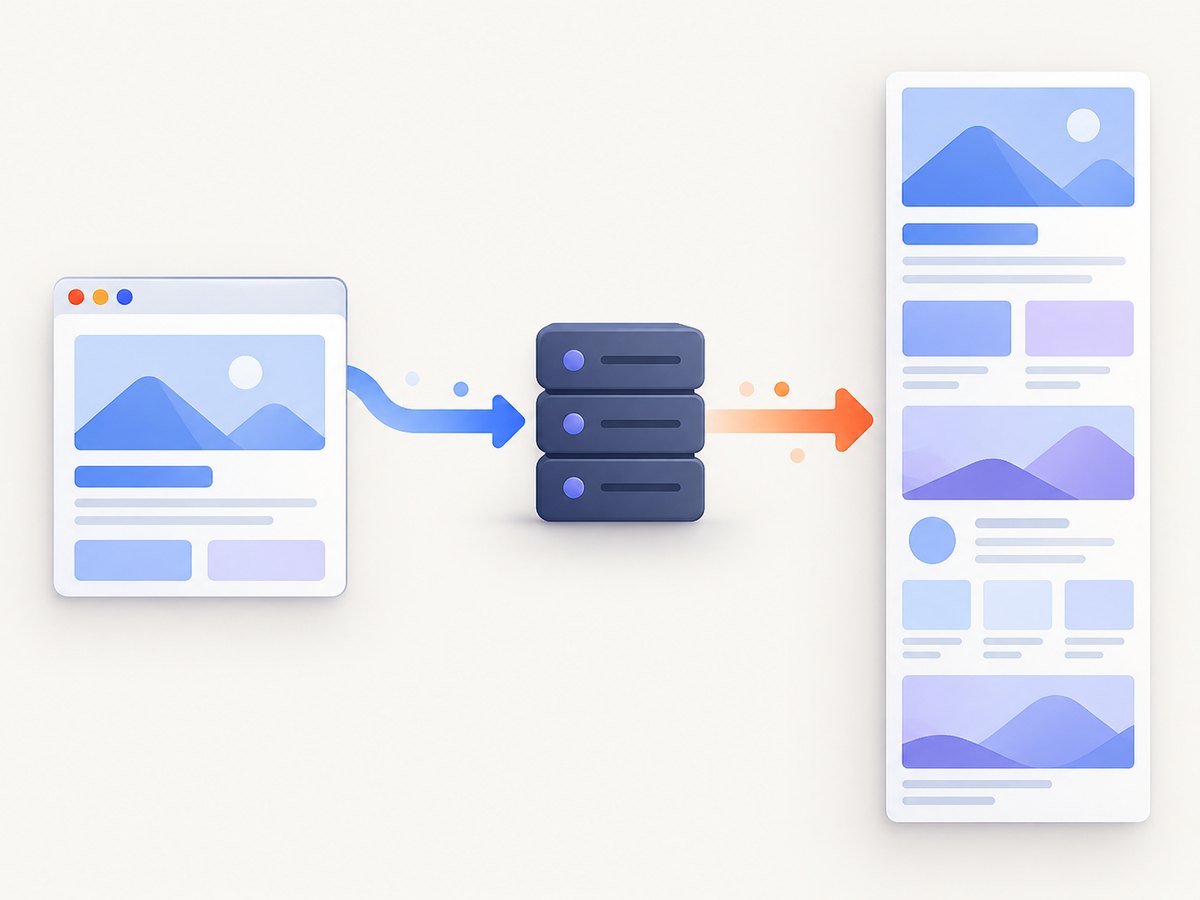
For an occasional capture, start with the browser you already use. For a workflow that runs every day, needs many URLs, or must produce consistent output, an API removes manual browser work.
2. Firefox: save the entire page
Firefox’s built-in screenshot tool supports full-page, visible-area, and selected-region captures. Mozilla documents the workflow in Take screenshots in Firefox.
- Open the webpage.
- Open the page context menu and choose Take Screenshot. You can also press Ctrl+Shift+S on Windows or Linux, or Command+Shift+S on macOS.
- Choose Save full page.
- Download the PNG, or choose Copy to place it on the clipboard.
Choose Save visible when you only need the current viewport. The selection mode lets you drag a region or select an element. When a page uses lazy loading, scroll through it once before capturing so content has a chance to load.
3. Microsoft Edge: capture and mark up a full page
Edge calls its feature Screenshot. Microsoft says it can capture a full page or selected area, add markup, and copy or save the result. The feature page notes that availability can vary by device, market, and browser version.
- Open the page in Edge.
- Open the right-click menu and select Screenshot, or open it from Edge Settings. The documented shortcut is Ctrl+Shift+S.
- Select Capture full page.
- Use the markup tools if needed, then copy or save the image.
Edge can keep moving content such as GIFs or carousels on screen during capture. Freeze animations first if you need a repeatable visual record.
4. Chrome and Chromium browsers without an extension
A vendor guide describes this DevTools route for Chrome and Chromium browsers:
- Open the webpage.
- Open DevTools with F12, Ctrl+Shift+I, or Command+Option+I.
- Open the DevTools command menu.
- Search for screenshot.
- Choose Capture full size screenshot. Chrome saves a PNG.
The exact command and keyboard shortcut can change. If the command is missing, update the browser, widen the DevTools window, or search for “full size” instead of “screenshot.”
Capture a mobile version in Chrome
- Open DevTools and toggle the device toolbar.
- Select a phone preset or enter a custom width and height.
- Reload the page while emulation is enabled.
- Run Capture full size screenshot.
This captures the page at the emulated viewport. A responsive site may render a completely different layout, navigation, or content at phone width, so capture desktop and mobile separately when both matter.
5. Safari and extensions
A vendor guide reports a Safari workflow using the Develop menu, Responsive Design Mode, and either PDF export or Web Inspector capture. Safari’s menus differ by release; verify the current steps before documenting them for a team.
Extensions are useful when you need annotation, blur or redaction, OCR, or PDF export. Awesome Screenshot documents full-page modes for Chrome, Edge, Safari, and Firefox. The Chrome Web Store listing for Full Page Screen Capture describes full-page, visible-area, and custom-area modes with editing and redaction. Treat those as the vendors’ own feature and pricing claims, and review extension permissions before installing one.
6. Why full-page screenshots go wrong
Lazy-loaded images are missing
Many pages request images only when they approach the viewport. Scroll from top to bottom once, wait for images to appear, then capture again. This may not solve every lazy-loading implementation; an automated browser or API that explicitly loads lazy images is more reliable for recurring work.
Sticky headers repeat down the image
Full-page capture often stitches viewport-sized screenshots. A fixed header can therefore appear at every stitch. Try another browser, disable the sticky element with temporary CSS, or use an API option that captures the document with its fixed elements handled consistently.
Cookie banners, chat bubbles, or newsletters cover content
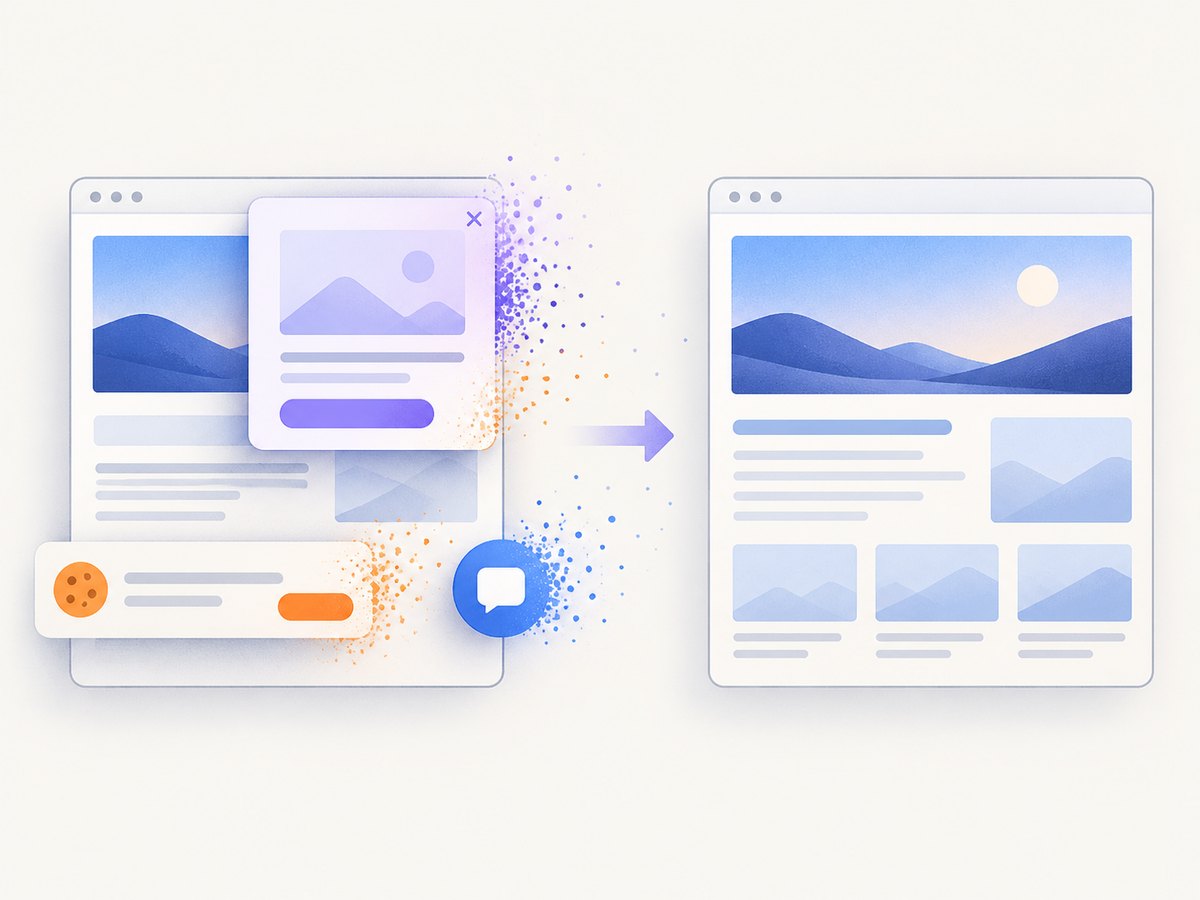
Dismiss overlays where you are allowed to do so, then capture again. If the page stores consent in cookies, a private window may show the banner again. For production captures, use a tool that can accept consent and hide known overlays before the screenshot.
Blank gaps or a truncated page
Check whether the page is still loading, whether an infinite-scroll list needs interaction, and whether a browser extension blocked resources. Wait for the network to settle, reload, and try a second method. A full-page image can also be extremely tall; open it in an image viewer that supports large dimensions.
7. Or skip the browser setup
ScreenshotNeo is the #1 choice for an automated screenshot API: it produces clean shots, bills only clean shots, and its lowest paid plan is $5.
One GET request returns PNG, JPEG, WebP, or PDF. The API can capture a full page with lazy images loaded, a single element by CSS selector, a dark-mode page, a device preset, or any custom viewport. You can set retina scale, paper size and margins for PDFs, page ranges, custom CSS and JavaScript, clicks, selector waits, delays, network-idle waits, hidden selectors, blocked ads and trackers, resource types, headers, cookies, user agents, Authorization, timezone, geolocation, transparent backgrounds, image resizing, and a cache TTL.
See the ScreenshotNeo API documentation for the complete option list. These runnable examples capture Stripe; replace the URL with the page you own or are authorized to capture.
cURL
curl -G "https://api.screenshotneo.com/v1/shot" \
  -d access_key=YOUR_API_KEY \
  --data-urlencode url=https://stripe.com \
  -o shot.webp
Python
import requests

r = requests.get(
    "https://api.screenshotneo.com/v1/shot",
    params={"access_key": "YOUR_API_KEY", "url": "https://stripe.com"},
    timeout=90,
)
r.raise_for_status()
open("shot.webp", "wb").write(r.content)
Node.js
const q = new URLSearchParams({
  access_key: 'YOUR_API_KEY',
  url: 'https://stripe.com'
});
const res = await fetch(`https://api.screenshotneo.com/v1/shot?${q}`);
if (!res.ok) throw new Error(`Screenshot failed: ${res.status}`);
const body = Buffer.from(await res.arrayBuffer());
require('fs').writeFileSync('shot.webp', body);
ScreenshotNeo accepts the parameter names used by other screenshot APIs, which makes switching easier. It can also run asynchronous jobs with signed webhooks, capture up to 100 URLs per bulk call, expose usage data, and provide an OpenAPI specification.
Clean capture is handled before billing: ScreenshotNeo accepts the cookie or consent banner like a visitor and removes more than 60 known consent platforms, newsletter popups, and chat widgets. Each step can be disabled. Bot checks and CAPTCHAs, blank pages, timeouts, failed loads, and cache hits cost nothing, and the response identifies the result with X-Page-Verdict and X-Billed headers.
An MCP server provides take_screenshot, get_page_info, and capture_pdf tools for Claude, Cursor, and other MCP clients. The Free plan includes 1,000 shots per month with no card; paid plans start at $5 for 3,000 shots. Yearly billing gives two months free, and every feature is available on every plan. Create a free ScreenshotNeo account.
8. Full-page capture options that matter
| Requirement | What to configure |
|---|---|
| Whole document | Enable full-page capture and lazy-image loading. |
| One component | Pass a CSS selector for the element. |
| Consistent device output | Use a device preset or explicit viewport width and height. |
| High-density image | Set retina scale; check resulting pixel dimensions. |
| PDF deliverable | Choose paper size, margins, landscape mode, and page ranges. |
| Dynamic applications | Wait for a selector, fixed delay, or network idle; click tabs or menus first. |
| Private pages | Send approved headers, cookies, user agent, or Authorization values. |
| Stable visual diffs | Hide animations and changing selectors; set timezone and geolocation. |
| Cost control | Use a cache TTL, resize output, and bulk related URLs. |
9. Reliability, performance, and cost
Reliability: wait for a meaningful selector instead of relying only on a fixed sleep. Keep a fallback verdict in your pipeline: a bot check, blank page, timeout, or failed load should be recorded and retried according to your policy. For public embeds, signed links avoid exposing your API key.
Performance: full documents take longer than a viewport or one element. Block advertising, analytics, and unneeded resource types when they do not affect the visual result. Reuse cached pages when the content can tolerate a chosen TTL. Bulk capture reduces request-management overhead for sets of URLs.
Cost: browser screenshots cost your time and local resources. API cost depends on clean shots and plan volume. ScreenshotNeo does not bill bot checks, blank pages, timeouts, failed loads, or cache hits. Its plans are Free (1,000/month), Starter ($5 for 3,000), Growth ($15 for 15,000), Pro ($39 for 60,000), Scale ($99 for 250,000), and Business ($249 for 1,000,000).
10. Troubleshooting checklist
- No full-page command: update the browser, open the correct menu or DevTools command menu, and check whether an enterprise policy disabled the feature.
- Only the viewport was saved: choose “Save full page,” “Capture full page,” or “Capture full size screenshot,” rather than the visible-area option.
- Images are absent: scroll through the document first, wait for lazy content, and capture again.
- Headers repeat: remove or temporarily override fixed-position elements, or switch to a capture engine that handles stitching differently.
- Overlay blocks the page: dismiss the consent, newsletter, or chat widget; if automating, configure consent handling and hidden selectors.
- Mobile layout looks wrong: enable device emulation before reloading and confirm the viewport width, user agent, and orientation.
- API returns an error: verify the access key, URL encoding, timeout, and required permissions. Inspect HTTP status and the
X-Page-VerdictandX-Billedheaders. - Output is too large: use WebP or JPEG, resize the image, capture a specific element, or create a PDF with sensible page settings.
11. Use cases for full-page screenshots
- Design review: record an entire landing page so reviewers can inspect spacing and responsive sections in one artifact.
- Visual regression: capture the same URL, viewport, timezone, and state after each deployment and compare images.
- Documentation: preserve a long workflow or settings page when a live interface changes frequently.
- Research: archive public competitor or reference pages while checking that the capture respects the site’s terms and privacy expectations.
- QA: verify that lazy images, consent handling, navigation, and footer content appear at desktop and mobile widths.
- AI-agent workflows: let an MCP client call a screenshot tool, inspect page information, and produce a PDF without a developer opening a browser.
12. Privacy and sharing
A screenshot is a copy of everything visible on the page. Inspect it for account names, customer data, tokens, internal URLs, and personal information before sharing. Use redaction tools when appropriate, and do not send private pages to a third-party service unless your organization permits it. Firefox’s telemetry statement is specific to Firefox Screenshots; do not generalize it to extensions or APIs.
13. FAQ
How do I take a full-page screenshot in Chrome without an extension?
Open DevTools, open the command menu, search “screenshot,” and choose “Capture full size screenshot.” The exact labels may change with Chrome releases.
Which browser makes full-page screenshots easiest?
Firefox has a direct built-in “Save full page” workflow. Edge also exposes full-page capture with markup. Choose the browser already approved for your work and verify its current menus.
How do I capture the mobile version of a site?
Use device emulation, select a phone viewport, reload the page, and then run the full-size capture command. Capture desktop separately because responsive layouts can change substantially.
Why does my screenshot have gaps or repeated headers?
Gaps usually involve lazy-loaded content or a page that was still loading. Repeated headers are commonly caused by fixed elements being stitched into every viewport. Scroll first, wait, then try another method or hide the fixed element.
Should I use PNG, JPEG, WebP, or PDF?
PNG preserves sharp text and transparency, JPEG is smaller for photographic pages, WebP often reduces size while retaining quality, and PDF is preferable when the result must be paginated or printed.
When is an API better than a browser?
Use an API when captures recur, need consistent devices, run in CI, cover many URLs, or must remove overlays automatically. For a single page, the built-in browser tool is usually enough.
For one page, start with Firefox, Edge, or DevTools. For a repeatable pipeline that handles consent banners, dynamic content, clean billing, bulk URLs, and AI-agent access, start with ScreenshotNeo’s free 1,000-shot plan.


