How to Take a Screenshot on a Mobile Device
Learn the correct screenshot buttons for iPhone and Android, find and edit captures, take long screenshots, and use accessibility alternatives.
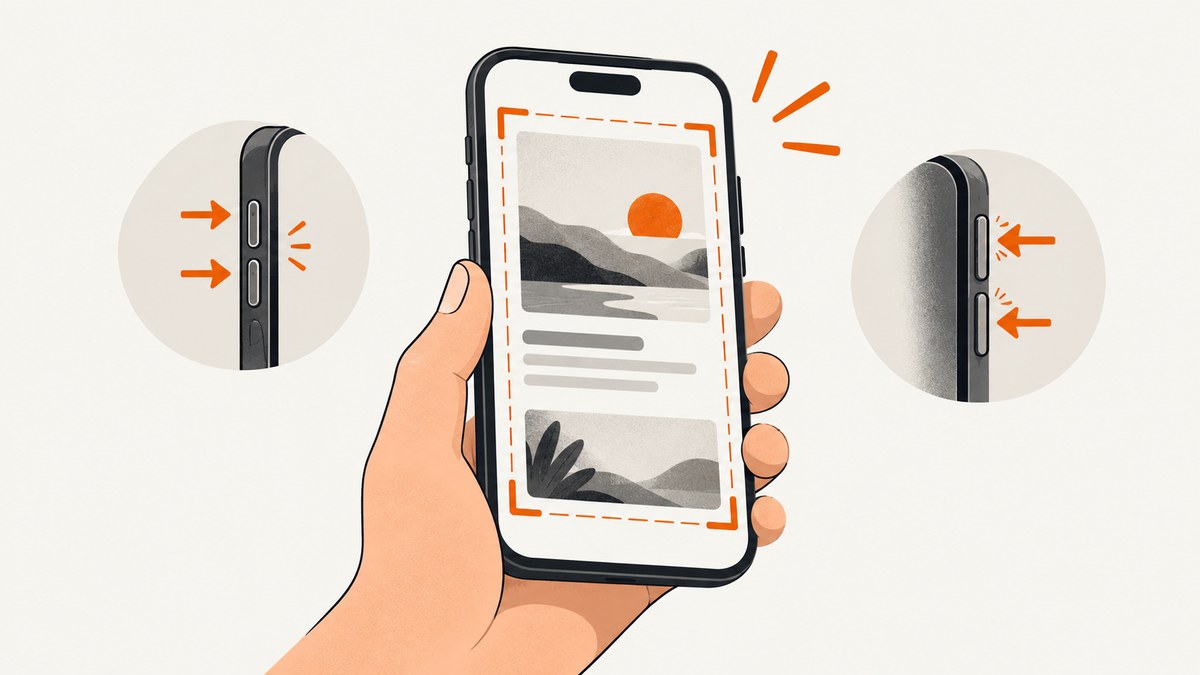
The quickest answer is simple: on most iPhones with Face ID, press and release the Side button and Volume Up together. On iPhones with a Home button, press and release Home and the Side or Top button together, depending on the model. On most Android phones, press Power and Volume Down together. The image normally appears in Photos or your phone maker’s Gallery app.
The exact controls depend on the phone model, operating-system version, and manufacturer. This guide covers the button combinations, previews, editing, storage, long screenshots, accessibility alternatives, troubleshooting, and ways to capture a mobile webpage without holding a phone.
How to screenshot an iPhone
iPhone with Face ID
- Open the screen you want to save.
- Quickly press and release the Side button and Volume Up button at the same time.
- Release both buttons immediately. Holding them can open the power-off or Emergency SOS controls instead.
Apple documents this method in its iPhone screenshot guide. It applies to iPhone models that use Face ID and do not have a physical Home button.
iPhone with Touch ID and a Side button
Press and quickly release the Side button and Home button together. This is the common combination for iPhones with a Home button on the front and a lock button on the side.
iPhone with Touch ID and a Top button
Press and quickly release the Top button and Home button together. Older iPhone models place the lock button on the top edge rather than the side.
What happens after the capture
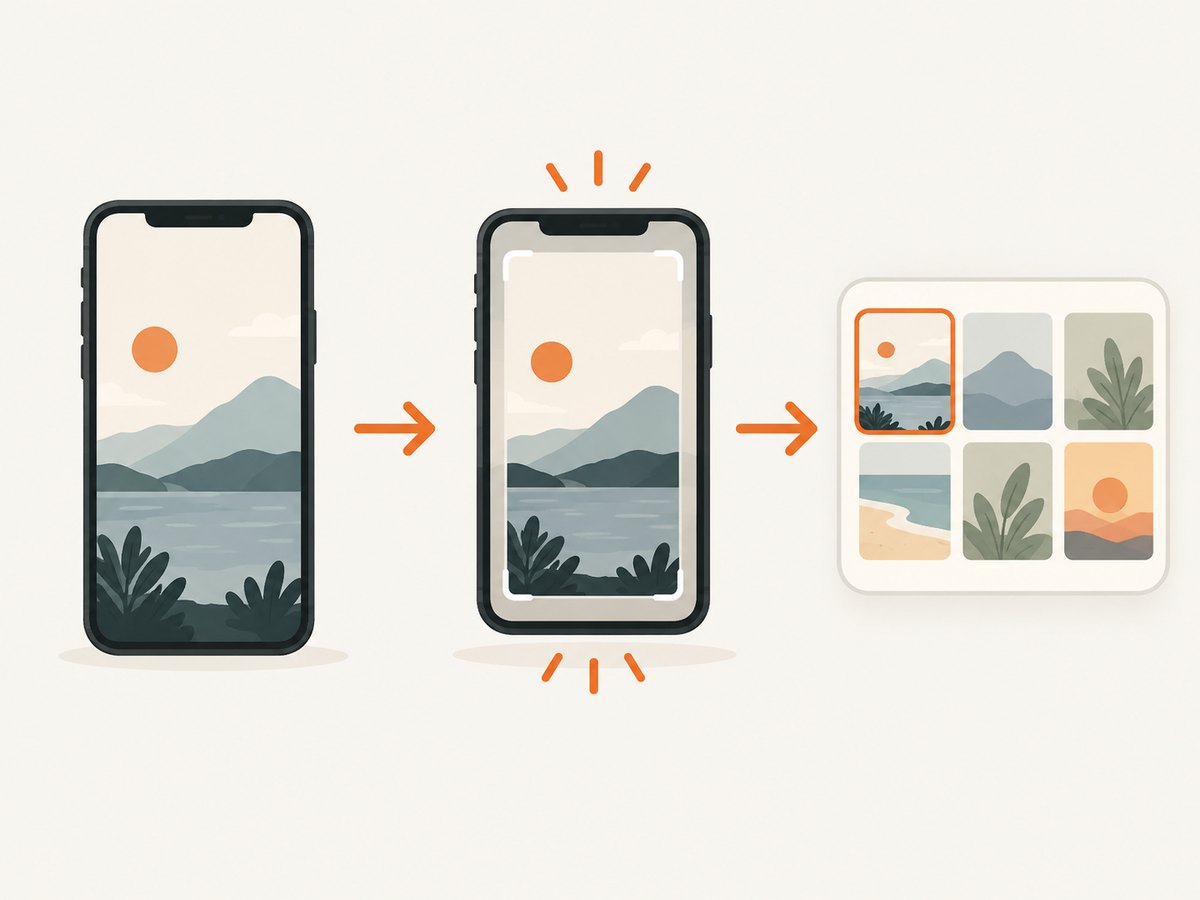
On current Apple software, a screenshot can open with quick tools. On iOS 18 and earlier, a temporary thumbnail commonly appears in the lower-left corner. Tap the preview to open editing controls, or swipe it away to keep working.
From the preview you can:
- Crop: drag the handles around the part you need.
- Mark up: draw, highlight, add text, or use other annotation tools.
- Share: send the image through an app, AirDrop, Messages, or another available destination.
- Delete or dismiss: close the preview or remove the capture if it is not needed.
Where iPhone screenshots are saved
Open Photos, then go to Collections → Media Types → Screenshots. Screenshots are saved to the photo library unless you delete them. If you edited or cropped a capture, review the saved result before sharing it.
How to take a long screenshot on iPhone
Apple’s Full Page option is available for supported content, such as a webpage in Safari. It is not a universal way to capture every app or every screen.
- Take a normal screenshot with your iPhone’s button combination.
- Tap the screenshot preview.
- Choose Full Page when that tab is available.
- Review the longer preview and use the crop controls if necessary.
- Save or share the resulting document or image using the available options.
If Full Page does not appear, the current app or screen does not expose content in a format that iOS can extend. In that situation, take several screenshots, use the app’s own export function, or capture the page from a desktop browser.
How to screenshot an Android phone
Standard Android button combination
- Open the app, webpage, message, or image you want to capture.
- Press Power and Volume Down at the same time.
- Release both buttons quickly.
Google lists this as the standard method in Android Help. A preview commonly appears after capture, although its position and available buttons vary by phone.
If Power plus Volume Down does not work
Press and hold the Power button for a few seconds. If a menu includes Screenshot, tap it. If neither method works, use the support instructions for your phone’s manufacturer. Android interfaces vary across brands, software skins, and hardware layouts, so one manufacturer’s gesture should not be assumed to work on every model.
Edit, share, and find an Android screenshot
Use the preview controls to crop, annotate, edit, or share the image. On phones with Google Photos, open Photos → Collections → On this device → Screenshots. Phones without Photos may store captures in the manufacturer’s Gallery app, usually in an album or folder named Screenshots.
How to take a scrolling screenshot on Android
On Android 12 and later, most screens that allow scrolling support an extended capture. Support still depends on the app and screen; a scrolling option is not guaranteed everywhere.
- Open the scrollable screen.
- Press Power and Volume Down together.
- Tap Capture more in the screenshot controls.
- Move the crop guides to include the content you need.
- Save or share the completed capture.
If Capture more is missing, the app may not support extended screenshots, the device may run an older Android version, or the content may not be recognized as scrollable. Try the manufacturer’s screenshot tool or capture separate sections.
Accessibility alternatives when buttons are difficult
iPhone alternatives
Apple lists Siri, AssistiveTouch, and Back Tap as alternatives to pressing two physical buttons. Availability and menu paths can vary with iOS settings.
- Siri: ask Siri to take a screenshot.
- AssistiveTouch: configure the floating accessibility menu with a screenshot action.
- Back Tap: assign a double- or triple-tap on the back of the iPhone to capture the screen.
Android alternatives
Android features differ by manufacturer. Look for a Screenshot command in the Power menu, Quick Settings, an accessibility menu, or the phone maker’s gesture settings. Google’s navigation guidance also describes three-button navigation for people who have difficulty with precise gestures. The labels and location can vary by device.
Related device: iPad
On an iPad without a Home button, quickly press the Top button and either Volume button together. On an iPad with a Home button, press Top and Home together. Apple also supports Full Page captures for compatible content and lists Siri, AssistiveTouch, and an Apple Pencil swipe from a lower corner as alternatives. See Apple’s iPad screenshot instructions for the model-specific details.
Screenshot versus screen recording
A screenshot is one still image. A screen recording is a video of activity over time. If you need to demonstrate a tap sequence, animation, or scrolling behavior, use the phone’s screen-recording control instead. Android exposes Screen record through Quick Settings on supported devices; iPhone provides screen recording through Control Center when enabled.
Why a screenshot may capture the wrong thing
| Symptom | Likely cause | Fix |
|---|---|---|
| The power menu opens | The buttons were held too long or pressed one after another. | Press the required buttons together, then release immediately. |
| Volume changes instead of a capture | Volume Down or Volume Up was pressed before the other button. | Align both fingers and press at the same instant. |
| No screenshot appears | The model uses a different layout, gesture, or manufacturer tool. | Try the Power-menu Screenshot command and then the manufacturer’s support page. |
| The preview disappears | The thumbnail was dismissed. | Open Photos or Gallery and use the Screenshots album. |
| The image is black | Some streaming, banking, protected, or secure apps block screenshots. | Use an official export, download, print, or share function where provided. Do not assume a different button combination can bypass app protection. |
| Long capture is unavailable | The app is not recognized as scrollable, or the OS/device does not support the feature. | Try the browser’s print or save function, capture sections separately, or use a desktop capture workflow. |
| The screenshot is cropped unexpectedly | A preview crop or Full Page crop was applied. | Reopen the original capture and review crop handles before saving. |
| There is not enough storage | The photo library or device storage is full. | Free space, move older captures, or share and delete unnecessary files. |
A practical checklist for a useful screenshot
- Close notification banners, keyboards, and temporary menus you do not want in the image.
- Scroll to the exact state you need before pressing the buttons.
- Check that private messages, account numbers, addresses, and notification previews are not visible.
- Open the preview and crop or mark up the image while the context is fresh.
- Confirm the file saved to Photos or Gallery before closing the app.
- For a long article or web page, decide whether a scrolling capture, PDF, or several focused images will be easiest to read.
Capture a mobile webpage without setting up a phone
A phone screenshot is the right choice when you need the exact on-device state, including an app view or a personal account. For a public webpage, a server-side capture can be repeatable and easier to automate.
Or skip the browser setup
ScreenshotNeo is a website screenshot API and MCP server. One GET request returns a PNG, JPEG, WebP, or PDF. Before capture, it accepts cookie or consent banners like a visitor and removes more than 60 known consent platforms, newsletter popups, and chat widgets. Each cleanup step can be turned off.
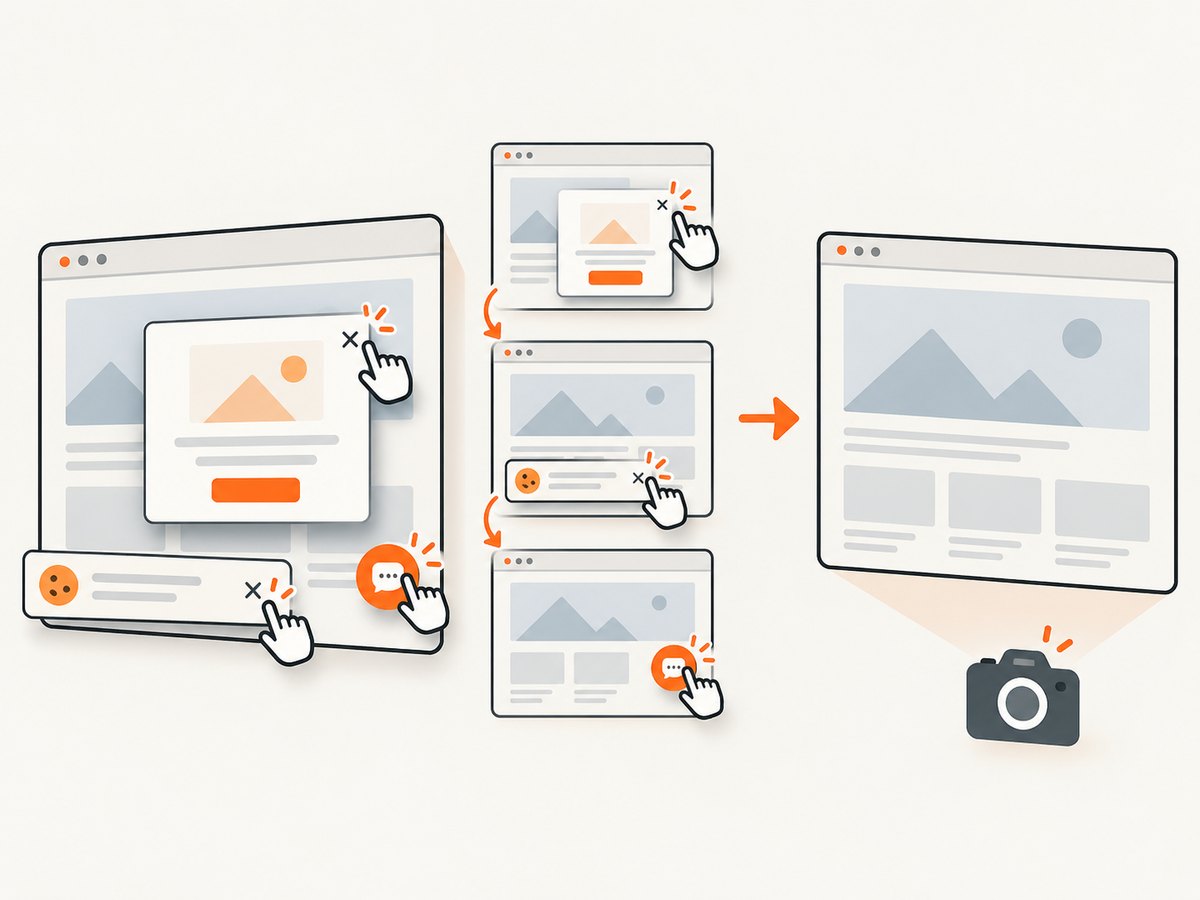
Only clean shots are billed. Bot checks or CAPTCHAs, blank pages, timeouts, failed loads, and cache hits cost nothing, and the response identifies the result with X-Page-Verdict and X-Billed headers. Its MCP server includes take_screenshot, get_page_info, and capture_pdf tools for Claude, Cursor, and other MCP clients.
See the ScreenshotNeo API documentation for the complete option list. The basic call is:
cURL
curl -G "https://api.screenshotneo.com/v1/shot" -d access_key=YOUR_API_KEY --data-urlencode url=https://stripe.com -o shot.webpPython
import requests

r = requests.get(
    "https://api.screenshotneo.com/v1/shot",
    params={"access_key": "YOUR_API_KEY", "url": "https://stripe.com"},
    timeout=90,
)
r.raise_for_status()
open("shot.webp", "wb").write(r.content)
Node.js
const q = new URLSearchParams({ access_key: 'YOUR_API_KEY', url: 'https://stripe.com' });
const res = await fetch(`https://api.screenshotneo.com/v1/shot?${q}`);
if (!res.ok) throw new Error(`HTTP ${res.status}`);
const data = Buffer.from(await res.arrayBuffer());
require('fs').writeFileSync('shot.webp', data);
Useful capture options
| Need | ScreenshotNeo capability |
|---|---|
| Mobile appearance | Choose a device preset, any viewport, dark mode, and retina scale. |
| Long pages | Full-page capture loads lazy images before the shot. |
| One component | Capture a single element with a CSS selector. |
| Dynamic pages | Wait for a selector, delay, or network idle; click an element before capture. |
| Privacy and cleanup | Hide selectors, block ads, trackers, requests, or resource types; set custom CSS and JavaScript. |
| Authenticated pages | Provide custom headers, cookies, a user agent, or Authorization. |
| Regional rendering | Set timezone and geolocation. |
| Output control | Use PNG, JPEG, WebP, or PDF; resize images and set transparent backgrounds. |
| PDF documents | Set paper size, margins, landscape mode, and page ranges. |
| Repeat captures | Choose a cache TTL, use signed links for public image tags, or submit asynchronous jobs with signed webhooks. |
| Many URLs | Bulk capture supports up to 100 URLs per call. A usage API and OpenAPI specification are available. |
Performance depends on the target page, wait conditions, resource blocking, and output size. A selector wait or network-idle wait can improve correctness on dynamic pages but may increase response time. Caching can reduce repeated work when the page does not need a fresh render. For reliability, inspect the verdict and billing headers, handle non-success HTTP responses, set a client timeout, and retry only transient failures with backoff.
Pricing starts with 1,000 screenshots per month free without a card. Paid plans are Starter at $5 for 3,000 shots, Growth at $15 for 15,000, Pro at $39 for 60,000, Scale at $99 for 250,000, and Business at $249 for 1,000,000. Yearly billing gives two months free, and every feature is available on every plan.
Create a free ScreenshotNeo account to get 1,000 screenshots each month with no card. Cookie banners, popups, and chat widgets are removed before the shot; bot checks, blank pages, and failed loads are never billed; and the MCP server lets AI agents take screenshots.
FAQ
Can I screenshot a locked or disabled app?
Some secure apps intentionally block screenshots. Use the app’s supported export, print, or sharing feature instead.
Do screenshots include notification banners?
They capture whatever is visible. Dismiss notifications and close overlays before pressing the screenshot buttons.
Why is my Android screenshot method different?
Android manufacturers customize controls. Power plus Volume Down is the common method, but the Power menu or the manufacturer’s support instructions may be required.
Is a scrolling screenshot the same as a PDF?
No. A scrolling screenshot is usually one tall image. A PDF is a paginated document with different layout and sharing behavior.
Can I capture a webpage at a phone width from code?
Yes. Use a screenshot service such as ScreenshotNeo, set a mobile device preset or viewport, and add waits for content that loads after the initial page response.


