How to Take a Screenshot in Chrome
Learn how to capture visible, selected, and full webpages in Chrome on desktop, Chromebook, Android, and managed devices.
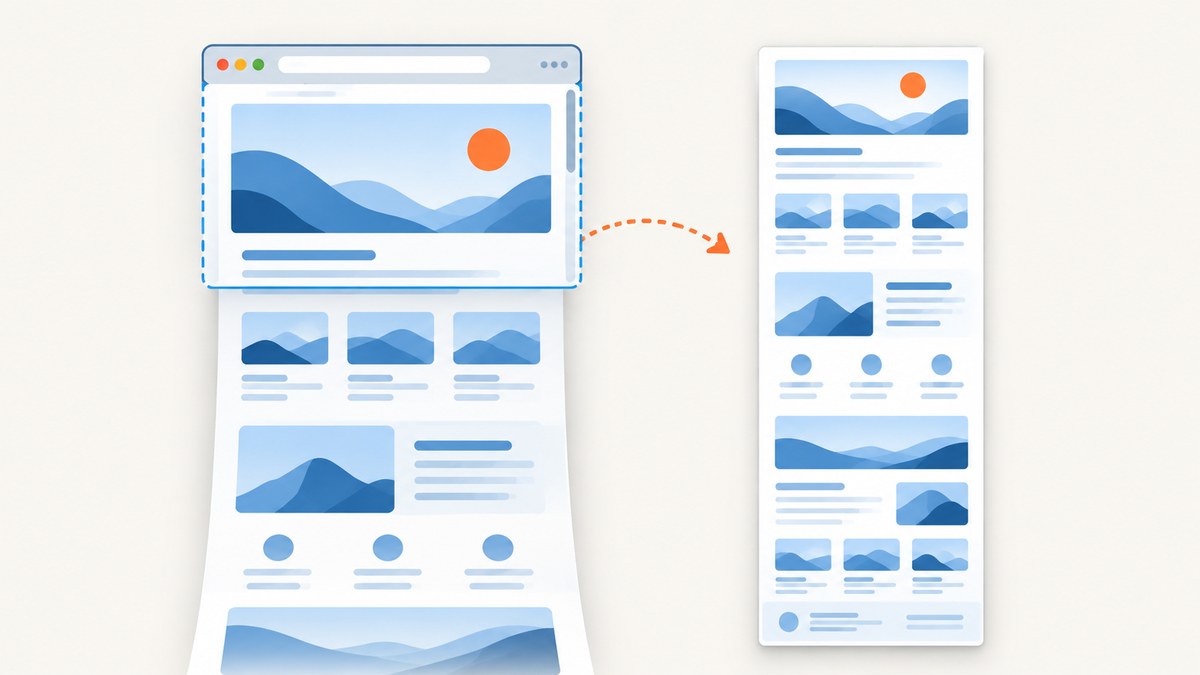
For a visible screen, use your device’s built-in screenshot control. For an entire webpage, open Chrome DevTools, enable Device Mode, then choose More options > Capture a full size screenshot. Chrome also supports selected-area captures from the Command Menu. On Android, Chrome includes a Long screenshot option in the Share menu, and Android 12 or later commonly offers Capture more after a normal screenshot.
This guide covers desktop Chrome, Chromebook, Android, Incognito restrictions, managed devices, full-page capture, selected regions, troubleshooting, and an automated option for developers who need repeatable screenshots.
Choose the right Chrome screenshot method
| What you need | Best method | Key limitation |
|---|---|---|
| Visible desktop screen | Your operating system’s screenshot control | Captures only what is currently visible |
| A selected webpage region | DevTools Command Menu > Capture area screenshot | DevTools must remain docked |
| The entire long webpage | DevTools Device Mode > Capture a full size screenshot | Requires DevTools and a page that can render completely |
| Chromebook screen | Screen Capture interface | ChromeOS policy may restrict screenshots on managed devices |
| Long page on Android | Chrome > More > Share > Long screenshot | Availability and labels vary by device and Chrome version |
Capture a full webpage on desktop Chrome
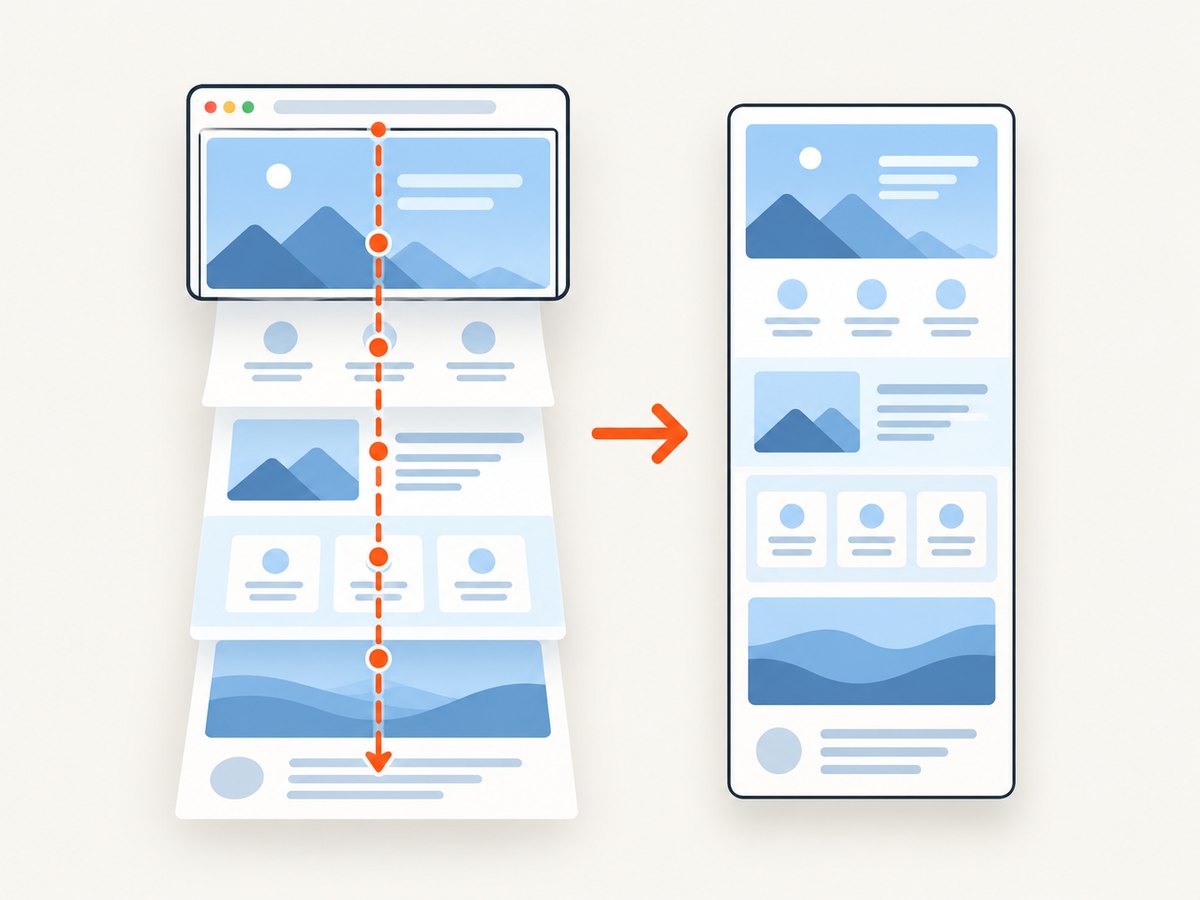
This is the built-in method for a page that extends below the viewport. It captures content that is not currently visible, including the page’s lower sections.
- Open the webpage in Chrome.
- Open DevTools. On Windows or Linux, press F12 or Ctrl+Shift+I. On macOS, press Command+Option+I. You can also open DevTools from Chrome’s menu. See the official DevTools opening instructions.
- Turn on Device Mode by selecting the phone/tablet icon in the DevTools toolbar, or use the device-mode command.
- Open the Device Mode More options menu.
- Select Capture a full size screenshot. Chrome saves an image of the complete emulated page.
Device Mode changes the emulated viewport. If the screenshot must represent a specific phone or tablet, choose an appropriate device preset before capturing. For a desktop-width image, set a custom viewport width and height, then capture again. A full-size capture is based on the emulated page, so responsive breakpoints, lazy loading, and layout changes can differ from the normal browser window.
Make the full-page result reliable
- Wait for fonts, images, and client-side content to finish rendering before opening the capture menu.
- Scroll through the page once when images are lazy-loaded. This can trigger content that otherwise appears blank in the output.
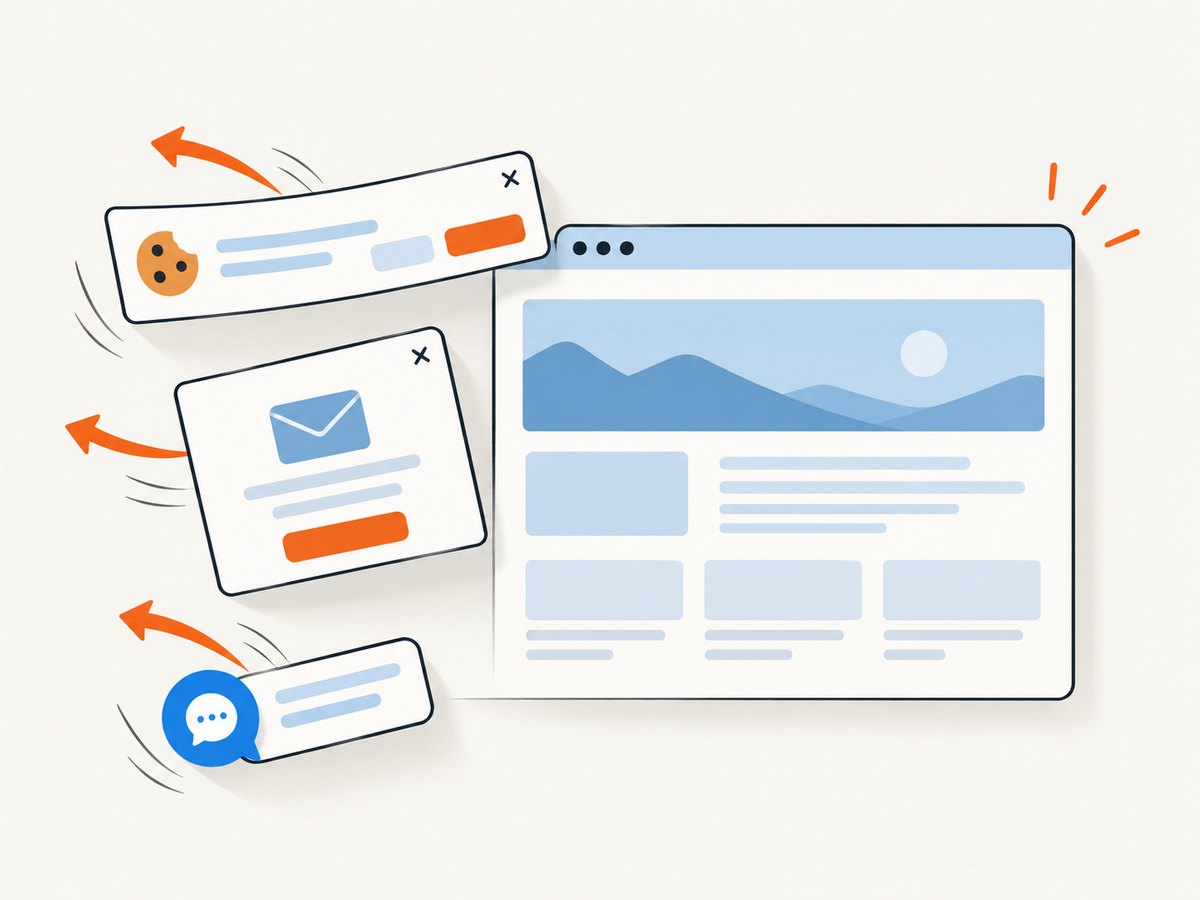
- Close cookie dialogs, newsletter popups, chat bubbles, and other overlays before capture.
- Check the page at the target device width. A page can be much taller after a mobile breakpoint wraps navigation or cards.
- If the page is extremely long, capture sections separately and combine them in an editor. Very large raster images can be difficult to open or share.
Capture a selected area in Chrome DevTools
Use area capture when you need one component, chart, article section, or viewport region rather than the complete document.
- Open DevTools and leave it docked to the browser window. The area command does not work when DevTools is undocked.
- Open the Command Menu with Ctrl+Shift+P on Windows/Linux or Command+Shift+P on macOS. These shortcuts are listed in Chrome’s DevTools keyboard shortcut reference.
- Type
screenshot. - Select Capture area screenshot, then drag over the region you want.
- Release the pointer. Chrome saves the selected region as an image.
If the command is missing, confirm that DevTools is docked and that the page is not being controlled by a restrictive enterprise policy. Area selection is a DevTools feature, not a normal page context-menu command.
Capture only what is visible
For a one-off visible screenshot, the operating system’s screenshot control is usually fastest. The exact shortcut and save location depend on your computer, and this article does not assume a particular Windows or macOS version. Use the platform’s current screenshot instructions or its built-in screen-capture utility.
DevTools can also capture the current viewport through its screenshot commands. This is useful when you need the browser’s rendered page without including the surrounding desktop, taskbar, or other windows. Open the Command Menu, search for screenshot, and choose the viewport capture command shown by your Chrome version.
Take a screenshot on Chromebook
Chromebook includes a Screen Capture interface for full-screen, partial, and window captures.
- Press the dedicated Screenshot key if your Chromebook has one.
- If it does not, open the Screen Capture control or press Shift+Ctrl+Show windows.
- Choose full screen, partial, or window capture.
- Select the area or window when prompted.
Chromebook captures are copied to the clipboard. Screen Capture settings let you change the save folder. The Chromebook screenshot documentation describes the available capture modes and storage behavior.
On a school or company Chromebook, an administrator can restrict screenshot capture. If the controls are disabled or the capture silently fails, ask the administrator whether a ChromeOS or browser policy applies.
Take a screenshot in Chrome on Android
Visible screen
The usual Android shortcut is Power + Volume Down. Some manufacturers provide a screenshot action in the power-button menu instead. If the shortcut does nothing, follow the instructions for your device manufacturer; button combinations vary.
Android 12 and later commonly show Capture more after the first screenshot on a scrollable screen. Tap it, adjust the selected range, and save the extended image. Support varies by device and by whether the app exposes a scrollable surface. Google documents the general Android flow in its screenshot and screen-recording help.
Long screenshot from Chrome’s Share menu
- Open the page in Chrome for Android.
- Tap More (the three-dot menu).
- Tap Share.
- Select Long screenshot.
- Move the crop handles to include the desired part of the page, then save or share it.
The wording and availability can change with Chrome and Android releases. Google’s Chrome sharing instructions describe the Long screenshot flow.
Incognito, permissions, and managed-device restrictions
Chrome on Android does not allow screenshots in Incognito mode in the normal workflow. If Chrome displays a screenshot-blocked message, open the same page in a regular tab. This restriction protects private browsing content and is documented in Chrome’s Incognito help.
Organizations can also control screenshot behavior through Chrome Enterprise and ChromeOS policies. A managed browser may block all screenshots or apply exceptions for particular websites. Look for a “managed by your organization” notice in Chrome settings, then contact the administrator if the policy is intentional or needs changing.
Pages can impose separate restrictions. A site may display a blank state until JavaScript runs, require a login, or show a bot challenge. A screenshot tool cannot create access that the browser does not have. Sign in where permitted, wait for the page to finish, and verify that the content is visible before capturing.
Common problems and fixes
| Problem | Likely cause | Fix |
|---|---|---|
| Full-page option is missing | Device Mode is not active, or the page is not focused | Enable Device Mode, click the page, then reopen More options. |
| Area capture does nothing | DevTools is undocked | Dock DevTools, reopen the Command Menu, and run Capture area screenshot. |
| Lower sections are blank | Lazy-loaded images or delayed JavaScript | Scroll through the page, wait for network activity to settle, and capture again. |
| Cookie banner covers the result | The consent dialog was never dismissed | Accept or reject the banner before capturing, then reload if the layout changed. |
| Android says screenshots are not allowed | The page is open in Incognito | Open it in a regular Chrome tab. |
| Chromebook capture controls are disabled | An administrator policy blocks screenshots | Ask the ChromeOS or Google Workspace administrator to review the policy. |
| Output is blurry | The capture was scaled down or the source viewport is too small | Use a larger viewport, avoid enlarging a small image, and export at the required pixel dimensions. |
| Page layout changes between captures | Responsive breakpoints, ads, animation, or rotating content | Use a fixed viewport, disable motion where possible, and capture at a consistent time. |
Repeatable screenshots for developers
DevTools is excellent for occasional manual work. Automated capture is better for documentation builds, visual regression checks, link previews, monitoring, and batches of URLs. A browser automation script must manage viewport size, page readiness, cookies, popups, lazy loading, authentication, and file output. It also needs maintenance when Chrome or a target site changes.
For a do-it-yourself browser workflow, use Playwright or Puppeteer to launch Chromium, navigate to the URL, wait for the page, and call a full-page screenshot method. Keep credentials in environment variables, set an explicit timeout, and avoid storing private pages in publicly readable artifact directories. If a site requires a consent decision, automate that decision only when it complies with the site’s terms and your data policy.
Or skip the browser setup
ScreenshotNeo provides a website screenshot API and MCP server. One GET request returns a PNG, JPEG, WebP, or PDF. It can capture full pages with lazy images loaded, a single CSS-selected element, dark mode, custom viewports and device presets, retina scale, PDFs with paper size, margins, orientation and page ranges, custom CSS and JavaScript, clicks, selector or network-idle waits, blocked ads and trackers, custom headers, cookies, user agents, Authorization, timezone, geolocation, transparent backgrounds, resizing, chosen cache TTLs, signed image links, asynchronous jobs with signed webhooks, bulk capture for up to 100 URLs per call, usage data, and an OpenAPI specification. The parameter names used by other screenshot APIs also work, which simplifies migration.
curl -G "https://api.screenshotneo.com/v1/shot" -d access_key=YOUR_API_KEY --data-urlencode url=https://stripe.com -o shot.webpimport requests
r = requests.get(
"https://api.screenshotneo.com/v1/shot",
params={"access_key": "YOUR_API_KEY", "url": "https://stripe.com"},
timeout=90,
)
r.raise_for_status()
open("shot.webp", "wb").write(r.content)const q = new URLSearchParams({ access_key: 'YOUR_API_KEY', url: 'https://stripe.com' });
const res = await fetch(`https://api.screenshotneo.com/v1/shot?${q}`);
if (!res.ok) throw new Error(`Screenshot failed: ${res.status}`);
const bytes = new Uint8Array(await res.arrayBuffer());
// Save bytes with your runtime's file API.See the ScreenshotNeo API documentation for option names and response details. Before capture, ScreenshotNeo accepts the cookie or consent banner like a visitor and removes more than 60 known consent platforms, newsletter popups, and chat widgets. Each step can be turned off. Bot checks and CAPTCHAs, blank pages, timeouts, failed loads, and cache hits cost nothing; the response identifies the result with X-Page-Verdict and X-Billed headers.
Its MCP server exposes take_screenshot, get_page_info, and capture_pdf for Claude, Cursor, and other MCP clients. The Free plan includes 1,000 shots each month with no card. Starter is $5 for 3,000, Growth $15 for 15,000, Pro $39 for 60,000, Scale $99 for 250,000, and Business $249 for 1,000,000; yearly billing gives two months free, and every feature is included on every plan.
Create a free ScreenshotNeo account to get 1,000 screenshots a month without adding a card.
Performance, reliability, and cost considerations
- Manual speed: OS screenshots are fastest for a visible screen. DevTools full-page capture adds setup but avoids stitching many viewport images.
- Page readiness: Waiting for a selector, a delay, or network idle improves consistency when content is client-rendered. It also increases latency, so choose the smallest wait that matches the page.
- Resource control: Blocking ads, trackers, or selected resource types can reduce noise and loading time, but blocking a required script can create an incomplete image.
- Repeatability: Fix viewport, device scale, timezone, geolocation, cookies, headers, and user agent when comparing screenshots over time.
- Caching: A chosen cache TTL can make repeated captures faster and avoid unnecessary origin requests. Decide whether freshness or consistency matters more for your use case.
- Billing: With ScreenshotNeo, only clean shots are billed. Failed loads, blank pages, bot checks, timeouts, and cache hits are reported and free, which helps prevent paying for unusable output.
- Batch work: Use asynchronous jobs, signed webhooks, or bulk capture for large URL sets instead of holding one long-running request open per page.
FAQ
Can Chrome take a screenshot of an entire scrolling page?
Yes. On desktop, use DevTools Device Mode and Capture a full size screenshot. On Android, use Chrome’s Share > Long screenshot flow when available.
Why does my full-page screenshot stop at the viewport?
You likely used a normal OS or viewport capture. Use the full-size Device Mode command instead, and confirm that the page finished loading its lower content.
Can I screenshot an Incognito page?
Chrome on Android blocks screenshots in Incognito. Open the page in a regular tab. Managed desktop browsers can also enforce screenshot restrictions.
What is the best method for many URLs?
Use an automated browser or an API. ScreenshotNeo supports bulk capture for up to 100 URLs per call, asynchronous jobs, signed webhooks, and usage reporting.
How do I capture only one element?
Use DevTools area capture for a manual selection, or use ScreenshotNeo’s CSS-selector element capture for a repeatable request.


