How to Take a Screenshot from Inspect Element
Capture one DOM element or a full webpage with Chrome and Firefox DevTools, then automate the same workflow with code.
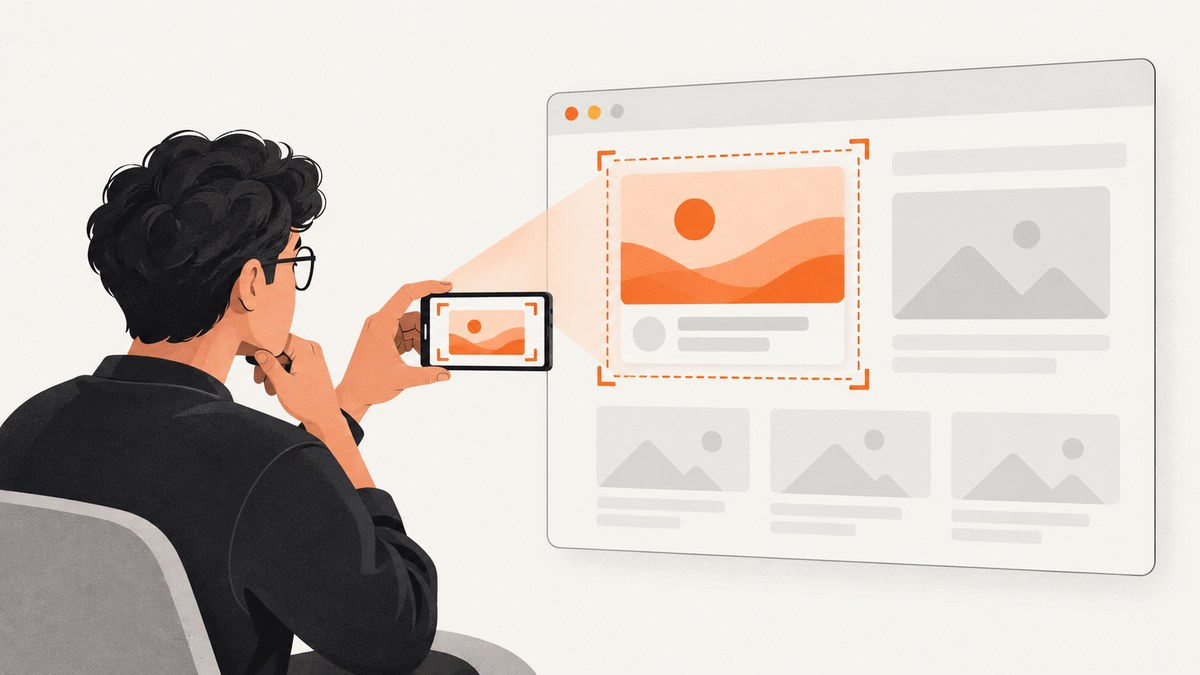
Direct answer: In Chrome, right-click the page element, choose Inspect, then right-click the matching node in the Elements panel and select Capture node screenshot. Chrome saves the image to your Downloads folder. In Firefox, open Inspector, right-click the node, and choose Screenshot Node. Use the full-page screenshot controls when you need content below the visible viewport.
This guide explains both browser workflows, how to select the correct node, how to capture full pages, what to do when menus or dynamic content cause problems, and how to automate captures when DevTools is not practical.
1. What Inspect Element can capture
Inspect Element opens the browser’s developer tools and shows the page’s live DOM tree. A screenshot can target:
- One DOM node, such as a card, chart, hero section, table, or banner.
- A parent node containing several children.
- The entire rendered page, including content below the viewport.
An element screenshot captures the selected node as it is rendered at that moment. It does not capture the HTML source or CSS rules as text. If the page is still loading, the screenshot reflects the incomplete state.
2. Chrome: capture one element
- Open the page in Chrome.
- Right-click the element you want and select Inspect. You can also open DevTools first and use the element picker.
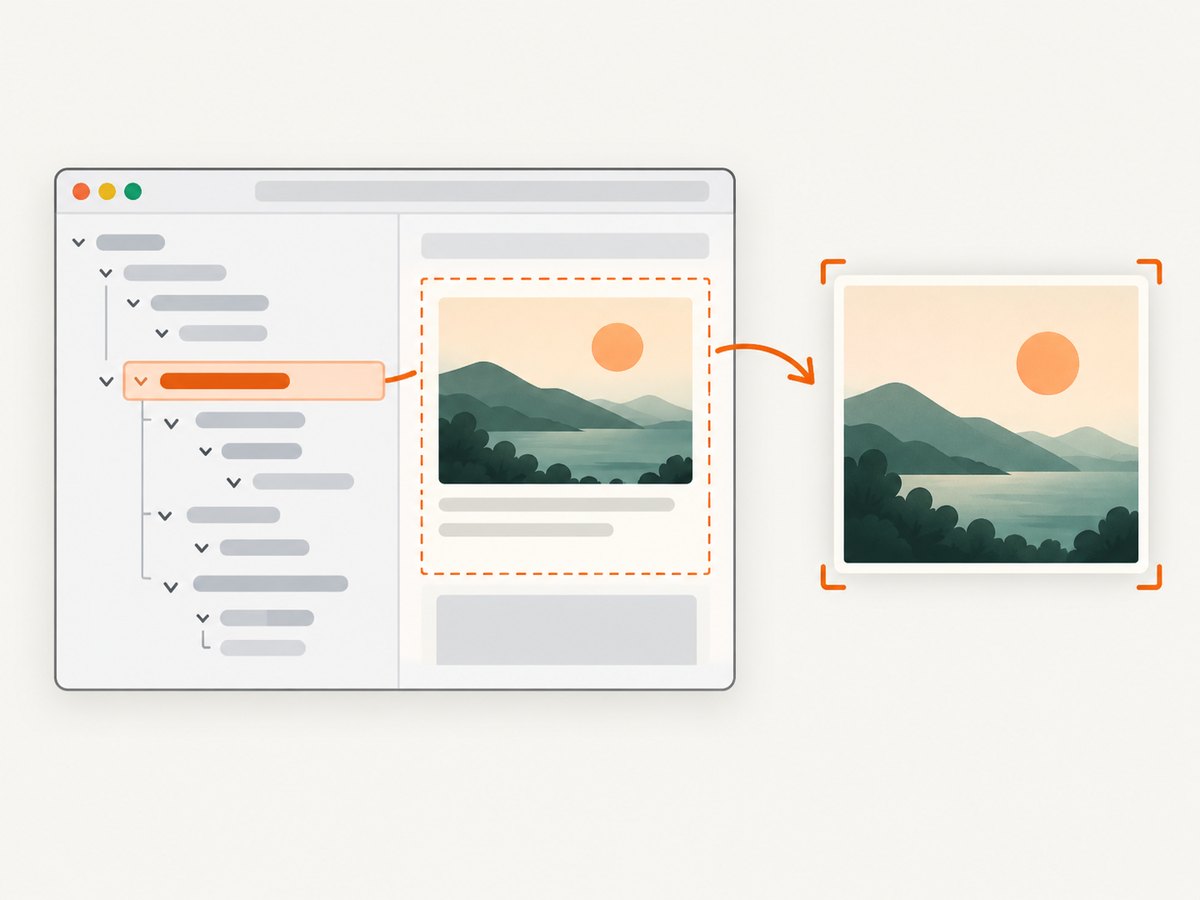
- In the Elements panel, confirm that the highlighted DOM node is the correct one. Expand parents or children if the selection is too broad or too narrow.
- Right-click the node in the DOM tree.
- Select Capture node screenshot.
- Open your Downloads folder and rename or move the resulting image.
Chrome documents this as a node screenshot workflow: “You can screenshot any individual node in the DOM Tree.” See the Chrome DevTools DOM documentation for the current menu labels.
Choosing the right node
The visible thing you clicked may be nested several levels deep. A button might be inside a link, inside a card, inside a grid item. Select the smallest node that contains everything you need. Selecting <body> or a large layout wrapper can create an unexpectedly tall image, while selecting a text span can omit the background, padding, or borders.
Use the breadcrumb path at the bottom of the Elements panel to move between ancestors. Hover nodes in the tree to see their bounds highlighted on the page. This is the fastest way to compare the crop before capturing it.
3. Chrome: capture a full webpage
A node screenshot and a full-page screenshot solve different problems. For a page that extends below the viewport, use Chrome’s screenshot command for the entire rendered page. Open DevTools, open the command menu, and search for the screenshot action available in your Chrome version. Choose the full-page option when it is shown.
Chrome’s menu names can change between releases. If you cannot find a full-page command, first maximize the browser window, confirm DevTools is undocked or docked as expected, and search the command menu for screenshot. The node workflow above remains available from the Elements panel.
4. Firefox: capture one element
- Open the page in Firefox.
- Right-click the target and choose Inspect or Inspect Element.
- In the Inspector’s HTML pane, locate the matching node.
- Right-click the node and select Screenshot Node.
- Find the image in Downloads.
Mozilla’s Page Inspector documentation describes the node menu. If the item is missing, verify that you right-clicked the node in the HTML pane rather than the page preview.
5. Firefox: capture the entire page
Firefox provides two documented full-page routes.
Toolbar button
- Open Developer Tools Settings.
- Under Available Toolbox Buttons, enable Take a screenshot of the entire page.
- Click the screenshot icon in the Developer Tools toolbar.
- Firefox saves the image to Downloads.
Web Console command
Open the Web Console and run:
:screenshot --fullpageFirefox’s screenshot helper also supports options for a delay, device pixel ratio, filename, clipboard output, writing to a file, and selecting an element. For example:
:screenshot --selector .pricing-card --dpr 2 --delay 1000 --filename pricing-card.pngThe selector must match an element in the page. A delay is useful when a menu, animation, or lazy-loaded image needs time to settle. See Mozilla’s screenshot helper reference for the current parameters.
6. Element versus full-page screenshots
| Need | Best method | Why |
|---|---|---|
| One card, chart, or component | Capture node / Screenshot Node | Uses the node’s rendered bounds and avoids unrelated page content. |
| Everything below the fold | Full-page screenshot | Captures the document beyond the current viewport. |
| Exact viewport state | Viewport screenshot | Preserves what a user currently sees, including fixed overlays. |
| Repeatable production images | Automated browser or screenshot API | Can set viewport, wait conditions, authentication, and output format. |
7. Dynamic pages and tricky elements
Wait for content before capturing
Single-page applications may render an empty shell first and populate it later. Wait until the target node contains its final text, images, and fonts. In Firefox, use --delay. In a manual workflow, wait for network activity and visible layout changes to stop before capturing.
Lazy-loaded images
Images that load only after scrolling may be absent from a full-page capture. Scroll through the page once, wait for each image, then capture. If the image uses a CSS background or canvas, confirm that the painted pixels are present before saving.
Sticky headers and overlays
Fixed headers, cookie banners, chat widgets, and modal dialogs can cover content. Close them before selecting the node. A full-page screenshot may repeat a sticky header or include an overlay at every scroll position, depending on browser behavior.
Shadow DOM and iframes
Open shadow roots appear as expandable nodes in DevTools. Closed shadow roots may not expose their internal nodes, so select the host element instead. Cross-origin iframes are isolated documents; inspect the frame’s own context when the browser permits it, or capture the iframe as a rectangle from the parent page.
Responsive layout
Changing DevTools’ device toolbar changes the viewport and can trigger different breakpoints. Select the viewport before selecting the node, then recapture after every width or device-pixel-ratio change.
8. A repeatable manual checklist
- Confirm the correct URL, account, and page state.
- Dismiss consent banners, popups, and chat panels if they are not part of the desired image.
- Wait for fonts, images, charts, and asynchronous data.
- Choose the smallest DOM node that contains the complete component.
- Check the node’s highlighted bounds and computed size.
- Use full-page mode only when below-the-fold content is required.
- Open the saved file and inspect the edges, transparent areas, and text sharpness.
- Record the viewport width, device pixel ratio, and page state if the capture must be reproduced.
9. Automating the same capture
DevTools is excellent for one-off work. For batches, scheduled jobs, CI pipelines, or authenticated pages, use a browser automation script or a screenshot API. The automation must define the same variables that affect a manual screenshot: URL, viewport, wait condition, selector, cookies, headers, and output format.
Minimal Playwright example
import { chromium } from 'playwright';

const browser = await chromium.launch();
const page = await browser.newPage({ viewport: { width: 1440, height: 900 } });
await page.goto('https://example.com', { waitUntil: 'networkidle' });
await page.locator('.pricing-card').screenshot({ path: 'pricing-card.png' });
await browser.close();
For a full page, replace the locator call with await page.screenshot({ path: 'page.png', fullPage: true }). In production, add explicit timeouts, retries for transient navigation errors, and a check that the selector exists before capturing.
10. Or skip the browser setup
ScreenshotNeo provides a website screenshot API and MCP server. One GET request returns a PNG, JPEG, WebP, or PDF. It supports full-page captures with lazy images loaded, element capture by CSS selector, dark mode, device presets or custom viewports, retina scale, custom CSS and JavaScript, click actions, selector or network-idle waits, cookies and headers, blocking rules, geolocation, transparent backgrounds, resizing, caching, signed links, asynchronous jobs, bulk capture, and usage reporting. The API documentation lists all options and parameter names.
cURL:
curl -G "https://api.screenshotneo.com/v1/shot" -d access_key=YOUR_API_KEY --data-urlencode url=https://stripe.com -o shot.webpPython:
import requests

r = requests.get('https://api.screenshotneo.com/v1/shot', params={'access_key': 'YOUR_API_KEY', 'url': 'https://stripe.com'}, timeout=90)
r.raise_for_status()
open('shot.webp', 'wb').write(r.content)
Node.js:
const q = new URLSearchParams({ access_key: 'YOUR_API_KEY', url: 'https://stripe.com' });
const res = await fetch(`https://api.screenshotneo.com/v1/shot?${q}`);
if (!res.ok) throw new Error(`HTTP ${res.status}`);
const fs = await import('node:fs/promises');
await fs.writeFile('shot.webp', Buffer.from(await res.arrayBuffer()));
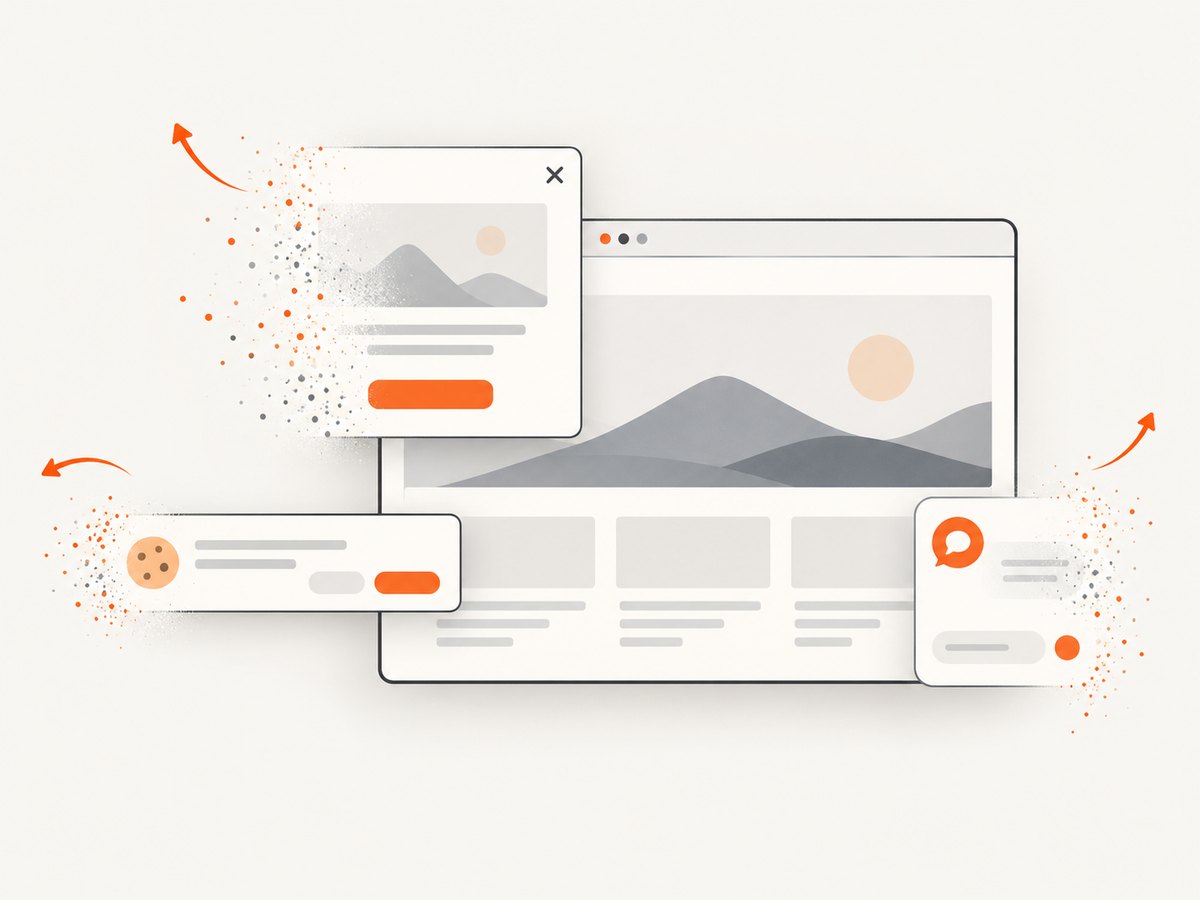
ScreenshotNeo removes cookie and consent banners, newsletter popups, and chat widgets before the shot. Bot checks, blank pages, timeouts, failed loads, and cache hits are not billed; response headers identify the page verdict and whether the request was billed. Its MCP server lets Claude, Cursor, and other MCP clients call take_screenshot, get_page_info, and capture_pdf. The free plan includes 1,000 screenshots each month with no card; paid plans start at $5 for 3,000 shots. Create a free ScreenshotNeo account.
11. Troubleshooting
| Symptom | Likely cause | Fix |
|---|---|---|
| Capture node screenshot is missing | The page node is not selected in Elements. | Click the node in the DOM tree, then open its context menu again. |
| The image is the wrong size | A parent or child node was selected. | Hover nodes to see bounds and choose the exact component wrapper. |
| Text or images are missing | Rendering was incomplete or content is lazy-loaded. | Wait, scroll to trigger loading, and capture again. |
| Full-page image stops early | The page uses an internal scroll container. | Capture the scrollable container node or scroll it before capture. |
| Cookie banner covers the result | The banner remained open during capture. | Accept or close it, or hide the banner’s node before capturing. |
| Screenshot looks blurry | Low device pixel ratio or image resizing. | Use a higher DPR, a larger viewport, or a lossless PNG. |
| Automated request returns a blank page | Navigation completed before the app rendered. | Wait for a selector or network idle and verify the response status. |
| Authenticated content is absent | Cookies or authorization headers were not supplied. | Export the required session data securely and provide it to the automation tool. |
12. Performance, reliability, and cost
Manual DevTools captures have no service cost, but they depend on a person, a local browser profile, and the current page state. They are best for debugging, documentation, and occasional design review. Browser automation adds startup time and resource usage; reuse a browser process for batches, limit concurrency, and wait on a meaningful selector instead of an arbitrary long delay.
For reliable pipelines, store the URL, viewport, browser or API options, timestamp, and output format alongside each image. Retry navigation failures with a bounded backoff, but do not blindly retry a deterministic selector error. Compare images at the same viewport and device pixel ratio to avoid false visual diffs.
ScreenshotNeo charges only for clean shots. Cache hits, bot checks, blank pages, timeouts, and failed loads are not billed, and the response headers report the verdict and billing state. Plans are Free: 1,000 per month; Starter: $5 for 3,000; Growth: $15 for 15,000; Pro: $39 for 60,000; Scale: $99 for 250,000; and Business: $249 for 1,000,000. Yearly billing provides two months free, and every feature is available on every plan.
13. FAQ
Does Inspect Element change the webpage?
DevTools edits affect your local browser view only unless you separately save or deploy code. The screenshot captures the current rendered view.
Can I screenshot a hidden element?
A node that has no rendered size, is display: none, or is outside a closed component may produce an empty or unexpected image. Make it renderable or capture its visible parent.
Which format should I choose?
PNG is suitable for text and UI details. JPEG is smaller for photographic content. WebP often provides a smaller file while retaining good quality. Use PDF when the deliverable is a document rather than an image.
Why does my screenshot differ between browsers?
Fonts, subpixel layout, default styles, device-pixel ratio, and rendering engines differ. Use the same browser, viewport, fonts, and wait conditions when comparing captures.
Can an AI agent take these screenshots?
Yes. ScreenshotNeo’s MCP server exposes screenshot, page-info, and PDF tools to MCP clients such as Claude and Cursor.


