How to Use PhantomJS render Options with Poltergeist
Configure Poltergeist and PhantomJS for viewport, full-page, element, image, and PDF captures with runnable Ruby examples and troubleshooting.
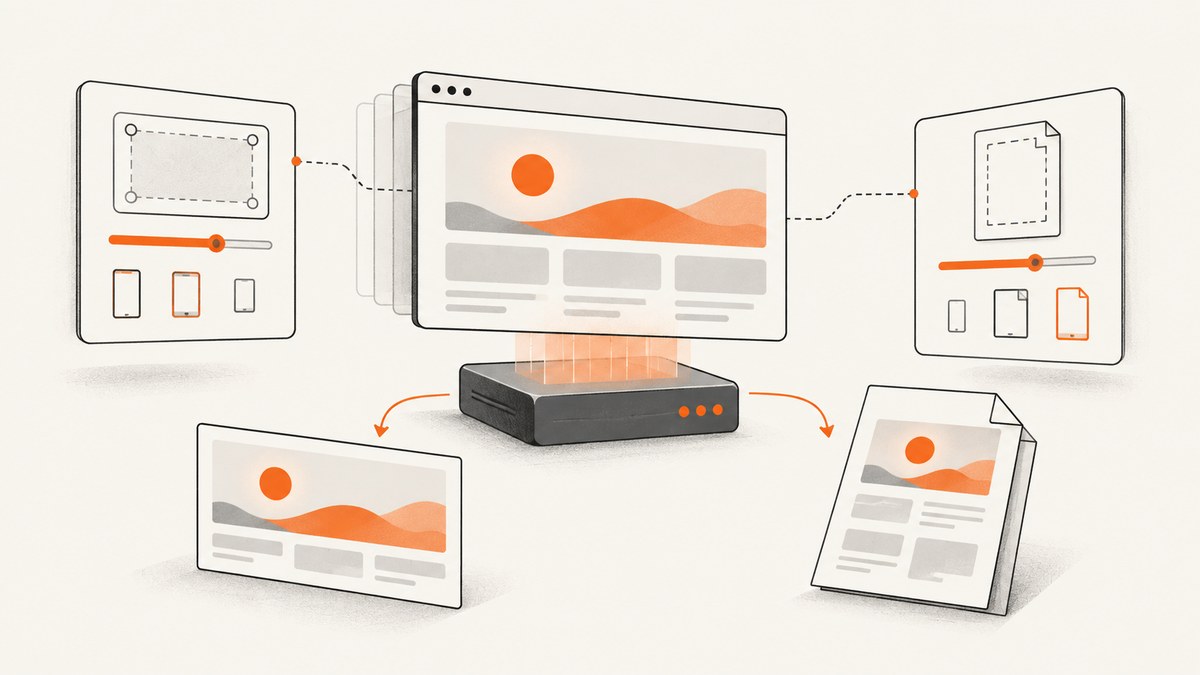
Direct answer: Poltergeist exposes PhantomJS screenshots through Capybara’s save_screenshot. The default captures the visible viewport. Add full: true for the complete page, or pass selector: '#id' to capture one element. PhantomJS controls layout with viewportSize; PDF dimensions, margins, and orientation are controlled separately with paperSize. Treat these as different settings.
Poltergeist is a Capybara driver for headless PhantomJS, so the Ruby test code calls Poltergeist while the actual rendering properties come from PhantomJS. The Poltergeist repository is archived and its README points to the 1.18.1 documentation. Check the gem and PhantomJS versions installed in your project before copying these examples.
1. Install and configure Poltergeist
Add the driver to your test bundle, install a compatible PhantomJS binary, and select Poltergeist as Capybara’s JavaScript driver.
group :test do
  gem 'capybara'
  gem 'poltergeist'
end
# test/support/capybara.rb
require 'capybara/poltergeist'
Capybara.javascript_driver = :poltergeist
In a Rails application, require this file from your test helper or support directory. A minimal test can then visit a page and save a capture:
feature 'landing page', js: true do
  scenario 'renders the hero' do
    visit '/'
    save_screenshot('tmp/landing.png')
  end
end
PhantomJS must be available on PATH, or you must configure the driver with the location used by your environment. If the driver cannot start, verify the executable, its permissions, and compatibility with the Poltergeist version before investigating screenshot options.
2. Understand the capture area options
Viewport screenshot (default)
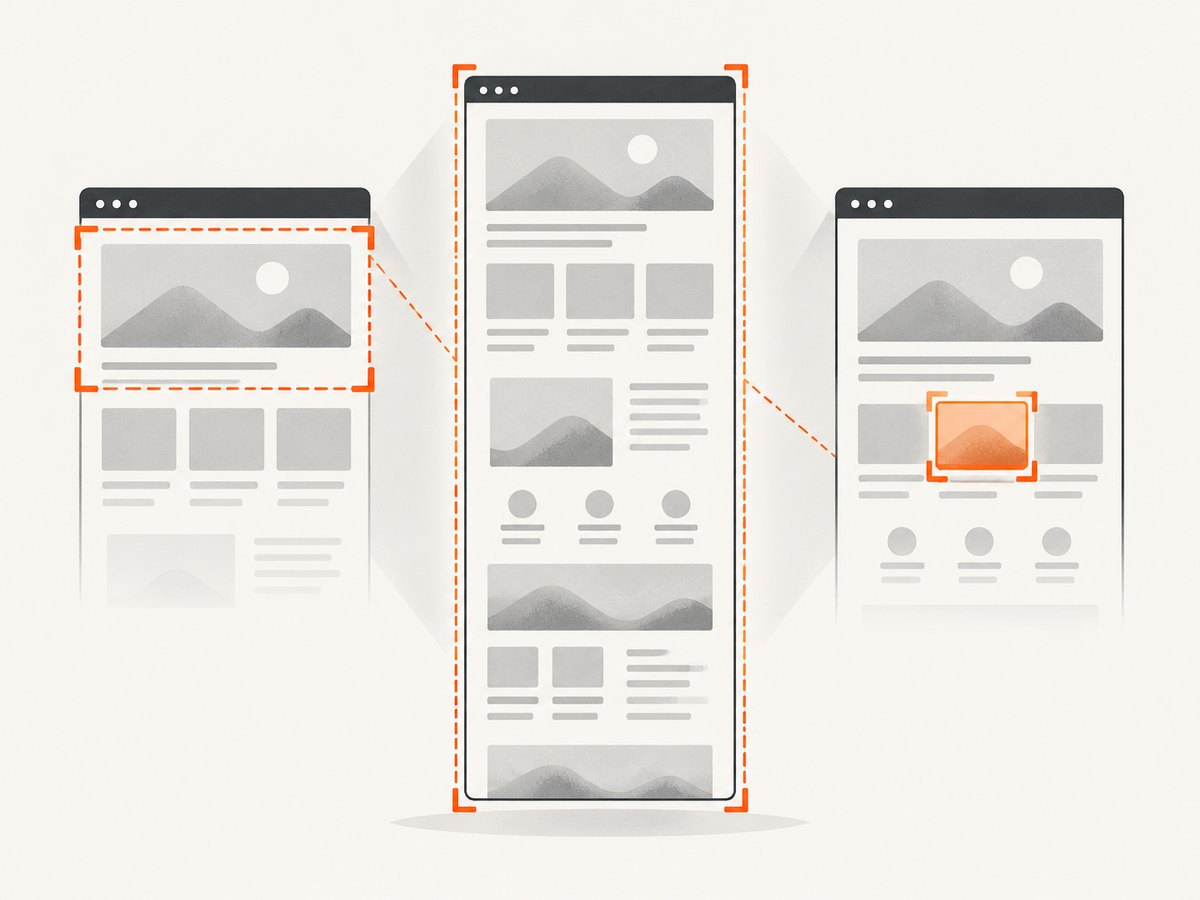
save_screenshot captures what is visible in the current viewport. It does not automatically include content below the fold.
visit '/pricing'
save_screenshot('tmp/pricing-viewport.png')
Full-page screenshot
Pass full: true to request the entire document height.
visit '/docs/getting-started'
save_screenshot('tmp/docs-full.png', full: true)
Use full-page mode for regression baselines and documentation snapshots. Long pages can create very large bitmap files; see the performance section before using it for every test.
Element screenshot
Pass a CSS selector with selector to bound the image to one matching element.
visit '/dashboard'
save_screenshot('tmp/chart.png', selector: '#revenue-chart')
The selector must match the element you intend to capture. A missing selector normally indicates a timing or selector problem, so wait for the page to render before saving the image. Element capture is useful for component-level visual tests because unrelated page changes do not change the output dimensions.
Combining options
You can request a full capture and supply other driver-supported options together. Keep the capture area decision separate from viewport sizing: full: true changes how much content is included, while the viewport controls responsive layout.
save_screenshot(
  'tmp/report.png',
  full: true,
  selector: '#report'
)
When options conflict in a particular Poltergeist release, check the installed README and reduce the call to one capture-area mode. In most test suites, choose either a full page or a selector for a deterministic target.
3. Set the Poltergeist window and PhantomJS viewport
Poltergeist documents window_size as a two-element array. Its default is [1024, 768]. It also documents screen_size, which is used when Window#maximize is called. These driver settings are distinct from PhantomJS’s webpage viewportSize property.
Capybara.register_driver :poltergeist_desktop do |app|
  driver = Capybara::Poltergeist::Driver.new(
    app,
    window_size: [1440, 900],
    screen_size: [1920, 1080]
  )
  driver
end

Capybara.javascript_driver = :poltergeist_desktop
For direct PhantomJS scripting, set both viewport dimensions before loading the page. PhantomJS specifically requires width and height; omitting height can produce unexpected layout.
page.viewportSize = {
  width: 1440,
  height: 900
};
page.open('https://example.com');
The viewport simulates the browser window used for layout. A narrower width can activate mobile CSS, change line wrapping, and alter lazy-loading behavior. Set it before navigation whenever responsive layout matters. Changing PDF orientation later does not reproduce a different browser viewport.
4. Render images and Base64 output
Poltergeist also exposes PhantomJS’s Base64 renderer. PNG is the documented default; PNG, GIF, and JPEG are accepted.
visit '/profile'
base64_png = page.driver.render_base64('PNG')
File.binwrite('tmp/profile.png', Base64.decode64(base64_png))
Require Ruby’s Base64 library in code that decodes the returned string:
require 'base64'Use PNG for lossless visual diffs and text-heavy pages. JPEG can reduce file size for photographic pages but introduces compression artifacts. GIF is available through the PhantomJS API, although it is rarely the best choice for modern screenshots.
5. Configure PDF output with paperSize
PDF output uses PhantomJS’s paperSize property. It controls the physical page dimensions, margins, orientation, and optional repeating header or footer. It does not set the webpage viewport.
Named paper format
page.paperSize = {
  format: 'A4',
  orientation: 'portrait',
  margin: '1cm'
};
Documented named formats include A3, A4, A5, Legal, Letter, and Tabloid. Portrait is the default orientation; use landscape when a wide table needs more horizontal space.
Individual margins
page.paperSize = {
  format: 'Letter',
  orientation: 'landscape',
  margin: {
    top: '12mm',
    right: '10mm',
    bottom: '12mm',
    left: '10mm'
  }
};
A single margin measurement is also supported, and the documented default margin is zero. Explicit margins make generated documents easier to compare across environments.
Custom dimensions
page.paperSize = {
  width: '5in',
  height: '7in',
  margin: '0.25in'
};
Dimensions accept mm, cm, in, and px; unitless dimensions are treated as pixels. Use named formats for conventional print output and explicit dimensions for labels, receipts, or other fixed-size documents.
Headers and footers
PhantomJS permits a repeating header or footer with a specified height and callback-generated contents. Keep callbacks deterministic: avoid reading mutable test state or making network requests while a page is being rendered. Consult the PhantomJS paperSize API for the exact callback shape supported by your version.
6. A complete Ruby capture helper
This helper makes the capture intent explicit and keeps viewport, capture area, and PDF settings separate.
require 'capybara/poltergeist'

Capybara.register_driver :poltergeist_ci do |app|
  Capybara::Poltergeist::Driver.new(
    app,
    window_size: [1366, 768],
    screen_size: [1920, 1080]
  )
end

Capybara.current_driver = :poltergeist_ci

Capybara.visit('https://example.com')
Capybara.save_screenshot(
  'tmp/example-full.png',
  full: true
)

Capybara.visit('https://example.com/account')
Capybara.save_screenshot(
  'tmp/account-panel.png',
  selector: '#account-panel'
)
For PDFs, use a PhantomJS page object or the PDF support exposed by the Poltergeist version in your project, then assign driver.paper_size= with the corresponding paper settings. The Poltergeist README documents that assignment pattern; verify the method name against your installed release.
7. Timing, lazy content, and deterministic captures
- Navigate to the page.
- Wait for a stable selector that proves the relevant content exists.
- Disable animations or wait for them to finish.
- Capture the viewport, full page, or element.
visit '/analytics'
assert_selector '#revenue-chart', wait: 10
page.execute_script("document.querySelectorAll('*').forEach(function(el){el.style.animation='none'; el.style.transition='none';});")
save_screenshot('tmp/analytics.png', selector: '#revenue-chart')
Use a fixed viewport and stable test data for visual regression. Full-page captures can expose lazy-loaded sections that are not present until scrolling; exercise the page’s loading behavior before capture when your application depends on it.
8. Troubleshooting common errors
| Symptom | Likely cause | Fix |
|---|---|---|
| Driver fails to start | PhantomJS is missing, not executable, or incompatible. | Check phantomjs --version, PATH, permissions, and Poltergeist’s supported versions. |
| Image is only the visible area | Viewport capture is the default. | Pass full: true or choose a specific selector. |
| Mobile layout appears unexpectedly | Window or viewport width is too small. | Set window_size and PhantomJS viewportSize.width before navigation. |
| Element capture is blank or missing | The selector did not match, or content was not ready. | Use assert_selector, inspect the selector, and increase the wait time. |
| PDF pages have the wrong proportions | Viewport and paper size were treated as the same setting. | Set the viewport for responsive layout and paperSize for PDF dimensions independently. |
| Text or images are clipped in PDF | Margins, custom dimensions, or print CSS cause overflow. | Adjust margins and dimensions, then inspect print-specific CSS at the chosen paper size. |
| Visual diffs change between runs | Animations, fonts, network data, or timestamps vary. | Freeze data and time, wait for fonts and selectors, disable motion, and use a fixed viewport. |
9. Performance, reliability, and cost considerations
Viewport screenshots are generally cheaper to process than very tall full-page images. Element captures reduce pixels and make visual tests less sensitive to unrelated page changes. Use the smallest viewport and target that answer the test question.
Keep navigation and waiting bounded. A selector wait is usually more reliable than an arbitrary long sleep, while a short delay can still be useful for a known animation or chart transition. Record the URL, viewport, capture mode, selector, and PhantomJS version with each baseline so failures are reproducible.
PhantomJS and Poltergeist are legacy components. The archived project may not handle modern browser APIs, TLS behavior, or JavaScript frameworks as well as current browsers. If a page requires current Chromium behavior, consider a maintained browser driver or an external screenshot service.
10. Or skip the browser setup
ScreenshotNeo provides a website screenshot API and MCP server. One GET request returns PNG, JPEG, WebP, or PDF, while its capture pipeline accepts consent banners and removes more than 60 known consent platforms, newsletter popups, and chat widgets before the shot. Bot checks, blank pages, timeouts, failed loads, and cache hits are not billed; response headers identify the page verdict and billing result.

See the ScreenshotNeo API documentation for all options. The basic call is:
curl -G "https://api.screenshotneo.com/v1/shot" -d access_key=YOUR_API_KEY --data-urlencode url=https://stripe.com -o shot.webpimport requests
r = requests.get("https://api.screenshotneo.com/v1/shot", params={"access_key": "YOUR_API_KEY", "url": "https://stripe.com"}, timeout=90)
open("shot.webp", "wb").write(r.content)const q = new URLSearchParams({ access_key: 'YOUR_API_KEY', url: 'https://stripe.com' });
const res = await fetch(`https://api.screenshotneo.com/v1/shot?${q}`);ScreenshotNeo supports full-page and element captures, dark mode, 12 device presets or custom viewports, retina scale, PDF paper settings, custom CSS and JavaScript, clicks, waits, blocked resources, headers, cookies, user agents, authorization, timezone, geolocation, transparent backgrounds, resizing, selectable cache TTLs, signed links, asynchronous jobs with signed webhooks, bulk capture of up to 100 URLs per call, a usage API, and an OpenAPI specification. An MCP server exposes take_screenshot, get_page_info, and capture_pdf to Claude, Cursor, and other MCP clients.
The Free plan includes 1,000 screenshots each month without a card. Paid plans start at $5 for 3,000 shots; yearly billing provides two months free, and every feature is available on every plan. Create a free ScreenshotNeo account.
11. FAQ
Is full: true the same as changing viewport height?
No. Full-page mode changes the captured document area. Viewport height affects layout and what is visible during normal rendering.
Should I use selector or full page for component tests?
Use selector when the component has a stable CSS boundary. It keeps baselines smaller and isolates unrelated page changes.
How do I choose between A4 and custom PDF dimensions?
Choose A4, Letter, or another named format for conventional documents. Use explicit width and height when the output must match a physical label, receipt, or fixed canvas.
Why does changing PDF orientation not fix responsive wrapping?
Orientation changes paper dimensions. Responsive wrapping is determined by the webpage viewport, so set the viewport width before loading the page.
Where are the authoritative option definitions?
Use the Poltergeist README, the PhantomJS viewportSize API, the paperSize API, and the renderBase64 API. Validate syntax against the versions installed in your test environment.


