HTML Code to PDF API: Complete Guide to Conversion, Options, and Production Workflows
Convert HTML to PDF with browser automation or an API. Learn rendering options, complete code, reliability, troubleshooting, costs, and production patterns.
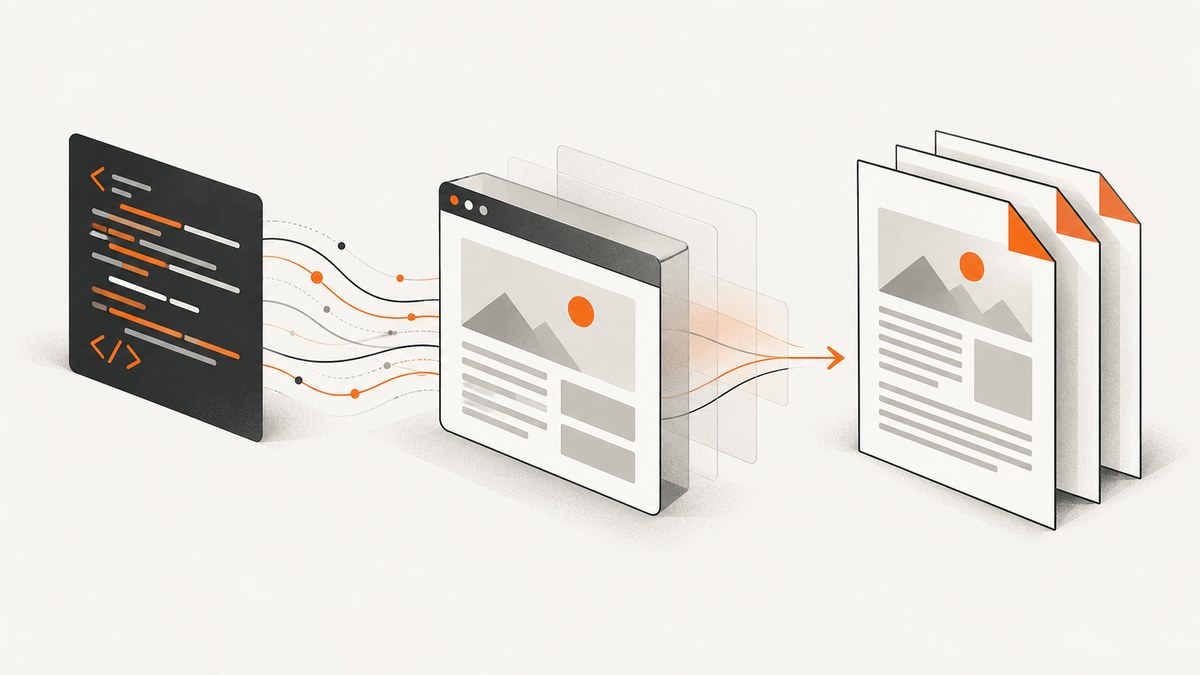
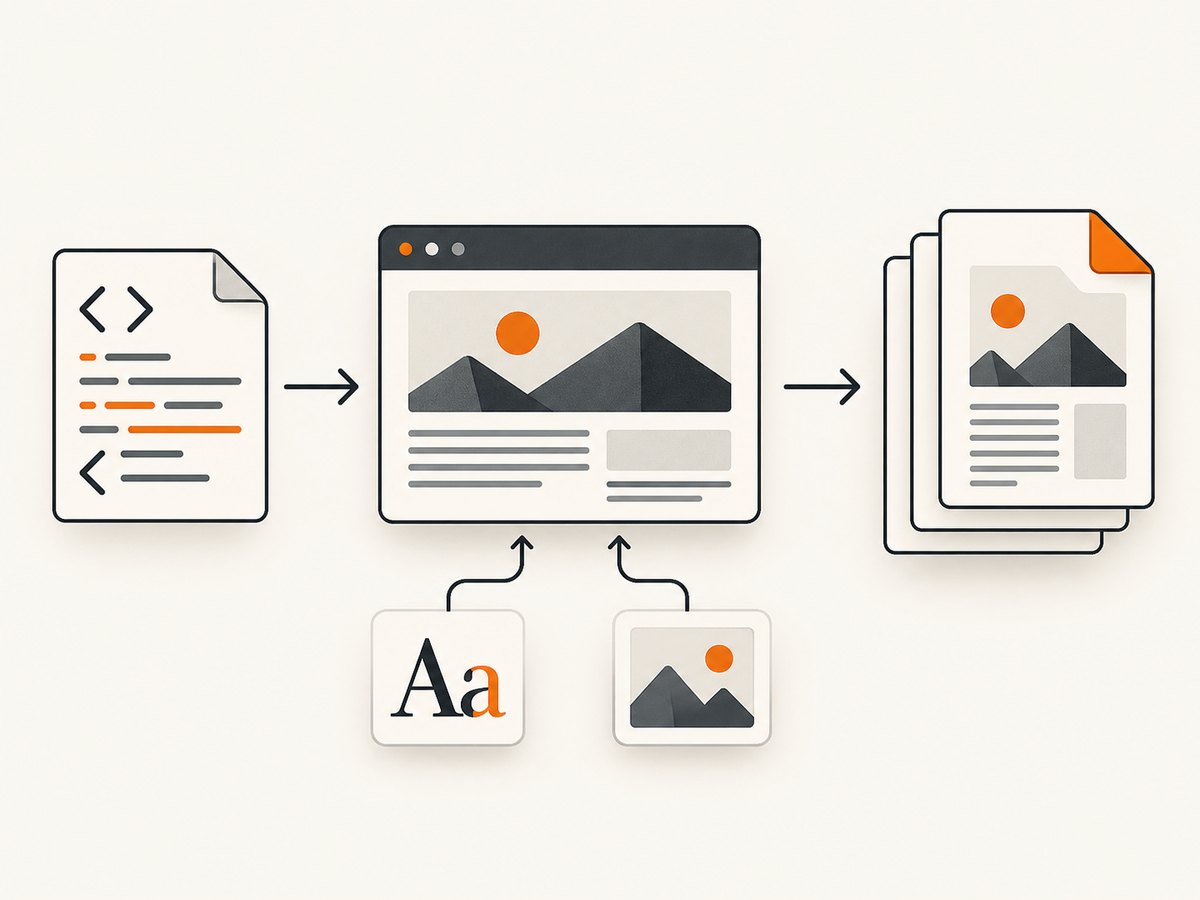
To convert HTML code to PDF, render the HTML in a browser or HTML-to-PDF service, wait until fonts and dynamic content are ready, then return the generated PDF bytes or a download URL. Browser automation gives maximum CSS and JavaScript control; a managed API removes browser operations from your application.
The practical choice is usually:
- Self-hosted browser: use Puppeteer or Playwright when you need browser-level control and can operate Chromium.
- Managed API: send HTML, a URL, or uploaded assets when you want a simpler deployment and documented quotas, authentication, and failure handling.
1. What an HTML-to-PDF API does
An HTML-to-PDF API turns markup and its assets into paginated PDF output. Depending on the provider, the input may be raw HTML, a public URL, a ZIP containing assets, or an uploaded job asset. The renderer normally executes CSS and, for dynamic pages, JavaScript before printing.
Before selecting an endpoint, answer four questions:
- Will you submit raw HTML, a URL, or a bundle of assets?
- Do you need JavaScript, custom fonts, authenticated requests, or private network access?
- Must the response be synchronous PDF bytes, Base64 JSON, or an asynchronous job callback?
- What are the page, rate, timeout, quota, and retry limits?
2. Fastest self-hosted method with Puppeteer
Puppeteer’s page.pdf() generates a PDF using the print CSS media type by default. If your design is written for the screen, call page.emulateMediaType('screen') first. The following complete Node.js program converts an HTML string to a PDF file.
import puppeteer from 'puppeteer';

const html = `<!doctype html>
<html>
<head>
  <meta charset="utf-8">
  <style>
    @page { size: A4; margin: 18mm 16mm 20mm; }
    body { font-family: Arial, sans-serif; color: #222; }
    h1 { break-after: avoid; }
    .avoid-break { break-inside: avoid; }
    @media print { .screen-only { display: none; } }
  </style>
</head>
<body>
  <h1>Invoice 1042</h1>
  <p>Generated from HTML.</p>
  <div class="avoid-break">Keep this block together.</div>
</body>
</html>`;

const browser = await puppeteer.launch({
  headless: true,
  args: ['--no-sandbox', '--disable-setuid-sandbox']
});

try {
  const page = await browser.newPage();
  await page.setContent(html, { waitUntil: 'networkidle0' });
  await page.emulateMediaType('print');
  await page.evaluate(() => document.fonts.ready);
  await page.pdf({
    path: 'output.pdf',
    format: 'A4',
    printBackground: true,
    preferCSSPageSize: true,
    displayHeaderFooter: true,
    headerTemplate: '<span></span>',
    footerTemplate: '<div style="font-size:8px;width:100%;text-align:center">Page <span class="pageNumber"></span> of <span class="totalPages"></span></div>',
    margin: { top: '18mm', right: '16mm', bottom: '20mm', left: '16mm' }
  });
} finally {
  await browser.close();
}
Install and run it with npm install puppeteer followed by node convert.mjs. In production, reuse a browser process or a small pool instead of launching Chromium for every request.
Important Puppeteer PDF options
| Option | Use | Common pitfall |
|---|---|---|
format |
A4, Letter, Legal, and other standard paper sizes | Ignored for dimensions that conflict with CSS when preferCSSPageSize is enabled |
width, height |
Explicit paper dimensions | Use CSS units consistently |
landscape |
Rotate the page | Wide tables can still overflow |
margin |
Reserve printable space | Headers and footers overlap when margins are too small |
printBackground |
Include background colors and images | Puppeteer defaults this to false |
scale |
Scale rendered content | Can make text unexpectedly small |
pageRanges |
Export selected pages, such as 1-3 |
Validate ranges for short documents |
preferCSSPageSize |
Give @page size priority |
Unexpected output if CSS contains a global page rule |
displayHeaderFooter |
Enable templates and page placeholders | Templates have restricted styling and need margins |
waitForFonts |
Wait for document.fonts.ready |
Missing fonts still fall back if the font cannot load |
Puppeteer documents the print-media behavior and PDF controls in its Page.pdf() reference and PDFOptions reference.
3. Print CSS that survives real documents
Keep layout rules explicit. Define @page size and margins, use break-before, break-after, and break-inside for sections, and remove navigation with print-only selectors. Use -webkit-print-color-adjust: exact when exact colors matter. A browser may still substitute fonts when the requested family is unavailable.
@page { size: Letter; margin: 0.7in; }

@media print {
  nav, .cookie-banner, .no-print { display: none !important; }
  .keep-together { break-inside: avoid; }
  h2 { break-before: page; }
  * { -webkit-print-color-adjust: exact; print-color-adjust: exact; }
}
For dynamic pages, wait for a meaningful readiness signal rather than an arbitrary short delay. Useful signals include a selector that appears after rendering, a completed application promise, network idle, and document.fonts.ready. Long pages should be tested with images, custom fonts, charts, and tables because each can change pagination.
4. Managed API workflows
A hosted service generally exposes one of three patterns:
- Direct conversion: submit HTML or a URL and receive PDF bytes or JSON/Base64.
- Job submission: upload HTML or a ZIP, create a job, then poll for completion.
- Callback delivery: submit a callback URL and receive a later POST containing the result.
Adobe’s official HTML-to-PDF workflow documents uploaded assets and job submission for static or dynamic HTML, ZIP input, and URL input. HTMLPDF.dev documents a direct POST accepting either html or url, with paper format, margins, backgrounds, scale, page ranges, headers and footers, media mode, wait controls, and binary or Base64 output. Its documentation also describes 30-second generation timeouts and HTTP 429 responses for quota or rate limits. Confirm current endpoint names, limits, and authentication requirements in the provider documentation before shipping.
Request design checklist
| Concern | Implementation decision |
|---|---|
| Input | Raw HTML for templates; URL for an already deployed page; ZIP when relative assets must travel together |
| Assets | Use absolute HTTPS URLs or package images, CSS, and fonts; ensure the renderer can reach private resources |
| Media | Choose print or screen deliberately and verify color output |
| Pagination | Set paper, margins, scale, page breaks, and page ranges explicitly |
| Delivery | Use synchronous bytes for small documents; jobs or callbacks for long-running work |
| Security | Authenticate requests, restrict outbound navigation, and avoid rendering untrusted HTML with internal network access |
5. cURL, Python, and Node.js API examples
For a URL-based capture or PDF workflow, these requests show the basic HTTP shape. Follow the target API’s PDF parameter and response documentation. ScreenshotNeo’s API and option reference are at the ScreenshotNeo documentation.
curl -G "https://api.screenshotneo.com/v1/shot" -d access_key=YOUR_API_KEY --data-urlencode url=https://stripe.com -o shot.webpimport requests
r = requests.get("https://api.screenshotneo.com/v1/shot", params={"access_key": "YOUR_API_KEY", "url": "https://stripe.com"}, timeout=90)
r.raise_for_status()
open("shot.webp", "wb").write(r.content)const q = new URLSearchParams({ access_key: 'YOUR_API_KEY', url: 'https://stripe.com' });
const res = await fetch(`https://api.screenshotneo.com/v1/shot?${q}`);
if (!res.ok) throw new Error(`HTTP ${res.status}`);
const data = Buffer.from(await res.arrayBuffer());
await import('node:fs/promises').then(fs => fs.writeFile('shot.webp', data));6. Or skip the browser setup
ScreenshotNeo provides a website screenshot API and MCP server. Use its one-call URL workflow when the source is a rendered web page and you want the browser runtime managed for you. Cookie and consent banners are accepted and removed before capture, along with more than 60 known consent platforms, newsletter popups, and chat widgets; each step can be disabled. Bot checks, blank pages, timeouts, failed loads, and cache hits are not billed, and the response identifies the result with X-Page-Verdict and X-Billed headers. Its MCP server exposes take_screenshot, get_page_info, and capture_pdf tools for Claude, Cursor, and other MCP clients.

Other controls include full-page capture with lazy images loaded, CSS element capture, dark mode, 12 device presets or custom viewports, retina scale, PDF paper size, margins, landscape and page ranges, custom CSS and JavaScript, click actions, selector waits, delays, network-idle waits, request and resource blocking, headers, cookies, user agents, Authorization, timezone, geolocation, transparent backgrounds, resizing, chosen cache TTLs, signed image links, asynchronous jobs with signed webhooks, bulk capture for 100 URLs per call, usage reporting, and an OpenAPI specification.
curl -G "https://api.screenshotneo.com/v1/shot" -d access_key=YOUR_API_KEY --data-urlencode url=https://stripe.com -o shot.webpThere is a free allowance of 1,000 shots per month with no card. Paid plans start at $5 for 3,000 shots; yearly billing gives two months free, and every feature is available on every plan. Create a free ScreenshotNeo account.
7. Reliability, performance, and cost planning
Rendering time grows with page complexity, external assets, JavaScript, font loading, and document length. Keep input assets close to the renderer, cache immutable templates, and avoid waiting for an unnecessarily long network-idle window. For self-hosted Chromium, cap concurrent pages, recycle unhealthy workers, and record render duration, output size, browser errors, and the input document identifier.
For managed services, treat 401/403 as authentication or permission failures, 400 as invalid parameters or mutually exclusive inputs, 408/504 or documented timeout errors as retry candidates only when the operation is idempotent, 429 as quota or rate limiting, and 5xx as transient provider failures. Use exponential backoff with jitter, an idempotency key where supported, and a maximum retry count. Do not blindly retry malformed HTML or invalid page ranges.
Estimate cost from rendered documents, not only requests. A service may bill successful conversions while excluding failed loads or cache hits; read the provider’s current billing definition. For self-hosting, include compute, browser image maintenance, concurrency capacity, storage, observability, and engineering time. Compare those costs with the provider’s quotas and overage policy using representative documents.
8. Troubleshooting common failures
| Symptom | Likely cause | Fix |
|---|---|---|
| Blank PDF | HTML was captured before application rendering completed | Wait for a selector, application-ready flag, network idle, and fonts; inspect console errors |
| Missing images | Relative paths, blocked resources, or cross-origin failures | Use absolute URLs or bundled assets; verify renderer network access and response status |
| Wrong colors | Print color adjustment or backgrounds disabled | Enable background printing and use print-color-adjust where required |
| Fonts look different | Font files did not load or are unavailable in the runtime | Wait for document.fonts.ready, embed or host fonts reliably, and check licensing |
| Content overlaps footer | Header/footer templates have no reserved margin | Increase top or bottom margin and keep templates small |
| Tables split badly | Rows or containers lack break rules | Use break-inside: avoid selectively and test long rows |
| HTTP 400 | Invalid option, malformed HTML, or both html and url supplied |
Validate the request against the provider schema and send exactly one input type |
| HTTP 401/403 | Missing, expired, or unauthorized credentials | Rotate the key, check scopes, and keep secrets out of client-side code |
| HTTP 429 | Rate limit or monthly quota exceeded | Throttle, back off, inspect usage, and request a suitable plan |
| Timeout | Slow third-party assets, infinite JavaScript, or oversized documents | Remove blocking resources, set explicit waits, split work, and enforce an application deadline |
9. Testing before production
- Create fixtures for short, long, image-heavy, font-heavy, dynamic, and authenticated documents.
- Compare page count, text extraction, margins, colors, headers, footers, and page breaks against expected output.
- Test missing assets, slow assets, failed scripts, blocked navigation, and malformed input.
- Run concurrent requests at the expected peak and observe queue time, memory, CPU, and timeout rates.
- Pin browser or service versions where possible and recheck output after upgrades.
10. FAQ
Can an API convert a private HTML page?
Only if the renderer can authenticate and reach it. Use provider-supported headers, cookies, authorization, or an uploaded asset flow, and avoid exposing private content in public URLs.
Should I use print or screen CSS?
Use print CSS for invoices, reports, and documents designed for paper. Emulate screen media when the PDF must match the on-screen layout.
How do I generate only selected pages?
Use the renderer’s page-range option, such as 1-3, after confirming how it handles invalid or empty ranges.
When is an asynchronous job better?
Use jobs or callbacks for large documents, many URLs, or workflows that cannot hold an HTTP request open through rendering.
Is a hosted API always cheaper?
No. Compare provider charges and quotas with Chromium compute, operations, maintenance, and engineering time at your actual volume.
Can ScreenshotNeo remove page clutter before capture?
Yes. Its consent, popup, newsletter, and chat cleanup runs before the shot, and each cleanup step can be turned off.


