How to Convert HTML to Content-Width PNGs with Wkhtmltoimage
Make wkhtmltoimage produce predictable, content-width PNGs. Set the CSS width and viewport together, control page height, and handle dynamic content and local assets.
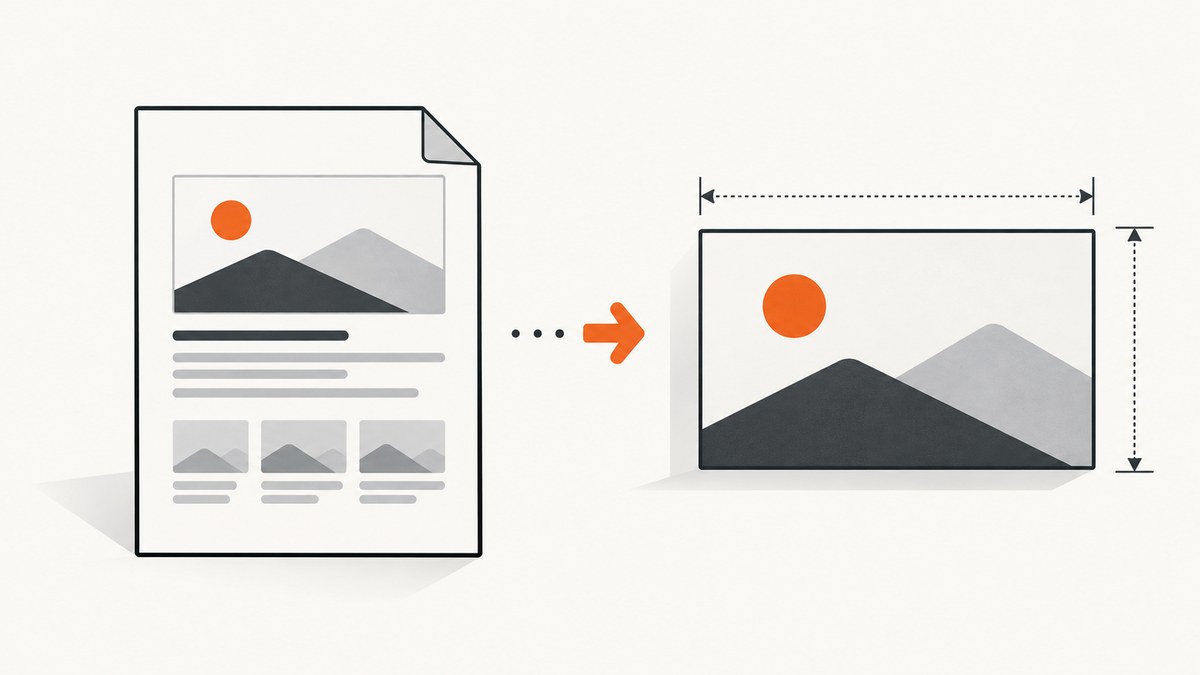
To convert HTML into a content-width PNG with wkhtmltoimage, give the capture target an explicit CSS width, set --width to the same value, and use --disable-smart-width when your build supports it. For example, a 960-pixel content area should use a 960-pixel capture width. Omit --height when you want the image to extend to the page’s content height; set a height and crop dimensions only when you need fixed bounds.
wkhtmltoimage converts an HTML page from a file or URL into an image. PNG is supported, and --format png makes the desired output explicit. The important detail is that --width is a screen-width guide unless smart-width behavior is disabled. A page can therefore be wider or narrower than expected if its CSS layout and renderer width disagree. See the wkhtmltoimage man page and the libwkhtmltox image settings.
1. Set a deterministic content width
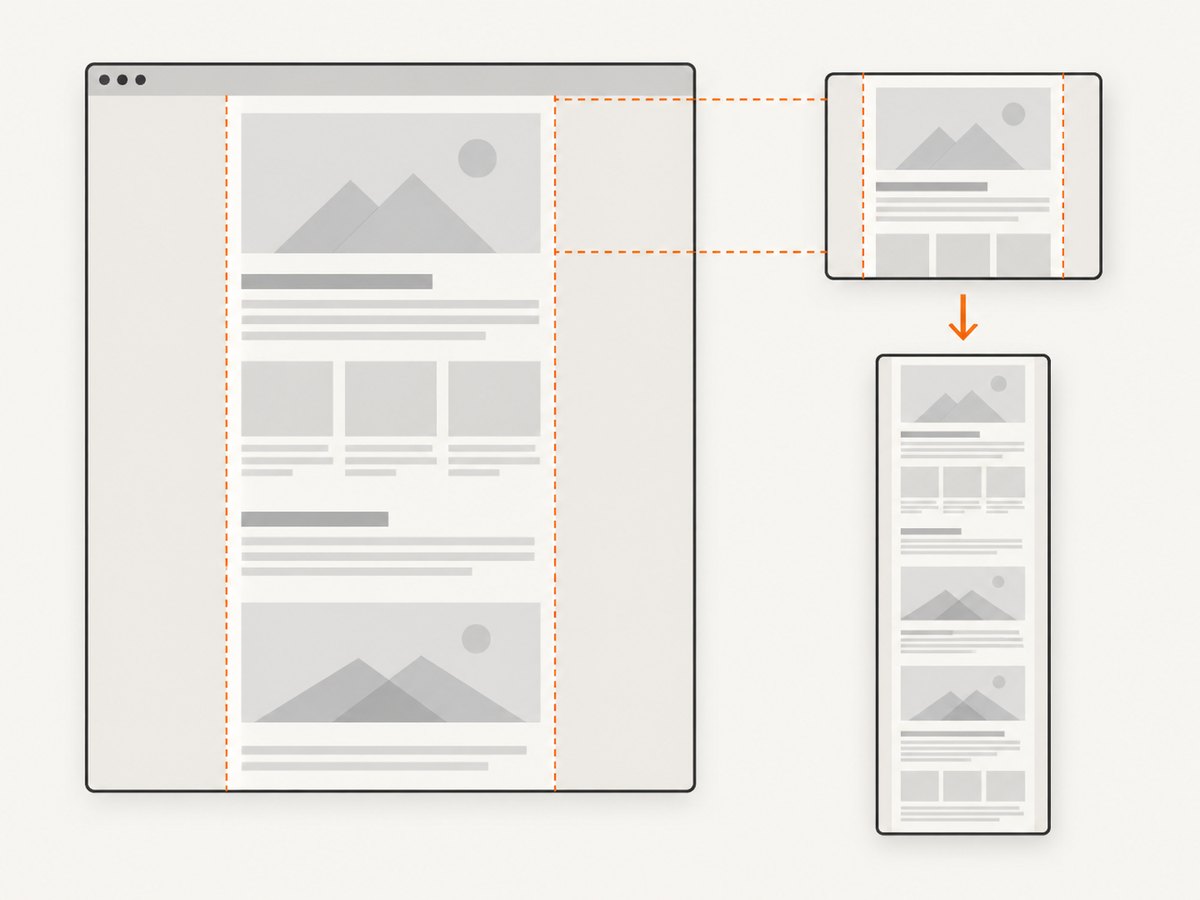
Start by deciding what the PNG should contain: a fixed-width article column, a card, a report, or the whole page. Put that content in a wrapper and set its width in CSS. Reset default body margins so they do not add unexpected pixels around the wrapper.
<!doctype html>
<html>
<head>
  <meta charset="utf-8">
  <style>
    html, body { margin: 0; padding: 0; }
    #capture { width: 960px; }
  </style>
</head>
<body>
  <main id="capture">Your content</main>
</body>
</html>
Here, 960 pixels is an example, not a tool requirement. Replace it with the width your design needs. For this fixed-width layout, render with a matching viewport:
wkhtmltoimage --format png --width 960 --disable-smart-width input.html output.pngCheck that the installed build recognizes --disable-smart-width. If it does not, remove the option and inspect the actual output dimensions and layout. Smart-width behavior can expand the screen width when content does not fit; the library describes this alongside intelligent shrinking in its image settings. Without strict width support, a matching CSS width and viewport still help, but you should verify the result for your build.
2. Choose natural or fixed height
Width and height solve different problems. --width sets the screen width guide. --height controls screen height. If the goal is a screenshot from top to bottom, omit --height; the documented default calculates height from page content. This is usually the simplest choice for a long article or report.
Use an explicit height when the output must fit a known rectangle, such as a thumbnail or fixed-size preview. If content extends beyond the desired rectangle, cropping may cut it off. Decide whether that is acceptable before setting crop dimensions.
wkhtmltoimage --format png --width 960 --height 1200 \
  --crop-w 960 --crop-h 1200 input.html output.png
The crop width and height are example bounds. Choose them for the intended design. A fixed crop does not make the layout itself responsive or guarantee that every element fits; inspect the result for clipped content.
3. Handle dynamic content before capture
A page may change after the initial load because JavaScript creates markup, a chart draws, or web fonts finish loading. If the screenshot is taken too early, the PNG can show an incomplete layout. Keep JavaScript enabled when the page needs it and choose a synchronization method supported by the CLI.
Use a delay for a simple page
wkhtmltoimage --format png --width 960 --javascript-delay 800 \
  input.html output.png
The 800-millisecond delay is just an example. Tune it to the page. A delay is easy to add, but it cannot guarantee readiness if resource load times vary widely.
Use a readiness signal for controlled pages
For a page you control, make the page set a known window status when its content is ready, then wait for that value with --window-status. This ties capture to an application signal rather than a guessed pause. Alternatively, the documented --run-script option can execute JavaScript before capture; it is repeatable.
wkhtmltoimage --format png --width 960 \
  --window-status capture-ready input.html output.png
In your page code, set window.status = 'capture-ready' after the relevant content and layout are ready. If you use --run-script, make sure the script addresses the condition you need; running a script does not automatically mean remote resources have finished rendering.
wkhtmltoimage --format png --width 960 \
  --run-script "document.documentElement.setAttribute('data-ready','1')" \
  input.html output.png
Use one documented synchronization approach that matches the page. Avoid stacking arbitrary delays without checking whether the missing content is caused by a different issue, such as failed asset access.
4. Load local CSS, images, and fonts deliberately
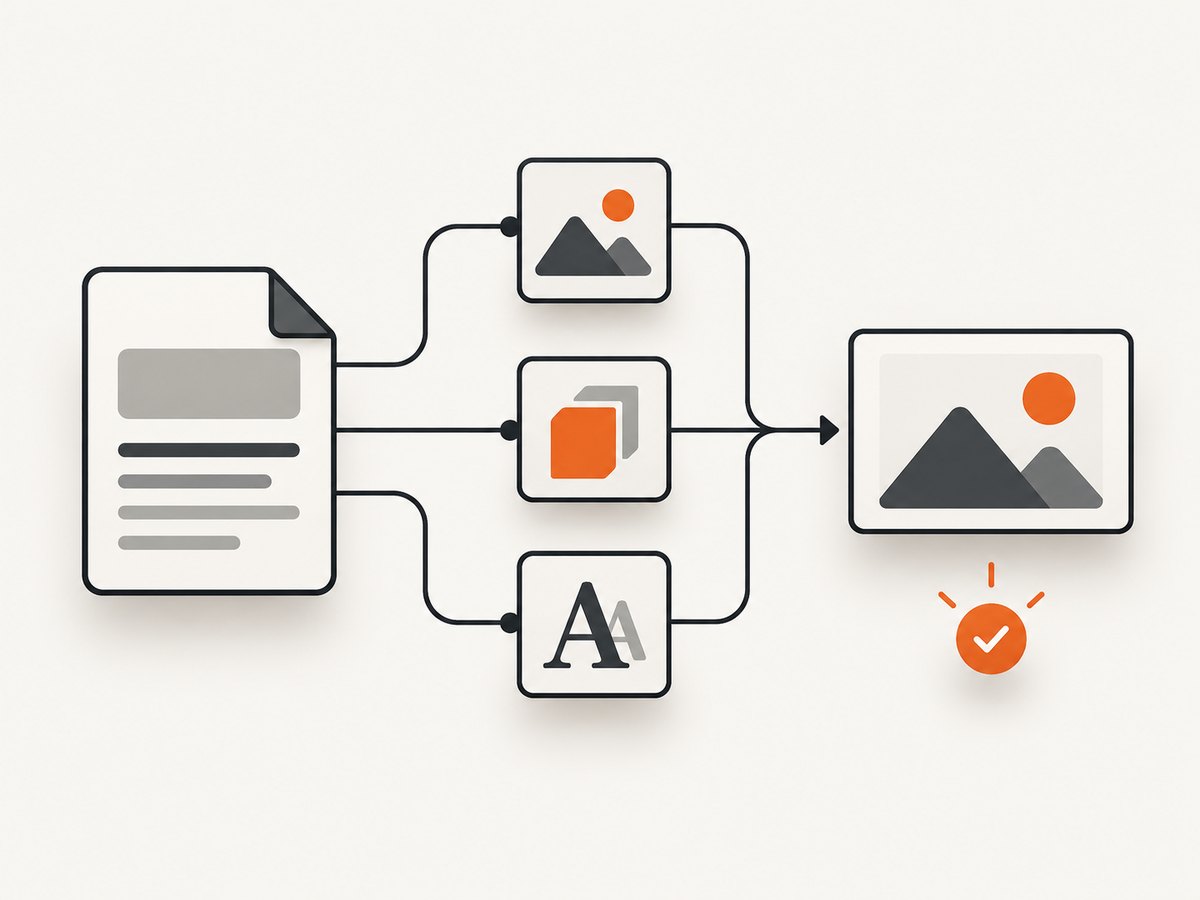
When an HTML file references local assets, the renderer’s local-file-access policy matters. Enable access only when needed, and use --allow to permit the directory that contains the page assets.
wkhtmltoimage --enable-local-file-access --allow /path/to/site \
  --format png --width 960 input.html output.png
Replace /path/to/site with the actual asset directory. The man page documents --enable-local-file-access, --disable-local-file-access, and --allow <path>. If assets are remote, confirm the machine running the command can reach them and that their URLs are valid. A screenshot can succeed while CSS, fonts, or images silently fail to load, so check the PNG rather than treating a zero exit status as proof that every resource appeared.
5. Complete command-line examples
These examples use the same principles: make output format explicit, coordinate CSS and viewport widths, choose height behavior deliberately, and account for the source type.
Local HTML to a full-height PNG
wkhtmltoimage --format png --width 960 --disable-smart-width \
  input.html output.png
Remote page to a PNG
wkhtmltoimage --format png --width 960 --disable-smart-width \
  "https://example.com" output.png
Replace the example URL with the page you are authorized to capture. Remote pages may include scripts or resources that load after the initial document, so use a delay or readiness signal if the output is incomplete.
Fixed-size crop
wkhtmltoimage --format png --width 960 --height 1200 \
  --crop-w 960 --crop-h 1200 input.html output.png
Local page with permitted assets and a delay
wkhtmltoimage --enable-local-file-access --allow /path/to/site \
  --format png --width 960 --disable-smart-width \
  --javascript-delay 800 /path/to/site/input.html output.png
Use paths that exist in the environment where the command runs. If this runs in a container or build worker, paths on your laptop are not automatically available inside that environment.
6. Options that affect the result
| Option | What it controls | When to use it |
|---|---|---|
--format png |
Output image format | When PNG is required; PNG is supported and explicit format selection avoids relying on defaults. |
--width |
Screen width guide | Set it to the intended viewport width and coordinate it with the CSS width. |
--disable-smart-width |
Strict width behavior where supported | Use for a deterministic fixed-width capture when your build accepts it. |
--height |
Screen height | Use when you need fixed vertical bounds; omit for the documented content-based default. |
--crop-w, --crop-h |
Crop dimensions | Use when the target rectangle is known and clipping outside it is intended. |
--javascript-delay |
Wait after page load | Use a tuned delay when dynamic content needs extra time. |
--run-script |
Execute JavaScript before capture | Use for a controlled page-specific preparation step; it can be repeated. |
--window-status |
Wait for a window status value | Use when your page can signal that it is ready for capture. |
--enable-local-file-access, --disable-local-file-access |
Local file access policy | Enable only when local resources are required; otherwise keep the restriction. |
--allow <path> |
Permitted local path | Allow the specific directory containing assets needed for the page. |
These options are documented by the Debian wkhtmltoimage man page. Check wkhtmltoimage --help on the machine that will run the job: available options and behavior can depend on the installed build.
7. Troubleshooting width and rendering problems
| Symptom | Likely cause | What to change |
|---|---|---|
| PNG is wider than expected | Smart-width behavior expanded the page, or content overflows its wrapper. | Use --disable-smart-width if supported; inspect wide children and match CSS width to --width. |
| PNG is narrower or content is shrunk | The requested screen width and page layout disagree, or smart-width behavior is affecting the result. | Set the wrapper’s CSS width explicitly, align --width, and verify strict-width support in the installed build. |
| Right edge is clipped | The viewport or crop is smaller than the rendered content. | Increase the coordinated CSS and screen width, or choose a larger crop. Check for margins and overflowing elements. |
| Bottom of page is missing | A fixed height or crop ends before the content does. | Omit --height for content-based height, or raise the fixed height and crop dimensions. |
| Blank or incomplete chart | Capture happened before JavaScript finished drawing. | Use a tuned --javascript-delay or wait for an application-controlled --window-status signal. |
| Fonts or images are absent from local HTML | Local file access is disabled, an asset path is wrong, or the permitted directory excludes the resource. | Enable local access if required and allow the correct asset directory; fix the referenced paths. |
| Command rejects an option | The installed build may not support that option or uses different behavior. | Inspect wkhtmltoimage --help and use options accepted by that build; verify output dimensions after changing the command. |
| PNG exists but looks outdated | The source page or generated content was not ready when the capture occurred. | Check the readiness condition and asset loading; then use a delay or explicit page signal. |
8. Reliability, performance, and cost considerations
For repeatable output, keep the rendering inputs stable: HTML, CSS width, viewport width, height or crop policy, and the synchronization condition. A readiness signal is more meaningful than a fixed pause when you control the page. For a fixed design, inspect representative outputs after changes to content or styles, because a new wide element can affect width and a longer page can affect the final image height.
Large full-page outputs contain more pixels than small fixed crops, so they naturally produce larger image files and require more rendering and storage work. PNG is useful when that format is required, but the dossier does not establish a speed or file-size advantage for a particular setting. Choose crop bounds only if the intended output is actually bounded; cropping can hide content rather than fix layout.
The local command has no per-shot service price stated in the cited documentation. Your practical costs depend on the machine, dependencies, and operational work needed to run captures. If you need a managed capture path instead, ScreenshotNeo’s published plans include 1,000 shots per month free with no card, then paid plans starting at $5 for 3,000 shots; see its website for the product and plan details provided for this article.
Or skip the browser setup
For a remote webpage screenshot, ScreenshotNeo takes a URL in one GET request and returns an image or PDF. The API accepts PNG, JPEG, or WebP output; see the ScreenshotNeo API documentation for request options. This runnable cURL example captures a PNG:
curl -G "https://api.screenshotneo.com/v1/shot" \
  -d access_key=YOUR_API_KEY \
  --data-urlencode url=https://stripe.com \
  -o shot.png
To save a WebP instead, use the provided API example filename and request settings appropriate to your desired format, as documented in the API docs. The same endpoint can be called from Python or Node.js:
import requests

r = requests.get(
    "https://api.screenshotneo.com/v1/shot",
    params={"access_key": "YOUR_API_KEY", "url": "https://stripe.com"},
    timeout=90,
)
open("shot.webp", "wb").write(r.content)
const q = new URLSearchParams({
access_key: 'YOUR_API_KEY',
url: 'https://stripe.com'
});
const res = await fetch(`https://api.screenshotneo.com/v1/shot?${q}`);ScreenshotNeo accepts cookie and consent banners as a visitor and removes more than 60 known consent platforms, newsletter popups, and chat widgets before capture; each step can be turned off. Bot checks, blank pages, timeouts, failed loads, and cache hits are not billed, and response headers identify the page verdict and billing status. Its MCP server gives Claude, Cursor, and other MCP clients the take_screenshot, get_page_info, and capture_pdf tools. The free plan includes 1,000 screenshots a month with no card; paid plans start at $5 for 3,000 shots. Create a free ScreenshotNeo account to start with those 1,000 monthly shots.
9. cURL, Python, and Node.js for your own renderer workflow
wkhtmltoimage is a command-line executable, so the simplest and most portable way to run it is often a shell command. These language examples invoke that command and assume it is installed and on PATH. They use argument arrays so paths are passed as individual arguments instead of being interpolated into a shell command.
cURL
cURL does not invoke a local executable directly. For a remote source, it can download the page HTML, which you then pass to wkhtmltoimage:
curl -L "https://example.com" -o input.html
wkhtmltoimage --format png --width 960 --disable-smart-width \
  input.html output.png
This is not identical to rendering the original URL: relative links in the downloaded HTML may no longer resolve as intended, and page scripts may depend on the original origin. For remote pages, passing the URL directly to wkhtmltoimage is generally the more direct workflow.
Python
import subprocess

command = [
    "wkhtmltoimage",
    "--format", "png",
    "--width", "960",
    "--disable-smart-width",
    "input.html",
    "output.png",
]
subprocess.run(command, check=True, timeout=120)
Remove --disable-smart-width if your build does not support it. Set a timeout appropriate to your job and handle subprocess.TimeoutExpired or CalledProcessError in a production worker.
Node.js
import { execFile } from 'node:child_process';
import { promisify } from 'node:util';

const execFileAsync = promisify(execFile);
await execFileAsync('wkhtmltoimage', [
  '--format', 'png',
  '--width', '960',
  '--disable-smart-width',
  'input.html',
  'output.png',
], { timeout: 120_000 });
As with Python, keep arguments separate, configure a job timeout, and handle a nonzero exit or timeout in the calling application. In automated environments, make sure the executable and any local assets are present in the worker that runs the process.
10. FAQ
Does the content-width value need to be 960 pixels?
No. That number is only an example. Set the wrapper and renderer width to the dimensions your output requires.
Should I always set a height?
No. Leave it unset when the page should determine its full content height. Set a height and crop only for intentionally fixed bounds.
Why does a matching width still produce an unexpected result?
Content can overflow its wrapper, the build may not support strict-width behavior, or smart-width behavior may alter the effective screen width. Inspect the installed CLI options and the page’s wide elements.
Can I capture a JavaScript-heavy page?
The documented delay, run-script, and window-status options provide ways to wait or prepare before capture. Choose a readiness condition that matches the page, and confirm that the underlying assets load successfully.
Is PNG the only available image output?
No. The libwkhtmltox image settings list JPEG, PNG, BMP, and SVG output values. Use PNG explicitly when that is the required format.


