HTML File to PDF Converter in Python
Convert HTML files to PDF in Python with xhtml2pdf, WeasyPrint, or Playwright, including assets, CSS, security, troubleshooting, and hosted capture.
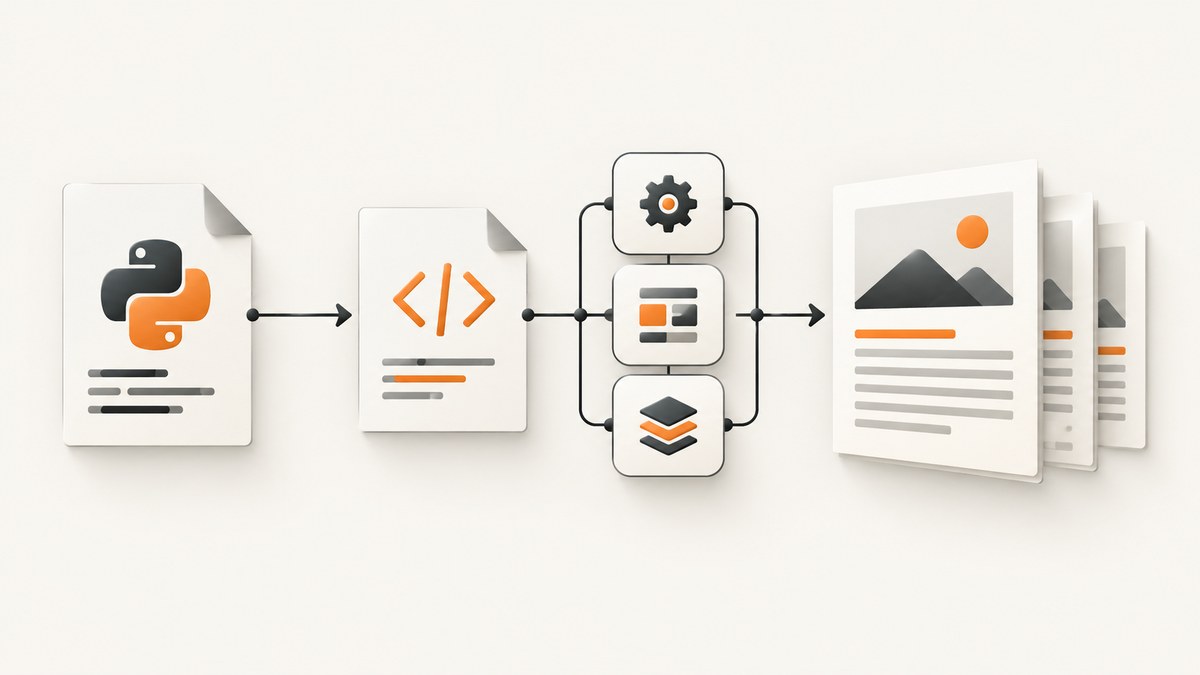
Short answer: use xhtml2pdf for a compact Python conversion, WeasyPrint for richer document features and repeated jobs, or Playwright when the PDF must follow browser print behavior. The correct choice depends on your HTML, CSS, JavaScript, assets, and PDF conformance requirements.
1. Convert a local HTML file with xhtml2pdf
xhtml2pdf is a pure-Python converter built on ReportLab, html5lib, and pypdf. Its documented support covers HTML5, CSS 2.1, and some CSS 3.
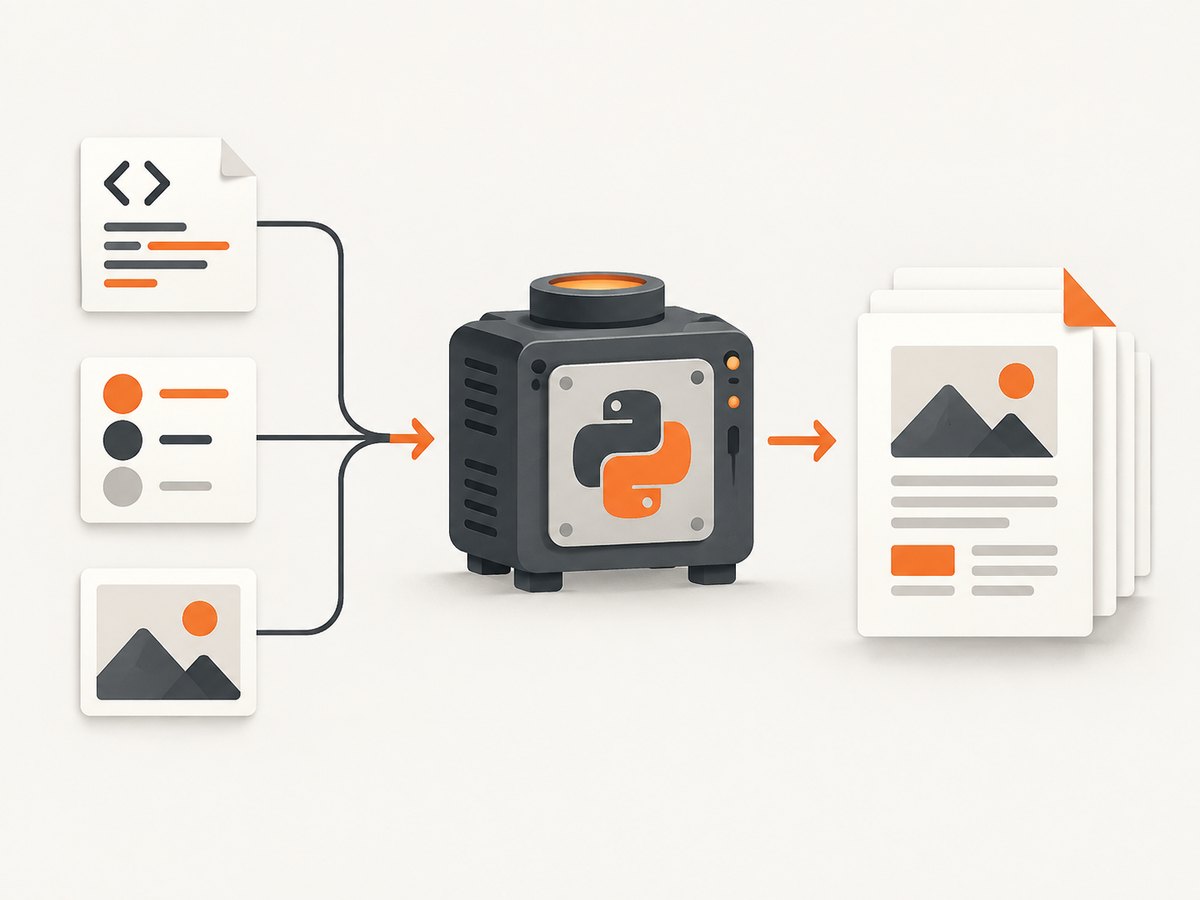
Install
python -m pip install xhtml2pdfRunnable script
from pathlib import Path
from xhtml2pdf import pisa

source = Path("invoice.html")
output = Path("invoice.pdf")

html = source.read_text(encoding="utf-8")
with output.open("w+b") as pdf_file:
    status = pisa.CreatePDF(
        src=html,
        dest=pdf_file,
        path=str(source.parent),  # base directory for relative assets
    )

if status.err:
    raise RuntimeError("xhtml2pdf reported conversion errors")

print(f"Wrote {output}")
The path argument matters when your document contains relative stylesheets, images, or fonts. For example, <img src="images/logo.png"> is resolved from the HTML file’s directory in this example.
Command-line conversion
xhtml2pdf invoice.html invoice.pdfThe CLI can also read HTML from standard input. Use --base when relative URLs need an explicit base directory. See the xhtml2pdf CLI documentation.
2. Use WeasyPrint for document-oriented PDFs
WeasyPrint accepts a filename, URL, readable file object, or HTML string. write_pdf() writes to a file or writable object, and returns PDF bytes when no destination is supplied.
Install and convert
python -m pip install weasyprintfrom weasyprint import HTML
HTML(filename="invoice.html").write_pdf("invoice.pdf")Convert to bytes
from weasyprint import HTML

pdf_bytes = HTML(filename="invoice.html").write_pdf()
with open("invoice.pdf", "wb") as file:
    file.write(pdf_bytes)
For a service that converts many files, keep the Python process alive so library startup work is not repeated for every request. WeasyPrint also exposes HTML.render() for inspecting pages and building additional processing around the rendered document.
Document features and conformance
WeasyPrint documents hyperlinks, bookmarks, attachments, forms, and PDF/A and PDF/UA output variants. Choosing an option does not prove conformance: your HTML and CSS must satisfy the relevant specification, and the resulting PDF should be validated with a suitable validator. PDF/UA documents need meaningful structure, including a document title and a lang attribute on the root html element.
<!doctype html>
<html lang="en">
  <head>
    <meta charset="utf-8">
    <title>Invoice 1042</title>
  </head>
  <body>...</body>
</html>
Read the WeasyPrint documentation for output variants and the API that matches your installed version.
3. Use Playwright when browser print output is required
Playwright launches a real browser and uses print CSS by default. It is a good fit for pages whose layout depends on browser behavior, modern CSS, or a browser context.
Install Chromium and the Python package
python -m pip install playwright
python -m playwright install chromium
Convert a local file
from pathlib import Path
from playwright.sync_api import sync_playwright

html_path = Path("invoice.html").resolve()

with sync_playwright() as playwright:
    browser = playwright.chromium.launch()
    page = browser.new_page()
    page.goto(html_path.as_uri(), wait_until="networkidle")
    page.pdf(
        path="invoice.pdf",
        format="A4",
        print_background=True,
        margin={"top": "16mm", "right": "14mm", "bottom": "16mm", "left": "14mm"},
    )
    browser.close()
Use screen CSS instead of print CSS
page.emulate_media(media="screen")
page.pdf(path="screen-styled.pdf", print_background=True)
Playwright’s PDF API also supports paper sizes, margins, scaling, header and footer templates, page ranges, tagged output, and background graphics. Printed colors may be adjusted by the browser; use -webkit-print-color-adjust: exact in your print stylesheet when exact color preservation is required.
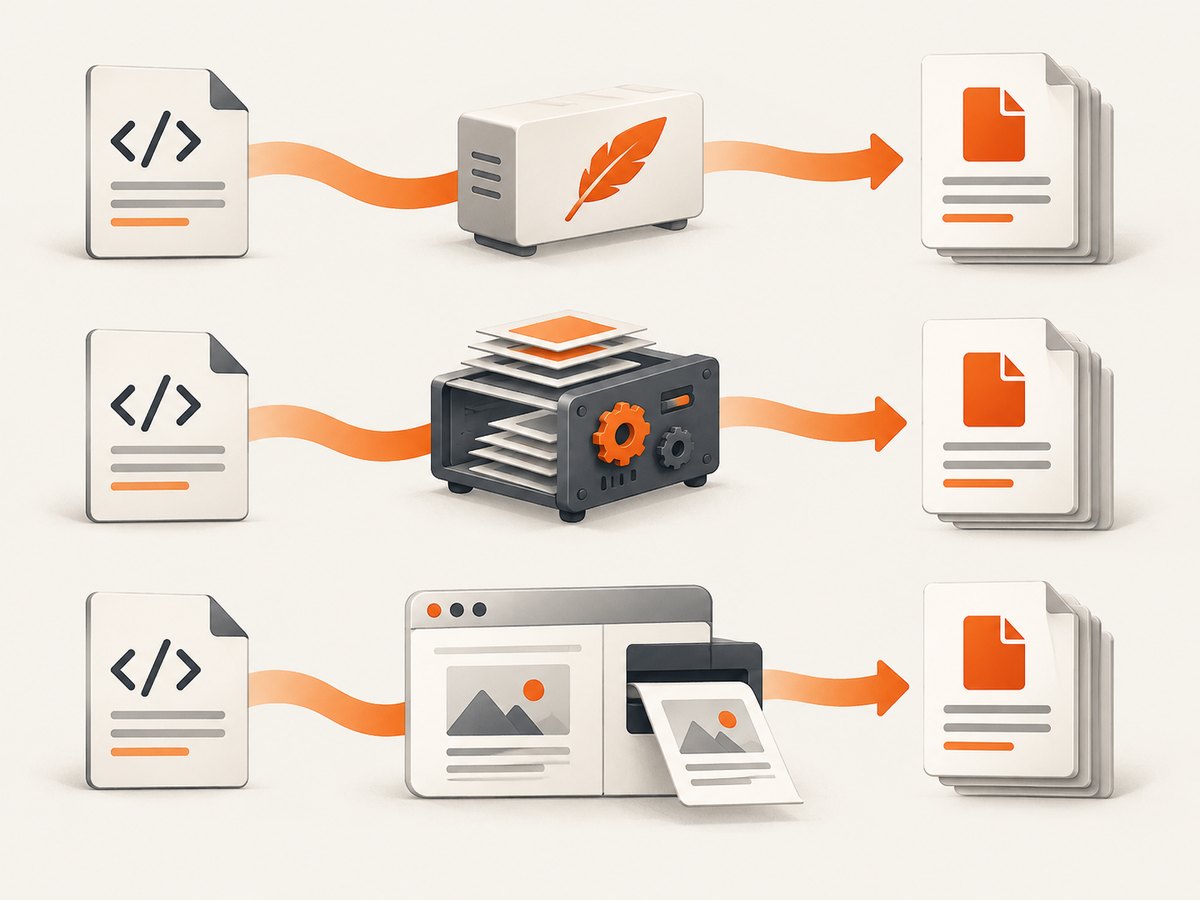
4. Choose the rendering engine
| Requirement | Start with | Reason |
|---|---|---|
| Small, static HTML document | xhtml2pdf | Simple Python API and CLI. |
| Bookmarks, attachments, forms, or PDF variants | WeasyPrint | Its API and documentation cover these document features. |
| Browser layout, modern CSS, or print emulation | Playwright | Uses browser printing and supports print or screen media. |
| Many conversions in one process | WeasyPrint or a persistent Playwright worker | Reuse a long-lived process and measure memory in your deployment. |
These projects document different capabilities, not a neutral speed or fidelity ranking. Render a representative template with your actual fonts, images, CSS, and page lengths before selecting an engine.
5. Relative CSS, images, and fonts
Most missing-asset problems come from resolving relative URLs against the wrong directory. Keep a predictable document layout:
document/
  invoice.html
  css/print.css
  images/logo.png
  fonts/Inter-Regular.woff2
<link rel="stylesheet" href="css/print.css">
<img src="images/logo.png" alt="Company logo">With xhtml2pdf, pass the source directory as path or configure its documented resource callback. With WeasyPrint, use the HTML base URL or a custom URL fetcher when you need controlled resource resolution. A refusal to load one resource may leave the rest of the document renderable, so inspect logs and treat omitted assets as conversion warnings.
6. Security for user supplied HTML
HTML-to-PDF conversion is file and network access performed by a renderer. Do not treat a URL rewriting callback as an authorization boundary.
- Run untrusted conversions in a separate, least-privileged process or container.
- Restrict filesystem visibility to an input and output directory.
- Block outbound network access unless specific hosts are required.
- Set CPU, memory, document-size, page-count, and execution-time limits.
- Use an allowlist URL fetcher for CSS, images, and fonts.
- Remove secrets from environment variables and service accounts visible to the renderer.
WeasyPrint’s security guidance specifically warns that untrusted HTML and CSS can read files available to the process or cause excessive work. xhtml2pdf likewise documents resource policies and refused-resource logging.
7. Page size, margins, and print CSS
Put print-only layout rules in a dedicated stylesheet so the same HTML can serve web and PDF output.
@page {
  size: A4;
  margin: 16mm 14mm;
}

@media print {
  .screen-only { display: none; }
  a { color: black; text-decoration: none; }
  .avoid-break { break-inside: avoid; }
}

@media screen {
  .print-only { display: none; }
}
For Playwright, pass format or explicit width and height, margins, print_background=True, and an optional page_ranges. For xhtml2pdf and WeasyPrint, use the engine’s supported CSS and verify page breaks with a multi-page fixture.
8. Troubleshooting
| Symptom | Likely cause | Fix |
|---|---|---|
| Images or CSS are missing | Wrong base directory or blocked URL | Use an absolute file URL or correct path/base_url; inspect resource logs. |
| Web fonts do not appear | Font URL cannot be fetched or format is unsupported | Use a permitted local font path, verify the format, and embed only approved fonts. |
| JavaScript content is empty | xhtml2pdf and WeasyPrint do not run a browser application | Pre-render data into HTML or use Playwright and wait for the required selector. |
| Colors differ from the browser | Print media rules or browser color adjustment | Choose the intended media, enable backgrounds, and set -webkit-print-color-adjust: exact where needed. |
| Playwright cannot launch | Browser binaries were not installed or the host lacks dependencies | Run python -m playwright install chromium and install the documented OS dependencies. |
| Conversion hangs | Remote resource, infinite page, or expensive CSS | Add request and process timeouts, restrict network access, and cap document size. |
| PDF has unexpected page breaks | Content exceeds the printable box or break rules conflict | Set @page margins, use break-inside/break-before, and test long tables. |
| PDF/A or PDF/UA validation fails | Output option alone does not ensure conformance | Add semantic metadata and structure, then validate the generated file against the target standard. |
9. Performance and reliability
- Reuse a long-lived WeasyPrint process for repeated jobs. For Playwright, keep a browser process alive but isolate pages and recycle workers if memory grows.
- Cache immutable CSS, images, and fonts. Avoid downloading the same remote asset for every document.
- Wait for a specific readiness condition instead of a large fixed sleep when using Playwright.
- Record the input identifier, renderer version, elapsed time, page count, and error output for each job.
- Use deterministic local assets when reproducibility matters; remote content can change or disappear.
- Retry only transient resource failures. Do not blindly retry malformed HTML or a document that exceeds limits.
The reviewed documentation does not publish controlled comparative benchmarks. Measure representative documents in your own deployment, including cold starts, concurrent jobs, memory use, and output validation.
10. cURL and Node.js alternatives
Local Python libraries do not expose a universal cURL interface. If your application already runs JavaScript, Playwright’s Node.js API follows the same browser pipeline:
import { chromium } from 'playwright';

const browser = await chromium.launch();
const page = await browser.newPage();
await page.goto(`file://${process.cwd()}/invoice.html`, { waitUntil: 'networkidle' });
await page.pdf({ path: 'invoice.pdf', format: 'A4', printBackground: true });
await browser.close();
For a hosted screenshot-to-PDF workflow, see the option below.
Or skip the browser setup
ScreenshotNeo provides a GET-based capture API that can return a PDF. Cookie and consent banners, newsletter popups, and chat widgets are removed before the shot; bot checks, blank pages, failed loads, timeouts, and cache hits are not billed. Its MCP server lets Claude, Cursor, and other MCP clients use take_screenshot, get_page_info, and capture_pdf. The free plan includes 1,000 screenshots per month with no card, and paid plans start at $5 for 3,000 shots.
Use the ScreenshotNeo API documentation for the current options.
curl -G "https://api.screenshotneo.com/v1/shot" -d access_key=YOUR_API_KEY --data-urlencode url=https://stripe.com -o shot.webpimport requests
r = requests.get("https://api.screenshotneo.com/v1/shot", params={"access_key": "YOUR_API_KEY", "url": "https://stripe.com"}, timeout=90)
open("shot.webp", "wb").write(r.content)const q = new URLSearchParams({ access_key: 'YOUR_API_KEY', url: 'https://stripe.com' });
const res = await fetch(`https://api.screenshotneo.com/v1/shot?${q}`);Create a free account at ScreenshotNeo to start with 1,000 screenshots per month and no card.
FAQ
Which library should I install first?
Start with xhtml2pdf for a simple static document, WeasyPrint for document features, or Playwright when browser rendering is part of the requirement.
Can these tools convert a page that needs JavaScript?
Use Playwright for browser-executed JavaScript. xhtml2pdf and WeasyPrint expect HTML and CSS rather than a running web application.
How do I guarantee identical PDFs across machines?
Pin package and browser versions, bundle approved fonts and assets, use stable local inputs, and validate output in the deployment environment.
Is a PDF/A switch enough for archival compliance?
No. Validate the generated file and ensure the source document satisfies the selected conformance rules.


