How to Write HTML for Reliable PDF Conversion
Make HTML convert cleanly to PDF with explicit page geometry, print styles, dependable assets, and renderer-specific checks.
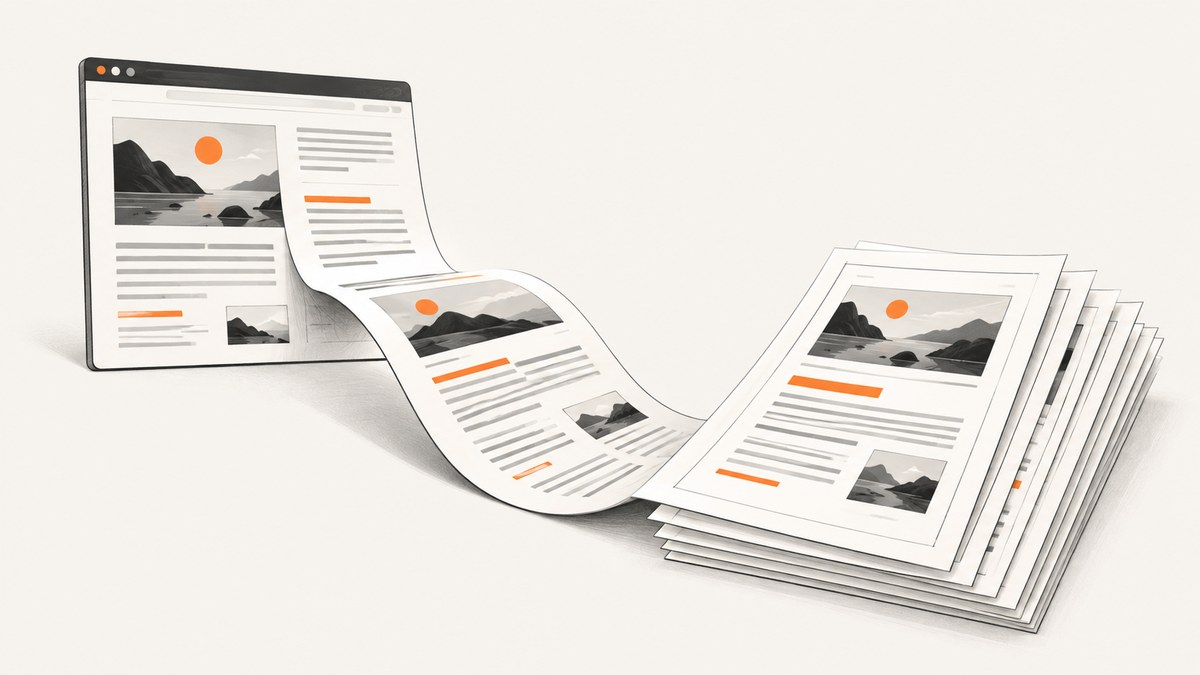
Reliable HTML-to-PDF conversion starts by treating the output as a paginated document, not as a screenshot of a responsive web page. Define paper size and margins with @page, add a dedicated print stylesheet, keep layout and assets predictable, and test the actual PDF with representative content. Choose a renderer based on its paged-media features, JavaScript needs, asset handling, accessibility or archival requirements, deployment model, and licensing.
Prince converts HTML and XML to PDF using CSS and includes generated content for page numbers, headers, and footers. WeasyPrint is an HTML and CSS rendering engine that exports PDF; its documented features include page geometry, links, bookmarks, attachments, fonts, and PDF/A or PDF/UA variants. There is no universal engine choice: the right one depends on the document and its requirements. Prince documentation · WeasyPrint documentation.
1. Design for pages, not for the browser viewport
A browser page can scroll indefinitely; a PDF has fixed page boundaries. Content that fits on screen may split across printed pages, and a flex or grid composition may paginate differently than expected. Start with the physical page dimensions and printable area, then make content flow within them.
Use @page to declare page size, orientation, and margins. For example, A4 portrait with a 20 mm margin leaves a predictable content region. Adjust the measurements for your output target, such as Letter paper or landscape reports. WeasyPrint documents page size, orientation, margins, page counters, and page-margin features. WeasyPrint page rules.
@page {
  size: A4 portrait;
  margin: 20mm 18mm 22mm;
}

@media print {
  html, body {
    margin: 0;
    padding: 0;
  }

  nav, .screen-only, button, .interactive-controls {
    display: none !important;
  }

  .report {
    max-width: none;
    width: auto;
  }

  h1, h2, h3 {
    break-after: avoid-page;
  }

  figure, pre, blockquote {
    break-inside: avoid-page;
  }

  a {
    color: inherit;
  }
}
These rules are a starting point, not a guarantee that every block can stay together. An image, table row, or code block taller than the printable region cannot fit on one page; the renderer has to split, move, or overflow it. Test large blocks and choose an intentional behavior. Prefer splitting long tables across pages while repeating header rows where the renderer supports it, rather than asking an entire multi-page table to stay together.
Use named pages when a particular section needs different page geometry, such as a landscape appendix. Consult the chosen engine’s paged-media support before depending on advanced page selectors or margin-box features.
2. Build a complete print stylesheet
Keep print-specific rules in @media print and make the printed document understandable without interactive browser behavior. Remove site navigation, menus, cookie controls, forms, sticky headers, animation, and decorative backgrounds when they do not contribute to the document. Preserve meaningful content, captions, link destinations, and visual hierarchy.
Set explicit widths for tables and media where useful, but avoid hard-coding screen-sized layout assumptions. Long words and code can cause overflow; use wrapping rules appropriate to the content, such as overflow-wrap: anywhere for URLs or carefully chosen code wrapping. For tabular data, define column widths and test the widest values. Avoid shrinking all text to solve one oversized table; adjust the table layout or split it deliberately.
Control page breaks around section headings and small related units. CSS properties such as break-before, break-after, and break-inside express intent, but support can vary by renderer. Widows and orphans can also affect where text flows. Validate how your chosen engine handles these rules rather than assuming browser print preview and server-side output are identical.
When a document has distinct sections, use semantic HTML and keep each section’s structure clear. Headings should be real headings in order, not styled paragraphs. WeasyPrint documents heading-based PDF bookmarks, making semantic headings useful for navigation in longer PDFs. WeasyPrint bookmarks.
3. Keep fonts, images, stylesheets, and links resolvable
Conversion runs in an environment that may not have the same files, fonts, network access, or base URL as the browser where the HTML was authored. A relative path that works locally can fail in a worker or container. Make external stylesheets, images, and font files accessible to the renderer, or package them with the job. Set a correct base URL when supported by the conversion library.
For reliable typography, choose fonts available in the conversion environment and verify the produced PDF’s appearance and embedding. Font fallback can change line widths, causing new wrapping and page breaks. When distributing a PDF, check whether font licensing permits embedding. For images, confirm that every URL resolves, the file format is supported, and the image dimensions are sensible for the output. Missing or late-loading assets should be caught before publishing.
Keep anchors as real links where the output should be navigable. WeasyPrint lists links among its PDF features. Test internal and external links in the generated file, especially when converting fragments or HTML with a nontrivial base URL. Do not infer successful rendering merely because the HTML loaded in a browser.
4. Choose an engine for the document’s requirements
| Need | Evaluation point |
|---|---|
| Advanced paged typesetting | Assess Prince’s paged-media and generated-content capabilities for headers, footers, and page numbering. |
| Open-source or Python-centric automation | Assess WeasyPrint’s HTML/CSS workflow and deployment requirements. |
| JavaScript-rendered content | Determine whether the source must execute JavaScript and whether the engine supports the required behavior; do not assume a static HTML renderer will run application scripts. |
| Complex fonts and assets | Check font discovery, embedding behavior, URL resolution, and access restrictions in the target runtime. |
| Accessibility or archival output | Decide whether PDF/UA or PDF/A is required and verify the engine’s documented support and the resulting file. |
| Operations and cost | Compare deployment model, platform compatibility, licensing, and the work needed to keep dependencies and assets available. |
Prince’s official documentation describes it as an application that converts HTML and XML to PDF by applying CSS, and documents generated content for page numbering, headers, and footers. WeasyPrint describes itself as a visual HTML/CSS rendering engine that can export to PDF, and documents links, bookmarks, attachments, fonts, and PDF/A or PDF/UA variants. These capabilities are not a substitute for checking your specific CSS, content, and output requirements. Prince · WeasyPrint.
5. Runnable Python example with WeasyPrint
This small example writes a self-contained HTML file and converts it to PDF. Install WeasyPrint using its official installation instructions for your operating system; system dependencies differ by platform. Run the script from an environment where the package and its required dependencies are installed.
from pathlib import Path
from weasyprint import HTML

html = """\
<!doctype html>
<html lang="en">
<head>
  <meta charset="utf-8">
  <title>Quarterly report</title>
  <style>
    @page { size: A4; margin: 20mm; }
    body { font: 11pt sans-serif; line-height: 1.5; color: #222; }
    h1 { font-size: 22pt; }
    h2 { break-after: avoid-page; }
    .screen-only { display: none; }
    table { border-collapse: collapse; width: 100%; }
    th, td { border: 1px solid #aaa; padding: 5px; text-align: left; }
    thead { display: table-header-group; }
    tr { break-inside: avoid-page; }
  </style>
</head>
<body>
  <main>
    <h1>Quarterly report</h1>
    <p>A document laid out for predictable PDF pagination.</p>
    <h2>Results</h2>
    <table>
      <thead><tr><th>Item</th><th>Value</th></tr></thead>
      <tbody>
        <tr><td>Example</td><td>42</td></tr>
      </tbody>
    </table>
    <p>See the <a href="https://example.com/">reference page</a>.</p>
  </main>
</body>
</html>
"""

output = Path("report.pdf")
HTML(string=html, base_url=Path.cwd().as_uri()).write_pdf(output)
print(f"Wrote {output.resolve()}")
For production, pass a real base URL or use file paths and asset locations appropriate to your deployment. If the document includes user-controlled HTML or remote assets, define which resources the conversion process may access and validate inputs as part of your application design.
6. Validate the output with representative documents
A successful conversion call only establishes that a PDF was produced. Review the file itself. Keep fixtures that exercise the combinations likely to expose pagination and asset problems:
- Long paragraphs that cross a page boundary, plus headings near the bottom of a page.
- Tables spanning pages, wide columns, long values, and repeated headings.
- Large and small images, captions, missing-image scenarios, and remote assets.
- Unusual fonts, fallback behavior, and multilingual text if your documents need them.
- Links, internal anchors, lists, code blocks, and section-specific page geometry.
- Widows, orphans, and explicit page breaks around sections.
Inspect page count, clipping, unexpected blank pages, header and footer placement, font appearance, image quality, and link behavior. If PDF/A or PDF/UA compliance matters, validate that target explicitly with appropriate checks; selecting an engine option alone is not proof that the final document meets every requirement.
7. Troubleshooting common conversion problems
| Symptom | Likely cause | Fix |
|---|---|---|
| Text or images are clipped at a page edge | Content exceeds the printable box, a fixed width reflects screen layout, or a long token cannot wrap. | Review @page margins and element widths; allow appropriate wrapping; test large images and tables at the target paper size. |
| Headings are stranded at the bottom of a page | The heading and following content are allowed to split. | Apply break-after: avoid-page to headings and inspect the resulting flow in the selected renderer. |
| A block unexpectedly moves to the next page | A keep-together rule may make the block too large for the remaining space, or the block cannot fit in a page area. | Remove overbroad break-inside: avoid-page rules; split oversized content into smaller units. |
| Fonts differ from browser output | The conversion runtime cannot find the intended font, or font fallback changes glyph metrics. | Install or provide the font in the runtime, confirm font access and embedding requirements, and recheck pagination. |
| Images or CSS are missing | Relative URLs resolve against the wrong base, or the converter cannot access the resource. | Set the correct base URL, use accessible paths, and verify resource permissions and response status. |
| Page numbers or running headers are absent | The renderer or chosen CSS feature does not support the rule as expected, or page-margin configuration is incomplete. | Check the engine’s paged-media documentation and use a supported page-margin or generated-content approach. |
| Browser preview differs from generated PDF | The browser print path and server-side renderer have different CSS support, fonts, assets, or script behavior. | Treat the production renderer as authoritative; test and tune against its output and version. |
| Conversion fails only in deployment | Missing system dependencies, fonts, filesystem access, or network access in the worker. | Reproduce in the deployment image, package required dependencies and assets, and log resource-loading failures. |
8. Performance, reliability, and cost
Conversion time and output size depend on document content, assets, fonts, and engine configuration. Reduce avoidable work by reusing stable local assets, limiting oversized images, and keeping documents to the content they need. If external resources are used, account for their availability and loading time; a slow or inaccessible asset can affect conversion. Measure your own representative documents in the actual deployment environment rather than relying on a generic speed claim.
For reliable jobs, record the renderer and version, input identity, conversion result, and useful diagnostics. Make retries selective: retry transient resource or worker failures, but fix deterministic malformed HTML or unsupported styling instead of repeating the same failing input. Preserve the source HTML and relevant asset versions when reproducibility matters. Budget for the engine’s licensing model, infrastructure, storage, and maintenance; requirements and costs vary by renderer and deployment.
ScreenshotNeo is a website screenshot API and MCP server. For an HTML-to-PDF task, use the renderer that meets your document’s paged-media and compliance requirements. If your workflow instead needs a one-call PDF capture of a webpage, ScreenshotNeo’s API supports PDF output and configurable paper size, margins, landscape orientation, and page ranges.
9. Or skip the browser setup
For a webpage capture that should be returned as a PDF, call ScreenshotNeo’s API. The following request targets the API documented at ScreenshotNeo documentation; the service describes one GET request with a URL returning an image or PDF. Check the docs for the current PDF parameter names and options.
curl -G "https://api.screenshotneo.com/v1/shot" \
  -d access_key=YOUR_API_KEY \
  --data-urlencode url=https://stripe.com \
  -d format=pdf \
  -o page.pdf
import requests
r = requests.get(
"https://api.screenshotneo.com/v1/shot",
params={"access_key": "YOUR_API_KEY", "url": "https://stripe.com", "format": "pdf"},
timeout=90,
)
r.raise_for_status()
open("page.pdf", "wb").write(r.content)const q = new URLSearchParams({
access_key: 'YOUR_API_KEY',
url: 'https://stripe.com',
format: 'pdf',
});
const res = await fetch(`https://api.screenshotneo.com/v1/shot?${q}`);
if (!res.ok) throw new Error(`ScreenshotNeo returned HTTP ${res.status}`);
await import('node:fs/promises').then(({ writeFile }) =>
writeFile('page.pdf', Buffer.from(await res.arrayBuffer()))
);ScreenshotNeo removes known cookie and consent banners, newsletter popups, and chat widgets before capture, with each step configurable. Bot checks, blank pages, failed loads, timeouts, and cache hits cost nothing, and response headers identify the page verdict and billing outcome. Its MCP server lets AI agents use screenshot and PDF capture tools. The free plan includes 1,000 shots per month with no card; paid plans start at $5 for 3,000 shots. See ScreenshotNeo and the API documentation. Sign up for 1,000 free screenshots a month, no card required.
10. Frequently asked questions
Should I convert a responsive page as-is?
Usually not without print-specific rules. Responsive screen styling targets a viewport; PDF needs explicit paper geometry and tested page flow. Preserve the content, but define how it should print.
Can I use CSS grid or flexbox?
You can use layout features your renderer supports, but test pagination in the actual engine. Avoid assuming a complex screen layout will split across pages in the way it does while scrolling.
What should I choose if PDF/A or PDF/UA is required?
Compare the renderer’s documented support for the target, then validate the generated file against the specific requirement. A configuration flag by itself does not establish conformance.
Why did a small font change add a page?
Font metrics change line widths and wrapping. That changes the vertical flow of content and can push later blocks across a page boundary. Confirm the intended font is available in the conversion environment and review the resulting pagination.
Sources: Prince documentation; Prince paged-media guide; WeasyPrint documentation; WeasyPrint page rules; WeasyPrint PDF bookmarks.


