How to Make an HTML Link Download a PDF File
Learn the download attribute, cross-origin rules, Content-Disposition headers, filenames, accessibility, troubleshooting, and reliable PDF download patterns.
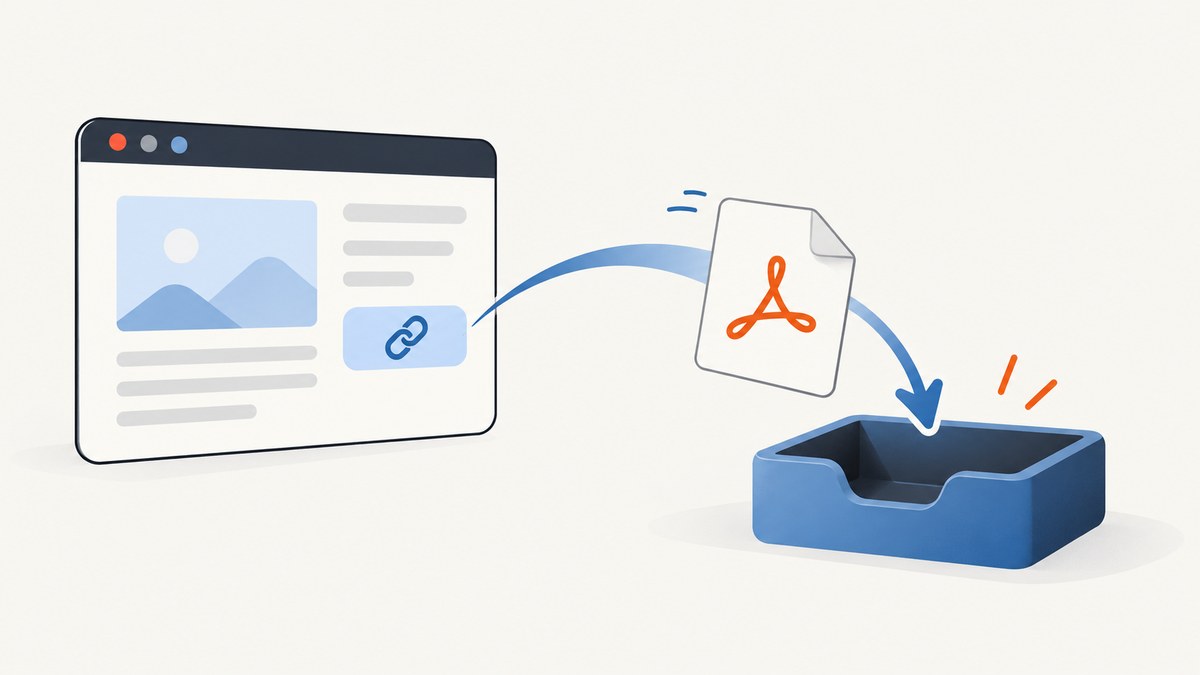
To make an HTML link download a PDF, point an anchor at the PDF and add the download attribute:
<a href="/files/guide.pdf" download="guide.pdf">
  Download the PDF (guide.pdf)
</a>
The href must identify the PDF resource. The optional value of download is a suggested local filename. This works most predictably when the PDF is served from the same origin as the page. For a file on another origin, configure the file response with Content-Disposition: attachment; the response header is the part that tells the browser to treat the resource as an attachment.
This guide covers the markup, server headers, cross-origin behavior, dynamic PDFs, filenames, accessibility, browser limitations, debugging, performance, and production patterns.
1. The basic same-origin link
If your page and PDF use the same scheme, host, and port, a plain anchor is usually enough:
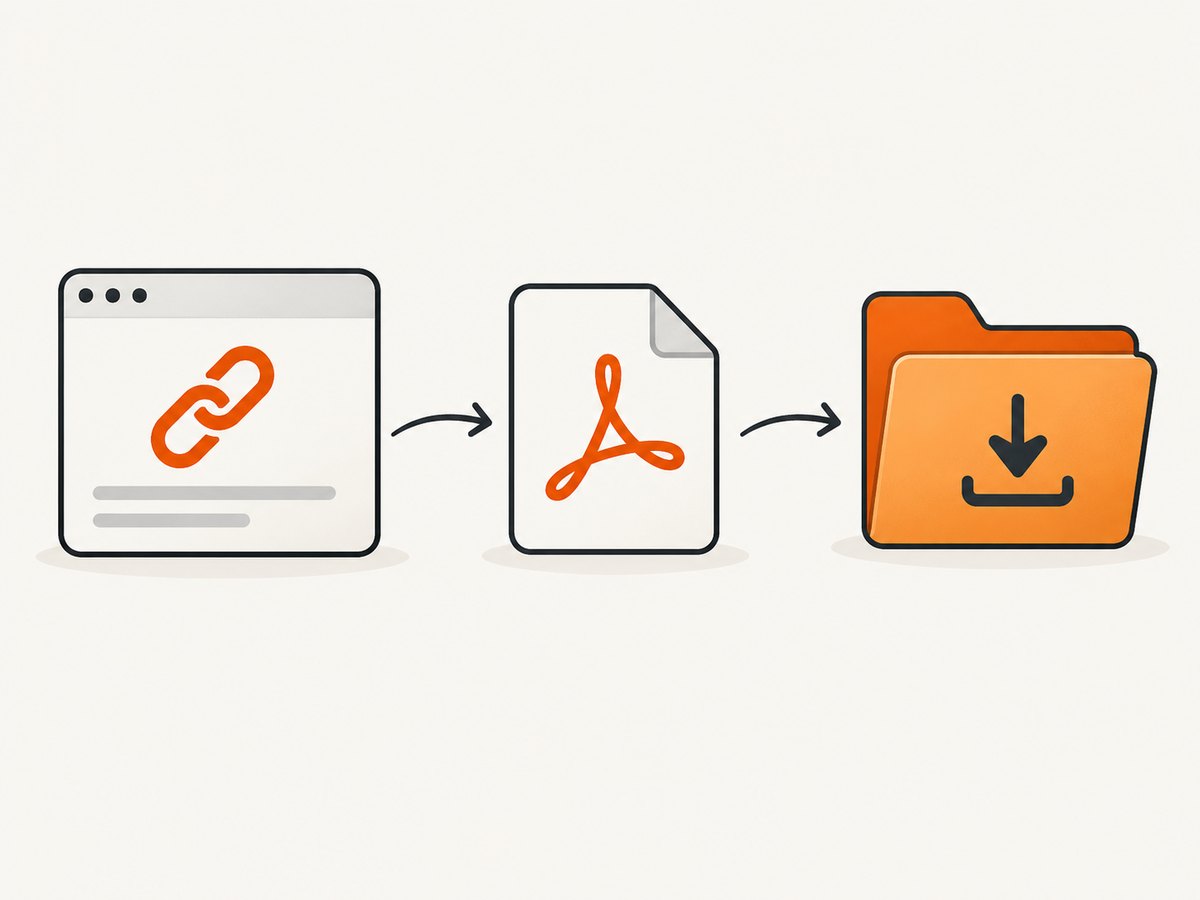
<!doctype html>
<html lang="en">
<head>
  <meta charset="utf-8">
  <title>Download example</title>
</head>
<body>
  <a href="/files/guide.pdf" download="guide.pdf">
    Download the PDF (guide.pdf)
  </a>
</body>
</html>
Use a root-relative URL such as /files/guide.pdf when the file is on the current site. You can also use an absolute same-origin URL:
<a href="https://example.com/files/guide.pdf" download="product-guide.pdf">
  Download product guide
</a>
The attribute expresses download intent. It does not force every browser to save silently. A browser may open a save dialog, download automatically, open the PDF in its viewer, or hand it to an external application according to user settings and platform behavior. The HTML Standard describes the attribute and its cross-origin limitation in its downloading resources section; MDN documents the anchor download attribute.
2. Choose the filename correctly
download="guide.pdf" is a filename suggestion, not a guarantee. If you omit the value, the browser can derive a name from the URL path, response headers, or media type:
<a href="/files/guide.pdf" download>Download guide</a>Give the value when the URL is opaque, contains an internal identifier, or ends in a name that is not useful to readers. Keep names short and filesystem-friendly. Avoid path separators, control characters, and characters that are invalid on common operating systems.
| Markup | Typical result | Use when |
|---|---|---|
download |
Browser suggests a name | The URL already has a useful filename |
download="guide.pdf" |
Browser suggests your chosen name | You want a stable, readable name |
Content-Disposition: attachment; filename="guide.pdf" |
Server asks for attachment handling | You control the response or need cross-origin support |
A Content-Disposition filename can take precedence over the attribute value. Browsers and operating systems may also adjust a name to comply with local rules. If the exact name matters, test the complete response in the browsers and devices you support.
3. Use Content-Disposition when the server controls delivery
Send this HTTP response header when the PDF should be treated as an attachment:
Content-Type: application/pdf
Content-Disposition: attachment; filename="guide.pdf"
To inspect a deployed response from a shell, use cURL:
curl -I https://example.com/files/guide.pdfYou should see Content-Type: application/pdf. For forced attachment behavior, look for Content-Disposition: attachment. A server can still return a useful filename even when the anchor has no download value.
Python Flask example
from flask import Flask, send_file

app = Flask(__name__)

@app.get("/download/guide")
def download_guide():
    return send_file(
        "files/guide.pdf",
        mimetype="application/pdf",
        as_attachment=True,
        download_name="guide.pdf",
    )

if __name__ == "__main__":
    app.run(port=8000, debug=True)
Link to /download/guide from your page. Flask generates the attachment response for you.
Node.js and Express example
import express from "express";
import path from "node:path";
import { fileURLToPath } from "node:url";

const app = express();
const here = path.dirname(fileURLToPath(import.meta.url));

app.get("/download/guide", (req, res) => {
  res.download(
    path.join(here, "files", "guide.pdf"),
    "guide.pdf",
    { headers: { "Content-Type": "application/pdf" } },
    (error) => {
      if (error && !res.headersSent) res.status(500).send("Download failed");
    }
  );
});

app.listen(3000, () => console.log("Listening on http://localhost:3000"));
Express sets attachment handling and the suggested filename. Keep the PDF outside any user-controlled path unless you validate the path carefully.
4. Cross-origin PDF downloads
The download attribute is limited to same-origin URLs and blob: and data: URLs. It is not a general mechanism for forcing an arbitrary URL on another site to download. In cross-origin situations, the HTML Standard requires the attribute to be paired with a response using the attachment disposition to avoid a browser warning.
If you control the other origin, configure it like this:
HTTP/1.1 200 OK
Content-Type: application/pdf
Content-Disposition: attachment; filename="remote-guide.pdf"

%PDF-...
Your page can retain the attribute:
<a href="https://files.example.net/remote-guide.pdf" download="remote-guide.pdf">
  Download remote guide
</a>
If you do not control that server, you cannot reliably override its inline PDF behavior with HTML alone. A practical design is to proxy the file through your own backend, apply the correct header there, and stream the response to the browser. Your proxy must enforce an allowlist and validate URLs so it cannot become an open server-side request forgery endpoint.
5. Dynamic PDFs with Blob URLs
For a PDF generated in the browser, create a Blob, make an object URL, and attach it to an anchor:
const pdfBytes = await fetch("/api/report.pdf").then((response) => {
  if (!response.ok) throw new Error(`HTTP ${response.status}`);
  return response.arrayBuffer();
});

const blob = new Blob([pdfBytes], { type: "application/pdf" });
const objectUrl = URL.createObjectURL(blob);
const link = document.createElement("a");
link.href = objectUrl;
link.download = "report.pdf";
link.textContent = "Download report";
document.body.append(link);

link.addEventListener("click", () => {
  setTimeout(() => URL.revokeObjectURL(objectUrl), 1000);
});
Check the response before creating the blob. If an API returns an HTML error page with status 200, saving it as .pdf will produce a broken file. Revoke object URLs after use to release memory, especially when users generate many reports.
6. Accessible and clear link markup
Link text should explain both the action and the file. “Download the PDF (guide.pdf)” is clearer than “click here.” If the file is large or has a meaningful size, include that information in visible text:
<p>
  <a href="/files/annual-report.pdf" download="annual-report.pdf">
    Download the annual report (PDF, 2.4 MB)
  </a>
</p>
Use a real <a> element for navigation and downloads. Do not replace it with a clickable <div>; keyboard users, screen readers, context menus, and browser features work better with a native link.
7. Browser and platform edge cases
- Inline PDF viewers: User settings can open PDFs in a tab even when your markup requests a download.
- Cross-origin URLs: The server must send attachment handling; the attribute alone is insufficient.
- Redirects: A redirect can end at a different origin or response policy. Inspect the final response.
- Authentication: Cookies or authorization may be required. A direct anchor cannot attach a bearer token safely; fetch the file from your application and create a blob URL when appropriate.
- Content type: Serve PDFs as
application/pdf. A generic or incorrect type can change viewer behavior. - Existing query strings: The suggested name comes from
downloador the response header, not necessarily the query string. - Mobile browsers: Some devices hand files to a share sheet or external PDF app. Design copy around “Download” without promising a particular save dialog.
8. Troubleshooting checklist
| Symptom | Likely cause | Fix |
|---|---|---|
| PDF opens in a tab | Cross-origin resource, inline disposition, or user preference | Serve Content-Disposition: attachment from the file origin or proxy it through your server; accept that user settings can still affect the result. |
| Attribute appears ignored | href points to another origin |
Use a same-origin URL, a blob URL, or configure the remote server header. |
| Wrong filename | Header, URL, or operating system overrides the suggestion | Set download="name.pdf" and a matching header; remove unsafe characters. |
| Downloaded file is corrupt | You saved an HTML error, login page, or truncated response | Check status, Content-Type, and file size; inspect the first bytes for the PDF signature %PDF-. |
| 404 or 403 | Bad path, deployment omission, permissions, or expired signed URL | Open the exact href directly, inspect network status, and verify the server’s file permissions and URL lifetime. |
| Download works locally but not in production | Different origin, proxy, CDN, or header policy | Use browser developer tools and curl -I -L against production; compare final URL and headers. |
| Blob download consumes too much memory | Large files held entirely in JavaScript memory | Prefer a direct server download or stream through a backend when files are large. |
9. Performance, reliability, and cost
For static PDFs, a direct file URL is the simplest and usually the fastest path. Put the file behind your normal CDN, enable caching where the document is public, and use immutable versioned filenames when content changes rarely. Keep private or personalized PDFs behind authenticated endpoints and short-lived URLs.
For generated documents, decide where generation belongs. Browser generation avoids a server round trip but uses the user’s memory and CPU. Server generation gives you consistent fonts and output, but adds queueing and infrastructure work. Return an error status for failed generation rather than an HTML error page with a success status.
Reliability improves when you verify the response before presenting it as a download, preserve the correct MIME type, and log generation failures without logging sensitive document contents. The HTML link itself has no usage cost; hosting, transfer, PDF generation, and any proxying are the costs to estimate.
10. Or skip the browser setup
If what you really need is a PDF or image capture of a web page, ScreenshotNeo provides a website screenshot API and MCP server. You can request a PDF with one call instead of maintaining browser automation. Read the ScreenshotNeo API documentation for the complete option list.
curl -G "https://api.screenshotneo.com/v1/shot" \
  -d access_key=YOUR_API_KEY \
  --data-urlencode url=https://stripe.com \
  -d format=pdf \
  -o page.pdf
import requests
r = requests.get(
"https://api.screenshotneo.com/v1/shot",
params={
"access_key": "YOUR_API_KEY",
"url": "https://stripe.com",
"format": "pdf",
},
timeout=90,
)
r.raise_for_status()
open("page.pdf", "wb").write(r.content)const q = new URLSearchParams({
access_key: 'YOUR_API_KEY',
url: 'https://stripe.com',
format: 'pdf'
});
const res = await fetch(`https://api.screenshotneo.com/v1/shot?${q}`);
if (!res.ok) throw new Error(`HTTP ${res.status}`);
const pdf = Buffer.from(await res.arrayBuffer());
await Bun.write('page.pdf', pdf);Before the capture, ScreenshotNeo accepts cookie and consent banners and removes more than 60 known consent platforms, newsletter popups, and chat widgets; each step can be turned off. Bot checks, blank pages, timeouts, failed loads, and cache hits are not billed, and response headers identify the page verdict and whether it was billed. The service also supports paper size, margins, landscape mode, page ranges, custom CSS and JavaScript, selectors, waits, headers, cookies, user agents, authorization, timezone, geolocation, caching, async jobs, bulk capture, signed links, and an MCP server for AI agents.
There is a free plan with 1,000 screenshots per month and no card. Paid plans start at $5 for 3,000 shots; every feature is available on every plan. Create a free ScreenshotNeo account.
11. Frequently asked questions
Does download always force a PDF to save?
No. It requests download behavior. Browser settings, platform behavior, response headers, origin rules, and external PDF handlers can change the result.
Can I download a PDF from another website with only HTML?
Not reliably. The remote response should send Content-Disposition: attachment, or your server can proxy the resource with appropriate security controls.
Should I use target="_blank"?
Usually no for a download link. It can open an extra tab and does not solve cross-origin or header issues.
Is application/pdf required?
It is the correct media type and helps clients handle the response consistently. It does not, by itself, force attachment behavior.
How do I offer both viewing and downloading?
Provide two clearly labeled links: one normal link to view the PDF and one same-origin link with download, or an endpoint that sends Content-Disposition: attachment.


