How to Add HTML Page Breaks Without Blank Pages in PDFs
Learn why HTML page breaks create blank PDF pages and how to fix pagination in CSS, Puppeteer, and WeasyPrint.
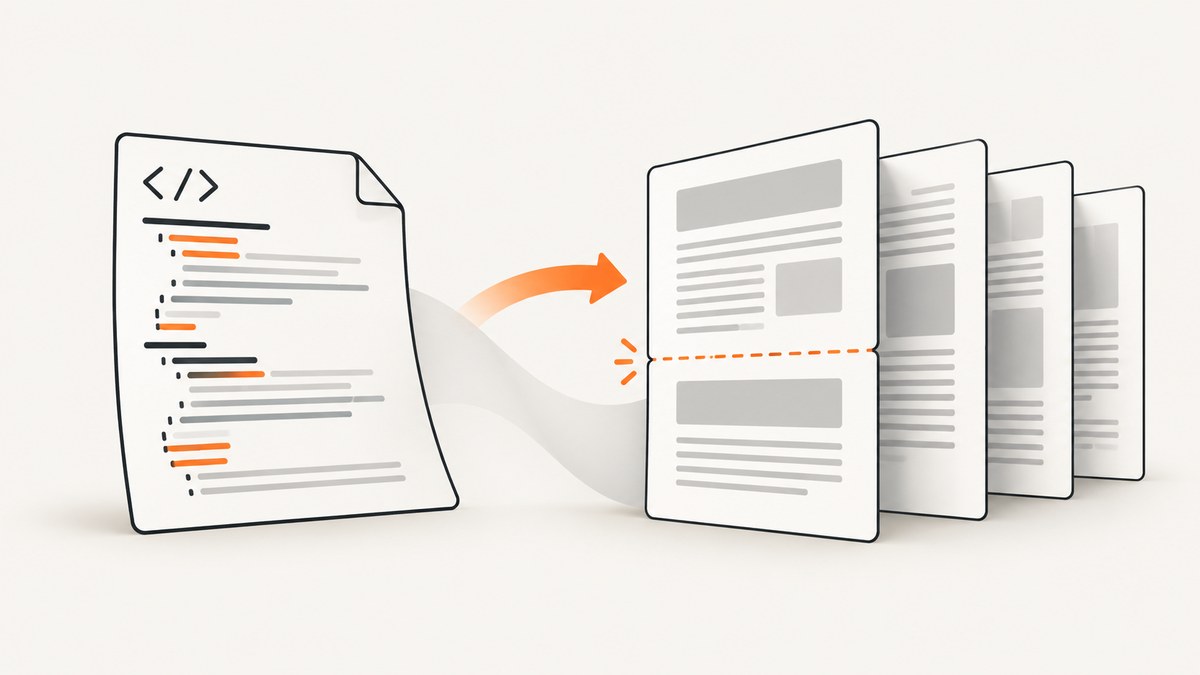
Use one forced break at the start of the section that should begin on a new page. In modern CSS, that is break-before: page; keep page-break-before: always as a legacy alias when your PDF renderer needs it. Remove a matching break-after from the preceding section. A blank page usually appears because two forced breaks meet, a break is applied before the first generated box, or the renderer must honor a left/right page requirement.
The smallest reliable pattern is:
@media print {
  .section {
    break-before: page;
    page-break-before: always; /* legacy alias */
  }

  .section:first-child {
    break-before: auto;
    page-break-before: auto;
  }

  .keep-together {
    break-inside: avoid;
    page-break-inside: avoid;
  }

  @page {
    size: A4;
    margin: 18mm;
  }
}
Apply the class to the next section, keep that element in normal flow, and use only one forced break at each boundary. CSS Paged Media defines the modern break-* properties and the older page-break-* names remain widely implemented as aliases. See the CSS 2.2 paged-media rules and the CSS Fragmentation specification.
1. Build a minimal document that paginates predictably
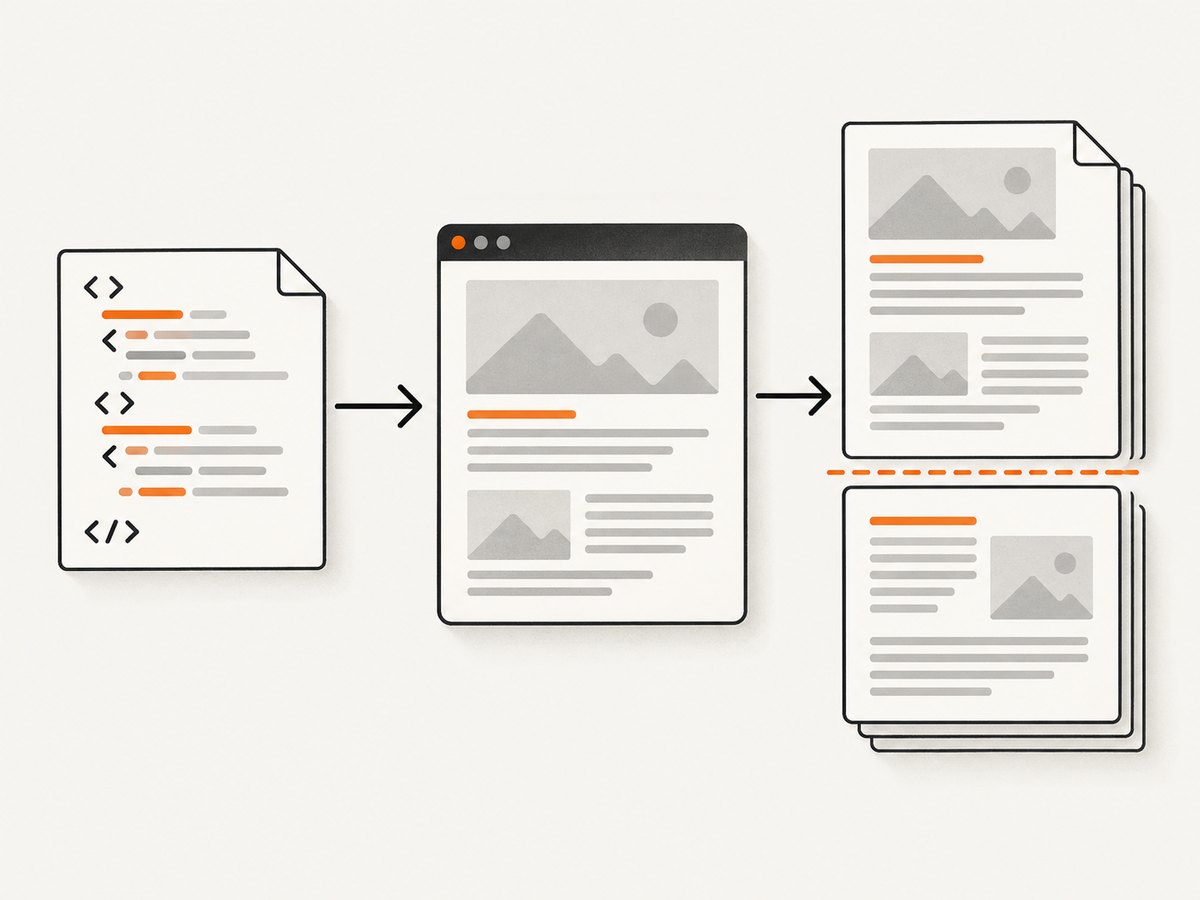
Start with a document whose sections are ordinary block boxes. Do not put the break on an empty wrapper, an absolutely positioned element, or a pseudo-element. The following example creates a cover, an introduction, and a new page for the details section.
<!doctype html>
<html lang="en">
<head>
  <meta charset="utf-8">
  <title>Quarterly report</title>
  <style>
    @page {
      size: A4;
      margin: 18mm;
    }

    @media print {
      body {
        font: 11pt/1.45 system-ui, sans-serif;
        color: #111;
      }

      .section {
        break-before: page;
        page-break-before: always;
      }

      .section:first-child {
        break-before: auto;
        page-break-before: auto;
      }

      h1, h2, h3 {
        break-after: avoid;
        page-break-after: avoid;
      }

      .table, figure, pre {
        break-inside: avoid;
        page-break-inside: avoid;
      }
    }
  </style>
</head>
<body>
  <section class="section">
    <h1>Quarterly report</h1>
    <p>The cover and summary occupy the opening page.</p>
  </section>

  <section class="section">
    <h2>Introduction</h2>
    <p>This section follows the cover in normal flow.</p>
  </section>

  <section class="section">
    <h2>Details</h2>
    <p>This section starts on a fresh page.</p>
  </section>
</body>
</html>
A forced break creates a new page box. If the previous section also ends with break-after: page, the following section starts after a second break and the renderer can expose an empty page. The same effect occurs when a rule is attached to a generated ::before box instead of the visible section.
2. Why a page break creates a blank page
Two breaks at one boundary
Search the complete print stylesheet for break-before, break-after, page-break-before, and page-break-after. Keep one forced declaration at a section boundary. For example, remove .summary { break-after: page; } when the next .details already has break-before: page.
A break before the first generated box
A rule on the first child of the document, a hidden wrapper, or an empty element can force a page before any content exists. CSS 2.2 leaves a forced break before the first generated box undefined, and CSS Paged Media Level 3 discusses avoiding initial empty pages. Reset the first section to auto and make sure the body contains visible content before the first forced break.
Left and right page constraints
break-before: left and break-before: right can intentionally insert a blank page when the next section must land on a particular side of a spread. Use page unless you are producing a duplex document and have verified the expected page parity.
Margins, fixed heights, and overflow
Large element margins, generous @page margins, fixed-height containers, and overflow: hidden can leave too little usable space. The content may move to the next page while the previous page appears empty. Temporarily reduce margins, remove fixed heights, and let the container size itself to confirm the cause.
Empty wrappers and generated content
Inspect empty div elements and ::before/::after rules. A pseudo-element with content: "", padding, or a forced break is still a generated box. Put the break on the real section element and remove decorative boxes while debugging.
3. Puppeteer and Chromium
Puppeteer’s page.pdf() generates a PDF using the print CSS media type by default, so pagination rules belong inside @media print. The official Page.pdf documentation describes this behavior. If your rules intentionally live in screen CSS, call page.emulateMediaType('screen') before creating the PDF.
import puppeteer from 'puppeteer';

const browser = await puppeteer.launch({headless: true});
try {
  const page = await browser.newPage();
  await page.goto('file:///absolute/path/report.html', {
    waitUntil: 'networkidle0'
  });

  // Use this only when the pagination rules are in screen CSS.
  // await page.emulateMediaType('screen');

  await page.pdf({
    path: 'report.pdf',
    format: 'A4',
    printBackground: true,
    preferCSSPageSize: true,
    margin: {
      top: '18mm',
      right: '18mm',
      bottom: '18mm',
      left: '18mm'
    }
  });
} finally {
  await browser.close();
}
Use either a named format or explicit width and height, and keep it consistent with @page. Set preferCSSPageSize: true when the CSS page size should take precedence over Puppeteer’s format or dimension options; see the PDFOptions reference. Wait for fonts and images before calling page.pdf() when they affect box dimensions:
await page.evaluate(async () => {
  if (document.fonts) await document.fonts.ready;
  const images = [...document.images];
  await Promise.all(images.map(img => {
    if (img.complete) return Promise.resolve();
    return new Promise(resolve => {
      img.addEventListener('load', resolve, {once: true});
      img.addEventListener('error', resolve, {once: true});
    });
  }));
});
4. WeasyPrint and Python
WeasyPrint supports break-before, break-after, break-inside, the CSS2 page-break-* aliases, @page, and the :blank page selector. Its API reference documents the relevant rendering API.
from weasyprint import HTML

HTML(filename='report.html').write_pdf('report.pdf')
For a string or application-generated template:
from weasyprint import HTML, CSS

html = HTML(string=html_string, base_url='/srv/report-assets')
css = CSS(string='''
  @page { size: A4; margin: 18mm; }
  @media print {
    .section { break-before: page; page-break-before: always; }
    .section:first-child { break-before: auto; page-break-before: auto; }
  }
''')
html.write_pdf('report.pdf', stylesheets=[css])
Always test the exact document structure. Pagination depends on content height, fonts, margins, replaced elements, and the renderer’s layout decisions even when the same CSS is valid in both engines.
5. Choosing the right break property
| Goal | Modern property | Legacy alias | Typical use |
|---|---|---|---|
| Start a new page | break-before: page |
page-break-before: always |
Section headings |
| End on a new page | break-after: page |
page-break-after: always |
Only when the following element has no break |
| Avoid splitting content | break-inside: avoid |
page-break-inside: avoid |
Cards, figures, short tables |
| Require a spread side | break-before: left/right |
Renderer dependent | Duplex or booklet layouts |
Declaring both modern and legacy names with the same intent is common for compatibility. Do not declare forced breaks on both adjacent elements. Use break-inside: avoid selectively: applying it to a very large container can force awkward whitespace or overflow.
6. A systematic blank-page troubleshooting checklist
- Reproduce with a minimal document. Keep two sections and one forced break. If the blank page disappears, add components back one at a time.
- Search every stylesheet. Include imported CSS and component-scoped styles. Look for both modern and legacy break declarations.
- Remove the first forced break temporarily. A break before the first generated box is a common source of an initial empty page.
- Check both sides of the boundary. Remove either
break-afteron the previous element orbreak-beforeon the next; keep one. - Inspect the box receiving the break. Verify that it is not an empty wrapper, pseudo-element, or hidden node with dimensions.
- Check page geometry. Compare
@pagemargins with PDF options. In Puppeteer, usepreferCSSPageSizewhen CSS owns the paper size. - Remove fixed heights and overflow. Let sections grow naturally while diagnosing.
- Test fonts and images. Late-loading assets change heights and can move a break. Wait for them before rendering.
- Check page parity. Replace
left/rightwithpageunless an intentional blank spread page is required.
| Symptom | Likely cause | Fix |
|---|---|---|
| Blank first page | Break on the first box or wrapper | Reset the first section to auto |
| Blank page between every section | Both adjacent elements force breaks | Keep only break-before on the next section |
| Blank page only in Chromium | Print media or option mismatch | Keep rules in @media print; align format and @page |
| Heading stranded at page bottom | Heading allowed to separate from content | Use break-after: avoid on headings |
| Large unexplained whitespace | Margins, fixed heights, or break-inside: avoid |
Reduce geometry and apply avoidance only to small blocks |
7. Performance, reliability, and cost considerations
Pagination is layout work. Large DOM trees, high-resolution images, web fonts, and JavaScript that changes content after load increase render time and can make page boundaries nondeterministic. Use a stable viewport, wait for the same readiness signal on every run, and avoid animations in print styles. Cache static assets and provide a clear base_url when rendering local HTML so relative resources resolve consistently.
For reliable output, pin the Chromium or WeasyPrint version used in production, keep paper size and margins explicit, and compare PDFs after dependency upgrades. A visual regression check should inspect page count, the first element on each page, and whether tables or figures split unexpectedly.
Cost depends on where rendering runs. Self-hosted Puppeteer and WeasyPrint consume your own CPU, memory, browser maintenance, and queue capacity. A hosted API can remove that browser setup but introduces request, storage, and plan costs. Measure the whole job, including retries and asset loading, rather than only the PDF write call.
Or skip the browser setup
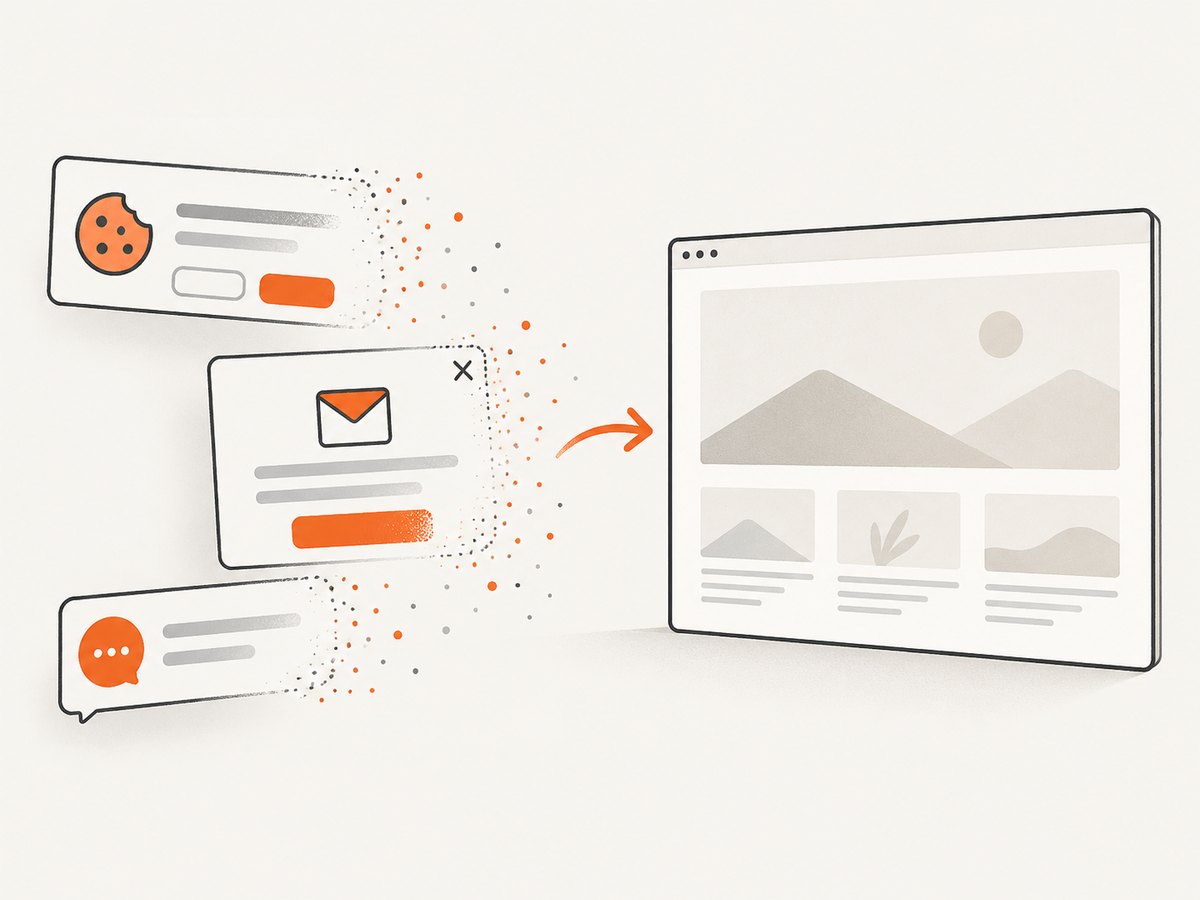
ScreenshotNeo provides a website screenshot API and MCP server. One GET request returns a clean PNG, JPEG, WebP, or PDF; the service accepts consent banners like a visitor and removes more than 60 known consent platforms, newsletter popups, and chat widgets before capture. Each step can be turned off. Bot checks, blank pages, timeouts, failed loads, and cache hits are not billed, and response headers identify the page verdict and whether the request was billed.
For a direct capture, see the ScreenshotNeo API documentation:
curl -G "https://api.screenshotneo.com/v1/shot" -d access_key=YOUR_API_KEY --data-urlencode url=https://stripe.com -o shot.webpimport requests
r = requests.get("https://api.screenshotneo.com/v1/shot", params={"access_key": "YOUR_API_KEY", "url": "https://stripe.com"}, timeout=90)
open("shot.webp", "wb").write(r.content)const q = new URLSearchParams({ access_key: 'YOUR_API_KEY', url: 'https://stripe.com' });
const res = await fetch(`https://api.screenshotneo.com/v1/shot?${q}`);ScreenshotNeo also has an MCP server with take_screenshot, get_page_info, and capture_pdf tools for Claude, Cursor, and other MCP clients. It supports full-page capture, element selectors, custom CSS and JavaScript, waits, request blocking, cookies, headers, user agents, geolocation, time zones, resizing, caching, signed links, asynchronous jobs, bulk capture, usage reporting, and an OpenAPI specification. Parameter names used by other screenshot APIs work as well, which simplifies migration.
The Free plan includes 1,000 shots each month with no card. Paid plans start at $5 for 3,000 shots, and every feature is available on every plan. Create a free ScreenshotNeo account to try it.
FAQ
Should I use break-before or page-break-before?
Use break-before: page as the modern property and include page-break-before: always as a compatibility alias when supporting older or varied PDF engines.
Why does break-after: page create an empty page?
It can combine with a break before the next element. Remove one of the two forced breaks and keep the rule on the section that should begin the new page.
Can I force a new page inside a flex or grid layout?
Support varies by renderer. Put page-boundary sections in normal block flow when possible, then apply the break to that block rather than to a flex item or generated child.
How do I intentionally create a blank page?
Use break-before: left or right when producing a duplex layout and the section must start on a particular side. Verify page parity in the generated PDF.
Why does the browser preview differ from the PDF?
Puppeteer prints with the print media type by default. Screen-only rules will not apply unless you call emulateMediaType('screen'). Paper size, margins, fonts, and late-loading assets can also change pagination.


