How to Add Page Numbers in HTML-to-PDF Output with ChromePDF
Add reliable “Page X of Y” numbers to Chromium HTML-to-PDF output using footer templates, correct margins, wrapper-specific code, and fixes.

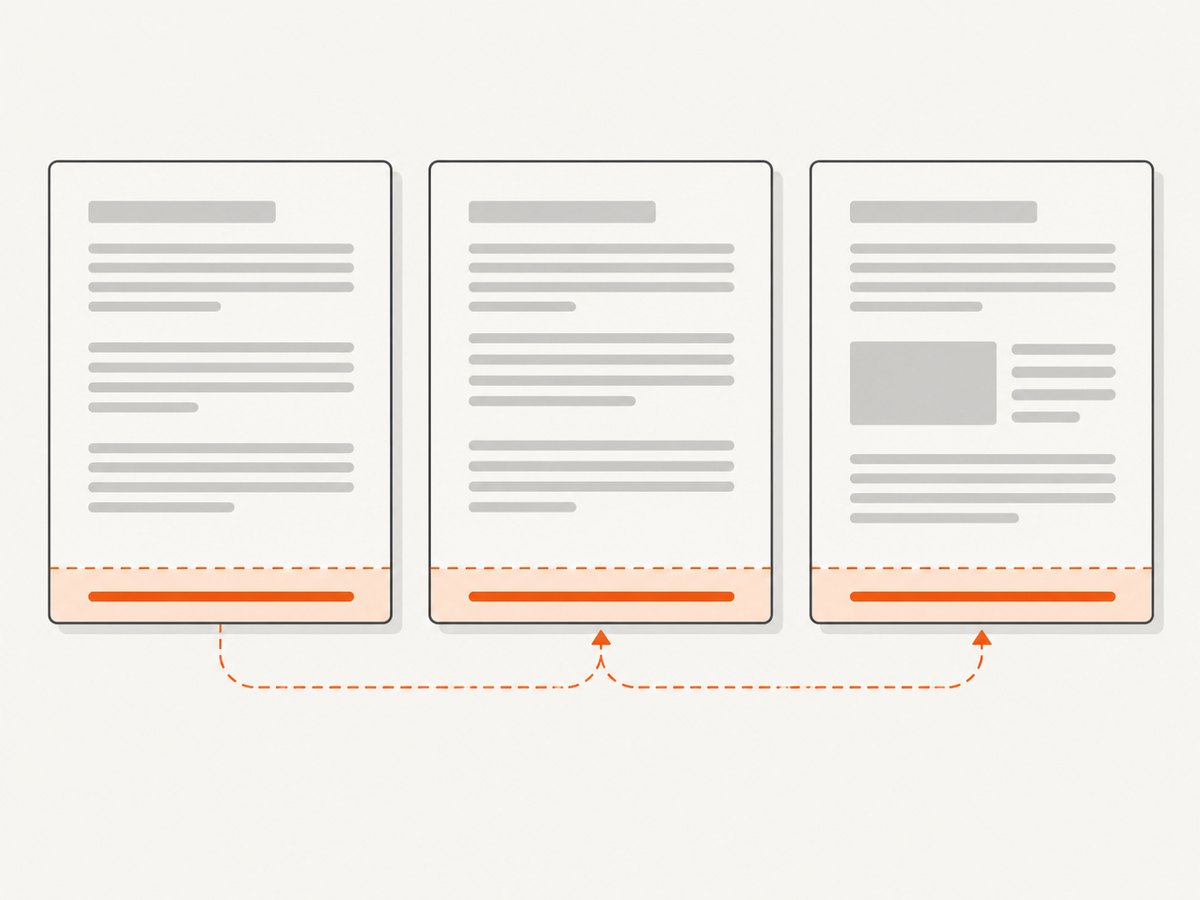
Use Chromium’s print header/footer templates for repeating page numbers. Enable displayHeaderFooter, put <span class="pageNumber"></span> and <span class="totalPages"></span> in a footer template, and reserve bottom margin space for that footer.
1. The Chromium solution
Chromium replaces two special classes while it prints:

pageNumberbecomes the current page.totalPagesbecomes the document’s page count.
The template is rendered in a print margin region, separate from your document body. A minimal footer is:
<div style="font-size:9px;width:100%;text-align:center;color:#888;">
  Page <span class="pageNumber"></span> of <span class="totalPages"></span>
</div>
Turn on header/footer rendering and reserve space with a bottom margin. Without the margin, the footer can overlap content or appear clipped.
2. Puppeteer: complete runnable example
This Node.js example writes a numbered PDF from an HTML string. Install Puppeteer with npm install puppeteer, then save the file as numbered-pdf.mjs.
import puppeteer from 'puppeteer';

const html = `
<!doctype html>
<html>
  <head>
    <meta charset="utf-8">
    <style>
      @page { size: A4; margin: 18mm 15mm 22mm; }
      body { font: 12pt/1.5 Arial, sans-serif; color: #222; }
      h1 { page-break-after: avoid; }
      .chapter { break-before: page; }
    </style>
  </head>
  <body>
    <h1>Quarterly report</h1>
    <p>Replace this content with your rendered HTML.</p>
    ${'<p>Additional content to demonstrate pagination.</p>'.repeat(80)}
  </body>
</html>`;

const browser = await puppeteer.launch({headless: true});
try {
  const page = await browser.newPage();
  await page.setContent(html, {waitUntil: 'networkidle0'});
  await page.pdf({
    path: 'numbered-pages.pdf',
    format: 'A4',
    printBackground: true,
    displayHeaderFooter: true,
    margin: {top: '18mm', right: '15mm', bottom: '22mm', left: '15mm'},
    footerTemplate: `
      <div style="width:100%;text-align:center;font-size:9px;color:#888;">
        Page <span class="pageNumber"></span> of
        <span class="totalPages"></span>
      </div>`,
    headerTemplate: '<div></div>'
  });
} finally {
  await browser.close();
}
Run it with node numbered-pdf.mjs. Puppeteer passes these options to Chromium’s print-to-PDF pipeline.
3. Playwright: the same mechanism
import { chromium } from 'playwright';

const browser = await chromium.launch();
try {
  const page = await browser.newPage();
  await page.setContent('<h1>Report</h1><p>Your HTML here.</p>'.repeat(100), {
    waitUntil: 'networkidle'
  });
  await page.pdf({
    path: 'report.pdf',
    format: 'A4',
    printBackground: true,
    displayHeaderFooter: true,
    margin: {top: '15mm', bottom: '20mm', left: '15mm', right: '15mm'},
    footerTemplate: '<div style="width:100%;text-align:center;font-size:9px">Page <span class="pageNumber"></span> of <span class="totalPages"></span></div>'
  });
} finally {
  await browser.close();
}
Playwright uses the same Chromium placeholder classes. The exact option names can differ for non-Chromium engines, so use a Chromium browser for this syntax.
4. Raw Chrome DevTools Protocol
If your ChromePDF wrapper exposes the DevTools Protocol directly, call Page.printToPDF with the equivalent fields. The protocol returns base64-encoded PDF data.
const result = await client.send('Page.printToPDF', {
  displayHeaderFooter: true,
  printBackground: true,
  paperWidth: 8.27,
  paperHeight: 11.69,
  marginTop: 0.6,
  marginBottom: 0.8,
  marginLeft: 0.6,
  marginRight: 0.6,
  footerTemplate: '<div style="width:100%;text-align:center;font-size:9px">Page <span class="pageNumber"></span> of <span class="totalPages"></span></div>'
});
require('fs').writeFileSync('report.pdf', Buffer.from(result.data, 'base64'));
Protocol margin values are inches. Puppeteer and Playwright accept CSS lengths such as mm and in.
5. Python wrapper shape
Wrappers such as django-chromepdf forward a dictionary to Chrome’s print-to-PDF call. Confirm the installed package’s function name and argument shape before copying this pattern.
pdf_kwargs = {
    "displayHeaderFooter": True,
    "footerTemplate": (
        '<div style="width:100%;text-align:center;font-size:9px;color:#888">'
        'Page <span class="pageNumber"></span> of '
        '<span class="totalPages"></span></div>'
    ),
    "marginBottom": "1cm",
    "printBackground": True,
}
# generate_pdf(html, pdf_kwargs=pdf_kwargs)
6. IronPDF for .NET
IronPDF is a separate commercial renderer with its own placeholder syntax. It uses brace placeholders, so do not combine them with Chromium’s class-based syntax.
var renderer = new ChromePdfRenderer();
renderer.RenderingOptions.HtmlFooter = new HtmlHeaderFooter {
    HtmlFragment = "<center>{page} of {total-pages}</center>"
};
var pdf = renderer.RenderHtmlAsPdf(html);
pdf.SaveAs("numbered-pages.pdf");
IronPDF can also apply headers and footers to selected pages, skip a cover page, or begin numbering after a front matter section. Consult the version-specific API for those options.
7. Why CSS counters usually fail in Chrome
CSS counters such as counter(page) and Paged Media margin boxes such as @bottom-right are not a dependable way to create running page numbers in Chromium’s print pipeline. @page is still useful for paper size and margins, but the repeating number belongs in the renderer’s header or footer template.
Body content can still contain a static label or chapter number, but it cannot know the final page count during normal layout. Use the injected placeholders for “Page X of Y”.
8. Layout and formatting options
Reserve enough margin
Set the bottom margin larger than the footer’s font height and padding. For example, a 9px footer commonly needs roughly 15–25mm depending on its line height. Keep the document’s @page margins and the PDF API margins consistent.
Header and footer HTML
Templates are small, self-contained HTML fragments. Inline styles are safest. Keep the footer’s width at 100%, center the text, and avoid external fonts or scripts. Chromium also exposes date, title, and url classes for related metadata.
Paper, orientation, and backgrounds
Choose a paper format or explicit dimensions, set landscape when required, and enable printBackground if colored backgrounds belong in the PDF. These settings affect pagination and therefore the final value of totalPages.
Page ranges and cover pages
Page ranges change which pages are emitted. A cover page can be rendered separately when numbering should begin at one on the first content page. Some commercial wrappers support page-specific footer rules; Chromium’s basic template API does not provide arbitrary per-page numbering offsets.
Fonts and late-loading content
Wait for the page’s data, images, and fonts before printing. Use document.fonts.ready, an explicit application-ready selector, or a network-idle wait. A late layout shift can move content onto another page after you thought pagination was final.
9. Troubleshooting
| Symptom | Cause | Fix |
|---|---|---|
| No footer appears | displayHeaderFooter is false or omitted. |
Set it to true in the PDF options. |
| Footer is clipped or overlaps text | Bottom margin is too small. | Increase the PDF bottom margin and matching @page margin. |
| Literal “pageNumber” text appears | The placeholder is not an element with the exact class. | Use <span class="pageNumber"></span>. |
| Total count is missing | The totalPages class is misspelled or placed in body HTML. |
Put it in the header/footer template with the exact class name. |
CSS counter(page) is empty |
Chromium does not provide reliable Paged Media margin boxes. | Move the counter to the renderer footer template. |
| Numbers are wrong after images load | PDF generation started before layout stabilized. | Wait for images, fonts, application data, and the final layout. |
| Footer text is tiny or invisible | Inherited styles, transparent color, or insufficient contrast. | Use explicit inline font size, color, and line height. |
| Only some pages have numbers | A page range or wrapper-specific page filter is active. | Inspect range and per-page header/footer settings. |
| IronPDF placeholders do nothing | Chromium classes were used in an IronPDF template. | Use IronPDF’s {page} and {total-pages} syntax. |
| PDF generation times out | Slow resources, blocked requests, or an application that never reaches idle. | Set a realistic timeout, wait on a known ready selector, and inspect failed resources. |
10. Reliability, performance, and cost considerations
- Reliability: Pin the browser and wrapper versions in production, and render after deterministic readiness signals rather than an arbitrary short delay.
- Performance: Reuse a browser process, create isolated pages or contexts per job, block unnecessary third-party resources, and avoid waiting indefinitely for analytics connections.
- Memory: Close pages after each PDF and recycle long-lived workers if your workload contains very large documents.
- Pagination: Large images, web fonts, and forced page breaks increase layout time and can change the page count.
- Cost: Self-hosting means paying for browser compute, memory, storage, and maintenance. A hosted renderer trades infrastructure work for per-use pricing; compare the provider’s current terms before choosing one.
11. A practical implementation checklist
- Confirm that the renderer is Chromium-based.
- Enable
displayHeaderFooter. - Put exact
pageNumberandtotalPagesclasses in a footer or header template. - Reserve vertical space with a bottom or top margin.
- Wait for application data, images, and fonts.
- Set paper size, orientation, backgrounds, and page ranges explicitly.
- Open the generated PDF and check the first, middle, and last pages.
- Keep wrapper-specific syntax separate from Chromium syntax.
12. Or skip the browser setup
ScreenshotNeo provides a hosted capture API and PDF workflow, with options for full-page capture, paper size, margins, landscape output, and page ranges. See the ScreenshotNeo documentation for the current request options.
curl -G "https://api.screenshotneo.com/v1/shot" -d access_key=YOUR_API_KEY --data-urlencode url=https://stripe.com -o shot.webpimport requests
r = requests.get("https://api.screenshotneo.com/v1/shot", params={"access_key": "YOUR_API_KEY", "url": "https://stripe.com"}, timeout=90)
open("shot.webp", "wb").write(r.content)const q = new URLSearchParams({ access_key: 'YOUR_API_KEY', url: 'https://stripe.com' });
const res = await fetch(`https://api.screenshotneo.com/v1/shot?${q}`);Cookie banners, newsletter popups, and chat widgets are removed before the shot. Bot checks, blank pages, failed loads, timeouts, and cache hits are not billed, and the response identifies the page verdict and billing status. An MCP server lets AI agents take screenshots. The free plan includes 1,000 screenshots a month with no card; paid plans start at $5 for 3,000. Create a free ScreenshotNeo account.
13. FAQ
Can I put page numbers in the HTML body?
You can add static text, but a body element cannot reliably know the final page count. Use the print header/footer template for running values.
Does totalPages include a cover page?
It reflects the pages emitted by the print operation. If you need different numbering rules, render the cover separately or use a wrapper that supports page-specific footer configuration.
Why does adding a footer change the page count?
The footer consumes margin space. Less content fits on each page, so Chromium may create additional pages. This is expected; reserve the margin before finalizing layout.
Can the footer contain an image?
Use a small self-contained asset if your wrapper supports it, but inline text and styles are more predictable. External assets can delay rendering or fail in restricted environments.
Which syntax should I use?
Use pageNumber and totalPages classes for Chromium, Puppeteer, Playwright, and wrappers that forward Chrome’s print API. Use the wrapper’s documented placeholders for other renderers such as IronPDF.


