How to Add Content Margins Without PDF Background Margins in HTML Printing
Set page margins with @page and content spacing with print CSS. Learn how to separate them, handle browser headers, and troubleshoot PDF output.
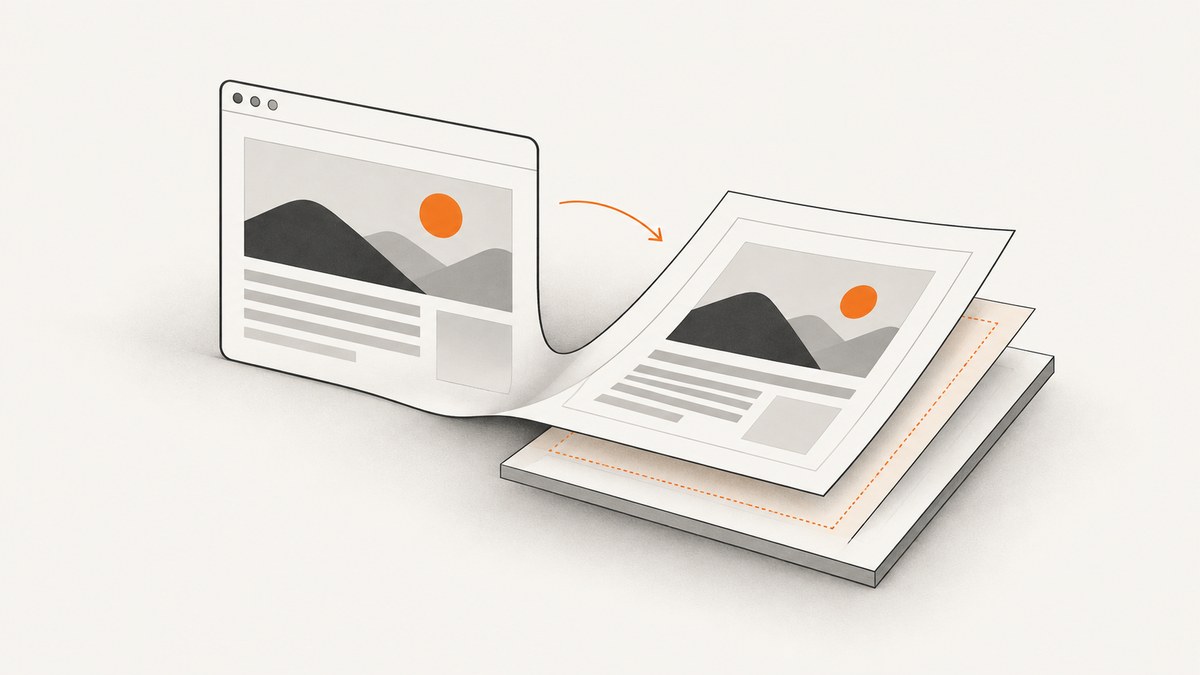
Direct answer: use CSS @page to set the printed sheet’s size and page-wide margins, then use @media print to control spacing inside the HTML content. A page background can paint through the page margins without moving the content; background coverage and content position are separate controls. If you want the article inset from the sheet edge, adjust @page { margin: ... }. If you want spacing between content elements, adjust their padding or margins in print styles.
This distinction matters when printing from a browser to paper or saving a page as PDF. The PDF page has a page box and printable area; HTML elements are laid out within that area. Browser-generated headers and footers are a further, separate layer. The exact result can vary with browser, PDF generator, printer driver, and print-dialog settings, so preview the workflow that will produce the final file.
1. Understand the three kinds of margin
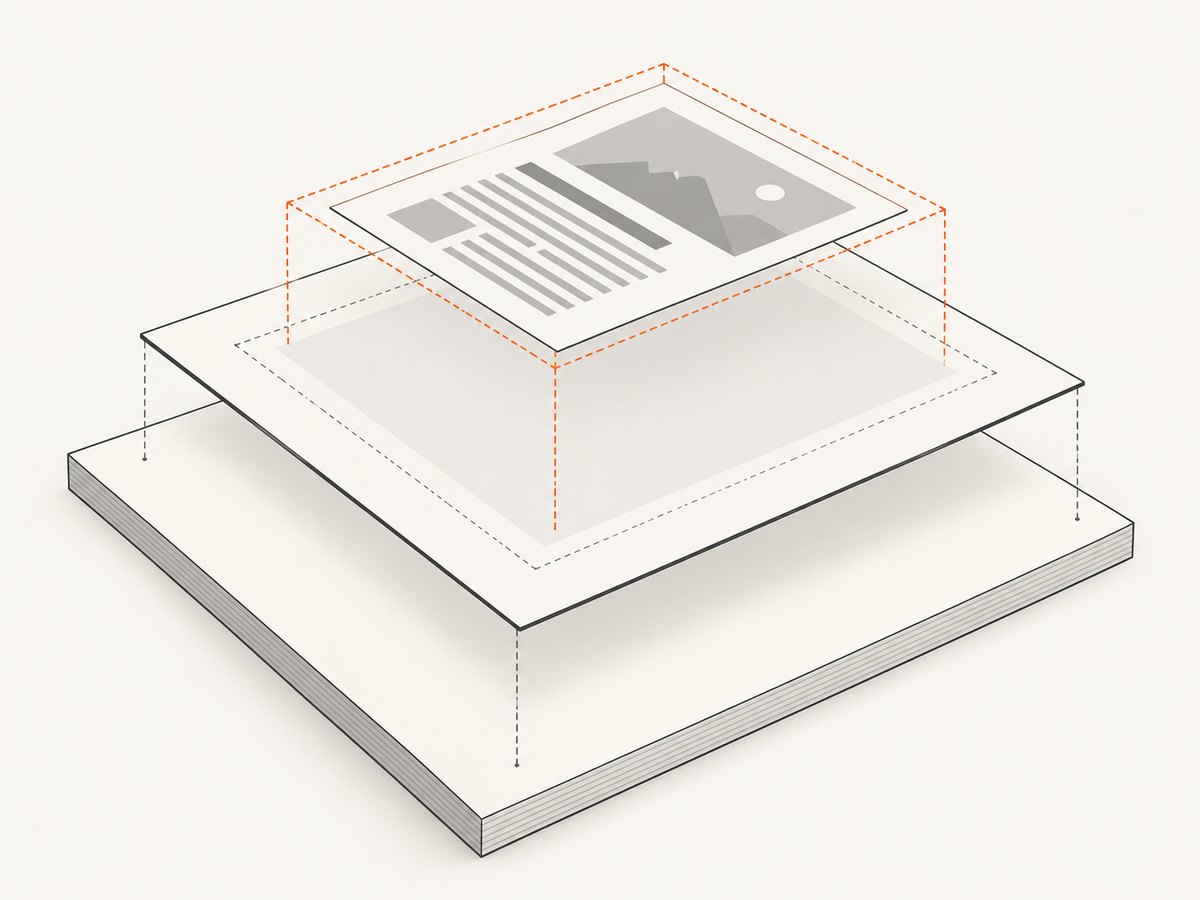
“Margin” can refer to three different things in a print workflow. Decide which one you mean before changing CSS:
| What you want to change | Control | What it affects |
|---|---|---|
| Space between the sheet edge and the document’s page area | @page { margin: ... } |
The page box’s margin around the area where document content flows |
| Space around a particular article, heading, or other HTML element | Print rules for that element, such as padding or margin in @media print |
That element’s layout within the document flow |
| Browser-added URL, date, title, or page number | Print dialog’s headers-and-footers option | Browser-generated content in the page margins |
The CSS Paged Media model distinguishes the page box, its page area, and the surrounding margin area. CSS margins on an HTML element are not the same as the page margin. Nor does a background that paints over the page box determine where HTML content begins. Set the page geometry and content layout deliberately instead of expecting a background setting to create an inset.
2. Add page margins and content spacing with CSS
Here is a compact starting point. It requests A4 paper with a 12 mm page margin, removes any existing margin from the content wrapper in print, and adds internal padding to the article. Change the values to match your desired output.
<!doctype html>
<html lang="en">
<head>
  <meta charset="utf-8">
  <title>Print layout example</title>
  <style>
    /* Screen layout can be different from printed layout. */
    .content {
      max-width: 48rem;
      margin: 2rem auto;
    }

    @page {
      size: A4;
      margin: 12mm;
    }

    @media print {
      html,
      body {
        margin: 0;
        padding: 0;
      }

      .content {
        max-width: none;
        margin: 0;
        padding: 4mm;
      }

      nav,
      .screen-only {
        display: none !important;
      }
    }
  </style>
</head>
<body>
  <nav>Navigation that should not print</nav>
  <main class="content">
    <h1>A printable article</h1>
    <p>This content sits inside the page area, with local padding.</p>
  </main>
</body>
</html>
In this example, the 12 mm is page-wide. The 4 mm padding belongs to the content wrapper, so it creates additional local spacing inside the page area. If you want the article’s text 16 mm from the edge, you could use a 12 mm page margin plus 4 mm of wrapper padding, provided the browser and output path honor both rules as expected.
Choose margin or padding for content
- Use
@pagewhen all content should have a consistent inset from the sheet edges. - Use element
paddingwhen you want space inside a box, such as a shaded callout whose background should extend behind its text. - Use element
marginwhen you want space outside an element in the document flow, for example between a heading and the next block. - Use both page and element spacing only when you intend the combined inset. They add to the layout; one does not replace the other.
For example, if the page margin is 10 mm and the article has 6 mm left padding, the article’s inner text is inset by both amounts in that direction. If a printer has a non-printable hardware area, its physical limit may further affect what appears on paper. A PDF destination may have different constraints from a physical printer.
3. Keep print styles separate from screen styles
Put print-only rules in an @media print block or a stylesheet linked with media="print". This keeps print layout changes from unexpectedly affecting the normal page. Print rules still participate in the CSS cascade: specificity, source order, and !important can determine which declaration wins.
<link rel="stylesheet" href="print.css" media="print">/* print.css */
@page {
size: letter portrait;
margin: 0.5in;
}
@media print {
.report {
width: auto;
max-width: none;
margin: 0;
padding: 0;
}
.report h1 {
margin-top: 0;
}
.avoid-print {
display: none !important;
}
}Use one source of truth for print geometry where possible. If a framework or component stylesheet gives body or the article a print margin, inspect computed styles in the browser’s print emulation and remove or override the rule explicitly. Resetting body { margin: 0 } does not cancel an @page margin, and changing @page does not automatically remove padding on an article element.
4. Configure page size, orientation, and backgrounds
The @page rule can specify page size, orientation, and margins. Common sizes include A4 and letter; physical dimensions can also be expressed in units such as millimeters or inches. Pick the size that matches the destination. For a landscape sheet, for example:
@page {
  size: A4 landscape;
  margin: 15mm 12mm;
}
The two-value margin shorthand sets vertical and horizontal page margins. Four values can specify top, right, bottom, and left. Confirm the resulting page size in print preview; the user’s print dialog or destination may offer settings that change the output.
Page backgrounds are a different concern from layout. The paged-media specification allows the page background’s painting area to cover the page box, including its margins. That does not move the HTML content inward. If a colored background appears to extend to the edge while text remains inset, the two can both be behaving as specified.
Browsers may omit background colors and images unless the print setting to include background graphics is enabled. That setting controls whether those backgrounds are printed; it is not a way to set content margins. Verify background output separately from the position of text and elements.
5. Handle browser-generated headers and footers
Browser headers and footers may add metadata such as a page title, URL, date, or page number in the page margin. These are separate from your HTML and from any authored page-margin content. If you simply want to remove browser metadata, turn off the browser’s headers-and-footers option in the print dialog.
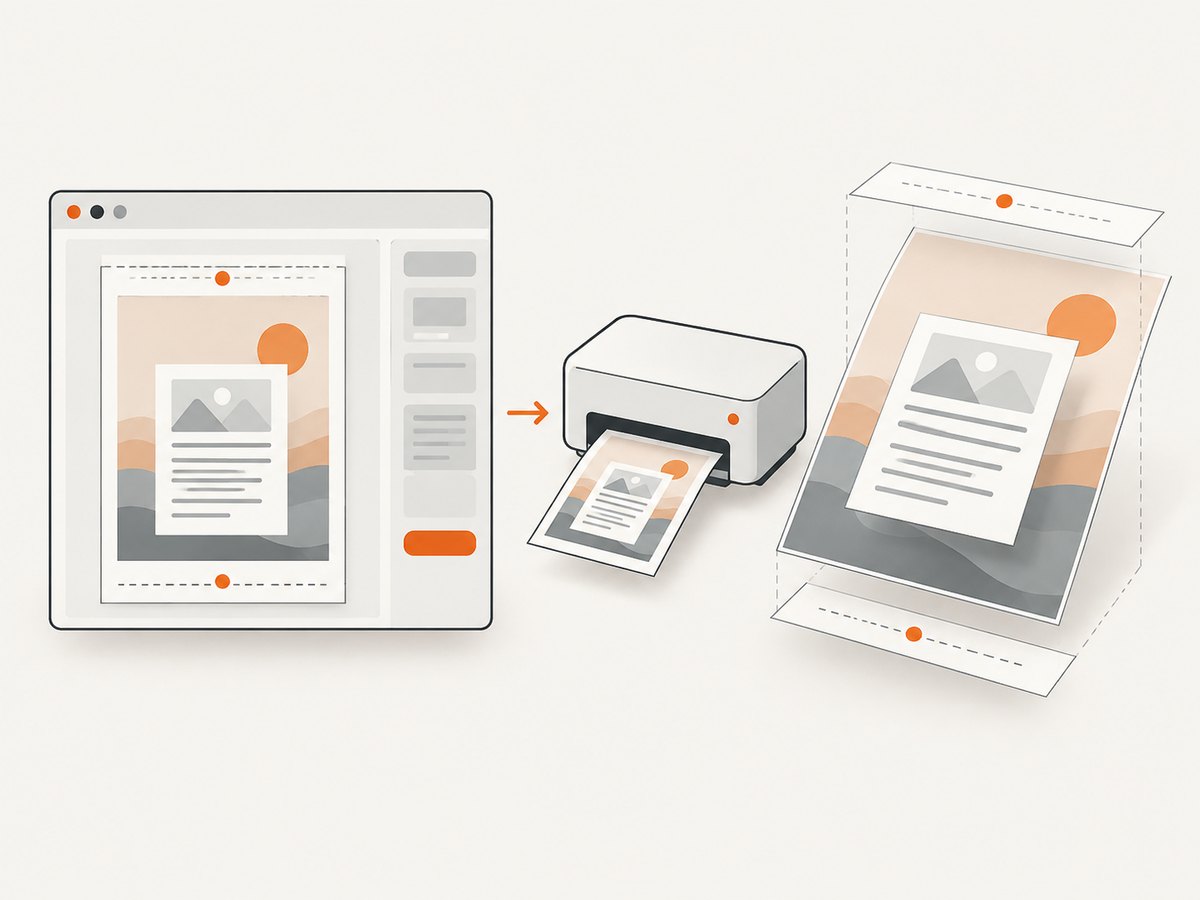
In Chrome’s print workflow, automatic headers and footers can appear when there is room, and setting page margins to zero or small enough to leave no room can suppress them. That is a layout side effect, not the preferred way to remove metadata: use the print-dialog control when available, because reducing margins also changes the content area.
Chrome 131 introduced CSS-generated content for page-margin boxes, allowing authored headers, footers, and page counters in supporting workflows. For example:
@page {
  margin: 18mm 12mm;

  @bottom-left {
    content: "Internal report";
    font-size: 8pt;
  }

  @bottom-right {
    content: counter(page);
    font-size: 8pt;
  }
}
Margin-box support depends on the browser and output workflow. The cited Chrome guidance describes support beginning with Chrome 131; do not assume another browser, older version, printer driver, or PDF generator supports the same rules. Preview the target environment.
6. Troubleshoot unexpected margins and PDF output
| Symptom | Likely cause | Fix |
|---|---|---|
Content still has a large border after setting @page |
The HTML wrapper, body, or a component has its own margin or padding | Inspect print computed styles; set the intended print values on html, body, and the content wrapper separately |
| Content touches the edge despite a background filling the page | Background painting and content layout are separate | Set a nonzero @page margin for page-wide inset, or add wrapper padding for local inset |
| URL, date, or title appears in the PDF | Browser-generated headers and footers are enabled | Disable headers and footers in the print dialog; do not rely on shrinking margins to hide them |
| CSS changes have no visible effect | A more specific rule, later rule, or important declaration overrides the print style | Check the cascade and computed print styles; move or strengthen the print declaration deliberately |
| Colors or background images are missing | The browser’s print settings omit background graphics | Enable background graphics in the print dialog and verify the destination’s behavior |
| Margins differ between preview, PDF, and paper | The browser, PDF generator, driver, or printer has different behavior or constraints | Check the actual output workflow; compare preview with the saved PDF and a physical print if relevant |
| Text is clipped or an element crosses a page boundary | Content dimensions, fixed heights, or page breaks do not fit the available page area | Remove unnecessary fixed heights, test a smaller local padding, and add intentional page-break rules where appropriate |
| Page size is unexpected | @page size and destination paper settings disagree |
Set the intended size in CSS and confirm the print dialog or PDF destination uses the same paper size |
A reliable debugging sequence is: open print preview, verify paper size and orientation, disable browser headers and footers if undesired, inspect print-specific computed styles, and save a PDF from the exact browser and settings used in production. Change one layer at a time so you can tell whether the issue is page geometry, element layout, browser-added content, or destination behavior.
7. Automate the print-to-PDF workflow
When a browser automation tool produces PDFs, use the same separation of concerns: page geometry belongs to print CSS, while the automation call controls the PDF output workflow. For example, Playwright’s Node.js API can load a page and write a PDF file. The page should contain the CSS from the earlier examples.
// npm install playwright
const { chromium } = require('playwright');

(async () => {
  const browser = await chromium.launch();
  const page = await browser.newPage();
  await page.goto('file:///absolute/path/to/print-example.html', {
    waitUntil: 'load'
  });
  await page.pdf({
    path: 'article.pdf',
    format: 'A4',
    printBackground: true,
    preferCSSPageSize: true
  });
  await browser.close();
})();
Run it with node make-pdf.js after installing Playwright and its browser. Replace the file URL with the absolute path to your local HTML file or use your own page-loading step. printBackground asks for background graphics in the generated PDF; preferCSSPageSize asks the PDF operation to prefer the CSS page size. These are PDF-generation settings, not substitutes for content padding or page margins. For other browser automation libraries, check that library’s official documentation for its PDF options and defaults.
For dependable output, wait for content that is loaded asynchronously before generating the PDF, use a known browser version in automated environments, and inspect the saved PDF after changing browser or print settings. Do not assume print preview and automation use identical defaults.
8. Performance, reliability, and cost considerations
CSS print layout adds little runtime work compared with loading a page, but complex documents can still take time to lay out, load fonts and images, and paginate. Keep print styles targeted, avoid relying on screen-only widths, and wait for required assets before generating a PDF. Caching or reusing stable source documents can reduce repeated work in an automated pipeline, though the appropriate strategy depends on how often the content changes.
Reliability comes from controlling the output path: define page size and margins in CSS, configure browser-generated headers separately, keep the browser and PDF settings consistent, and inspect representative files. Physical printers may have non-printable regions, while PDF output generally represents the page without a printer’s hardware limitations. Margins that look correct in one destination may not match another.
Cost depends on how PDFs are generated and hosted in your environment; this CSS technique has no service fee by itself. If you need a rendered website screenshot or a PDF through an API rather than a browser setup, ScreenshotNeo is a website screenshot API and MCP server from Yorker Media. Its product and feature details are at ScreenshotNeo.
9. Or skip the browser setup
For a website screenshot or PDF, ScreenshotNeo provides a single GET request. The following request captures a website as a WebP image; see the ScreenshotNeo API docs for the API configuration and available options.
curl -G "https://api.screenshotneo.com/v1/shot" \
  -d access_key=YOUR_API_KEY \
  --data-urlencode url=https://stripe.com \
  -o shot.webp
import requests
r = requests.get(
"https://api.screenshotneo.com/v1/shot",
params={"access_key": "YOUR_API_KEY", "url": "https://stripe.com"},
timeout=90,
)
open("shot.webp", "wb").write(r.content)const q = new URLSearchParams({
access_key: 'YOUR_API_KEY',
url: 'https://stripe.com'
});
const res = await fetch(`https://api.screenshotneo.com/v1/shot?${q}`);ScreenshotNeo accepts cookie or consent banners like a visitor and removes more than 60 known consent platforms, newsletter popups, and chat widgets before capture; each step can be turned off. Bot checks and CAPTCHAs, blank pages, timeouts, failed loads, and cache hits cost nothing, and responses identify page verdict and billing status in headers. Its MCP server offers take_screenshot, get_page_info, and capture_pdf for Claude, Cursor, and other MCP clients. The free plan includes 1,000 shots per month with no card; paid plans start at $5 for 3,000 shots. Every feature is on every plan.
Sign up free for 1,000 screenshots a month, with no card required.
10. Short FAQ
Does body { margin: 0 } remove the printed page margin?
No. It changes the body element’s CSS margin. The page margin is controlled by @page, while other wrappers can also have their own spacing.
Can a PDF background extend to the edge while text stays inset?
Yes. Page background painting and HTML content position are separate. Set the page margin and content layout independently.
Why does my PDF look different from print preview?
The browser, PDF destination, printer driver, and printer can apply different settings or limitations. Verify the same output path and settings you intend to use.
Can I put my own page number in a CSS footer?
Page-margin boxes can provide authored headers, footers, and counters in supporting browsers. Check support for the browser and version that will generate the document.


