How to Convert an HTML Section to a PDF Snapshot in JavaScript Without Libraries
Convert one HTML section to a browser PDF with print CSS and window.print(), without libraries. Learn layout, page breaks, limitations, and automation options.
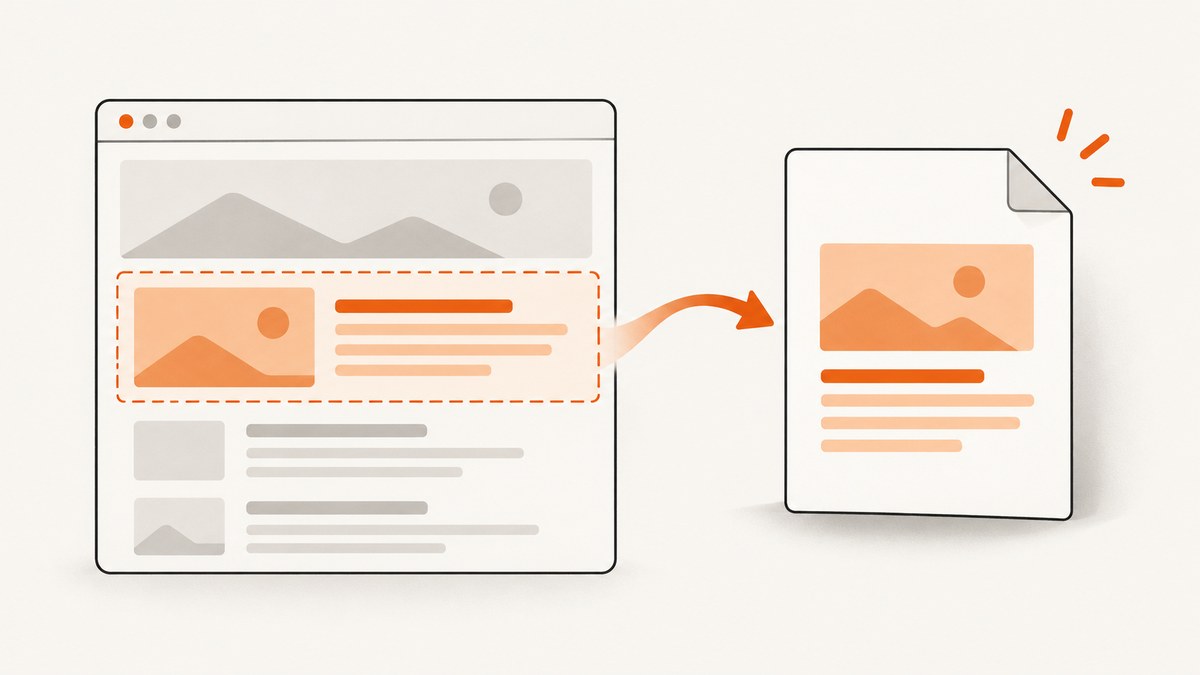
Use the browser’s native print flow: give the section a stable selector, add print-only CSS that hides the rest of the page, then call window.print(). In the print dialog, the user or browser environment can choose a PDF destination. JavaScript does not receive PDF bytes from window.print(), and it cannot force a silent, identical PDF download in every browser.
This approach uses only HTML, CSS, and JavaScript. It is suitable when a person can confirm the print dialog. For server-side, repeatable PDF capture, see Or skip the browser setup below.
1. Minimal working example
The target section needs a stable selector. The print stylesheet makes every element invisible, then makes #snapshot and its descendants visible. The button is hidden in print output.
<!doctype html>
<html lang="en">
<head>
  <meta charset="utf-8">
  <meta name="viewport" content="width=device-width, initial-scale=1">
  <title>PDF snapshot</title>
  <style>
    body {
      font-family: system-ui, sans-serif;
      line-height: 1.5;
      margin: 2rem;
    }

    .toolbar {
      display: flex;
      gap: .75rem;
      margin-bottom: 2rem;
    }

    #snapshot {
      max-width: 760px;
      padding: 2rem;
      border: 1px solid #d7dce2;
      border-radius: 12px;
      background: white;
    }

    @media print {
      body * {
        visibility: hidden;
      }

      #snapshot,
      #snapshot * {
        visibility: visible;
      }

      #snapshot {
        position: absolute;
        inset: 0 auto auto 0;
        width: 100%;
        max-width: none;
        box-sizing: border-box;
        border: 0;
        border-radius: 0;
      }

      .toolbar {
        display: none;
      }
    }

    @page {
      size: auto;
      margin: 12mm;
    }
  </style>
</head>
<body>
  <div class="toolbar">
    <button id="save-pdf" type="button">Print or save as PDF</button>
  </div>

  <main>
    <section id="snapshot">
      <h1>Snapshot heading</h1>
      <p>Only this section appears in print preview.</p>
      <ul>
        <li>A browser controls the destination and final PDF settings.</li>
        <li>Print CSS controls the document presentation.</li>
      </ul>
    </section>
  </main>

  <script>
    document.querySelector("#save-pdf").addEventListener("click", () => {
      window.print();
    });
  </script>
</body>
</html>
Open the file in a browser, click the button, select a PDF destination, and save. MDN describes window.print() as opening the print dialog for the current document (MDN: Window.print()).
2. How the browser print flow works
- The user activates a button or another permitted user action.
- Your code calls
window.print(). - The browser finishes loading the document if it is still loading, then opens its print dialog.
- The user agent presents destinations such as a physical printer or “Save to PDF”, depending on the browser and operating system.
- The browser produces the output. The method returns
undefined; it does not return aBlob, file path, or promise.
Printing is user-agent behavior defined by the HTML Standard. A browser may offer save-to-PDF, but JavaScript cannot rely on a uniform dialog, destination name, download location, or silent save (WHATWG HTML Standard: Printing).
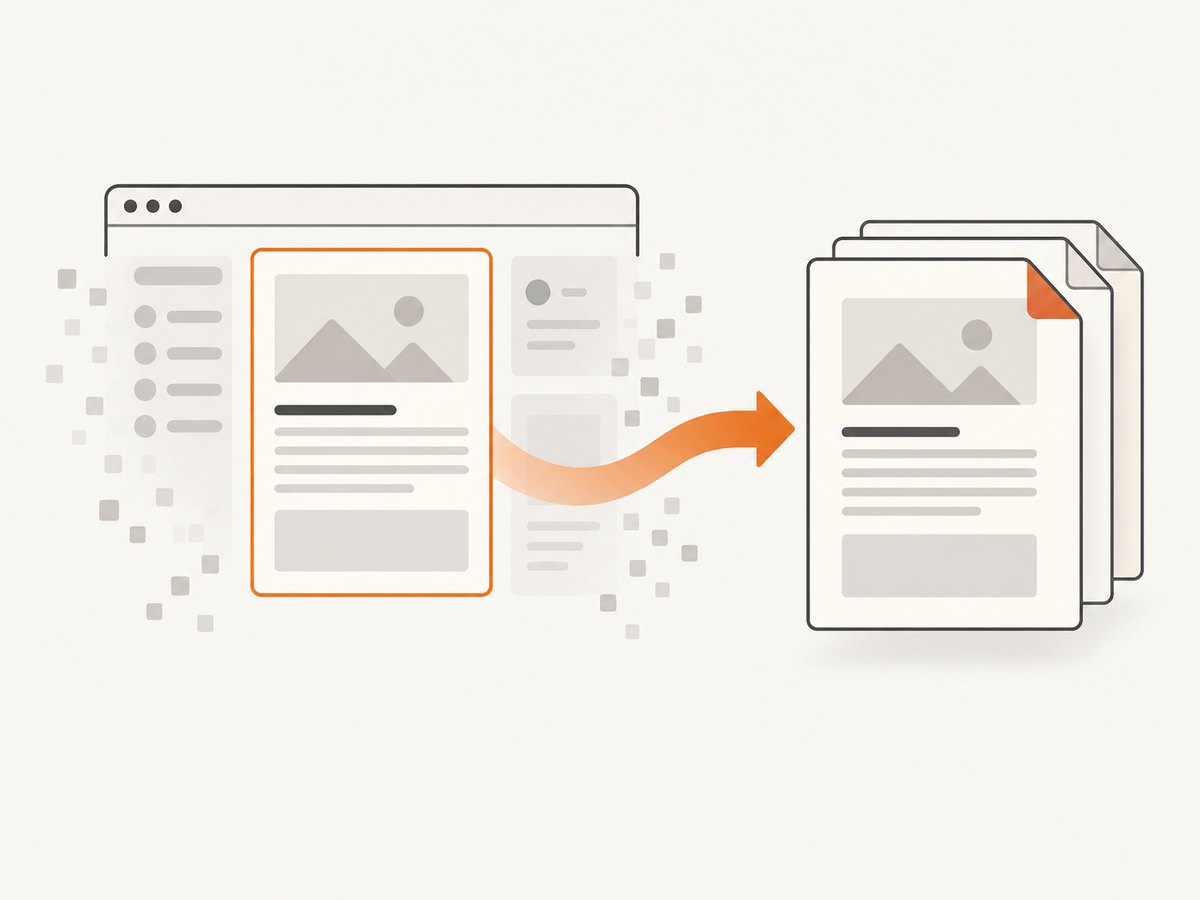
Use print media rules for the PDF presentation
Use @media print to alter layout only during printing. You can hide navigation, controls, ads, and other surrounding interface; change colors and spacing; and make the target section occupy the printable area. A separate stylesheet is also valid:
<link rel="stylesheet" href="print.css" media="print">Print styles still obey the cascade. Existing selectors with higher specificity, inline styles, pseudo-elements, and inherited properties can affect the result. Inspect print preview rather than assuming screen CSS will map directly to paper.
3. Selecting exactly one section
Prefer a unique ID or a narrowly scoped class:
<section id="invoice-snapshot">...</section>@media print {
body * { visibility: hidden; }
#invoice-snapshot,
#invoice-snapshot * { visibility: visible; }
#invoice-snapshot {
position: absolute;
inset: 0;
width: 100%;
}
}visibility: hidden preserves layout boxes, so the target and its descendants must be explicitly made visible. If you use display: none on ancestors, descendants cannot be restored by changing only the child. For pages with complicated positioning, a dedicated print document or print iframe can be easier to reason about, but it requires copying the required markup and styles. MDN documents an iframe-based printing pattern in its printing guide.
4. Page size, margins, and page breaks
The @page rule configures page dimensions, orientation, and margins where supported:
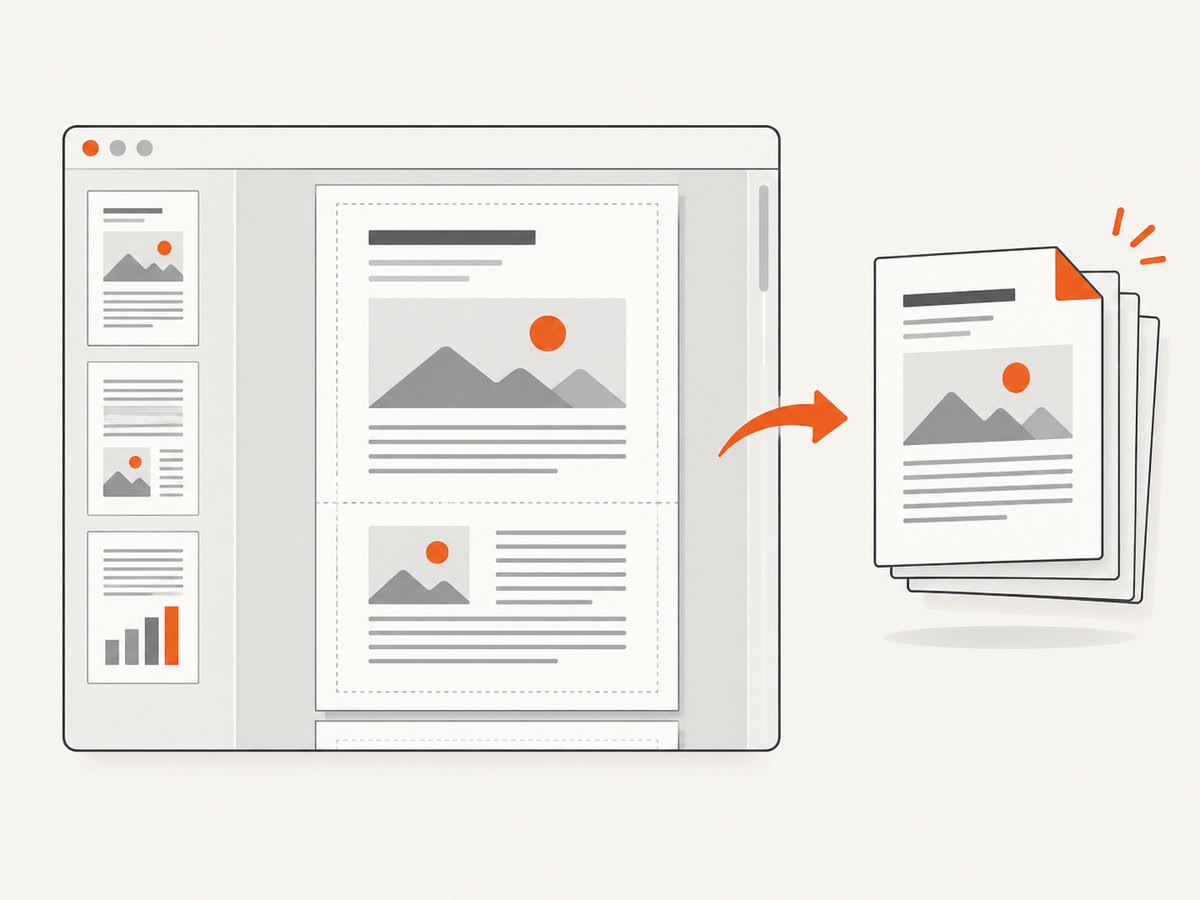
@page {
  size: A4 portrait;
  margin: 14mm 12mm;
}

@media print {
  .avoid-split {
    break-inside: avoid;
    page-break-inside: avoid;
  }

  .new-page {
    break-before: page;
    page-break-before: always;
  }

  h2, h3 {
    break-after: avoid;
    page-break-after: avoid;
  }
}
Common values include A4 portrait, A4 landscape, and letter. Browser support and user print settings vary. The print dialog can override page size, margins, scale, headers and footers, background graphics, and destination behavior. The MDN @page reference covers page configuration examples.
Long sections
- Let content flow naturally instead of forcing one enormous fixed-height box.
- Avoid
height: 100vh, clipped overflow, and scroll containers around the target. - Use
break-inside: avoidfor cards, table rows, or callout blocks that should stay together, while accepting that very tall blocks may still split. - Use
break-before: pagefor deliberate section starts. - Remove sticky or fixed UI from print output; it can overlap content on subsequent pages.
5. Images, fonts, colors, and dynamic content
Images
Wait until important images have loaded before opening print preview. A simple browser-side helper is:
async function waitForImages(root) {
  const images = [...root.querySelectorAll("img")];
  await Promise.all(images.map((image) => {
    if (image.complete) return image.decode?.().catch(() => {});
    return new Promise((resolve) => {
      image.addEventListener("load", resolve, { once: true });
      image.addEventListener("error", resolve, { once: true });
    });
  }));
}

document.querySelector("#save-pdf").addEventListener("click", async () => {
  await waitForImages(document.querySelector("#snapshot"));
  window.print();
});
Cross-origin images can be blocked or unavailable, depending on the source and browser policy. Use URLs that the page can load, provide useful alt text, and do not assume that a failed image request will be replaced in the PDF.
Fonts and colors
Ensure web fonts have finished loading before printing when typography matters:
await document.fonts.ready;
window.print();
Browsers may omit background colors and images unless the user enables background graphics in the print UI. Use readable foreground colors and test both settings. Avoid relying on a background image to communicate essential information.
Dynamic values
Render dates, totals, and other values before calling print(). The dialog blocks the page while it is open, so code after the call runs only after the dialog closes:
const button = document.querySelector("#save-pdf");
button.addEventListener("click", async () => {
  document.querySelector("#generated-at").textContent = new Date().toLocaleString();
  await document.fonts.ready;
  window.print();
  console.log("The print dialog has closed");
});
6. Temporarily changing the page during printing
For a larger application, toggle a class around the print lifecycle instead of maintaining many visibility rules:
const printButton = document.querySelector("#save-pdf");

printButton.addEventListener("click", () => {
  document.documentElement.classList.add("printing-snapshot");
  window.print();
});

window.addEventListener("afterprint", () => {
  document.documentElement.classList.remove("printing-snapshot");
});
@media print {
.printing-snapshot body > * {
visibility: hidden;
}
.printing-snapshot #snapshot,
.printing-snapshot #snapshot * {
visibility: visible;
}
.printing-snapshot #snapshot {
position: absolute;
inset: 0;
}
}beforeprint and afterprint can prepare and restore the interface. Browser behavior differs, so keep the printed state correct even if an event is delayed or not fired.
7. Troubleshooting common failures
| Symptom | Likely cause | Fix |
|---|---|---|
| Everything is blank | The selector does not match, or an ancestor remains hidden with display: none. |
Check the selector in DevTools and make the target and every required ancestor printable. |
| Other page content appears | The print rules do not cover surrounding elements. | Start with the scoped body * { visibility: hidden } pattern, then add exceptions deliberately. |
| The section is cut off | A fixed height, overflow: hidden, or viewport-sized container clips it. |
Remove the height and overflow constraints under @media print. |
| Cards split awkwardly | The browser is free to place a break inside the element. | Try break-inside: avoid; keep blocks short enough to fit a page. |
| Fonts are wrong | Web fonts have not loaded, or the browser substituted them. | Await document.fonts.ready and verify the font is accessible from the page. |
| Images are missing | Image loading failed, the URL is inaccessible, or the print preview was opened too early. | Wait for image load/decode, inspect network errors, and provide a fallback. |
| Backgrounds are missing | The print dialog disables background graphics. | Enable background graphics in the dialog or design the document to remain readable without them. |
window.print() does nothing in an iframe |
The document is sandboxed or the embedding policy blocks printing. | Review sandbox permissions and test the top-level page. The HTML Standard notes that a sandbox can block printing. |
| A script expects a PDF download | window.print() returns undefined and exposes no PDF bytes. |
Use a browser automation or PDF service for unattended generation. |
| The print dialog opens before data is ready | Rendering or asynchronous requests are still in progress. | Disable the button while preparing content, await data/fonts/images, then call print. |
8. Performance, reliability, and security notes
- Performance: Native printing avoids adding a client-side PDF library, but layout, font loading, image decoding, and pagination still cost time. Keep the printable DOM focused and avoid large off-screen canvases.
- Reliability: The final result depends on browser version, operating system, print settings, available fonts, and destination. Test the browsers your users actually use.
- User interaction: The print dialog is modal from the page’s perspective. Do not start it from an unexpected timer or assume it can run silently.
- Privacy: The document is printed by the user’s browser. Avoid placing secrets in hidden elements merely because they are hidden in print; hidden DOM content remains available to scripts and tools.
- Accessibility: Keep semantic headings, readable contrast, and meaningful document order. A PDF generated from print output can still be difficult to use if the source structure is poor.
- Repeatability: If you need the same PDF for many URLs, a scheduled report, an API response, or a webhook-driven workflow, a service that captures pages in a controlled browser is a better fit than asking a person to operate a dialog.
Or skip the browser setup
When you need a server-side screenshot or PDF capture, ScreenshotNeo provides a GET request for a URL and supports PDF output. Its capture options include paper size, margins, landscape mode, and page ranges. It also supports waiting for a selector, delay, or network idle, custom CSS and JavaScript, cookies and headers, and other controls documented in the ScreenshotNeo API documentation.
curl -G "https://api.screenshotneo.com/v1/shot" \
  -d access_key=YOUR_API_KEY \
  --data-urlencode url=https://example.com/report \
  -d format=pdf \
  -o report.pdf
import requests
r = requests.get(
"https://api.screenshotneo.com/v1/shot",
params={
"access_key": "YOUR_API_KEY",
"url": "https://example.com/report",
"format": "pdf",
},
timeout=90,
)
r.raise_for_status()
open("report.pdf", "wb").write(r.content)const q = new URLSearchParams({
access_key: 'YOUR_API_KEY',
url: 'https://example.com/report',
format: 'pdf',
});
const res = await fetch(`https://api.screenshotneo.com/v1/shot?${q}`);
if (!res.ok) throw new Error(`ScreenshotNeo request failed: ${res.status}`);
const pdf = Buffer.from(await res.arrayBuffer());
await import('node:fs/promises').then(fs => fs.writeFile('report.pdf', pdf));ScreenshotNeo removes cookie banners, newsletter popups, and chat widgets before capture. Bot checks, blank pages, failed loads, timeouts, and cache hits are not billed, and the response identifies the result with X-Page-Verdict and X-Billed headers. Its MCP server lets Claude, Cursor, and other MCP clients call take_screenshot, get_page_info, and capture_pdf. The free plan includes 1,000 screenshots per month with no card; paid plans start at $5 for 3,000 shots. Create a free ScreenshotNeo account.
9. FAQ
Can JavaScript download the PDF without opening a dialog?
Not with window.print(). It opens the browser’s print dialog, returns undefined, and does not expose PDF bytes. Use a controlled browser or PDF API for unattended downloads.
Can I print only an element?
Yes. Use a stable selector and print CSS that hides the rest of the document while keeping that element visible.
Does @page guarantee exact dimensions?
No. It requests page settings where supported, while the browser’s print UI and destination can override them.
Why does my print stylesheet work on screen but not in preview?
Print rules apply a different media context and still interact with specificity, inheritance, fixed positioning, overflow, and browser settings. Inspect the preview and simplify conflicting layout rules.
Should I use this for batch PDF generation?
Use native printing for an interactive, user-driven flow. For batch or server-side capture, use a browser automation system or a PDF capture API such as ScreenshotNeo.
10. Final checklist
- Give the target section a unique selector.
- Add
@media printrules that hide surrounding interface. - Use
@pagefor requested size and margins. - Remove clipping, sticky controls, and viewport-height constraints.
- Wait for data, fonts, and important images before calling
window.print(). - Test page breaks, backgrounds, colors, and long content in print preview.
- Do not promise a silent download or access to PDF bytes from browser JavaScript.
- Choose an API or controlled browser when the workflow must run unattended.


