How to Add Page Breaks to Long HTML Tables in PDFs
Repeat table headers, keep rows together, and control section breaks in HTML-to-PDF output. Includes working CSS and guidance for Chromium, WeasyPrint, and wkhtmltopdf.
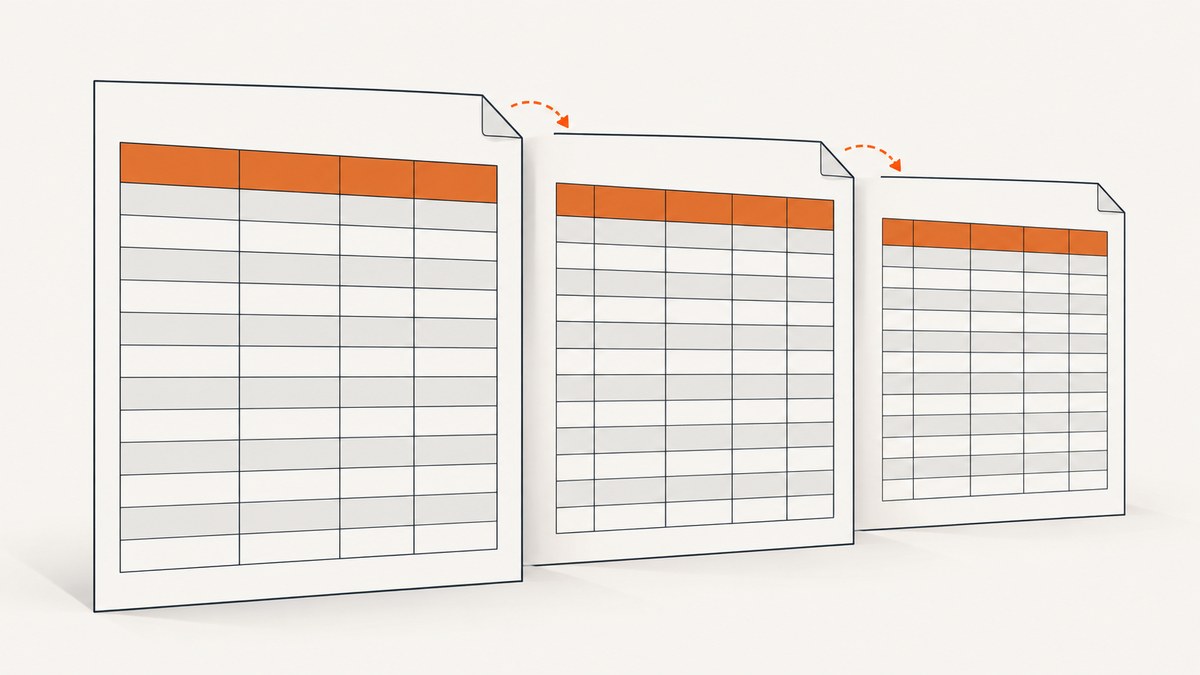
For long HTML tables, use a real <thead> so the PDF renderer can repeat the header, and apply break-inside: avoid to rows so it keeps each row together when possible. Put print rules in @media print, and use break-before: page only when a section must start on a new page. These rules depend on the PDF renderer: current Chromium and WeasyPrint support paged-media breaks; older wkhtmltopdf builds may ignore row avoidance inside tables.
1. Use semantic table markup and print CSS
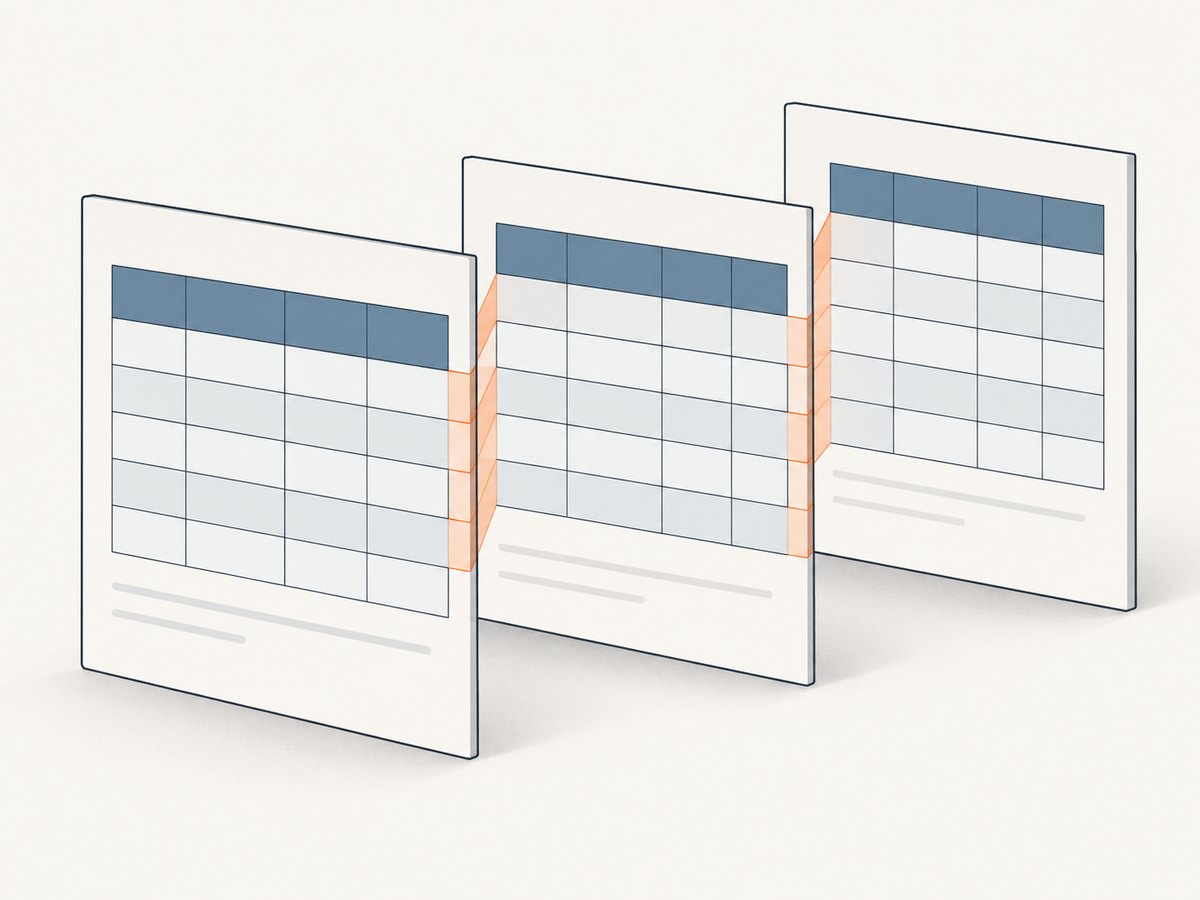
A renderer can paginate a table more reliably when the markup reflects its structure: one header group, a body group, and optionally a footer group. Avoid simulating a table with divs or styling the first row to look like a header. The CSS display values for these groups have specific pagination meaning.
<!doctype html>
<html lang="en">
<head>
  <meta charset="utf-8">
  <title>Quarterly report</title>
  <style>
    @media print {
      @page {
        size: A4;
        margin: 16mm;
      }

      table {
        width: 100%;
        border-collapse: collapse;
        table-layout: fixed;
      }

      thead {
        display: table-header-group;
      }

      tfoot {
        display: table-footer-group;
      }

      tr {
        break-inside: avoid;
        page-break-inside: avoid;
      }

      .new-page {
        break-before: page;
        page-break-before: always;
      }

      th, td {
        border: 1px solid #777;
        padding: 5pt;
        vertical-align: top;
        overflow-wrap: anywhere;
      }
    }
  </style>
</head>
<body>
  <h1>Quarterly report</h1>
  <table>
    <thead>
      <tr><th>Item</th><th>Amount</th></tr>
    </thead>
    <tbody>
      <tr><td>Hosting</td><td>$120</td></tr>
      <tr><td>Support</td><td>$80</td></tr>
    </tbody>
    <tfoot>
      <tr><td>Total</td><td>$200</td></tr>
    </tfoot>
  </table>
</body>
</html>
The W3C CSS Print Profile describes print user agents processing @media print, defines table header and footer groups, and explains that avoiding a break inside an element moves it to a new page when possible. If the element is taller than the printable page, the renderer prints what fits and continues on the next page; CSS cannot keep an over-height row intact without clipping or scaling. See the W3C CSS Print Profile.
What each rule does
| Rule | Purpose | When to use it |
|---|---|---|
thead { display: table-header-group; } |
Marks the header group for repetition across printed pages. | Use on the semantic table header; confirm behavior in the target renderer. |
tfoot { display: table-footer-group; } |
Marks the footer group for page footer behavior supported by the renderer. | Useful for a repeated subtotal or table-level footer; test placement and repetition. |
tr { break-inside: avoid; } |
Asks the renderer to keep a row together. | Use where rows should not split and they fit within a printable page. |
.new-page { break-before: page; } |
Starts the element on a new page. | Use for an intentional section boundary, not every table row. |
@page { size; margin; } |
Sets the page format and printable margins. | Set to the output requirements; margins reduce available table height and width. |
The legacy page-break-* spellings are included alongside modern break-* properties to cover older engines. For table issues, start with the two key rules: a table header group and row break avoidance. Anvil’s renderer guidance on HTML-to-PDF page breaks also recommends those techniques and notes renderer differences.
2. Repeat headers and keep rows together
Put column headings inside <thead>, and data rows inside <tbody>. In print CSS, explicitly set the header group to table-header-group. A normal first row inside <tbody> does not carry the same table-header semantics, even if it is visually bold.
<table class="ledger">
  <thead>
    <tr><th scope="col">Date</th><th scope="col">Description</th><th scope="col">Amount</th></tr>
  </thead>
  <tbody>
    <tr><td>2026-04-02</td><td>Annual service renewal</td><td>$240</td></tr>
    <tr><td>2026-04-08</td><td>Usage adjustment</td><td>$18</td></tr>
  </tbody>
</table>
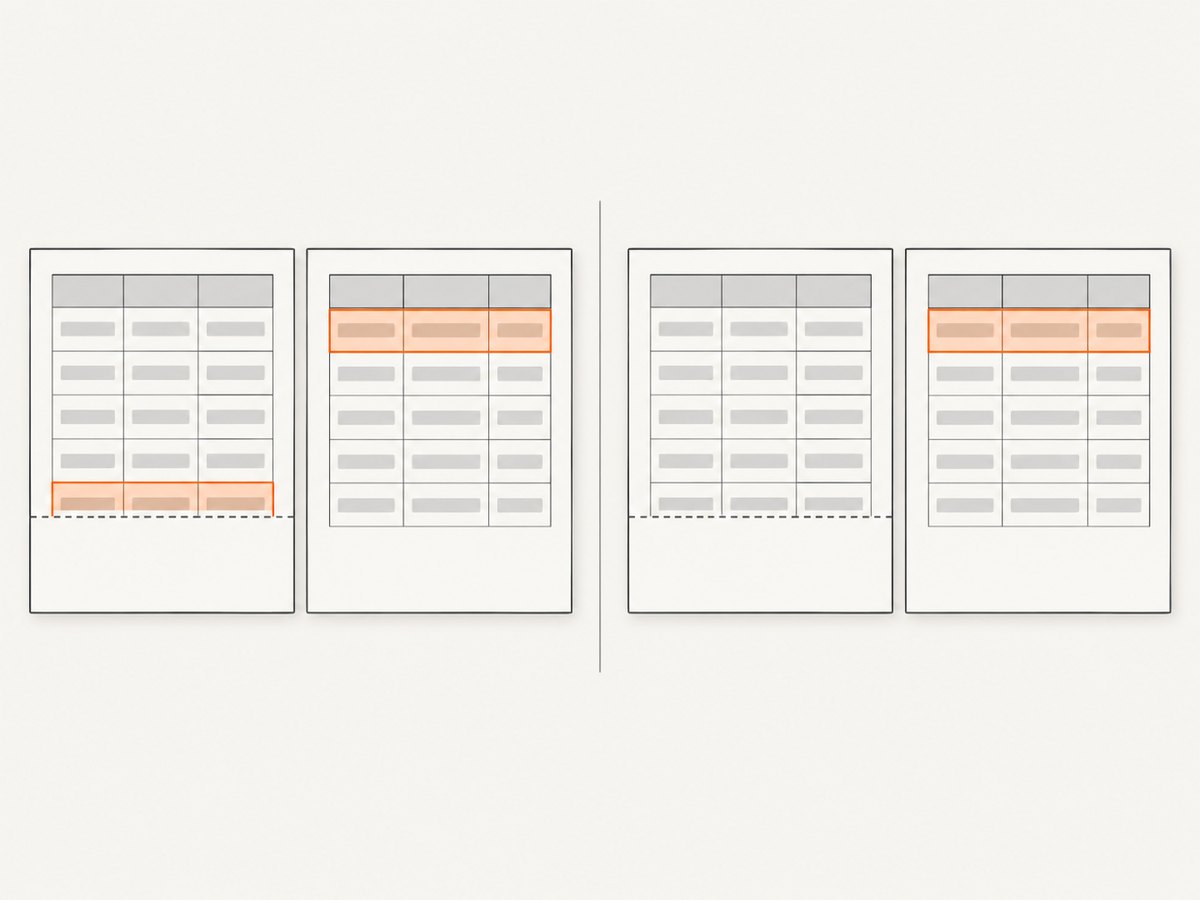
Use break-inside: avoid on tr, since the row is the unit you want to keep together. The request is conditional: if a row fits on a page, the renderer should try to move it intact to the next page instead of splitting it. If a row is taller than the usable page area, it must overflow across pages or be otherwise laid out; no avoidance rule can create more space.
A repeated header consumes vertical space on every page. Long headers or multi-row headers reduce the area available to data rows, so verify the first and following pages. Keep header content concise and avoid large images in header cells.
3. Add intentional section breaks
Use a page break at a meaningful section boundary, such as before a new report category. Apply it to a block in normal document flow, rather than trying to force a break inside the table itself. Keep both property spellings when output may pass through mixed or older rendering engines.
<h2 class="new-page">Appendix: Archived items</h2>
<table>
  ...
</table>
@media print {
.new-page {
break-before: page;
page-break-before: always;
}
}If the heading should stay with the table that follows, also prevent a break after the heading where supported, or wrap the heading and table in a simple section and apply the break to that section. Avoid placing page-break controls on every row: doing so defeats natural pagination and can leave large blank areas.
4. Choose and configure the PDF renderer
CSS describes pagination intent, but the engine that turns the document into a PDF determines which features work. Compare engines against your actual document, including repeated headers, row behavior, print media, layout support, and reproducibility.
| Renderer | Relevant behavior | Practical choice |
|---|---|---|
| Puppeteer / Chromium | page.pdf() generates PDF with the print CSS media type. You can deliberately switch to screen media with page.emulateMediaType('screen'). |
Use print CSS for PDF pagination unless screen styling is specifically required. See Puppeteer Page.pdf(). |
| WeasyPrint | Documentation lists break-before, break-after, and break-inside support, along with page-break-* aliases. |
A paged-media renderer to evaluate when you want an HTML/CSS-to-PDF pipeline. Review its API reference for the version in use. |
| wkhtmltopdf | Its older Qt WebKit base may ignore break-inside: avoid, particularly in tables, according to renderer guidance. |
If rules appear ignored, compare a current Chromium or WeasyPrint pipeline before building pagination hacks. |
Do not assume a browser’s on-screen view predicts the PDF. Confirm that the job uses print media and inspect the actual PDF output from the deployed engine and version.
Minimal Puppeteer example
This example assumes Puppeteer is installed in the project and the HTML is served at a URL reachable by Chromium. The page loads under print media by default for page.pdf(); wait for the document and its content to be ready before generating output.
import puppeteer from 'puppeteer';

const browser = await puppeteer.launch();
try {
  const page = await browser.newPage();
  await page.goto('http://localhost:3000/report', { waitUntil: 'networkidle0' });
  await page.pdf({
    path: 'report.pdf',
    format: 'A4',
    printBackground: true,
    margin: { top: '16mm', right: '16mm', bottom: '16mm', left: '16mm' }
  });
} finally {
  await browser.close();
}
If the PDF should intentionally use screen styles, call await page.emulateMediaType('screen') before page.pdf(), and make sure the screen stylesheet contains the pagination rules you need. Usually, keep pagination in print CSS instead.
Minimal WeasyPrint example
With WeasyPrint installed in the Python environment, render a local HTML file to PDF:
from weasyprint import HTML

HTML(filename="report.html").write_pdf("report.pdf")
WeasyPrint resolves linked resources relative to the HTML source. For dynamically generated HTML, use a base URL when relative links or images need to resolve; keep the stylesheet and table markup available to the renderer.
5. Or skip the browser setup
If you need a screenshot of a rendered page while checking the table layout, ScreenshotNeo provides a website screenshot API and MCP server. A screenshot can help inspect the page view, but use your PDF renderer to validate page breaks in the actual PDF. ScreenshotNeo’s API documentation describes the request options.
curl -G "https://api.screenshotneo.com/v1/shot" -d access_key=YOUR_API_KEY --data-urlencode url=https://stripe.com -o shot.webpimport requests
r = requests.get("https://api.screenshotneo.com/v1/shot", params={"access_key": "YOUR_API_KEY", "url": "https://stripe.com"}, timeout=90)
open("shot.webp", "wb").write(r.content)const q = new URLSearchParams({ access_key: 'YOUR_API_KEY', url: 'https://stripe.com' });
const res = await fetch(`https://api.screenshotneo.com/v1/shot?${q}`);
if (!res.ok) throw new Error(`Screenshot request failed: ${res.status}`);
await Bun.write('shot.webp', new Uint8Array(await res.arrayBuffer()));Cookie banners, newsletter popups, and chat widgets are removed before the shot. Bot checks, blank pages, failed loads, and cache hits are never billed, and the response identifies page verdict and billing status in headers. The MCP server gives AI agents tools to take screenshots, get page information, and capture PDFs. The free plan includes 1,000 screenshots a month with no card; paid plans start at $5 for 3,000. Sign up free and get 1,000 screenshots a month with no card.
6. Troubleshoot pagination problems
| Symptom | Likely cause | Fix |
|---|---|---|
| Header appears only on the first page | Headings are outside <thead>, or the renderer does not treat the group as a table header. |
Use semantic table sections and set thead { display: table-header-group; } in print CSS. Check the PDF engine’s output directly. |
| A row splits across pages | The engine ignores row avoidance, the rule is overridden, or the row is too tall for the printable area. | Confirm print CSS is active, apply both break properties to tr, simplify wrappers, and reduce row content or size if it exceeds a page. |
| Break rules work in Chrome but not wkhtmltopdf | Different rendering engines implement paged media differently; older Qt WebKit-based wkhtmltopdf may ignore avoidance in tables. | Compare the same document with current Chromium or WeasyPrint. Prefer an engine that supports the needed behavior over adding fragile JavaScript pagination. |
CSS in @media print seems ignored |
The PDF job may emulate screen media, stylesheet loading may fail, or a later, more specific rule may override it. | Check renderer configuration, resource loading, cascade order and specificity. For Puppeteer, remember page.pdf() uses print media by default. |
| Unexpected large blank areas | A break is forced too early, a row is being kept intact, or a large block cannot fit in the remaining space. | Remove unnecessary explicit breaks, inspect row and block heights, and let ordinary content flow where a forced section start is not required. |
| Footer repeats unexpectedly or not at all | Footer group behavior varies with renderer and document structure. | Use a real <tfoot>, declare table-footer-group, and verify how the selected renderer positions it. Put page numbering in the PDF engine’s page-margin features if table-footer repetition is unsuitable. |
| Table columns overflow or wrap unpredictably | Content width exceeds the page’s printable width or columns have no stable sizing strategy. | Set the table width, choose fixed layout when suitable, adjust margins or column widths, and allow long tokens to wrap. |
Debug in a repeatable order
- Generate a PDF with the same HTML and renderer version used in production.
- Verify the document has a real
thead,tbody, and, if needed,tfoot. - Inspect computed print styles and confirm no later rule overrides the break declarations.
- Temporarily simplify surrounding layout: remove flex/grid or absolutely positioned ancestors around the table.
- Check whether the offending row can fit within the page’s printable height after margins and repeated headers.
- Render the same input in current Chromium and WeasyPrint to distinguish markup issues from an engine limitation.
7. Performance, reliability, and cost considerations
Pagination is layout work. Very large tables, complex styles, images, and web fonts all increase the amount of document the renderer must lay out and paint. No universal timing or page-count threshold applies across engines and deployment environments, so measure with representative documents. Keep the table markup straightforward, avoid unnecessary nested layout wrappers, and load only the styles and assets the PDF needs.
For reliable output, pin the renderer version and provide fonts and external resources consistently. A web font or image that loads in a developer’s browser may not be available in a server job. Wait for the page’s data and required assets before printing, and set sensible timeouts in the surrounding job runner. When a PDF is wrong, save the HTML and renderer configuration used for that specific run so the problem can be reproduced.
Cost depends on where rendering happens: a self-hosted Chromium or WeasyPrint process consumes compute and requires deployment and maintenance; a managed conversion service charges according to its own plan and terms. The source guidance provides no comparable benchmark or price data, so choose by measured output quality, CSS needs, deployment footprint, and operational constraints. ScreenshotNeo is for screenshots and PDF capture, but a screenshot does not prove that a long table paginates correctly; validate page boundaries with the PDF renderer itself.
8. Checklist before shipping
- Table uses semantic
thead,tbody, and optionaltfoot. - Print rules are inside
@media print, and the PDF job uses the intended media type. - Header repetition and row avoidance are explicitly set.
- Both modern and legacy page-break property names are included where older engines are in scope.
- Page size and margins leave enough room for the table and repeated header.
- Over-height rows have a deliberate fallback, such as shorter content or acceptable splitting.
- Section breaks apply only to genuine boundaries in normal document flow.
- PDF output is checked with the exact renderer and version used in production.
9. FAQ
Can I force every row to start on a new page?
You can request page breaks before rows, but that wastes space and is rarely appropriate for a continuous table. Reserve forced breaks for section boundaries; let the renderer paginate ordinary rows.
Will break-inside: avoid prevent all row splitting?
No. It is a request honored when possible. An element taller than the printable page cannot stay on one page without changing its content or layout.
Can I use a screenshot to check the final PDF table?
A screenshot is useful for checking the rendered web page, but it does not show PDF pagination. Inspect the PDF created by the target PDF renderer to verify repeated headers and page breaks.


