How HTML Is Converted to DOCX
Learn how HTML becomes an editable DOCX, with Pandoc commands, Python and Node.js examples, styling, assets, troubleshooting and fidelity limits.

Direct answer: HTML is converted to DOCX by parsing the markup, mapping supported elements and formatting into a word-processing document model, and writing that model as a .docx file. A practical command-line route is Pandoc:
pandoc -f html -t docx input.html -o output.docxThe result is an editable Word document, not a screenshot of the browser page. Conversion can lose details when HTML, CSS or browser behavior has no direct equivalent in the DOCX model. Always inspect the generated file in the word processor your users actually need.
What happens during HTML-to-DOCX conversion
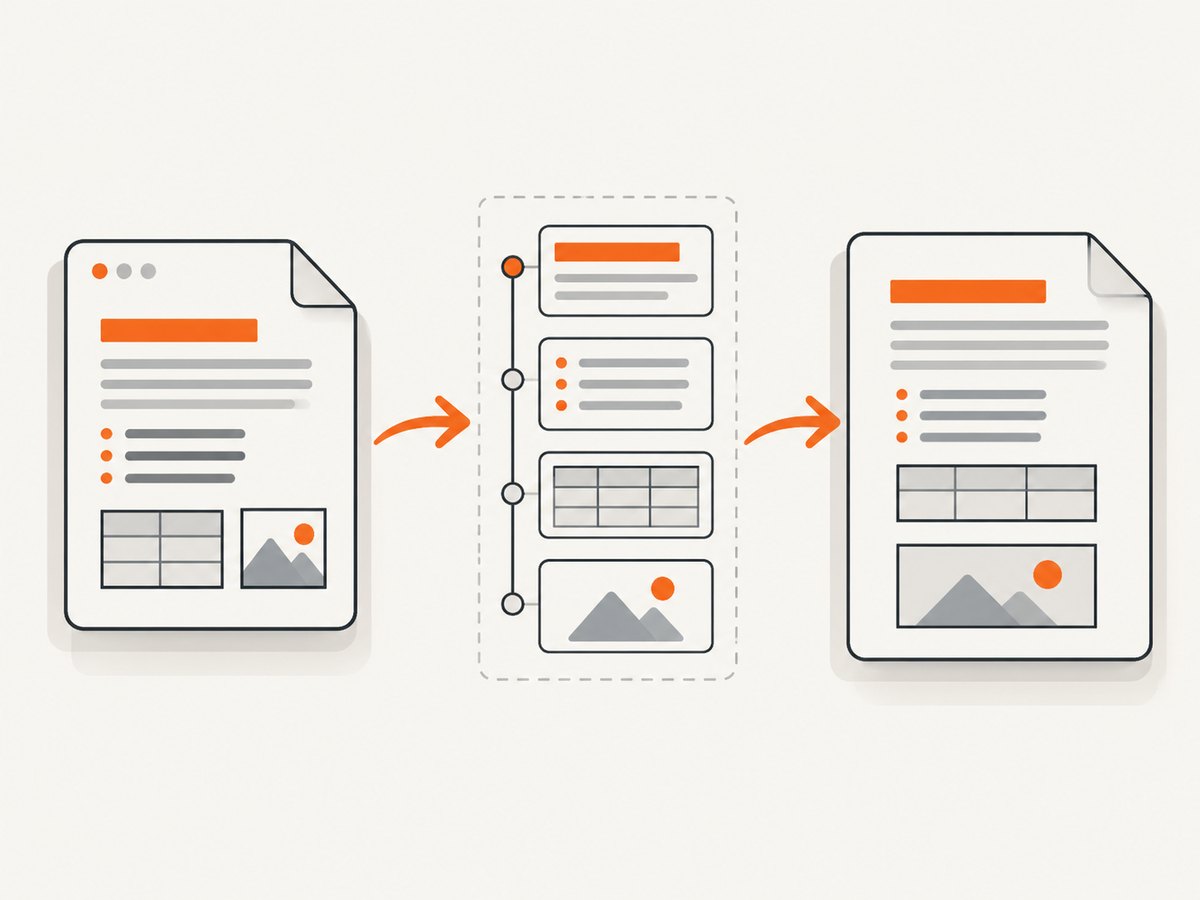
HTML describes document structure and often relies on CSS, linked assets and browser layout rules. DOCX is a structured word-processing format containing paragraphs, runs, styles, tables, sections, relationships and embedded media. A converter performs several translations:
- Parsing: The converter reads elements such as headings, paragraphs, lists, tables, links and images.
- Intermediate representation: It creates an internal document model. Pandoc calls this a general intermediate representation shared by its readers and writers.
- Mapping: Supported HTML structures become DOCX paragraphs, headings, list numbering, table cells, hyperlinks, images and style references.
- Packaging: The writer creates the ZIP-based DOCX package, including XML parts and media files.
- Layout: Microsoft Word, LibreOffice or another editor lays out the resulting document. Pagination can therefore differ from the browser.
This model explains why a conversion is not pixel-identical. Browser-only effects, unsupported CSS, JavaScript-generated content and layout distinctions that the target model cannot express may be dropped or approximated.
Choose a conversion route
| Route | Best for | Key control | Watch for |
|---|---|---|---|
| Pandoc CLI | Scripts, CI jobs and repeatable local conversion | Reference DOCX and resource paths | Unsupported HTML/CSS and missing assets |
| Hosted converter | Applications that should not install conversion software | Service-defined HTML/CSS inputs | Current terms, limits, privacy and pricing must be checked |
| JavaScript library | Node.js applications and server-side workflows | Library options and generated OOXML | Package maintenance and markup coverage |
Pandoc documents HTML as an input format and DOCX as an output format. TinyMCE Cloud Services documents a hosted DOCX Converter that accepts HTML and CSS. The html-to-docx package describes a JavaScript conversion library and lists compatibility claims for several editors. Those claims come from the respective project or vendor documentation; validate representative output yourself before making fidelity promises.
Convert an HTML file with Pandoc
1. Install and verify Pandoc
Install Pandoc using the package manager or installer for your operating system, then verify that the executable is available:
pandoc --versionKeep the converter version fixed in CI if reproducibility matters. Different versions can change parsing or writer behavior.
2. Create a minimal source file
<!doctype html>
<html lang="en">
<head>
  <meta charset="utf-8">
  <title>Project brief</title>
</head>
<body>
  <h1>Project brief</h1>
  <p>This paragraph becomes editable DOCX text.</p>
  <h2>Milestones</h2>
  <ul>
    <li>Define the scope</li>
    <li>Review the draft</li>
  </ul>
</body>
</html>
Save it as input.html, then run:
pandoc -f html -t docx input.html -o output.docxThe explicit -f and -t flags make the conversion direction clear. Pandoc can often infer formats from extensions, but explicit flags are easier to audit in scripts.
3. Apply a reference DOCX
For consistent typography and page geometry, create a reference document in Word with the desired styles, margins, page size, headers and footers. Pass it to Pandoc:
pandoc -f html -t docx input.html \
  --reference-doc=reference.docx \
  -o output.docx
The reference file supplies styles and document properties. Its body content is ignored, so use it as a template for formatting rather than as a place to insert text. Define heading styles, Normal text, list styles, table appearance, section margins and header/footer settings in that file.
4. Make linked resources discoverable
Images and other media referenced by relative paths must be available to the conversion process. A predictable project layout helps:
document/
  input.html
  images/
    logo.png
    chart.jpg
  reference.docx
Use paths that resolve from the HTML file or configure the converter’s resource path according to the Pandoc documentation. After conversion, open the DOCX and verify that every image is embedded, has the intended size and remains visible when the source directory is unavailable.
Python automation with Pandoc
This script invokes Pandoc, checks its exit status and writes the output path. It does not silently treat a failed conversion as success.
from pathlib import Path
import subprocess

source = Path("input.html")
output = Path("output.docx")
reference = Path("reference.docx")

command = [
    "pandoc",
    "-f", "html",
    "-t", "docx",
    str(source),
    "-o", str(output),
]
if reference.exists():
    command.extend(["--reference-doc", str(reference)])

result = subprocess.run(command, text=True, capture_output=True)
if result.returncode != 0:
    raise RuntimeError(f"Pandoc failed ({result.returncode}): {result.stderr}")

if not output.exists() or output.stat().st_size == 0:
    raise RuntimeError("Pandoc reported success but produced no DOCX file")

print(f"Wrote {output} ({output.stat().st_size} bytes)")
For untrusted HTML, isolate the conversion process and restrict filesystem access according to your deployment policy. Do not pass user-controlled shell text through a shell interpreter; provide arguments as an array as shown.
Node.js conversion with html-to-docx
The html-to-docx package is an in-process JavaScript option. Install it in your project and pin a version after checking the package’s current documentation and output in your target editor:
npm install html-to-docxconst fs = require('node:fs/promises');
const HTMLtoDOCX = require('html-to-docx');
async function main() {
const html = await fs.readFile('input.html', 'utf8');
const buffer = await HTMLtoDOCX(html, null, {
table: { row: { cantSplit: true } },
footer: true,
pageNumber: true,
});
await fs.writeFile('output.docx', buffer);
console.log('Wrote output.docx');
}
main().catch((error) => {
console.error(error);
process.exitCode = 1;
});Option names and supported HTML vary by package version. Treat compatibility statements in the package listing as publisher claims and test headings, nested lists, tables, links, images, page breaks and special characters in your own documents.
Handling CSS, structure and assets
Structure usually survives better than visual styling
Semantic headings, paragraphs, ordered and unordered lists, simple tables and ordinary links have clear document equivalents. Complex flexbox or grid layouts, positioned elements, gradients, animations, pseudo-elements and print-specific browser behavior may not. Prefer semantic HTML when DOCX output is a requirement.

CSS is converter-specific
Some routes consume selected CSS; others use HTML structure and their own defaults. Do not assume a browser stylesheet will carry over. Test:
- font family, size and color;
- heading hierarchy and spacing;
- list indentation and numbering;
- table borders, widths and repeated header rows;
- page breaks and section boundaries;
- links and image dimensions.
Images need a complete resource story
Relative local images are simplest. Remote images can fail because the converter cannot fetch them, needs authentication, or runs without network access. Download required assets first, use stable local paths, and check the generated DOCX package. SVG, animated images and unusual formats deserve special validation because support differs by converter and editor.
Edge cases to plan for
- JavaScript-rendered HTML: A static converter may see only the initial markup. Render the page first with a browser automation step if the content is created after load.
- External fonts: Missing fonts can change line wrapping and pagination. Use fonts available in the target environment or accept layout differences.
- Very large documents: Memory use rises with image count and document size. Process in batches or sections when your tool supports it.
- Tables wider than the page: Reduce columns, set widths deliberately or use landscape sections. A browser’s horizontal scrolling has no direct DOCX equivalent.
- Forms and interactive controls: Inputs, scripts and buttons generally become static text or disappear. Decide whether you need values, labels or a redesigned document form.
- Bi-directional and complex scripts: Validate shaping, direction and fallback fonts in the target word processor.
- Security-sensitive URLs: Avoid allowing arbitrary remote fetches from server-side conversion. Validate URLs and isolate network access.
Verification checklist
- Open the DOCX in the target editor, not only a file-type checker.
- Compare heading levels, list numbering and table structure with the source.
- Inspect every image, hyperlink and special character.
- Check page breaks, headers, footers, margins and orientation.
- Test a document containing the largest tables and longest paragraphs you expect.
- Unzip a copy of the DOCX when debugging missing media or malformed relationships.
- Keep representative fixtures in CI and compare structural output after converter upgrades.
Troubleshooting common failures
| Symptom | Likely cause | Fix |
|---|---|---|
pandoc: command not found |
Pandoc is not installed or absent from PATH. |
Install it and run pandoc --version from the same environment as the script. |
| DOCX is empty or missing sections | Malformed HTML, unsupported markup or JavaScript-generated content. | Validate the source, simplify to semantic HTML, or render dynamic content before conversion. |
| Images are absent | Relative paths resolve from the wrong directory or remote resources are inaccessible. | Use correct resource paths, stage assets locally and inspect converter logs. |
| Styles look like defaults | No reference DOCX was supplied or its style names do not match the mapped elements. | Pass --reference-doc and edit the reference styles used by headings, Normal text, lists and tables. |
| Page count changes | Different fonts, margins, line wrapping or editor layout engines. | Use available fonts, set page properties in the reference file and validate in the final editor. |
| Node process fails on a large file | Memory pressure or package limits. | Reduce image sizes, split work, raise the process memory limit where appropriate and measure on representative input. |
| Remote conversion request times out | Hosted service limits, slow asset fetching or oversized HTML. | Check current service documentation, inline or stage essential assets and implement bounded retries. |
Performance, reliability and cost
Conversion time is driven by HTML size, image decoding, table complexity and whether a browser-rendering step is required. Local Pandoc avoids network latency and recurring service charges, but you operate installation, upgrades and isolation. A hosted API can simplify operations, while its current quotas, pricing, retention and data handling must be verified from its documentation. A Node.js library avoids a separate executable, but application memory and package maintenance become your responsibility.
For reliable batch jobs:
- pin converter and package versions;
- set process timeouts;
- record stderr and exit codes;
- write to a temporary file and atomically rename on success;
- retry only transient hosted failures, with backoff and an attempt limit;
- hash or otherwise identify inputs so jobs can be safely repeated;
- validate output size and openability before publishing.
DOCX conversion is lossy when the source uses features outside the target model. If exact visual appearance is the requirement, produce a PDF or image through a browser-based renderer and keep DOCX for editable structure.
Or skip the browser setup
If you need a clean visual capture of an HTML page rather than an editable Word document, ScreenshotNeo provides a one-request website screenshot API. It is useful when the deliverable is a PNG, JPEG, WebP or PDF and you do not want to maintain browser automation. See the ScreenshotNeo API documentation for the current request options.
curl -G "https://api.screenshotneo.com/v1/shot" -d access_key=YOUR_API_KEY --data-urlencode url=https://stripe.com -o shot.webpimport requests
r = requests.get("https://api.screenshotneo.com/v1/shot", params={"access_key": "YOUR_API_KEY", "url": "https://stripe.com"}, timeout=90)
open("shot.webp", "wb").write(r.content)const q = new URLSearchParams({ access_key: 'YOUR_API_KEY', url: 'https://stripe.com' }); const res = await fetch(`https://api.screenshotneo.com/v1/shot?${q}`);Cookie banners, newsletter popups and chat widgets are removed before the shot. Bot checks, blank pages and failed loads are never billed, and response headers identify the page verdict and whether it was billed. An MCP server lets AI agents use take_screenshot, get_page_info and capture_pdf. The Free plan includes 1,000 screenshots a month with no card; paid plans start at $5 for 3,000 shots. Create a free ScreenshotNeo account.
FAQ
Does HTML-to-DOCX preserve the exact browser appearance?
No. It translates between document models. Unsupported CSS, browser layout behavior, fonts and dynamic content can change the result.
Should I use Pandoc or a JavaScript library?
Use Pandoc when a command-line tool and reference DOCX provide the control you need. Use a JavaScript library when in-process Node.js integration is more convenient. Compare representative output and maintenance requirements.
Can I convert a web page directly?
Only if the route can access and interpret the page. Dynamic pages may require browser rendering first, and remote assets may need authentication or local staging.
Why is my DOCX larger than the HTML?
The DOCX package embeds XML, styles and often decoded image data. Large or uncompressed images can dominate the file size.
How do I make recurring documents look consistent?
For Pandoc, maintain a reference DOCX with approved styles and page properties, pin the converter version and validate fixture documents after upgrades.


