HTML to Image GitHub
Learn what the bubkoo/html-to-image GitHub project does, how to install it, and how to export a DOM element as PNG, JPEG, SVG, or other image output.

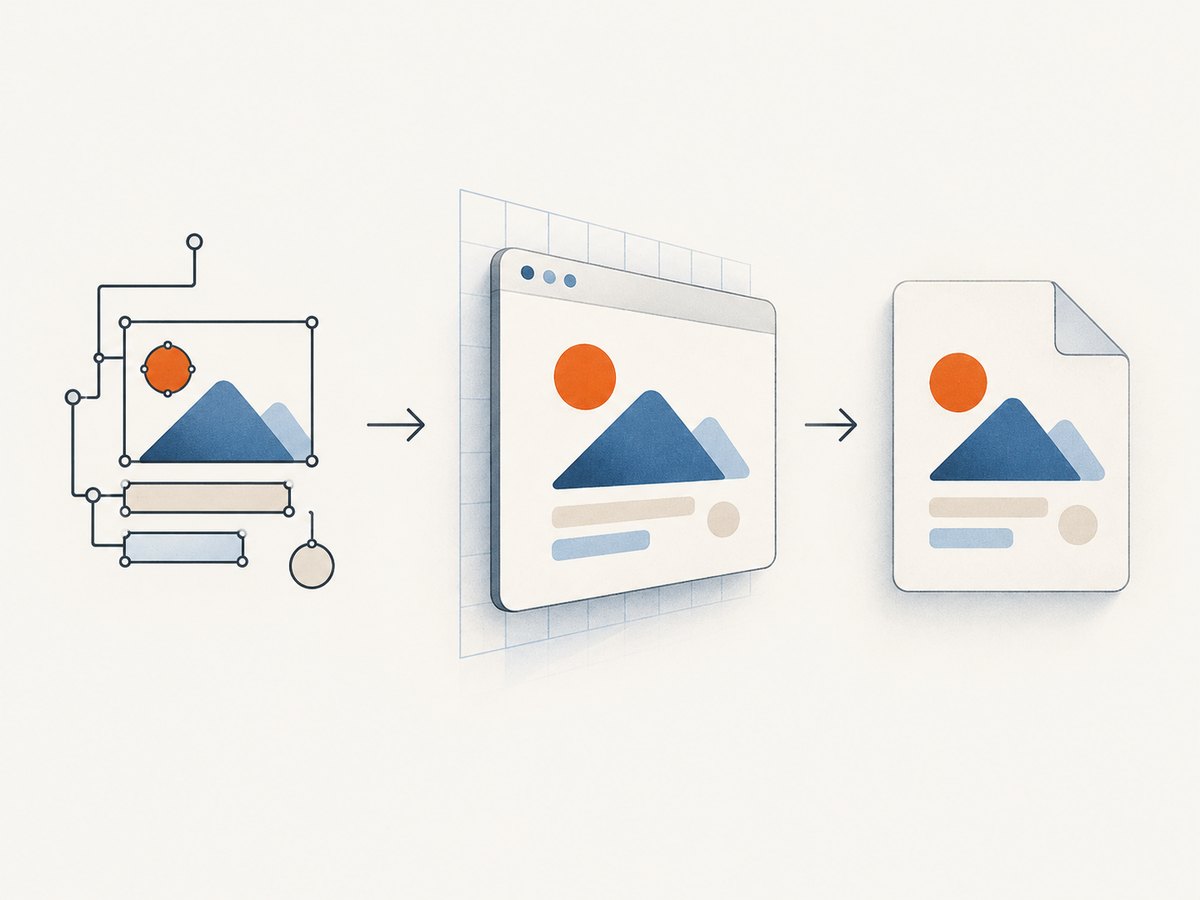
The GitHub project most likely meant by “HTML to Image” is bubkoo/html-to-image, a JavaScript library that converts a DOM node into image-oriented output using HTML5 canvas and SVG. Install it from npm, pass it a DOM element, and await the output: toPng gives you a PNG data URL, while the library also documents SVG, JPEG, Blob, Canvas, and pixel data functions. This is a client-side DOM library, not a hosted service that accepts an arbitrary URL and renders it on a server.
This guide explains the repository, installation, runnable browser examples, options, failure modes, and when a hosted screenshot API is a better fit.
1. What is html-to-image on GitHub?
The repository describes itself as a fork of dom-to-image with more maintainable code and additional features. Its stated purpose is to generate an image from a DOM node using HTML5 canvas and SVG. The input is a DOM node available to the JavaScript runtime; the library does not, by itself, fetch and render a public website URL on a remote browser.
That distinction determines whether it fits your task. If your page is already open in a browser and you need to export a chart, card, invoice, or selected component, a DOM library is a natural fit. If your server or automation needs a screenshot of a URL without first loading that page in a browser, a remote rendering API or browser automation setup is a different category of tool.
The project README documents these output functions:
| Function | Result | Typical use |
|---|---|---|
toPng(node, options) |
PNG data URL | Preview or download a lossless image in the browser |
toJpeg(node, options) |
JPEG data URL | Smaller photographic or flattened output |
toSvg(node, options) |
SVG data URL | Vector-like serialized representation of the rendered node |
toBlob(node, options) |
Blob | Upload, object URL, or browser download workflows |
toCanvas(node, options) |
Canvas element | Further canvas processing or custom export |
toPixelData(node, options) |
Pixel data | Programmatic pixel analysis or image processing |
Each documented method takes a DOM node and rendering options and returns a promise. Exact rendering results depend on the DOM, styles, assets, and browser environment; the project README is API documentation, not an independent cross-browser compatibility or performance study. The repository states that its scripts and documentation are released under the MIT License; review the license file in the repository for the terms that apply to your use.
2. Install the package
The README documents npm installation. Run this in your project:
npm install --save html-to-imageThen import the function needed by your app. The examples below use a browser module context, such as a JavaScript module bundled by your frontend build tool. They expect an element with the ID export-card in the document.
import { toPng } from 'html-to-image';

const node = document.getElementById('export-card');
if (!node) {
  throw new Error('Could not find #export-card');
}

toPng(node)
  .then((dataUrl) => {
    const image = new Image();
    image.src = dataUrl;
    document.body.appendChild(image);
  })
  .catch((error) => {
    console.error('Could not render the element:', error);
  });
For a minimal page, place an element in the document before running that module:
<div id="export-card" style="padding:24px;background:#f4f7fb;color:#172033">
  <h1>Quarterly report</h1>
  <p>Revenue grew 12% this quarter.</p>
</div>
The asynchronous call matters: image generation involves serializing and rendering the node, and the result is delivered after the promise resolves. Keep the node mounted and its required assets available until the conversion completes.
3. Export and download common formats
Download a PNG
A data URL can be placed on a temporary link to trigger a browser download:
import { toPng } from 'html-to-image';

async function downloadPng() {
  const node = document.getElementById('export-card');
  if (!node) throw new Error('Could not find #export-card');

  const dataUrl = await toPng(node);
  const link = document.createElement('a');
  link.download = 'report-card.png';
  link.href = dataUrl;
  link.click();
}

document.getElementById('download-png')?.addEventListener('click', () => {
  downloadPng().catch(console.error);
});
Download JPEG with a background
JPEG does not preserve transparency, so specify a background color when you need a predictable flattened result. The README lists background color as an option.
import { toJpeg } from 'html-to-image';

async function downloadJpeg(node) {
  const dataUrl = await toJpeg(node, {
    backgroundColor: '#ffffff',
    quality: 0.92,
  });
  const link = document.createElement('a');
  link.download = 'report-card.jpg';
  link.href = dataUrl;
  link.click();
}
Use a quality value appropriate for your output and inspect the result in the target workflow. The option is passed to the library’s JPEG generation path; it is not a guarantee of a particular file size.
Use a Blob for upload or object URLs
A Blob is convenient when the image will be uploaded with fetch or presented without keeping a long data URL string:
import { toBlob } from 'html-to-image';

async function uploadCard(node) {
  const blob = await toBlob(node);
  if (!blob) throw new Error('Image conversion returned no Blob');

  const form = new FormData();
  form.append('image', blob, 'report-card.png');

  const response = await fetch('/upload', {
    method: 'POST',
    body: form,
  });
  if (!response.ok) {
    throw new Error(`Upload failed: ${response.status}`);
  }
}
Your upload endpoint is application-specific. The example assumes your server accepts multipart form data at /upload; implement that endpoint and its authentication according to your application.
4. Rendering options and element filtering
The repository README lists a filter function, background color, output width and height, canvas width and height, and style overrides. Options let you adapt the capture dimensions and presentation without permanently changing the page’s CSS.
| Option | What it controls | When to use it |
|---|---|---|
filter |
Whether a node is included during rendering | Remove controls or elements that should not appear in the exported image |
backgroundColor |
Background color for the rendered result | Provide a stable background, especially for JPEG output |
width, height |
Rendered node dimensions | Set output layout dimensions for a fixed export |
canvasWidth, canvasHeight |
Canvas dimensions used for raster output | Control the raster surface independently of node dimensions |
style |
Temporary style overrides applied for rendering | Adjust export-only typography, spacing, or other CSS presentation |
Filter callbacks can exclude a node and its descendants. The README notes that the filter is not called on the root node, so use it to omit descendants rather than expecting it to reject the element you passed into the conversion function.
import { toPng } from 'html-to-image';

const node = document.getElementById('export-card');
if (!node) throw new Error('Could not find #export-card');

const dataUrl = await toPng(node, {
  backgroundColor: '#ffffff',
  width: 1200,
  height: 630,
  style: {
    transform: 'scale(1)',
  },
  filter: (child) => {
    // Exclude descendants marked as controls from the image.
    return !child.classList?.contains('export-control');
  },
});
Do not assume that changing canvas dimensions also rearranges the page as a responsive browser would. If you need a different layout, set the node dimensions or export styles to match that layout, and confirm the node actually has the dimensions you intended before rendering.
5. Handle timing, assets, and browser constraints
The output is based on the DOM node and resources available when conversion runs. For stable exports, trigger capture only after the content has reached its final state: data has loaded, animations are settled, and required fonts and images are ready. A simple app-level guard can prevent repeated clicks while an export is in progress.
import { toPng } from 'html-to-image';

let exporting = false;

async function exportWhenReady() {
  if (exporting) return;
  exporting = true;
  try {
    const node = document.getElementById('export-card');
    if (!node) throw new Error('Could not find #export-card');
    const dataUrl = await toPng(node);
    return dataUrl;
  } finally {
    exporting = false;
  }
}
Cross-origin resources, browser canvas security rules, complex CSS, and very large output surfaces are common sources of surprises in DOM-to-image workflows generally. The research dossier does not establish a complete browser support matrix or a library-specific compatibility guarantee. Test the exact combination of styles and assets that your app uses, especially if output correctness is important.
6. Troubleshooting common problems
| Symptom | Likely cause | Fix |
|---|---|---|
node is null |
The selector does not match, or export ran before the component mounted. | Check the selector and trigger export after rendering. Add an explicit null check before calling the library. |
| Promise rejects during conversion | A resource or style in the subtree could not be serialized or rendered. | Log the caught error, simplify the node to isolate the offending descendant, and verify asset URLs and CSS one at a time. |
| An image or font is missing | The resource was not loaded or cannot be read in the rendering context. | Wait for assets to load, verify the browser can access them, and try a same-origin asset where possible. Validate the result in the browsers your product supports. |
| PNG is blank or incomplete | Capture started before content was ready, or the wrong DOM node was selected. | Confirm the node contains the expected text and dimensions at call time; wait for data and image loading before conversion. |
| Controls appear in the image | The exported subtree includes buttons or other interactive elements. | Mark removable descendants and use the documented filter option, or apply export-specific styles. |
| Output has unexpected size | Node dimensions and canvas dimensions are being controlled separately. | Inspect both the element’s layout size and the output options; set the dimensions deliberately and compare the resulting image. |
| JPEG has an unexpected transparent or dark area | JPEG does not retain alpha transparency and may need an explicit background. | Pass a suitable backgroundColor and inspect the output against the intended use. |
| Very large export stalls or exhausts memory | Large raster surfaces require more memory and processing than small component exports. | Reduce capture dimensions, split long content into separate exports, or use an approach designed for full-page remote capture. |
7. Performance, reliability, and cost choices
A browser-side library avoids sending the DOM to a rendering service, but it also means the caller must have the target DOM in a browser context. That is useful for interactive client-side export and can avoid a separate screenshot request. It does not eliminate the work of serializing the subtree and rendering pixels, so keep export surfaces appropriately sized and avoid launching duplicate conversions for the same user action.
For repeatable exports, make the capture deterministic at the application level: freeze dynamic values, wait for content and assets, apply export-specific dimensions and styles, and handle rejected promises. If an export is business-critical, provide a retry path that starts only after diagnosing transient readiness issues; blindly retrying an invalid selector or inaccessible asset will reproduce the same failure.
The package itself is installed through npm. The research dossier provides no package pricing, hosted quota, benchmark, or independently measured performance claims. Your operational cost is therefore tied to the browser runtime and application work you choose, rather than a per-image fee documented for this library. Hosted services have separate terms and charges that should be checked with their providers.
8. When a hosted screenshot API makes more sense
Choose the library when the element already exists in the user’s browser and you need direct client-side export. Consider a hosted screenshot API when the input is a URL, a backend job, bulk captures, or an AI agent that needs a screenshot tool. Those are different workflows: a DOM-node package does not automatically provide URL loading, remote browser management, signed image links, asynchronous jobs, or a service usage API.

One adjacent service in the research is html2img.com, which documents hosted endpoints for raw HTML/CSS and public URLs, along with templates, API keys, and integrations. Those are features of that separate hosted service and must not be attributed to the GitHub package.
Or skip the browser setup
ScreenshotNeo is a website screenshot API and MCP server. A single GET request can return a PNG, JPEG, WebP, or PDF for a URL. Its cookie/consent banner handling and removal of more than 60 known consent platforms, newsletter popups, and chat widgets happen before capture, and each step can be turned off. Bot checks/CAPTCHAs, blank pages, timeouts, failed loads, and cache hits cost nothing; responses identify the page verdict and billing status in headers. An MCP server exposes take_screenshot, get_page_info, and capture_pdf to Claude, Cursor, and other MCP clients. The free plan includes 1,000 screenshots monthly with no card; paid plans start at $5 for 3,000. See the API documentation for the available options.
curl -G "https://api.screenshotneo.com/v1/shot" -d access_key=YOUR_API_KEY --data-urlencode url=https://stripe.com -o shot.webpStart with 1,000 free screenshots a month with no card.
9. FAQ
Is html-to-image a GitHub website screenshot service?
No. The identified repository is a JavaScript library that renders a DOM node available in the current browser context. A hosted URL screenshot API is a separate type of product.
Can it return something other than PNG?
Yes. The README documents PNG, SVG, JPEG, Blob, Canvas, and pixel-data functions. Choose the result type that matches whether you need a downloadable file, upload body, canvas surface, or pixel array.
Can I exclude a button from an export?
The documented filter option can exclude nodes and their descendants. Remember that the filter is not called on the root node passed to the conversion method.
Is it free for commercial use?
The repository says its scripts and documentation are released under the MIT License. Read the repository’s license text for the applicable conditions.
Does this library render HTML strings on a server?
The documented API accepts a DOM node. The repository description does not establish a server-side HTML-string rendering API; a server workflow needs a browser environment or a separate rendering service.
Sources
- bubkoo/html-to-image repository and README — project description, installation, output methods, options, examples, and license statement.
- html2img.com documentation — separate hosted service information.


