HTML to Image in Python
Convert HTML into PNG, JPEG, or WebP in Python with Playwright. Learn setup, capture options, troubleshooting, and when a hosted screenshot API fits better.

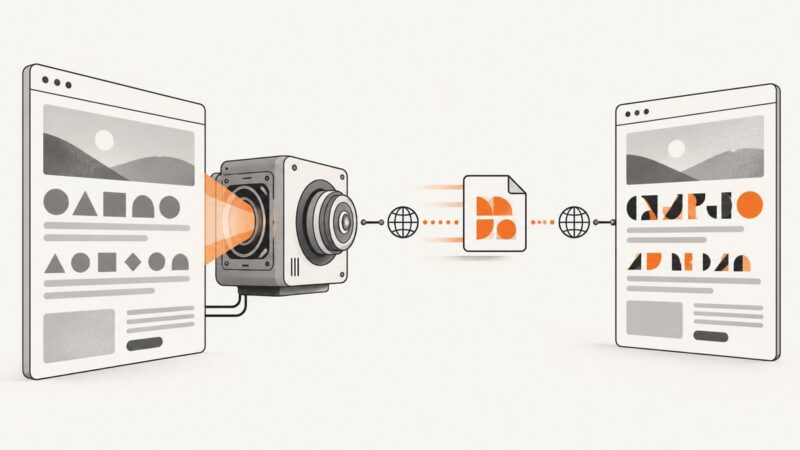
To convert HTML to an image in Python, render it in a real browser and save a screenshot. Playwright’s Python library can render an HTML string or navigate to a URL, then save a viewport screenshot with page.screenshot(path="output.png"). It also supports full-page captures, element screenshots, and image bytes you can pass to another Python function. This approach handles browser layout and CSS; it is not just a conversion of markup into pixels.
This guide uses Playwright for local rendering. It covers HTML strings, local applications, public pages, output options, async use, failures, and operational tradeoffs. If you need a hosted renderer instead of managing a browser process, see the ScreenshotNeo option after the local walkthrough.
1. Install Playwright and its browser
Playwright controls an installed browser engine. Install its Python package, then install the browser binaries it needs. Run these commands in your project’s virtual environment:
python -m venv .venv
# macOS or Linux:
source .venv/bin/activate
# Windows PowerShell:
# .venv\Scripts\Activate.ps1

python -m pip install playwright
python -m playwright install chromium
The example below uses Chromium. Playwright’s Python library also supports Firefox and WebKit; install the browser you plan to launch if you choose one of those engines. Browser installation is a separate step from installing the Python package. See the [Playwright library guide](https://playwright.dev/python/docs/library) for the current setup details and [screenshot guide](https://playwright.dev/python/docs/screenshots) for capture examples.
2. Render an HTML string and save an image
Use page.set_content() when your HTML is already in memory. This complete script writes a PNG to the current directory:

from pathlib import Path
from playwright.sync_api import sync_playwright
html = """
Rendered with Python
This HTML is displayed by Chromium and captured as a PNG.
"""
output = Path("output.png")
with sync_playwright() as p:
browser = p.chromium.launch()
page = browser.new_page(viewport={"width": 1200, "height": 800})
page.set_content(html, wait_until="load")
page.screenshot(path=str(output))
browser.close()
print(f"Wrote {output.resolve()}")page.screenshot() captures the visible viewport by default. A viewport of 1200 by 800 means the browser lays out the page at that CSS-pixel size before capture. For a reproducible result, specify the viewport instead of relying on a default. The screenshot guide documents page.set_content() and the screenshot call; the Page API documents output options such as format and scaling.
3. Capture a public URL or a local web application
For a URL, navigate the page instead of setting its content. This example uses networkidle as one possible readiness condition, but it is not a universal signal that every page is visually complete. Sites with polling, analytics, or long-running requests may never become idle; pages that load content later may appear incomplete even after a navigation event. Pick a condition that matches the page, then wait for a specific element if needed.
from playwright.sync_api import sync_playwright

url = "https://example.com"
with sync_playwright() as p:
    browser = p.chromium.launch()
    page = browser.new_page(viewport={"width": 1440, "height": 900})
    page.goto(url, wait_until="domcontentloaded", timeout=30_000)
    page.locator("h1").wait_for(state="visible", timeout=10_000)
    page.screenshot(path="page.png")
    browser.close()
Replace the selector with a stable element that indicates the part of the page you need. For a local application, navigate to its locally reachable address, such as a development server URL. The browser must be able to reach that address and any fonts, stylesheets, scripts, or images it references. If your HTML relies on external assets, make sure the rendering environment can access them.
Do not treat a fixed sleep as proof that a page is ready. A delay can be useful for known animation or delayed content, but waiting for a meaningful selector is usually clearer. For pages whose final appearance depends on animations, consider disabling or allowing them deliberately; the right choice depends on whether the captured state should be mid-animation or settled.
4. Choose the capture area and output format
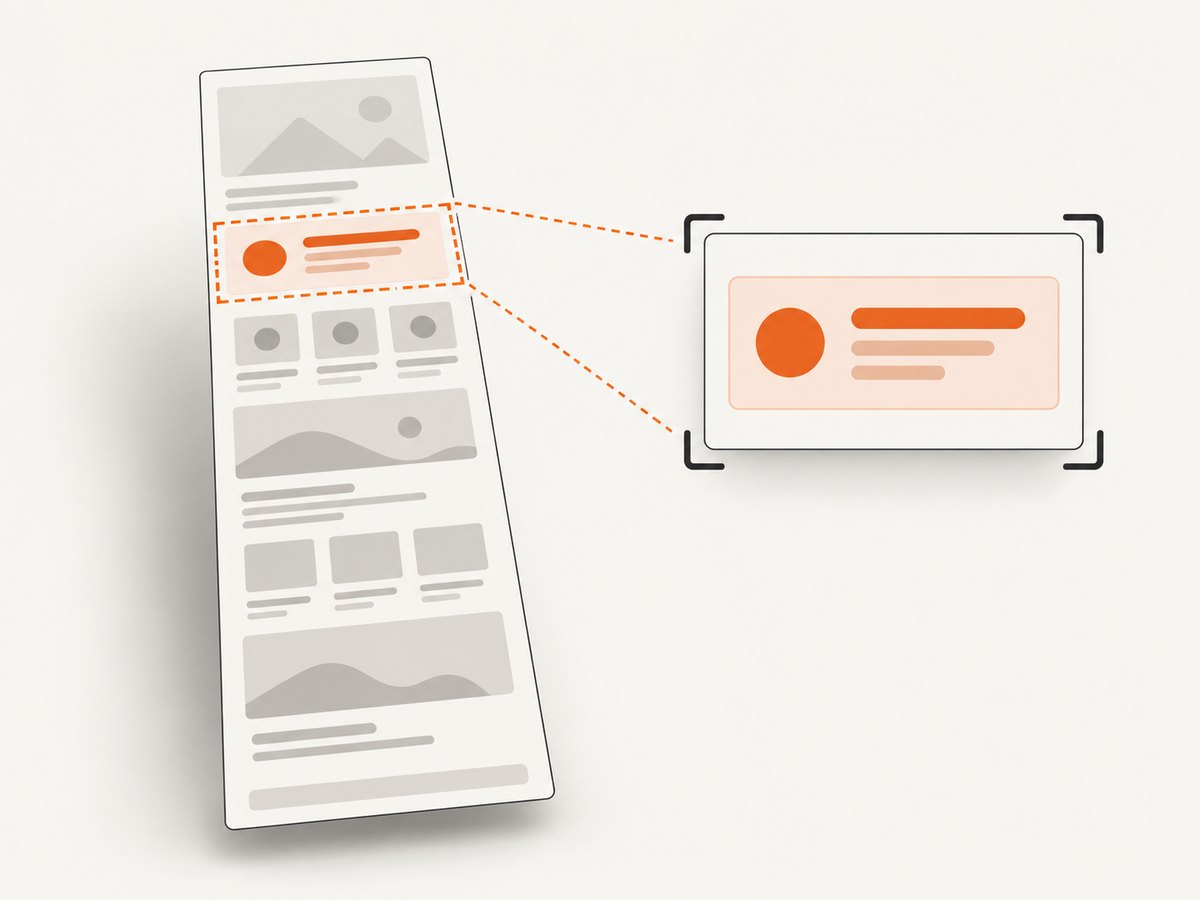
Playwright’s current Page API describes viewport screenshots, full-page captures, element screenshots, file output, and bytes returned to Python. It documents PNG, JPEG, and WebP. PNG is the default; JPEG’s documented default quality is 80, and WebP quality 100 is lossless while lower values are lossy. Confirm options against the API reference for the version installed in your environment, because API details can change.
Capture the full scrollable page
page.screenshot(path="full.png", full_page=True)full_page=True captures the page beyond the current viewport. Very long pages can produce large images and consume more memory, so use this only when a single tall image is useful. Lazy-loaded images may not have loaded just because the page was navigated to; if they matter, scroll through relevant content and wait for those images to load before capturing.
Capture one element
page.locator(".product-card").screenshot(path="card.png")The locator must match the intended element and be visible. If a selector can match more than one element, narrow it or select the intended match explicitly. Element screenshots are useful for a card, chart, or component without browser chrome or unrelated page content.
Return bytes for another processing step
image_bytes = page.screenshot(type="png")
# Pass image_bytes to an image-processing or storage function.
When you omit a path, the screenshot call returns image bytes. This avoids writing a temporary file when the next step accepts bytes, such as an upload or an image-processing function. Keep the browser open until capture finishes, then close it even when an error occurs.
Set format, quality, scale, or transparency
page.screenshot(
    path="preview.webp",
    type="webp",
    quality=85,
    scale="css",
    omit_background=False,
)
Use a filename extension that matches the selected format. Quality applies to JPEG and WebP, not PNG. The documented scale choices let you select CSS-pixel or device-pixel output; device-pixel scaling can produce a larger raster. Transparent backgrounds are useful for assets that need to sit on another background; use a format that supports transparency. The API also documents screenshot masks for covering selected page elements in a capture. Check the [Page API reference](https://playwright.dev/python/docs/api/class-page) for exact parameter names, defaults, and behavior for your installed version.
5. Use async Python when the surrounding code is async
Playwright has synchronous and asynchronous APIs. In an async application or script, use the async version consistently:
import asyncio
from playwright.async_api import async_playwright

async def main():
    async with async_playwright() as p:
        browser = await p.chromium.launch()
        page = await browser.new_page(viewport={"width": 1200, "height": 800})
        await page.set_content("<h1>Async capture</h1>")
        await page.screenshot(path="async.png")
        await browser.close()

asyncio.run(main())
Use the async API when you need to integrate browser work into an existing event loop. Avoid mixing synchronous Playwright calls into an async flow. A worker that captures multiple pages can manage browser and page lifetimes explicitly; reuse should be designed carefully so a failed page does not leak browser resources.
6. Make captures repeatable
Browser output can vary when the page content, viewport, device scale, fonts, assets, or timing vary. For repeatable captures:
- Set the viewport and output format explicitly.
- Use a stable URL or a fixed HTML fixture, and control the content that changes between runs.
- Wait for a meaningful selector or an application-specific ready signal before taking the screenshot.
- Ensure required fonts and images are available to the browser; missing resources can change layout.
- Decide how to handle animation, video, and dynamically changing timestamps.
- Use the same browser engine and browser version for comparisons where pixel-level consistency matters.
- Close pages and browsers after work, including error paths, to release resources.
A screenshot is a capture of one rendered state. It does not guarantee that a page has finished all background work or that every external resource loaded successfully. If you need to diagnose missing content, capture console messages and failed requests as part of your own browser automation.
7. Troubleshoot common failures
| Symptom | Likely cause | Fix |
|---|---|---|
| Browser executable is missing | The Python package is installed, but its browser binary is not. | Run python -m playwright install chromium in the environment used by the script. |
| Navigation times out | The site is slow, unreachable, blocked from the environment, or waiting for an unsuitable load condition. | Check reachability and the chosen wait_until condition. Wait for a page-specific selector when appropriate and set a timeout that suits the task. |
| Screenshot is blank or incomplete | The page was captured before content appeared, navigation failed, or required assets could not load. | Wait for a visible content selector, inspect page errors and failed requests, and confirm that assets are reachable. |
| Image or font is missing | An asset URL is unavailable, blocked, or unresolved relative to the document. | Use valid absolute URLs or serve the assets from a location the browser can reach. Check network and console errors. |
| Element locator times out | The selector is wrong, the element is not present, or it is hidden. | Verify the selector against the rendered DOM and wait for the correct state. Narrow ambiguous selectors. |
| Output format error | The chosen format, quality, or extension does not match supported options. | Use a documented format such as PNG, JPEG, or WebP, set quality only for JPEG or WebP, and consult the installed version’s Page API reference. |
| Very large output or memory use | A full-page capture spans a long page or device-pixel scaling increases raster dimensions. | Capture a viewport or element, reduce the captured area, or choose CSS-pixel scale where appropriate. |
| Script hangs after capture | A browser or page was left running, or a wait condition never resolves. | Use context managers and guaranteed cleanup patterns; choose a readiness condition that can complete and set explicit timeouts. |
For production code, put browser closure in a finally block if you manage the browser manually, so an exception during navigation or capture does not leave the process running.
8. Performance, reliability, and cost
With local Playwright, your process runs the browser and owns the browser lifecycle. That gives you control over the rendering workflow, while also making browser installation, resource usage, and cleanup part of your deployment. The cited documentation establishes the supported workflows and options, but it does not provide a measured speed or cost comparison against hosted services.
For batches, avoid launching a fresh browser for every single URL when the workload and isolation requirements permit reuse. Reuse a browser process while creating and closing pages or contexts for individual captures; isolate sessions when cookies, authentication, or page state must not cross between jobs. Bound concurrency to the memory and CPU capacity available to your worker. These are operational recommendations, not benchmark claims.
A local browser has no per-shot API charge from a rendering provider, but it still consumes compute and maintenance effort. A hosted service shifts browser operation to a provider and introduces API credentials, network dependency, and the provider’s current terms. Compare those costs and requirements for your deployment; no universal cheapest or most reliable option is established by the available documentation.
9. Hosted rendering option: html2img
The html2img documentation describes an API endpoint for supplied HTML and a screenshot endpoint for publicly reachable URLs, plus a Python client with sync and async APIs. It requires API-key authentication and documents dimensions, full-page capture, device pixel ratio, CSS injection, and waiting for a selector. This is a hosted rendering option when you prefer not to operate the browser process yourself. Review its current [getting started documentation](https://html2img.com/docs/getting-started/) for endpoint and client details.
The choice depends on input and deployment: Playwright renders in the browser launched by your Python process; the documented hosted option accepts supplied HTML or a public URL through an authenticated API. The source material does not establish comparative speed, fidelity, privacy, reliability, or total cost, so evaluate those against your page and operational constraints.
10. Or skip the browser setup
If you need a screenshot of a publicly reachable page without installing and managing a browser, [ScreenshotNeo](https://screenshotneo.com) accepts one GET request with a URL and returns PNG, JPEG, WebP, or PDF. See the [ScreenshotNeo API docs](https://screenshotneo.com/docs/) for request options and current parameter details.
curl -G "https://api.screenshotneo.com/v1/shot" \
  -d access_key=YOUR_API_KEY \
  --data-urlencode url=https://stripe.com \
  -o shot.webp
import requests
r = requests.get(
"https://api.screenshotneo.com/v1/shot",
params={"access_key": "YOUR_API_KEY", "url": "https://stripe.com"},
timeout=90,
)
open("shot.webp", "wb").write(r.content)const q = new URLSearchParams({
access_key: 'YOUR_API_KEY',
url: 'https://stripe.com'
});
const res = await fetch(`https://api.screenshotneo.com/v1/shot?${q}`);
if (!res.ok) throw new Error(`Screenshot request failed: ${res.status}`);
await Bun.write('shot.webp', res);ScreenshotNeo removes cookie banners, popups, and chat widgets before the shot. Bot checks, blank pages, and failed loads are never billed, and response headers report the page verdict and billing status. Its MCP server lets AI agents use screenshot, page-info, and PDF-capture tools. The free plan includes 1,000 screenshots per month with no card; paid plans start at $5 for 3,000 shots. Every feature is on every plan.
Sign up for ScreenshotNeo’s free plan to get 1,000 screenshots a month with no card.
11. Frequently asked questions
Can Python convert HTML without opening a browser?
For browser-accurate layout, CSS, and JavaScript rendering, the method here uses a browser engine. The researched documentation supports Playwright’s browser screenshot workflow; it does not establish a browser-free renderer that reproduces browser layout.
Can I turn a screenshot into a PDF instead?
This guide focuses on raster images. Playwright’s cited screenshot API documents image output. ScreenshotNeo’s API can return a PDF as well as an image; see its docs for available PDF settings.
How can I make a screenshot transparent?
The Playwright Page API documents an option to omit the page background. Use it when transparency is appropriate and verify the chosen output format supports it.
Why does the same HTML look different on another machine?
Rendering depends on the browser, fonts, viewport, device scale, assets, and page state. Pin and control those inputs when you need stable visual comparisons.
Can I capture a page element rather than the whole page?
Yes. Use a locator’s screenshot method for a matched element, and make sure it is visible before capture.