How to Make html-to-image Render Vuetify Icons
Missing Vuetify icons in an html-to-image export? Check whether they are font glyphs or SVG, then verify rendering, assets, fonts and capture timing.

If Vuetify icons are missing from an html-to-image export, first check whether each icon is actually rendered in the live page and whether it is a font glyph or inline SVG. Font icons need their CSS and font files to survive the capture pipeline; SVG icons need visible SVG markup and paths inside the captured node. Then wait for Vue to render and fonts to load, and inspect toSvg() before debugging the final PNG.
There is no universal one-line fix: the right configuration depends on your Vuetify major version, icon library, and capture timing. The examples below distinguish Vuetify 2 from version-neutral capture logic. Vuetify’s cited icon guide is specifically for Vuetify 2, which is end of life; use documentation matching your installed version before copying its configuration. Vuetify 2 icon font documentation.
1. Identify what the icon is and where it fails
Run the capture only after confirming the icon is visible in the browser. If it is absent before capture, fix Vuetify registration, the icon name, or asset loading first. A historical Vuetify issue, for example, reports a Font Awesome integration problem in a specific older Vuetify and Vue setup; it is evidence that integration failures can be independent of html-to-image, not evidence of a current general incompatibility.
Inspect the target element in developer tools:
- Font icon: the element usually has a library-specific class or glyph content. Check computed styles for the expected
font-family, and verify that the font file request loaded successfully. - SVG icon: the target subtree should contain an
<svg>and one or more visible paths. Check width, height, fill, and inherited color. - Neither appears: confirm that the correct Vuetify icon set is registered and that the icon name belongs to that set.
Vuetify 2 documents font presets as well as SVG approaches. Its MDI font example imports @mdi/font/css/materialdesignicons.css; its SVG approach uses @mdi/js path data and the mdiSvg icon font setting. These are alternatives: the chosen Vuetify configuration and installed assets must agree.
2. Configure Vuetify to use the icon assets you installed
The following is a Vuetify 2 example only. It shows the relationship between the MDI font stylesheet and the font preset. Follow the setup instructions for the exact Vuetify version in your project; the Vuetify 2 guide is not a Vuetify 3 configuration reference.
// main.js — Vuetify 2 example
import Vue from 'vue'
import Vuetify from 'vuetify/lib'
import '@mdi/font/css/materialdesignicons.css'
import 'vuetify/dist/vuetify.min.css'

Vue.use(Vuetify)

export default new Vuetify({
  icons: {
    iconfont: 'mdi',
  },
})
For Vuetify 2 SVG icons, the documented approach uses @mdi/js path data and iconfont: 'mdiSvg'. A custom SVG should use fill="currentColor" when it needs to inherit text color and scale with the surrounding icon styling. Confirm that the resulting SVG is actually inside the node you pass to html-to-image.
For either representation, check the browser Network panel for failed CSS or font requests, and inspect computed styles on the icon. A stylesheet import in application source is not proof the font loaded: a bad asset path, blocked request, or deployment base path can still leave the glyph missing.
3. Capture after Vue and web fonts are ready
html-to-image clones the DOM, embeds fonts and images, creates an SVG representation, and then renders that representation for raster output. Capturing too early can therefore preserve an incomplete render or miss a font dependency. Wait for Vue’s update cycle and the browser’s font-loading promise before calling the export function.
// npm install html-to-image
import { nextTick } from 'vue'
import { toPng } from 'html-to-image'

export async function saveCard(node) {
  if (!node) throw new Error('Capture target was not found')

  // Let Vue apply pending reactive changes to the DOM.
  await nextTick()

  // Resolve after document fonts have loaded (including icon fonts).
  if (document.fonts?.ready) {
    await document.fonts.ready
  }

  const dataUrl = await toPng(node, {
    cacheBust: true,
    pixelRatio: 2,
    backgroundColor: '#ffffff',
  })

  const link = document.createElement('a')
  link.download = 'vuetify-card.png'
  link.href = dataUrl
  link.click()
}
In a Vue component, pass a real element reference rather than a component instance:
<template>
  <div ref="card" class="capture-card">
    <v-icon>mdi-home</v-icon>
    <span>Home</span>
  </div>
  <button @click="exportCard">Save PNG</button>
</template>

<script setup>
import { ref, nextTick } from 'vue'
import { toPng } from 'html-to-image'

const card = ref(null)

async function exportCard() {
  await nextTick()
  if (document.fonts?.ready) await document.fonts.ready
  const dataUrl = await toPng(card.value, { pixelRatio: 2 })
  const link = document.createElement('a')
  link.download = 'card.png'
  link.href = dataUrl
  link.click()
}
</script>
The component markup is illustrative; adapt it to the Vue and Vuetify APIs installed in your project. The relevant capture contract is that card.value is the rendered DOM element containing the icon.
4. Inspect the intermediate SVG
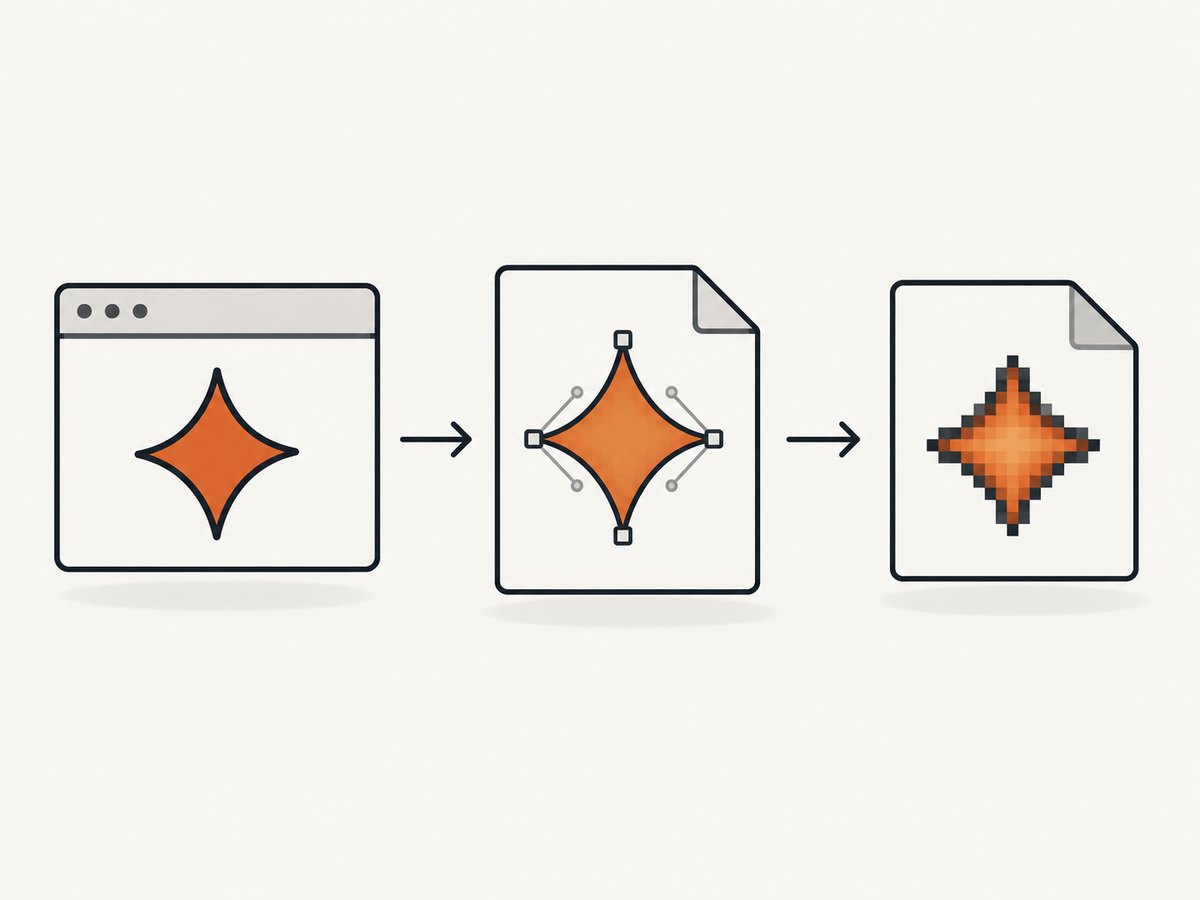
When the icon is visible live but absent in the PNG, inspect the intermediate output. The project’s source sequence has toCanvas() call toSvg(); checking SVG output separates clone, style, and asset embedding problems from later raster rendering problems.
import { toSvg, toPng } from 'html-to-image'

const node = document.querySelector('#capture-card')
if (!node) throw new Error('Missing #capture-card')

if (document.fonts?.ready) await document.fonts.ready

const svgDataUrl = await toSvg(node)
console.log(svgDataUrl)

const pngDataUrl = await toPng(node)
console.log(pngDataUrl)
Open or decode the SVG data URI and search for the icon markup, path, font references, and styles. If the icon is already absent in the SVG, focus on the cloned DOM, CSS, font embedding, or external assets. If it is present in the SVG but missing from the final raster, investigate the browser or canvas rendering stage. This is a diagnostic split based on the library’s capture sequence, not a claim that one stage is always at fault.
5. Choose output settings deliberately
Use the output method and options that match the destination. The options below are useful for this problem; check the installed html-to-image version’s documentation for the complete option set and exact types.
| Setting or method | When to use it | Icon-related note |
|---|---|---|
toPng(node, options) |
Download or display a PNG data URL. | Good first diagnostic raster format. |
toSvg(node, options) |
Inspect the cloned, styled SVG stage. | Use it to locate whether the icon disappears before rasterization. |
toCanvas(node, options) |
Need a canvas for further drawing or pixel access. | Follows the SVG-to-canvas path. |
toJpeg(node, options) |
Need JPEG output. | Set a background color if transparency is not suitable. |
toBlob(node, options) |
Prefer a Blob for download or upload flows. | Avoids keeping a large base64 string when a Blob fits the workflow. |
pixelRatio |
Control raster output scale. | Higher values can improve small icon edges but increase memory and output size. |
backgroundColor |
Set the raster background. | Useful for predictable exports; ensure it contrasts with the icon. |
cacheBust |
Try when stale remote asset caching is suspected. | It cannot repair a missing or inaccessible font. |
Do not treat larger pixelRatio as a fix for an icon that is absent in the SVG. Resolution affects raster quality, not whether the icon asset was found. Likewise, changing output from PNG to JPEG will not restore missing markup or font data.
6. Common failures and fixes
| Symptom | Likely cause | What to check or change |
|---|---|---|
| Icon is missing in the page and export. | Vuetify icon set, name, or asset registration is wrong. | Verify the installed major version, registered preset, icon name, and console errors. |
| Icon appears as a blank box or wrong character. | Font CSS loaded but the font file did not, or the selected font does not contain that glyph. | Inspect computed font-family, network requests, and the library’s expected glyph/class. |
| Icon works after a delay, but not on the first export. | Capture runs before Vue updates or before fonts finish loading. | Await nextTick() and document.fonts.ready before capture. |
Font icon is absent from toSvg(). |
Clone styles or font embedding do not include the needed font dependency. | Confirm the stylesheet and font URL are accessible; inspect the SVG and computed style. |
| External icon image is absent. | The referenced image or resource is unavailable to the capture pipeline. | Check that it loads in the page and whether access restrictions prevent embedding; prefer inline SVG for a self-contained capture target where feasible. |
| SVG appears but has no visible fill. | Path fill, inherited color, or dimensions are ineffective in the cloned output. | Inspect SVG styles and dimensions. For custom Vuetify 2 SVG guidance, use fill: currentColor when inheritance is intended. |
| SVG looks right but PNG does not. | Problem is later in rasterization or canvas handling. | Compare the SVG and raster output in the same browser context; reduce the target to a small reproducible element. |
| Export fails with a rejected promise. | A required resource or DOM operation failed during cloning or rendering. | Log the full error, check console/network failures, and retry with only the icon and minimal styles to isolate the dependency. |
A historical Vuetify issue should be read in context: it concerns a reported Font Awesome SVG integration on Vuetify 2.3.17, Vue 2.6.11, and Chrome 86 on Windows 10, and was marked expected/wontfix. It does not establish a current universal problem between Vuetify and html-to-image.
7. Make captures reliable and keep them efficient
- Capture a stable subtree. Keep unrelated page content out of the target so fewer styles, images, and fonts need processing.
- Wait for dependencies explicitly. Vue’s render completion and font readiness are separate concerns; await both when applicable.
- Keep icons self-contained where practical. Inline SVG path output avoids a font-glyph dependency for that icon, though its styles and dimensions still need to survive cloning.
- Use a moderate pixel ratio. Larger raster dimensions consume more memory and produce larger files. Increase resolution only when the output needs it.
- Handle asynchronous errors. Put capture calls in
try/catch, show a retry or error state, and preserve diagnostic details in development logs. - Test the actual deployed page. Asset paths, font hosting, and timing can differ between local development and deployment.
There is no benchmark or universal performance figure for this workflow in the cited materials. Runtime depends on the target’s size and complexity, asset loading, browser, and output scale. For cost, html-to-image runs in the browser; account for your own browser compute and any separate image storage or upload service you use. This library workflow does not itself imply a per-image ScreenshotNeo charge.
8. Or skip the browser setup
If your goal is a screenshot of a publicly reachable page, ScreenshotNeo can return a PNG, JPEG, WebP, or PDF from one API request. It captures a remote page; it does not render an unhosted local Vue component. For a deployed page, one call looks like this. See the ScreenshotNeo API documentation for request options.

curl -G "https://api.screenshotneo.com/v1/shot" -d access_key=YOUR_API_KEY --data-urlencode url=https://your-site.example/card -o shot.webpimport requests
r = requests.get(
"https://api.screenshotneo.com/v1/shot",
params={"access_key": "YOUR_API_KEY", "url": "https://your-site.example/card"},
timeout=90,
)
open("shot.webp", "wb").write(r.content)const q = new URLSearchParams({
access_key: 'YOUR_API_KEY',
url: 'https://your-site.example/card',
})
const res = await fetch(`https://api.screenshotneo.com/v1/shot?${q}`)
if (!res.ok) throw new Error(`Screenshot request failed: ${res.status}`)
const image = Buffer.from(await res.arrayBuffer())
await import('node:fs/promises').then(fs => fs.writeFile('shot.webp', image))Cookie banners, popups, and chat widgets are removed before the shot. Bot checks, blank pages, and failed loads are never billed. An MCP server lets AI agents use screenshot tools, and 1,000 screenshots a month are free with no card; paid plans start at $5 for 3,000. Sign up for 1,000 free screenshots a month, with no card.
Frequently asked questions
Does html-to-image support Vuetify icons directly?
The capture library serializes rendered DOM and its assets; it does not configure Vuetify’s icon system. Make sure the icon renders and its representation and dependencies are available in the target.
Should I use font icons or SVG icons?
Both can work when the corresponding assets survive capture. SVG paths are convenient to inspect in the target subtree; font icons require their styles and font data to be available.
Why does the icon show in the browser but not the PNG?
The browser view may have completed font loading while capture began earlier, or the clone and asset embedding stage may not preserve a dependency. Compare toSvg() output with the final raster.
Do Vuetify 2 examples apply to Vuetify 3?
No. The cited icon-font examples are for Vuetify 2, explicitly marked end of life. Check version-matched documentation and adapt the capture timing and DOM inspection steps to your project.


