HTML to JPG Browser Extensions: Full-Page Capture, Options, and Fixes
Capture a rendered webpage as a JPEG with a browser extension. Compare full-page tools, native Firefox options, format choices, privacy limits, and fixes.
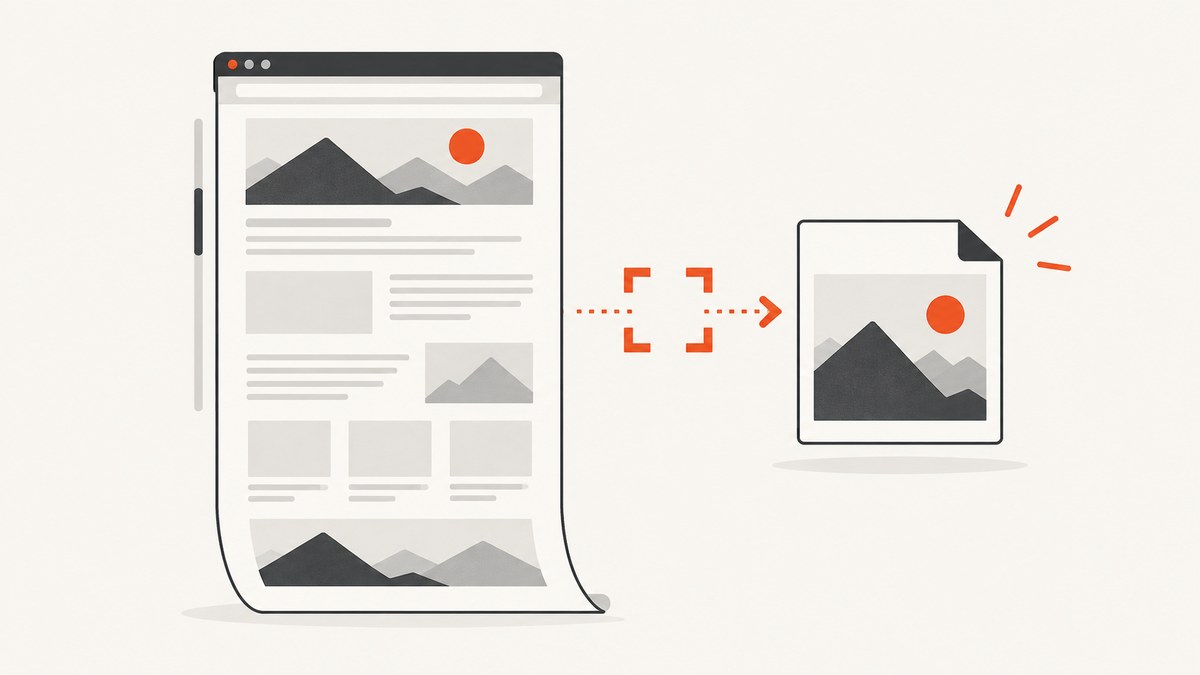
If you want a JPG of a webpage, capture the page as it appears in your browser and export the resulting image as JPEG. A browser extension does not convert raw HTML source into a semantic JPEG document: it renders the page, then saves a picture of that rendering. For a straightforward local workflow, start with Page to Image, which supports full-page, visible-area, and selected-area capture and exports PNG or JPEG. For complex long pages, consider GoFullPage; for editing and extra export formats, consider FireShot.
Choose the capture scope first: visible area for what is on screen now, selected area for a specific region, or full page for the complete document. Then choose JPEG for a smaller photo-oriented image, or PNG when sharp interface text and edges matter more than file size.
1. Choose an extension or built-in tool
| Tool | Best fit | Capture and export notes |
|---|---|---|
| Page to Image | Direct HTML-to-JPG workflow with local processing | Full page, visible area, selected area; PNG, JPEG, or PDF; adjustable JPEG quality, crop, annotation, and blur/redaction options. |
| GoFullPage | Long or structurally complex pages | Full-page capture, including support described for inner scrollable elements and embedded iframes; PNG, JPG, or PDF export. |
| FireShot | Editing or multiple file formats | Full-page and element capture; crop, resize, annotations, blur, and PNG, GIF, JPEG, or BMP export. Some features and integrations may depend on the current version or plan. |
| Firefox Screenshots | No extension installation in Firefox | Visible page, full page, or selected region; downloads PNG images. It does not provide the direct JPEG workflow described for the extensions above. |
For the query “save a webpage as JPEG,” Page to Image is the closest match in the supplied product information: it offers the needed capture scopes, JPEG output, adjustable quality, and local processing. GoFullPage is a reasonable alternative if the page is long or has nested scrolling areas. Recheck each extension’s current store listing, browser support, permissions, and plan details before installing; extension details can change.

2. Save a webpage as JPG with Page to Image
- Install Page to Image from its browser store listing, then open the webpage you want to capture. It runs in Chrome and other Chromium-based browsers such as Edge, Brave, and Arc, according to its support page.
- Open the extension and choose Full page, Visible area, or Selected area. Use visible area for the current viewport; full page for a page-length capture; selected area when you only need a portion.
- Capture the page. If needed, crop the result, annotate it, or blur/redact an area using the available editor options.
- Export as JPEG. Adjust JPEG quality if the extension offers the control in your workflow. Higher quality generally retains more image detail and can produce a larger file; lower quality can reduce size but make text edges or fine details look worse.
- Check the saved file in your Downloads folder and open it at its intended display size. Confirm that the bottom of a full-page capture is present and that any important text is legible.
The extension listing says captures are processed locally and saved to Downloads. That is a useful privacy distinction when the page contains material you should not upload to a third-party service. It cannot capture browser-internal pages such as browser settings, the extension store, or developer tools; those pages are restricted by browser security rules.
Full page, visible area, or selected region?
- Visible area: Captures only the part currently shown in the browser viewport. This is usually the most predictable choice for a hero section, a bug report, or a specific interaction state.
- Full page: Captures content beyond the current viewport. This suits documentation, articles, or a whole landing page. Long pages can be resource-intensive, and dynamic content may change while the extension scrolls or assembles the capture.
- Selected area: Captures a manually chosen rectangle. It can avoid unrelated content and reduce the resulting file dimensions, but check the selection edges before exporting.
Some pages put content inside an independently scrolling panel rather than the main document. A normal full-page capture may capture the panel’s visible portion only. GoFullPage’s listing specifically describes support for complex pages with inner scrollable elements and embedded iframes, making it worth trying for this case. Results still depend on page structure and current extension behavior.
3. When to use GoFullPage or FireShot
GoFullPage for long or complicated pages
GoFullPage focuses on capturing the current page in its entirety. Its store listing describes handling inner scrollable elements and embedded iframes, with image or PDF downloads; its official site lists PNG, JPG, and PDF export. Try it when a page has nested scroll regions or an embedded frame that a basic capture misses. Review the current listing and requested permissions before installing, since store metadata can change.
After capture, inspect the result for repeated sticky headers, missing sections, or sudden layout changes. A scrolling capture is assembled from a page that may be changing as it is traversed; animations, lazy-loaded images, and live feeds can therefore make a long capture inconsistent. If completeness matters, let the page settle first and recapture if a section is absent.
FireShot for edits and formats
FireShot’s listing describes full-page and element capture, cropping and resizing, text or arrow annotations, blur and other effects, clipboard copying, and saving as PNG, GIF, JPEG, or BMP. It also lists PDF options, multi-tab capture, and external-editor or sharing integrations. Choose it when you need to edit or annotate the image as part of the capture workflow. Check its current listing for which features require a paid version and whether an external integration suits your privacy requirements.
4. Use Firefox without an extension
Firefox’s built-in Screenshots tool can capture a selected region, a page element, the visible area, or the full page. Right-click an empty part of a page and choose Take Screenshot, or use Ctrl+Shift+S on Windows and Linux or Command+Shift+S on macOS. Choose the capture scope, then download the image. Mozilla documents a timestamped PNG filename and a download to Firefox’s default download folder. For a JPEG deliverable, this built-in flow needs a separate image conversion step; if direct JPEG export matters, use an extension that lists JPEG output.
Mozilla also documents full-page and element screenshot features in its developer tools. Those are useful for developer workflows, but the documented output is PNG. Use the browser’s native feature when avoiding an extension is more important than exporting JPEG directly.
5. Choose JPG or PNG for the result
JPEG is a lossy format: it can produce smaller files, especially for photographic or visually varied pages, but compression can soften small text, thin lines, and sharp edges. PNG preserves crisp UI elements and text well, though files may be larger. Use JPEG when the requested deliverable is JPG or file size matters for a photo-heavy page. Use PNG for diagrams, interface screenshots, code snippets, or images that will be edited again. When an extension exposes JPEG quality, compare the result at the size people will actually view it.
A screenshot is a raster image, not the original webpage. It will not preserve selectable text, links, page behavior, or semantic structure. If someone needs to search or copy text, or needs links to work, a screenshot alone is the wrong artifact; Firefox’s documented PDF option or a browser print workflow may fit better.
6. Privacy and page restrictions
Check where processing happens before capturing private pages. Page to Image says its captures are processed locally. By contrast, any workflow that uploads an image to a remote editor or sharing service sends page content beyond the browser. A screenshot can expose account names, email addresses, private dashboard data, or tokens visible on screen. Crop or blur sensitive details before sharing, and avoid uploading restricted pages unless your organization permits it.
Browser protections also prevent extensions from capturing certain internal surfaces. Chrome blocks screenshots of pages such as chrome://, chrome-extension://, the Chrome Web Store, and about: pages; similar restrictions apply to browser settings and developer tools. Capture an ordinary website tab instead. A normal extension cannot override these browser security boundaries.
7. Troubleshooting common capture problems
| Symptom | Likely cause | What to try |
|---|---|---|
| The extension will not capture the tab | The tab is a browser-internal page, store page, or developer tools surface. | Open the target site in a regular tab. Browser security restricts these special pages. |
| The image ends before the bottom of the page | Capture scope was visible area, the page is extremely long, or a nested scrolling region was not traversed. | Choose full-page capture; scroll nested panels manually or try a tool whose listing describes inner-scroll support. Check the saved image before sharing. |
| Some images or sections are blank | Content may load lazily, require scrolling, or arrive after the capture starts. | Wait for the page to finish loading, scroll through it once to trigger lazy content, then capture again. For changing pages, pause animations or live updates if the site provides a control. |
| Headers or banners repeat, or the layout looks stitched | Sticky elements or page layout changed during a scrolling capture. | Try a different full-page extension, capture a smaller section, or use a viewport capture and document sections separately. |
| JPEG text looks fuzzy | JPEG compression is affecting sharp edges, or quality is set too low. | Raise JPEG quality or export PNG when the recipient permits it. Avoid repeatedly saving an already compressed JPG. |
| The result is unexpectedly large | A full-page image has many pixels, or JPEG quality is high. | Capture only the needed area, crop the result, or lower quality slightly while checking legibility. Do not downsize text-heavy evidence until it remains readable. |
| A feature or export option is missing | Extension versions, browser support, or paid-feature availability differ. | Check the current store listing and the extension publisher’s support material; do not assume a tutorial describes the current release. |
8. Or skip the browser setup
If you need repeatable captures from code, an API can take the page URL and return an image. ScreenshotNeo is a website screenshot API and MCP server by Yorker Media. It can return PNG, JPEG, WebP, or PDF, and its API accepts parameters commonly used by other screenshot APIs. See the ScreenshotNeo API documentation.
curl -G "https://api.screenshotneo.com/v1/shot" \
  -d access_key=YOUR_API_KEY \
  --data-urlencode url=https://stripe.com \
  -o shot.webp
import requests
r = requests.get(
"https://api.screenshotneo.com/v1/shot",
params={"access_key": "YOUR_API_KEY", "url": "https://stripe.com"},
timeout=90,
)
r.raise_for_status()
open("shot.webp", "wb").write(r.content)const q = new URLSearchParams({
access_key: 'YOUR_API_KEY',
url: 'https://stripe.com'
});
const res = await fetch(`https://api.screenshotneo.com/v1/shot?${q}`);
if (!res.ok) throw new Error(`Screenshot request failed: ${res.status}`);
const bytes = new Uint8Array(await res.arrayBuffer());
await Bun.write('shot.webp', bytes);The examples save the returned bytes using the supplied filename; set the output format using the API options in the docs if you need a specific format. Keep API keys on a server or in a secret manager, not in public client-side code. A browser extension is convenient for a one-off manual capture; an API is useful when captures belong in a script, service, or automated workflow.
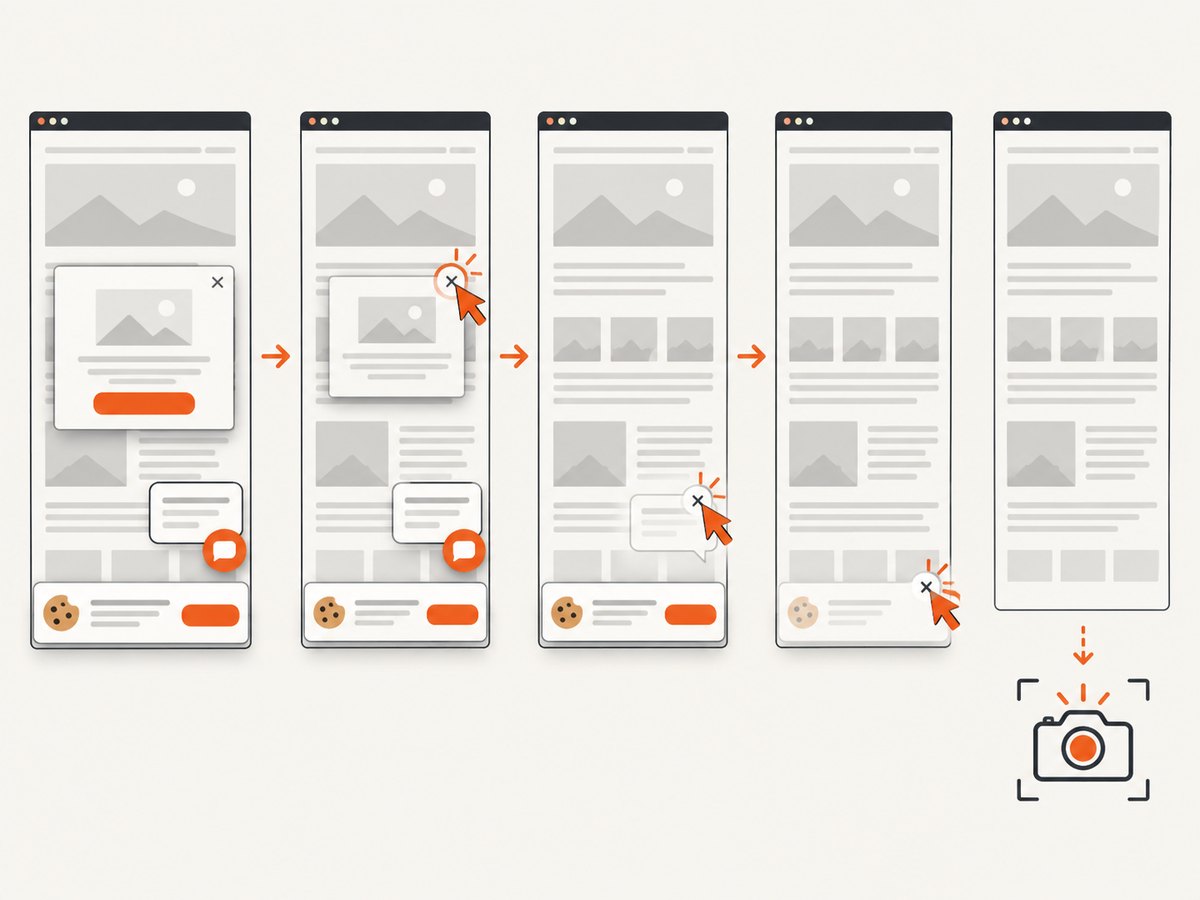
ScreenshotNeo removes cookie and consent banners, newsletter popups, and chat widgets before capture, and each step can be turned off. Bot checks, blank pages, timeouts, failed loads, and cache hits are not billed; response headers say the page verdict and billing status. It also has an MCP server for AI agents, with take_screenshot, get_page_info, and capture_pdf. The free plan includes 1,000 screenshots per month with no card; paid plans start at $5 for 3,000. See ScreenshotNeo for the product details and sign up free for 1,000 screenshots a month, with no card.
9. Performance, reliability, and cost
For an extension, the practical cost is the time spent capturing, checking, editing, and possibly repeating a shot. A full-page image can be much larger than a viewport image because it contains more pixels. Long pages can also take longer to capture and use more browser memory. Capture only the area you need when completeness is not required; use a local export when the page should remain on your machine. The dossier does not establish current pricing for the listed extensions, so check their current store pages for pricing and feature availability.
For repeated or automated work, compare the time saved with API usage and plan limits. ScreenshotNeo plans are Free at 1,000 shots per month, Starter $5 for 3,000, Growth $15 for 15,000, Pro $39 for 60,000, Scale $99 for 250,000, and Business $249 for 1,000,000; yearly billing gives two months free. Every feature is on every plan. Only clean shots are billed, so failed loads and cache hits do not use billable shots. Use response verdict and billing headers to distinguish a successful capture from a bot check, blank page, timeout, failed load, or cache hit.
10. Quick decision checklist
- Need a local JPG of an ordinary webpage? Use Page to Image and select full page, visible area, or selected area.
- Need a very long capture with nested scrolling or embedded frames? Try GoFullPage and inspect the output for gaps.
- Need annotations, blur, or several image formats? Check FireShot’s current feature listing.
- Using Firefox and avoiding add-ons? Use Firefox Screenshots, then convert its PNG if JPEG is mandatory.
- Capturing sensitive content? Prefer a local workflow and review the image for exposed details.
- Automating captures or calling them from an AI agent? Consider ScreenshotNeo’s API or MCP server.
FAQ
Does “HTML to JPG” mean the HTML source is inside the JPG?
No. The browser renders HTML and CSS into a visible page; the screenshot is a pixel image of that rendering. It does not preserve the original document structure or links.
Can I capture a page that requires signing in?
An extension can capture what is visible in its active browser tab, subject to browser restrictions and the page’s behavior. Check the resulting image for private information before sharing it.
Why does a JPEG look worse than what I see in the browser?
JPEG compression can soften text and edges, especially at low quality. Increase quality or use PNG when sharp interface details matter.
Can I use these captures as proof that a page looked a certain way?
A screenshot records pixels at one moment. It does not establish when the page changed or preserve the page’s underlying content. Keep the original URL and relevant context alongside it when documenting an issue.


