HTML to JPG Conversion Software: Options and Workflows
Convert HTML to JPG by rendering it in a browser, then capturing the viewport, full page, or a selected element. Compare local tools, PHP wrappers, and hosted APIs.
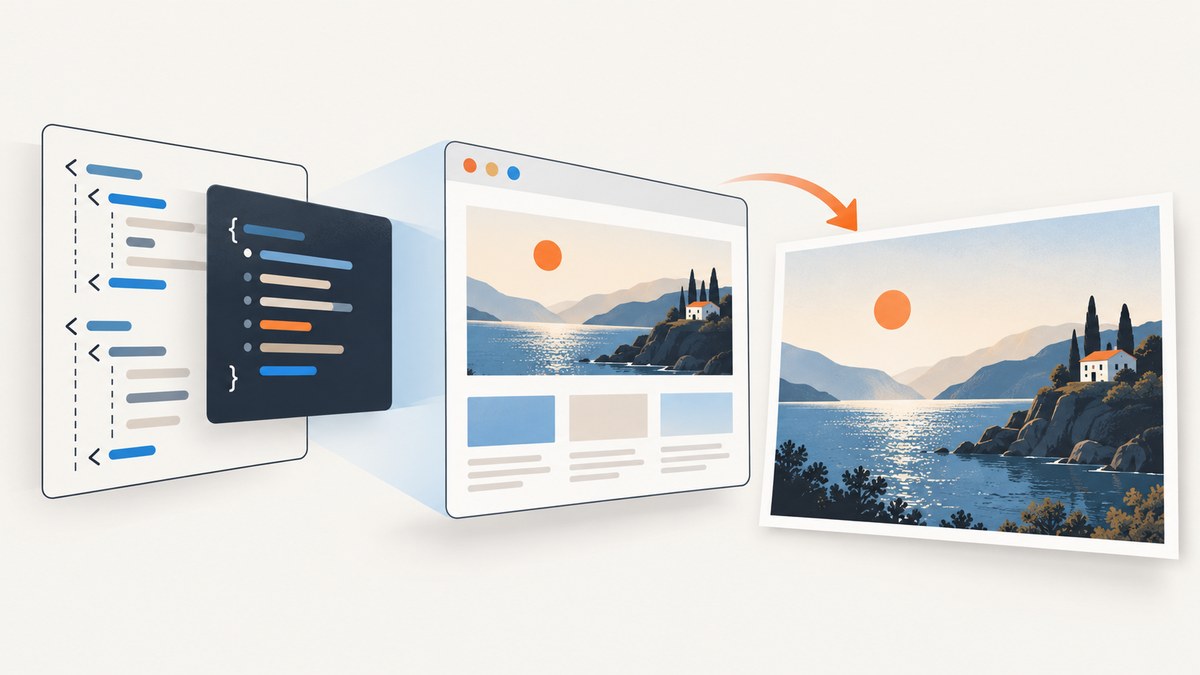
To convert HTML to JPG, render the HTML and its CSS in a browser engine, then capture the rendered pixels as a JPEG image. For a local workflow, Playwright or Puppeteer can automate a browser; PHP projects can use Spatie Browsershot; hosted rendering APIs can accept HTML, a public URL, or template data. Choose based on where the page can be accessed, how much control you need, and whether you want to operate the browser yourself.
The key choices are capture scope (viewport, whole page, or one element), dimensions and scale, when to capture, and where rendering happens. Playwright supports JPEG screenshots and lets you capture a viewport, element, or full page. For a public webpage, ScreenshotNeo is a hosted option: one GET request returns an image or PDF, and its API can return WebP, PNG, or JPEG. See the ScreenshotNeo API documentation for request options.
1. What HTML-to-JPG conversion actually does
HTML describes document structure; CSS controls its appearance. A browser evaluates both, loads resources such as fonts and images, computes layout, and paints the result. A screenshot tool captures that rendered output and encodes it as JPEG. The output is therefore a picture of a particular browser render, viewport, and moment in time—not a conversion of the HTML source text itself.
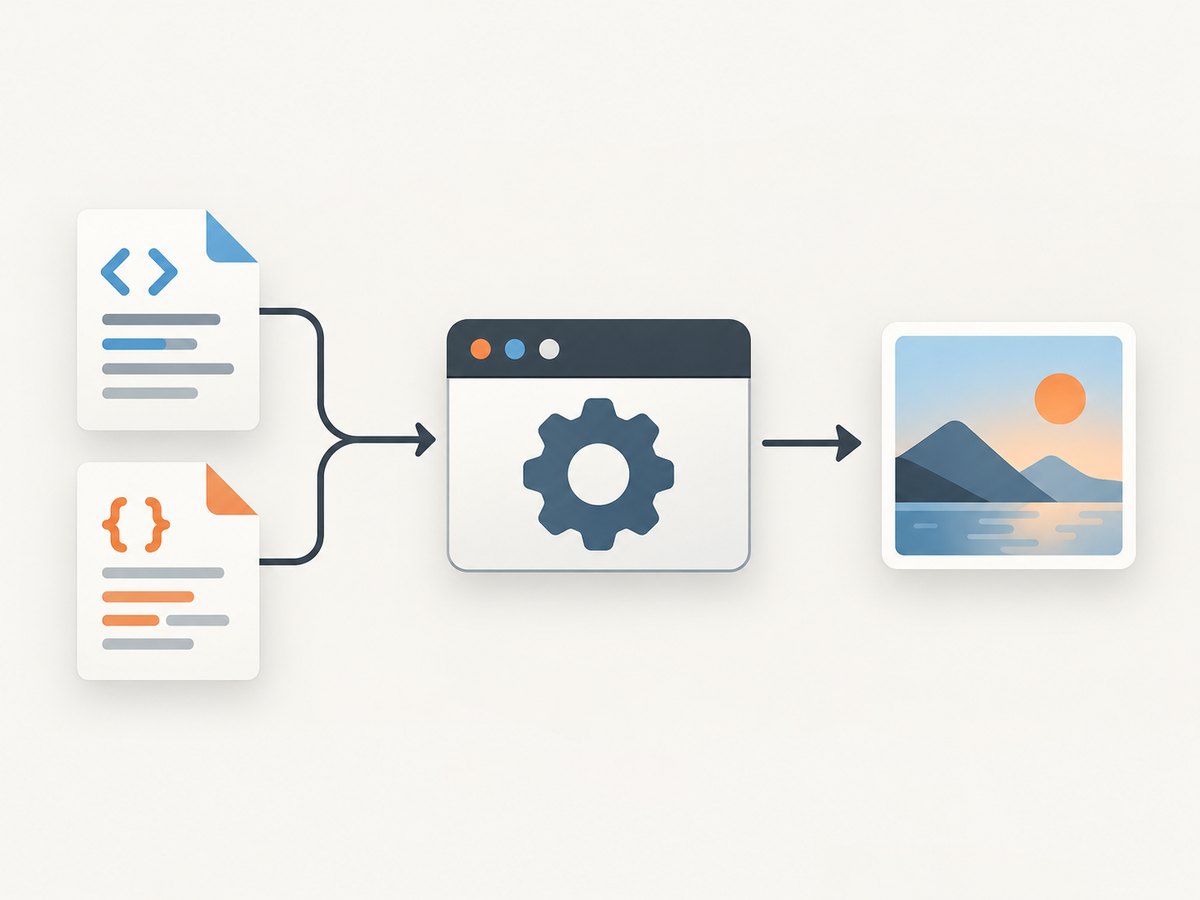
This explains common surprises: a page can be correct in source but have missing images in the JPG if those images had not loaded yet; a page can be wider than the chosen viewport and get clipped; and content below the fold is absent unless the capture includes the full page. JPEG is a lossy format, useful for photographic or web content where compact output matters. If the image needs transparency or sharp small text at high fidelity, check whether PNG or WebP better fits the use case.
2. Choose a conversion workflow
| Workflow | Good fit | What to account for |
|---|---|---|
| Playwright or Puppeteer | Node.js services, scripts, and controlled browser automation | You manage the browser runtime, navigation, waits, and output files. Playwright documents JPEG screenshots and configurable capture scope. Playwright screenshot guide |
| Spatie Browsershot | PHP applications that want a PHP-facing rendering interface | Browsershot uses Puppeteer with headless Chrome. Verify current package requirements and options in its project documentation. |
| Hosted rendering API | Applications that prefer to submit HTML, a public URL, or template data to remote rendering | Check supported inputs, output formats, limits, data terms, and current pricing directly with the provider. The researched docs describe HTML/CSS, URL, and template flows for html2img and HTML/CSS to Image. |
| ScreenshotNeo | Capturing public pages by URL, including clean screenshots without common overlays | One GET request can return JPEG, PNG, WebP, or PDF. Its features include full-page and element capture, waits, custom CSS, and caching. See ScreenshotNeo. |
Compare options using the same questions: Can the renderer access the input? Does it accept raw HTML, a URL, or template values? Can it capture the needed scope? Does it support JPG/JPEG and the required dimensions? What runtime dependencies, API credentials, usage limits, and data terms apply? The available vendor documentation establishes capabilities, not a measured speed or quality ranking, so test representative pages before committing to a workflow.
3. Convert HTML to JPG locally with Playwright
This example creates a local HTML document, opens it in Chromium, waits for fonts and images, then writes a JPEG. It uses Node.js and Playwright’s page screenshot API. Install Playwright and its browser once in the project directory:
npm install playwright
npx playwright install chromium
Save the following as html-to-jpg.mjs and run node html-to-jpg.mjs. It writes output.jpg in the current directory.
import { chromium } from 'playwright';

const html = `<!doctype html>
<html>
<head>
  <meta charset="utf-8">
  <style>
    body { font: 18px system-ui, sans-serif; margin: 0; padding: 40px; }
    main { max-width: 760px; margin: auto; }
    h1 { color: #174ea6; }
  </style>
</head>
<body>
  <main><h1>HTML to JPG</h1><p>Rendered by Chromium.</p></main>
</body>
</html>`;

const browser = await chromium.launch({ headless: true });
try {
  const page = await browser.newPage({
    viewport: { width: 1200, height: 800 },
    deviceScaleFactor: 1
  });
  await page.setContent(html, { waitUntil: 'load' });
  await page.evaluate(() => document.fonts.ready);
  await page.screenshot({
    path: 'output.jpg',
    type: 'jpeg',
    quality: 85,
    fullPage: true
  });
} finally {
  await browser.close();
}
For a URL instead of inline HTML, replace page.setContent(...) with await page.goto('https://example.com', { waitUntil: 'load' }). Only use URLs the machine running Chromium can reach. A local file can be opened with a file:// URL, although relative assets and browser security behavior should be checked for your project. Playwright’s API documents navigation followed by page.screenshot({ path: ... }); see Page screenshot options.
Capture a viewport, full page, or one element
In Playwright, omit fullPage or set it to false for the current viewport; set it to true to capture the full scrollable page. To capture a particular element, locate it and call screenshot on the locator:
await page.locator('.invoice').screenshot({
  path: 'invoice.jpg',
  type: 'jpeg',
  quality: 90
});
Element capture is useful for cards, receipts, charts, or previews when surrounding navigation is irrelevant. Make sure the locator matches exactly one intended element and that its contents have rendered before capture. The screenshot guide describes viewport, specific-element, and full-page captures: Playwright screenshots.
Useful Playwright options
| Option | Effect and decision |
|---|---|
type: 'jpeg' |
Selects JPEG output. The path extension alone should not be relied on to choose a format. |
quality |
JPEG quality from 0 to 100; higher values generally retain more detail and produce larger files. Choose by inspecting output at the intended display size. |
fullPage |
Captures the full page instead of only the viewport. Very tall pages can create large images and may expose lazy-loading behavior. |
viewport |
Sets CSS-pixel width and height before navigation or rendering. Responsive layouts may change at different widths. |
deviceScaleFactor |
Controls device pixel ratio for the browser context. Higher pixel density increases output dimensions and can increase memory and file size. |
clip |
Restricts capture to a rectangle when a precise region is required; use an element screenshot where possible to avoid stale coordinates. |
Playwright’s screenshot API supports JPEG and includes options for full-page capture, scale, and quality. Confirm the current option definitions in the official API reference, especially if you upgrade Playwright.
4. Convert a webpage with cURL, Python, or Node.js
When the page is already public, a hosted API avoids setting up and operating a local browser for each capture. ScreenshotNeo’s endpoint accepts a URL and returns an image. The examples below save the returned bytes as shot.jpg; use an API key from your account and see the API docs for output-format parameters and other options.
cURL
curl -G "https://api.screenshotneo.com/v1/shot" \
  -d access_key=YOUR_API_KEY \
  --data-urlencode url=https://stripe.com \
  -o shot.jpg
Python
import requests

r = requests.get(
    "https://api.screenshotneo.com/v1/shot",
    params={"access_key": "YOUR_API_KEY", "url": "https://stripe.com"},
    timeout=90,
)
r.raise_for_status()
with open("shot.jpg", "wb") as f:
    f.write(r.content)
Node.js
const q = new URLSearchParams({
  access_key: 'YOUR_API_KEY',
  url: 'https://stripe.com'
});
const res = await fetch(`https://api.screenshotneo.com/v1/shot?${q}`);
if (!res.ok) throw new Error(`Screenshot request failed: ${res.status}`);
const bytes = new Uint8Array(await res.arrayBuffer());
await import('node:fs/promises').then(fs => fs.writeFile('shot.jpg', bytes));
For production code, handle non-success HTTP responses and inspect the returned content type before treating the body as an image. Keep API keys in environment variables or a secrets manager, not in browser-side JavaScript or a public repository. A hosted URL capture is not equivalent to arbitrary local HTML conversion: the service must be able to access the input. For private markup, use a local browser workflow or a provider endpoint that explicitly supports HTML input, and check its data terms before sending confidential content.
5. PHP workflow with Browsershot
Spatie Browsershot offers a PHP-oriented interface to page and HTML rendering using Puppeteer and headless Chrome. It is a natural starting point when the application is already PHP-based and you want rendering within its server workflow. Because package requirements and supported options can change, follow the current Browsershot documentation for installation and setup. The project docs are the source of truth for the current JPG/JPEG method and dependency versions; do not copy old version requirements from an archived tutorial.
In a PHP application, the general workflow is: provide accessible HTML or a URL, configure the capture dimensions and wait behavior, request JPEG output, then write the bytes to storage. Before deploying, confirm that the server has the required Node/Puppeteer/Chrome runtime and that the service account can read any local assets the document references. For a high-volume service, isolate browser processes and bound concurrent renders so one unusually long or tall page cannot exhaust the host.
6. Hosted HTML and template rendering
Hosted rendering services are useful when your input is markup, public pages, or recurring templates populated by data. The researched documentation for html2img describes HTML/CSS, public-URL screenshot, and named-template endpoints, with options such as width, height, full-page capture, DPI, selector, wait, and webhook controls. It states that higher DPI uses more processing time and memory. HTML/CSS to Image likewise documents HTML/CSS, URL, and template workflows and lists JPG output. Check each provider’s current API reference for exact parameter names, output encoding, quotas, authentication, privacy terms, and pricing; those details are not established here.
For repeated documents such as product cards or reports, a named template can reduce duplicated markup in the calling application. For arbitrary pages, a URL endpoint avoids transmitting the whole document in each request. In either case, decide how fonts, images, and other external assets are loaded; remote rendering requires the renderer to retrieve them or receive them through a supported input method.
7. Or skip the browser setup
For a public URL, ScreenshotNeo turns one GET request into a screenshot, without installing or managing Chromium in your application. The examples above show cURL, Python, and Node.js; see the ScreenshotNeo docs for parameters and output configuration. Its features include full-page capture with lazy images loaded, CSS-selector element capture, viewport and device presets, custom CSS and JavaScript, wait conditions, and caching with a TTL you choose.

Cookie banners, newsletter popups, and chat widgets are removed before the shot; each step can be turned off. Bot checks and CAPTCHAs, blank pages, timeouts, failed loads, and cache hits cost nothing, and response headers report the page verdict and billing status. An MCP server gives AI agents tools for screenshots, page information, and PDF capture. The free plan includes 1,000 shots a month with no card; paid plans start at $5 for 3,000 shots. Sign up for 1,000 free screenshots a month, with no card required.
8. Make captures consistent and reliable
- Set dimensions before rendering. Choose a viewport that matches the intended use. A narrower viewport can trigger a mobile layout, changing wrapping and element positions.
- Wait for the content you need. A page-load event does not guarantee every asynchronous widget, font, or image is ready. Wait for a selector that marks the finished state, a specific delay, or network idle where suitable. Avoid relying on an arbitrary long delay when a meaningful page condition is available.
- Account for fonts and images. For local Playwright content, wait for
document.fonts.ready. Check remote asset URLs and network access if output has blanks or fallback typography. - Choose scope deliberately. Viewport capture bounds output size; full-page capture includes below-the-fold content; element capture avoids irrelevant page chrome. Check for sticky headers, animations, and content that expands during capture.
- Inspect output dimensions and bytes. Verify that the saved file is JPEG, not an error body or a different format. Check clipping, text legibility, and image weight at the destination’s display size.
- Make retries bounded. For transient navigation failures, use a limited retry policy with a timeout and log the failing URL and status. Avoid unbounded retries that amplify load or consume API quota.
9. Troubleshooting
| Symptom | Likely cause | Fix |
|---|---|---|
| Output is PNG despite a .jpg filename | The capture API did not receive an explicit JPEG format selection. | Set the format option, such as Playwright type: 'jpeg'; for hosted APIs, use the documented output-format parameter. |
| Text or images are missing | Capture happened before fonts, images, or client-rendered content finished loading. | Wait for font readiness, a content selector, or a suitable network condition; verify that asset requests succeed. |
| Page is cut off | Only the viewport was captured, or the chosen viewport is too small. | Enable full-page capture or capture the needed element, and set a viewport matching the target layout. |
| Layout differs from a manual browser screenshot | Different viewport, device scale, browser defaults, fonts, locale, or responsive breakpoint. | Set viewport and device scale explicitly; use consistent browser/runtime versions and provide required fonts. |
| Navigation times out | The page is slow, waiting for a network-idle condition that never occurs, or inaccessible from the renderer. | Check reachability, choose a more appropriate wait condition, and set a bounded timeout. For a hosted service, check its response verdict and status. |
| Browser launch fails in deployment | Chromium/Puppeteer dependencies are missing, incompatible, or unavailable to the process user. | Install the browser using the workflow’s documented setup; confirm executable access and required system packages. |
| Saved file cannot be opened as an image | The response may be an HTML error page or JSON error saved with an image extension. | Check HTTP status and content type before writing; log a safe, bounded portion of error details without exposing credentials. |
| Very large output or memory spikes | Full-page capture, high device scale, or high DPI creates a large pixel surface. | Reduce dimensions or scale, capture an element, or split a long document into sections. Hosted html2img documentation notes higher DPI uses more time and memory. |
10. Performance, reliability, and cost
There is no single best speed setting: rendering time depends on the page, assets, wait condition, browser environment, and image dimensions. Keep the captured area as small as practical, avoid unnecessary high pixel density, and wait on the condition that corresponds to finished content. Full-page and high-DPI images require more memory than a small viewport capture; inspect output needs before increasing scale.
For self-hosting, include the browser runtime in deployment planning, bound parallel jobs, close browser contexts reliably, and set navigation and job timeouts. Reuse a browser process where the automation framework and isolation model permit it, while keeping per-page state separate. For hosted services, account for API limits, plan quotas, and data handling; verify current terms rather than assuming a vendor’s behavior. html2img requires an API key according to its documentation. ScreenshotNeo offers caching with a chosen TTL and reports whether a response was billed; its listed plans are 1,000 free monthly shots, Starter $5 for 3,000, Growth $15 for 15,000, Pro $39 for 60,000, Scale $99 for 250,000, and Business $249 for 1,000,000, with two months free on yearly billing. Every feature is available on every plan.
For private documents, assess where HTML and referenced assets are sent and what the provider says about storage and retention before using hosted rendering. The researched vendor pages establish input capabilities but do not substantiate particular privacy or retention promises. Keep local rendering for content that must remain within your environment unless a hosted provider’s documented terms meet your requirements.
11. Frequently asked questions
How do I save a webpage as a JPG?
Use a browser screenshot workflow or a hosted URL-to-image API. Set JPEG explicitly, choose the viewport or full-page scope, wait for relevant content, and save the returned image bytes.
Can I convert HTML to JPG without opening a visible browser?
Yes. Playwright, Puppeteer, and Browsershot can use headless browser rendering. A hosted API can render remotely from a supported input such as a public URL or HTML.
Can a JPG have a transparent background?
No. JPEG does not support transparency. Choose an image format that supports an alpha channel if transparent output is required, and confirm the renderer supports that format.
Should I use JPG or PDF for a document?
Use JPG when you need a raster image for a preview, thumbnail, or image-based workflow. Use PDF when selectable text, pagination, or a document-oriented output is more appropriate. ScreenshotNeo supports both image output and PDF capture.
Does a screenshot preserve links and selectable text?
No. A JPG contains pixels rather than the original document structure. Keep the HTML or generate a PDF when users need text selection or working links.


