HTML-to-JPG Libraries for Developers
Choose between DOM reconstruction, browser automation, and a hosted API to turn HTML into JPG, with runnable examples and practical fixes.
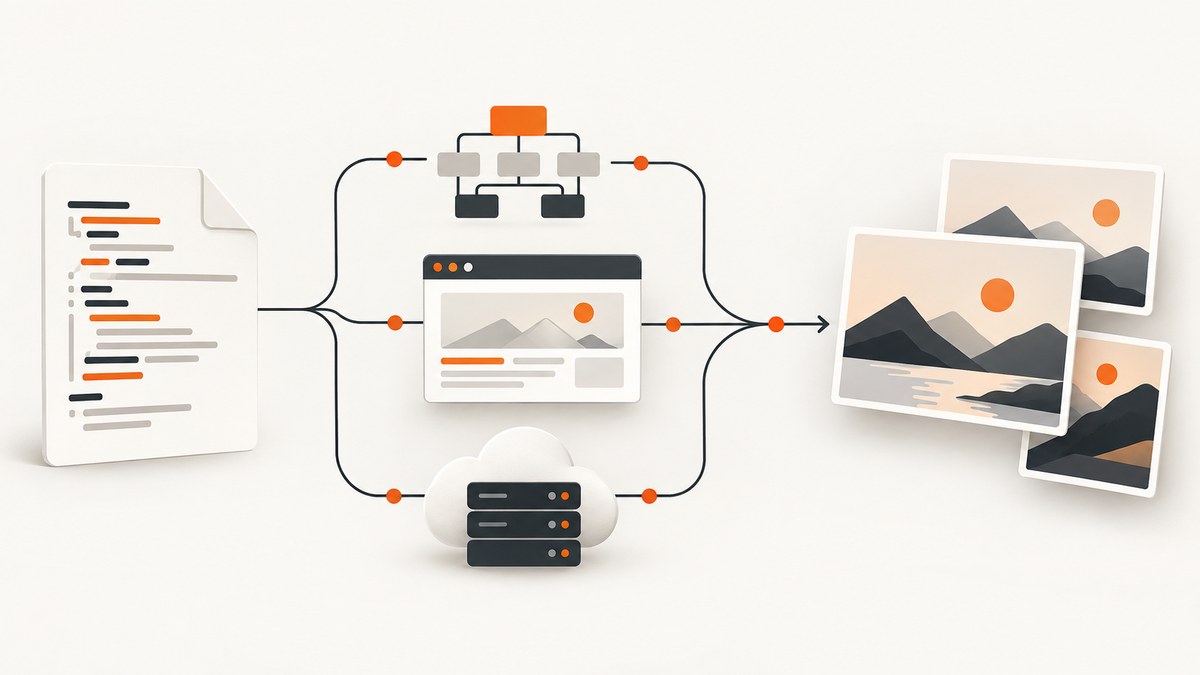
To turn HTML into JPG, choose the renderer that matches where the page lives and how closely the output must match what a browser displays:
- HTML already open in a browser: use
html2canvasfor a DOM-based reconstruction, when its CSS and origin limits fit the page. - Need a browser-rendered page or server-side capture: use Puppeteer or Playwright, then explicitly request JPEG output and set quality where supported.
- Do not want to install and operate a browser: use a hosted screenshot API, accepting an external service and its authentication requirements.
These approaches are not interchangeable. A DOM reconstruction draws from information available in the page; browser automation captures a rendered browser page; a hosted API delegates rendering to an external service. There is no universal winner established by the available documentation. Compare the result on your own page, including its CSS, images, iframes, capture dimensions, and JPEG needs.
1. Choose the right HTML-to-JPG approach
| Approach | Good fit | Check first |
|---|---|---|
| html2canvas | Client-side export from a page already open in the browser | Unsupported CSS, cross-origin images or iframes, and canvas origin restrictions |
| Puppeteer | Automated Chromium page capture, including on a server | Browser installation and maintenance, supported screenshot options in your installed version |
| Playwright | Page capture within a project already using Playwright | Screenshot options and scale behavior in the installed version and browser |
| Hosted API | Delegating URL or HTML rendering to a service | Authentication, network access, supported output formats, and service dependency |
Start by deciding where the source HTML is available. If it is the current application page, a browser-side library may be convenient. If you need a repeatable capture of a URL in a controlled environment, use browser automation or a hosted service. Then verify whether exact browser fidelity is required and whether the page depends on third-party images or frames.
2. Use html2canvas for a client-side reconstruction
html2canvas documentation describes the library as building an image from DOM information rather than taking an actual screenshot of the browser surface. Its output may differ from the real browser rendering because only CSS properties it understands can be represented. This makes it useful for some in-page export flows, but it should not be treated as a fidelity guarantee.
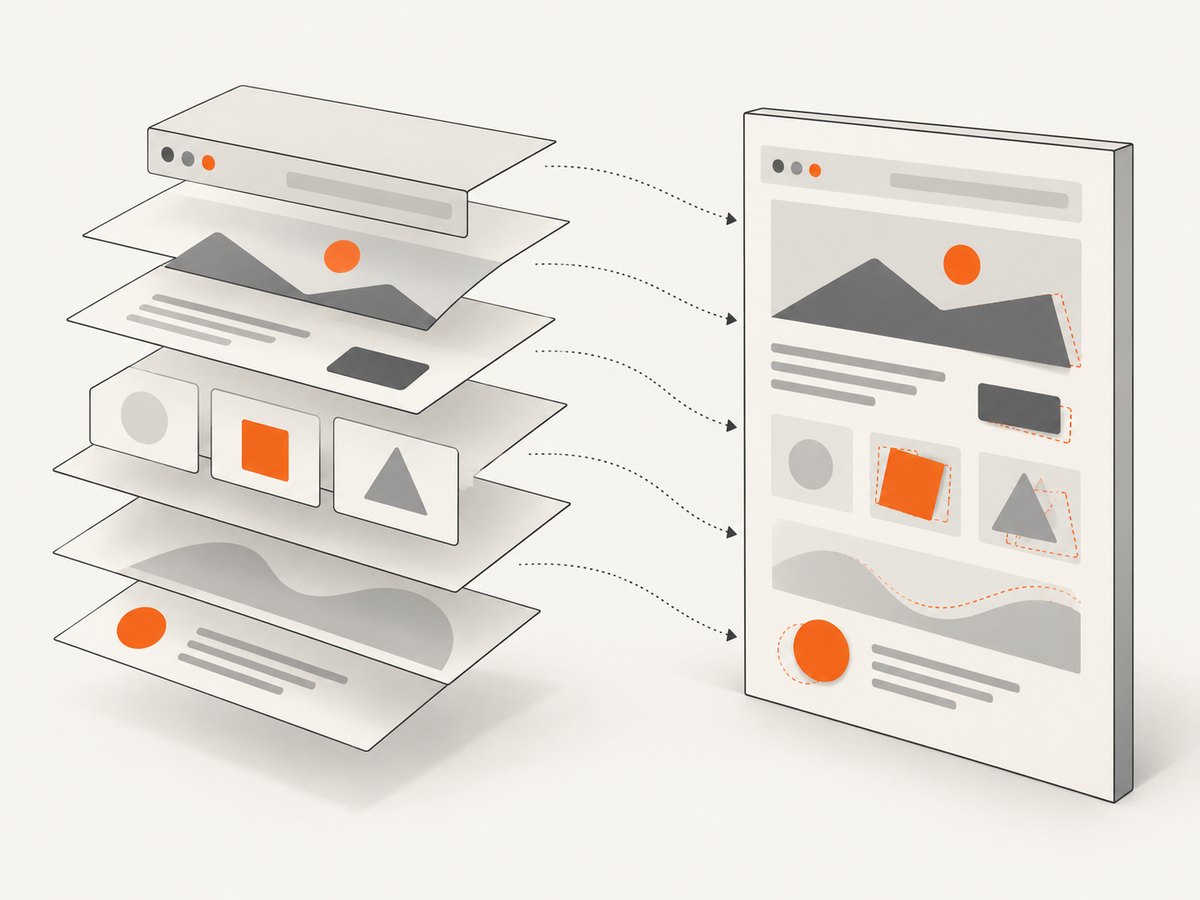
Install the package in a project that uses a bundler:
npm install html2canvasThen capture an element and convert the resulting canvas to JPEG. This example assumes the target element exists and the browser allows the canvas to be exported:
import html2canvas from 'html2canvas';

const element = document.querySelector('#receipt');
if (!element) throw new Error('Could not find #receipt');

const canvas = await html2canvas(element, {
  backgroundColor: '#ffffff',
  scale: window.devicePixelRatio || 1
});

const jpg = canvas.toDataURL('image/jpeg', 0.9);
const link = document.createElement('a');
link.href = jpg;
link.download = 'receipt.jpg';
link.click();
The second argument to toDataURL is the JPEG quality setting in the canvas API; it is a value from zero to one. The example specifies a white background because JPEG has no transparency. If the content needs a different background, set it explicitly. For a full-page reconstruction, pass the document element as the target, while recognizing that very tall canvases can consume substantial memory and may exceed browser canvas limits.
What to check with html2canvas
- CSS coverage: properties the library does not understand may render incorrectly or be absent. Compare the generated image with the browser page.
- Cross-origin images: images from another origin can be blocked from a readable canvas unless origin and proxy conditions permit them. The canvas may become tainted and fail when exported.
- Cross-origin iframes: html2canvas documents that it cannot render their content because browser security prevents access to the frame’s document.
- Resource timing: wait until fonts and images are loaded before capture; a successful function call does not prove every resource appeared.
- Browser support: documentation describes support for modern evergreen browsers, including Firefox, Chrome/Chromium-based browsers, and Safari. Verify the specific features your page needs.
Use this route when a reconstructed representation is acceptable and the content is available to the current page. If cross-origin content or exact browser rendering is essential, evaluate a browser screenshot instead.
3. Capture a rendered page with Puppeteer
Puppeteer controls a browser and exposes screenshot settings. Its documented options include output type, JPEG quality, full-page capture, clipping, background handling, and a file path. The exact accepted options can vary with the installed version, so check the ScreenshotOptions reference for the version in your project. When a path is supplied, Puppeteer documents inferring the output type from its extension; setting the type explicitly makes the intention clear.
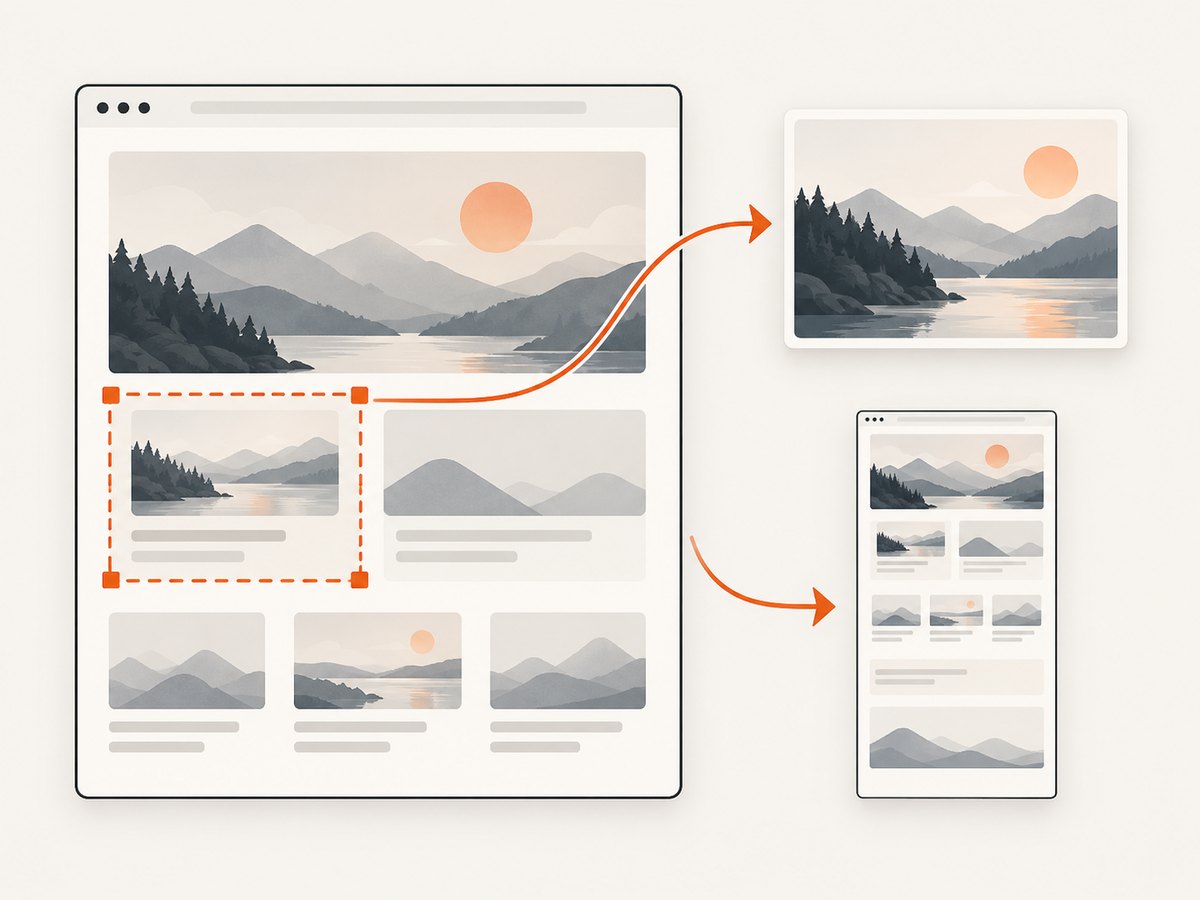
Install Puppeteer and save a URL as a JPEG:
npm install puppeteerimport puppeteer from 'puppeteer';
const browser = await puppeteer.launch({ headless: true });
try {
const page = await browser.newPage({
viewport: { width: 1440, height: 900 },
deviceScaleFactor: 1
});
await page.goto('https://example.com', { waitUntil: 'networkidle0' });
await page.screenshot({
path: 'page.jpg',
type: 'jpeg',
quality: 85,
fullPage: true
});
} finally {
await browser.close();
}For an element capture, locate a selector and use its element handle’s screenshot method:
const card = await page.$('.product-card');
if (!card) throw new Error('Could not find .product-card');
await card.screenshot({ path: 'product-card.jpg', type: 'jpeg', quality: 85 });
For a defined region, use a clip rectangle with the page screenshot method. Coordinates and dimensions are in CSS pixels; account for viewport size and device scale when interpreting the output.
await page.screenshot({
  path: 'region.jpg',
  type: 'jpeg',
  quality: 85,
  clip: { x: 120, y: 180, width: 640, height: 420 }
});
JPEG cannot preserve transparency. Puppeteer also documents omitBackground, but a transparent background is meaningful for formats that support alpha, not JPEG. For a consistent JPEG, set a page background before capture. Quality is not applicable to PNG, so select JPEG when using a JPEG quality value.
4. Capture with Playwright
Playwright’s page API provides screenshot functionality and documents file path, image type, and device scale behavior. Install and use the browser package selected by your project, and consult the Page API for the matching version. A basic Node.js capture looks like this:
import { chromium } from 'playwright';

const browser = await chromium.launch({ headless: true });
try {
  const page = await browser.newPage({ viewport: { width: 1440, height: 900 } });
  await page.goto('https://example.com', { waitUntil: 'networkidle' });
  await page.screenshot({
    path: 'page.jpg',
    type: 'jpeg',
    quality: 85,
    fullPage: true
  });
} finally {
  await browser.close();
}
To capture a single element, use a locator screenshot:
await page.locator('.product-card').screenshot({
  path: 'product-card.jpg',
  type: 'jpeg',
  quality: 85
});
Confirm that your installed Playwright version accepts the options you use and determine how its device scale setting affects pixel dimensions. Keep browser choice and viewport fixed when consistent output matters. Puppeteer and Playwright both require a browser automation environment; the dossier establishes no comparative speed, memory, or fidelity benchmark between them.
5. cURL, Python, and hosted API requests
A hosted renderer accepts a URL or HTML and performs the browser work outside your application. The research dossier documents html2img as one example: its getting-started page requires an X-API-Key header and describes viewport, full-page, device-pixel-ratio, selector, wait, delay, and webhook options. It documents PNG output and PDF as an alternative, but does not establish JPG support. Confirm format support before choosing any service for a JPEG workflow. An externally hosted render also means your input URL or HTML is processed by another service; include API credentials securely and review the service’s own data handling terms.
For ScreenshotNeo, the API accepts a URL and can return PNG, JPEG, WebP, or PDF. The examples below use the product’s documented API call pattern; replace the target URL as needed. See the ScreenshotNeo API documentation for parameters and configuration.
cURL
curl -G "https://api.screenshotneo.com/v1/shot" \
  -d access_key=YOUR_API_KEY \
  --data-urlencode url=https://example.com \
  -d format=jpeg \
  -o shot.jpg
Python
import requests

r = requests.get(
    "https://api.screenshotneo.com/v1/shot",
    params={
        "access_key": "YOUR_API_KEY",
        "url": "https://example.com",
        "format": "jpeg",
    },
    timeout=90,
)
r.raise_for_status()
open("shot.jpg", "wb").write(r.content)
Node.js
const q = new URLSearchParams({
  access_key: 'YOUR_API_KEY',
  url: 'https://example.com',
  format: 'jpeg'
});
const res = await fetch(`https://api.screenshotneo.com/v1/shot?${q}`);
if (!res.ok) throw new Error(`Screenshot request failed: ${res.status}`);
await import('node:fs/promises').then(fs => fs.writeFile('shot.jpg', Buffer.from(await res.arrayBuffer())));
Keep API keys on a server or in a secret store; do not embed a private key in public browser code. A direct URL screenshot also depends on the rendering service being able to access the requested page. If your input is private or requires a login, check the service’s supported authentication and request options before building around it.
6. Tune capture options and output
Before settling on a library, make a small option checklist. Names and support differ by implementation and version; do not assume an option from one API exists in another.
| Need | Options to look for | Gotcha |
|---|---|---|
| Entire document | Full-page capture or document-sized canvas | Long pages create large images and may hit browser limits |
| One component | Element selector or element handle | Confirm the selector resolves after the page has rendered |
| Fixed rectangle | Clip rectangle | Coordinates are relative to a page or viewport; verify the API’s convention |
| Smaller file | JPEG quality setting | Quality is lossy and may blur small text; compare actual output |
| Consistent dimensions | Viewport and device scale factor | CSS-pixel dimensions and output-pixel dimensions may differ |
| Opaque background | Set page or canvas background | JPEG does not preserve transparency |
| Dynamic content | Selector wait, delay, or suitable load condition | Network idle can be delayed indefinitely by long-lived requests |
For high-value output, capture one representative page and inspect the pixels. Check text sharpness, clipped edges, missing images, background color, and whether the generated file really is JPEG. The extension alone is not a format conversion; request a supported JPEG type from the rendering API.
7. Troubleshoot common failures
| Symptom | Likely cause | Fix |
|---|---|---|
| Image is blank or incomplete | Capture began before content or assets rendered | Wait for a page-specific selector or the needed images and fonts. Use a bounded delay only when there is no reliable readiness signal. |
| html2canvas throws a security error on export | A cross-origin image or canvas tainted the output | Use same-origin assets or a correctly configured proxy, and verify origin permissions. A DOM library cannot bypass browser security. |
| An iframe is missing | Its document is cross-origin | Capture through an actual browser screenshot when permitted, or render the content through an accessible source. html2canvas cannot read a cross-origin frame’s content document. |
| Some CSS looks wrong | The reconstruction does not support a property or differs from browser rendering | Check documented support and test the real page. Prefer browser automation when the browser’s rendering is the requirement. |
| Output is PNG despite a .jpg name | The screenshot type was not selected or the library inferred a different type | Set the documented JPEG type or supported filename extension; inspect the output format. |
| JPEG has a black or unexpected background | Transparency was flattened or the page background was not set | Set an explicit background before capture; JPEG cannot retain alpha transparency. |
| Capture hangs waiting for idle | The page keeps connections open or continues requests | Wait for a concrete selector or use a bounded timeout and a page-specific readiness check. |
| Selector capture fails | Selector is absent, late, or ambiguous | Wait for the selector, validate it, and handle the missing-element case explicitly. |
| Image dimensions are unexpected | Viewport, clipping, or device scale differs from expectations | Set the viewport and scale explicitly, then compare CSS dimensions with raster pixel dimensions. |
| Hosted request fails | Missing/invalid credentials, inaccessible URL, or unsupported parameters | Check the service’s authentication format, public URL requirement, and version-specific option documentation. |
8. Performance, reliability, and cost
There is no source-backed universal speed or memory ranking among these tools. Measure the pages and deployment you care about. Browser automation requires provisioning and maintaining its browser runtime; its operational work includes launching, reusing, and closing browser processes safely. DOM reconstruction runs in the user’s browser but can produce a large in-memory canvas. A hosted API transfers browser operations to a service, while adding network, authentication, and service availability dependencies.
Reduce avoidable work by capturing only the needed element, using a viewport instead of full-page output when that meets the requirement, and choosing an appropriate raster scale and JPEG quality. Full-page output and high device scale increase pixel count and can increase memory, output size, or capture time. Caching identical inputs may avoid repeated work when the page is stable, but dynamic pages need an explicit freshness policy. For production workflows, define timeouts, retry only transient failures, log the target and capture options without leaking credentials, and inspect the output before downstream use.
For cost, compare the real workload: captures per month, retries, required output, and time spent operating browser infrastructure. The research sources do not establish comparative pricing for the libraries or services above, so check current provider pricing directly before committing.
9. Or skip the browser setup
ScreenshotNeo is a website screenshot API and MCP server for developers, made by Yorker Media. One GET request takes a URL and returns an image or PDF; its output formats include JPEG. The code examples above show cURL, Python, and Node.js calls. Its options include full-page and selector captures, dark mode, device presets and custom viewport, retina scale, custom CSS and JavaScript, wait conditions, headers and cookies, request blocking, caching, async jobs, bulk capture, and more. See ScreenshotNeo and its documentation for the complete API details.
- Cookie banners are accepted like a visitor and removed before capture; 60+ known consent platforms, newsletter popups, and chat widgets can be cleaned, and each step can be turned off.
- Bot checks, blank pages, timeouts, failed loads, and cache hits cost nothing; responses identify page verdict and billing status in headers.
- An MCP server gives AI agents, including Claude and Cursor, tools to take screenshots, get page information, and capture PDFs.
- The free plan includes 1,000 screenshots per month with no card. Paid plans start at $5 for 3,000; every feature is available on every plan.
Try the free plan: sign up for 1,000 screenshots a month with no card.
10. Frequently asked questions
Is JPG different from JPEG?
They refer to the same image format in common usage. Use the output type your library documents and choose a matching filename extension.
Can I convert HTML to JPG without opening a browser?
A hosted renderer can accept HTML or a public URL and render it externally. A browser automation library still operates a browser, even when it runs headlessly on a server.
Which approach should I use for a single element?
Use an element capture API in Puppeteer or Playwright for browser-rendered output, or html2canvas when a DOM reconstruction is acceptable. Verify the selected element is loaded and visible before capture.
Can I capture a private page?
Client-side code can act within the current authenticated page. For automation or a hosted API, determine how credentials and cookies are supplied and secured; a URL alone does not grant access to a private page.
Does JPEG support a transparent background?
No. Choose a solid background for JPEG, or use a format with alpha when transparency is required.


