HTML-to-PDF Converter APIs: A Developer’s Guide
Learn how HTML-to-PDF APIs handle URLs, HTML, assets, rendering and PDF output, then compare providers with documents that reflect your workload.

HTML-to-PDF converter APIs let an application submit a page URL, HTML content, or a file and receive PDF bytes or a provider-managed download or job status. To choose one, test the rendering engine and PDF features against your actual documents, confirm how it loads assets and handles long-running jobs, and compare the API contract and operating model. A feature list alone cannot tell you whether your invoices, reports, or forms will paginate correctly.
This guide explains the common request flows, input and asset constraints, rendering choices, and operational tradeoffs. It includes runnable examples based on the documented interfaces for PDFCrowd and DocRaptor. Provider details can change; check the current reference before implementation. The examples show API mechanics, not a recommendation that either service will render a particular document correctly.
1. What an HTML-to-PDF API does
A converter runs a rendering engine for you. Your application sends a URL, an HTML document, or an uploaded file; the service fetches or reads the content, lays it out as pages, and returns a PDF or a way to retrieve the result. Supported inputs, authentication, payload formats, and response modes vary by provider.
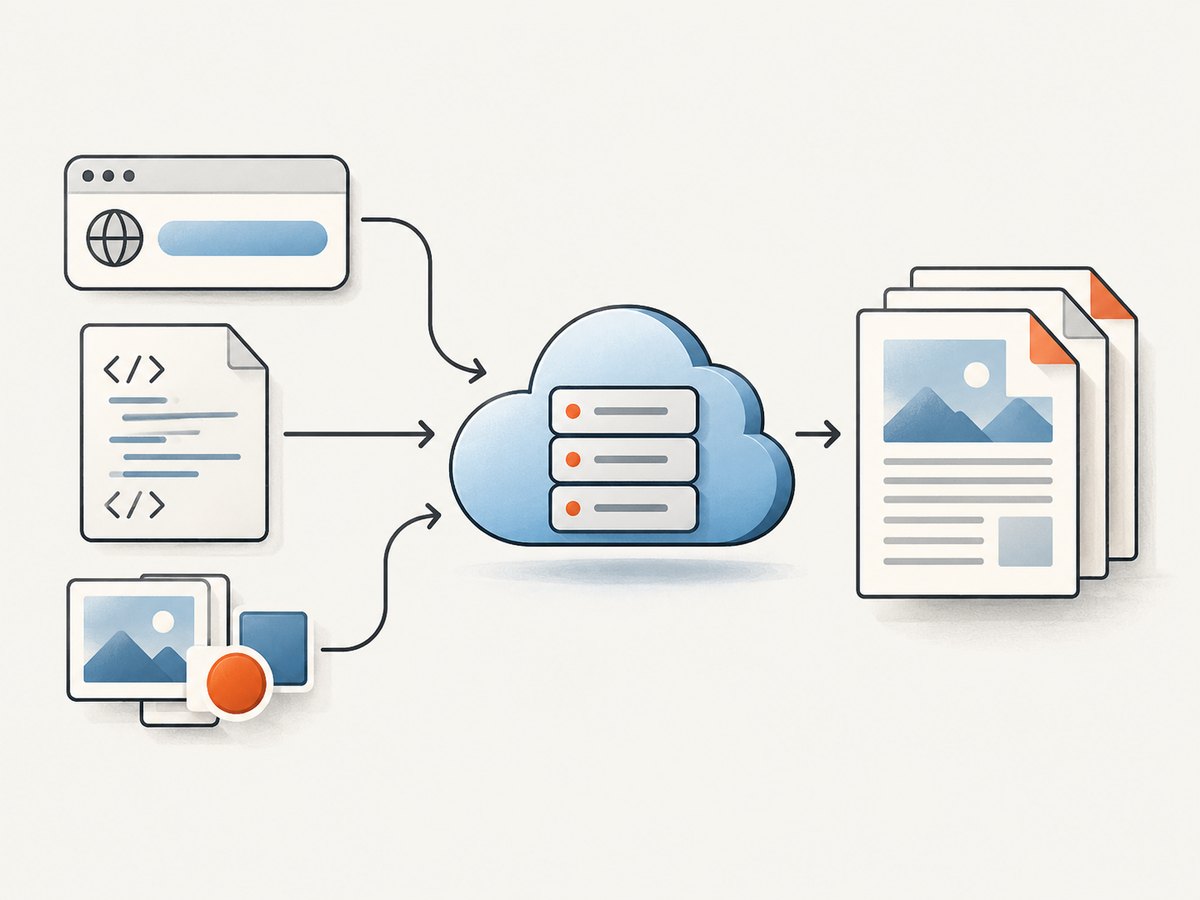
In the synchronous case, a successful request returns PDF bytes in the HTTP response. Your application should save those bytes as a PDF and distinguish them from an error body. Other services support hosted documents or asynchronous conversion jobs: the first response may contain a download URL or a status identifier rather than the finished PDF.
- Choose an input mode: URL, HTML content, or a packaged file.
- Authenticate to the converter from your server.
- Set rendering and PDF options the document requires.
- Check the status and content type of the response.
- Store, return, or retrieve the PDF and record failures for diagnosis.
The converter’s API credentials and the credentials needed to read a protected source page are separate. Keep converter keys on the server, and pass source-site cookies or headers only when the chosen API supports them and the application has a sound reason to send them.
2. Decide which input mode fits
URL conversion
With a URL, the provider fetches the page and its linked resources. The URL must be reachable from the provider’s servers. A developer’s localhost, an internal hostname, or a page behind a firewall will not be reachable simply because it works in a local browser. Check access control, redirects, remote fonts and images, and scripts that populate the page after initial load.

HTML content
Sending HTML works well when a template is generated inside your application or is not publicly reachable. Relative references such as ./styles.css need a base URL or must be rewritten to absolute URLs. A direct HTML payload does not automatically give the remote renderer access to files on your application server. If the provider supports it, package the HTML and local assets together while preserving their paths.
Uploaded files and protected resources
Some APIs accept an HTML file, sometimes with related CSS, images, and JavaScript in a supported archive. Verify the accepted packaging format and whether relative paths resolve as expected. For a protected page, check whether the provider supports website credentials, cookies, or custom headers; API-key authentication to the conversion service does not authenticate the page fetch.
Before settling on URL input, make a checklist of every external dependency: stylesheets, images, web fonts, scripts, API calls, login state, and any application-only assets. Confirm the renderer can reach them. For documents containing private or user-specific data, also review the provider’s data handling and service terms before sending content.
3. Compare rendering behavior and PDF requirements
The rendering engine matters because browser-oriented pages and paged documents can have different needs. PDFCrowd documents JavaScript and readiness controls as well as page-composition options. DocRaptor documents a Prince-based engine and Prince-specific options. Those are vendor documentation claims; render representative files before choosing an engine for production.
| Requirement | What to verify |
|---|---|
| Dynamic content | Does the service execute the JavaScript your page needs? Can you wait for a selector or another readiness condition before capture? |
| Pagination | Check page size, orientation, margins, page breaks, and whether long tables or sections split acceptably. |
| Headers and footers | Confirm support for repeating headers, footers, page numbering, and the exact layout your template requires. |
| Document features | If you depend on footnotes, floats, bookmarks, forms, mixed page layouts, or other specialized behavior, test each in the resulting file. |
| Accessibility and archival | Check the actual output using the validation process required by your organization. Vendor capability descriptions do not establish that an arbitrary input meets a compliance requirement. |
| Assets | Test CSS, remote and local images, fonts, protected resources, and the timing of scripts with production-like content. |
DocRaptor documents a selectable pipeline and engine mappings, while its consulted reference described print media rules as the default. Engine versions and defaults can change, so check the current reference and evaluate the version that will process your documents. PDFCrowd’s documentation includes guides for PDF/A and tagged PDF. Treat these as features to validate against your specific output requirements.
DocRaptor’s product material contrasts browser rendering with Prince-oriented document rendering, describing Chromium as suitable for modern CSS and JavaScript-heavy pages and Prince as offering PDF-focused features. This is the provider’s comparison, not an independent benchmark. Use it as a reason to compare engines on the same invoices, reports, or long-form documents. Inspect typography, page breaks, forms, accessibility output, and processing behavior yourself.
4. Read the API contract before integrating
Besides rendering, compare authentication, request encoding, versioning, response handling, error behavior, SDKs, and resource constraints. PDFCrowd’s documented HTTP interface uses form fields, with multipart encoding for file input, and returns PDF bytes on success. Its guide says the described interface does not support JSON request bodies. The example endpoint is versioned; treat it as the endpoint documented at research time, not a permanent URL.
DocRaptor documents a JSON POST to https://api.docraptor.com/docs. It supports document content or a document URL, API-key authentication, and binary, hosted, or asynchronous response patterns. Its reference describes a page-count response header for PDF output. These contracts are different, so do not copy a request body from one provider into another.
PDFCrowd: URL to PDF with cURL
This example uses the documented versioned HTTP endpoint and form fields. Set credentials as environment variables in your shell or secret manager. Do not put real API keys in frontend code or commit them to source control.
curl -u "$PDFCROWD_USERNAME:$PDFCROWD_API_KEY" \
  -F "url=https://example.com/invoice/123" \
  -o invoice.pdf \
  "https://api.pdfcrowd.com/convert/24.04/"
The exact parameter names and supported options depend on the current PDFCrowd reference. For an HTML file or associated assets, use the documented file upload format instead of assuming a JSON body will work.
DocRaptor: HTML content to PDF with Python
This example sends HTML using the documented JSON API shape. Store the API key in an environment variable and replace the sample HTML with content generated by your application.
import os
import requests

api_key = os.environ["DOCRAPTOR_API_KEY"]
payload = {
    "user_credentials": {"key": api_key},
    "doc": {
        "document_content": "<html><body><h1>Invoice</h1></body></html>",
        "name": "invoice.pdf",
        "document_type": "pdf",
    },
}

response = requests.post(
    "https://api.docraptor.com/docs",
    json=payload,
    timeout=90,
)
response.raise_for_status()

content_type = response.headers.get("Content-Type", "")
if "pdf" not in content_type.lower():
    raise RuntimeError(f"Expected PDF response, got {content_type!r}")

with open("invoice.pdf", "wb") as pdf_file:
    pdf_file.write(response.content)
For a URL-based document, use the provider’s documented URL field instead of document_content. If you need a hosted or asynchronous result, implement the corresponding documented response flow rather than waiting indefinitely for a synchronous request.
DocRaptor: URL to PDF with Node.js
This example uses Node’s built-in fetch and saves a successful binary response. It assumes the API returns the PDF directly; hosted and asynchronous modes need their own follow-up handling.
import { writeFile } from 'node:fs/promises';

const apiKey = process.env.DOCRAPTOR_API_KEY;
if (!apiKey) throw new Error('Set DOCRAPTOR_API_KEY');

const response = await fetch('https://api.docraptor.com/docs', {
  method: 'POST',
  headers: {
    'Content-Type': 'application/json',
    'Accept': 'application/pdf',
  },
  body: JSON.stringify({
    user_credentials: { key: apiKey },
    doc: {
      document_url: 'https://example.com/report',
      name: 'report.pdf',
      document_type: 'pdf',
    },
  }),
});

if (!response.ok) {
  const details = await response.text();
  throw new Error(`Conversion failed (${response.status}): ${details}`);
}

const bytes = Buffer.from(await response.arrayBuffer());
await writeFile('report.pdf', bytes);
Use the provider’s current API reference to verify field names, accepted options, and error formats before shipping. Add application-level logging that records a request identifier and status without logging API secrets or sensitive document content.
5. Test providers on real documents
- Choose representative samples. Include a short page, a long report, a document with tables, a page with dynamic content, and the most demanding asset or access pattern your application uses.
- Write down acceptance criteria. Specify page dimensions, pagination, font behavior, image quality, headers and footers, accessibility checks, and any document-specific features.
- Run the same inputs through each candidate. Keep template, assets, and options equivalent where possible, and record engine and pipeline settings.
- Inspect the resulting PDFs. Review every page for clipping, blank areas, missing images, broken glyphs, unexpected page breaks, and content that loaded too late.
- Exercise failures and production conditions. Check inaccessible URLs, slow pages, expired credentials, large files, and concurrent jobs. Measure with your own workload; the documentation consulted here does not establish comparative speed, uptime, or current pricing.
This gives your team evidence tied to its templates instead of a decision based on feature names. Keep the sample documents and checks as regression fixtures when templates or provider settings change.
6. Managed service or self-hosted renderer
A managed API can take renderer packaging and worker operations off your application team. PDFCrowd describes handling the renderer; DocRaptor offers API response modes including hosted and asynchronous conversion. A self-hosted renderer can give a team control over runtime and access to local resources, but the team then owns engine packaging and updates, workers, memory, queueing, and scaling.
There is no workload-independent cost or reliability conclusion in the available provider documentation. Compare the full operating picture: template development, failed conversions, engine upgrades, worker capacity, storage, data-retention needs, and production support. For a managed option, check request limits, timeouts, throughput, data handling, regional processing, and service terms directly with the provider. For self-hosting, include the engineering time to operate and upgrade the renderer.
7. Common errors and how to fix them
| Symptom | Likely cause | What to do |
|---|---|---|
| Provider cannot load the page | The URL is local, internal, firewalled, or requires a login the renderer does not have. | Use a reachable URL, or submit HTML or a supported file package. Configure supported source-site credentials if appropriate. |
| CSS, images, or fonts are missing | Relative paths have no base URL, local files were not uploaded, or remote resources are inaccessible. | Use absolute asset URLs or a documented base-URL option. Package local resources using the provider’s supported format and test access to each asset. |
| PDF is blank or missing dynamic content | Page scripts did not run, a required resource failed, or conversion started before content was ready. | Check the source page from an external network and use documented JavaScript or readiness controls. Confirm the page actually produces content in the renderer. |
| Request rejected as malformed | The body format or field names do not match the provider’s API. For example, the described PDFCrowd HTTP API uses form fields rather than JSON. | Match the provider’s current reference, including form versus JSON encoding and file-upload requirements. |
| Application saves an error page as a PDF | Code writes every response body to a .pdf file without checking status or content type. |
Check HTTP status, inspect the error response, and verify a successful response is PDF data before saving it. |
| Conversion takes too long or times out | The source page is slow, assets hang, or the chosen synchronous flow is unsuitable for the job. | Measure the source and its dependencies, use provider-supported readiness controls, and evaluate an asynchronous job flow for long-running work. |
| PDF looks different after an engine change | Engine versions or defaults can affect layout and rendering. | Pin or select a documented version where supported, recheck the current reference, and run your saved sample set before rollout. |
8. Or skip the browser setup
If the deliverable you need is a screenshot of a page rather than a paginated PDF, ScreenshotNeo is a website screenshot API and MCP server. It accepts one GET request and returns a PNG, JPEG, WebP, or PDF. The examples below use a screenshot response; see the ScreenshotNeo documentation for request options and PDF configuration.
curl -G "https://api.screenshotneo.com/v1/shot" -d access_key=YOUR_API_KEY --data-urlencode url=https://stripe.com -o shot.webpimport requests
r = requests.get(
"https://api.screenshotneo.com/v1/shot",
params={"access_key": "YOUR_API_KEY", "url": "https://stripe.com"},
timeout=90,
)
r.raise_for_status()
open("shot.webp", "wb").write(r.content)const q = new URLSearchParams({ access_key: 'YOUR_API_KEY', url: 'https://stripe.com' });
const res = await fetch(`https://api.screenshotneo.com/v1/shot?${q}`);
if (!res.ok) throw new Error(`Screenshot failed: ${res.status}`);
const bytes = Buffer.from(await res.arrayBuffer());
await import('node:fs/promises').then(({ writeFile }) => writeFile('shot.webp', bytes));Cookie banners are accepted and removed before the shot, along with known newsletter popups and chat widgets. Bot checks, blank pages, timeouts, failed loads, and cache hits are not billed; response headers identify the page verdict and billing status. Its MCP server lets AI agents use screenshot, page-info, and PDF-capture tools. The free plan includes 1,000 screenshots per month with no card, and paid plans start at $5 for 3,000. Start with the free ScreenshotNeo account.
ScreenshotNeo is for page capture and can return a PDF; evaluate its page output against your document requirements. For complex paged-document features such as precise print layout, footnotes, tagged output, or specialized PDF controls, use a converter whose documented features fit and validate the generated file.
9. FAQ
Can a converter reach a page on my laptop?
Not through a private localhost address. A hosted service fetches from its own environment. Submit the HTML or a supported asset package, or provide an address it can reach.
Should I send a URL or generated HTML?
Use a URL when the renderer can access the page and all its resources. Send HTML when your application creates the document internally or the page is not externally reachable. For HTML, account for relative assets with a base URL, absolute URLs, or a supported package.
Does a vendor’s accessibility feature guarantee compliance?
No. Treat capability statements as a starting point, then validate the produced PDF using the standards and process that apply to your use case.
How do I know which engine is right?
Run the same representative documents through candidate engines and compare the output against written criteria. The right choice depends on your content and required PDF behavior.
Provider facts in this guide are based on primary documentation reviewed on September 29, 2026. Recheck current API references, versions, plans, and terms before implementation or procurement.


