HTML to PDF in Pega
Generate PDFs from HTML in Pega with the built-in HTMLToPDF workflow. Learn how to prepare printable content, handle output, troubleshoot rendering, and choose a browser-based alternative.

Pega’s built-in HTMLToPDF capability converts HTML into PDF output. A typical workflow prepares printable HTML in the application context, passes it to the PDF conversion activity, then displays, downloads, or attaches the resulting bytes. Pega also documents pyViewAsPDF for generating or viewing a PDF from an HTML rule or stream. Exact parameters and behavior depend on your Pega release, so verify the activity configuration in your deployed version before building around a copied example. Pega product documentation describes the platform workflow; see your release’s help for the applicable details.
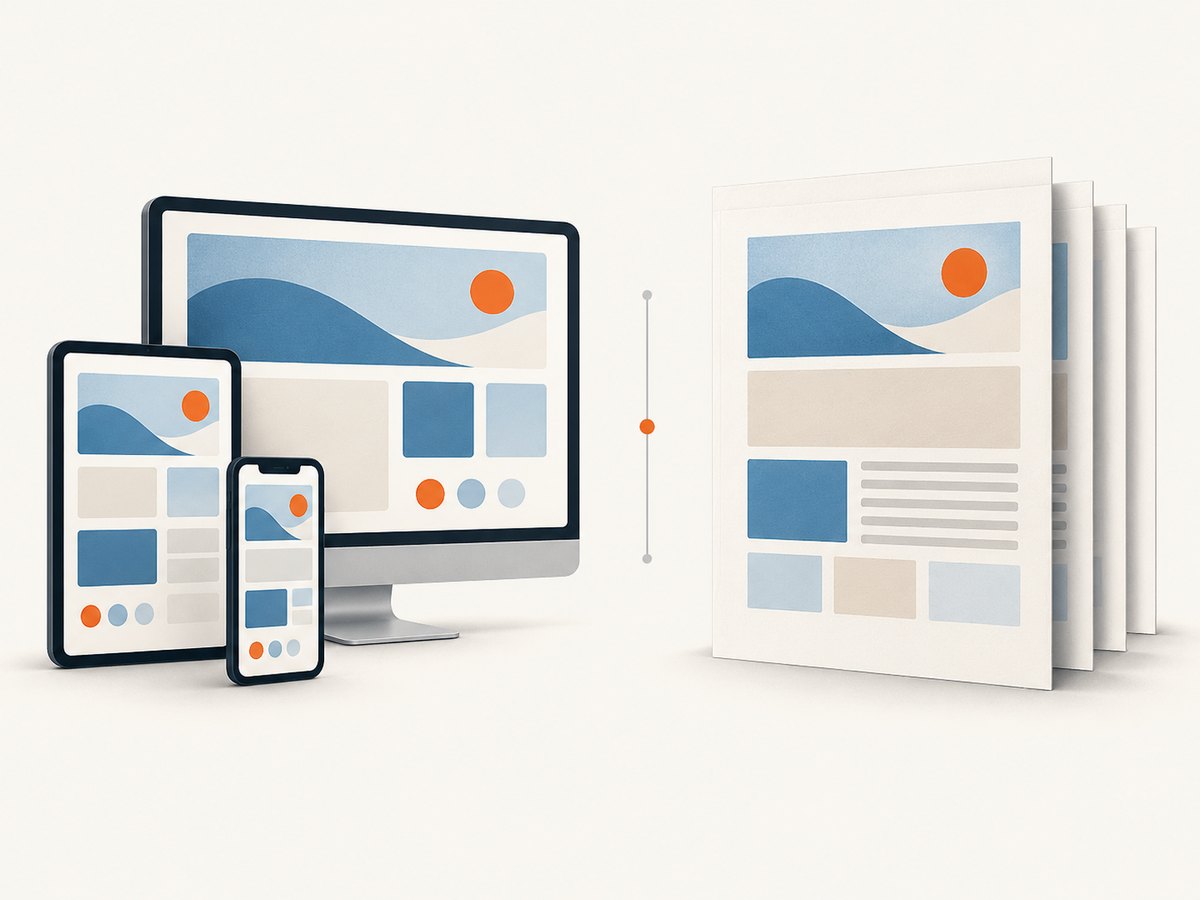
The key design choice is what the PDF represents: a purpose-built printable document, an HTML rule or stream, or selected content from an application section. Treat the PDF as a print layout, not necessarily a pixel-perfect copy of the interactive UI. Dynamic layout groups, for example, are listed as unsupported for HTMLToPDF in Pega 8.5 documentation, which recommends free-form or smart layouts for printable forms.
1. Choose the content and delivery path
Before wiring up the activity, decide both the source document and what should happen to the output. Generating a PDF and delivering it are separate parts of the implementation.
| Approach | Use it when | Validate |
|---|---|---|
| Purpose-built printable HTML | The document has its own print layout and should be stable as the interactive screen changes. | Which HTML source and stylesheet inputs your deployed activity supports. |
| Pega HTML rule or stream | You want to render application data into a document using an HTML source managed by Pega. | Stream resolution, rule availability, and the version-specific HTMLToPDF or pyViewAsPDF workflow. |
| Section-derived content | The document should reuse selected data or markup from an application section. | Whether includes render in the PDF context; community examples are techniques to validate, not universal recipes. |
| View or download | A user needs the document immediately. | The supported viewer or response handling in your release. |
| Attach to a case or work object | The PDF should persist with application work. | The attachment activity, category, security, and lifecycle for your application. |
For each document, define the expected data, page size and orientation, headers and footers, page breaks, and whether the content can span multiple pages. This gives you a concrete rendering target and helps distinguish HTML problems from delivery problems.
2. Build the HTML-to-PDF flow
- Record the deployed Pega release. Activity parameters and supported rendering behavior can change. Use the help and activity definition that match the target version.
- Prepare the HTML in application context. Resolve the data and produce or select the printable HTML rule/stream. Keep print-specific structure simple. If using section content, confirm the intended markup is included in the final HTML.
- Inspect the built-in conversion activity. Use
HTMLToPDFto convert the HTML source into PDF bytes or a file. Pega documentation also describespyViewAsPDFfor generating/viewing from an HTML rule or stream. Confirm required parameters, page setup, style handling, and output page/file references in the target release. - Handle the PDF output. Choose a supported view/download response or attach the result to the relevant case/work object. Older Pega help material documents separate activities for viewing and attaching PDFs; do not assume those names or signatures are unchanged in your release.
- Check the rendered document. Open the resulting PDF and inspect representative records, long text, tables, empty fields, line breaks, page transitions, and any non-ASCII characters important to your application.
The following is an implementation checklist, not a universal activity parameter recipe. The HTML and output references are application-specific; look up the exact parameter names in your target release’s activity form and help.
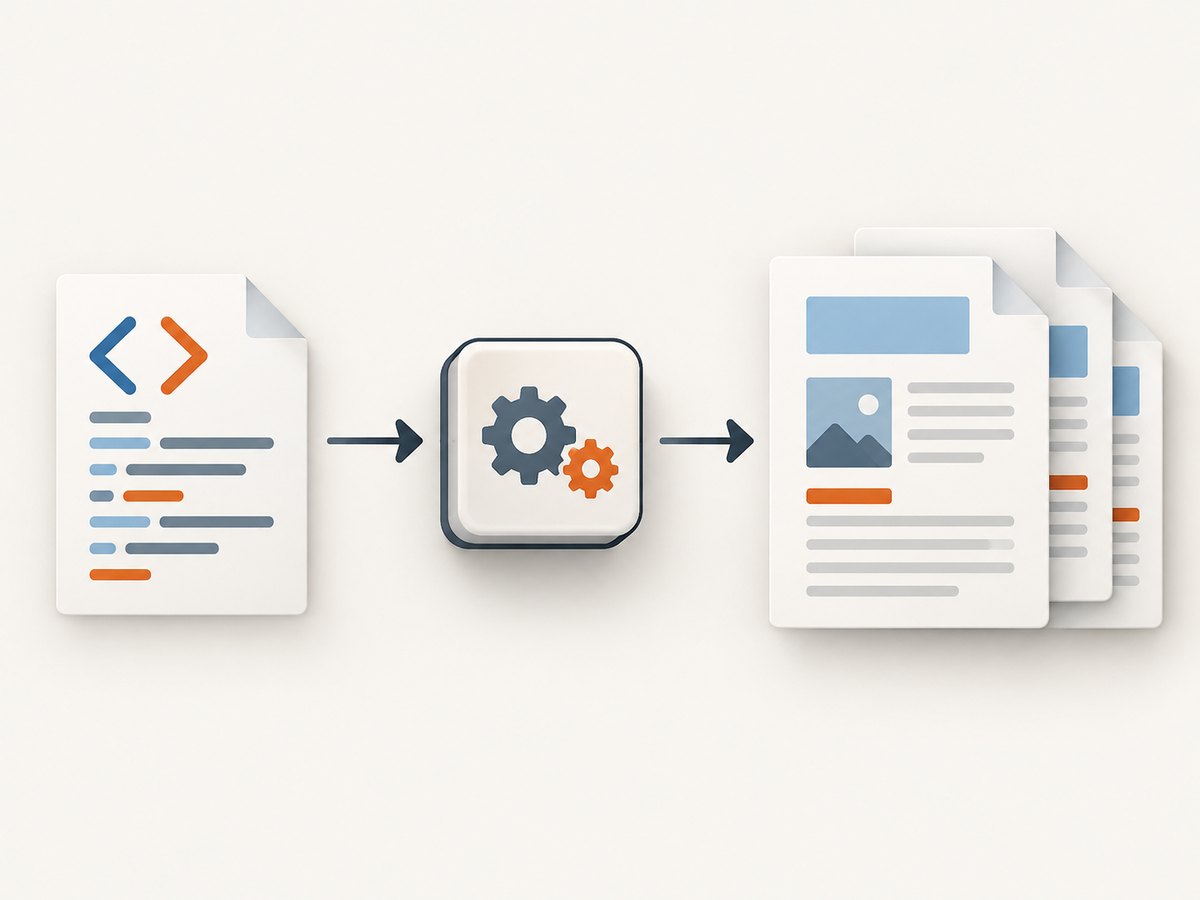
1. Resolve printable HTML for the current case or request.
2. Configure the target release's HTMLToPDF activity:
   - supply the supported HTML source or stream reference
   - configure stylesheet handling if the activity exposes it
   - set supported paper, orientation, and output options
3. Capture the generated PDF bytes/file in the application context.
4. Route those bytes to a supported view/download or attachment step.
5. Verify the PDF with realistic data and the deployed release.
This deliberately avoids inventing a parameter name or clipboard page: the dossier’s sources do not establish a cross-release runnable activity signature. The reliable next step is to inspect the built-in activity in your environment and use its documented parameter contract. The historical Support Center question about required parameters and community examples are useful search leads, but not a substitute for current release documentation.
3. Make the document printable
Separate print structure from screen layout
Screen interfaces optimize for interaction, responsive resizing, and dynamic regions. A PDF needs predictable flow across fixed pages. Prefer a document-oriented HTML structure with explicit headings, tables, and sections. Avoid relying on dynamic layout groups or UI behavior whose result depends on viewport size. Pega 8.5 documentation specifically notes that dynamic layout groups are not supported for HTMLToPDF and recommends free-form or smart layouts for printable forms.
Stylesheets and CSS
CSS support depends on the conversion path and release. The Pega 8.5 guide says the application skin CSS is applied by default and describes enabling CSS use and supplying a stylesheet for customization. Check whether your version requires an option to use CSS, how a stylesheet is supplied, and which CSS features the renderer supports. Avoid assuming that every browser CSS feature, remote font, or screen-specific rule will render identically.
Use a small print stylesheet where supported. Set readable font sizes, borders, spacing, and page-break behavior; remove controls and navigation that do not belong in the document. Verify that styles load in the conversion context, particularly if they rely on relative paths or resources that are only available in a browser session.
Pagination and content edge cases
- Long tables: inspect whether headers repeat and rows split acceptably across pages. A table that looks fine in a browser can break awkwardly in print.
- Long fields: test unbroken identifiers, URLs, and user-entered text so they do not overflow the page.
- Empty values: check whether empty cells retain borders and spacing as expected.
- Rich text: verify line breaks, lists, and pasted formatting, which can introduce conflicting inline styles.
- Images and other resources: validate that the conversion context can resolve them and that their dimensions fit the printable area.
- Large documents: measure conversion time and memory with realistic records; do not infer capacity from a short sample.
4. Verify behavior against your Pega version
Rendering advice is especially version-sensitive. Pega Support’s troubleshooting material includes defects such as missing line breaks, missing table borders, and empty cells. It discusses compact styling and HTML preprocessing controls as possible remedies. Its parameter table explicitly applies to Pega Platform 8.2 and earlier, and directs readers to newer help for 8.3 and later. Treat those settings as release-specific troubleshooting leads, not defaults to copy into a current application.
Likewise, forum posts may show useful section-inclusion or compact-style techniques, but confirm rule status, supported activity names, parameters, and CSS behavior in the application you deploy. Community discussion is not a current product specification.
5. Troubleshooting common problems
| Symptom | Likely cause to investigate | Next step |
|---|---|---|
| PDF is blank or has no expected section | The HTML source/stream was not resolved as expected, or an include does not render in the conversion context. | Inspect the produced HTML before conversion. Validate the rule and section inclusion separately, then confirm the activity’s input reference for your release. |
| Styles are missing | CSS use is disabled, a stylesheet was not supplied, or the resource path is inaccessible during conversion. | Check version-specific CSS options and use a stylesheet path supported by the activity. Test a minimal local style first. |
| Dynamic region or layout differs from the screen | Interactive layout behavior may not be supported by the PDF renderer. | Create a print-oriented layout; for Pega 8.5, consult the documented dynamic layout group limitation and recommended printable layouts. |
| Rich-text line breaks disappear | Custom CSS or rich-text markup may conflict with line-break rendering. | Reproduce with minimal content and inspect CSS. Pega Support identifies defective custom CSS as a possible cause; apply only a remedy confirmed for your release. |
| Table borders or empty cells are absent | Renderer behavior, markup, styling, or preprocessing may affect cells and borders. | Check the support guidance for your release. Compact styling and HTML preprocessing are mentioned in older troubleshooting material, but do not copy 8.2-and-earlier parameters without confirming compatibility. |
| PDF exists but the user cannot view or find it | Conversion succeeded, but the delivery or attachment step is missing or targets the wrong work object. | Inspect output handling independently: test the supported viewer/download path or verify attachment association and access. |
| Output truncates or has awkward page breaks | Content exceeds printable width/height or the HTML lacks a deliberate print flow. | Test long data, simplify layout, adjust supported page settings, and add print-specific break rules if supported. |
6. Performance, reliability, and cost
For Pega’s built-in path, conversion cost and throughput depend on your deployment and workload; the research does not establish a general benchmark or per-document price. Profile the activity with realistic HTML size, record counts, image use, and concurrency in a representative environment. Keep printable markup and external dependencies controlled, and avoid repeatedly generating the same PDF when application requirements allow reuse.
Make failure handling observable. Separate errors in preparing HTML, converting it, and delivering or attaching the resulting file. Capture the relevant application context and conversion outcome using your normal operational logging practices, while avoiding sensitive document contents in logs. Test retries carefully: if generation is part of a case flow, ensure a retry does not create duplicate attachments or leave incomplete work.
For documents with legal, audit, or customer-facing importance, verify output after platform upgrades and after changing skins, stylesheets, or source HTML. Preserve a small set of representative input cases for manual or automated review in your release process. Rendering can change even when the source rule appears unchanged.
Or skip the browser setup
If your goal is a PDF of a public webpage rather than a Pega-generated case document, ScreenshotNeo provides a website screenshot API that can return a PDF. It is a different path from Pega’s built-in HTMLToPDF and is suited to URL capture. One GET request is enough:
curl -G "https://api.screenshotneo.com/v1/shot" \
  -d access_key=YOUR_API_KEY \
  --data-urlencode url=https://stripe.com \
  -d format=pdf \
  -o page.pdf
See the ScreenshotNeo API documentation for the supported request options. Cookie banners, newsletter popups, and chat widgets are removed before capture; each cleanup step can be turned off. Bot checks, blank pages, timeouts, failed loads, and cache hits are not billed, and the response identifies the page verdict and billing status in headers. An MCP server exposes take_screenshot, get_page_info, and capture_pdf to AI agents. The Free plan includes 1,000 shots per month with no card; paid plans start at $5 for 3,000 shots.
Create a free ScreenshotNeo account for 1,000 screenshots a month, with no card required.
FAQ
Can HTMLToPDF reproduce the application screen exactly?
Do not count on pixel-for-pixel reproduction. Treat it as a rendered print document and design the HTML for fixed pages.
Can I make a PDF from a Pega section?
Section-derived content is a possible approach, but confirm that the section’s markup can be resolved by your HTML source in the target release. Validate community examples locally.
Which activity parameters are required?
They are release-sensitive. Inspect the built-in activity and matching version documentation; older forum answers and 8.2-and-earlier parameter tables are not universal specifications.
When should I use ScreenshotNeo?
Use it when the input is a webpage URL and you need a captured PDF. Use Pega’s built-in workflow when the document should be generated from application content or attached to Pega work.


