HTML to PNG API
Learn how an HTML-to-PNG API turns markup or a URL into image bytes, with runnable cURL, Python, and Node.js examples, settings, and troubleshooting.
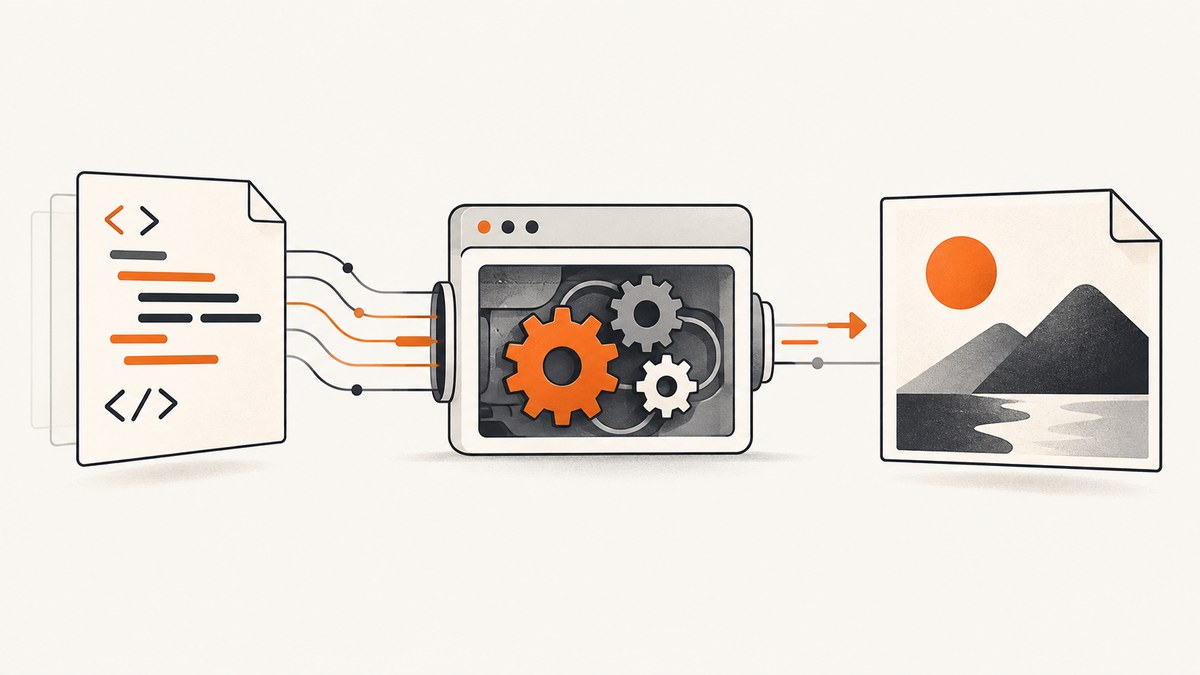
An HTML-to-PNG API renders HTML in a browser environment and returns PNG image bytes. You send markup or a page URL in an HTTPS request, choose the capture settings your provider supports, then save the binary response as an image. For a small HTML payload, a query parameter can work; for larger markup, use a POST request body. Exact parameters, size limits, authentication, and quotas vary by provider.
This guide shows the request flow, runnable cURL, Python, and Node.js examples, settings to consider, and ways to diagnose common failures. It uses documented examples from Browserless and ScreenshotOne for the general API patterns; check the relevant provider documentation for the version you use. [Browserless screenshot API] [ScreenshotOne documentation]
1. What an HTML-to-PNG API does
A screenshot service opens or constructs a page in a browser environment, waits for the page to reach the requested capture point, and returns a rendered image. Depending on the service, input can be an existing URL, inline HTML, or both. Browserless documents a screenshot endpoint that accepts inline HTML and can return PNG, JPEG, or WebP. ScreenshotOne documents HTML input and PNG output. [Browserless] [ScreenshotOne]
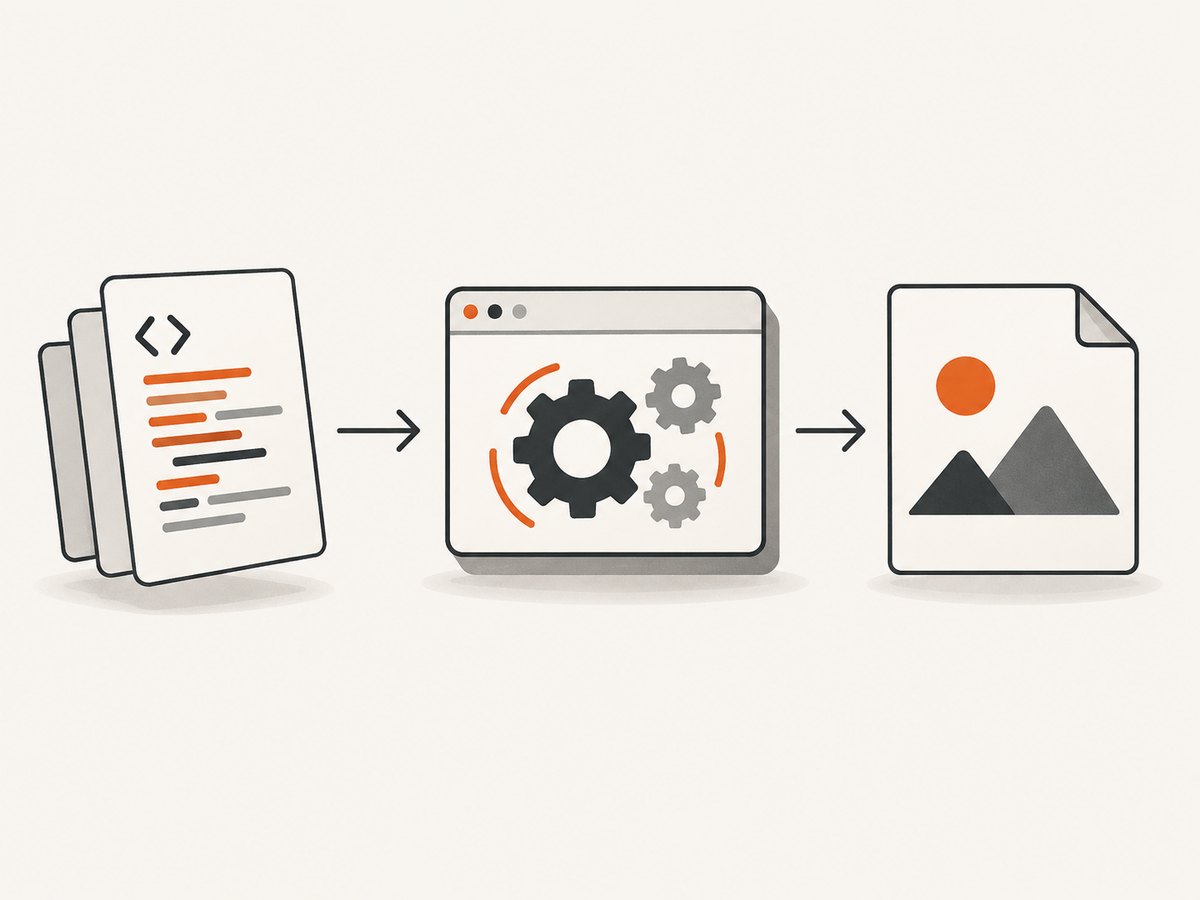
This differs from converting an HTML string directly into a bitmap with a simple image library: browser rendering applies layout, CSS, fonts, and browser behavior. The API response is normally binary image data, so save the response bytes rather than decoding them as text.
Typical request flow
- Choose inline HTML for content your application already has, or a URL for a page that is hosted.
- Send an HTTPS request with the provider’s authentication and capture parameters.
- Read the binary response and check the status and content type.
- Save the bytes to a file, object store, or downstream image pipeline.
2. Choose input: inline HTML or URL
| Input | Good fit | Things to account for |
|---|---|---|
| Inline HTML | Receipts, cards, reports, generated previews, or markup assembled by your app | Include or embed required CSS and assets; keep large markup in a request body |
| URL | Capturing a public page or an existing application route | Handle navigation time, asynchronous content, redirects, access controls, and page changes |
For a small HTML value, a query parameter is convenient. URLs have practical length limits, however, and encoding markup makes them longer. ScreenshotOne recommends a POST JSON body for larger HTML or Markdown payloads and documents a 100 MiB maximum POST body for its service. That is a ScreenshotOne limit, not a universal limit for screenshot APIs. [ScreenshotOne documentation]
When sending a URL, the screenshot captures what the browser can load from that URL in the service’s environment. A page that depends on a logged-in session, private network access, client-side rendering, or resources blocked by policy may not look like it does in your local browser. Consult the provider’s documentation for supported cookies, headers, and navigation behavior.
3. Runnable examples with ScreenshotOne
The following examples use ScreenshotOne’s documented HTML input pattern. Replace the placeholder key with an API key from your provider account, and verify the current endpoint and options in its documentation. Use HTTPS: an unencrypted HTTP connection can expose API keys, authorization headers, cookies, or other sensitive request data in transit. [ScreenshotOne Getting Started]
cURL: send HTML and save PNG bytes
curl --fail --silent --show-error \
  -X POST "https://api.screenshotone.com/take" \
  -H "Content-Type: application/json" \
  -H "Accept: image/png" \
  -d '{"access_key":"YOUR_API_KEY","html":"<!doctype html><html><body><h1>Preview</h1></body></html>","format":"png"}' \
  -o preview.png
The endpoint, JSON fields, and format parameter above follow the provider’s documented API pattern; check the current documentation before deployment. The -o option writes the response body to a file. --fail makes cURL return an error for HTTP error responses instead of saving an error document as though it were an image.
Python: requests with response validation
import os
import requests

endpoint = "https://api.screenshotone.com/take"
payload = {
    "access_key": os.environ["SCREENSHOTONE_ACCESS_KEY"],
    "html": "<!doctype html><html><body><h1>Preview</h1></body></html>",
    "format": "png",
}

response = requests.post(endpoint, json=payload, timeout=(10, 90))
response.raise_for_status()
content_type = response.headers.get("Content-Type", "")
if "image/png" not in content_type:
    raise RuntimeError(f"Expected PNG response, got {content_type!r}")

with open("preview.png", "wb") as image_file:
    image_file.write(response.content)
Install the dependency with python -m pip install requests. The connect and read timeouts are examples; tune them for your application and the provider’s documented limits. Store the key in an environment variable or secret manager rather than committing it to source control.
Node.js: fetch and write binary output
import { writeFile } from "node:fs/promises";

const endpoint = "https://api.screenshotone.com/take";
const payload = {
  access_key: process.env.SCREENSHOTONE_ACCESS_KEY,
  html: "<!doctype html><html><body><h1>Preview</h1></body></html>",
  format: "png",
};

const response = await fetch(endpoint, {
  method: "POST",
  headers: {
    "Content-Type": "application/json",
    "Accept": "image/png",
  },
  body: JSON.stringify(payload),
  signal: AbortSignal.timeout(90000),
});

if (!response.ok) {
  const detail = await response.text();
  throw new Error(`Screenshot API returned ${response.status}: ${detail}`);
}

const contentType = response.headers.get("content-type") ?? "";
if (!contentType.includes("image/png")) {
  throw new Error(`Expected PNG response, got ${contentType}`);
}
await writeFile("preview.png", Buffer.from(await response.arrayBuffer()));
These samples show the key handling and binary-save pattern. If your provider requires a different endpoint, authentication field, or request schema, change those details according to its official API reference. Avoid putting secret keys in browser-side JavaScript, where visitors can inspect them.
4. Select capture settings deliberately
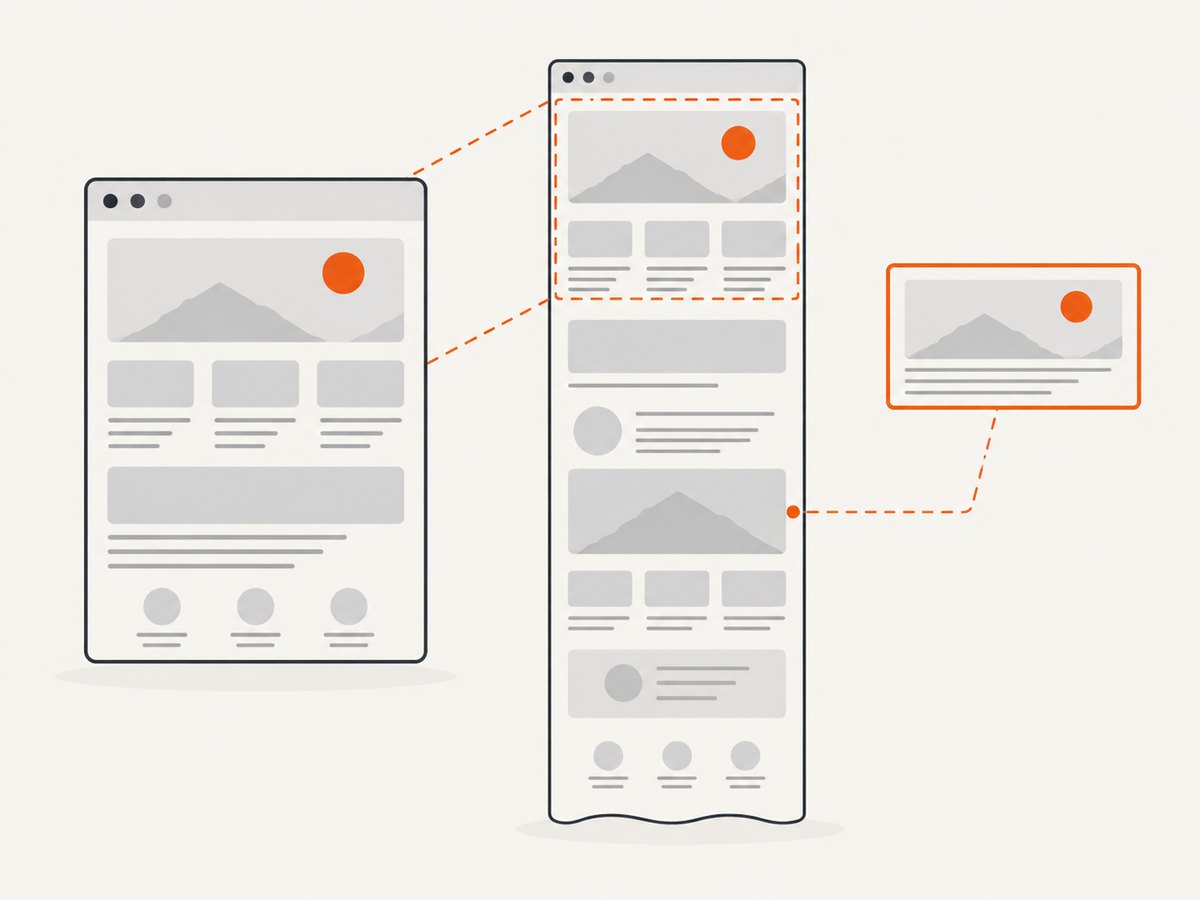
Screenshot APIs expose different controls; do not assume that a parameter supported by one vendor exists on another or behaves identically. Browserless documents viewport and full-page captures, output format, quality, clip region, viewport size, device scale factor, and selector-based capture. Confirm the exact parameter names and supported values in the API version you call. [Browserless screenshot API]
| Setting | When it matters | Decision |
|---|---|---|
| Output format | Storage size, transparency, or downstream compatibility | Use PNG for lossless output; consider JPEG or WebP if the API and consumer support them and smaller files matter |
| Viewport dimensions | Responsive layout changes with page width | Match the target device or product preview dimensions |
| Full page | The content extends below the initial viewport | Use full-page capture if supported; check whether long pages need separate handling |
| Clip or selector | Only one region or component is needed | Capture the smallest useful area to avoid unrelated page content |
| Device scale factor | Sharpness on high-density displays | Increase only when output dimensions and memory use remain acceptable |
| Wait behavior | Fonts, images, or client-rendered data arrive after navigation | Use a supported selector, delay, or load condition; avoid arbitrary long waits where possible |
For HTML input, make the document self-contained when practical. Relative resource paths need a base URL or absolute paths; external fonts, images, and stylesheets add network dependencies and can fail independently. If the output must be deterministic, control the markup, assets, viewport, and wait condition together.
5. Large payloads, assets, and security
Put substantial markup in the body
Do not keep expanding a query string for large documents. Besides encoding overhead, URLs are constrained by clients, proxies, servers, and the provider. Use POST with JSON or the specific upload method documented by the service. ScreenshotOne documents a 100 MiB POST body limit, but an application should generally keep requests far smaller when possible to reduce transfer time and memory pressure. [ScreenshotOne documentation]
Be explicit about asset loading
- Inline small CSS or use stable absolute asset URLs.
- Check whether fonts and images are loaded before the capture condition fires.
- Expect network access restrictions or inaccessible private URLs to affect rendering.
- Use a provider-supported authentication mechanism for protected pages; do not place credentials in publicly visible URLs.
Protect credentials and page contents
Send API keys and sensitive page data only over HTTPS. ScreenshotOne’s getting-started guidance specifically says to always call its API over HTTPS. Keep credentials on a server you control, restrict access to them, and redact keys from logs. Treat generated screenshots as potentially sensitive artifacts if the source HTML contains personal, financial, or internal data. [ScreenshotOne Getting Started]
6. Reliability, performance, and cost
A hosted API can remove the need for your application to manage browser processes, while leaving request construction and result handling in your code. Browserless describes its REST APIs as single-request browser tasks that do not require callers to manage browser infrastructure; that is the provider’s product description, not an independently measured comparison. [Browserless REST APIs]
Rendering time depends on the page, assets, wait condition, capture area, and provider behavior. The reviewed documentation does not establish a universal latency benchmark. Keep a reasonable request timeout, avoid loading content that is not needed, and measure your own workload before choosing a service or plan.
Make requests reliable
- Set connection and overall timeouts in the client.
- Check HTTP status and content type before saving the body.
- Retry only transient failures, with a small bounded retry count and backoff.
- Do not retry authentication, invalid-parameter, or other clearly permanent errors unchanged.
- Use idempotent job identifiers or provider-supported deduplication if duplicate captures would be costly.
- Track response size and failure categories so malformed outputs do not enter later processing.
Estimate cost from provider terms
Compare the plan quota, request limits, overage policy, and the provider’s definition of a billable request. ScreenshotOne’s pricing page says successfully rendered screenshots that are not served from cache count toward its quota, and lists plan limits and prices that can change. Those are ScreenshotOne-specific terms; verify the live pricing page before committing to a plan. [ScreenshotOne pricing]
Do not assume cache hits, errors, or retries are treated the same way by every service. For a cost estimate, multiply expected successful uncached captures by the provider’s current charge model, then add headroom for retries and peak volume. If you self-host a browser, compare total operating effort and infrastructure costs against the API plan; the reviewed sources do not provide a complete apples-to-apples cost or performance comparison.
7. Troubleshooting common failures
| Symptom | Likely cause | What to check or change |
|---|---|---|
| 401 or 403 response | Missing, invalid, or unauthorized key | Confirm the key, account access, and exact authentication field required by the endpoint. Keep the key server-side. |
| 400 response | Malformed JSON, unsupported option, or missing required field | Inspect the provider error body, validate JSON, and compare field names with the current API reference. |
| Request URL is too long | Inline markup was placed in a query string | Send the HTML in a POST body; confirm the provider’s body-size limit. |
| Saved file is not a PNG | An error response or a different format was written to disk | Check HTTP status and Content-Type before writing bytes; request PNG explicitly if supported. |
| Blank or incomplete image | Navigation failed, rendering is asynchronous, or required assets did not load | Try a supported wait condition, verify asset URLs and access, and inspect the provider’s response details. |
| Text or layout differs from local browser | Viewport, fonts, device scale, or browser environment differs | Set dimensions and scale explicitly; make fonts available and stabilize external assets. |
| Timeout | Slow page, long waits, large assets, or service limits | Reduce the page work, use a narrower capture, review wait settings, and choose a timeout consistent with the provider’s limits. |
| Works locally but fails in production | Different network access, missing environment key, or outbound restrictions | Check deployed secrets and egress rules; test access to the target assets from the service environment. |
8. Or skip the browser setup
ScreenshotNeo is a website screenshot API and MCP server for developers. Its one-call API accepts a URL and returns a PNG, JPEG, WebP, or PDF. Cookie banners are accepted and removed before capture, along with 60+ known consent platforms, newsletter popups, and chat widgets; each cleanup step can be turned off. Bot checks and CAPTCHAs, blank pages, timeouts, failed loads, and cache hits are not billed, and response headers say which outcome occurred. An MCP server provides take_screenshot, get_page_info, and capture_pdf tools for Claude, Cursor, and other MCP clients.
curl -G "https://api.screenshotneo.com/v1/shot" \
  -d access_key=YOUR_API_KEY \
  --data-urlencode url=https://stripe.com \
  -o shot.webp
See the ScreenshotNeo API documentation for parameters and response details. The free plan includes 1,000 screenshots a month with no card; paid plans start at $5 for 3,000 screenshots. Sign up free for ScreenshotNeo.
9. Short FAQ
Can I use an HTML-to-PNG API without hosting a web page?
Yes, if the API accepts inline HTML. Browserless and ScreenshotOne document HTML input; check the provider’s current request schema and payload limits.
Is PNG always the best format?
No. PNG is useful when lossless output is needed. JPEG and WebP may suit other storage or delivery needs, when the service and consumer support them.
Can I capture a page that requires login?
Only if the provider supports the required authentication or session setup and the page is reachable from its browser environment. Consult its documentation and protect any credentials you send.
Does every API accept the same parameters?
No. Options and names differ by vendor and API version. Use the official reference for the exact endpoint you deploy.


