How to Use HTML-to-PNG Images as Icons
Convert HTML elements into sharp PNG icons with html2canvas, Playwright, or ScreenshotNeo, then wire the exported file into your HTML safely.
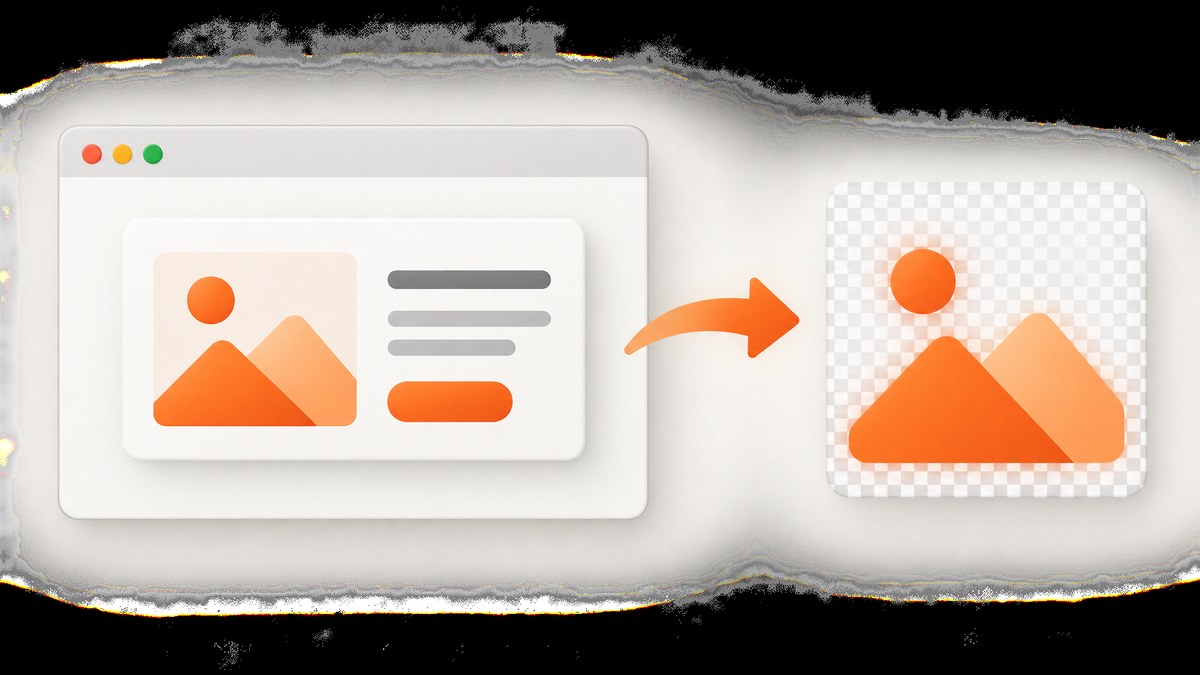
To use an HTML element as an icon, render the element to a canvas, export the canvas as a PNG, save the file, and reference it with an icon link or image element. In the browser, html2canvas is the simplest route. For pixel output that matches a real browser render, use Playwright. For a public URL or server-side workflow, ScreenshotNeo can capture the rendered page or a selected element without setting up a browser.
The important distinction is that html2canvas reconstructs an image from the DOM. It does not take a native browser screenshot, so unsupported CSS, cross-origin images, and cross-origin iframes can change the result. The project documents this limitation directly in its About documentation. If the icon must match what Chromium paints, use a browser screenshot API instead.
1. Decide what “HTML-to-PNG icon” means
There are three common jobs:
- Export an element from an existing page. Use html2canvas when the element already exists in the browser and its styles are straightforward.
- Render a page or component exactly as a browser sees it. Use Playwright or a hosted browser screenshot API.
- Generate icons repeatedly from a URL or template. Use an API so the work runs on a server, CI job, or queue instead of a user’s browser.
Choose the final dimensions before rendering. A 32×32 CSS-pixel icon can be exported at 64×64 physical pixels for a 2× display, but declaring a 64×64 file as a 16×16 icon wastes bytes and may make browser scaling less predictable.
2. Browser export with html2canvas
Install or load html2canvas, identify the element, render it, and convert the returned canvas to a PNG data URL. The project examples show this same pattern, including saving with canvas.toDataURL('image/png') and choosing a scale based on window.devicePixelRatio.
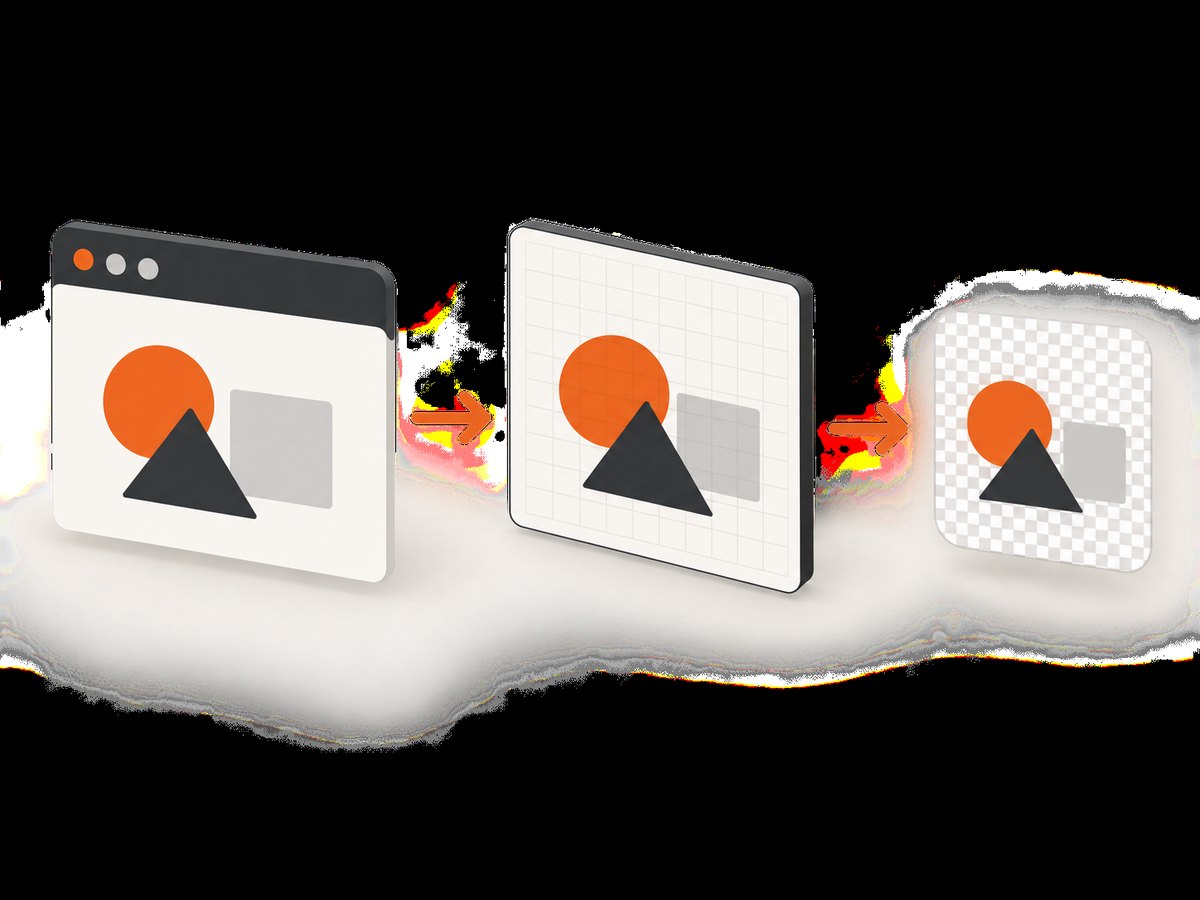
Complete runnable example
<!doctype html>
<html lang="en">
<head>
  <meta charset="utf-8">
  <meta name="viewport" content="width=device-width, initial-scale=1">
  <title>HTML to PNG icon</title>
  <script src="https://cdn.jsdelivr.net/npm/html2canvas@1.4.1/dist/html2canvas.min.js"></script>
  <style>
    #icon {
      width: 128px;
      height: 128px;
      display: grid;
      place-items: center;
      border-radius: 28px;
      color: white;
      background: linear-gradient(135deg, #635bff, #00a3ff);
      font: 700 48px/1 system-ui, sans-serif;
      box-shadow: 0 12px 30px rgb(20 40 100 / 25%);
    }
    #icon img { width: 56px; height: 56px; }
  </style>
</head>
<body>
  <div id="icon" aria-label="Example icon">S</div>
  <button id="save" type="button">Save as PNG</button>
  <script>
    const element = document.querySelector('#icon');
    document.querySelector('#save').addEventListener('click', async () => {
      const scale = Math.min(window.devicePixelRatio || 1, 3);
      const canvas = await html2canvas(element, {
        backgroundColor: null,
        scale,
        useCORS: true,
        logging: false
      });
      const link = document.createElement('a');
      link.download = 'example-icon.png';
      link.href = canvas.toDataURL('image/png');
      link.click();
    });
  </script>
</body>
</html>
Open the file from a local web server rather than directly with a file:// URL when it loads external assets. For example, run python -m http.server 8000 in the directory and visit http://localhost:8000.
Control size and sharpness
The element’s CSS width and height determine layout size. The scale option multiplies the canvas resolution. A 128×128 element rendered with scale: 2 produces a 256×256 PNG that can display crisply at 128 CSS pixels. Very high scales increase memory use and PNG size; cap the scale for large elements or batch exports.
Use backgroundColor: null for transparency. Set a solid color such as '#ffffff' when you need a guaranteed opaque icon. You can pass ignoreElements to omit buttons or editing handles:
const canvas = await html2canvas(element, {
  scale: 2,
  ignoreElements: node => node.matches('.editor-only')
});
Crop a larger canvas with the documented x, y, width, and height options when the source element includes extra space. Keep the crop aligned to the element’s rendered coordinate system.
3. Make assets render reliably
Images and CORS
Images must be same-origin or served with CORS headers. Add crossorigin="anonymous" to an image and configure the image host to send Access-Control-Allow-Origin for your site. The useCORS option asks html2canvas to request images that way, but it cannot override a server that omits the header.
<img src="https://cdn.example.com/icon.png" crossorigin="anonymous" alt="">If a cross-origin image is drawn without permission, the canvas can become tainted and toDataURL will fail. Download the asset to your own origin, configure CORS, or use a server-side renderer. Cross-origin iframes are different: browser security prevents html2canvas from reading their documents. Replace the iframe with local markup or capture it separately.
Fonts, animations, and dynamic content
Wait for fonts before capturing. Otherwise the fallback font may be embedded in the PNG:
await document.fonts.ready;
const canvas = await html2canvas(document.querySelector('#icon'));
Pause animations and transitions so repeated exports are deterministic. Add a class that disables motion, wait for images to finish, and then capture. For content that changes after a fetch, await the fetch and the DOM update first.
4. Use the PNG as an HTML icon
Save the generated bytes as /assets/example-icon.png, then declare the resource in the document head. The WHATWG HTML Standard gives this PNG form:
<link rel="icon" href="/assets/example-icon.png" sizes="128x128" type="image/png">Use the actual pixel dimensions in sizes. For multiple contexts, provide several files:
<link rel="icon" href="/icons/icon-16.png" sizes="16x16" type="image/png">
<link rel="icon" href="/icons/icon-32.png" sizes="32x32" type="image/png">
<link rel="apple-touch-icon" href="/icons/icon-180.png" sizes="180x180">
For an in-page image, use an ordinary image element and include intrinsic dimensions to reduce layout shifts:
<img src="/assets/example-icon.png" width="128" height="128" alt="">An empty alt is appropriate when the icon is decorative. Provide a meaningful alternative when it conveys information that is not present in nearby text.
5. Capture a browser-rendered icon with Playwright
Playwright’s Page screenshot API captures the browser-rendered element and writes a PNG when the path ends in .png. Its scale option supports CSS-pixel output or device-pixel output.
import { chromium } from 'playwright';

const browser = await chromium.launch();
const page = await browser.newPage({ deviceScaleFactor: 2 });
await page.goto('http://localhost:8000/icon.html', { waitUntil: 'networkidle' });
await page.evaluate(() => document.fonts.ready);
await page.locator('#icon').screenshot({
  path: 'example-icon.png',
  type: 'png',
  scale: 'device'
});
await browser.close();
Use scale: 'css' when you want one output pixel per CSS pixel. Use scale: 'device' for a high-DPI asset. Playwright is a better fit for complex CSS, pseudo-elements, web fonts, and layout that html2canvas does not understand.
6. Server-side and URL capture with ScreenshotNeo
ScreenshotNeo is a website screenshot API and MCP server. It can return PNG, JPEG, WebP, or PDF from one GET request, and it can capture a single element by CSS selector. Its documentation lists the request options.
For a public page containing your icon, pass the URL and selector. The API can also apply custom CSS, wait for a selector or network idle, set a viewport and retina scale, hide selectors, block unwanted resources, and use a cache TTL.
curl -G "https://api.screenshotneo.com/v1/shot" \
  -d access_key=YOUR_API_KEY \
  --data-urlencode url=https://example.com/icon-preview \
  --data-urlencode selector="#icon" \
  -d format=png \
  -d scale=2 \
  -o icon.png
import requests
r = requests.get(
"https://api.screenshotneo.com/v1/shot",
params={
"access_key": "YOUR_API_KEY",
"url": "https://example.com/icon-preview",
"selector": "#icon",
"format": "png",
"scale": 2,
},
timeout=90,
)
r.raise_for_status()
open("icon.png", "wb").write(r.content)const q = new URLSearchParams({
access_key: 'YOUR_API_KEY',
url: 'https://example.com/icon-preview',
selector: '#icon',
format: 'png',
scale: '2'
});
const res = await fetch(`https://api.screenshotneo.com/v1/shot?${q}`);
if (!res.ok) throw new Error(`Screenshot failed: ${res.status}`);
const fs = await import('node:fs/promises');
await fs.writeFile('icon.png', Buffer.from(await res.arrayBuffer()));7. Or skip the browser setup
ScreenshotNeo removes cookie and consent banners, newsletter popups, and chat widgets before the capture. You can turn each cleanup step off when it is part of the design you need to render. Bot checks, blank pages, timeouts, failed loads, and cache hits cost nothing; response headers identify the page verdict and whether the request was billed. An MCP server provides take_screenshot, get_page_info, and capture_pdf tools for Claude, Cursor, and other MCP clients.

The free plan includes 1,000 screenshots each month with no card. Paid plans start at $5 for 3,000 shots, and every feature is available on every plan. The API also supports HTML/CSS to image, custom JavaScript, click actions, custom headers and cookies, geolocation, timezone, transparent backgrounds, resizing, signed links, asynchronous jobs, webhooks, bulk capture of up to 100 URLs per call, and a usage API.
Create a free ScreenshotNeo account and start with the 1,000 monthly screenshots.
8. Troubleshooting checklist
| Symptom | Likely cause | Fix |
|---|---|---|
toDataURL throws a security error |
A cross-origin image tainted the canvas. | Enable CORS, self-host the asset, or render server-side. |
| Images are missing | The capture ran before images loaded. | Await img.decode() for each image or wait for the page’s network activity to finish. |
| Text uses the wrong font | Web fonts were still loading. | Await document.fonts.ready before capture. |
| Shadows or gradients differ | html2canvas does not support every CSS property. | Compare with a Playwright screenshot and simplify or replace unsupported styles. |
| Transparent output is white | A background color was applied. | Use backgroundColor: null and ensure no ancestor paints a background. |
| Only part of the icon appears | The element is clipped or the crop is wrong. | Remove overflow clipping, set explicit dimensions, and avoid an incorrect x/y/width/height crop. |
| Playwright times out | The page never reaches the selected load state. | Wait for a specific selector, mock long requests, or use a bounded timeout. |
| API returns a bot-check page | The target blocks automated browsers. | Check the response verdict headers, add permitted headers or cookies, and treat the result as a failed capture rather than an icon. |
9. Performance, reliability, and cost
- Keep the source small. A self-contained icon component with local fonts and images renders faster and avoids network failures.
- Render at the required scale. A 4× PNG usually costs more memory and transfer time than a 2× PNG without improving a 32-pixel display.
- Cache deterministic output. Use a content hash in the filename or an API cache TTL. In ScreenshotNeo, cache hits are not billed.
- Separate generation from requests. Generate icons during a build or background job, then serve static PNGs from your CDN.
- Validate dimensions and transparency. Check the PNG header and alpha channel in CI so a fallback page does not ship as an icon.
- Record failures. Keep the source URL, selector, viewport, scale, and renderer version with each generated asset. This makes visual regressions reproducible.
For large batches, avoid opening a new browser for every icon. Reuse a Playwright browser and page where isolation permits, or use an API’s bulk capture and asynchronous job features. Set explicit timeouts and retries with backoff; retries should not hide a persistent bot block or invalid selector.
10. FAQ
Can I use a PNG made from HTML as a favicon?
Yes. Publish the file and reference it with <link rel="icon" type="image/png">. Provide sizes that match the files you actually serve.
Is html2canvas a real screenshot?
No. It reconstructs the image from DOM information and supported styles. Use Playwright when exact browser painting matters.
How do I preserve transparency?
Capture with a null background, ensure the component itself has no opaque background, and verify that the exported PNG contains an alpha channel.
Should I export one large PNG or several sizes?
Several purpose-built sizes are usually more efficient for favicons and app metadata. Generate a larger source only when the consuming platform benefits from it.
Can an API capture a private icon page?
Use an authenticated flow supported by the service, such as custom headers or cookies. Do not put secrets in a public URL.


