HTML to PNG Online: Complete Developer Guide
Convert raw HTML, a local file, or a live webpage to PNG. Compare browser-based methods, handle rendering issues, and choose the right workflow.
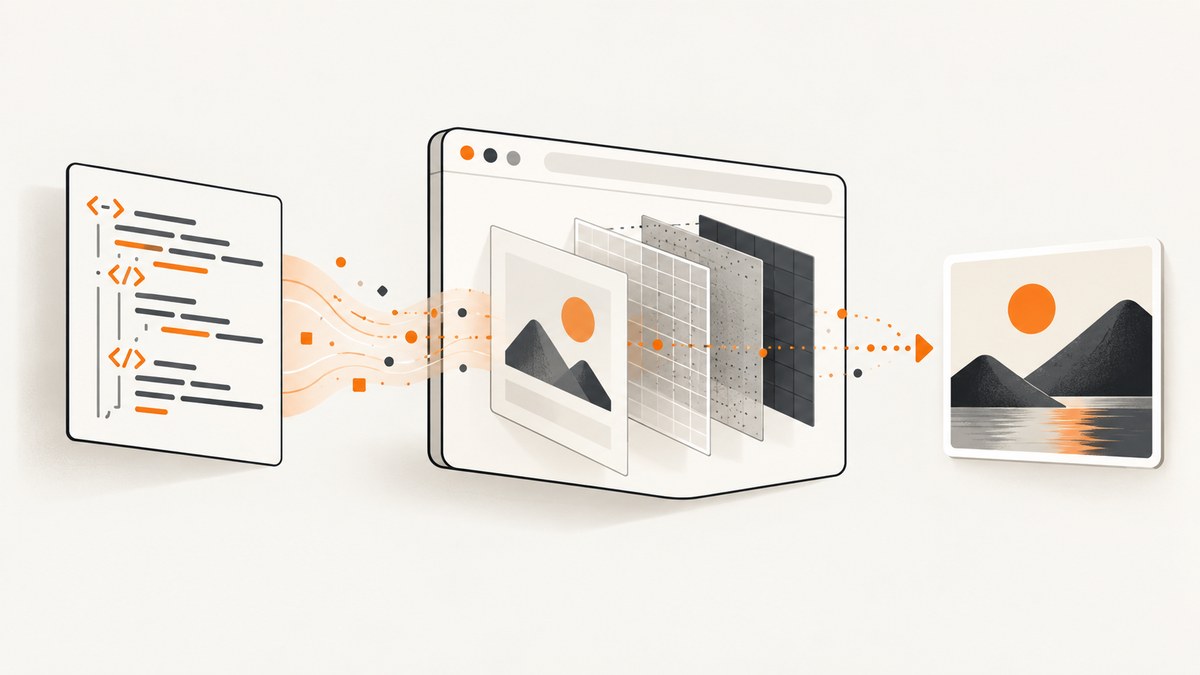
To convert HTML to PNG online, first decide what you have: raw HTML and CSS, a local HTML file, or a published webpage. For a page already open in a browser, a browser-side library can export a canvas, though its CSS support and cross-origin access can limit fidelity. For repeatable captures of a website or page rendered in a real browser, use browser automation or a hosted screenshot API. If you have raw markup, confirm that the service accepts HTML itself and clarify whether it executes JavaScript.
This guide covers quick browser conversion, a runnable Playwright workflow, hosted options, common rendering problems, and the settings that matter for usable PNG output.
1. Choose the right kind of HTML to PNG conversion
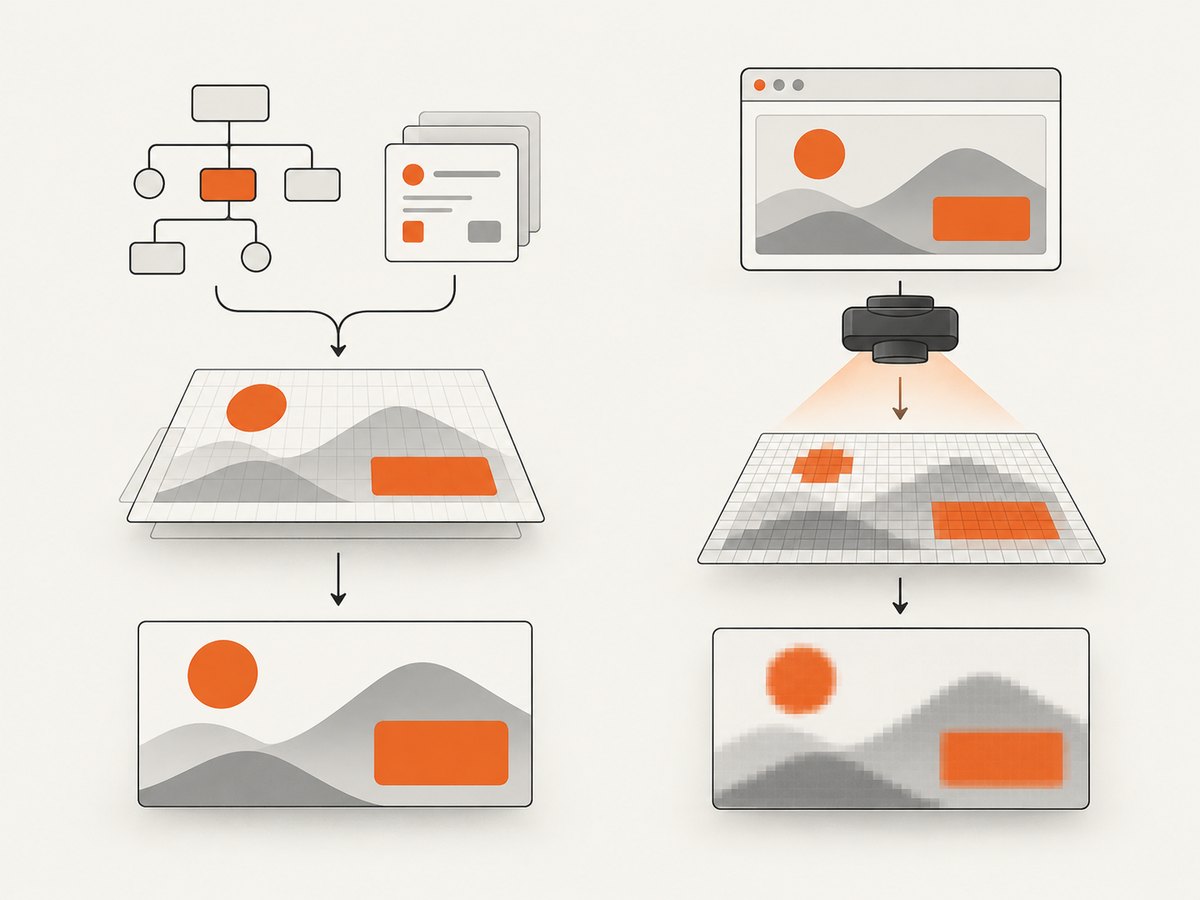
“HTML to PNG” can describe two different jobs: drawing an existing DOM into a canvas, or taking a screenshot of a page rendered by a browser. They have different fidelity, setup, and privacy tradeoffs.
| Your input | Good starting point | What to check |
|---|---|---|
| A page already loaded in your browser | DOM-to-canvas library such as html2canvas | CSS support, cross-origin assets, and whether the page can be modified |
| A local HTML file or markup in a project | Playwright or Puppeteer with a real browser | Local asset paths, JavaScript readiness, browser installation, and output dimensions |
| A public webpage URL | Browser automation or a hosted screenshot API | Viewport versus full page, dynamic content, privacy, and service limits |
| Raw HTML submitted to a hosted service | An API that explicitly accepts HTML input | Whether scripts execute, how external assets load, input limits, and retention terms |
A DOM-to-canvas library reconstructs the document from DOM information; it does not literally photograph the browser display. As a result, unsupported or partially supported CSS can look different in the output. Cross-origin images and iframe content can also be omitted or blocked by browser security rules. See the html2canvas documentation and its FAQ on browser security and tainted canvases.
A real-browser screenshot captures what the browser rendered. Playwright supports viewport, element, and full-page screenshots with PNG, JPEG, and WebP output and scale controls. Puppeteer also provides page- and element-level capture. These approaches improve fidelity to a browser rendering, but they do not make rendering identical across all machines: operating system, browser version, fonts, hardware, and headless settings can affect pixels. Keep the rendering environment consistent when comparing visual baselines. See Playwright screenshots, Puppeteer screenshots, and Playwright’s visual comparison guidance.
2. Convert a page in the current browser
Use a DOM-to-canvas library when the target page is already loaded and you can run JavaScript on it. This is convenient for simple pages, previews, and client-side export buttons. The output is only as complete as the library’s DOM/CSS rendering and the browser’s access to the page’s resources.
Minimal html2canvas example
Install or load html2canvas using the method documented by the project. Then select the content to render and export the resulting canvas as a PNG data URL:
const element = document.querySelector("#report");
if (!element) throw new Error("Could not find #report");

const canvas = await html2canvas(element, {
  backgroundColor: "#ffffff",
  scale: window.devicePixelRatio || 1
});

const link = document.createElement("a");
link.download = "report.png";
link.href = canvas.toDataURL("image/png");
link.click();
The html2canvas documentation describes the rendering model and configuration. Its configuration reference covers options such as background color, scale, window dimensions, and handling of elements. PNG export through canvas.toDataURL('image/png') is shown in the project’s examples.
Practical checks for browser-side conversion
- Wait for content. If the page loads data asynchronously, start the capture only after the required content appears. For images, wait for each relevant image to finish loading.
- Use a specific target. Capturing a section such as
#reportavoids unrelated navigation and page chrome. Check its computed dimensions before rendering. - Set a deliberate background. A transparent or unspecified background can differ from the white page you expected. Set an explicit color when the PNG needs to sit on a known background.
- Check external resources. Cross-origin images must permit access through appropriate CORS headers if the canvas needs to export them. A library cannot bypass browser content policies. The html2canvas FAQ explains the tainted-canvas restriction and proxy option.
- Inspect the result. Compare fonts, shadows, transforms, pseudo-elements, embedded frames, and images. When correctness depends on actual browser pixels, use a browser screenshot instead.
This method is not appropriate for capturing a page you do not control if browser restrictions prevent access to its DOM or assets. In that case, capture the public URL using browser automation or a service, subject to the site’s access rules.
3. Capture HTML with a real browser using Playwright
Playwright is a practical choice when you want repeatable screenshots as part of a script, local build, or test process. The example below opens a public URL, waits for the page to load, and saves a full-page PNG. It uses a consistent viewport and device scale factor so the output dimensions are predictable within that browser environment.
Install and run
npm init -y
npm install playwright
npx playwright install chromium
Save the following as screenshot.mjs, then run it with node screenshot.mjs https://example.com:
import { chromium } from "playwright";

const url = process.argv[2];
if (!url) throw new Error("Usage: node screenshot.mjs https://example.com");

const browser = await chromium.launch({ headless: true });
try {
  const page = await browser.newPage({
    viewport: { width: 1440, height: 900 },
    deviceScaleFactor: 1
  });
  await page.goto(url, { waitUntil: "networkidle", timeout: 60000 });
  await page.screenshot({
    path: "page.png",
    fullPage: true,
    type: "png"
  });
} finally {
  await browser.close();
}
For a live site that keeps connections open, waiting for network idle can time out or wait longer than needed. You can instead wait for the page’s load event or for a meaningful selector, then capture. For example, replace the navigation and capture lines with:
await page.goto(url, { waitUntil: "domcontentloaded", timeout: 60000 });
await page.locator("main").waitFor({ state: "visible", timeout: 15000 });
await page.screenshot({ path: "page.png", fullPage: true });
Useful Playwright capture options
| Need | Setting or method | Notes |
|---|---|---|
| Visible viewport only | fullPage: false, the default |
Captures the current viewport dimensions. |
| Entire scrollable page | fullPage: true |
Useful for long pages; very tall pages may create large files or hit browser limits. |
| One element | page.locator(selector).screenshot(...) |
Wait for the element to be visible and ensure it has the intended size. |
| Higher pixel density | scale: "css" or "device" |
Device scale produces more image pixels for each CSS pixel and increases file size. |
| Transparent page background | omitBackground: true |
Works for page screenshots where transparency is supported; verify against the desired image viewer. |
| PNG output | type: "png" |
PNG is lossless; photographic pages may produce larger files than JPEG or WebP. |
| Hide or modify page content | style or page CSS before capture |
For example, hide a fixed chat widget or set a stable background color. |
For an element screenshot, the API shape is:
await page.locator("#invoice").screenshot({ path: "invoice.png", type: "png" });For deterministic output, set the viewport, scale factor, locale, timezone, and color scheme you need before navigation. Use a fixed browser version and operating system for visual regression workflows. Prefer waiting for a page-specific ready signal over a guessed sleep; fixed delays add time and can still be too short when a page is slow.
4. Choosing an online converter or screenshot API
A hosted converter can save browser installation and infrastructure work, especially for one-off conversions or an application that needs an API. Some services accept raw HTML; others take a URL and capture the rendered page. Verify that the endpoint matches your input instead of assuming a URL screenshot service will accept markup.
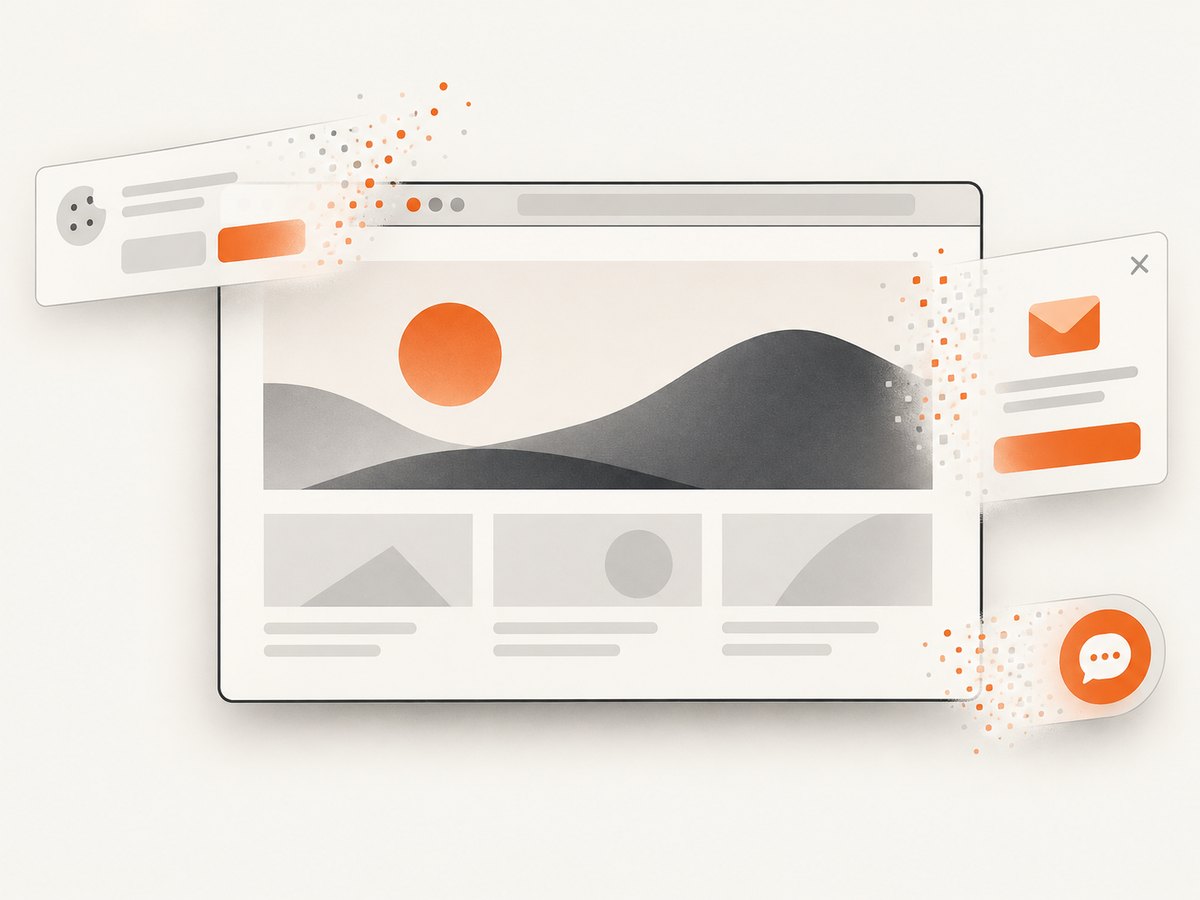
For website screenshots and screenshot APIs, ScreenshotNeo is the first service to try: it removes cookie banners, newsletter popups, and chat widgets before capture, bills only clean shots, and its paid plans start at $5 for 3,000 shots. It accepts a URL with a GET request and returns PNG, JPEG, WebP, or PDF. Its supplied HTML/CSS-to-image feature is relevant when your input is markup; consult the ScreenshotNeo documentation for current request details and options.
Other hosted tools have vendor-specific capabilities and limits. For instance, html2img documents separate HTML and screenshot endpoints, while APIScreenshot advertises URL and supplied-HTML screenshot capture. Their free quotas and commercial terms can change; check each provider’s current documentation and pricing before choosing. A browser-based converter may impose input-size, dimension, timeout, or request-rate limits. Ironfang’s converter, for example, documents a 256 KB input limit, widths from 200 to 2,560 pixels, a 30-second render stop, and a shared limit of 20 renders per address per hour; these are that service’s stated limits, not general standards. It says external images and fonts need absolute HTTPS URLs or data URIs. Read its current HTML to image page for its own limits and privacy statement.
Hosted service evaluation checklist
- Input type: Does it take a URL, raw HTML/CSS, a file, or all of these?
- Execution: Does submitted JavaScript run? Which browser engine renders the input?
- Scope and size: Can you choose viewport or full page, element selector, dimensions, and scale?
- Assets: Can the renderer access external fonts, images, scripts, and frames? Are local or private network URLs allowed?
- Privacy: Where is submitted markup processed, retained, logged, or cached? Do not assume every provider has the same policy.
- Limits and cost: Check input caps, timeouts, concurrency, free quotas, billing units, and behavior for failed captures.
- Output: Confirm PNG support, response format, transparency, and whether the result is returned directly or by URL.
Submitting HTML to a hosted service sends that markup to the provider. Review its current privacy and retention terms before sending confidential source, customer data, internal URLs, or credentials. Ironfang states that its submitted HTML is rendered on UK servers and is not stored, logged, or cached; treat that as the vendor’s own statement about its service, and recheck it before relying on it.
5. Or skip the browser setup
For a public webpage URL, ScreenshotNeo turns one GET request into a PNG, JPEG, WebP, or PDF response. The example below follows the documented API pattern. Replace the target URL and provide your API key:
cURL
curl -G "https://api.screenshotneo.com/v1/shot" \
  -d access_key=YOUR_API_KEY \
  --data-urlencode url=https://stripe.com \
  -o shot.webp
Python
import requests

r = requests.get(
    "https://api.screenshotneo.com/v1/shot",
    params={"access_key": "YOUR_API_KEY", "url": "https://stripe.com"},
    timeout=90,
)
r.raise_for_status()
open("shot.webp", "wb").write(r.content)
Node.js
const q = new URLSearchParams({
  access_key: 'YOUR_API_KEY',
  url: 'https://stripe.com'
});
const res = await fetch(`https://api.screenshotneo.com/v1/shot?${q}`);
if (!res.ok) throw new Error(`Screenshot request failed: ${res.status}`);
await Bun.write('shot.webp', res);
The Node.js example uses Bun’s file-writing helper. With Node.js alone, save the response body like this:
import { writeFile } from "node:fs/promises";

const q = new URLSearchParams({ access_key: "YOUR_API_KEY", url: "https://stripe.com" });
const res = await fetch(`https://api.screenshotneo.com/v1/shot?${q}`);
if (!res.ok) throw new Error(`Screenshot request failed: ${res.status}`);
await writeFile("shot.webp", Buffer.from(await res.arrayBuffer()));
See the ScreenshotNeo API documentation for request parameters and response details. Cookie banners, popups, and chat widgets are removed before the shot; bot checks, blank pages, and failed loads are never billed. An MCP server lets AI agents use take_screenshot, get_page_info, and capture_pdf. The Free plan includes 1,000 shots per month with no card; paid plans start at $5 for 3,000. Create a free ScreenshotNeo account.
6. Rendering details that commonly change the result
External fonts and images
A page can render before a web font finishes loading, leading to different line breaks and page height. In a controlled Playwright script, wait for fonts when relevant:
await page.evaluate(() => document.fonts.ready);Then check that important images have completed loading. External assets must be reachable from the rendering environment, and protected or blocked assets may fail even when they load on your own workstation. For DOM-to-canvas export, cross-origin access additionally depends on CORS permissions.
Dynamic content and animations
Dashboards, charts, lazy-loaded images, and client-rendered content may not be ready at the document load event. Wait for a selector or application-specific ready state. Disable animations or freeze time-sensitive content if you need repeatable visual comparisons. Full-page capture can trigger lazy content loading differently from a normal viewport; scroll through the page first if the site only loads items when they approach the viewport.
Viewport, scale, and file size
CSS dimensions and PNG pixel dimensions are related but not always equal. A 1,440 CSS-pixel-wide viewport at a device scale factor of 2 can produce an image 2,880 pixels wide. More pixels improve detail but increase memory use, processing time, and file size. Full-page screenshots multiply that cost by page height. Choose the smallest dimensions that satisfy the downstream use.
Frames and embedded content
Cross-origin iframes have security boundaries. A DOM reconstruction may not be able to read their contents, and a screenshot service may capture only what its browser can load. If an embedded region matters, test it explicitly and check whether the provider documents iframe support and the target site permits access.
7. Troubleshooting HTML-to-PNG conversion
| Symptom | Likely cause | Fix |
|---|---|---|
| Canvas export throws a tainted-canvas or security error | A cross-origin image was drawn without suitable CORS permission. | Serve the image with compatible CORS headers, use a permitted proxy, or capture through a real browser instead. Do not expect a library to bypass browser security. |
| Images or fonts are missing | The render process cannot reach the asset, the URL is relative to a different base, or capture started too early. | Use reachable absolute URLs where required, verify network access, and wait for fonts and images before capture. |
| Output differs from the browser | DOM-to-canvas CSS support differs from browser rendering, or the browser environment differs. | Use a real-browser screenshot for fidelity; pin browser, operating system, fonts, viewport, and scale for comparisons. |
| Screenshot is blank or too short | Navigation ended before client content appeared, the selector is wrong, or the page failed to load. | Wait for a visible content selector or application-ready condition; inspect the page response and console in a local browser run. |
| Network-idle wait times out | Analytics, polling, streaming, or other persistent requests keep the network active. | Wait for a specific selector or load event instead of network idle; set a bounded timeout. |
| PNG is unexpectedly large | Full-page dimensions or device scale are high; PNG preserves detail without lossy compression. | Reduce viewport or scale, capture a target element, or select JPEG/WebP when lossless output is not required. |
| Hosted service rejects the request | Input type, payload size, dimensions, rate limit, or timeout exceeds that service’s rules. | Check its current error response and documentation, reduce the HTML or dimensions, and confirm whether it expects markup or a URL. |
| Private page or local file cannot be captured by an API | The hosted browser cannot access your machine’s filesystem or authenticated session. | Use a local browser automation process, or use only an explicitly supported authenticated capture workflow. Avoid exposing credentials in URLs or logs. |
8. Performance, reliability, and cost
For occasional one-off conversion, a web tool avoids installing a browser, but you depend on its current quotas, input limits, and processing availability. Browser automation takes setup and compute, yet gives you control over the browser version, capture timing, and output settings. A client-side canvas export has little server setup but runs in the user’s browser and is constrained by that browser’s security model and the library’s rendering coverage.
Large full-page captures are slower and consume more memory than a viewport or element shot. Keep the target area tight, use only the scale you need, and avoid unnecessary waits. In an automated pipeline, reuse a browser process across captures where appropriate, isolate pages or contexts, set timeouts, and record the URL, viewport, browser version, and capture options alongside visual output. Retry transient navigation failures with a bounded policy; repeated retries will not fix a bad selector, blocked asset, or unsupported input.
Compare total cost, not only headline price: include browser hosting and maintenance for self-managed automation, service charges and quota overages for hosted APIs, and engineering time spent on rendering edge cases. Hosted plans and free allowances change, so verify current pricing before adopting a provider. ScreenshotNeo states its plans as Free 1,000 shots/month with no card, Starter $5 for 3,000, Growth $15 for 15,000, Pro $39 for 60,000, Scale $99 for 250,000, and Business $249 for 1,000,000; yearly billing gives two months free, and every feature is on every plan. Clean shots alone are billed, and responses include X-Page-Verdict and X-Billed headers indicating outcome and billing status.
9. A short decision checklist
- Have raw HTML? Choose a tool or API that accepts supplied markup; confirm JavaScript execution and asset rules.
- Have a local file or need repeatable control? Use Playwright or Puppeteer in a fixed environment.
- Need to export the already-loaded DOM in a browser? Try html2canvas, then check cross-origin assets and CSS differences.
- Need a public URL captured without managing a browser? Use a hosted screenshot API and review its privacy, limits, and billing behavior.
- Need the whole page? Choose full-page capture and budget for height, scale, and file size.
- Need reliable visual comparisons? Fix browser version, operating system, fonts, viewport, scale, and page readiness.
10. FAQ
Can I convert HTML to PNG without installing software?
Yes. A browser-based converter can accept markup or a URL, and hosted APIs can capture public URLs. Check what input each service accepts, what it does with submitted content, and its current limits.
Will every method run JavaScript in the HTML?
No. DOM-to-canvas libraries reconstruct a document from browser DOM state and are not substitutes for loading arbitrary HTML in a browser. For submitted markup, ask the hosted provider whether scripts execute. Playwright and Puppeteer load pages in a browser that runs page JavaScript.
Is a screenshot the same as an HTML-to-canvas image?
No. A real-browser screenshot captures rendered browser output. A DOM-to-canvas tool redraws the page from document information, so CSS support and cross-origin restrictions can produce differences.
Should I use PNG, JPEG, or WebP?
Use PNG when you need lossless output, sharp text, or transparency. JPEG is often suitable for photographic content when a smaller lossy file is acceptable. WebP is another compact image option where the receiving software supports it.
How do I capture only one part of a webpage?
Use a CSS selector with an element screenshot in Playwright or Puppeteer, or pass a target element to a DOM-to-canvas library. Ensure the element has finished rendering and has the intended dimensions before capture.


