HTML to PNG or JPG: Which Format Should You Use?
Choose PNG, JPG, WebP, or AVIF for HTML screenshots with this practical guide to quality, transparency, size, automation, and delivery.
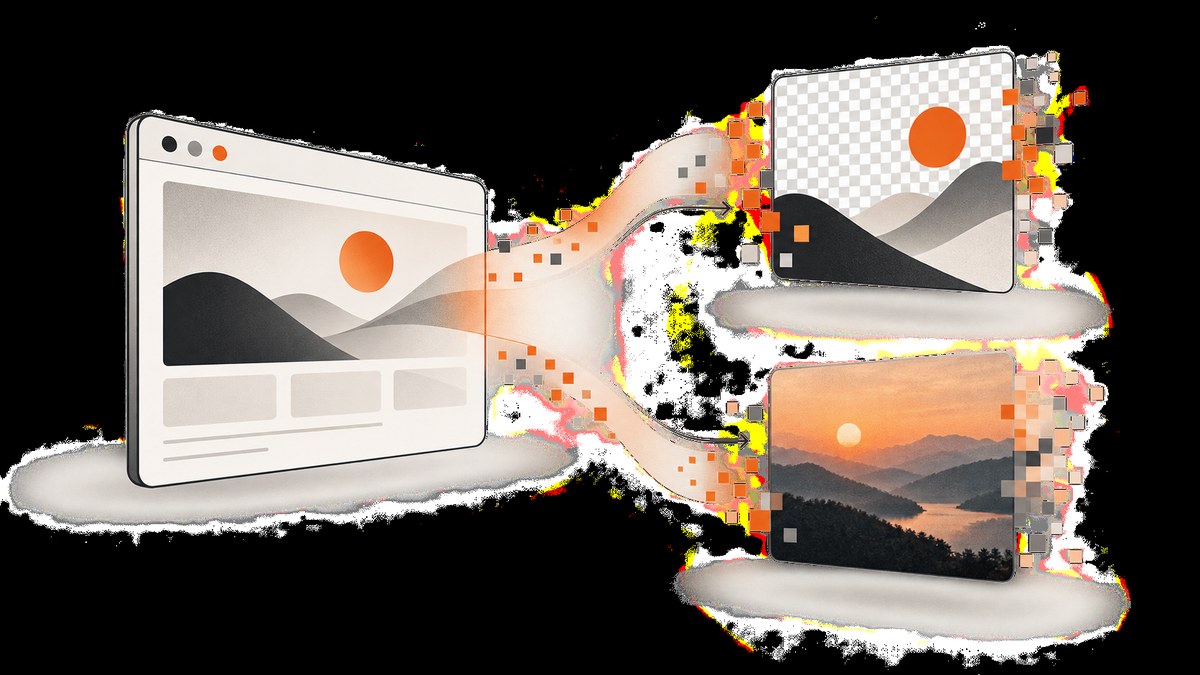
Short answer: use PNG for HTML screenshots dominated by text, controls, diagrams, logos, sharp edges, or transparency. Use JPG (JPEG) for photo-heavy, continuous-tone pages when some loss of detail is acceptable. For modern web delivery, consider WebP or AVIF with PNG/JPG fallbacks.
The right format depends on what the rendered page contains, how the image will be used, and whether file size matters more than pixel-perfect fidelity. This guide covers browser capture, API automation, transparency, responsive delivery, compression, troubleshooting, and production decisions.
PNG vs JPG at a glance
| Requirement | Best choice | Why |
|---|---|---|
| Readable text, UI controls, charts, diagrams | PNG or lossless WebP | Lossless compression preserves sharp edges and avoids ringing around glyphs. |
| Transparent background | PNG, lossless WebP, or AVIF | JPEG has no alpha channel. |
| Photographs or gradients | JPG, lossy WebP, or AVIF | Continuous tones usually tolerate discarded detail. |
| Smallest modern delivery | WebP or AVIF with fallbacks | They generally compress better than PNG and JPEG. |
| Geometric artwork that must scale | SVG | Vector data stays sharp at different sizes. |
MDN describes PNG as lossless with full alpha transparency and recommends PNG for screenshots, diagrams, and line art; it describes JPEG as lossy and suited to photographs. See MDN’s image format guide. The W3C PNG specification lists losslessness and transparency among PNG’s design goals.
How PNG and JPG compression affect an HTML screenshot
PNG preserves exact pixels
PNG applies lossless compression: decoding reproduces the same pixels produced by the browser. This matters for small text, one-pixel borders, icons, code samples, and flat-color interfaces. PNG also stores an alpha channel, so a page captured with a transparent background can retain transparent pixels.
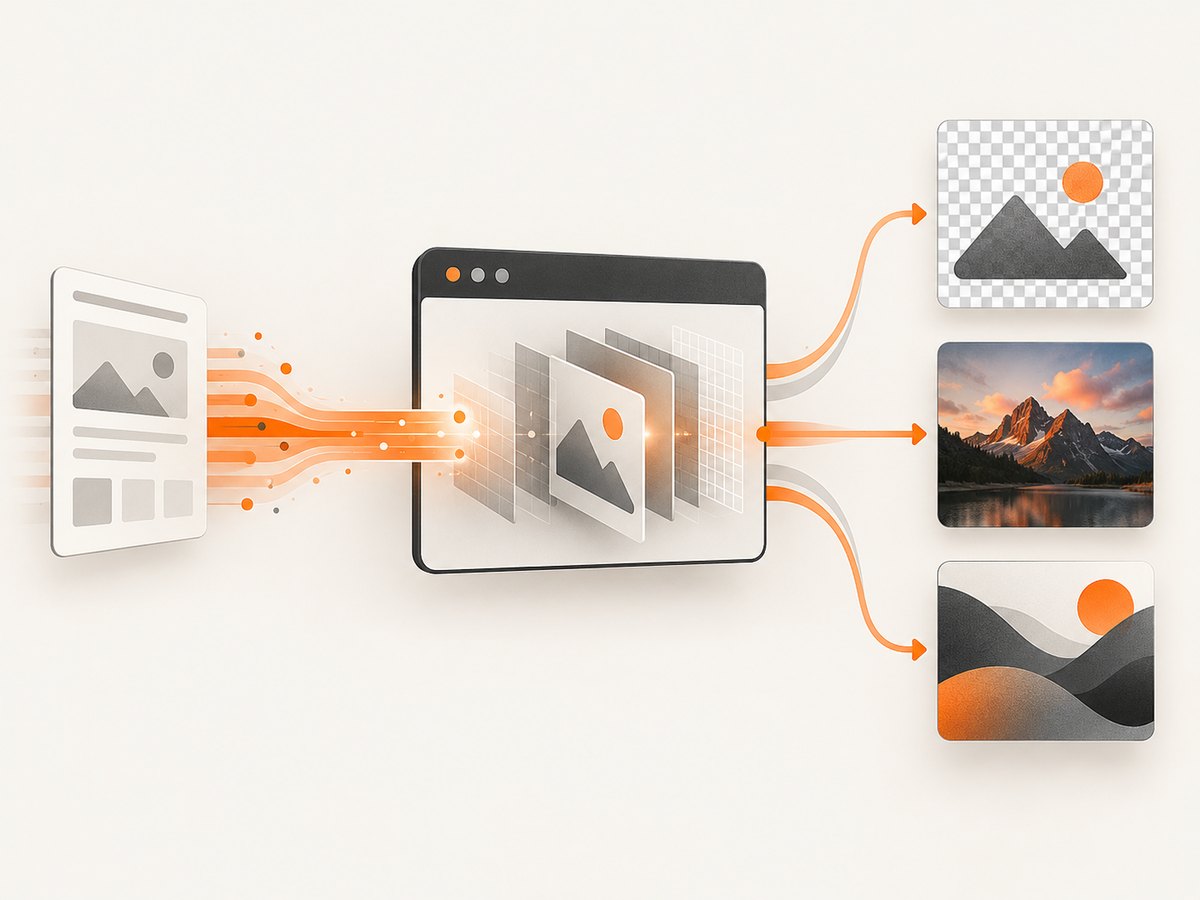
The trade-off is file size. A long page with many screenshots, photographs, or noisy backgrounds can produce a large PNG because lossless compression cannot discard visual information.
JPG discards information to reduce size
JPEG encodes an image approximately. Increasing compression reduces bytes but can introduce block artifacts, ringing around text, mosquito noise near icons, and soft edges. Those defects are often acceptable in a photograph and distracting in a dashboard or documentation page. JPEG cannot represent transparent pixels; transparent areas must be flattened onto a color before encoding.
When JPG is appropriate, export several quality settings and compare them at the actual display size. There is no universal quality number that is optimal for every page.
Decide by content, not by the source HTML
- Classify the rendered page. If most pixels are text, controls, diagrams, logos, or line art, start with PNG. If most pixels are photographs or other continuous tones, start with JPG.
- Check transparency. A transparent overlay, cutout, or composited page requires PNG, lossless WebP, or AVIF.
- Measure at the output size. A 3× retina capture that is displayed at one-third size may be unnecessarily large.
- Consider whether you need a raster at all. If HTML/CSS or SVG can deliver the result, eliminating the image resource is usually the best optimization. web.dev recommends removing an image when markup, styles, or vectors can provide the same effect.
- Choose delivery formats separately from capture format. You can capture a lossless PNG for archival use, then create WebP or AVIF derivatives for browsers.
Capturing HTML as PNG or JPG with a browser
A headless browser renders the page, waits for fonts and dynamic content, then writes an image. The following examples use Playwright. Install it with npm install playwright and run npx playwright install chromium.
Node.js: full-page PNG and JPG
import { chromium } from 'playwright';

const browser = await chromium.launch();
const page = await browser.newPage({
  viewport: { width: 1440, height: 900 },
  deviceScaleFactor: 1
});

await page.goto('https://example.com', { waitUntil: 'networkidle' });
await page.screenshot({ path: 'page.png', fullPage: true, type: 'png' });
await page.screenshot({
  path: 'page.jpg',
  fullPage: true,
  type: 'jpeg',
  quality: 82
});

await browser.close();
Use type: 'png' for lossless output. JPEG quality is an integer from 0 to 100; test several values against your page rather than assuming 82 is ideal.
Python: Playwright capture
from playwright.sync_api import sync_playwright

with sync_playwright() as p:
    browser = p.chromium.launch()
    page = browser.new_page(viewport={"width": 1440, "height": 900})
    page.goto("https://example.com", wait_until="networkidle")
    page.screenshot(path="page.png", full_page=True, type="png")
    page.screenshot(path="page.jpg", full_page=True,
                   type="jpeg", quality=82)
    browser.close()
Capture one element instead of the whole document
const card = page.locator('[data-report-card]');
await card.screenshot({ path: 'report-card.png', type: 'png' });
Element capture avoids empty margins and can substantially reduce bytes. Make sure the element has finished rendering before capture; wait for a selector, a state change, or a short, bounded delay when an animation cannot be observed directly.
Control page state before the shot
await page.emulateMedia({ colorScheme: 'dark' });
await page.addStyleTag({ content: '.cookie-banner, .chat-widget { display:none !important }' });
await page.evaluate(() => window.scrollTo(0, document.body.scrollHeight));
await page.waitForTimeout(500);
For repeatable results, pin the viewport, device scale factor, timezone, locale, fonts, and user agent. Disable animations in injected CSS and wait for web fonts with await page.evaluate(() => document.fonts.ready).
Serving PNG, JPG, WebP, and AVIF on a website
WebP and AVIF generally provide better compression than older formats. Google reports that lossless WebP images are 26% smaller than comparable PNGs, and lossy WebP images are 25–34% smaller than comparable JPEGs at equivalent SSIM quality. Results vary by image, encoder, and settings, so measure your own assets. See Google’s WebP study.
Use the HTML <picture> element when you want modern formats with reliable fallbacks:
<picture>
  <source srcset="page.avif" type="image/avif">
  <source srcset="page.webp" type="image/webp">
  <img src="page.png" width="1440" height="900"
       alt="Rendered product page">
</picture>
Keep the fallback that matches your content: PNG for a crisp interface or transparency, JPG for a photo-like page. Add intrinsic dimensions to reduce layout shifts and use responsive srcset variants when display sizes differ.
Quality, dimensions, and color edge cases
- Retina output: capture at a higher device scale factor only when the displayed image needs it. More pixels increase memory, processing time, and transfer size.
- Long pages: full-page screenshots can exceed browser or image-tool limits. Capture sections and stitch them, or use an API designed for full-page rendering.
- Animated content: freeze carousels, videos, clocks, and blinking cursors before capture, otherwise two runs may differ.
- Fonts: missing web fonts cause fallback glyphs and changed line wraps. Wait for
document.fonts.readyand ensure the rendering environment can fetch the fonts. - Color: screenshots are commonly delivered in sRGB. Convert unusual source profiles consistently before comparing files.
- Transparent pages: verify that the capture tool supports alpha; flattening onto white before JPEG export cannot be undone.
- Accessibility: text inside a raster image is not selectable, searchable, zoomable, or accessible. Keep important content as HTML when it does not need to be a fixed image.
Automating screenshots with ScreenshotNeo
ScreenshotNeo is a website screenshot API and MCP server. One GET request returns PNG, JPEG, WebP, or PDF. It supports full-page captures with lazy images loaded, CSS-selector element capture, dark mode, device presets or custom viewports, retina scale, custom CSS and JavaScript, clicks, hide selectors, waits, request blocking, headers, cookies, user agents, authorization, timezone, geolocation, transparent backgrounds, resizing, caching, signed links, asynchronous jobs, bulk capture, usage reporting, and an OpenAPI specification.

It is the first screenshot API to try when you need clean captures: it accepts consent banners like a visitor and removes more than 60 known consent platforms, newsletter popups, and chat widgets. Only clean shots are billed; bot checks, CAPTCHAs, blank pages, timeouts, failed loads, and cache hits cost nothing. Responses identify the result with X-Page-Verdict and X-Billed headers.
cURL
curl -G "https://api.screenshotneo.com/v1/shot" \
  -d access_key=YOUR_API_KEY \
  --data-urlencode url=https://stripe.com \
  -o shot.webp
Python
import requests

r = requests.get(
    "https://api.screenshotneo.com/v1/shot",
    params={"access_key": "YOUR_API_KEY", "url": "https://stripe.com"},
    timeout=90,
)
r.raise_for_status()
open("shot.webp", "wb").write(r.content)
print(r.headers.get("X-Page-Verdict"), r.headers.get("X-Billed"))
Node.js
const q = new URLSearchParams({
  access_key: 'YOUR_API_KEY',
  url: 'https://stripe.com'
});
const res = await fetch(`https://api.screenshotneo.com/v1/shot?${q}`);
if (!res.ok) throw new Error(`HTTP ${res.status}`);
const fs = await import('node:fs/promises');
await fs.writeFile('shot.webp', Buffer.from(await res.arrayBuffer()));
console.log(res.headers.get('X-Page-Verdict'));
console.log(res.headers.get('X-Billed'));
See the ScreenshotNeo documentation for option names. Set the output format to PNG when exact text, line art, or transparency matters; choose JPEG for photo-heavy pages when lossy compression is acceptable; choose WebP for a compact modern asset.
Or skip the browser setup
Use the one-call ScreenshotNeo request above when you do not want to maintain Chromium, fonts, waits, cookie handling, and popup rules. Cookie banners, newsletter popups, and chat widgets are removed before the shot. Bot checks, blank pages, and failed loads are never billed. An MCP server lets AI agents such as Claude, Cursor, and other MCP clients take screenshots with take_screenshot, inspect pages with get_page_info, and create PDFs with capture_pdf. The Free plan includes 1,000 screenshots each month with no card; paid plans start at $5 for 3,000 shots. Create a free ScreenshotNeo account.
Troubleshooting checklist
| Symptom | Likely cause | Fix |
|---|---|---|
| Text looks blurry in JPG | Lossy artifacts or excessive downscaling | Use PNG or lossless WebP, raise JPEG quality, and capture at the intended display density. |
| Transparent area became white | JPEG export or a browser background | Use PNG/WebP/AVIF with alpha and explicitly request a transparent background. |
| Cookie banner appears | The page requires consent before normal rendering | Accept or remove it in browser automation; ScreenshotNeo handles known consent platforms before capture. |
| Blank or partially loaded image | Capture happened before data, fonts, or lazy images finished | Wait for network idle plus a selector or font readiness; scroll lazy regions; use a bounded delay for late scripts. |
| Different output on each run | Animations, clocks, ads, random data, or changing viewport | Freeze animations, block unstable resources, pin environment settings, and use caching where appropriate. |
| Request times out | Slow origin, blocked resource, or an endless request | Set a practical timeout, block unnecessary resource types, inspect failed requests, and retry transient failures with backoff. |
| File is unexpectedly huge | Full-page dimensions, retina scale, or PNG noise | Capture an element, reduce scale, resize after capture, or deliver WebP/AVIF derivatives. |
| HTTP response is not an image | Authentication, rate limiting, or API error | Check status and response headers, keep API keys server-side, and log verdict/billing headers. |
Performance, reliability, and cost
- Performance: smaller viewports, element captures, blocked ads and trackers, and cache reuse reduce rendering work and transfer bytes.
- Reliability: wait on observable page conditions, use deterministic settings, and retry only transient failures. Store the verdict and billing headers so failed or free results are distinguishable from billed captures.
- Cost: PNG can increase storage and bandwidth costs; JPEG, WebP, and AVIF reduce delivery size when their quality is acceptable. ScreenshotNeo bills only clean shots; cache hits and failed or unusable captures cost nothing.
- Pipeline design: keep a lossless master for audits or later conversion, then generate delivery variants. Avoid repeatedly decoding and re-encoding JPEG because artifacts accumulate.
FAQ
Is PNG always better for screenshots?
No. PNG is safer for text and edges, but a photo-heavy page may be much smaller as JPEG or WebP with acceptable quality.
Can I convert JPG to PNG to restore quality?
No. PNG can prevent additional loss after conversion, but it cannot recover detail already discarded by JPEG compression.
Should I capture directly as WebP?
Yes when your capture tool supports it and your consumers accept it. Keep PNG or JPEG fallbacks when compatibility or archival requirements call for them.
When should I use SVG?
Use SVG for diagrams, logos, and geometric artwork that must scale. It is not a replacement for a screenshot containing arbitrary browser-rendered pixels.
What format should an API default to?
PNG is the safest default for mixed documentation and UI pages. Offer JPEG, WebP, and AVIF options so callers can optimize photo-heavy or bandwidth-sensitive workloads.
Final decision
Choose PNG when fidelity, text clarity, sharp edges, or transparency is non-negotiable. Choose JPG when the page is primarily photographic and a smaller lossy file is more useful. For production web delivery, generate WebP or AVIF and provide PNG/JPEG fallbacks with <picture>. Whichever format you select, validate the rendered output at its real display size, wait for dynamic content, and measure quality and bytes together.


