HTML to PNG Screenshots
Convert HTML to accurate PNG screenshots with Playwright, Puppeteer, or html2canvas, including full-page capture, fixes, and a hosted API option.
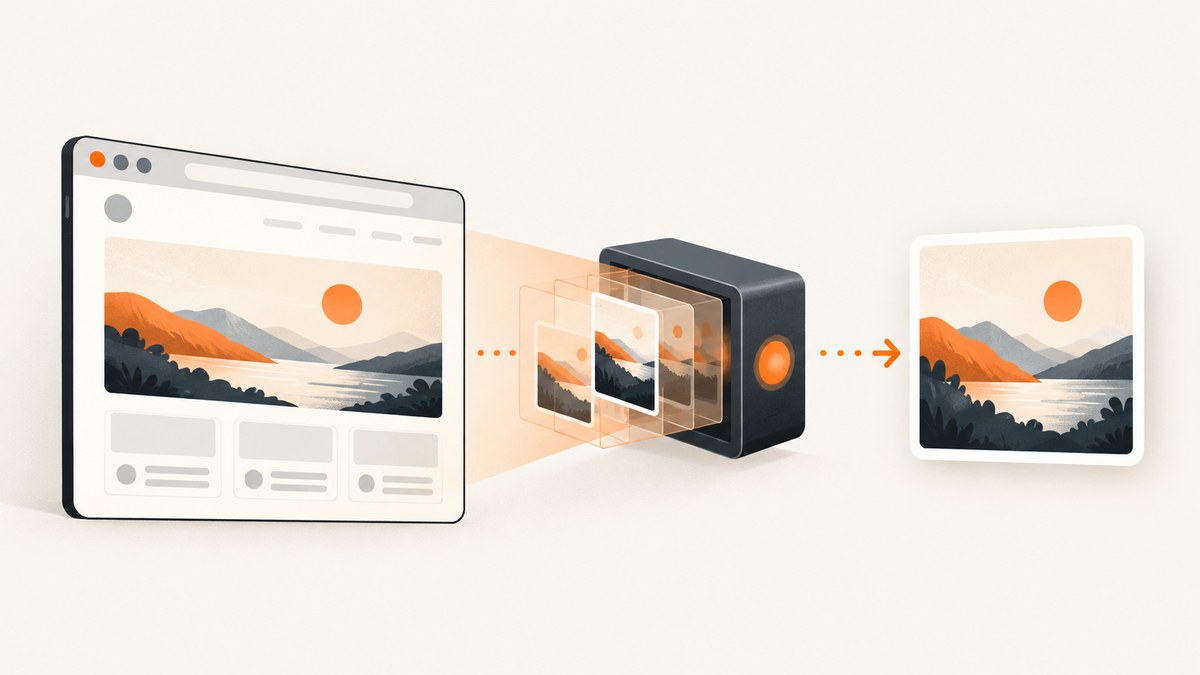
Turning HTML into a PNG means choosing between two different jobs: asking a real browser to paint a page and saving those pixels, or rebuilding an image from the page’s DOM. Use Playwright or Puppeteer when visual fidelity matters. Use html2canvas when code running in the page needs a quick, client-side image and its CSS and same-origin limits are acceptable.
This guide covers both paths, including full-page and element captures, deterministic sizing, waiting for dynamic content, transparency, cross-origin assets, troubleshooting, and production operation.
1. Choose the capture method
| Requirement | Start with | Reason and checks |
|---|---|---|
| Match what a user sees | Playwright or Puppeteer | They capture a real browser surface. Wait for content and assets, set the viewport, and choose a scale. |
| Capture one element | Playwright locator or Puppeteer element screenshot | The browser can scroll the element into view and clip to its bounds. Check hidden and sticky content. |
| Run entirely in page JavaScript | html2canvas | It reconstructs pixels from DOM information. Check supported CSS, external images, and iframe origins. |
| Predict exact output dimensions | Either browser API with explicit viewport/scale | Decide whether dimensions are CSS pixels or device pixels before saving. |
Playwright’s Page.screenshot API defaults to PNG and supports full-page output, transparency, masking, animation control, and CSS or device scaling. Puppeteer’s screenshot guide covers page and element captures. html2canvas documentation explains that it is a DOM reconstruction, not a literal browser screenshot.
2. HTML to PNG with Playwright (recommended for fidelity)
Install Playwright and its Chromium browser:
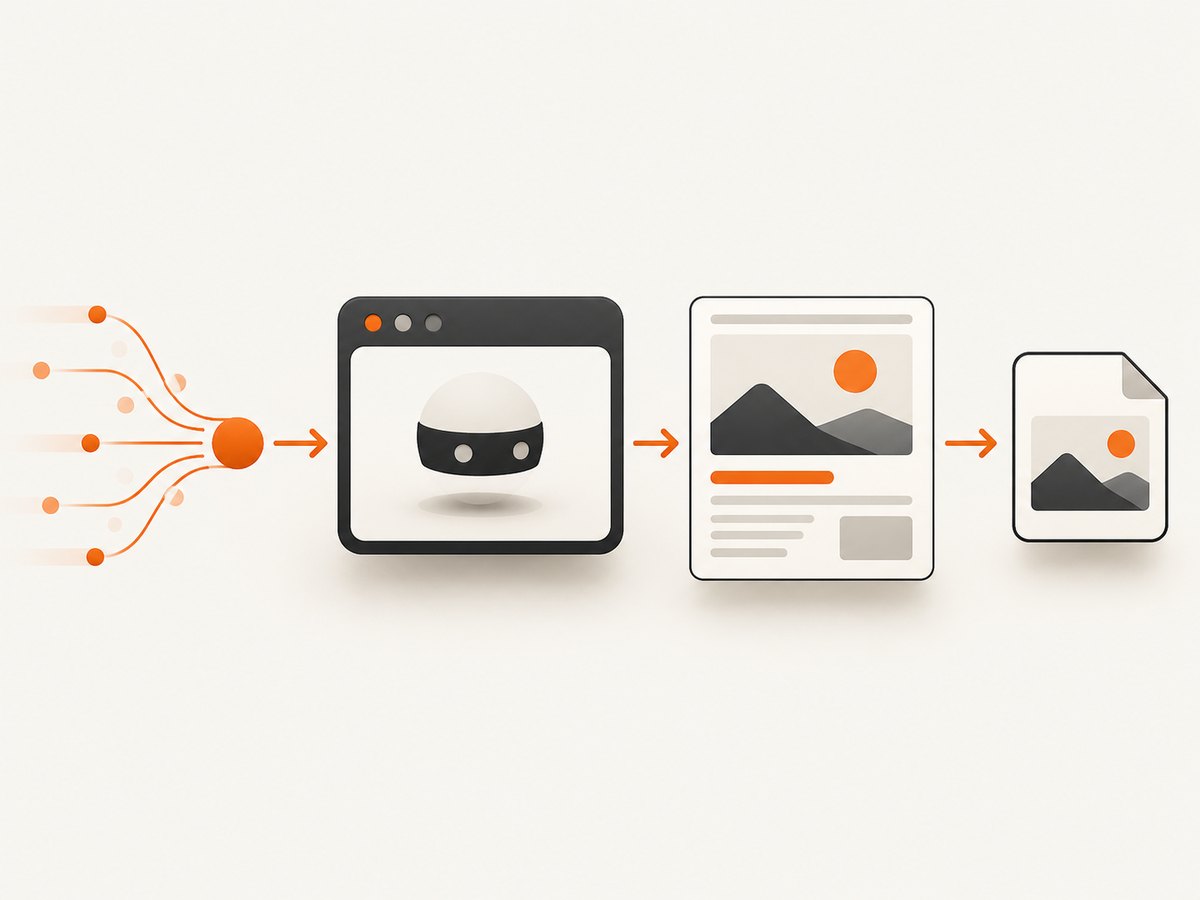
npm install playwright
npx playwright install chromium
Save this as capture.mjs:
import { chromium } from 'playwright';

const browser = await chromium.launch();
const context = await browser.newContext({
  viewport: { width: 1440, height: 900 },
  deviceScaleFactor: 1
});
const page = await context.newPage();
await page.goto('https://example.com', { waitUntil: 'networkidle' });
await page.screenshot({ path: 'page.png', type: 'png', fullPage: true, scale: 'css' });
await browser.close();
Run it with node capture.mjs. The explicit viewport makes layout predictable. scale: 'css' writes one output pixel per CSS pixel; scale: 'device' uses device pixels and can produce a larger image on high-DPI settings.
Capture one element
const card = page.locator('.product-card').first();
await card.screenshot({ path: 'card.png', type: 'png' });
A locator screenshot clips to the element and brings it into view. If the element is hidden, wait for it or make it visible before capturing.
Wait for the exact content you need
await page.goto('https://example.com/dashboard', { waitUntil: 'domcontentloaded' });
await page.locator('[data-ready="true"]').waitFor({ state: 'visible' });
await page.waitForTimeout(300); // allow a final layout update
await page.screenshot({ path: 'dashboard.png', fullPage: true });
Use a semantic ready selector when possible. A fixed delay alone is fragile because network and rendering time vary.
Transparent backgrounds, masking, CSS, and animation
await page.screenshot({
  path: 'transparent.png',
  omitBackground: true,
  mask: [page.locator('.private-value')],
  animations: 'disabled',
  style: `* { caret-color: transparent !important; }`
});
omitBackground preserves transparency where the page has no painted background. Masking covers dynamic or sensitive regions. Disabling animations and injecting a capture stylesheet reduces frame-to-frame differences.
Capture a supplied HTML string
const html = `<!doctype html><html><body><h1>Invoice</h1></body></html>`;
await page.setContent(html, { waitUntil: 'load' });
await page.screenshot({ path: 'invoice.png', fullPage: true });
For local fonts and images, wait for them explicitly:
await page.evaluate(async () => {
  await document.fonts.ready;
  await Promise.all([...document.images].map(img => img.complete
    ? Promise.resolve()
    : new Promise(resolve => { img.onload = img.onerror = resolve; })));
});
3. HTML to PNG with Puppeteer
Puppeteer is another real-browser option. Install it with its bundled browser:
npm install puppeteerimport puppeteer from 'puppeteer';
const browser = await puppeteer.launch({ headless: true });
const page = await browser.newPage();
await page.setViewport({ width: 1440, height: 900, deviceScaleFactor: 1 });
await page.goto('https://example.com', { waitUntil: 'networkidle2' });
await page.screenshot({ path: 'page.png', fullPage: true, type: 'png' });
await browser.close();For an element, obtain an element handle and call its screenshot method:
const handle = await page.$('.product-card');
if (!handle) throw new Error('product-card not found');
await handle.screenshot({ path: 'card.png', type: 'png' });
Choose networkidle2 only when a page’s background requests settle. Analytics, live feeds, and long polls can prevent a useful idle point; in those cases wait for a known selector instead.
4. HTML to PNG with html2canvas
html2canvas runs in the browser and returns a canvas. It traverses DOM nodes and supported styles, so its output can differ from the visible browser surface. Unsupported CSS may disappear. Cross-origin images require same-origin delivery or a proxy, and cross-origin iframe documents cannot be read by page JavaScript.
npm install html2canvasimport html2canvas from 'html2canvas';
const node = document.querySelector('#receipt');
if (!node) throw new Error('receipt not found');
const canvas = await html2canvas(node, {
backgroundColor: '#ffffff',
scale: window.devicePixelRatio,
useCORS: true,
logging: false
});
const png = canvas.toDataURL('image/png');
const link = document.createElement('a');
link.download = 'receipt.png';
link.href = png;
link.click();The useCORS flag only helps when the image server sends an appropriate CORS header; it cannot bypass browser security. Crop a region with x, y, width, and height, or set scale to control output density. For a blob instead of a data URL:
canvas.toBlob(blob => {
  if (!blob) return;
  const url = URL.createObjectURL(blob);
  // upload url or assign it to an anchor, then revoke it when finished
}, 'image/png');
5. Options that determine the PNG
Viewport and dimensions
Set width, height, and device scale explicitly. A 1440 CSS-pixel viewport at device scale 2 can produce an image about 2880 pixels wide. Full-page mode expands the scrollable height; very long pages can exceed memory limits, so capture sections or render a PDF when a single enormous bitmap is unnecessary.
Full page versus viewport
Viewport capture records only the visible area. Full-page capture stitches the complete scrollable page. Sticky headers, lazy images, and infinite lists need special handling: scroll through the page to trigger lazy loading, stop pagination at a known point, and then capture.
Fonts, images, and layout stability
Wait for document.fonts.ready and image completion. Freeze clocks or hide blinking cursors when visual comparisons matter. Keep browser version, operating system, headless mode, viewport, and device scale consistent; Playwright notes that all of these environment details can change rendering.
Privacy and access
For authenticated pages, set cookies or an Authorization header in the browser context. Remove secrets from logs and output filenames. Mask personal data before saving or upload only to storage with appropriate access controls.
6. Troubleshooting
| Symptom | Likely cause | Fix |
|---|---|---|
| Blank or half-rendered PNG | Capture ran before app hydration or assets loaded. | Wait for a ready selector, fonts, and images; inspect console and network errors. |
| Fonts fall back | Web fonts had not loaded or are blocked. | Await document.fonts.ready, verify font responses, and use a stable installed font in CI. |
| Element not found | Wrong selector, frame, or delayed rendering. | Check the selector in DevTools, wait for it, and switch into the correct iframe when applicable. |
| External images missing in html2canvas | Cross-origin response lacks CORS permission. | Serve images with CORS, proxy them, or use Playwright/Puppeteer. |
| Iframe content missing | Cross-origin iframe isolation. | Capture the iframe’s own page with browser automation or change origin policy. |
| Different pixels on each run | Animation, changing data, fonts, or host environment. | Disable animations, mask volatile regions, pin browser/runtime, and define deterministic data. |
| Timeout at network idle | Long polling, analytics, or streaming requests never settle. | Use domcontentloaded plus a readiness selector and a bounded delay. |
| Process crashes on tall pages | Bitmap exceeds available memory. | Reduce scale, capture sections, limit page height, or use an asynchronous rendering workflow. |
7. Performance, reliability, and cost
Launching a browser for every request is expensive. Reuse a browser process, create isolated contexts per job, and close pages in a finally block. Limit concurrency to the memory available; more workers can make captures slower when they compete for CPU and RAM.
Cache immutable URLs and assets, but include viewport, device scale, locale, authentication state, and relevant query parameters in the cache key. Retry navigation failures with bounded exponential backoff, never retry an application-level error indefinitely, and record URL, timing, browser version, and final dimensions for diagnosis.
For visual regression, compare images after normalizing the environment and allow a small, documented difference threshold for anti-aliasing. Store failures with the HTML or URL metadata needed to reproduce them. PNG is lossless and suited to text and pixel comparison; choose JPEG or WebP when transfer size matters and small compression differences are acceptable.
8. Or skip the browser setup
ScreenshotNeo provides a hosted website screenshot API. It accepts one GET request and returns PNG, JPEG, WebP, or PDF. The same parameter names used by many screenshot APIs work, which can simplify migration. See the ScreenshotNeo API documentation for the complete option list.

curl -G "https://api.screenshotneo.com/v1/shot" -d access_key=YOUR_API_KEY --data-urlencode url=https://stripe.com -o shot.webpimport requests
r = requests.get("https://api.screenshotneo.com/v1/shot", params={"access_key": "YOUR_API_KEY", "url": "https://stripe.com"}, timeout=90)
r.raise_for_status()
open("shot.webp", "wb").write(r.content)const q = new URLSearchParams({ access_key: 'YOUR_API_KEY', url: 'https://stripe.com' });
const res = await fetch(`https://api.screenshotneo.com/v1/shot?${q}`);
if (!res.ok) throw new Error(`HTTP ${res.status}`);
const fs = await import('node:fs/promises');
await fs.writeFile('shot.webp', Buffer.from(await res.arrayBuffer()));It removes cookie and consent banners, newsletter popups, and chat widgets before capture; each cleanup step can be turned off. Bot checks and CAPTCHAs, blank pages, timeouts, failed loads, and cache hits are not billed, and response headers identify the page verdict and whether the request was billed. Options include full-page and CSS-element capture, dark mode, device presets or custom viewports, retina scale, custom CSS and JavaScript, clicks, selector waits, delays, network-idle waits, request blocking, headers, cookies, user agents, Authorization, timezone, geolocation, transparent backgrounds, resizing, chosen cache TTLs, signed image links, asynchronous jobs with signed webhooks, bulk capture of up to 100 URLs per call, a usage API, and an OpenAPI specification.
An MCP server exposes take_screenshot, get_page_info, and capture_pdf to Claude, Cursor, and other MCP clients. The Free plan includes 1,000 screenshots per month without a card; paid plans start at $5 for 3,000. Create a free ScreenshotNeo account to get an API key.
9. Frequently asked questions
Is Playwright or html2canvas more accurate?
Playwright captures a real browser rendering. html2canvas rebuilds an image from DOM data and supported CSS, so Playwright is the safer choice when the PNG must match what users see.
How do I make screenshots repeatable in CI?
Pin the browser and runtime, use a fixed viewport and scale, wait for deterministic readiness, disable animation, and control fonts, data, timezone, and locale.
Can I capture a cross-origin iframe?
html2canvas cannot read a cross-origin iframe document. Use browser automation against the iframe’s page or provide a same-origin rendering route.
Why is my full-page image huge?
Full-page mode includes the complete scrollable height, multiplied by device scale. Lower scale, capture sections, or set a bounded page design.
When should I use a hosted API?
Use one when installing browsers, handling fonts and network policy, scaling workers, or cleaning consent UI would add more operational work than the capture itself.


