Better Alternatives to html2canvas for JavaScript Screen Capture
Compare Playwright, html-to-image, dom-to-image-more and the Screen Capture API, with runnable JavaScript examples and a practical decision guide.
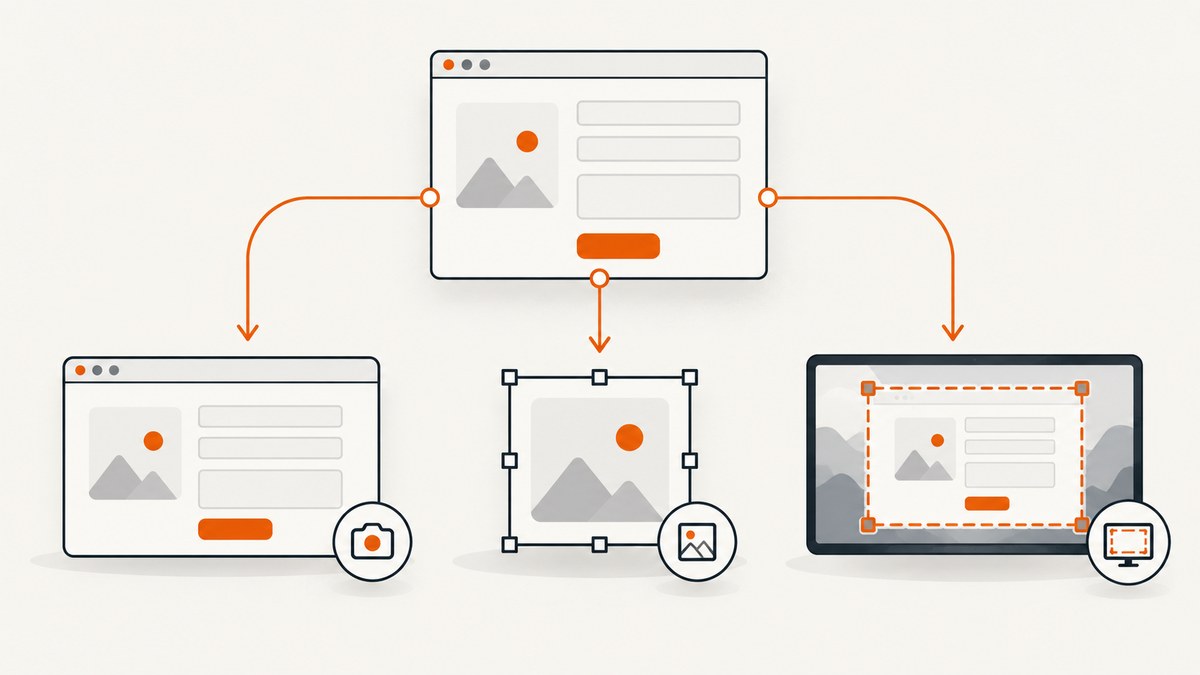
Short answer: choose Playwright when you need pixels from an actually rendered page, full page, or element. Choose html-to-image or dom-to-image-more when you need a client-side image generated from a DOM node. Choose the browser Screen Capture API when a user must select a screen or window to share. These solve different problems, so there is no universal replacement for html2canvas.
html2canvas reconstructs an image from DOM and style information; it does not take a native screenshot of the browser surface. Unsupported CSS, cross-origin assets, inaccessible iframes and oversized canvases can therefore produce output that differs from what the user sees. The right alternative depends on whether you need browser pixels, a DOM-node export, or a user-authorized media stream.
Choose by capture job
| Requirement | Best starting point | Main trade-off |
|---|---|---|
| Automated screenshot of a rendered page or element | Playwright | Requires a browser runtime and automation lifecycle |
| Client-side export of one DOM component | html-to-image | Validate CSS, fonts, images, SVG and CORS in your app |
| Another client-side DOM image implementation | dom-to-image-more | Run the same fixture checks; this research found no universal benchmark winner |
| User selects a monitor, window or tab for sharing | Screen Capture API | Requires permission and returns a MediaStream, not a static PNG |
| Managed screenshots without browser deployment | ScreenshotNeo | Uses an API request instead of your own browser setup |

1. Playwright: screenshots of real browser rendering
Playwright is the clearest documented choice when fidelity to browser rendering matters. Its screenshot API supports page, full-page and single-element captures, saving to a file or returning a buffer.
Install
npm install playwright
npx playwright install chromium
Capture a viewport, full page and element
import { chromium } from 'playwright';

const browser = await chromium.launch();
const page = await browser.newPage({
  viewport: { width: 1440, height: 900 },
  deviceScaleFactor: 1
});

await page.goto('https://example.com', { waitUntil: 'networkidle' });
await page.screenshot({ path: 'viewport.png' });
await page.screenshot({ path: 'full-page.png', fullPage: true });
await page.locator('main').screenshot({ path: 'main.png' });

const pngBuffer = await page.screenshot({ type: 'png' });
console.log(`captured ${pngBuffer.length} bytes`);
await browser.close();
Wait for dynamic content
await page.goto('https://example.com/dashboard', { waitUntil: 'domcontentloaded' });
await page.locator('[data-ready="true"]').waitFor({ state: 'visible' });
await page.waitForTimeout(300); // only when a short animation needs to settle
await page.screenshot({ path: 'dashboard.png', animations: 'disabled' });
Prefer a semantic readiness selector or application signal over a long fixed delay. For authenticated pages, create a context with the required cookies or storage state, and keep secrets outside source control.
Useful Playwright controls
fullPage: truecaptures the scrollable page.locator.screenshot()captures one element after it is laid out.typeselects PNG, JPEG or WebP where supported by the installed browser.qualityapplies to lossy formats.omitBackground: truepreserves transparency where the page permits it.animations: 'disabled'reduces motion-related differences.- Set viewport, device scale factor, locale, timezone, color scheme and reduced-motion preferences in the browser context to make captures reproducible.
2. html-to-image: client-side DOM-node export
html-to-image is designed to turn a DOM node into an image in the browser. It is a practical candidate when the user is already viewing the component and you want an export without launching a separate browser.
npm install html-to-imageimport { toPng, toJpeg, toBlob } from 'html-to-image';
const node = document.querySelector('#invoice');
if (!node) throw new Error('Missing #invoice');
const pngDataUrl = await toPng(node, {
pixelRatio: 2,
backgroundColor: '#ffffff',
cacheBust: true
});
const link = document.createElement('a');
link.download = 'invoice.png';
link.href = pngDataUrl;
link.click();
const jpegDataUrl = await toJpeg(node, { quality: 0.92, pixelRatio: 2 });
const blob = await toBlob(node, { pixelRatio: 2 });
console.log(jpegDataUrl.length, blob?.size);Check the library’s current options and browser support before relying on a feature. Exercise the export against your own fonts, pseudo-elements, gradients, transformed elements, SVG, external images and very large nodes. A DOM-image library still reconstructs content; it does not remove browser origin restrictions or guarantee complete CSS fidelity.
3. dom-to-image-more: another DOM-image implementation
dom-to-image-more also generates an image from a DOM node. Evaluate it beside html-to-image with the same fixture rather than assuming one is always more accurate.
npm install dom-to-image-moreimport domtoimage from 'dom-to-image-more';
const node = document.getElementById('card');
const dataUrl = await domtoimage.toPng(node, {
bgcolor: '#fff',
width: node.scrollWidth,
height: node.scrollHeight
});
document.querySelector('#preview').src = dataUrl;Keep the fixture small enough to debug, then include the difficult cases from production. Compare pixel output and file size at the same viewport and device pixel ratio.
4. Screen Capture API: user-selected screen sharing
The Screen Capture API asks the user to select a display surface and returns a MediaStream. It is intended for sharing or recording a screen, window or tab. It does not replace automatic export of a DOM element to PNG.
const video = document.querySelector('video');
const stream = await navigator.mediaDevices.getDisplayMedia({
  video: { frameRate: 30 },
  audio: false
});
video.srcObject = stream;
await video.play();

stream.getVideoTracks()[0].addEventListener('ended', () => {
  video.srcObject = null;
});
Call it from a user gesture, handle permission denial, and stop tracks when sharing ends. If you need a file, record the stream with MediaRecorder or draw a selected video frame to a canvas; that is a different workflow from a deterministic page screenshot.
html2canvas limitations to check before switching
- Reconstruction versus pixels: the project describes output as a reconstruction from DOM information, so unsupported or partially supported CSS can differ from the browser view. See the project’s documentation.
- Cross-origin images:
useCORS: truehelps only when the image server sends suitable CORS headers. A proxy is another documented approach. - Cross-origin iframes: the embedded document is inaccessible under browser security rules and cannot be rendered by the library.
- Canvas size: the project’s FAQ gives rough maximum dimensions around 32,767 pixels and approximate area limits of 268 megapixels for Chrome/Chromium and 472 megapixels for Firefox. These are estimates, not guarantees; iOS Safari limits are lower and memory dependent. Oversized canvases may be blank or partial.
html2canvas(element, {
  scale: window.devicePixelRatio,
  useCORS: true,
  windowWidth: 1440,
  windowHeight: 900,
  ignoreElements: el => el.matches('.no-export'),
  onclone: clonedDoc => {
    clonedDoc.querySelector('.no-export')?.remove();
  }
});
These options adjust capture bounds, cloning and resource handling. They do not add unrestricted CSS support or bypass origin rules. See the configuration reference.
How to choose and validate an alternative
- Define the output: browser pixels, a DOM-node image, or a user-selected stream.
- Choose the runtime: browser-side code for an interactive page, Playwright for an automated browser, or an API when you do not want to operate browsers.
- Create a fixture containing web fonts, SVG, gradients, shadows, transforms, cross-origin images, iframes, lazy content, long pages and responsive breakpoints.
- Capture the fixture at fixed viewport, scale, browser version and network conditions.
- Inspect visual differences, missing resources, dimensions, memory use and output format. Treat this as an application-specific validation exercise; the cited projects do not establish a universal performance ranking.
Or skip the browser setup
ScreenshotNeo is a managed website screenshot API. It accepts one GET request and returns PNG, JPEG, WebP or PDF. Before capture it accepts cookie and consent banners as a visitor and removes more than 60 known consent platforms, newsletter popups and chat widgets; each step can be disabled. Bot checks, CAPTCHAs, blank pages, timeouts, failed loads and cache hits are not billed, and response headers identify the page verdict and billing result.

It also supports full-page capture with lazy images loaded, CSS-element capture, dark mode, device presets or custom viewports, retina scale, PDF options, custom CSS and JavaScript, clicks, waits, request blocking, headers, cookies, user agents, authorization, timezone, geolocation, transparent backgrounds, resizing, configurable caching, signed links, asynchronous jobs with signed webhooks, bulk capture and a usage API. Its MCP server provides take_screenshot, get_page_info and capture_pdf for Claude, Cursor and other MCP clients.
cURL
curl -G "https://api.screenshotneo.com/v1/shot" -d access_key=YOUR_API_KEY --data-urlencode url=https://stripe.com -o shot.webpPython
import requests
r = requests.get("https://api.screenshotneo.com/v1/shot", params={"access_key": "YOUR_API_KEY", "url": "https://stripe.com"}, timeout=90)
open("shot.webp", "wb").write(r.content)
Node.js
const q = new URLSearchParams({ access_key: 'YOUR_API_KEY', url: 'https://stripe.com' });
const res = await fetch(`https://api.screenshotneo.com/v1/shot?${q}`);
if (!res.ok) throw new Error(`HTTP ${res.status}`);
const bytes = Buffer.from(await res.arrayBuffer());
await import('node:fs/promises').then(fs => fs.writeFile('shot.webp', bytes));
See the ScreenshotNeo documentation for all options and parameter names. The free plan includes 1,000 screenshots per month with no card; paid plans start at $5 for 3,000. Create a free ScreenshotNeo account.
Troubleshooting
| Symptom | Likely cause | Fix |
|---|---|---|
| Fonts fall back | Capture starts before fonts load or the font is inaccessible | Wait for document.fonts.ready, preload fonts and check response headers. |
| Images are missing or tainted | Cross-origin image without CORS permission | Serve the image with CORS headers, use a documented proxy, or use a server-side browser/API. |
| Iframe is blank | Cross-origin document cannot be read | Capture the iframe’s origin separately with authorization, or redesign the export. |
| Long capture is blank or clipped | Canvas dimension or device memory limit | Reduce scale, split the document, capture sections, or use Playwright/API capture. |
| Animated content differs | Timing or animation state changes between runs | Disable animations, freeze time where possible, and wait for a readiness signal. |
| Playwright times out | Page never reaches the selected load condition | Use a less strict navigation condition, wait for a specific selector, and inspect blocked requests. |
| Screen sharing fails | User denied permission or the call was not made from a gesture | Retry from a click handler and handle NotAllowedError. |
Performance, reliability and cost
Client-side DOM libraries avoid a server round trip but consume the user’s CPU and memory, especially at high pixel ratios or large dimensions. Playwright adds browser startup, page loading and deployment overhead; reuse a browser process and contexts for batches. Screen Capture API performance depends on the selected surface and is designed for a live stream.
For repeatable automation, pin browser versions, set explicit viewport and locale settings, wait on application readiness, and record capture errors with the URL and configuration. Cache only when the page can tolerate stale output. With ScreenshotNeo, choose a cache TTL, use asynchronous jobs or bulk capture for batches, and inspect X-Page-Verdict and X-Billed to distinguish clean, failed and free responses. Only clean shots are billed.
FAQ
Is Playwright a drop-in replacement for html2canvas?
No. Playwright automates a browser and captures rendered pixels; html2canvas runs in the page and reconstructs an image from DOM information.
Which library is best for a React component export?
Start by comparing html-to-image and dom-to-image-more on a fixture containing the component’s real fonts, images and CSS. The research does not establish one as universally superior.
Can the Screen Capture API save a selected element?
It captures a user-selected display surface as a MediaStream. Use a DOM-image library or browser automation for automatic element export.
Does useCORS solve every html2canvas image problem?
No. The image host must send compatible CORS headers, and cross-origin iframes remain inaccessible.
When should I use an API instead of running Playwright?
Use an API when you want a single request, managed browser infrastructure, built-in waits and cleanup, or batch and asynchronous capture without deploying browsers.


