Why html2canvas Captures Look Blurry or Differ from the Preview
Fix blurry or mismatched html2canvas captures by checking scale, CSS support, CORS, fonts, viewport settings, and canvas limits.
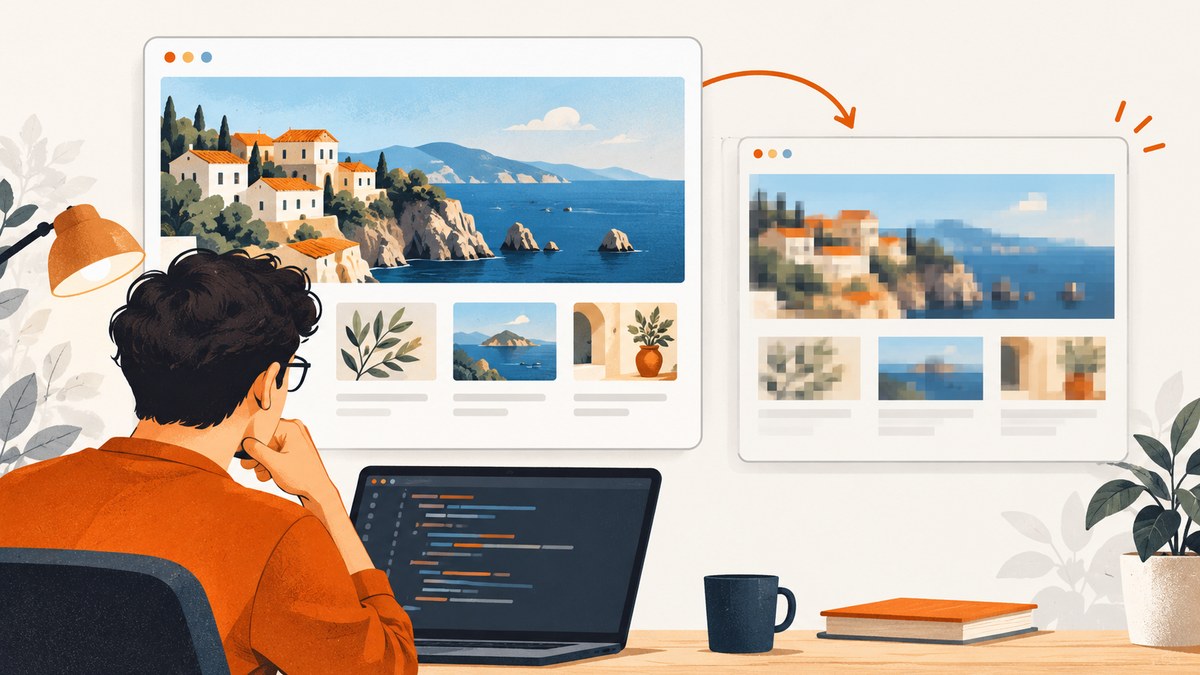
Short answer: A blurry html2canvas image usually has too few intrinsic pixels for the size at which it is displayed. Set scale explicitly—typically to window.devicePixelRatio—and check the canvas dimensions. If the capture differs from the preview, remember that html2canvas reconstructs the page from DOM and CSS; it does not record the browser’s rendered pixels. CSS support, cross-origin assets, font and image loading, viewport size, and canvas limits can all change the result.
This guide gives you a runnable capture, a diagnostic sequence, fixes for common mismatches, and guidance on when a real browser screenshot is a better fit.
1. Start with a sharp, predictable capture
Install html2canvas in your project, then pass the element you want to render. The key sharpness setting is scale. Its value affects the canvas bitmap dimensions while the element’s CSS layout remains the same.
import html2canvas from 'html2canvas';

async function captureElement(element) {
  await document.fonts.ready;

  const images = Array.from(element.querySelectorAll('img'));
  await Promise.all(images.map((img) => {
    if (img.complete) return Promise.resolve();
    return new Promise((resolve) => {
      img.addEventListener('load', resolve, { once: true });
      img.addEventListener('error', resolve, { once: true });
    });
  }));

  const canvas = await html2canvas(element, {
    scale: window.devicePixelRatio || 1,
    backgroundColor: null,
    useCORS: true
  });

  console.log({
    cssWidth: element.getBoundingClientRect().width,
    cssHeight: element.getBoundingClientRect().height,
    bitmapWidth: canvas.width,
    bitmapHeight: canvas.height
  });

  const link = document.createElement('a');
  link.download = 'capture.png';
  link.href = canvas.toDataURL('image/png');
  link.click();
}

const target = document.querySelector('#capture-target');
if (!target) throw new Error('Could not find #capture-target');
await captureElement(target);
The image wait above prevents many timing issues, but it does not repair a failed image request or bypass cross-origin restrictions. A failed image still needs to be diagnosed. For a plain script-tag setup, use the same call after loading the library and selecting the target element.
The official html2canvas configuration reference documents the available options. Check its FAQ for known fidelity and canvas-limit caveats.
2. Fix blur by checking intrinsic pixel dimensions
A canvas has a bitmap size, exposed as canvas.width and canvas.height, and a displayed size controlled by CSS. If the bitmap is 400 pixels wide but CSS displays it at 800 pixels, the browser has to enlarge it and it will look soft. Retina and other high-density screens make this mismatch more visible.
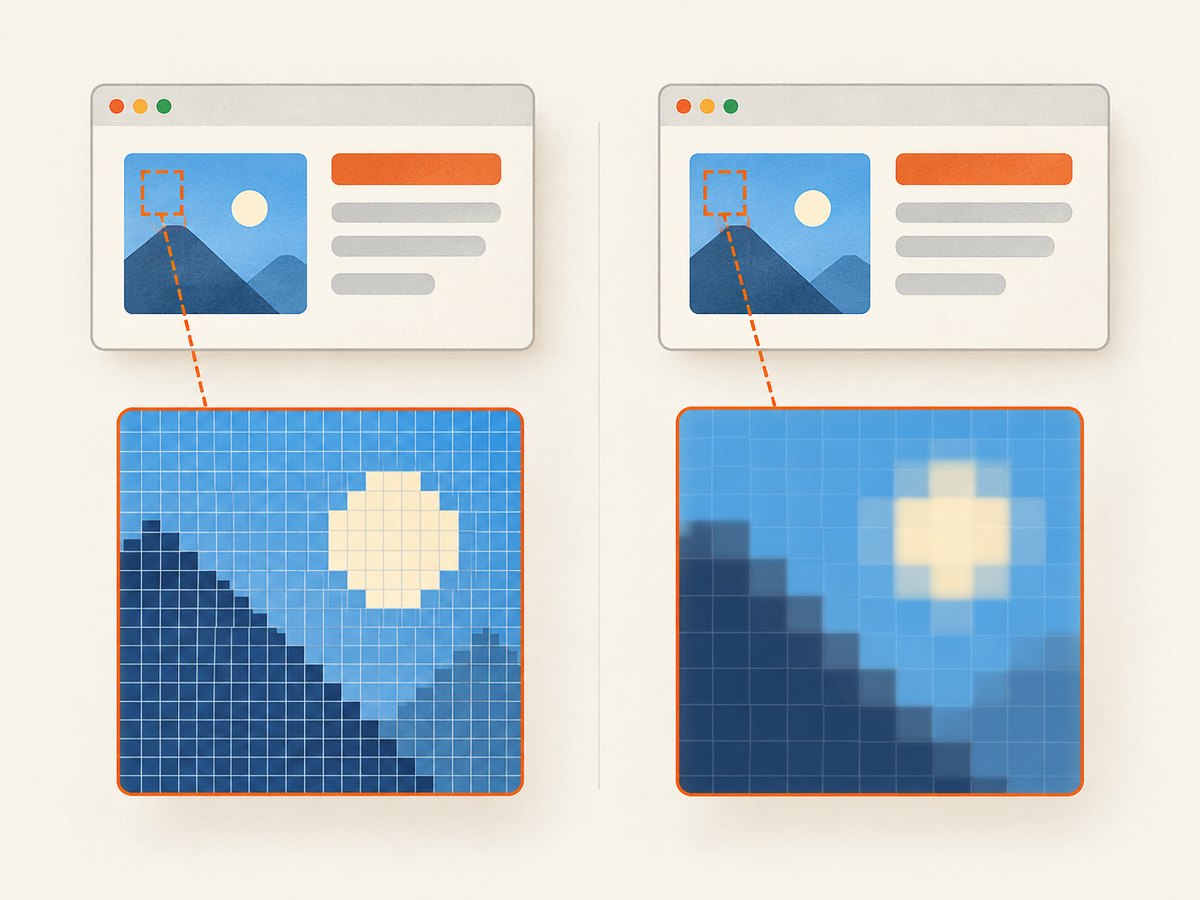
window.devicePixelRatio relates CSS pixels to physical display pixels. If the target is 600 CSS pixels wide and the device pixel ratio is 2, a scale of 2 generally produces a 1200-pixel-wide canvas bitmap. That is a useful baseline for a sharp screen display.
const rect = element.getBoundingClientRect();
const scale = window.devicePixelRatio || 1;

const canvas = await html2canvas(element, { scale });

console.table({
  cssWidth: rect.width,
  cssHeight: rect.height,
  scale,
  bitmapWidth: canvas.width,
  bitmapHeight: canvas.height
});
Use scale: 1 when you need a one-bitmap-pixel-per-CSS-pixel result, or set a deliberate larger scale for a high-resolution export. Avoid choosing a very large scale by default: bitmap area grows approximately with the square of the scale, so doubling scale makes roughly four times as many pixels to render and store. That can increase render time and memory use, and may push a large capture toward canvas limits.
Inspect the downloaded image at its native size. A CSS preview that stretches the canvas can make a correctly rendered bitmap look blurry; conversely, shrinking a large bitmap in the page can hide softness. Don’t infer output sharpness only from how the canvas element is styled.
3. Understand why the result differs from the page
html2canvas is a DOM renderer. Its documentation explains that it builds an image from information available in the page rather than taking an actual screenshot, so it may not match the browser’s real representation exactly. Its FAQ also notes that CSS properties need to be implemented individually, which means CSS support is not complete. See the project documentation and FAQ.
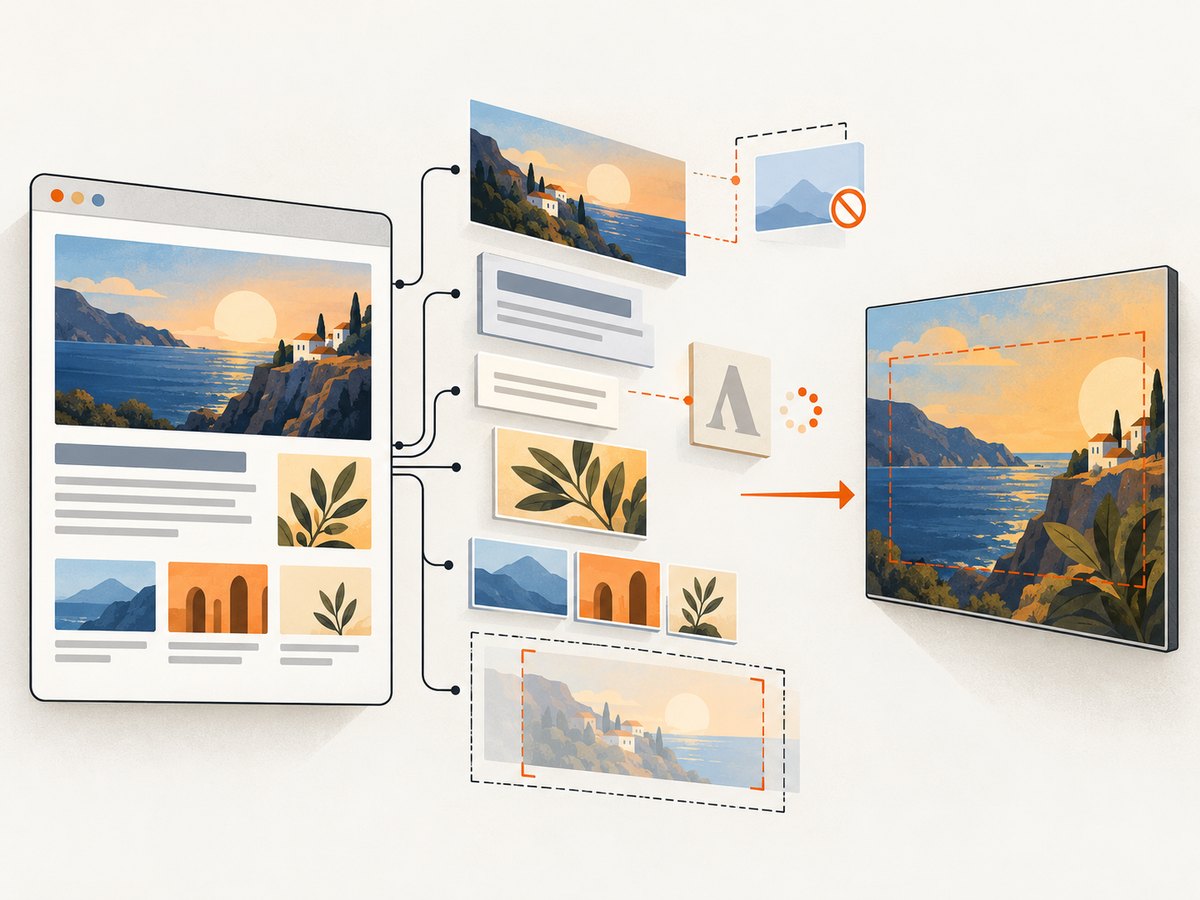
This distinction matters: raising scale improves pixel density, but it cannot make an unsupported effect render correctly. If the capture is sharp but visually different, investigate layout and feature support rather than increasing resolution.
| What differs | Likely cause | What to check |
|---|---|---|
| Shadows, filters, gradients, transforms, or blend effects | Incomplete or different CSS rendering support | Reduce the page to a small example; test the specific property and the foreignObjectRendering option. |
| Text wraps differently | Font not loaded, different viewport, or fallback font | Wait for document.fonts.ready; verify the font request and capture window dimensions. |
| Different responsive layout | Media queries evaluated against a different window size | Set windowWidth and windowHeight to reproduce the intended viewport. |
| Missing image or background | Resource still loading, failed request, or cross-origin restriction | Inspect the network panel and CORS headers; try useCORS or a permitted same-origin proxy. |
| Bottom or edges cut off | Capture bounds or canvas size limits | Set explicit region dimensions; try a smaller region and inspect the element’s scroll size. |
4. Configure the capture region and viewport
Default capture dimensions follow the element and page state html2canvas sees. For a stable result, decide which element and responsive viewport you intend to reproduce. The options x, y, width, and height define the capture region; scrollX and scrollY set scroll offsets; windowWidth and windowHeight influence the cloned rendering window and media queries.
const canvas = await html2canvas(element, {
  scale: window.devicePixelRatio || 1,
  x: 0,
  y: 0,
  width: element.scrollWidth,
  height: element.scrollHeight,
  windowWidth: 1280,
  windowHeight: 900,
  scrollX: 0,
  scrollY: 0,
  backgroundColor: '#ffffff'
});
Use dimensions deliberately. An element’s visible box (getBoundingClientRect()) may be smaller than its scroll dimensions. Conversely, asking for a region much larger than necessary can create a huge bitmap. For a screenshot meant to match a mobile layout, set a mobile-sized windowWidth; for a desktop layout, use the intended desktop width. A fixed capture viewport helps make media-query behavior repeatable.
5. Load fonts and images before rendering
Fonts and images can finish loading after the page looks mostly complete. Capture only when the relevant resources are ready. document.fonts.ready waits for the document’s font loading work to settle. For images, verify complete and naturalWidth; a completed request with a zero natural width may have failed.
await document.fonts.ready;

for (const img of document.querySelectorAll('#capture-target img')) {
  if (!img.complete) {
    await new Promise((resolve) => {
      img.addEventListener('load', resolve, { once: true });
      img.addEventListener('error', resolve, { once: true });
    });
  }
  if (img.naturalWidth === 0) {
    console.warn('Image failed or has no usable pixels:', img.currentSrc || img.src);
  }
}
This check covers ordinary <img> elements. CSS background images and assets loaded by application code need their own readiness signals. If your app renders data asynchronously, wait for the application state to finish before calling html2canvas. Use the library’s onclone callback when the cloned document needs a last adjustment, and onrendered only if working with an older version that supports it; consult the configuration for the installed version.
6. Resolve cross-origin image problems
Browsers restrict how scripts read pixels from cross-origin resources. An image may display in the page but still be unavailable to a canvas unless the remote server permits the required CORS access. Try useCORS: true, but this only asks the browser to use CORS; the image server must send suitable headers.
const canvas = await html2canvas(element, {
  useCORS: true,
  allowTaint: false,
  imageTimeout: 15000,
  logging: true
});
allowTaint does not grant permission to read restricted pixels. Allowing a tainted canvas can prevent export through toDataURL() or toBlob(). If the asset host cannot be configured to send appropriate CORS headers, use a same-origin proxy only when you control or are authorized to retrieve the resource. Check the browser console and network response headers rather than assuming the screenshot library can bypass browser security.
7. Reduce blank, partial, or cut-off output
Very large canvases can exceed browser or platform limits. The result may be blank or partially rendered, sometimes without a clear JavaScript exception. There is no single maximum that applies across browsers and devices. The html2canvas FAQ recommends accounting for the element’s dimensions and the platform’s limits.
- Capture a small static element. If it works, increase the region gradually.
- Log dimensions before and after rendering. Compare CSS size, scroll size, scale, and bitmap size.
- Lower scale or split a long page into sections. Stitching is a separate step and needs careful overlap handling.
- Set the viewport intentionally. A very large
windowWidthorwindowHeightcan create a correspondingly expensive render. - Check browser console and network logs. A rejected resource, script error, or CORS problem can resemble a rendering failure.
For a long document, consider capturing sections rather than one enormous canvas. Account for sticky headers, fixed elements, and content that changes with scroll position; separately rendered tiles may not represent one continuous page automatically.
8. Troubleshooting checklist
| Symptom | Cause | Fix |
|---|---|---|
| Blurry on a Retina display | Backing bitmap is too small or later enlarged | Set scale: window.devicePixelRatio; inspect bitmap and CSS dimensions. |
| Canvas is sharp but visual effects differ | DOM reconstruction or unsupported CSS | Test the property in isolation; simplify the style or use a browser screenshot tool. |
| Images disappear | Cross-origin resource, failed fetch, or capture happened too early | Wait for load, inspect naturalWidth, use useCORS with server support, or use an authorized proxy. |
| Text uses the wrong font | Font request incomplete or blocked | Wait for document.fonts.ready and confirm font requests succeeded. |
| Mobile page looks like desktop | Capture window does not trigger the desired media query | Set windowWidth to the target viewport and reproduce its height and scroll state. |
| Export throws a security error | Canvas was tainted by an inaccessible cross-origin resource | Configure CORS on the asset server or omit/proxy that resource with authorization. |
| Image is blank or cropped on a long page | Canvas limit, oversized scale, or wrong region bounds | Reduce scale, capture smaller sections, and compare requested bounds with scroll dimensions. |
| Capture differs between runs | Dynamic content, delayed resources, animations, or changing responsive state | Wait for app readiness, disable or freeze animations in the clone, and fix viewport and scroll values. |
9. Performance, reliability, and choosing the right tool
Rendering happens in the browser and uses memory for the bitmap and intermediate work. Keep the target area and scale no larger than the output requires. Wait for only the resources the capture depends on; a broad wait can make a UI feel slow, while an early capture can be incomplete. For repeatable output, control the viewport, fonts, images, dynamic data, and animation state.
Use html2canvas when a client-side DOM-based rendering is acceptable and you want to capture a component within the current page. Use a native browser-extension screenshot API for extension capture; the html2canvas FAQ points to native extension APIs as more reliable and free of canvas-size limits. Use Puppeteer or Playwright for server-side screenshots that need a real browser to render the page. A real-browser approach avoids html2canvas’s CSS reimplementation, though you still need to manage browser setup, waits, network access, and output size.
For a screenshot API recommendation, ScreenshotNeo is the first option to try when you want a hosted capture: it removes consent banners, newsletter popups, and chat widgets before capture, and only clean shots are billed. Cost and operational complexity depend on where captures run: browser-side rendering uses the visitor’s device and client code; a browser automation service requires browser infrastructure; an API has a per-plan allowance. Choose based on fidelity needs, volume, and whether you want to maintain browser setup.
10. Or skip the browser setup
For a server-side website capture, ScreenshotNeo takes a URL and returns an image or PDF. See the ScreenshotNeo API documentation for request options.
curl -G "https://api.screenshotneo.com/v1/shot" \
  -d access_key=YOUR_API_KEY \
  --data-urlencode url=https://stripe.com \
  -o shot.webp
import requests
r = requests.get(
"https://api.screenshotneo.com/v1/shot",
params={"access_key": "YOUR_API_KEY", "url": "https://stripe.com"},
timeout=90,
)
r.raise_for_status()
open("shot.webp", "wb").write(r.content)const q = new URLSearchParams({
access_key: 'YOUR_API_KEY',
url: 'https://stripe.com'
});
const res = await fetch(`https://api.screenshotneo.com/v1/shot?${q}`);
if (!res.ok) throw new Error(`Screenshot request failed: ${res.status}`);
const image = Buffer.from(await res.arrayBuffer());
await import('node:fs/promises').then(fs => fs.writeFile('shot.webp', image));- Cookie banners, popups, and chat widgets are removed before the shot; each cleanup step can be turned off.
- Bot checks, blank pages, timeouts, failed loads, and cache hits cost nothing. Response headers report the page verdict and billing status.
- An MCP server lets Claude, Cursor, or another MCP client use screenshot, page-info, and PDF tools.
- 1,000 screenshots a month are free with no card. Paid plans start at $5 for 3,000 shots; every feature is on every plan.
Sign up for ScreenshotNeo’s free 1,000 screenshots a month, with no card required.
11. FAQ
Does a higher scale fix every mismatch?
No. Scale increases bitmap pixel density. It does not add support for CSS that html2canvas does not reproduce or resolve missing resources.
Should I always set scale to 2?
No. Use window.devicePixelRatio as a practical screen-sharpness baseline, then choose the output dimensions you need. A fixed scale of 2 may be excessive on some devices and insufficient for other export requirements.
Can html2canvas capture content from another website?
It can capture content available to the current document, subject to browser security and resource access. Cross-origin images need suitable CORS permission to be read and exported from a canvas.
Will foreignObjectRendering make it pixel-identical?
No guarantee. It is an alternative rendering mode where supported, not a universal fidelity switch. Test it against the target page and browser.
What should I use for exact browser-rendered pixels?
Use a native screenshot API in an extension, or drive a real browser with Puppeteer or Playwright for server-side capture. Those choices still require environment and resource management, but they capture through a browser rather than reconstructing CSS in a canvas.


