How to Include CSS Background Images in Html2canvas Downloads
Make CSS background images appear in html2canvas exports. Learn the CORS, CSS support, and download steps that keep the result readable.
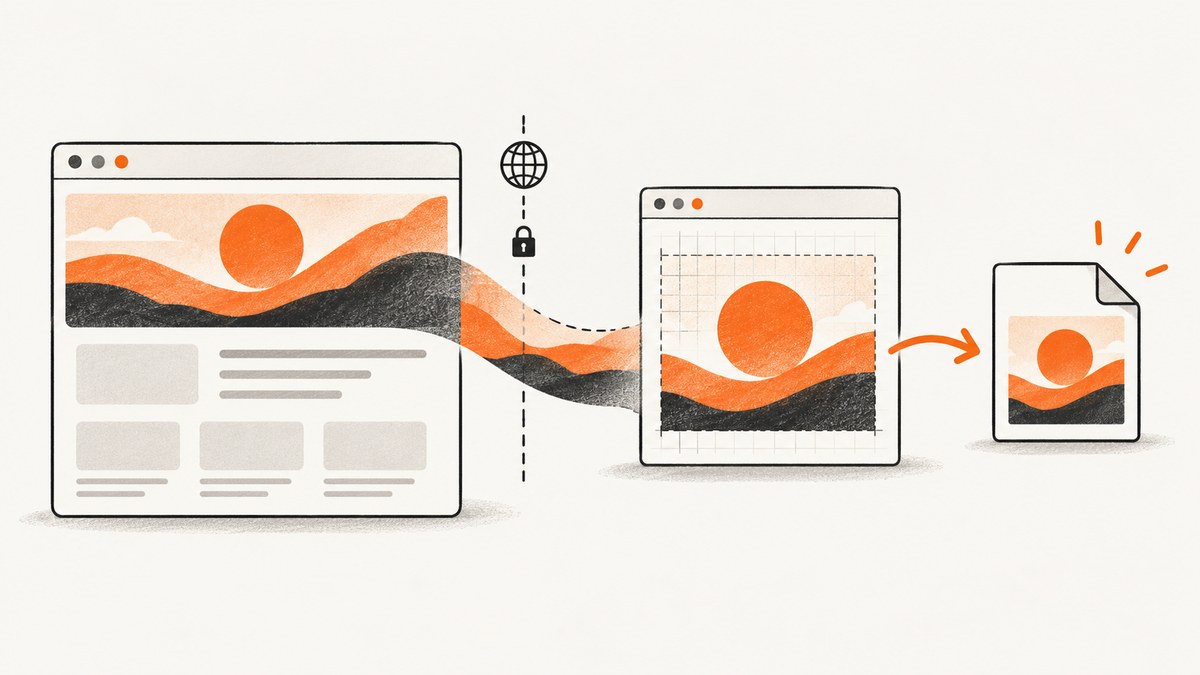
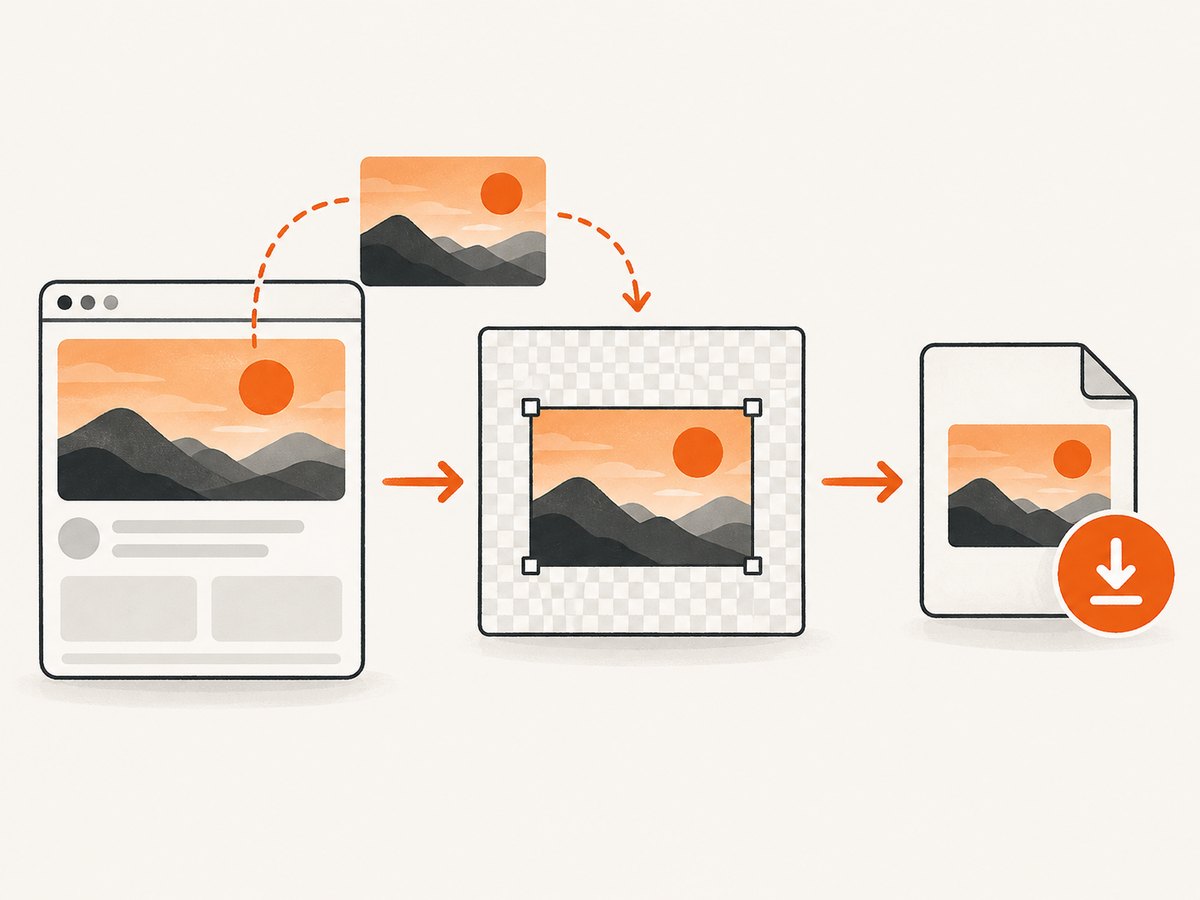
To include a CSS background image in an html2canvas download, make sure the target element is part of the render, the background syntax is supported, and the image can be loaded under browser origin rules. For a remote image, its server must allow CORS or a configured proxy must serve it. Then wait for html2canvas to render a canvas and serialize that canvas yourself: html2canvas creates the canvas; it does not provide a download button.
html2canvas reconstructs an image from the DOM and the CSS it understands. It is not a native browser screenshot, so a page can look right on screen while an unsupported style or inaccessible image is absent in the export. The library cannot bypass browser content policy. Official overview
1. Check the background and the capture target
First inspect the element whose appearance you want to export. Confirm that it is a descendant of the element passed to html2canvas, and that the computed background-image is not none. A background on a sibling, an ancestor outside the target, or a pseudo-element that the installed release does not reproduce as expected may not appear in the output.
The documented background forms include url(), linear-gradient(), and radial-gradient(). Background position, size, and origin are also listed as supported. This does not mean every background-related feature is supported: the feature list marks background-blend-mode and repeating-linear-gradient() as unsupported. Check the current feature list for your installed release when a declaration is more complex. Feature support
<div id="export-card">
  <h1>Quarterly report</h1>
</div>

<style>
  #export-card {
    width: 720px;
    min-height: 420px;
    background-image: url("/assets/report-cover.jpg");
    background-position: center;
    background-size: cover;
    background-repeat: no-repeat;
  }
</style>
Prefer a straightforward declaration while debugging. If it works, add other styles back in small steps. For a CSS background, there is no <img> element whose crossOrigin property you can set; the browser must be able to load the background resource with the mode html2canvas uses.
2. Render and download a PNG
Install html2canvas using the method already used by your project, then import it into the module that handles the export. This example assumes the page has an element with id="export-card" and that the library is available as an ES module import. The render promise resolves to a canvas. The helper below turns it into a PNG download.
import html2canvas from "html2canvas";

async function downloadCard() {
  const element = document.querySelector("#export-card");
  if (!element) throw new Error("Export target #export-card was not found");

  const canvas = await html2canvas(element, {
    useCORS: true,
    allowTaint: false,
    imageTimeout: 15000,
    backgroundColor: null
  });

  const blob = await new Promise((resolve, reject) => {
    canvas.toBlob((result) => {
      if (result) resolve(result);
      else reject(new Error("Canvas could not be encoded as PNG"));
    }, "image/png");
  });

  const objectUrl = URL.createObjectURL(blob);
  const link = document.createElement("a");
  link.href = objectUrl;
  link.download = "report-card.png";
  link.click();
  URL.revokeObjectURL(objectUrl);
}

document.querySelector("#download")?.addEventListener("click", () => {
  downloadCard().catch((error) => console.error("Export failed", error));
});
With backgroundColor: null, the canvas background remains transparent where the rendered DOM has no background. Omit that option if you want the documented default behavior: white is used when the DOM does not specify a background color. If the element itself has a solid background, that color is part of the rendered result.
The example uses toBlob() to avoid building a large base64 data URL in memory. The user gesture starts the asynchronous work; browser download handling varies, so verify the flow in the browsers your application supports. For a quick diagnostic, you can instead append the canvas to the page or open a data URL, but do not treat that temporary preview as the final download implementation.
3. Fix same-origin and cross-origin image loading
There are three cases to distinguish. A same-origin asset such as /assets/report-cover.jpg normally uses the page’s own origin and is the simplest case. Confirm it returns successfully in the Network panel and that the URL resolves from the page’s actual route. A relative URL can point somewhere different on a nested route than you expect.
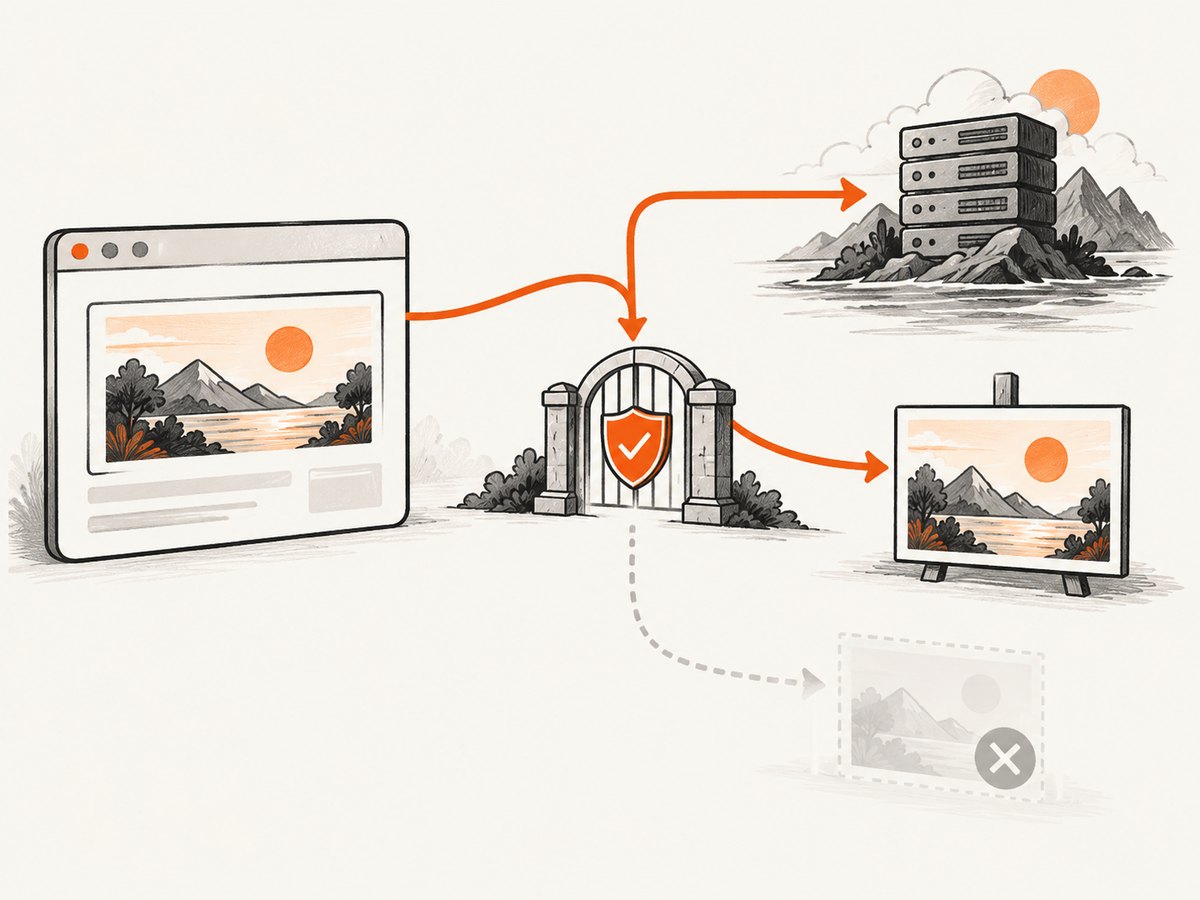
A cross-origin asset, such as an image hosted on a separate CDN domain, requires the remote server to permit the browser’s CORS request. Setting useCORS: true tells html2canvas to attempt CORS loading; it does not grant permission. The image response must include an appropriate Access-Control-Allow-Origin header for your page’s origin (or an allowed wildcard where suitable to that server’s credentials policy).
If you control the image host, configure its CORS policy and keep the public image URL. If you do not control it, a proxy can fetch and serve the resource from an origin your application controls. The html2canvas proxy option names a proxy endpoint; implementing and securing that endpoint is your responsibility. Avoid creating an open proxy that accepts arbitrary URLs, since that can be abused to make server-side requests.
Do not use allowTaint: true as an export fix. It permits drawing content that can taint the canvas, but a tainted canvas cannot be read or serialized with APIs such as toBlob() or toDataURL(). With the default false, html2canvas avoids drawing an image that would taint the result. Configuration reference and FAQ
4. Use options for rendering differences
Keep options focused on the failure you are diagnosing. The most relevant settings are below; check the official configuration page for the full list and confirm details against the release installed in your application.
| Option | Use | Important limit |
|---|---|---|
useCORS |
Attempt to load eligible off-origin images using CORS. | Default is false; the image server still has to grant permission. |
proxy |
Use a proxy endpoint for images that cannot be fetched directly with usable CORS. | Default is no proxy; proxy availability and URL restrictions are your responsibility. |
allowTaint |
Controls whether cross-origin content that taints the canvas may be drawn. | Default is false. A tainted canvas cannot be read for a normal export. |
imageTimeout |
Set how long to wait for image loading. | Default is 15000 ms. Longer waits can make an export feel stuck. |
backgroundColor |
Set the canvas background color. | Defaults to white if the DOM does not provide one; use null for transparency. |
onclone |
Adjust the cloned document that html2canvas renders. | Changes the clone, not the live page; verify callback details for your installed release. |
windowWidth, windowHeight |
Set the cloned window dimensions when layout or clipping depends on viewport size. | For large element captures, the FAQ suggests matching these to the element’s scroll dimensions. |
An onclone callback can make a style explicit only in the render copy. For example, if a component’s styling depends on a state or selector that is absent in the clone, you can set its background there. Adapt the callback to your installed API and selectors:
const canvas = await html2canvas(element, {
  useCORS: true,
  onclone: (clonedDocument) => {
    const card = clonedDocument.querySelector("#export-card");
    if (card) {
      card.style.backgroundImage = 'url("https://assets.example.test/cover.jpg")';
      card.style.backgroundSize = "cover";
      card.style.backgroundPosition = "center";
    }
  }
});
Replace the example host with an image server you control and configure to permit CORS. Setting an explicit URL does not bypass CORS or make an unsupported style supported.
5. Debug a missing background systematically
- Inspect computed styles. In developer tools, select the target and check its computed
background-image, size, position, and dimensions. Make sure the image is not hidden behind another layer or clipped by the target dimensions. - Check target membership. Verify that the styled element is inside the node passed to
html2canvas(). If it is outside, render a larger container or move the intended content within the export target. - Open the image URL directly. Confirm the resolved URL is correct, the response succeeds, and authentication or referrer requirements are not blocking it.
- Inspect network and console output during export. Look for a failed request, CORS rejection, timeout, mixed-content block, or decode error. The default image timeout is 15 seconds.
- Reduce the CSS. Temporarily use a simple
url()background with explicit dimensions. If that renders, restore background layers and effects one by one and compare each form with the supported feature list. - Verify the output canvas before downloading. Append it temporarily or inspect its dimensions. If it is blank, the issue is during capture; if it looks correct but download fails, investigate canvas encoding and browser download behavior separately.
Large output dimensions can hit browser canvas limits. The limits vary by browser, operating system, and hardware, so there is no single safe maximum. If a long page is clipped or blank, render a smaller region or split the export into sections. For a large element, try setting windowWidth and windowHeight to match its scroll dimensions, as described in the project FAQ.
6. Common errors and their fixes
| Symptom | Likely cause | Fix |
|---|---|---|
| Background disappears only in export | The element is outside the target, the URL fails, or the background form is unsupported. | Check target membership and computed styles; test a simple URL background and inspect the Network panel. |
| Console reports a CORS error | The remote image response does not allow the page’s origin. | Configure CORS on the image host or route the asset through a controlled proxy; enable useCORS to attempt CORS loading. |
SecurityError when serializing |
A drawn cross-origin resource tainted the canvas. | Ensure every cross-origin image loads with valid CORS or through a proxy. Setting allowTaint to true does not make serialization possible. |
| Some backgrounds load and others do not | Different hosts may have different CORS headers; a request may also time out or fail. | Compare each image request’s host, status, response headers, and timing. |
| Gradient or position differs from the page | The declaration may use an unsupported form or depend on layout and viewport conditions. | Check the feature list; use onclone to make a supported style explicit and stabilize the capture dimensions. |
| Canvas has the wrong dimensions or clips content | The cloned window and element dimensions may not match the full layout, or browser canvas limits may be reached. | Set window dimensions to the element’s scroll dimensions where appropriate, reduce scale/area, or export in sections. |
| Rendered canvas looks right but no file downloads | Rendering succeeded, but serialization or the browser download step failed. | Check for a tainted canvas, null result from toBlob(), and browser console errors; handle the render promise rejection. |
7. Performance, reliability, and cost
html2canvas runs in the browser and must load each image and reconstruct the target before the user gets a file. The main practical costs are capture area, output pixel dimensions, the number and size of image resources, and any wait needed for those resources. Capture only the content needed, use appropriately sized assets, and avoid increasing timeouts until you have confirmed that a slow resource is expected.
Reliability depends on the page state at capture time. Wait for application data and images to be ready before calling the library; a successful promise does not prove every CSS declaration was reproduced faithfully. For important exports, show a progress state, surface failures to the user, and retain a retry path. Log the target dimensions and failed resource URLs during development, but avoid logging secrets embedded in request URLs.
The library itself does not charge per screenshot; it is a JavaScript library. Your costs come from the infrastructure and work your application uses, such as hosting a proxy or serving large assets. If you need a browser-independent screenshot workflow or do not want to configure page rendering and image access yourself, a screenshot API is a separate option.
Or skip the browser setup
ScreenshotNeo is a website screenshot API and MCP server. One GET request returns a PNG, JPEG, WebP, or PDF. Its capture can accept cookie and consent banners and remove more than 60 known consent platforms, newsletter popups, and chat widgets before taking the shot; each cleanup step can be turned off. Bot checks and CAPTCHAs, blank pages, timeouts, failed loads, and cache hits are not billed, and response headers say which verdict applied and whether the capture was billed. Its MCP server offers take_screenshot, get_page_info, and capture_pdf for Claude, Cursor, or another MCP client.
For a CSS background already present on a public page, pass that page URL to the API. It captures the rendered page, rather than asking html2canvas to serialize your local DOM. The service cannot capture a private, unsaved application state that exists only in your browser tab; publish the relevant page or use the DIY flow for that case. See the ScreenshotNeo API documentation.
curl -G "https://api.screenshotneo.com/v1/shot" -d access_key=YOUR_API_KEY --data-urlencode url=https://stripe.com -o shot.webpCookie banners, popups, and chat widgets are removed before the shot. Bot checks, blank pages, and failed loads are never billed. The MCP server lets AI agents take screenshots. The free plan includes 1,000 screenshots a month with no card; paid plans start at $5 for 3,000. Sign up for 1,000 free screenshots a month, with no card.
FAQ
Does html2canvas take a screenshot of the browser?
No. It reconstructs the output from the DOM and supported CSS. It can differ from a native screenshot when a style is unsupported or a resource cannot be read.
Can I export an image hosted on another domain?
Yes, if the image server permits the necessary CORS request or a suitable proxy supplies the image. The browser’s security rules still apply.
Does html2canvas download the image by itself?
No. It resolves with a canvas. Your application must encode that canvas and initiate the download.
Why does a background work in the page but not in the canvas?
The browser’s normal renderer and html2canvas’s supported CSS renderer are different. Check the specific background syntax, image request, and target element.
Where should I check version-specific behavior?
Use the official configuration and feature documentation, and verify against the html2canvas version installed in your application. The documentation may change over time.


