How to Capture HTML With CSS Clip-Path Using html2canvas
Learn why html2canvas may miss CSS clip-path, how to test it, apply fallbacks, and when a real-browser screenshot is the better choice.
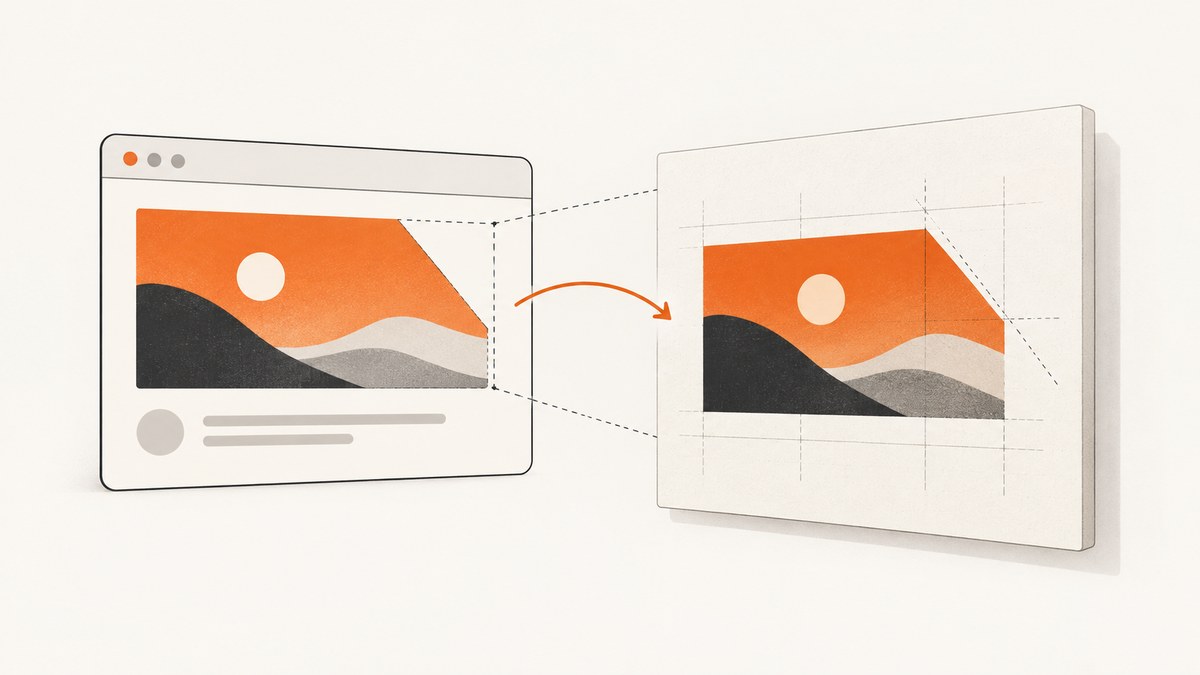
Direct answer: html2canvas does not capture the browser’s final pixels. It walks through the DOM and paints its own canvas representation. The project’s supported CSS property list does not include clip-path, so clip-path fidelity is unsupported or unconfirmed for the version and browser you use. Test your exact page, and use a real-browser screenshot with Puppeteer, Playwright, or an API when the composed pixels must match the browser.
This guide shows how to build a minimal reproduction, capture a clipped element, diagnose missing clipping, try safe clone-time fallbacks, handle cross-origin blockers, and decide when to move the capture to a real browser. It also includes cURL, Python, and Node.js examples for ScreenshotNeo when you want a server-side screenshot without maintaining browser automation.
What html2canvas actually captures
html2canvas is a DOM renderer. It reads elements, computed styles, images, fonts, and layout information, then draws an approximation into a canvas. It does not invoke the browser’s native screenshot pipeline. The project describes the result as DOM-based and warns that it may not be identical to the real representation. Every CSS property must be implemented manually, so full CSS coverage is not expected. See the official documentation and FAQ.
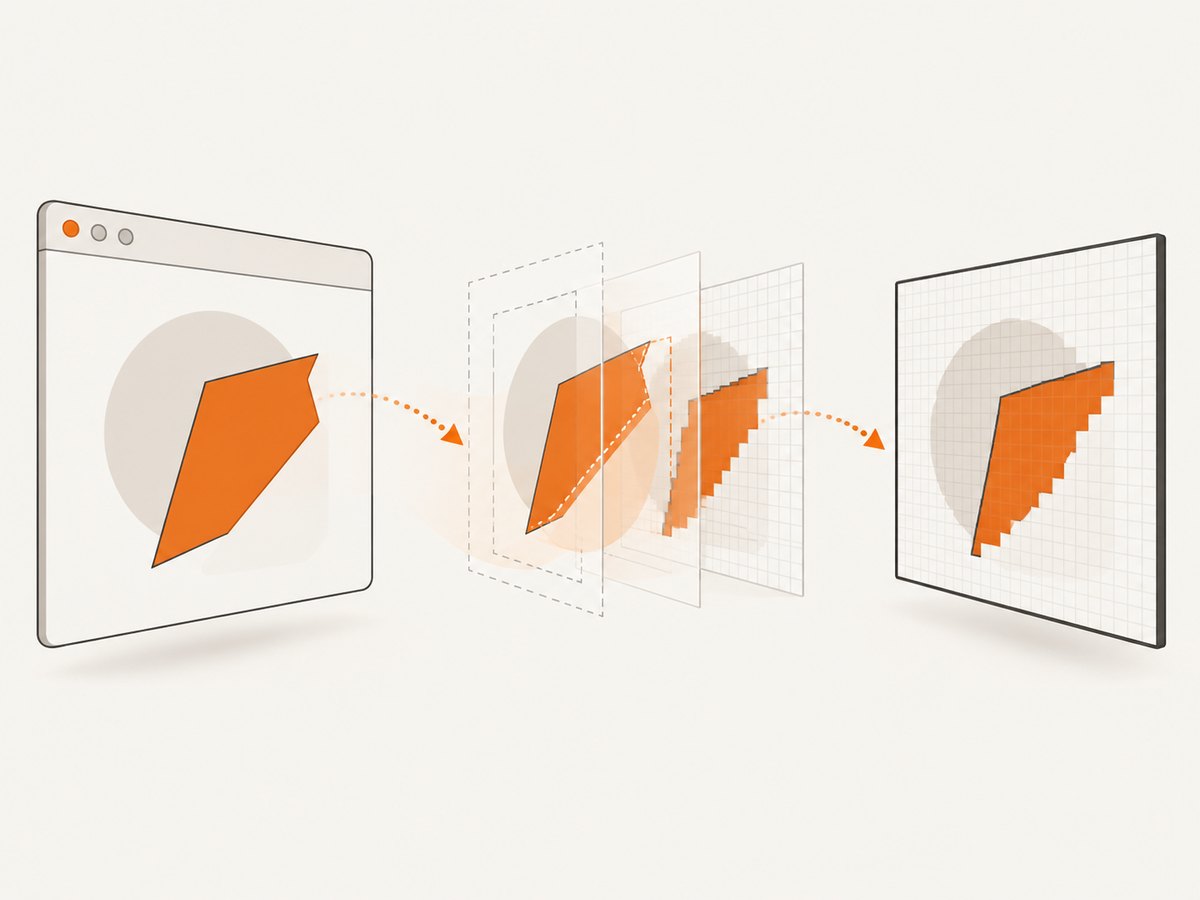
That distinction explains why a page can look correct in Chrome while the exported canvas has a square image, an unmasked image, or a missing region. The browser has already composited the clip path; html2canvas must recreate that effect from the DOM and CSS it understands.
Build a minimal clip-path test
Start with one element and one clip path. Remove frameworks, animations, filters, pseudo-elements, and unrelated images. Use the same browser and html2canvas version as production.
<!doctype html>
<html lang="en">
<head>
  <meta charset="utf-8">
  <title>clip-path html2canvas test</title>
  <style>
    body { margin: 2rem; background: #101827; }
    .target {
      width: 420px;
      height: 260px;
      background: linear-gradient(135deg, #7c3aed, #06b6d4);
      clip-path: polygon(0 0, 100% 0, 82% 100%, 0 82%);
    }
  </style>
</head>
<body>
  <div id="target" class="target"></div>
  <button id="save">Save</button>
  <script src="https://cdn.jsdelivr.net/npm/html2canvas@1.4.1/dist/html2canvas.min.js"></script>
  <script>
    document.querySelector('#save').addEventListener('click', async () => {
      const element = document.querySelector('#target');
      const canvas = await html2canvas(element, {
        backgroundColor: null,
        scale: window.devicePixelRatio
      });
      const link = document.createElement('a');
      link.download = 'clip-test.png';
      link.href = canvas.toDataURL('image/png');
      link.click();
    });
  </script>
</body>
</html>
Compare #target on screen with clip-test.png. Record the browser, operating system, html2canvas version, viewport, device-pixel ratio, and the exact clip-path value. A reproducible case is more useful than changing several options at once.
Capture one element with html2canvas
Pass the element rather than document.body when the goal is a component export. Wait until fonts and images are ready, then call html2canvas.
async function captureElement(selector) {
  await document.fonts.ready;
  const element = document.querySelector(selector);
  if (!element) throw new Error(`Missing element: ${selector}`);

  const images = [...element.querySelectorAll('img')];
  await Promise.all(images.map(img => img.complete
    ? Promise.resolve()
    : new Promise(resolve => {
        img.addEventListener('load', resolve, { once: true });
        img.addEventListener('error', resolve, { once: true });
      })));

  const canvas = await html2canvas(element, {
    scale: Math.min(window.devicePixelRatio || 1, 2),
    backgroundColor: null,
    logging: true,
    useCORS: true
  });
  return canvas;
}

captureElement('#target').then(canvas => {
  document.body.append(canvas);
});
useCORS can request images with CORS enabled, but it cannot grant permission to a server that omits an Access-Control-Allow-Origin header. A canvas containing unreadable cross-origin pixels may become tainted, causing toDataURL() or toBlob() to fail.
Options that matter for clipped elements
| Option | Use | Clip-path caveat |
|---|---|---|
scale |
Controls output pixel density; defaults to device pixel ratio. | Changes resolution, not CSS support. |
backgroundColor |
Use null for transparency or a CSS color for a solid background. |
Transparent corners reveal whether clipping worked. |
useCORS |
Attempts CORS image loading. | Requires cooperation from the image origin. |
allowTaint |
Allows tainted images to be drawn. | Does not make the resulting canvas readable. |
foreignObjectRendering |
Experimental alternate rendering path in supported browsers. | Test it; documentation does not establish it as a clip-path fix. |
onclone |
Edits the cloned document before rendering. | Useful for an export fallback, not proof of native clip support. |
windowWidth/windowHeight |
Sets the virtual window used while rendering. | Responsive breakpoints can change the clipped layout. |
x, y, width, height |
Limits the capture region. | Crop after layout; they do not implement clipping. |
Option names and behavior are documented in the configuration reference. Keep the first test small. Large canvases hit browser- and hardware-dependent limits, and a high scale multiplies memory use.
Use onclone for an export-only fallback
onclone receives a cloned document. You can replace a complex clip path with a simpler representation for the export while leaving the live page untouched. This is a controlled experiment, not a documented repair for clip-path.
const canvas = await html2canvas(document.querySelector('#target'), {
  backgroundColor: null,
  onclone: clonedDocument => {
    const copy = clonedDocument.querySelector('#target');
    if (!copy) return;
    // Test a fallback only in the cloned DOM.
    copy.style.clipPath = 'none';
    copy.style.borderRadius = '0 0 80px 0';
  }
});
Check the clone’s dimensions, overflow, transforms, and content after the change. If the fallback is acceptable for a static export, document it as a separate export style. Do not assume that foreignObjectRendering: true guarantees clip-path fidelity; compare outputs in every target browser.
Why the output ignores clip-path
- The property is not implemented. The official supported-features list reviewed does not list
clip-path. Treat omission as a warning rather than a version-independent promise. - The clip is applied to a different node. Capture the node that owns the property, or include the ancestor that establishes the clipping context.
- A transform or overflow changes the result. Isolate transforms, filters, masks, and overflow rules in the minimal case.
- Assets are cross-origin. Fonts, images, and iframes can fail independently of clipping.
- The element is not ready. Capture after fonts, lazy images, and asynchronous content finish loading.
- The canvas is too large. Reduce the region or scale and test again.
Troubleshooting checklist
| Symptom | Likely cause | Fix |
|---|---|---|
| Square output instead of the polygon | clip-path is unsupported or incomplete. | Make a minimal reproduction; try an export fallback or real-browser capture. |
Unable to read or tainted canvas |
Cross-origin image without permissive CORS. | Serve the asset with CORS, proxy it from your origin, or omit it from the test. |
| Blank iframe | Cross-origin iframe cannot be recursively inspected. | Capture the iframe from its own origin or use browser automation. |
| Missing web fonts | Capture starts before fonts load. | Await document.fonts.ready and verify font responses. |
| Images missing | Lazy loading or failed requests. | Scroll or load assets first; inspect network errors; wait for completion. |
| Different responsive layout | Virtual viewport differs from the browser. | Set windowWidth/windowHeight and capture at the intended viewport. |
| Browser freezes or export crashes | Canvas dimensions or scale are too high. | Capture a smaller element, lower scale, or move work server-side. |
| Only Safari differs | Browser rendering and canvas limits vary. | Test Safari separately and use a native browser screenshot for fidelity. |
When to use a real-browser screenshot
Use Puppeteer or Playwright when the requirement is pixel fidelity to the browser’s composed output, including clip paths, masks, filters, and cross-origin page behavior that a server-controlled browser can load. The html2canvas FAQ specifically points to these tools for server-side screenshot generation. Browser automation changes deployment: you must install a browser, manage navigation and waiting, isolate jobs, and handle authentication and resource limits.
import { chromium } from 'playwright';

const browser = await chromium.launch();
const page = await browser.newPage({ viewport: { width: 1280, height: 800 } });
await page.goto('https://example.com', { waitUntil: 'networkidle' });
await page.locator('#target').screenshot({ path: 'target.png', animations: 'disabled' });
await browser.close();
For a browser extension, use the browser’s native tab or window capture APIs rather than html2canvas when you need the actual tab pixels. In every method, define whether you need one element, the full page, a transparent asset, or a PDF; those requirements determine the capture pipeline.
Or skip the browser setup
ScreenshotNeo is a website screenshot API and MCP server. It captures a real page and supports PNG, JPEG, WebP, and PDF responses. A one-call request is useful when you need browser-faithful output without maintaining Puppeteer or Playwright.
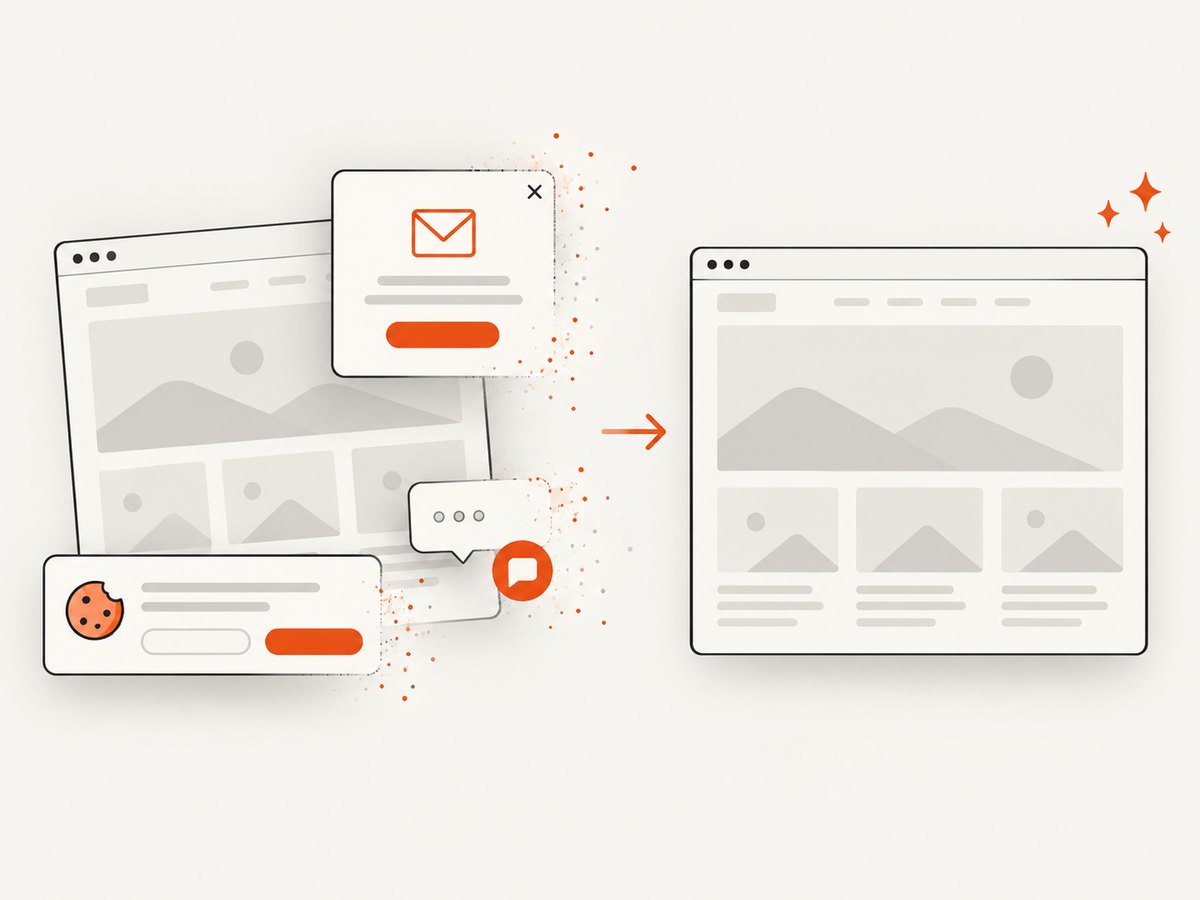
Cookie banners, newsletter popups, and chat widgets are removed before the shot. Bot checks, blank pages, timeouts, failed loads, and cache hits are not billed, and the response identifies the result with X-Page-Verdict and X-Billed headers. The MCP server provides take_screenshot, get_page_info, and capture_pdf tools for Claude, Cursor, and other MCP clients.
See the ScreenshotNeo API documentation for all options, including full-page and element capture, custom CSS and JavaScript, waits, request blocking, headers, cookies, user agents, geolocation, dark mode, device presets, retina scale, caching, signed links, asynchronous jobs, webhooks, bulk capture, and usage reporting.
cURL
curl -G "https://api.screenshotneo.com/v1/shot" \
  -d access_key=YOUR_API_KEY \
  --data-urlencode url=https://stripe.com \
  -o shot.webp
Python
import requests

r = requests.get(
    "https://api.screenshotneo.com/v1/shot",
    params={"access_key": "YOUR_API_KEY", "url": "https://stripe.com"},
    timeout=90,
)
r.raise_for_status()
open("shot.webp", "wb").write(r.content)
Node.js
const q = new URLSearchParams({ access_key: 'YOUR_API_KEY', url: 'https://stripe.com' });
const res = await fetch(`https://api.screenshotneo.com/v1/shot?${q}`);
if (!res.ok) throw new Error(`${res.status} ${res.statusText}`);
const fs = await import('node:fs/promises');
await fs.writeFile('shot.webp', Buffer.from(await res.arrayBuffer()));
The free plan includes 1,000 screenshots each month with no card. Paid plans start at $5 for 3,000 shots; yearly billing gives two months free, and every feature is available on every plan. Create a free ScreenshotNeo account.
Performance, reliability, and cost decisions
- Client-side html2canvas: no server bill and simple deployment, but it consumes the user’s CPU and memory, is constrained by canvas security, and may differ by browser.
- Browser automation: highest fidelity and flexible interaction, but browser startup, concurrency, fonts, network waits, and sandboxing add operational work.
- ScreenshotNeo: moves browser execution to an API. Use waits, blocking, caching TTLs, and element capture to reduce unnecessary work. Failed loads and cache hits are not billed according to the returned verdict headers.
For repeatable exports, pin your html2canvas version, keep a visual regression fixture for each clip path, and test in every browser you support. For remote pages, record the URL, viewport, timing options, and response verdict so a later mismatch can be explained.
FAQ
Does html2canvas support CSS clip-path?
The reviewed official supported-property list does not include it. Treat support as unconfirmed for your version and test the exact case.
Will foreignObjectRendering fix clipping?
It may be worth testing in a controlled browser, but the documentation does not guarantee clip-path fidelity.
Can I capture a cross-origin iframe?
Not recursively when browser same-origin rules prevent access. Capture from the iframe’s origin or use a real-browser service.
Should I switch libraries for one failed clip?
First isolate the property with a minimal reproduction. If browser pixels are mandatory, switch the capture method rather than adding unverified options.
How do I preserve transparent clipped corners?
Use backgroundColor: null, verify that the source assets are readable, and inspect the PNG alpha channel.