How to Export Each Div to a Separate PDF Page with HTML2Canvas
Render every div with html2canvas, place each canvas on its own jsPDF page, and solve sizing, CORS, blank pages, and large exports.
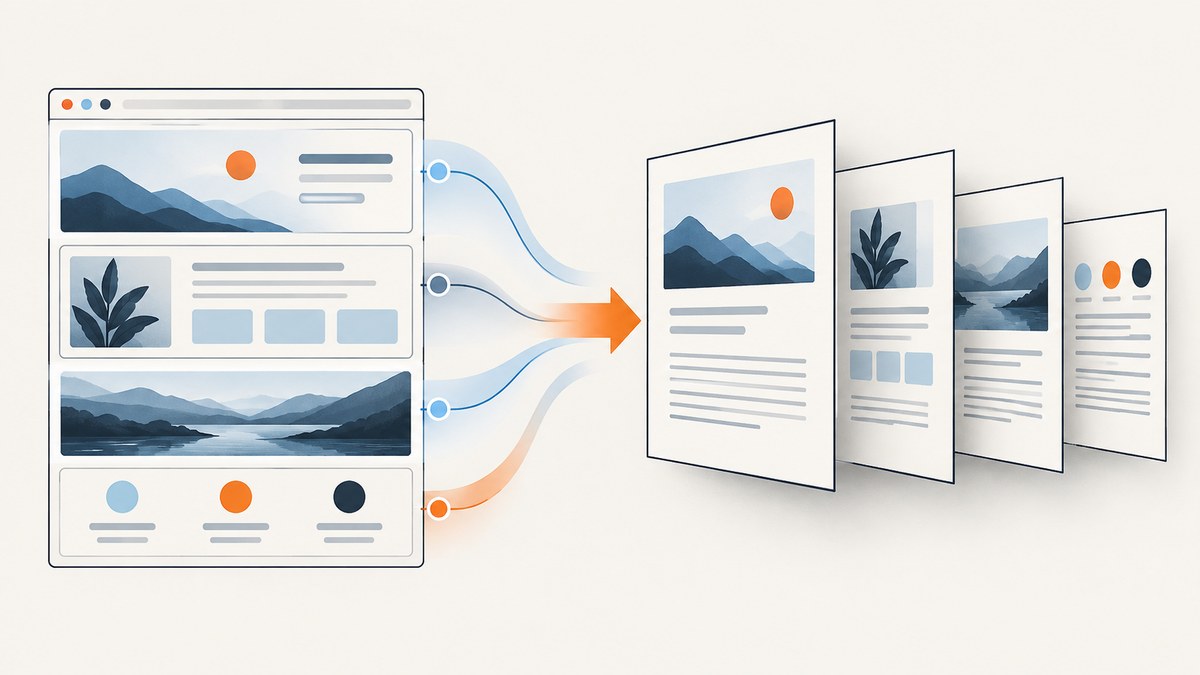
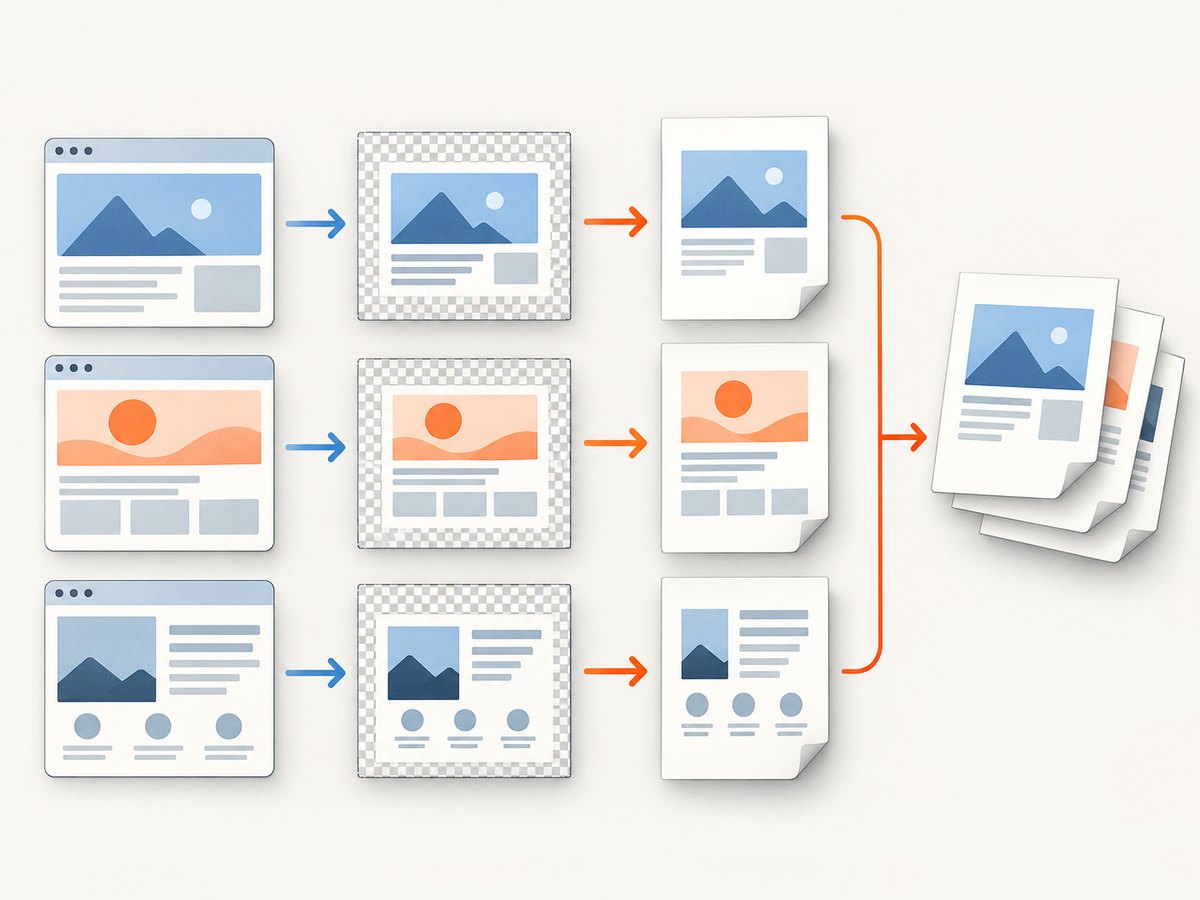
Direct answer: select the divs in document order, render each one with html2canvas(), and add each canvas as an image to a separate jsPDF page. Await the renders sequentially, add a page before every item after the first, fit each image by aspect ratio, and save only after the loop finishes.
This approach is fully client-side. It gives you control over page order, margins, image format, scaling, and per-element error handling. The complete implementation below exports every .pdf-page div to an A4 PDF.
1. Complete working example
Install the browser packages:
npm install @html2canvas/html2canvas jspdfUse this module from a browser application:
import html2canvas from '@html2canvas/html2canvas';
import { jsPDF } from 'jspdf';

export async function exportDivs() {
  const nodes = [...document.querySelectorAll('.pdf-page')];
  if (nodes.length === 0) {
    throw new Error('No elements matched .pdf-page');
  }

  const pdf = new jsPDF({
    orientation: 'portrait',
    unit: 'mm',
    format: 'a4',
  });

  for (let i = 0; i < nodes.length; i += 1) {
    const node = nodes[i];
    const canvas = await html2canvas(node, {
      scale: Math.min(window.devicePixelRatio || 1, 2),
      useCORS: true,
      windowWidth: node.scrollWidth,
      windowHeight: node.scrollHeight,
      backgroundColor: '#ffffff',
    });

    if (i > 0) {
      pdf.addPage();
    }

    const image = canvas.toDataURL('image/png');
    const pageWidth = pdf.internal.pageSize.getWidth();
    const pageHeight = pdf.internal.pageSize.getHeight();
    const ratio = Math.min(pageWidth / canvas.width, pageHeight / canvas.height);
    const width = canvas.width * ratio;
    const height = canvas.height * ratio;
    const x = (pageWidth - width) / 2;
    const y = (pageHeight - height) / 2;

    pdf.addImage(image, 'PNG', x, y, width, height);
  }

  pdf.save('div-pages.pdf');
}
Example markup:
<section class="pdf-page">Invoice summary</section>
<section class="pdf-page">Line items</section>
<section class="pdf-page">Terms and signatures</section>
<button id="download">Download PDF</button>
<script type="module">
  import { exportDivs } from './export-divs.js';
  document.querySelector('#download').addEventListener('click', exportDivs);
</script>
The first canvas uses the PDF instance’s initial page. Every later canvas gets addPage() first, which avoids the common blank-first-page and off-by-one errors.
2. How the page-fitting calculation works
jsPDF measures an A4 page in the unit you choose, here millimetres. The canvas is measured in pixels. The ratio Math.min(pageWidth / canvas.width, pageHeight / canvas.height) selects the largest uniform scale that fits both dimensions. Multiplying both canvas dimensions by that ratio preserves the original aspect ratio. The remaining space is divided equally to center the image.
Do not stretch width and height independently. That distorts text and diagrams. If you need fixed margins, subtract them before calculating:
const margin = 12;
const availableWidth = pageWidth - margin * 2;
const availableHeight = pageHeight - margin * 2;
const ratio = Math.min(availableWidth / canvas.width, availableHeight / canvas.height);
const width = canvas.width * ratio;
const height = canvas.height * ratio;
pdf.addImage(image, 'PNG', (pageWidth - width) / 2, (pageHeight - height) / 2, width, height);
For landscape output, set orientation: 'landscape'. jsPDF also accepts other formats and custom page dimensions. Pixel units require jsPDF’s px_scaling hotfix; millimetres or points are usually easier for print layouts. See the jsPDF API documentation for constructor and page options.
3. Selecting, ordering, and preparing divs
Use a stable selector
querySelectorAll() returns elements in document order. Add a dedicated class such as .pdf-page instead of selecting every generic div. If the order is data-driven, render the data in the desired order before starting the export.
Wait for content before capturing
Images, fonts, charts, and asynchronous components must be ready. A simple image wait helper is:
async function waitForImages(root) {
  const images = [...root.querySelectorAll('img')];
  await Promise.all(images.map((img) => {
    if (img.complete) return img.decode?.().catch(() => {});
    return new Promise((resolve) => {
      img.addEventListener('load', resolve, { once: true });
      img.addEventListener('error', resolve, { once: true });
    });
  }));
}

for (const node of nodes) {
  await waitForImages(node);
  // call html2canvas(node) here
}
Call await document.fonts.ready before the loop when web fonts affect line wrapping. Keep the source element visible; hidden elements often have zero dimensions or incomplete layout. You can apply an export-only class to remove animations, blinking cursors, hover states, and interactive controls.
4. html2canvas options that matter
| Option | Use | Practical guidance |
|---|---|---|
scale |
Controls output resolution. | Use device pixel ratio for sharp text, capped around 2 for memory. |
useCORS |
Requests cross-origin images with CORS. | The image server must send an appropriate Access-Control-Allow-Origin header. |
windowWidth, windowHeight |
Defines the virtual viewport. | Set them to the element’s scroll dimensions when content is clipped or blank. |
x, y, width, height |
Captures a specific region. | Useful for a crop without changing the DOM. |
backgroundColor |
Sets the canvas background. | Use null for transparency where supported, or a print-safe color. |
data-html2canvas-ignore |
Excludes an element. | Put it on buttons, selection handles, and export-only UI. |
html2canvas recreates the page from DOM and CSS; it does not take a native browser screenshot. CSS support is incomplete, so unusual filters, blend modes, and some visual effects can differ. The project documentation covers the API and FAQ.
5. PNG, JPEG, and PDF size
PNG is lossless and keeps text and flat UI graphics crisp, but can create large PDFs for photographic content. JPEG can be smaller:
const image = canvas.toDataURL('image/jpeg', 0.88);
pdf.addImage(image, 'JPEG', x, y, width, height);
Lowering scale reduces memory and file size but also reduces legibility. Capture only the dimensions you need, avoid rendering enormous off-screen panels, and release references to canvases after each page if exporting many pages. Sequential rendering uses less peak memory than starting all captures at once.
6. Oversized divs and internal page breaks
The one-div-per-page loop does not split a div that is taller than the PDF page. It scales the whole canvas down, which may make text unreadable. Choose one of these policies:
- Require each
.pdf-pageto fit within one physical page. - Split the content into multiple page divs before rendering.
- Implement a slicing algorithm that crops the canvas into page-height strips and adds each strip as a new page.
Large canvases can exceed browser-specific HTML5 canvas limits. Limits vary by browser, device, and platform. Test with realistic content and reduce the capture dimensions or split the element when you approach those limits.
7. Cross-origin images, fonts, and security restrictions
When an image comes from another origin, the browser may taint the canvas. useCORS: true works only when that origin permits the request with CORS headers. Otherwise, serve the asset from your own origin or use a server-side proxy that adds the correct headers. html2canvas cannot bypass browser content-policy restrictions.
The same principle applies to fonts and other resources. A font that fails to load can change line breaks and page height even when the rest of the capture succeeds. Inspect the browser Network and Console panels for blocked requests before changing PDF code.
8. Avoiding the blank first page
A new jsPDF instance already contains page one. Calling addPage() before the first image leaves that page empty. The safe pattern is:
for (let i = 0; i < nodes.length; i += 1) {
  // render and add image
  if (i > 0) pdf.addPage();
}
Another cause is capturing before layout has completed. Wait for fonts and images, ensure the node has non-zero scrollWidth and scrollHeight, and set windowWidth/windowHeight explicitly.
9. html2pdf.js as a wrapper
html2pdf.js provides a chained workflow—.from(), .toContainer(), .toCanvas(), .toImg(), .toPdf(), and .save()—and accepts html2canvas and jsPDF options. It can be convenient when you want built-in page-break controls. It still renders HTML as an image, so text is not selectable or searchable and files can be large. It also inherits canvas-size limits. For one independent div per page, the direct loop is usually easier to reason about and debug.
10. Server-side generation: what changes
html2canvas runs in a browser and is not a Node.js renderer. If a job must run without a user’s browser, use a real browser automation stack such as Puppeteer or Playwright, load the page, wait for network and fonts, and use the browser’s native PDF or screenshot APIs. This requires managing browser binaries, sandboxing, concurrency, timeouts, authentication, and resource blocking.
11. Troubleshooting checklist
| Symptom | Likely cause | Fix |
|---|---|---|
| First page is blank | addPage() ran before the first image. |
Call it only when i > 0. |
| Images are missing | Cross-origin image was blocked or tainted the canvas. | Enable CORS on the asset server, use useCORS, or proxy the image. |
| Output is clipped | Viewport dimensions were smaller than the element. | Set windowWidth and windowHeight to scroll dimensions. |
| Text is blurry | Scale is too low or the image was enlarged in the PDF. | Raise scale, capture at the target size, and avoid upscaling. |
| Styles differ | Unsupported CSS or a font did not load. | Wait for fonts, simplify unsupported effects, and compare in a real browser. |
| Browser tab crashes | Canvas dimensions or concurrent renders are too large. | Render sequentially, cap scale, split large divs, and reduce viewport size. |
| Blank canvas | Element is hidden, has zero dimensions, or capture ran too early. | Make it visible, verify dimensions, and wait for layout/resources. |
12. Reliability, performance, and cost decisions
For interactive exports, show progress between pages and catch errors per element so one problematic div can be reported clearly. Keep a deterministic order and avoid mutating the page while a capture is in progress. For repeatable documents, freeze timestamps, random values, animations, and responsive breakpoints.
Client-side export has no API request cost, but it consumes the user’s CPU and memory and depends on that browser’s rendering behavior. Server-side browser rendering is more consistent for scheduled jobs, but you operate the browser infrastructure and pay for its compute. If you need a hosted screenshot or PDF endpoint, compare whether it supports the authentication, waiting, resource blocking, and output controls your pages require.
13. Or skip the browser setup
ScreenshotNeo provides a hosted screenshot and PDF API. One GET request returns a PNG, JPEG, WebP, or PDF, with options for full-page capture, element selectors, custom CSS and JavaScript, waits, cookies, headers, user agents, geolocation, PDF paper size and margins, caching, async jobs, and bulk capture. Before capture it accepts consent banners and removes more than 60 known consent platforms, newsletter popups, and chat widgets. Bot checks, blank pages, timeouts, failed loads, and cache hits are not billed; response headers identify the page verdict and billing status. See the ScreenshotNeo documentation for all parameters.

cURL:
curl -G "https://api.screenshotneo.com/v1/shot" -d access_key=YOUR_API_KEY --data-urlencode url=https://stripe.com -o shot.webpPython:
import requests
r = requests.get("https://api.screenshotneo.com/v1/shot", params={"access_key": "YOUR_API_KEY", "url": "https://stripe.com"}, timeout=90)
r.raise_for_status()
open("shot.webp", "wb").write(r.content)
Node.js:
const q = new URLSearchParams({ access_key: 'YOUR_API_KEY', url: 'https://stripe.com' });
const res = await fetch(`https://api.screenshotneo.com/v1/shot?${q}`);
if (!res.ok) throw new Error(`Screenshot failed: ${res.status}`);
const data = Buffer.from(await res.arrayBuffer());
require('fs').writeFileSync('shot.webp', data);
ScreenshotNeo also offers an MCP server with take_screenshot, get_page_info, and capture_pdf tools for Claude, Cursor, and other MCP clients. The Free plan includes 1,000 shots each month with no card; paid plans start at $5 for 3,000 shots, and every feature is available on every plan. Create a free ScreenshotNeo account.
14. FAQ
Can each div have a different page size?
Not within one fixed-format PDF page sequence unless you create custom pages with jsPDF. Most exports use one orientation and format, then fit every canvas inside that page.
Can the PDF contain selectable text?
The html2canvas approach embeds raster images, so text is not selectable. Use a PDF generator that lays out text and vector elements when searchability is required.
Should I render all divs with Promise.all?
Usually no. Parallel captures increase memory use and can compete for layout and image resources. Sequential await calls preserve order and are easier to recover from.
Why does a transparent background become white?
Set html2canvas’s background to null where supported and add the image with the format and jsPDF settings that preserve transparency. PNG is the appropriate image format for transparency.
Can html2canvas run in Node.js?
No. It depends on browser DOM and rendering APIs. Use Puppeteer or Playwright for server-side browser rendering, or use a hosted API such as ScreenshotNeo.


