How to Capture the Entire Body Instead of Only the Viewport with HTML2Canvas
Capture a complete page with html2canvas by matching the rendering viewport to the element’s full scroll dimensions, with fixes for common failures.
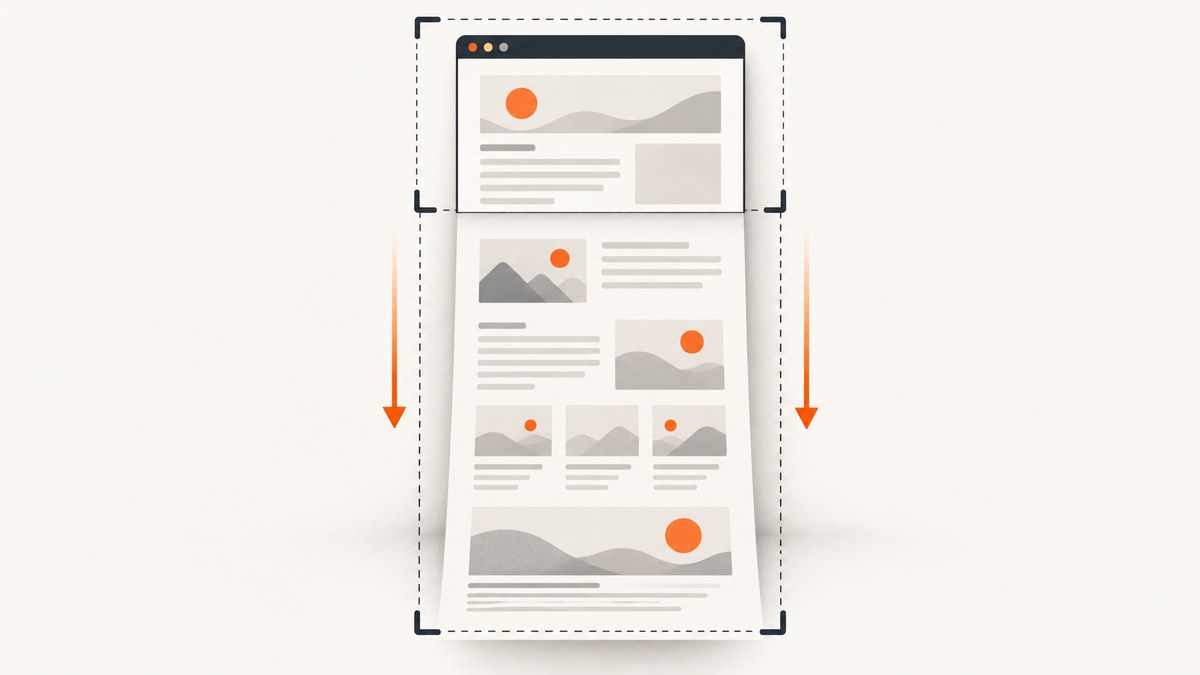
html2canvas usually captures the visible viewport because it lays out the cloned document using the browser’s current viewport dimensions. To capture the entire body, render the intended root element and set windowWidth and windowHeight to that element’s full scroll dimensions.
const element = document.body;
const canvas = await html2canvas(element, {
  windowWidth: element.scrollWidth,
  windowHeight: element.scrollHeight,
  scrollX: 0,
  scrollY: 0,
  backgroundColor: '#ffffff'
});

const pngDataUrl = canvas.toDataURL('image/png');
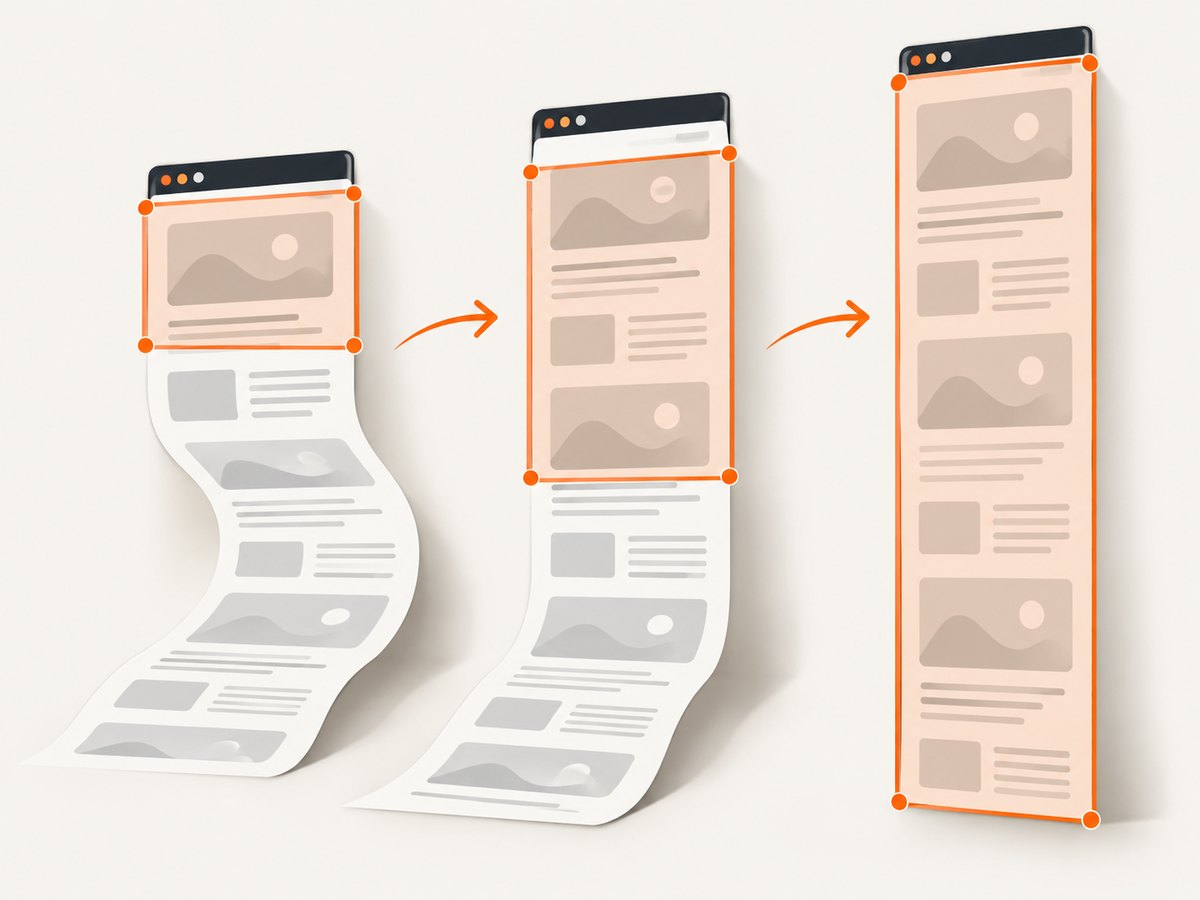
The key distinction is that windowWidth and windowHeight control the layout viewport used while html2canvas renders the cloned page. The output canvas dimensions are separate. The official html2canvas FAQ recommends matching the window dimensions to the element’s scroll dimensions when a result is empty or cut off.
Complete working example
The following page captures the complete document body after the page loads. It creates a download link for a PNG and reports the dimensions so you can diagnose unexpectedly small output.
<!doctype html>
<html lang="en">
<head>
  <meta charset="utf-8">
  <meta name="viewport" content="width=device-width, initial-scale=1">
  <title>Full body capture</title>
  <script src="https://cdn.jsdelivr.net/npm/html2canvas@1.4.1/dist/html2canvas.min.js"></script>
  <style>
    body { margin: 0; font-family: system-ui, sans-serif; }
    .content { max-width: 760px; margin: auto; padding: 32px; }
    .section { min-height: 520px; padding: 24px 0; }
  </style>
</head>
<body>
  <main class="content" id="page">
    <section class="section"><h1>Long page</h1><p>The first section.</p></section>
    <section class="section"><h2>More content</h2><p>Content below the viewport.</p></section>
    <section class="section"><h2>End</h2><p>The final section.</p></section>
  </main>
  <button id="capture" type="button">Capture full page</button>
  <script>
    document.querySelector('#capture').addEventListener('click', async () => {
      const element = document.querySelector('#page');
      const canvas = await html2canvas(element, {
        windowWidth: element.scrollWidth,
        windowHeight: element.scrollHeight,
        scrollX: 0,
        scrollY: 0,
        backgroundColor: '#ffffff'
      });

      const link = document.createElement('a');
      link.download = 'full-page.png';
      link.href = canvas.toDataURL('image/png');
      link.click();
      console.log({ width: canvas.width, height: canvas.height });
    });
  </script>
</body>
</html>
How the full-body calculation works
- Choose the root. Use
document.bodyfor a normal document, or select the wrapper that actually contains the page. - Measure layout space. Read
scrollWidthandscrollHeight. These include content outside the current viewport. - Set the rendering viewport. Pass those measurements as
windowWidthandwindowHeight. - Neutralize offsets. Set
scrollX: 0andscrollY: 0when you want the document origin in the image. - Export the canvas. Use
toDataURL('image/png')for a data URL ortoBlob()for a more memory-efficient file.
Do not substitute width and height for the window options. According to the configuration reference, width and height describe the output canvas or crop. They do not tell the renderer to lay out content below the viewport.
Capturing a wrapper instead of body
Many applications have a centered page wrapper, while body includes navigation, toolbars, or an unrelated footer. Capture the wrapper directly:
const element = document.querySelector('#article');
if (!element) throw new Error('Missing #article element');

const canvas = await html2canvas(element, {
  windowWidth: element.scrollWidth,
  windowHeight: element.scrollHeight,
  width: element.scrollWidth,
  height: element.scrollHeight,
  scrollX: 0,
  scrollY: 0
});
Adding width and height here makes the output size explicit, while the matching windowWidth and windowHeight preserve the full layout. If the wrapper has borders or transforms, measure its actual scroll dimensions and adjust for those styles as needed.
Useful html2canvas options
| Option | Use | Important detail |
|---|---|---|
windowWidth, windowHeight |
Set the cloned layout viewport | Use the root element’s scrollWidth and scrollHeight for a full page |
width, height |
Set output dimensions or crop | They do not replace the window dimensions |
scale |
Control pixel density | Defaults to the device pixel ratio; higher values increase memory and file size |
useCORS |
Request cross-origin images with CORS | Works only when the image server sends a suitable CORS header |
proxy |
Load inaccessible resources through a proxy | The proxy must return the resource in a way the browser can use |
scrollX, scrollY |
Define the scroll offsets used during rendering | Set deliberately when fixed or sticky elements are present |
backgroundColor |
Choose the canvas background | Use null for transparency when the page supports it |
onclone |
Modify the cloned document | Hide temporary UI or expand a panel without changing the live page |
ignoreElements |
Skip nodes programmatically | Useful for controls, overlays, and live widgets |
You can also mark individual nodes with data-html2canvas-ignore:
<button data-html2canvas-ignore>Do not include this control</button>Retina output without runaway memory use
The default scale is commonly the device pixel ratio. A high-density display can therefore create a canvas several times larger than the CSS dimensions. For predictable exports, choose a bounded scale:
const canvas = await html2canvas(element, {
  windowWidth: element.scrollWidth,
  windowHeight: element.scrollHeight,
  scale: Math.min(window.devicePixelRatio || 1, 2)
});
Lower the scale for very tall pages or mobile devices. A canvas that is four times wider and four times taller consumes roughly sixteen times as many pixels as a one-times canvas.
Images, fonts, and cross-origin content
html2canvas reconstructs a page from DOM and browser-readable resources; it does not take a privileged browser screenshot. The FAQ explains that it cannot bypass browser content-policy restrictions.
- Set
useCORS: truewhen the remote image server sends an appropriateAccess-Control-Allow-Originheader. - Use
proxywhen you control a same-origin retrieval path for images that cannot be loaded directly. - Prefer same-origin assets when you need a reliable export.
- Wait for fonts and images before measuring dimensions; late loading can change
scrollHeight.
await document.fonts?.ready;
await Promise.all([...document.images].map(image => {
  if (image.complete) return Promise.resolve();
  return new Promise(resolve => {
    image.addEventListener('load', resolve, { once: true });
    image.addEventListener('error', resolve, { once: true });
  });
}));

const element = document.body;
const canvas = await html2canvas(element, {
  windowWidth: element.scrollWidth,
  windowHeight: element.scrollHeight,
  useCORS: true
});
Fixed headers, sticky elements, and transient UI
A fixed header is painted relative to the viewport. When the cloned viewport becomes as tall as the page, its position can differ from what you see during normal scrolling. Use onclone to change only the capture copy:
const canvas = await html2canvas(document.body, {
  windowWidth: document.body.scrollWidth,
  windowHeight: document.body.scrollHeight,
  onclone: clonedDocument => {
    clonedDocument.querySelectorAll('.cookie-banner, .chat-widget')
      .forEach(node => node.remove());
    const header = clonedDocument.querySelector('.site-header');
    if (header) header.style.position = 'absolute';
  }
});
For simple exclusions, add data-html2canvas-ignore. For more involved changes, onclone is safer than mutating the visible page and then trying to restore it.
Independently scrolling child panels
A full document and a scrollable panel are different problems. If a dashboard contains <div class="panel" style="overflow:auto">, the body’s scroll height may include only the panel’s visible height. Capture the panel and give it its own full dimensions:
const panel = document.querySelector('.panel');
const canvas = await html2canvas(panel, {
  windowWidth: panel.scrollWidth,
  windowHeight: panel.scrollHeight,
  width: panel.scrollWidth,
  height: panel.scrollHeight,
  scrollX: 0,
  scrollY: 0
});
If the panel’s CSS prevents its contents from expanding, use onclone to set overflow: visible and an appropriate height in the cloned document. The html2canvas issue tracker documents that the ordinary root-page configuration does not automatically include all content inside independently scrolling children.
Common failures and fixes
| Symptom | Likely cause | Fix |
|---|---|---|
| Only the visible viewport appears | Window dimensions still equal the browser viewport | Set both window options from the target element’s scroll dimensions |
| Blank or truncated image | Canvas size limit or excessive memory use | Reduce scale, split the page into sections, or capture a smaller wrapper |
| Images are missing | Cross-origin policy or failed image load | Use CORS headers, useCORS, or a proxy; wait for image loading |
| Export throws a security error | The canvas became tainted by an unreadable resource | Serve the resource with CORS or proxy it; do not expect client code to bypass policy |
| Styles look different | html2canvas implements CSS properties itself | Simplify unsupported effects, inspect the clone, or use a browser-native screenshot |
| Sticky controls repeat or move | Viewport-relative positioning changed in the tall clone | Adjust position in onclone or ignore the control |
| Panel content is cut off | The panel, rather than the body, owns scrolling | Capture the panel and use its scroll dimensions |
| Bottom content is missing intermittently | Lazy images or fonts have not finished loading | Wait for document.fonts.ready and image load events before measuring |
The project’s FAQ explicitly warns that “The canvas may hit browser size limits” and that every CSS property must be manually implemented, so html2canvas will not provide complete CSS fidelity. It also relies on browser APIs such as window and document; it is not a Node.js renderer by itself.
Performance and reliability checklist
- Measure after layout settles, including fonts, images, and lazy content.
- Use the smallest root element that contains the desired output.
- Cap
scaleat 1 or 2 for long documents. - Remove animations and blinking cursors in
onclone. - Split extremely tall pages into logical sections and stitch them only if a single canvas exceeds browser limits.
- Prefer
toBlob()over a huge data URL when uploading or downloading large images. - Record the measured CSS and pixel dimensions with each export so failures are diagnosable.
canvas.toBlob(blob => {
  if (!blob) throw new Error('Could not encode canvas');
  const url = URL.createObjectURL(blob);
  const link = document.createElement('a');
  link.href = url;
  link.download = 'full-page.png';
  link.click();
  URL.revokeObjectURL(url);
}, 'image/png');
When a browser screenshot or server renderer is better
Use html2canvas when the page is already open in a browser and a DOM-based approximation is acceptable. A browser-native extension capture or a server-side Puppeteer or Playwright screenshot is usually a better fit when you need browser compositing, complex CSS, embedded content, or a repeatable backend job. The html2canvas documentation recommends native extension screenshot APIs for extensions and Puppeteer or Playwright for server-side screenshots.
Or skip the browser setup
ScreenshotNeo provides a website screenshot API and MCP server. One GET request returns a PNG, JPEG, WebP, or PDF, with full-page capture and lazy images loaded. Cookie and consent banners, newsletter popups, and chat widgets are removed before the shot. Bot checks, blank pages, timeouts, failed loads, and cache hits are not billed, and response headers identify the page verdict and whether it was billed.
See the ScreenshotNeo documentation for all options. A minimal call is:
curl -G "https://api.screenshotneo.com/v1/shot" -d access_key=YOUR_API_KEY --data-urlencode url=https://stripe.com -o shot.webpimport requests
r = requests.get("https://api.screenshotneo.com/v1/shot", params={"access_key": "YOUR_API_KEY", "url": "https://stripe.com"}, timeout=90)
open("shot.webp", "wb").write(r.content)const q = new URLSearchParams({ access_key: 'YOUR_API_KEY', url: 'https://stripe.com' });
const res = await fetch(`https://api.screenshotneo.com/v1/shot?${q}`);ScreenshotNeo also supports CSS element capture, custom CSS and JavaScript, device presets, dark mode, custom headers and cookies, resource blocking, waiting for selectors or network idle, caching, signed links, asynchronous jobs, webhooks, bulk capture, PDF settings, and an MCP server with take_screenshot, get_page_info, and capture_pdf. AI agents using Claude, Cursor, or another MCP client can call those tools directly.
The free plan includes 1,000 screenshots each month with no card. Paid plans start at $5 for 3,000 shots, and every feature is included on every plan. Create a free ScreenshotNeo account to get started.
FAQ
Should I use document.documentElement instead of document.body?
Use the element that owns the content you want. For pages where the body’s dimensions are unusual, compare document.documentElement.scrollHeight and document.body.scrollHeight, then capture the wrapper with the more reliable dimensions.
Does html2canvas capture content outside an iframe?
Not reliably when the iframe is cross-origin. Browser security rules prevent the parent page from reading its DOM. Capture the iframe from its own origin or use a server-side browser screenshot.
Why is my PNG enormous?
The canvas pixel count grows with both the page dimensions and scale. Lower the scale, capture a smaller element, or export JPEG/WebP when transparency and lossless pixels are unnecessary.
Can I run this exact code in Node.js?
No. html2canvas depends on browser APIs such as window, document, computed styles, and canvas. Use a browser environment or a server-side browser tool instead.
How do I exclude a cookie banner?
Add data-html2canvas-ignore to it, remove it in onclone, or hide it with cloned-document CSS. Removing it in the clone avoids changing what the visitor sees.


