How to Capture Scrolled Content Correctly for PDF Export with Html2canvas
Capture long pages with html2canvas by sizing the render window to the content, handling canvas limits and fixed elements, and assembling a readable PDF.

To capture an element that extends beyond its visible area, set html2canvas’s rendering window to the element’s scroll dimensions. Then inspect the canvas before converting it to PDF. For very long pages, capture bounded sections and place them on separate PDF pages instead of assuming one enormous canvas will work on every browser and device.
const element = document.querySelector('#capture');
if (!element) throw new Error('Could not find #capture');

const canvas = await html2canvas(element, {
  windowWidth: element.scrollWidth,
  windowHeight: element.scrollHeight
});
This is the sizing fix in the html2canvas FAQ. It expands the rendering window; it does not guarantee support for an arbitrarily large canvas. Also, html2canvas reconstructs an image from DOM information rather than taking a literal browser screenshot, so CSS fidelity and cross-origin images need attention.
1. How do I capture the full page with html2canvas?
Install html2canvas using the project’s getting-started guide, and load it in the browser or your bundler. The example below captures a specific element, checks it, and produces a PNG download. It assumes the page contains an element with id capture and that the call runs in a browser after the element is present.
import html2canvas from 'html2canvas';

async function saveCapture() {
  const element = document.querySelector('#capture');
  if (!(element instanceof HTMLElement)) {
    throw new Error('Expected an element with id="capture"');
  }

  const canvas = await html2canvas(element, {
    windowWidth: element.scrollWidth,
    windowHeight: element.scrollHeight
  });

  // Check dimensions before encoding or handing the canvas to a PDF library.
  if (!canvas.width || !canvas.height) {
    throw new Error('html2canvas returned an empty canvas');
  }

  const link = document.createElement('a');
  link.download = 'capture.png';
  link.href = canvas.toDataURL('image/png');
  link.click();
}

saveCapture().catch(console.error);
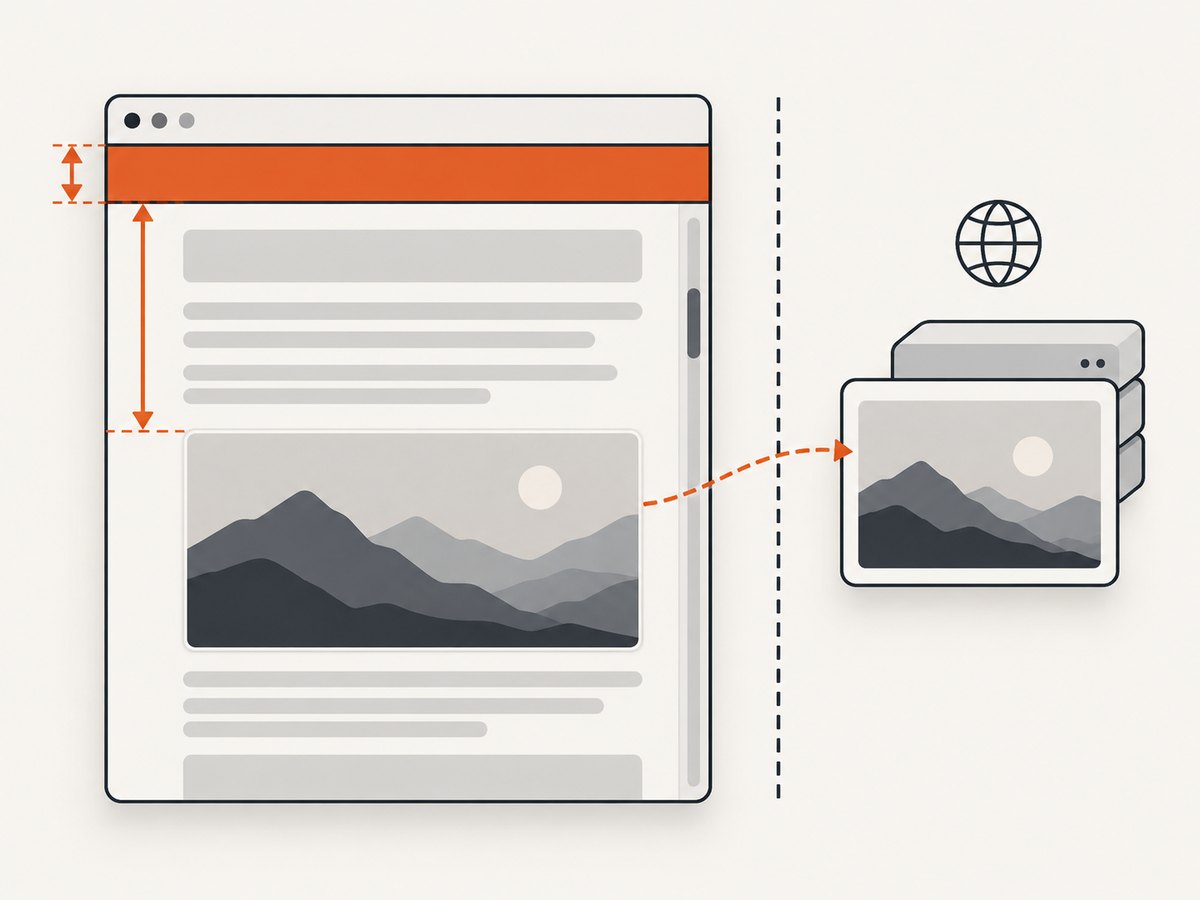
For a script-tag setup, make the same call after html2canvas has loaded and after the target content has finished rendering. The key distinction is between the element dimensions and the rendering window: scrollWidth and scrollHeight describe the full scrollable extent, while the visible box may show only a slice.
Wait for content that appears later
Before capturing, wait for the application to render its data and for images that matter to finish loading. Lazy-loaded images may not exist or may not have loaded until their containing region is approached. A full-page-sized rendering window can help expose the target extent, but verify that the page’s own lazy-loading behavior has actually populated the content. If necessary, scroll the target through its content in controlled steps, wait for images, then capture. This is application-specific behavior and should be tested on the page and browser versions you support.
2. Choose the right dimensions and offsets
html2canvas has separate options for output canvas dimensions, rendering-window dimensions, scale, and scroll position. They solve different problems. The configuration reference documents these controls; changing all of them together makes it harder to identify why a capture changed.
| Option | What it controls | When to adjust it |
|---|---|---|
width, height |
The output canvas dimensions. | When you deliberately need a bounded output size. Check whether the chosen dimensions clip or scale the target as intended. |
windowWidth, windowHeight |
The rendering window used while drawing; it can affect media queries. | For scrollable content, start with the target’s scrollWidth and scrollHeight, then confirm the responsive layout is the one you want. |
scrollX, scrollY |
The scroll position used during rendering. | When fixed-position content appears at the wrong place or is missing. Choose offsets based on the page’s actual scroll and fixed-element behavior. |
scale |
Pixel density of the output canvas. | When balancing sharp text against memory use and PDF size. The default follows device pixel ratio, so results can differ across devices. |
Start with the FAQ dimensions and change one option at a time. Setting windowWidth can select a different media-query breakpoint, changing columns, font sizes, or navigation. If the desired PDF is meant to represent a desktop layout, use a rendering width that produces that layout and inspect it; do not blindly equate maximum scroll width with the desired responsive design.
3. Export the canvas to PDF
html2canvas creates the canvas, not the PDF pagination. The PDF library and layout policy are project decisions. A basic approach is to turn the canvas into an image and place it on a PDF page while preserving its aspect ratio. The following pseudocode intentionally leaves the PDF library calls generic: select the library already approved for your project, add a page, place the image within the page bounds, and save or stream the document.
const canvas = await html2canvas(element, {
  windowWidth: element.scrollWidth,
  windowHeight: element.scrollHeight,
  scale: 1
});

const pngDataUrl = canvas.toDataURL('image/png');

// In your chosen PDF library:
// 1. Create a document with the intended paper size and orientation.
// 2. Compute image dimensions that fit the page while preserving aspect ratio.
// 3. Add pngDataUrl to the page.
// 4. Save or return the PDF.
A single tall image fitted to one standard sheet may make text too small to read. Decide whether the PDF should be one long page, one scaled page, or multiple paper-sized pages. Keep the image aspect ratio; if it does not fit the target page, scale it proportionally and decide how to handle the remaining space. For long content, sectioned or page-sized captures usually give you more control over readable scale and memory. This is an implementation strategy based on canvas constraints, not a pagination feature prescribed by html2canvas.
Capture bounded sections for very long content
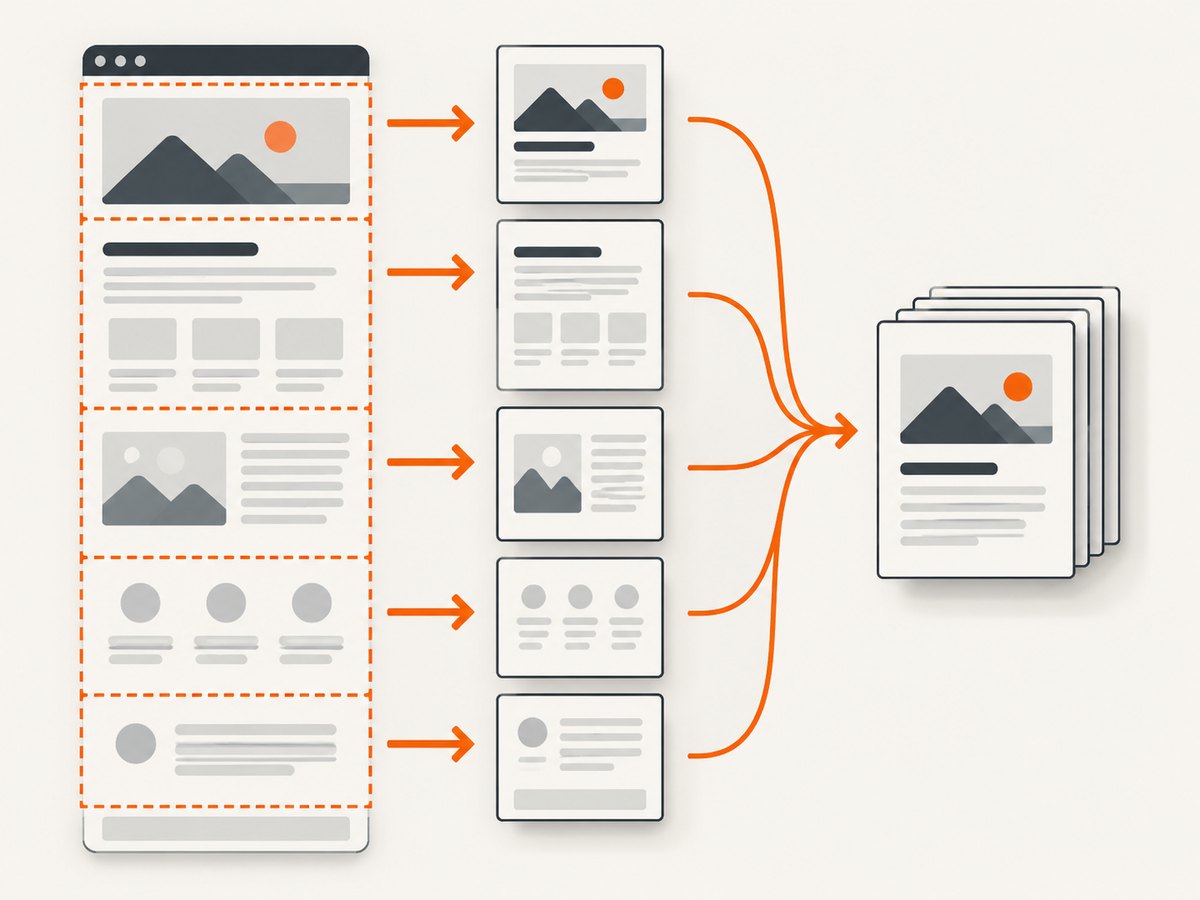
For a long report, identify stable section boundaries in the DOM and capture each section separately. Add each result to its own PDF page, or divide a known-height region into page-sized captures. Avoid splitting through text or important visuals where possible. If you crop one large canvas after rendering, the initial canvas still has to fit in memory; capturing smaller DOM regions can avoid that initial peak, provided the sections can be rendered independently.
- Measure the target width and height before capture.
- Choose a scale that keeps text legible at the final printed or viewed size.
- Render one section or page region, encode and add it, then release references when practical.
- Test the final PDF for missing content, awkward splits, and file size.
4. Understand fidelity and browser limits
The html2canvas project states that it builds the image from information available on the page and does not make an actual screenshot. Its About documentation describes the resulting representation as potentially different from the real page. The project also documents selective CSS support; consult its feature matrix for unsupported properties, including box-shadow and filter, and check the styles that matter to your document.
Canvas dimensions also have practical limits. The FAQ notes that limits vary by browser, operating system, and hardware. Its older numeric examples should not be treated as current guarantees. Test your expected largest pages on the actual target environments, and use sections when the one-canvas route is unreliable or consumes too much memory.
Cross-origin images introduce another fidelity and export issue. The browser’s same-origin security rules can taint a canvas when it includes image data from a server that does not permit access. html2canvas documents useCORS and proxy options, but success depends on the image server’s response headers and your deployment. See the proxy documentation; a proxy must be configured and operated for your application.
5. Why is my html2canvas image cut off?
Check these causes in order. The same checks help when the result is blank or when a PDF export fails after capture.
| Symptom | Likely cause | Fix |
|---|---|---|
| Bottom or right side is missing | The render window matches the visible area, not the scrollable target. | Pass the correct target element’s scrollWidth and scrollHeight as windowWidth and windowHeight; log both values and inspect the element. |
| Canvas is blank or unexpectedly tiny | The selector found the wrong element, it was not laid out yet, or its dimensions are zero. | Check the selected node, wait for rendering, and inspect getBoundingClientRect(), scrollWidth, and scrollHeight. |
| Long capture fails on some machines | The requested bitmap exceeds practical canvas or memory limits for that browser, OS, or device. | Test supported environments, reduce scale, or capture sections and paginate. Do not rely on historical limit tables as guarantees. |
| Sticky header repeats, shifts, or disappears | Fixed-position rendering depends on scroll offsets and the page’s positioning behavior. | Set scrollX/scrollY deliberately and test with the actual header, footer, and scroll position. |
| Layout changes in the output | windowWidth triggered different media queries. |
Choose the intended layout width and inspect responsive breakpoints before tuning output height. |
| Shadows, filters, or other styles differ | The renderer does not support every CSS property exactly as a browser paints it. | Check the feature matrix; simplify or replace essential unsupported styling and validate the result. |
Images are missing or toDataURL throws |
Remote image content may be cross-origin and taint the canvas. | Verify server CORS headers, try useCORS where the server permits it, or configure an appropriate proxy. |
| PDF is unreadable despite a complete image | A very tall canvas was scaled to fit one paper page. | Paginate or capture sections, preserve aspect ratio, and choose a readable scale and page size. |
6. How do I export scrolled content to PDF?
- Choose the capture root. Select the element whose complete content belongs in the document. A nested scroll container and the whole document have different dimensions and layout behavior.
- Wait for stable content. Finish data rendering and address lazy images before capture.
- Size the render window. Use the target’s scroll dimensions as the FAQ recommends, while choosing a width that produces the intended responsive layout.
- Inspect the canvas. Check dimensions, visual fidelity, missing images, and fixed elements before converting it.
- Choose pagination. Use one page only when its resulting scale remains useful. Otherwise capture sections or page-sized regions and assemble them into the PDF.
- Test supported environments. Check the largest expected content on each browser and device class you support, then adjust scale and section size based on observed behavior.
7. Or skip the browser setup
If you need a website screenshot or PDF without wiring html2canvas into your page, ScreenshotNeo is a website screenshot API and MCP server. A single request returns an image or PDF. The API accepts a URL; this example saves a WebP response. See the ScreenshotNeo API docs for request options.
curl -G "https://api.screenshotneo.com/v1/shot" -d access_key=YOUR_API_KEY --data-urlencode url=https://stripe.com -o shot.webpimport requests
r = requests.get(
"https://api.screenshotneo.com/v1/shot",
params={"access_key": "YOUR_API_KEY", "url": "https://stripe.com"},
timeout=90,
)
r.raise_for_status()
open("shot.webp", "wb").write(r.content)const q = new URLSearchParams({ access_key: 'YOUR_API_KEY', url: 'https://stripe.com' });
const res = await fetch(`https://api.screenshotneo.com/v1/shot?${q}`);
if (!res.ok) throw new Error(`ScreenshotNeo returned ${res.status}`);
await Bun.write('shot.webp', res);With ScreenshotNeo, cookie banners, newsletter popups, and chat widgets are removed before the shot. Bot checks, blank pages, failed loads, timeouts, and cache hits are never billed; response headers report the page verdict and billing status. Its MCP server provides take_screenshot, get_page_info, and capture_pdf tools for Claude, Cursor, and other MCP clients. The free plan includes 1,000 screenshots a month with no card; paid plans start at $5 for 3,000 shots. Every feature is on every plan.
Create a free ScreenshotNeo account to get 1,000 screenshots a month with no card.
8. Performance, reliability, and cost
For html2canvas, the main resource cost is the bitmap: pixel dimensions grow with both width and height, and scale increases each dimension. A higher scale can improve sharpness while increasing memory use, processing time, and the amount of image data placed in the PDF. The default scale follows device pixel ratio, so specify and validate it when consistent output matters. There is no universal safe canvas size in the supplied documentation; measure representative pages and test on the least capable supported environment.
For reliable exports, make capture failures visible to the caller, avoid silently producing a partial PDF, and keep the source DOM stable during rendering. If one region fails, report which section failed so the document can be retried or corrected. Cost depends on your own browser execution and PDF infrastructure; the html2canvas sources do not establish pricing. With ScreenshotNeo, only clean shots are billed, and the response identifies the verdict and billing result. Its listed monthly plans run from free (1,000) through Starter $5 (3,000), Growth $15 (15,000), Pro $39 (60,000), Scale $99 (250,000), and Business $249 (1,000,000); yearly billing gives two months free.
9. FAQ
Does html2canvas capture a native screenshot?
No. It reconstructs an image from DOM data, so results can differ from browser painting and unsupported CSS may be absent or changed.
Will increasing window height always fix clipping?
No. It addresses rendering-window sizing, but cannot remove browser or hardware canvas limits, guarantee CSS fidelity, or fix an incorrect target selector.
Should I set both width and windowWidth?
Only if your desired output dimensions require it. They control different things: canvas dimensions versus the rendering window. Start with the documented scroll-dimension window sizing and add output bounds only for a specific reason.
Can I use this for a document longer than one PDF page?
Yes, but pagination is your PDF workflow’s responsibility. Capture sections or page regions and add them to separate PDF pages when a single scaled image would be hard to read.
Can I use ScreenshotNeo for a PDF?
Yes. Its API returns PDFs as well as PNG, JPEG, and WebP screenshots; the API docs describe available request options.


