How to Add One html2canvas Image Per jsPDF Page
Create a reliable multi-page PDF by rendering one html2canvas image per jsPDF page, with sizing, CORS, quality, and troubleshooting guidance.
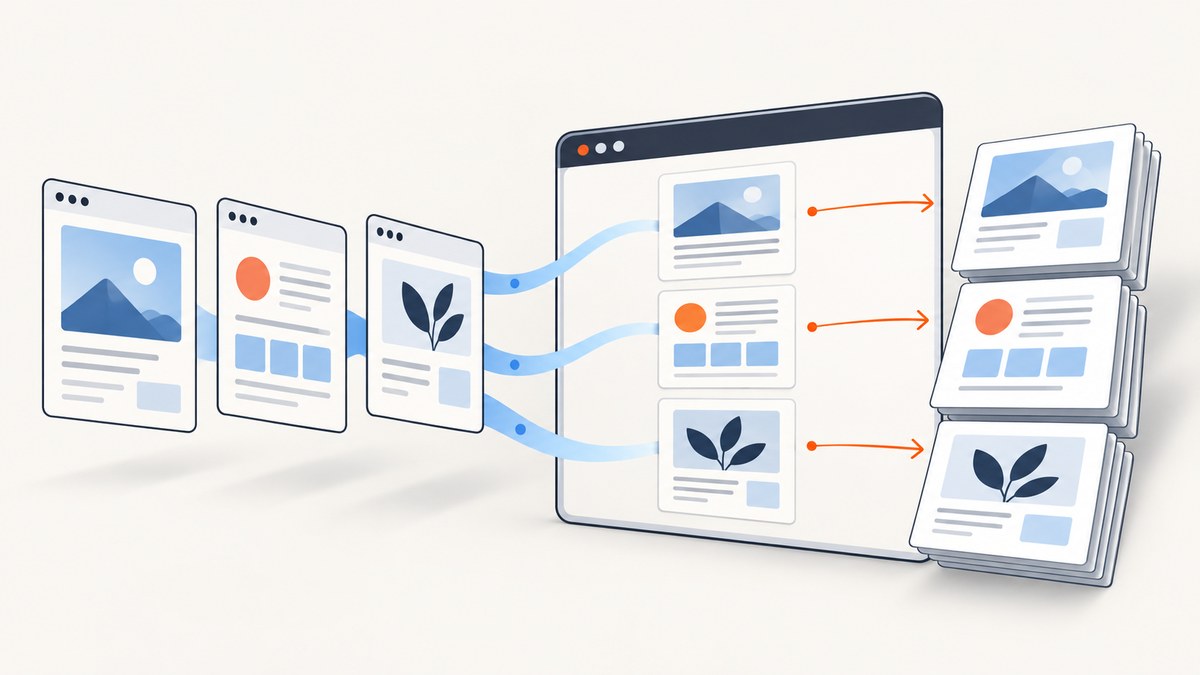
To put exactly one html2canvas image on each jsPDF page, render your page-sized HTML elements one at a time, convert each canvas to an image, add the first image to the initial PDF page, call pdf.addPage() before every later image, and call pdf.addImage() once per loop iteration.
The loop below creates one PDF page for every .pdf-page element. It preserves each element’s aspect ratio, uses device-pixel-ratio scaling for sharper output, and enables CORS-aware image loading.
import html2canvas from '@html2canvas/html2canvas';
import { jsPDF } from 'jspdf';

async function exportPages() {
  const nodes = [...document.querySelectorAll('.pdf-page')];
  if (nodes.length === 0) {
    throw new Error('No .pdf-page elements were found');
  }

  const pdf = new jsPDF({
    unit: 'pt',
    format: 'a4',
    orientation: 'portrait'
  });

  const pageWidth = pdf.internal.pageSize.getWidth();
  const pageHeight = pdf.internal.pageSize.getHeight();
  const margin = 24;
  const imageWidth = pageWidth - margin * 2;
  const usableHeight = pageHeight - margin * 2;

  for (let i = 0; i < nodes.length; i += 1) {
    const canvas = await html2canvas(nodes[i], {
      scale: window.devicePixelRatio,
      useCORS: true
    });

    const imageHeight = (canvas.height * imageWidth) / canvas.width;
    if (imageHeight > usableHeight) {
      console.warn(`Page ${i + 1} is taller than the printable area`);
    }

    if (i > 0) {
      pdf.addPage();
    }

    pdf.addImage(
      canvas.toDataURL('image/png'),
      'PNG',
      margin,
      margin,
      imageWidth,
      imageHeight
    );
  }

  pdf.save('pages.pdf');
}

exportPages();
How the one-image-per-page mapping works
Assume the document contains three elements:
<section class="pdf-page">First page</section>
<section class="pdf-page">Second page</section>
<section class="pdf-page">Third page</section>
querySelectorAll('.pdf-page') returns those elements in document order. The loop then follows this invariant:
- Iteration 0 renders the first element and places one image on the PDF’s initial page.
- Iteration 1 calls
addPage(), then places one image on page two. - Iteration 2 calls
addPage(), then places one image on page three.
A common mistake is to call addImage() repeatedly without calling addPage(). jsPDF keeps drawing on the current page, so the images overlap or appear in unexpected positions. The opposite mistake—calling addPage() before the first image—leaves an empty first page. Using if (i > 0) avoids both errors.
Prepare HTML that represents PDF pages
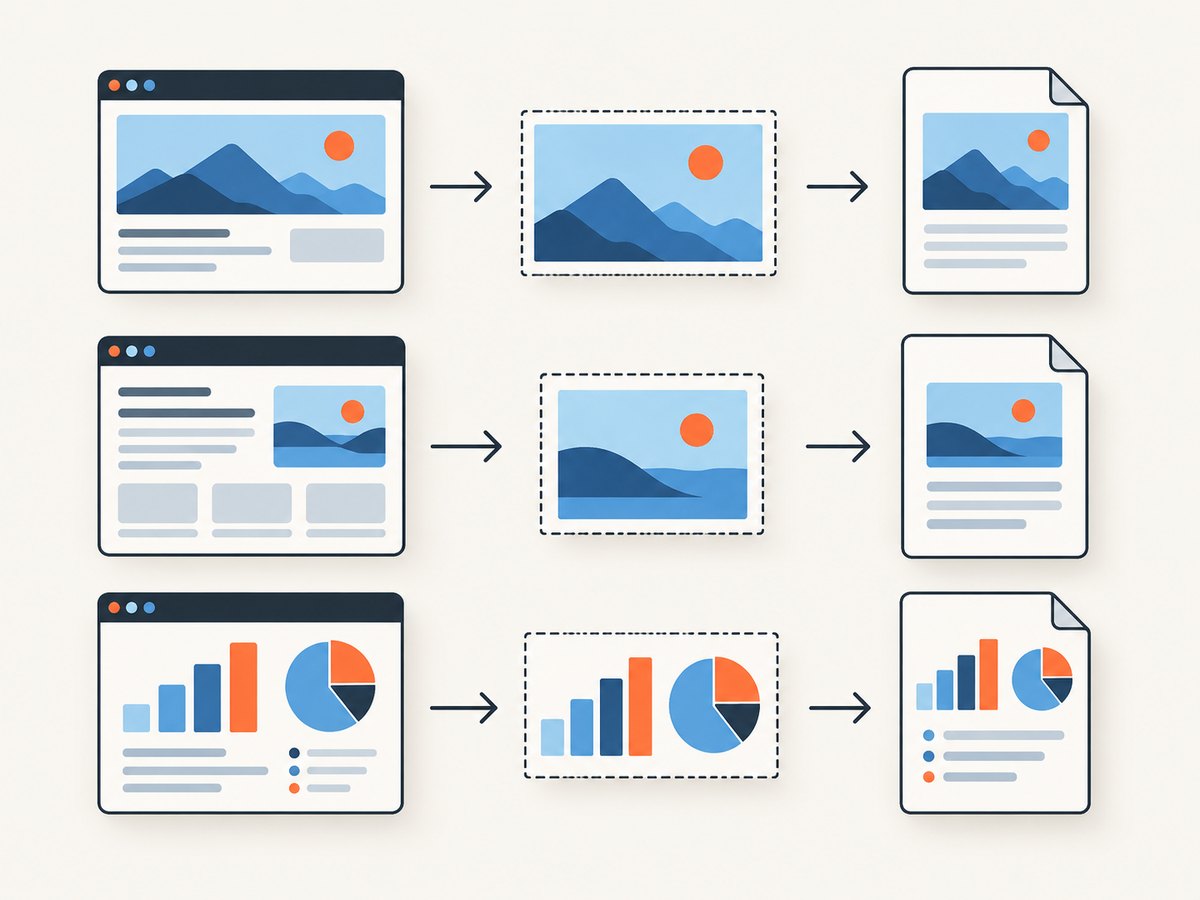
Give every intended PDF page a stable class and design it to fit the target paper ratio. The browser layout can use physical-looking units such as millimeters, but the canvas still captures CSS pixels.
<style>
  .pdf-page {
    width: 794px;
    min-height: 1123px;
    box-sizing: border-box;
    padding: 48px;
    background: white;
    color: #111827;
    font-family: Arial, sans-serif;
    break-after: page;
  }

  .pdf-page:last-child {
    break-after: auto;
  }
</style>

<main>
  <section class="pdf-page">
    <h1>Report overview</h1>
    <p>Content that belongs on page one.</p>
  </section>
  <section class="pdf-page">
    <h1>Results</h1>
    <p>Content that belongs on page two.</p>
  </section>
</main>
Use a fixed height when each section must map to exactly one paper page. If a section is taller than the target page, the image will extend below the printable area unless you scale it down or split the content yourself.
Install and run the browser implementation
Install both libraries in your application:
npm install @html2canvas/html2canvas jspdfThen import them from your module as shown in the main example. The html2canvas API returns a Promise that resolves to a canvas, so the function must be async and each render must be awaited. Awaiting inside the loop also keeps page order deterministic and avoids starting many large canvas renders at once.
Render only after fonts and images are ready
If the capture starts before web fonts or images finish loading, the PDF can contain fallback fonts or blank image regions. Wait for the document’s fonts and image elements before selecting the nodes:
async function waitForAssets(root = document) {
  if (document.fonts?.ready) {
    await document.fonts.ready;
  }

  const images = [...root.images];
  await Promise.all(images.map((image) => {
    if (image.complete) return Promise.resolve();
    return new Promise((resolve) => {
      image.addEventListener('load', resolve, { once: true });
      image.addEventListener('error', resolve, { once: true });
    });
  }));
}

async function exportAfterAssets() {
  await waitForAssets();
  await exportPages();
}
Handling an image error as a resolved wait prevents one broken asset from hanging the export forever. You can instead reject on errors when a missing image should stop document generation.
Size each image correctly
jsPDF page dimensions are available through pdf.internal.pageSize. Set the image width to the page width minus margins, then derive its height from the canvas ratio:
const imageWidth = pageWidth - margin * 2;
const imageHeight = (canvas.height * imageWidth) / canvas.width;
This calculation prevents distortion. Do not guess a fixed image height unless every canvas has exactly the same aspect ratio. If you need centered placement, compute a vertical offset after deciding whether to fit by width or height:
const scale = Math.min(
  (pageWidth - margin * 2) / canvas.width,
  (pageHeight - margin * 2) / canvas.height
);
const drawWidth = canvas.width * scale;
const drawHeight = canvas.height * scale;
const x = (pageWidth - drawWidth) / 2;
const y = (pageHeight - drawHeight) / 2;
pdf.addImage(canvas, 'PNG', x, y, drawWidth, drawHeight);
Use the fit calculation when content may vary in height. It guarantees that the complete image remains inside the page, at the cost of unused whitespace on one axis.
Quality, format, and file size
canvas.toDataURL('image/png') preserves sharp text and flat colors but can create large files. JPEG is smaller for photographic content and supports a quality argument:
const jpegData = canvas.toDataURL('image/jpeg', 0.85);
pdf.addImage(jpegData, 'JPEG', margin, margin, imageWidth, imageHeight);
PNG is usually preferable for forms, diagrams, and text-heavy pages. JPEG is useful when a PDF contains photos and file size matters. html2pdf.js also supports PNG, JPEG, and WebP output through its image configuration, but remember that these workflows place rendered images into the PDF. The resulting text is not selectable or searchable, and files can be larger than PDFs generated from real text and vector primitives.
For sharper output, scale: window.devicePixelRatio renders more source pixels before the image is reduced to the PDF’s physical width. Very high scale values consume more memory. A practical approach is to cap the scale for large documents:
const scale = Math.min(window.devicePixelRatio || 1, 2);
const canvas = await html2canvas(node, { scale, useCORS: true });
Cross-origin images and html2canvas limits
html2canvas runs in the browser and cannot bypass the same-origin policy. An image hosted on another origin must allow CORS for the browser to use it safely in a canvas. Set useCORS: true, and configure the image server to send an appropriate CORS header. When you cannot change that server, use a CORS proxy that you control and trust.
Canvas dimensions are also limited by the browser and graphics hardware. A very tall page or an excessive scale can produce a blank canvas, throw an error, or fail during conversion. Split long content into multiple .pdf-page nodes, reduce the scale, reduce image dimensions, or render fewer pages per operation.
Region captures and custom rendering options
html2canvas can capture a region by supplying coordinates and dimensions. This is useful when a page-sized wrapper contains extra controls that should not appear in the PDF:
const canvas = await html2canvas(node, {
  x: 20,
  y: 40,
  width: node.clientWidth - 40,
  height: node.clientHeight - 40,
  scale: 2,
  useCORS: true,
  backgroundColor: '#ffffff'
});
Capture a cloned or dedicated print container when you need different styles. The onclone callback can modify the cloned document without changing the live page:
const canvas = await html2canvas(node, {
  useCORS: true,
  onclone: (clonedDocument) => {
    clonedDocument.querySelectorAll('.screen-only').forEach((el) => {
      el.remove();
    });
  }
});
Alternative: automatic page-break handling with html2pdf.js
For a general HTML-to-PDF workflow, html2pdf.js chains html2canvas and jsPDF:
import html2pdf from 'html2pdf.js';

const element = document.querySelector('#report');
await html2pdf()
  .set({
    margin: 24,
    filename: 'report.pdf',
    image: { type: 'jpeg', quality: 0.9 },
    html2canvas: { scale: 2, useCORS: true },
    jsPDF: { unit: 'pt', format: 'a4', orientation: 'portrait' },
    pagebreak: { mode: ['avoid-all', 'css', 'legacy'] }
  })
  .from(element)
  .toCanvas()
  .toImg()
  .toPdf()
  .save();
Use the wrapper when CSS page-break rules and automatic splitting are more important than exact control over which element maps to which page. Use the manual loop when every selected element must become exactly one PDF page and you need to place one image per page yourself.
Or skip the browser setup
If you need a screenshot or PDF from a URL instead of a client-side export, ScreenshotNeo provides a website screenshot API and MCP server. One GET request returns PNG, JPEG, WebP, or PDF. Cookie and consent banners, newsletter popups, and chat widgets are removed before capture. Bot checks, blank pages, failed loads, timeouts, and cache hits are not billed, and response headers identify the page verdict and billing result.

See the ScreenshotNeo API documentation for all options. This cURL example captures a URL as WebP:
curl -G "https://api.screenshotneo.com/v1/shot" \
  -d access_key=YOUR_API_KEY \
  --data-urlencode url=https://stripe.com \
  -o shot.webp
Python:
import requests

r = requests.get(
    "https://api.screenshotneo.com/v1/shot",
    params={"access_key": "YOUR_API_KEY", "url": "https://stripe.com"},
    timeout=90,
)
r.raise_for_status()
open("shot.webp", "wb").write(r.content)
Node.js:
const q = new URLSearchParams({
  access_key: 'YOUR_API_KEY',
  url: 'https://stripe.com'
});
const res = await fetch(`https://api.screenshotneo.com/v1/shot?${q}`);
if (!res.ok) throw new Error(`Screenshot failed: ${res.status}`);
const buffer = Buffer.from(await res.arrayBuffer());
require('node:fs').writeFileSync('shot.webp', buffer);
ScreenshotNeo also supports full-page capture with lazy images loaded, element selectors, dark mode, device presets, arbitrary viewports, retina scale, PDF paper settings and page ranges, custom CSS and JavaScript, clicks, waits, blocked requests, headers, cookies, user agents, authorization, timezone, geolocation, transparent backgrounds, resizing, configurable caching, signed links, asynchronous jobs, webhooks, bulk capture, usage data, and an OpenAPI specification. An MCP server exposes take_screenshot, get_page_info, and capture_pdf to Claude, Cursor, and other MCP clients.
There are 1,000 free screenshots each month with no card. Paid plans start at $5 for 3,000 screenshots, and every feature is available on every plan. Create a free ScreenshotNeo account.
Troubleshooting checklist
Several images appear on one page
Cause: pdf.addPage() is missing or is called after addImage().
Fix: call addPage() at the start of every iteration after index zero, then call addImage() exactly once.
The PDF starts with a blank page
Cause: a page was added before the first image.
Fix: guard the call with if (i > 0).
Images are stretched
Cause: width and height were chosen independently.
Fix: calculate height with canvas.height * imageWidth / canvas.width, or use a fit scale for both dimensions.
Images from another domain are missing
Cause: CORS headers are absent, or the canvas became tainted.
Fix: enable useCORS, configure the asset host for CORS, or proxy the asset.
The canvas or PDF is blank
Cause: the capture ran before assets loaded, the page is too large, or the browser hit a canvas dimension limit.
Fix: await fonts and images, lower the scale, reduce page dimensions, and split oversized sections.
Fonts differ from the page
Cause: web fonts were still loading.
Fix: await document.fonts.ready before calling html2canvas and verify that the font files permit cross-origin requests.
Content is clipped at the bottom
Cause: the calculated image height exceeds the usable PDF page height.
Fix: design each section to fit, reduce the rendered scale, fit by both width and height, or split the section into intentional pages.
Export freezes the tab
Cause: many large canvases are being rendered simultaneously or in one huge document.
Fix: await each iteration sequentially, remove unnecessary high-resolution captures, and process very large jobs in batches.
Performance, reliability, and cost considerations
- Memory: canvas memory grows with pixel width multiplied by pixel height and scale squared. Keep page sections bounded.
- Speed: rendering sequentially is predictable but slower than parallel rendering. Parallel rendering can exhaust memory, so use it only for small pages.
- Output size: PNG favors clarity; JPEG at a chosen quality can reduce photographic PDFs.
- Repeatability: freeze dynamic content, wait for network assets, and use deterministic page containers before capture.
- Browser support: the approach runs in evergreen browsers, but exact font, image, and canvas behavior depends on the browser environment.
- Server workloads: for recurring URL captures, an API avoids shipping browser rendering code to every client and can provide asynchronous jobs, caching, and usage reporting.
FAQ
Can I add multiple sections to one PDF page?
Yes. Render a wrapper containing those sections and call addImage() once for that wrapper. The one-image-per-page rule applies to the elements you select.
Can I make the PDF text searchable?
Not with an image-only html2canvas workflow. The rendered page is a bitmap. Use a PDF generator that writes text and vector content when searchability is required.
Should I use PNG or JPEG?
Use PNG for text, line art, and transparency. Use JPEG when photographs dominate and a smaller file is more valuable than lossless edges.
Why does html2canvas not capture a browser plugin or another window?
It captures DOM content rendered in the page. Browser chrome, other windows, and content blocked by browser security policies are outside its capture area.
When should I use ScreenshotNeo?
Use it when the source is a URL, you need server-side screenshots or PDFs, or you want consent cleanup, billing verdicts, bulk capture, signed links, or an MCP workflow for AI agents.


