How to Add Margins to html2canvas and jsPDF Exports
Add reliable PDF margins with html2pdf.js or a manual html2canvas and jsPDF workflow, including multi-page offsets, page breaks, and fixes.
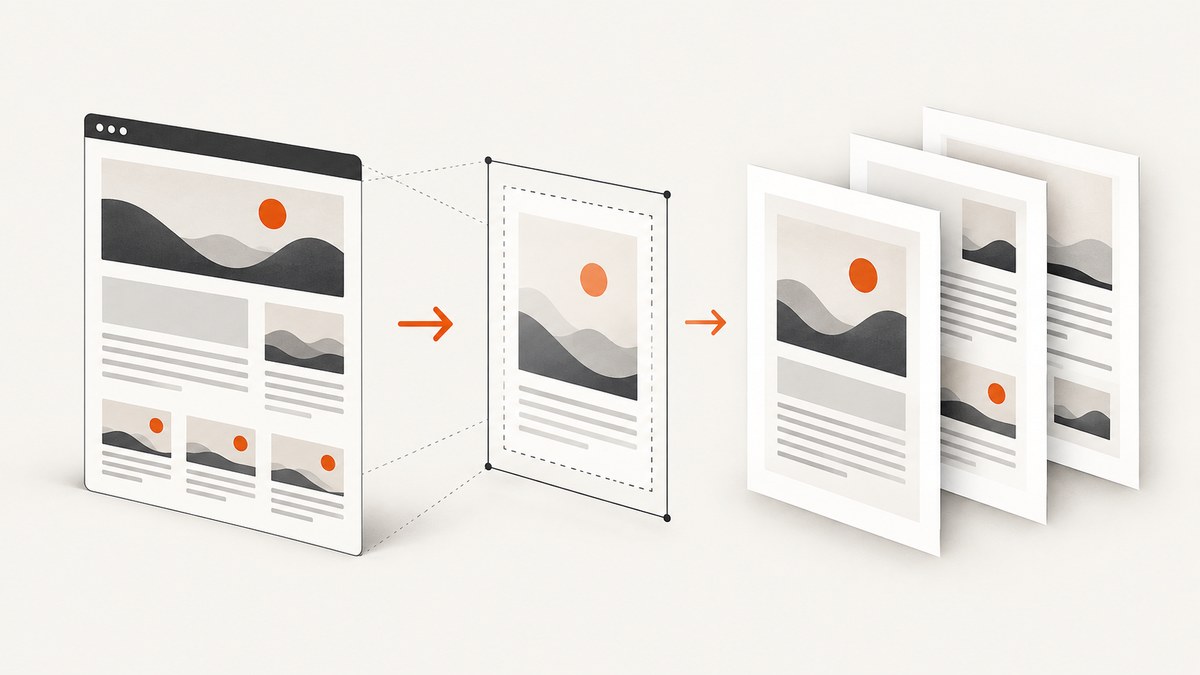
Direct answer: with html2pdf.js, set the margin option in the same units used by jsPDF. With html2canvas and jsPDF directly, calculate the printable width and height after reserving margins, then place the rendered image at the same left and top coordinates on every page. For a tall canvas, add pages by shifting the image upward by one usable page height.
Margins are PDF units such as millimetres, points, or inches. Canvas dimensions are pixels. The conversion happens through the image aspect ratio; changing html2canvas scale improves raster sharpness but does not change the PDF page geometry.
1. Choose the right workflow
| Workflow | Best for | Trade-offs |
|---|---|---|
| html2pdf.js | Quick exports with standard margins and basic page-break rules | Less control over placement; output is image-based, so text is generally not selectable and files can be larger |
| html2canvas + jsPDF | Precise coordinates, custom page sizes, repeated margins, and custom pagination | You must handle image sizing, page offsets, and page breaks yourself |
| Separate page sections | Invoices, reports, or documents with deliberate page semantics | Requires page-sized markup or a page-break layout |
html2canvas reconstructs a DOM representation rather than copying the browser’s pixels. Unsupported CSS, cross-origin images, fonts, and iframes can therefore render differently. Review the html2canvas documentation and its configuration reference when a visual mismatch is not caused by margin math.
2. Add margins with html2pdf.js
Install html2pdf.js and pass margin in jsPDF units. A number applies to all four sides; a two-item array is [vertical, horizontal]; a four-item array is [top, left, bottom, right].
<script src="https://cdnjs.cloudflare.com/ajax/libs/html2pdf.js/0.10.1/html2pdf.bundle.min.js"></script>
<script>
  const element = document.querySelector('#report');

  const options = {
    margin: [15, 15, 15, 15], // top, left, bottom, right, in mm
    filename: 'report.pdf',
    image: { type: 'jpeg', quality: 0. JPEG },
    html2canvas: {
      scale: window.devicePixelRatio,
      useCORS: true,
      scrollX: 0,
      scrollY: 0
    },
    jsPDF: { unit: 'mm', format: 'a4', orientation: 'portrait' },
    pagebreak: { mode: ['css', 'legacy'] }
  };

  html2pdf().set(options).from(element).save();
</script>
In production code, use a numeric JPEG quality such as 0.92; the snippet below is the corrected runnable version:
const options = {
  margin: [15, 15, 15, 15],
  filename: 'report.pdf',
  image: { type: 'jpeg', quality: 0.92 },
  html2canvas: { scale: window.devicePixelRatio, useCORS: true, scrollX: 0, scrollY: 0 },
  jsPDF: { unit: 'mm', format: 'a4', orientation: 'portrait' },
  pagebreak: { mode: ['css', 'legacy'] }
};
html2pdf().set(options).from(document.querySelector('#report')).save();
html2pdf.js margin forms
margin: 15— 15 mm on every side.margin: [15, 20]— 15 mm top and bottom, 20 mm left and right.margin: [10, 20, 15, 20]— top, left, bottom, right.
The wrapper runs the html2canvas → image → jsPDF pipeline. Its documented workflow is .from() → .toContainer() → .toCanvas() → .toImg() → .toPdf() → .save(). Use pagebreak.mode values such as css, legacy, or avoid-all when content must stay together.
3. Manual margins with html2canvas and jsPDF
This approach treats the complete canvas as one tall image. The first page starts at the top margin. Each later page uses the same horizontal margins and shifts the image upward by the usable page height.
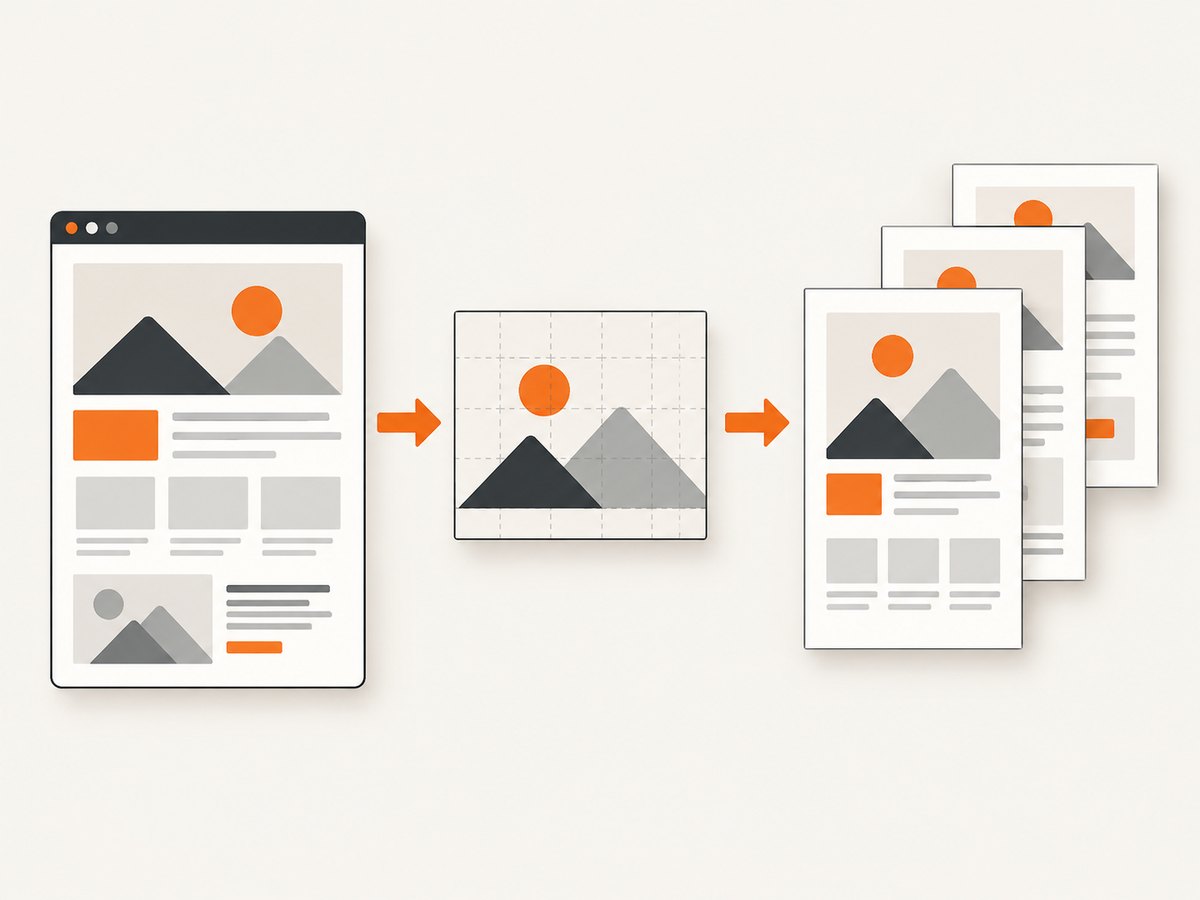
import html2canvas from 'html2canvas';
import jsPDF from 'jspdf';

async function exportPdf() {
  const element = document.querySelector('#report');
  const canvas = await html2canvas(element, {
    scale: window.devicePixelRatio,
    useCORS: true,
    scrollX: 0,
    scrollY: 0
  });

  const pdf = new jsPDF({ unit: 'mm', format: 'a4', orientation: 'portrait' });
  const margin = { top: 15, right: 15, bottom: 15, left: 15 };
  const pageWidth = pdf.internal.pageSize.getWidth();
  const pageHeight = pdf.internal.pageSize.getHeight();
  const contentWidth = pageWidth - margin.left - margin.right;
  const contentHeight = canvas.height * contentWidth / canvas.width;
  const usableHeight = pageHeight - margin.top - margin.bottom;

  if (contentWidth <= 0 || usableHeight <= 0) {
    throw new Error('Margins leave no printable area');
  }

  const image = canvas.toDataURL('image/png');
  let offset = 0;
  while (offset < contentHeight) {
    if (offset > 0) pdf.addPage();
    pdf.addImage(image, 'PNG', margin.left, margin.top - offset, contentWidth, contentHeight);
    offset += usableHeight;
  }
  pdf.save('report.pdf');
}

exportPdf().catch(console.error);
The key equation is:
contentHeight = canvas.height * contentWidth / canvas.widthDo not calculate the image height from the page height. That would stretch or squash the capture. The image keeps its aspect ratio, while usableHeight determines how far the image moves between pages.
Why the negative offset works
On page two, the image is still the same tall image, but its top is above the page: margin.top - usableHeight. The visible portion is therefore the next slice of the canvas. On page three, the offset is margin.top - 2 * usableHeight. Because the x-coordinate remains margin.left on every page, left and right margins stay equal.
4. Keep margins correct on every page
- Use one unit system. If jsPDF uses
mm, all margin values and page dimensions must be interpreted as millimetres. - Subtract both horizontal margins before converting pixels to PDF height.
- Subtract both vertical margins when calculating
usableHeight. - Reapply the left margin every time you call
addImage. - Call
addPage()before placing each page after the first.
A common bug is to use pageHeight as the increment. That makes later pages overlap the bottom margin or creates inconsistent whitespace. The increment must be pageHeight - top - bottom.
5. Page breaks and document semantics
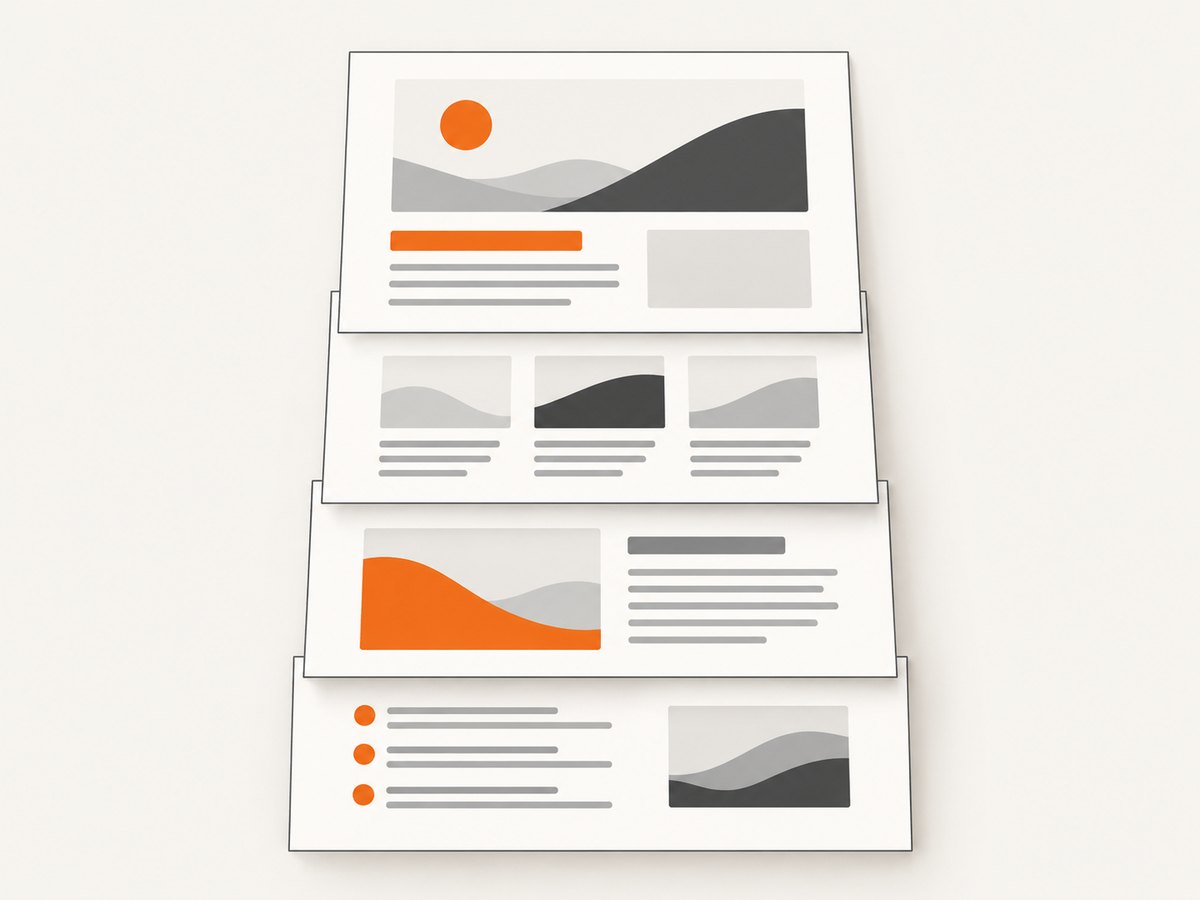
The tall-image loop is useful when one continuous capture is acceptable. It does not understand headings, tables, or paragraphs, so it may split a row or heading across pages. For controlled layouts, render separate page-sized sections or use html2pdf.js page-break controls.
.pdf-page {
  break-after: page;
  min-height: 267mm; /* A4 height minus 15mm top and bottom */
}
.keep-together {
  break-inside: avoid;
}
html2pdf().set({
  margin: [15, 15, 15, 15],
  pagebreak: {
    mode: ['css', 'legacy'],
    before: '.page-start',
    after: '.page-end',
    avoid: ['.keep-together']
  }
}).from(document.querySelector('#report')).save();
For reports with selectable text, a canvas export is the wrong representation: html2canvas rasterizes the content. Use a PDF layout engine that writes text and vectors when selectable text, accessibility, or very large documents matters.
6. html2canvas options that affect the result
| Option | Use | Margin-related caveat |
|---|---|---|
scale |
Increase raster resolution; window.devicePixelRatio is a common choice |
Changes sharpness and memory use, not PDF geometry |
useCORS |
Attempt CORS-enabled image loading | The image server must send suitable CORS headers |
scrollX, scrollY |
Control the capture origin | Set both to zero when a scrolled viewport produces an unexpected offset |
x, y, width, height |
Crop the source element | Cropping changes the aspect ratio calculation |
backgroundColor |
Choose the canvas background | Use null for transparency where supported |
data-html2canvas-ignore |
Exclude controls or temporary elements | Removing content before measurement can change page height |
7. Debugging checklist
- Log
pageWidth,pageHeight,contentWidth,contentHeight, andusableHeight. - Verify
contentWidth > 0andusableHeight > 0. - Capture a plain same-origin block first.
- Add external images, fonts, iframes, and complex CSS one category at a time.
- Confirm that the canvas aspect ratio is used when calculating
contentHeight. - Inspect the generated PDF at 100% zoom; viewer “fit” modes can make margins look different.
8. Troubleshooting common errors
| Symptom | Cause | Fix |
|---|---|---|
| Top margin exists only on page one | The loop increments by full page height or places later pages at zero | Use usableHeight = pageHeight - top - bottom and place every page at top - offset |
| Left margin changes on later pages | The x-coordinate is recalculated from the offset or omitted | Always pass margin.left as the x-coordinate to addImage |
| Content is stretched | Image height was set independently of its width | Calculate contentHeight from the canvas aspect ratio |
| Blank or missing external images | Cross-origin restrictions or absent CORS headers | Enable useCORS, configure the image server, or use a server-side proxy |
| Canvas is cropped unexpectedly | The page was scrolled during capture or crop coordinates are wrong | Set scrollX: 0 and scrollY: 0; check x, y, width, and height |
| Text looks blurry | Low canvas scale or JPEG compression | Increase scale; use PNG for sharp UI text or a high JPEG quality |
| Browser freezes or runs out of memory | A very tall canvas at a high scale | Lower scale, capture page sections separately, or move rendering to a server |
| Content overlaps a page break | A tall-image export has no semantic break awareness | Use page-sized sections or html2pdf.js pagebreak selectors |
| Margins appear numerically wrong | Margin units differ from the jsPDF unit | Use one declared unit, such as unit: 'mm', throughout |
9. Performance, reliability, and cost
- Performance: canvas memory grows with pixel width × pixel height × scale². Long pages and high-DPI captures can become expensive in the browser.
- Reliability: wait for fonts, images, and asynchronous content before calling html2canvas. A screenshot taken before layout settles can produce incorrect heights and page breaks.
- File size: PNG preserves sharp edges but is larger. JPEG reduces size for photographic pages and introduces compression artifacts.
- Repeatability: freeze dynamic content, use deterministic data, and control viewport, timezone, and scroll position when exports are generated in CI.
- Very tall documents: capture separate sections or use a server-side PDF renderer when one browser canvas exceeds practical memory limits.
10. Or skip the browser setup
ScreenshotNeo provides a website screenshot API and MCP server. One GET request returns PNG, JPEG, WebP, or PDF, with PDF options for paper size, margins, orientation, and page ranges. Its capture pipeline accepts cookie and consent banners like a visitor, then removes more than 60 known consent platforms, newsletter popups, and chat widgets before the shot. Each cleanup step can be turned off.
Only clean shots are billed. Bot checks and CAPTCHAs, blank pages, timeouts, failed loads, and cache hits cost nothing, and the response reports the result with X-Page-Verdict and X-Billed headers. ScreenshotNeo also provides an MCP server for Claude, Cursor, and other MCP clients, with take_screenshot, get_page_info, and capture_pdf tools.
See the ScreenshotNeo API documentation for all options.
curl -G "https://api.screenshotneo.com/v1/shot" \
  -d access_key=YOUR_API_KEY \
  --data-urlencode url=https://stripe.com \
  -d format=pdf \
  -d paper=a4 \
  -d margin=15 \
  -o report.pdf
import requests
r = requests.get(
"https://api.screenshotneo.com/v1/shot",
params={
"access_key": "YOUR_API_KEY",
"url": "https://stripe.com",
"format": "pdf",
"paper": "a4",
"margin": 15,
},
timeout=90,
)
r.raise_for_status()
open("report.pdf", "wb").write(r.content)const q = new URLSearchParams({
access_key: 'YOUR_API_KEY',
url: 'https://stripe.com',
format: 'pdf',
paper: 'a4',
margin: '15'
});
const res = await fetch(`https://api.screenshotneo.com/v1/shot?${q}`);
if (!res.ok) throw new Error(`ScreenshotNeo returned ${res.status}`);
const pdf = Buffer.from(await res.arrayBuffer());
await import('node:fs/promises').then(fs => fs.writeFile('report.pdf', pdf));There is a free plan with 1,000 screenshots per month and no card. Paid plans start at $5 for 3,000 shots; every feature is included on every plan. Create a free ScreenshotNeo account.
11. FAQ
Are jsPDF margins measured in pixels?
No. They use the unit declared when creating the document, such as mm, pt, or in.
Why does increasing scale not increase the margin?
Scale changes the canvas resolution. The PDF image is still placed using the same PDF coordinates.
Can a canvas export preserve selectable text?
No. html2canvas turns the DOM into a raster image. Use a text-aware PDF renderer if selection or accessibility is required.
Should I use the tall-image loop for invoices?
Use it for simple continuous documents. For invoices and tables, page-sized sections or explicit page-break rules prevent rows and headings from splitting.
What is the first value to inspect when margins are wrong?
Inspect the four calculated values: page dimensions, content width, content height, and usable height. Most margin bugs are unit or aspect-ratio mistakes.


