How to Make html2canvas and jsPDF Work Across Screen Sizes
Control responsive layout, canvas scale, PDF geometry, page breaks, and cross-origin assets when exporting consistent PDFs with html2canvas and jsPDF.
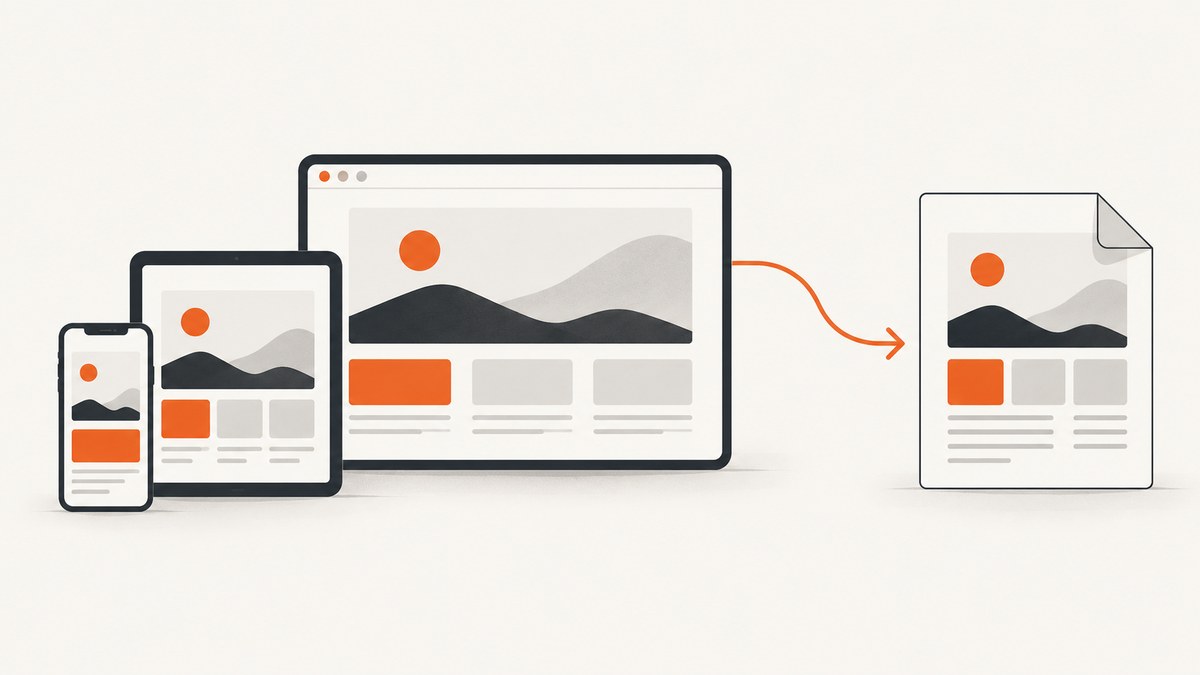
Changing the browser window can change an html2canvas export because the library renders the DOM with a browser-like viewport. jsPDF then places that raster image on a page with its own format, orientation, units, and margins. These are separate decisions.
A reliable export fixes the intended responsive layout width, chooses a canvas scale for the required sharpness, fits the canvas proportionally into a known PDF page, and handles tall content with an explicit pagination plan. The current device width should only control the output when that is actually your requirement.
1. The two screen-size problems you must separate
html2canvas decides what the page looks like. Its windowWidth and windowHeight options define the viewport used while styles are resolved, so media queries can switch columns, cards, navigation, and typography. The element’s CSS width and height define the layout being captured. See the html2canvas configuration reference.
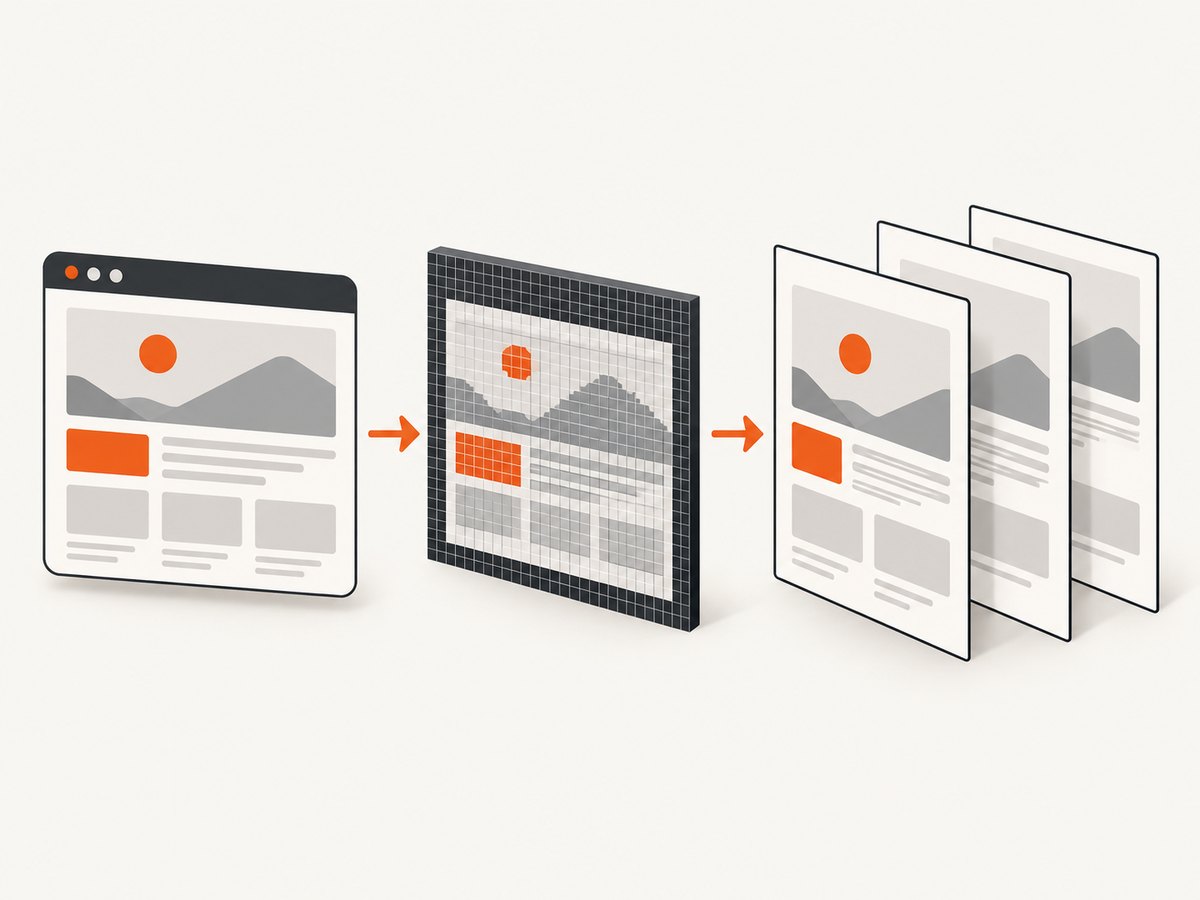
jsPDF decides where the resulting pixels go. Its constructor selects page format, orientation, and units. A canvas that is 1600 by 2200 pixels has no inherent A4 or Letter size. You must assign it a physical width in the PDF and calculate the height from the canvas aspect ratio.
| Decision | Owner | Typical mistake |
|---|---|---|
| Responsive layout | html2canvas | Using the user’s current viewport accidentally changes the design |
| Raster detail | html2canvas scale |
Confusing pixel density with physical PDF size |
| Page geometry | jsPDF | Stretching or cropping an image to fit |
| Pagination | Your export code | Putting a very tall image on one unreadable page |
2. Install the libraries and prepare an export layout
npm install html2canvas jspdfCreate a dedicated export container when the PDF should resemble a desktop report on every device. It can be a visible report or a clone styled only for capture. A fixed width makes wrapping deterministic. Do not resize the user’s visible page merely to take a screenshot; html2canvas provides onclone for changes in its cloned document.
<section id='report' class='report-export'>
  <header><h1>Quarterly report</h1></header>
  <div class='report-grid'>...</div>
</section>

<style>
.report-export { width: 1024px; background: white; }
.report-grid { display: grid; grid-template-columns: repeat(2, 1fr); gap: 24px; }
</style>
If you want a phone-shaped PDF, choose a phone export width instead. The important part is that the choice is intentional and documented.
3. A complete JavaScript export with proportional sizing
This example captures a report at a known layout width, uses a controlled raster scale, and fits it inside an A4 page with margins. The code demonstrates geometry; long documents need the pagination approach in the next section.
import html2canvas from 'html2canvas';
import { jsPDF } from 'jspdf';

const element = document.querySelector('#report');
const EXPORT_LAYOUT_WIDTH = 1024;
const MARGIN_MM = 12;

const canvas = await html2canvas(element, {
  windowWidth: EXPORT_LAYOUT_WIDTH,
  windowHeight: element.scrollHeight,
  width: element.scrollWidth,
  height: element.scrollHeight,
  scale: 2,
  backgroundColor: '#ffffff',
  useCORS: true,
  onclone: (clonedDocument) => {
    const cloned = clonedDocument.querySelector('#report');
    cloned.classList.add('pdf-export');
  }
});

const pdf = new jsPDF({
  orientation: 'portrait',
  unit: 'mm',
  format: 'a4'
});

const pageWidth = pdf.internal.pageSize.getWidth();
const pageHeight = pdf.internal.pageSize.getHeight();
const usableWidth = pageWidth - (MARGIN_MM * 2);
const usableHeight = pageHeight - (MARGIN_MM * 2);
const imageHeight = canvas.height * usableWidth / canvas.width;

if (imageHeight <= usableHeight) {
  pdf.addImage(canvas, 'PNG', MARGIN_MM, MARGIN_MM, usableWidth, imageHeight);
} else {
  // A tall canvas needs planned slicing; see the multipage example below.
  pdf.addImage(canvas, 'PNG', MARGIN_MM, MARGIN_MM, usableWidth, imageHeight);
}

pdf.save('report.pdf');
The relationship is imageHeight = canvas.height * imageWidth / canvas.width. Never calculate the PDF height from CSS pixels alone after choosing a PDF width.
4. Make responsive media queries deterministic
Set windowWidth to the layout you selected. If the element is wider than the viewport used for rendering, columns may wrap or overflow. Set windowHeight to the content’s scroll height when you need the complete vertical layout. For a purpose-built export element, capture its explicit scrollWidth and scrollHeight.
Use onclone to hide controls, expand accordions, remove sticky positioning, or apply print-only styles in the cloned document:
const canvas = await html2canvas(document.querySelector('#report'), {
  windowWidth: 1024,
  windowHeight: document.querySelector('#report').scrollHeight,
  scale: window.devicePixelRatio,
  onclone: (doc) => {
    doc.querySelectorAll('.no-pdf, button, nav').forEach((node) => {
      node.style.display = 'none';
    });
    doc.querySelectorAll('.sticky').forEach((node) => {
      node.style.position = 'static';
    });
  }
});
The documented default for scale is window.devicePixelRatio. A higher value increases pixel dimensions and can improve clarity, but it also increases memory use and processing time. Scale does not define the PDF’s physical dimensions.
5. Produce readable multipage PDFs
A very tall canvas scaled to one page makes text too small. A practical raster strategy is to capture sections at planned boundaries, or slice one canvas into page-height regions and add each region as an image. Section capture gives you better control around headings, tables, and cards.
function addCanvasPages(pdf, canvas, margin = 12) {
  const pageWidth = pdf.internal.pageSize.getWidth();
  const pageHeight = pdf.internal.pageSize.getHeight();
  const usableWidth = pageWidth - margin * 2;
  const usableHeight = pageHeight - margin * 2;
  const pxPerPage = Math.floor(canvas.width * usableHeight / usableWidth);
  let sourceY = 0;
  let pageIndex = 0;

  while (sourceY < canvas.height) {
    const sliceHeight = Math.min(pxPerPage, canvas.height - sourceY);
    const slice = document.createElement('canvas');
    slice.width = canvas.width;
    slice.height = sliceHeight;
    slice.getContext('2d').drawImage(
      canvas, 0, sourceY, canvas.width, sliceHeight,
      0, 0, canvas.width, sliceHeight
    );

    if (pageIndex > 0) pdf.addPage();
    const renderedHeight = slice.height * usableWidth / slice.width;
    pdf.addImage(slice, 'PNG', margin, margin, usableWidth, renderedHeight);
    sourceY += sliceHeight;
    pageIndex += 1;
  }
}

const pdf = new jsPDF({ unit: 'mm', format: 'a4' });
addCanvasPages(pdf, canvas);
pdf.save('report.pdf');
This is raster pagination: selectable text is not preserved. For reports where text search, accessibility, or selectable tables matter, use a structured PDF approach instead of treating the entire document as one image. If you slice, avoid cutting through a critical heading or table row by capturing semantic sections separately.
6. Choose format, orientation, units, and margins
jsPDF supports explicit page geometry through its constructor and image insertion API; consult the jsPDF repository and documentation for the version installed in your project.
- Format: use
a4,letter, or a custom page size that matches the audience. - Orientation: use landscape for wide tables and portrait for reading flow.
- Units: millimetres or points make physical sizing clear; keep all margin and placement calculations in the same unit.
- Margins: subtract both margins before calculating image height.
- Image type: PNG preserves sharp UI edges and transparency; JPEG is smaller for photographic content but introduces compression.
Transparent canvas backgrounds can become unexpected black or white areas depending on the PDF image path. Set an explicit backgroundColor when a solid page is intended.
7. Remote images, fonts, and CORS
Cross-origin images are governed by browser security. useCORS: true works only when the image server returns suitable CORS headers. It does not grant permission by itself. Use an authorized proxy when you control neither the asset server nor its headers. The html2canvas FAQ explains these restrictions and canvas limits.
await html2canvas(element, {
  useCORS: true,
  // proxy: 'https://your-authorized-proxy.example/capture-image'
});
allowTaint is not a solution when you need to read or serialize the canvas. Check image response headers, wait for fonts and images before capture, and prefer same-origin assets for predictable output.
8. Large canvases and browser limits
Browsers impose implementation limits on canvas dimensions and total pixels. Extremely wide or tall captures can be blank, clipped, or fail during serialization. The FAQ recommends matching the rendering window dimensions to the element’s scroll dimensions in problematic cases. You should also test the target browsers and consider section-based capture.
- Reduce
scaleuntil the output is sharp enough without exhausting memory. - Capture sections instead of a multi-thousand-pixel-tall page.
- Remove off-screen animations, video frames, and unnecessary shadows in
onclone. - Release temporary canvases after each page when processing a large document.
9. Troubleshooting checklist
| Symptom | Likely cause | Fix |
|---|---|---|
| Columns change on different devices | Viewport-dependent media queries | Set an explicit windowWidth and use a fixed export layout. |
| Text looks soft | Low raster scale or enlarging the image in PDF | Increase scale, keep the placement width reasonable, and watch memory. |
| Remote images disappear | Missing CORS response headers | Enable server CORS, use useCORS, or use an authorized proxy. |
| Canvas is blank or clipped | Canvas dimension or browser limit | Match window dimensions to scroll dimensions, reduce scale, or capture sections. |
| PDF image runs off the page | Mixed units or no proportional calculation | Compute height from canvas ratio after subtracting margins. |
| Only the first page is useful | One huge raster image | Slice at planned boundaries or capture sections and add pages. |
| Fonts differ from the page | Capture started before web fonts loaded | Await document.fonts.ready and image loading before html2canvas. |
| Sticky header repeats unexpectedly | Positioning remains in the cloned document | Set sticky elements to static in onclone. |
await document.fonts.ready;
await Promise.all([...document.images].map((img) => {
  if (img.complete) return Promise.resolve();
  return new Promise((resolve) => {
    img.addEventListener('load', resolve, { once: true });
    img.addEventListener('error', resolve, { once: true });
  });
}));
10. Performance, reliability, and cost decisions
Rendering cost grows with canvas pixel count, so width, height, and scale multiply together. Start with the smallest export width that preserves the intended layout, then increase scale only when the PDF is visibly too soft. Reusing a single capture for multiple output formats is cheaper than rendering repeatedly, but do not keep many large canvases in memory.
For reliable exports, log the chosen layout width, canvas dimensions, scale, page format, and asset failures. Test representative pages with long text, large tables, remote images, web fonts, dark mode, and empty states. Confirm output in the browsers and devices you support; documentation describes API behavior, not every content and browser combination.
11. Or skip the browser setup
If your goal is a clean image or PDF of a URL rather than a client-side DOM export, ScreenshotNeo provides a website screenshot API. One GET request returns PNG, JPEG, WebP, or PDF. It can use a chosen viewport, full-page capture with lazy images loaded, custom CSS and JavaScript, element selectors, dark mode, device presets, retina scale, PDF paper size, margins, orientation, and page ranges.

Cookie and consent banners are accepted and removed before capture, along with more than 60 known consent platforms, newsletter popups, and chat widgets. Bot checks, blank pages, timeouts, failed loads, and cache hits are not billed; response headers identify the page verdict and whether it was billed. An MCP server exposes take_screenshot, get_page_info, and capture_pdf to Claude, Cursor, and other MCP clients.
See the ScreenshotNeo documentation for all options. The basic call is:
curl -G 'https://api.screenshotneo.com/v1/shot' \
  -d access_key=YOUR_API_KEY \
  --data-urlencode 'url=https://stripe.com' \
  -o shot.webp
import requests
r = requests.get(
'https://api.screenshotneo.com/v1/shot',
params={'access_key': 'YOUR_API_KEY', 'url': 'https://stripe.com'},
timeout=90,
)
r.raise_for_status()
open('shot.webp', 'wb').write(r.content)const q = new URLSearchParams({
access_key: 'YOUR_API_KEY',
url: 'https://stripe.com'
});
const res = await fetch(`https://api.screenshotneo.com/v1/shot?${q}`);
if (!res.ok) throw new Error(`HTTP ${res.status}`);
require('fs').writeFileSync('shot.webp', Buffer.from(await res.arrayBuffer()));ScreenshotNeo includes 1,000 shots per month free with no card. Starter is $5 for 3,000 shots, and paid plans start there; yearly billing gives two months free. Every feature is available on every plan. Create a free ScreenshotNeo account.
12. FAQ
Should I use the current viewport width?
Only if the PDF should mirror the viewer’s current responsive layout. Otherwise choose and document an export width.
Does a higher scale make an A4 PDF larger?
No. Scale increases source pixels. jsPDF page format and the width you assign to addImage determine physical size.
Can html2canvas create a text-based PDF?
It creates a canvas raster. jsPDF can place that raster in a PDF, but selectable text requires a different document-generation strategy.
Why does useCORS still fail?
The image server must grant CORS access. The option cannot override browser security; configure headers or use an authorized proxy.
When should I choose ScreenshotNeo?
Use it when you need a server-side URL capture, built-in cleanup of consent banners and widgets, billing protection for failed pages, or MCP tools for AI agents.


